This page covers the steps necessary to set up Outlook 2010, Outlook 2013, Outlook 2016, or Outlook 2019 on a new computer.
The steps are similar for all versions of Outlook and Windows, but dialogs and folder paths can vary between versions or builds.
If you use Exchange accounts (including Outlook.com), you only need to move archive PST files; everything in the mailbox will sync down to the account on the new computer. The same applies to IMAP accounts, however, IMAP is email-only.
By default, if your mail server supports IMAP, Outlook will create an IMAP account. If you want to use POP3, you'll need to choose the option to change settings.
- Step 1: Get the files from old computer
- Step 2: Put Files on New Computer
- Step 3: Create a Profile
- Step 4: More Settings
- Step 5: Add Old Data File (*.PST)
- Step 6: Finishing Touches
- Step 7: Signatures & Stationery (and custom dictionary)
Do you leave mail on the POP3 server? See this section. By default Outlook 2010 and up automatically leave POP3 mail on the server for 14 days.
Things to keep in mind when you are preparing the new computer:
- You really only need to move the PST (Outlook Data File) and create a new profile using this PST, the other files Outlook uses are created as you use Outlook.
- When you use IMAP or Exchange (including Outlook.com), Outlook will need to resync the mail. For Exchange, it will also sync calendar, contacts, and tasks.
- If you use Outlook 2013 or newer on the old computer and have Calendar, Contacts, and Tasks folders labeled 'this computer only', expert the folders to a CSV.
- You need to install Office (or Outlook) on the new computer. You can only move user data, not the program itself.
- Your accounts are stored in the registry and need to be recreated on the new computer.
Step 1: Get the files from old computer
If you use POP3 or have archives or local PST files in your profile, you'll need to move them to the new computer. It's not necessary to move data files used for IMAP email, Outlook.com, or Exchange mailbox as the mail (and calendar and contacts for Outlook.com and Exchange) are stored on the mail server.
If you need to recover pst files from a hard drive removed from a crashed computer, see Recover Outlook Data Files from a Crashed Computer
The PST file contains your POP3 email, calendar, and contacts. You may also have an archive PST file.
If you have an IMAP account in Outlook 2010 or older, you'll have email in one PST file and a separate *.PST file for Calendar, Contacts, Tasks, and Notes. You'll need to copy the *.PST used for calendar and contacts to the new computer. you dont need the IMAP data file. Outlook will create a new data file.
Beginning with Outlook 2013, Outlook uses an *.OST file for IMAP accounts, and can store Calendar, Contacts, and Tasks in the *.OST file, in folders labeled '(This computer only)'. If you have Outlook items in the 'This computer only' folders, you'll need to export the Calendar, Contacts, and Tasks (and Notes) from these folders to a CSV file to use them on the new computer.
You may have more than one PST. In most cases, they will be in the default location Outlook uses. In Outlook 2010 (and up), the default location for *.pst files used for POP3 or for calendar and contacts is in Documents\Outlook Files.
When the pst files are in the default location for Outlook 2007 and older (in C:\Users\username\AppData\Local\Microsoft\Outlook), you can quickly access the default PST location from Windows Explorer by pasting this line in Windows Explorer's address bar to jump to the folder.
%localappdata%\Microsoft\Outlook
You'll see a list of files in the Outlook folder. You need to copy the Outlook Data Files (PST). Note that Outlook needs to be closed to copy a pst that is in the active profile. Outlook can hold PST files open for as long as 30 minutes after you close Outlook; if you receive any errors when copying the PST, wait a few minutes and try again.
You'll copy the PSTs to the new computer. If you have several PSTs in the folder and aren't sure which one is the one with your data, look at the file dates and file sizes. If you have 265KB or 513KB PST files, they are empty and don't need to be moved.
Show Hidden Files
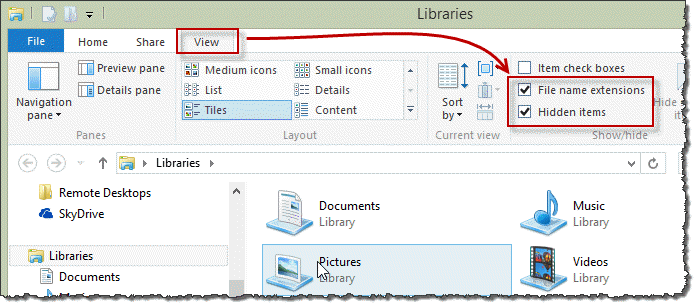
If you have Windows configured to hide extensions, enable File name extensions on Window Explorer's View ribbon.
In Windows 7, show file name extensions on the Organize, Folder and Search Options, View tab. This makes it easier for you to see the files you are copying.
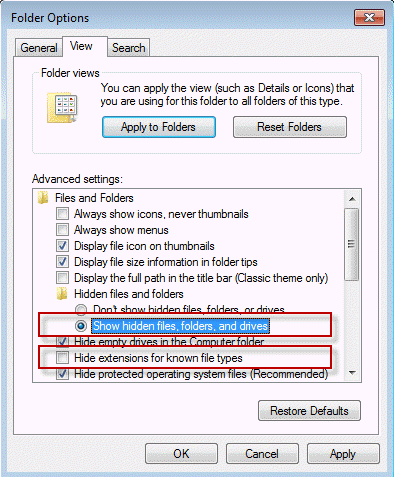
You can also choose the option to Show hidden files and folders, although its not necessary since we are in the hidden folders.
Get the other Outlook support files
Paste the following line into the address bar to jump to C:\Users\%username%\AppData\Roaming\Microsoft\Outlook
%appdata%\Microsoft\Outlook
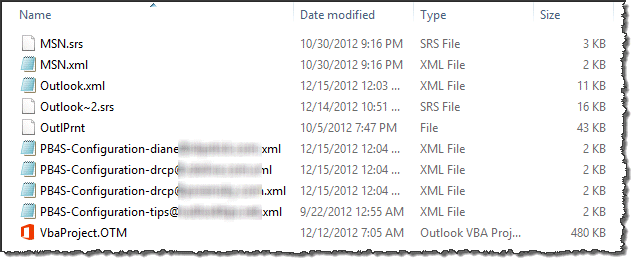
In this folder you'll have the NK2 (autocomplete nickname file, Outlook 2007), or autocomplete stream files (Outlook 2013/2016), SRS (send and receive settings), XML (navigation pane and account configuration), outlprnt (printer configuration) and OTM (VBA project files).
If you are using macros, you'll need to move the VBA file. You may want to copy the NK2 or autocomplete stream file to the new computer so you have your autocomplete list. (Either will need to be renamed to replace the file your new profile creates.) The SRS and XML files corrupt easily and I don't recommend moving them.
Ribbon customizations (.officeUI files) are stored in C:\Users\username\AppData\Local\Microsoft\Office (%localappdata%\Microsoft\Office). You can export your customizations from the application or copy the officeUI files from this folder.
Rules are stored in the PST and will be on the new computer if you copy the PST but to be safe, export them to an RWZ file. Rules are NOT included when you Import and Export.
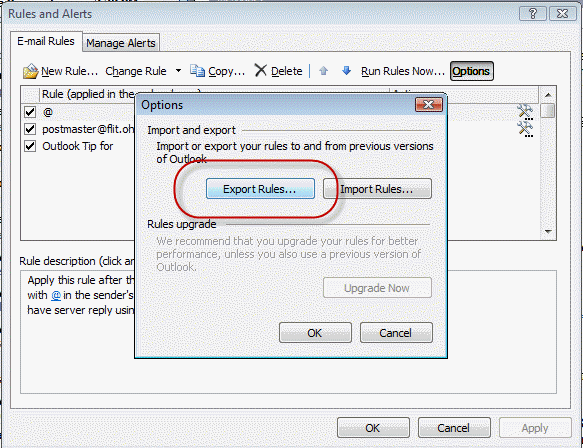
Also export names on the safe and blocked senders lists. Export all 3 safe/blocked lists (if they contain names).

Step 2: Copy the Files to the New Computer
Install Outlook on the new computer, if you haven't already.
It's not necessary to uninstall Office (or Outlook) from the old computer before installing it on the new computer; uninstalling it will not deactivate the license. Read the EULA to determine if you are in violation of the licensing agreement by leaving it installed.
Put the PST files in Documents\Outlook Files or in the desired location (that is easy to back up). PST files are not supported in network locations or in cloud drives, such as OneDrive, Dropbox, etc.
Open the Office folder using the command below and place the ribbon files in it.
%localappdata%\Microsoft\Office
Step 3: Create a Profile
Now you are ready to create the new profile. If you use IMAP or Exchange accounts, click on the Outlook shortcut and use the auto account setup wizard to create your account. If you need to customize the configuration or use POP, you may want to skip the auto account setup wizard, especially if you use Outlook 2016 or Outlook 2019.
To set up the account manually, you'll need to use the Mail applet. You can find it in the Control panel or use the manageprofiles switch.
To use the /manageprofiles switch, right-click on the Start button and choose Run or press Windows key + R to open the Run command.
Type or paste the following into the Open field and press Enter or click OK to restart Outlook. (There is a space before /.)
outlook.exe /manageprofiles
- Click Add and enter a name for the profile.
- Enter your account information and password and let Outlook find the basic account information.
- Outlook will default to IMAP, so click the Change account setting box and click Next if you want to use POP.
- Choose Existing Outlook Data file and browse to find the one you moved.
- Click Next and finish the wizard.
Outlook will be able to find the settings for almost all email accounts when you use Auto Account Setup. Outlook will set your account up for you. If you use IMAP, I recommend using it as it eliminates errors.
For a video tutorial showing how to create a new profile, see How to Create a New Profile
If you want to set up an account using other server options, click the Manually configure... checkbox to set up your account yourself.
Choose the account type and click Next. Enter your name, email address and mail server names as well as your password. Most mail servers do not require SPA, so leave it unchecked unless your ISP tells you to use it.
After Outlook sets up the account using auto account setup, you can click the Manually configure server settings box to get into More Settings and customize the Outgoing server settings. You will need to do this if you have an old PST to use with a POP account.
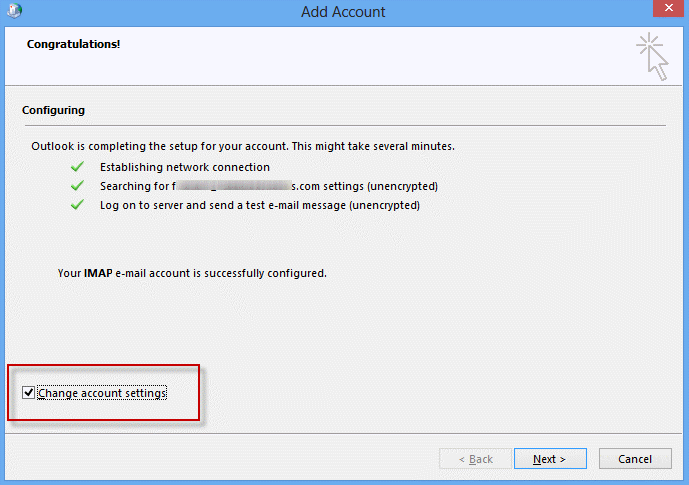
Step 4: More Settings
If you clicked Finish and returned to the Profile selection dialog, select your profile and click Properties to get to the More Settings button.
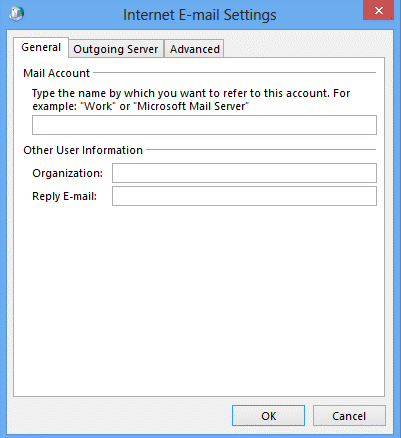
Configure additional server options in the More Settings dialog, including leaving mail on the server (for POP3 accounts) and alternate SMTP ports.
Outlook 2010 users with IMAP accounts can select Sent items and Deleted Items folders. (Outlook 2013 queries the IMAP server for the Sent and Deleted items folders to use, therefore you can't select the Sent and Deleted folders in More Settings.)
General tab: Enter a Reply to Address, if using an address different from your account address on the first screen. (Most people don't enter a reply address.)
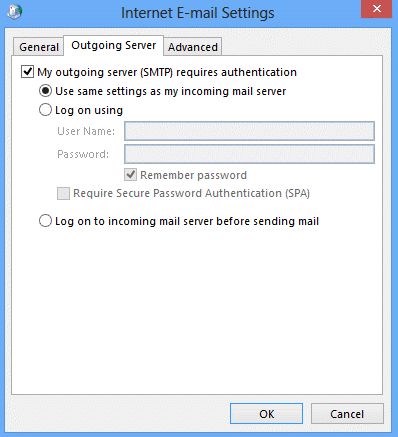
Outgoing Server tab: Configure your outgoing server authentication. Many ISPs now require SMTP authentication. If you aren't sure, check your mail provider's support website.
Advanced tab: Configure alternate ports (if used) for incoming and going email on this tab and set POP3 accounts to leave mail on the server, if desired.
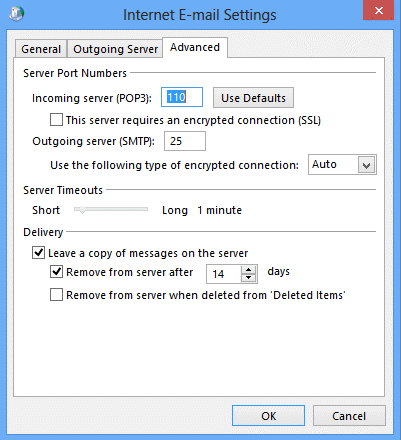
If you aren't sure if you need to use an Alternate port, check your mail provider's support. Many mail servers use the standard ports but more and more are using alternate ports in an effort to combat spam.
If you use auto-account setup to configure the account, the correct ports may be entered for you.
If you aren't sure - ask your mail provider!
Click Ok when you are finished configuring More Settings then click Next to exit the New Profile wizard.
Step 5: Add Your Existing Data File (PST) to the Profile
If you have an Outlook data file (*.PST) you want to use as the default account in your new profile, choose the option to Manually configure account after AutoSetup is finished. Choose to use an existing data file and select the pst file you moved from the other computer.
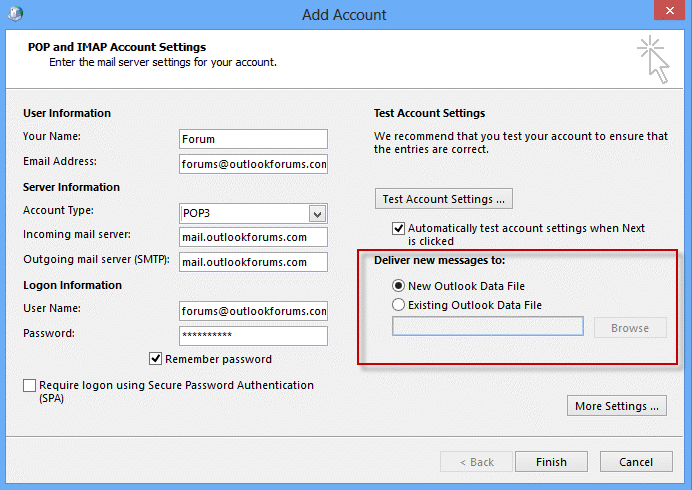
If you did not select to manually configure the account and returned to the Profile dialog, follow these steps. Do not open Outlook until you change the PST.
- Select the newly created profile then click Properties.
- Click Data files button to open the Account Settings dialog to the Data files tab.
- Click Add then browse to your existing PST file.
- If you are asked to select a PST format, choose Outlook Personal File. Click Ok
- Select your existing PST file.
- You can enter a friendly name or just click Ok to return to the Account Settings dialog.
- Click the Set as Default button.
- Select the PST Outlook created when it created the profile and click Remove. If you want, click Open folder to find and delete this PST.
Close the dialogs.
Step 6: Finishing Touches
If you are going to use the NK2 from your old computer, use the following command to open the Outlook folder where the NK2 belongs and rename the old one to match the name of your new profile. (If Outlook created a new NK2 already, delete it.)
%APPDATA%\Microsoft\Outlook
Now start Outlook. Check your calendar and contacts folders then open a new message and click the To button. Do you see your Contacts?
Go to Tools, Rules Wizard and check your rules. Import the RWZ file if necessary.
In Tools, Options, Junk email, import the Safe and Blocked lists.
Step 7: Signatures & Stationery
If you are using Signatures, custom Stationery, or want to save your custom dictionary, you'll want to move these files to the new computer. Use the command below to open the folder where the Signature, Stationery, and Proof folders are (on both computers).
Outlook doesn't use the Stationery folder under My Documents, the stationery needs to be in the appdata\roaming path. Create the Stationery folder if it does not exist.
%APPDATA%\Microsoft\
After moving the signatures, you'll need to configure your accounts to use them. This is in File, Options, Mail format tab, Signatures.
Note: For signatures created in older versions of Outlook, select the signature in the signature editor and press Save to convert it to newer HTML code. Repeat for each older signature. This converts the HTML to newer code (using CSS) and prevents inconsistencies which may come up when switching or deleting signatures in a message.
Leave Mail on the server issue
When you use a POP3 account and leave mail on the server, Outlook may re-download all of the mail.
As long as you move the old POP PST file, Outlook should know what mail was previously downloaded and skip it. But, just in case it doesn't, disable your internet connection and set up a rule to Move mail received yesterday.
- Rules > Manage Rules and alerts.
- Click New rule, Select Apply to all mail I receive and click Next.
- About 10 from the bottom is ‘ received in a specific date range’
- Tick before and choose yesterday (or the last time you checked mail)
- Click next, choose move it to the specified folder and choose a folder.
- Finish the wizard and close the dialog.
- Go back on line.
Some email accounts can be configured to only allow new mail or mail that arrived after a certain date to be downloaded. Log into your account online and check your account options to see if you are one of the lucky ones.
More Information
Customizations made in File, Options are in the registry under the HKEY_CURRENT_USER\Software\Microsoft\Office key. In most cases, I do not recommend exporting this key. Most settings will be lost if you are upgrading to a new version of Outlook.
Windows Messaging Backup and Dual-Boot
Outlook 2007 Backup and File Locations
Outlook 2010 Backup and File Locations
How to move the IMAP personal folder (*.pst)
To move a Personal Folders .pst file
Where Are My Files? (Outlook-tips.net)
This page is an update to our page at Moving Outlook to a New Computer, which covers moving Outlook 2003 or 2007 from Windows XP to Windows 7 (or above).

JimBob says
I am migrating from a W10 laptop running Classic Outlook 2021,
to a New W11 Laptop with Classic Outlook 2024.
Diane et. all:
Is there anything that I need to be careful of or modify for a 2021 --> 2024 migration?
Thank you very much in advance 😎
Jim
Diane Poremsky says
Office 2021 and Office 2023 are both Office 16.0 - the only difference is features, but mostly only for Microsoft 365 mailboxes.
If you use POP or have PST files, copy them to the new computer and open in outlook, don't export or import.
Oh, and on the chance the classic Outlook does not get installed, download from here: https://support.microsoft.com/office/install-or-reinstall-classic-outlook-on-a-windows-pc-5c94902b-31a5-4274-abb0-b07f4661edf5
JimBob says
Thank you Diane VERY MUCH!
I count how many times your sage advice has saved my bacon over the years!
I am, for a convoluted set of reasons, still using POP + PST configuration.
I get a new machine so seldom that the memories of prior migrations
fade from memory ... (even with all the notes i take...) 😅
Diane Poremsky says
If you copy and reuse the PST and are leaving mail on the server, Outlook should only download new mail, not previously downloaded mail. Plus you'll keep views and rules - although rules that move mail may need to be repointed to the correct folder.
JimBob says
Thanks! :-)
I have 5 POP accounts to create on the new machine.
One from Gmail that may be a bit of a challenge,
the other four are more "traditional" POP accounts.
The "Mail" applet doesn't seem to be on my new W11 machine,
but I think what I did last time was
Sound good, or is there a landmine out there waiting for me? 😁
Again thanks,
Jim
Diane Poremsky says
that is the recommended way - make sure you click Advanced options and choose manual set up or that will be added as imap. For gmail, you will need an app password to add the account as pop3. https://www.slipstick.com/outlook/google-workspace-outlook-pop-mail/
JimBob says
Awesome!
Thanks Diane! I hope to have it up and running later today!
Where is the button that says "Click here to buy Diane a bottle of wine" ??? 😎
Diane Poremsky says
LOL I really should add one... glad to hear you got it working.
JimBob says
Thanks to you I think I'm good!
and YES you should have that button 😄
Mike says
Sadly I have customers who are using third-party email hosts that don't play nicely like an Exchange server. All their email history is local to their PC and contained in an .ost file - which doesn't seem to be portable to a new PC (upgrade or old one died). Is this by design (to disadvantage M$ competition or for "security"). Is there any workaround or does a PC upgrade now trash all past emails?
Diane Poremsky says
Upgrading in place should keep the profile and retain all of the mail.
If they are ost files, it should be imap, which means everything is on the server and it will sync when you set up a new computer or make a new profile .But... as long as the account is in outlook, you can export to a pst for backup.
FYI - You need to change the view on folders to see the mail if you export from IMAP.
Fix the Outlook Folder Type after Exporting an IMAP Account (slipstick.com)
Jerry says
Thanks Again Diane for being the Outlook savior.
James Simoneau says
Hi Diane,
This has to be one of the most thorough "how to's" for moving outlook to another computer.
However, the backside is by trying to cover all possible options, the reader gets lost and a clear path for a particular case is far from obvious.
I do appreciate the effort and would like to suggest that you add a couple of straightforward examples like moving an windows outlook 2016 account to a new computer with outlook 2019. Or moving a 2019 outlook to new computer with outlook 2019 as well.
We are in 2020 and this would cover a large percentage(2016-2020) of todays needs in this area
Diane Poremsky says
Yeah, it can get confusing.
>>
windows outlook 2016 account to a new computer with outlook 2019. Or moving a 2019 outlook to new computer with outlook 2019 as well.
>>
The versions don't really matter - its the same for all. Outlook 2016/2019/365 are all v16.0 and the only difference is the license and features.
The only issue is if you use PST files, the default path could be in the appdata path or in documents\outlook files, depending on what version of Outlook created them. Ok, second issue is calendar & contacts in an IMAP account. 'this computer only' folders need exported.
Art Hansen says
HI Diane - thanx for this valuable site. I'm on Outlook in Win7. Primary .pst is D:\My Documents\Outlook Files and 7 IMAP account pst files are in a subfolder accessed via a C:\...\Outlook junction (per instructions on another of your posts - ty). This setup was functional.
I’m in the process of setting up Outlook after a fresh Win7/MS Office install. Using Control Panel à Mail a new profile has been created and the D:\My Documents\Outlook Files .pst added and set a default. I’ve not been successful, however, in getting the associated IMAP email accounts populated. [I can add them as Data Files which enables viewing them but of course they’re not seen by Outlook as email and therefore cannot send/receive.] I had expected the “master” .pst to automatically reference the associated IMAP pst files but that doesn’t appear to be the case. Did I miss something in your instructions above or is there something else I need to do?
Thanx in advance for your assistance. I'll use my gmail account for email contact as I can access that. Art H.
Diane Poremsky says
IMAP data files are linked to the profile that created them - you can't reuse them in a new profile (and unlike POP, don't need to - everything will resync). Had you exported the old profile and reused it, you could use the old data file.
You can try this, but I don't think it will work- if outlook is using the junction point location, you'll need to have the imap data file you want to use in a different location.
Close Outlook. Copy a PDF to the folder where Outlook created the default imap data file. Rename it (including the extension), using the name of the imap data file. Restart outlook. When it complains, point it to the old imap data file. Outlook *should* use the imap data file, but I think it will refresh it - so you won't save any sync time.
Art Hansen says
I'm unfamiliar with exporting a profile. I looked at Control Panel > Mail > Profiles but only found "Copy" as a possibly related action. Looking in Outlook proper I found the Import option (which actually also has export capabilities) in Account settings but the result of Exporting the .pst was a file the same size as my mater .pst so obviously doesn't include the IMAP account data files.
Did, however, find pointers via google to exporting a specific Registry key [in my case: HKEY_USERS>long-hyphenated-alphanumeric > Software > Microsoft > Windows NT > CurrentVersion > Windows Messaging Subsystem > Profiles]. Whilst the instructions I found were actually incorrect, doing a Find on Windows Messaging Subsystem gave me a possible hit albeit almost totally in hex so I'm unable to determine the content.
Is an export of the Profile's Registry info what you’re referencing above? If yes, than am I correct in presuming the process for using the export would be to:
I did note an assertion that the profile’s Registry data does not contain the email account passwords; do you know if that is accurate info?
Thanx in advance for your help and patience.
PS I did not attempt to “trick” Outlook using the PDF ploy so can’t say if it works.
PPS I’m actually old enough to have used a slipstick ;-)
Diane Poremsky says
Sorry I missed this earlier. :(
The profile is in the registry - the registry entry you found is for older versions of outlook. The profile is now under the Office\16.0\Outlook key.
>>
I did note an assertion that the profile’s Registry data does not contain the email account passwords; do you know if that is accurate info?
>>
Correct. The passwords are not exported. (They will be for POP and IMAP, but are encrypted and not usable.) You'll need to reenter the passwords.
Ginny says
Hi Diane, can I message or call you directly? I recently got a new HP elitebook, and set up access to MS Outlook and got my gmail, no problem, but then I tried importing my old Outlook pst file because I was missing all of my contacts. What resulted was that I got my contacts but I now cannot get any new mail since that action. My Outlook is stuck and saying it is synchronizing subscribed folders and I'm also getting sidebar notifications from Microsoft of new mail in "Gmail2" but don't know where to find it - doesn't show up in my Outlook software. I don't know how to fix!
Diane Poremsky says
It sounds like you have an imap account - you probably don't want to import mail into it, for starters, you can take the mailbox over quota and need to archive it.
I would Open the pst file in the profile and set it as default data file.
Then close outlook and rename the imap ost file - its at %localappdata%\microsoft\outlook - and let outlook make a new one. Any of the pst mail that didn't sync up yet, won't sync up.
If you have pop before and want to go back to pop, you can but need to use the manual set up option. It under Advanced options on the First add account screen.
Geza Levai says
Diane, I just finished read this article, but unfortunately it didn't address my Outlook problem and so far I couldn't even found any post on the net that even talks about the same situation that I have. I was wondering if you could give me some pointers to look at, I used to be a network admin, so I'm not afraid of touching the registry or running any script if that would fix my problem. This is it in a nutshell:
I just did a clean install of Windows 7 Pro and Office Home & Business 2010 and set up Outlook according to the bible, including copying the PST file from the backup drive to the new hard disk. I did install SP2 for the MS Office, every function of Outlook works as it supposed to except one thing: The Reminders window doesn't pop up even though I had about 10 items in the reminders window before I reinstalled everything. If I create a new event with a reminder option, the reminder window does pop up. But all the events that was part of the PST file before the new install, won't trigger the Reminders window.
I have read several supporting articles about Reminder window problems, one of them suggested to run three different Outlook /switch command lines one after the other, that didn't help. I'm out of ideas but I really need my old calendar entries to trigger the reminder window in the future otherwise I am going to read through all my calendar items going back at least 3 years to make sure that I won't miss out on any important one.
A subquestion: How can I list all reminders from my PST file so that I could print them into a PDF file and with it I could slowly but surely I could readd the important reminders if I cannot fix this really annoying problem?
Diane Poremsky says
Reminders are not exposed - you can use a list view and see the remind at time. This should have the time, even if dismissed. Or you can use a macro to list the times.
Liz Schneider says
We are getting stuck on Step 5, pointing to use an existing PST file but when clicking to browse to the file, the computer does not pop up a file explorer window so cannot navigate to where the PST files are stored (in Documents/Outlook folder). Hidden files are set to display, just not sure why unable to nagivate to the folder. There is no 2nd monitor that the navigator might be using to display that search feature. This is Office 365 software.
Diane Poremsky says
So the file browser isn't coming up?
You can let outlook set it up with a new pst then add the pst after outlook is open - either using File > Open & Export > Open Outlook Data File or in Account Settings > Data Files tab. You'll need to point the POP accounts to the pst files on the Email tab - select the account then lick Change Folder at the bottom.
Jim says
Diane, regarding importing the RWZ file, does the file need to be saved in a certain location or even saved at all after the import has been completed? I converted recently from POP (old laptop) to IMAP (new computer). Both computers had Outlook 365. Also, I noticed after the import that IMAP didn't care for a lot of the rules and generated a pop-up stating that some of the steps were incomplete. Thanks for your ongoing assistance .............
Diane Poremsky says
The RWZ file can be in Documents or anywhere - its only used to import. You can delete it or save it as a backup.
Any rule that moves mail to a folder will need to be re-pointed to the correct folder.
marcus says
The best part of this article is the autocomplete information. I no longer have to hear people incorrectly tell me their contacts are missing. It is their auto-complete which I was told a long time ago you could not transfer this.
Zola says
A truly awesome article, which I can just about relate to as a non-techie airhead. The only challenge I am having is migrating the calendar entries from my Outlook 2010 (on one machine) to Outlook 2016 (on a new machine)
I have a single IMAP account that I want to transfer across. I simply went into Outlook 2016 and created the mailbox by just entering my chosen name, email address and password and the IMAP server created and populated the account with all my emails. So far so good.
However, I don't see my contacts or calendar. I know I can export my contacts using the export function in 2010 and saving them to a CSV file and importing them into 2016 - which I have successfully done. But I am still having an issue with my Calendar.
I have a "Outlook Data File" pst in my \documents\Outlook files\ folder on my old machine. I am presuming that file holds my calendar data?
My mailbox pst is stored in the usual \appdata\local\....\outlook\ folder. When I try to export this using the Outlook export tool I don't see a folder for calendar. So do i need to export or copy & paste the "Outlook Data File" instead, and hope my Calendar data will appear?
Hope this makes sense.
Thanks for your time
glnz says
Diane - you are GREAT!!!
I want to follow this article, but what I want to accomplish is even more complicated.
Please see my thread in the Forums at
https://forums.slipstick.com/threads/96719-how-set-up-new-imap-on-outlook-office-365-and-merge-in-pst-from-outlook-2003-for-same-two-email-accounts/
I want to set up Outlook in Office 365 for the first time and connect to two existing email accounts as IMAP.
But I also want to Import a large .pst file from Outlook 2003 in XP for the same two email accounts, but my connection there has always been POP3 (with Leave copies of messages on the server checked).
Ideally, when I'm done, my new Outlook in Office 365 will show the same folders as before, with all my POP3 email there, but going forward as IMAP, and ideally with only ONE Inbox and ONE Sent folder (as is the case now in Outlook 2003).
Please advise - ideally at that Forum link so I get an email that I have a Reply.
THANK YOU !!!!!
Dan says
Diane
Let me ask the question, from another angle as there is some indication, but not clear to me about the need to move the files!
I have adopted the practice of making images of C:\ with Clonezilla Live so that I can restore an image of C:\ them when the machine gets a virus or gets too slow, one or twice a year. I am in the procecess of setting up a new laptop that has Win-10 & Office-2016, and the emails files are now IMAP ost insted of IMAP pst.
The question is..... Do I need to move the data files from the email accounts to another drive, so that when I restore the image of C:\ I do not loose the emails and or info between the creation and restore of the image??
Or are "these files" in the server/iCloud and when the image is restored the email accounts re-connect to the server/iCloud and everyting is "there" again??
Thanks & Kind Regards!
Dan
Diane Poremsky says
When you use an imap account, the email is stored on the server and synced to outlook. Since you also backup the registry and restore a basically clean machine, leaving the ost where it is is generally better - outlook will resync it anyway when it determines it's not up-to-date... but if you have the ost set as default and use the 'this computer only' folders, you'll want to either put the ost in a different location so its not replaced or have a separate current backup so you dont lose calendar & contacts (tasks if you use them).
Dan says
Diane:
Together with the prior request I have a couple of questions, if I may.
When I go into Outlook Account Settings and click on Data Files, I have 5 email accounts and 1 account that I believe contains the iCLoud Calendar.
Are the suggested steps required to be repeated for each of the 6 entries? ( I also want to have the Calendar info in my Data drive so I can Backup it!
Dan
Diane Poremsky says
if they are pop accounts, use the steps above. For imap and exchange accounts, you just need to add the accounts to outlook. icloud will create a new data file when you sign it and set up outlook sync in it.
if you want the data files on another drive, i would use junction points to move them. (it works for imap and icloud 's data file).
https://www.slipstick.com/exchange/moving-outlook-ost-file/#symlinks
Dan says
Diane
Thanks for the info you provided and for your time!
I did this 8 years ago, so I am rusty at best! I have a new laptop with Win-10 and Office 365 with Outlook-2016 in it. I already created the same email accounts as in the old laptop and along with Calendar and Contacts, all is working in Sync, including with the iPhone. It took me a while to accomplish it, but so far so good!
(1) In that process, when installing Outlook-2016 it created the email accounts, data files and the profile for the data files in C:\ What I would like to do is, move all of them to D:\ and have them work from that point on from that new location.
(2) Including being able to backup those files for safekeeping. But if I read right what you commented, they will not backup (as effectively) as I want, unless I change them to pst’s? This is a separate subject, but I need to address it too! (Currently the file size for each email account in the new laptop, corresponds with the file size in the old laptop! )
(3) Move the OST and recreate the account. So far, the link with this procedure what I believe fits my case the most, possibly because it is easier for me to follow! When I go into Control Panel/User Accounts/Mail(Microsoft Outlook 2016)(32-bit) a small window opens that includes: Email Accounts, Data Files and Show Profiles. When I click Profiles, there is only 1 profile = Outlook. And if I go in that Profile ( only one right now), it contains all the email accounts I currently have, along with all the data files (including icalendar).
(4) If I go ahead and click Add a new profile, it asks me for just 1 email account in the Account Setup! How do I add or include the other email accounts and the one with the icalendar in the same profile? I am stuck in or at this step. Will it ask me to add additional email accounts after I enter the first account? Will it ask me the same for the icloud calendar?
(5) Or do you think there is a better procedure for me to follow in order to accomplish what I am after?
oin the discussion. (All comments are moderated.)...
Dan says
Diane
Thanks for the Info and for your time!
I did this 8 years ago, so I am rusty at best! I have a new laptop with Win-10 and Office 365 with Outlook-2016 in it. I already created the same email accounts as in the old laptop and along with Calendar and Contacts, all is working in Sync, including with the iPhone. It took me a while to accomplish it, but so far so good!
(1) In that process, when installing Outlook-2016 it created the email accounts, data files and the profile for the data files in C:\ What I would like to do is, move all of them to D:\ and have them work from that point on from that new location.
(2) Including being able to backup those files for safekeeping. But if I read right what you commented, they will not backup (as effectively) as I want, unless I change them to pst’s? This is a separate subject, but I need to address it too! (Currently the file size for each email account in the new laptop, corresponds with the file size in the old laptop! )
(3) Move the OST and recreate the account. So far, the link with this procedure what I believe fits my case the most, possibly because it is easier for me to follow! When I go into Control Panel/User Accounts/Mail(Microsoft Outlook 2016)(32-bit) a small window opens that includes: Email Accounts, Data Files and Show Profiles. When I click Profiles, there is only 1 profile = Outlook. And if I go in that Profile ( only one right now), it contains all the email accounts I currently have, along with all the data files (including icalendar).
(4) If I go ahead and click Add a new profile, it asks me for just 1 email account in the Account Setup! How do I add or include the other email accounts and the one with the icalendar in the same profile? I am stuck in or at this step. Will it ask me to add additional email accounts after I enter the first account? Will it ask me the same for the icloud calendar?
(5) Or do you think there is a better procedure for me to follow in order to accomplish what I am after?
Dan says
When it come to do this! Please Go to after this section!
Move the OST and recreate the account
If you have an existing ost file, you can move the .ost file, remove and recreate the account in the profile using the Control panel, Mail applet and point it to the new location.
1. Copy your .ost file to the new location. You can skip this step if you want to create a new .ost file.
2. Open File, Account Settings or open the profile in Control panel, Mail.
3. Remove the account from your profile.
4. Click New
5. Enter your username and password and let Outlook find your account information
6. Select the Change account settings option, and then click Next
7. Click More Settings (1)
8. On the Advanced tab, click Outlook Data File Settings. (2)
9. Click Browse (3), browse to the .ost file that you copied in step 1, and then click Open.
10. If you want to create a new .ost file, browse to the new location, enter a filename, and then click Open. Outlook will create the new .ost file.
11. OK your way back to Outlook then restart Outlook.
____________________
I am using Outllook 2016 and I have no way of selecting to do step 9 and Browse (3) to the .ost file that I copied in step 1, and then click Open.
I have a different window opening and that option does not appear. If I go to Profile – Properties, and 2xclick over the file in Data Files, a small window opens with the heading Outlook Data File Settings – but I cannot Browse it! (only copy the information which = file location!
So, I am not able to tell Outlook to look into and use the file in the “new” location!
Question #1 is there another option I should try?
Question #2
I saw a video in YT you posted on moving pst files! If there is no other procedure that you recommend for moving ost files to a different location, it seems that converting the ost file to pst is going to be the way, and then follow what you say in the YT video to relocate the files……..is this so?
Question #3
Will the OST2PST work to convert ost to pst in my situation.
Question # 4
and finally (I hope) How do I go about transferring the iCalendar file to the new location so that Outlook-2016 uses it from that location?
Again, thanks you very much for your time and knowledge in assisting me with this! There are so many different options and variables! It is definitely not as straight forwards as it was when I did it 8 years ago in the other laptop!!!!
Dan says
Diane:
Appreciate the level of detail you include in the procedures you provide to address each step to completion. I wonder if you can have help me as I have not found a procedure that I feel comfortable with using to migrate Outlook 2016 (OST files) Win-10 to a different drive where I keep all the Data? I create an image of the executables and if I leave Outlook data files in there (C:\) and I restore that image, I loose many emails. If I have them in another drive that I Backup regularly, and I do a Restore, I only loose a few, if any. How to change those Outlook data files to another Drive and have Outlook 2016 recognize and use them?
Kind Regards
Diane Poremsky says
>> migrate Outlook 2016 (OST files)
ost files are just a synced copy of the mailbox. You don't need to migrate them. If you have 'this computer only' folders in an imap data file, export them to a csv. If you are concerned that some mail is not on the server, export it to a pst file. (The only files you need to move are pst files.)
If you are trying to make a new outlook install use an old ost file, it would work. Ost files can only be opened by the account and profile that created it. You could try exporting the profile from the registry and use that on the mew computer, but this tends to reset in a corrupt profile.
Ulisses Zimerer says
I have no words to thank you! Your post is a life savior. God bless you!
Stephen says
Excellent Article. Any chance of a similar article for the windows store version of outlook? I can find the data files but I am looking for the registry info for the profile or if there are actual files that store the profile info somewhere I am not aware of.
Diane Poremsky says
I have the store app here - the registry is virtualized and not browsable (that I know of). You can add keys to the traditional path and most will work (every one I tried worked).
https://www.slipstick.com/outlook/outlook-store-app/
Jeff Taylor says
You do great work here, but I've found that on this page there's an error in one of your instructions: paste ... "%appdata%\Microsoft\Outlook"
That path doesn't exist. The correct path to those files includes another subdirectory: "%appdata%\ROAMING\Microsoft\Outlook
Thanks for all your efforts
Diane Poremsky says
%appdata%\Microsoft\Outlook should take you to C:\Users\%username%\AppData\Roaming\Microsoft\Outlook in at least Win7 and newer (it does here). It won't work in really old OSes.
Josey says
I was able to copy the PST file and move it to the new computer without issue, BUT, none of the user created folders are there - just a bazillion emails all under the "inbox" folder. Have you ever had this happen? I cannot find anything anywhere about how to fix this. Thank you for your help - this article was incredible!
Diane Poremsky says
If the folders were in the pst and you moved the correct pst, they will be there. It sounds like they were in a different pst. Sorry.
Lynn says
Try using the Outlook repair tool.
https://support.microsoft.com/en-us/help/2534513/how-to-find-and-run-the-inbox-repair-tool-in-outlook
Paul says
Dear Diane - I have a problem not addressed by your excellent advice, and hope that you can help. I have Outlook 2016 on a laptop and am trying to connect to an Exchange Server, without success. I enter my email and password, but can never set up a profile. On another computer, this worked without a hitch and I can't figure out why. I naively thought that if I copied the pst and xml files to the right locations from the PC that is working to one that isn't I'd be done, but now realize that the registry links these to Outlook. Do you have any suggestions for how to configure the laptop outlook to properly discover the exchange server? Both machines are identical in terms of operating systems, VPN connections, antivirus, and Office versions.
thank you
Diane Poremsky says
if it's an exchange server, it doesn't use a pst... but yeah, you can't just copy the data files. what happens when you try to connect? Do you get any error messages?
Paul says
I don't get any error messages at all. About every 5 seconds, a Windows window opens and asks for my password - I usually go about five cycles of this before cancelling. I read last night that autodiscovery can be a problem with Outlook 2016, since there is no way to manually input the server settings. I came across a few sites where a registry change to speed up autodiscovery is suggested, and where it says that up to 20-30 cycles may be required for autodiscovery to complete.
Diane Poremsky says
it can take a few minutes for autodiscover to find a workable autodiscover record, but it shouldn't keep asking for your password over and over. Did you save the password in outlook? Try deleting the entry from the Credential Manager.
Jesse says
I have an Outlook 2010 .pst file that was recovered from a dying hard drive. On that computer, the Outlook was configured with 2 profiles, both using POP3 to download mail. I'll call them P1 and P2. (When Outlook opened it would prompt what profile to open)
I copied the recovered .pst file to a new computer.
Created a new mail account using IMAP, and opened the old .pst file in order to view the old mail and contacts.
The issue is that while I can access the P1 mail and contacts, I cant figure out how to access the P2 mail and contacts.
Am I right in my assumption that both profiles save their data to the same .pst file?
If so...how can I get to the second profile's data?
Thanks so much for all of your great and detailed information!
Diane Poremsky says
>> Am I right in my assumption that both profiles save their data to the same .pst file?
No, not necessarily - the default setting would be a new pst for the second profile. Unless you specifically configured them to share the same pst, there would be a second pst for the second profile. If its one profile with 2 accounts, some versions of outlook use the same pst for both by default, newer ones use a new pst for each account.
Jesse says
Upon further exploration and going thru the 5 .pst files that were saved in the Outlook folder (from a crashed hard drive), there was indeed a second .pst data file for that second profile. and it contained the contacts we were looking for!
Thanks for your time and support.
Steve says
Hi...I have migrated from a W7/O13 to W10/O16 due to a failing drive and everything is fine thanks to your advice - accounts work, old emails present etc, but I have a problem with Contacts. I have them in an iCloud folder but cant get the folder to show up as an Outlook Address Book - there are no address books showing to change the order and the option to use the iCloud contacts folder as an address book is greyed out. Obviously there's something I've missed either in the setup of Outlook or with iCloud, but I can't see what. It all worked fine on my previous setup and I really don't want to have to copy contacts into Outlook each time (I use iPhone for work and sync Business Contacts) - would you have any idea?
Thanks for your time and advice.
Diane Poremsky says
You signed out if iCloud and back in? If so, it sounds like the address book service is corrupt. The only fix is to make a new profile.
Barb says
Current PC:
Windows 7 and Office 2010 including Outlook 2010
New PC:
Windows 7 and Office 2016 including Outlook 2016
Currently I have 2 Profiles (one for Personal and one for Work related) with a total of 8 emails (5 personal, 3 work). All are POP3 email accounts.
I have copied all my .pst files, archieved and current, for all the emails.
Do I also have to copy the appdata files or is that just for 2007 and prior? Or does it matter if I copy the appdata and then paste into the same location on the new PC?
Thanks
Barb
Diane Poremsky says
it doesn't matter if you copy them - but if the file names don't match the new file names, outlook won't use them. The important files are the pst files for the pop accounts.
Magdi Abadir says
Is it possible to move all previous mails on my outlook account to the same
one on a new laptop, knowing that I don't have a back up for my .ost files (the old laptop had been stolen)
Diane Poremsky says
if its an Exchange or outlook.com account, the messages should be on the server - add the account to the new laptop as exchange and let it sync. Everything that was on the server will download.
if you moved the mail to a pst and deleted it from the server and don't have a backup, then you are out of lick.
Mark Stumpo says
I'm an outlook account from 2007 to 2016. I have some questions
Does the pst file contain all the user created folders, calendar data as well
as the rules the user created?
Is it better to use the export tool to copy the pst data , rather than
just copying the pst file using file explorer? If you use the export tool does
that also copy the sent folder and data?
Once I have created the new outlook account in 2016 and all data is moved
over and appears to show correctly, I figure once I do a send/receive
outlook will start downloading data from the server, for which it keeps around
14 days worth. This will create duplicate email messages.
How do i get prevent this? Is it a good Idea to remove the data stored on the
server before creating the new outlook account by deselecting
"keep messages on the server" in settings. I found no way to remove the
data on the mail server directly without recreating the account.
So in 2007 the files i need to deal with are.
.pst files which, I'm hoping contains all of the data and user created folders.
.nk2 file (autocomplete data), which looks like it needs to be converted in 2016.
rules .rwz
junk email addresses
Archive data .pst files for later use.
Address book information
Thanks for you input !!!!!!!!!!!!
Mark
Diane Poremsky says
>> Does the pst file contain all the user created folders, calendar data as well as the rules the user created?
Yes, it does.
>> Is it better to use the export tool to copy the pst data , rather than just copying the pst file using file explorer? If you use the export tool does that also copy the sent folder and data?
No, copying the pst file is better than export. The sent folder and all outlook items export but custom views, rules and other hidden data does not export. if you move the pst, you won't need to recreate custom views or rules and other hidden data.
Copying will sometimes prevent the older mail from re-downloading (but not always, it depends on the server).
Immediately upon opening outlook, go to the Send/Recive ribbon and set outlook offline (or disconnect from the internet) then create a rule to move mail recieved before 'yesterday' - this will take care of the duplicates.
Ron says
In office 2010/Outlook I am currently using POP 3 and have been for many
years. The rest of the information would be included in the post below.
I will be installing Windows 10 on a new solid-state hard drive. After reading
your step-by-step none of them specifically address Windows 10 and going
from Outlook 2010 to Outlook 2013. I hope after reading my post you're able
to give me some more information to make my migration from 2010 to 2013
much easier.
I posted a question in the Microsoft Office forum, I was given a link to this page
to answer my questions, however the steps do not cover my current situation
so I wanted to re-clarify. I will copy and paste my original post as that will give
you the most information,
Hello,
I have been using Outlook 2010 for several years, back a few years ago I
bought a full version of office 2013 Pro but never installed it, at the time I
wasn't real thrilled with the colors. I'm not into pastels, so I never did install it.
I now have to install a new solid-state hard drive, a new full version of
Windows 10, and I thought it would be a good time to install Office 2013 Pro.
From what I'm reading on the Internet is not as simple as saving my .pst from
2010 and copying over the .pst like I always did when I had to reinstall
Office 2010.
Is there going to be a problem going from 2010 to 2013 Pro and keeping all
my emails, contacts and calendars?
If there are any tutorials out there that show how to go from Outlook 2010 to
Outlook 2013 Pro I would appreciate if somebody could direct me to the
tutorials.
If it's not a difficult procedure I would appreciate if someone could
explain to me the best way to do it here in the forum.
Thanks
Ron
Diane Poremsky says
i swear i answered this several days ago. :( The steps are the same for moving to any new version of outlook. With a pop account you ust need to copy the pst on the old computer and set it as the default pst on the new computer.
>>> From what I'm reading on the Internet is not as simple as saving my .pst from 2010 and copying over the .pst like I always did when I had to reinstall Office 2010.
it's still that easy. We don't recommend the copy and paste method, but if you forget to select the old pst as the default file before you click Finish when adding the account, you can try the copy and paste method. Worst that will happen is the address book service is corrupt and you need to make a new profile.
Gail says
Thanks for this guidance! I am about to install Outlook 2007 from an external drive onto a new Windows 7 computer from a dying one. The only parts of Outlook I use are contacts and notes - no email. I have copied the .pst file from C:UsersGailAppDataLocalMicrosoftOutlook into a file on my external drive. Next you said: "Put the PST files in My DocumentsOutlook Files or in the desired location".If all I'm planning to do is use contacts and notes and not email, is the desired location the AppDataLocalMicrosoftOutlook folder like the one I copied it from rather than into My DocumentsOulook Files?
Diane Poremsky says
i would use my documents location so it's easier to backup. It can be anywhere on your hard drive though (except in a folder synced to an online storage service like onedrive or dropbox) - all outlook cares about is that it has access to it at all times.
Ron says
Hi Diane,
Thanks very much for this article. It is very informative. I have now transferred my OUTLOOK 2010 under VISTA to OUTLOOK 2016 on a new computer with Windows 10. Everything is good except that I had 3 outlook personal folders
and I have not been able to rebuild these folders on OUTLOOK 2016. Are these folders also kept in the .pst file? Could you please suggest what I need to do for these folders to show up in OUTLOOK 2016. Thanks very much.
Diane Poremsky says
They should be in the pst file, or in a different pst file. If the old computer is available, look on the folder list - Ctrl+6 - and see where they are.
Mike says
I have been working on quite a challenge. I am moving a customer's Outlook 2010 IMAP email accounts to a new computer. Still using Outlook 2010 on the new one. He has four different email accounts. Three are using gmail and the other is a different account. I go into control panel and the mail utility to set up the accounts. Once I set up the settings I open outlook and it creates a new empty PST file. I then shut Outlook down and delete the new empty PST file. I replace it with the PST file that has data. I restart Outlook and it just creates a new PST file and will not use the good one with data. What am I missing here? Never had this problem before but I rarely deal with Outlook.
Also, one of the PST files has 49GB of data and I can't get it to compact. Any ideas? I am going to run the scan PST utility several times on that account to see if there are any problems. The big problem is I need to get this email account set up on the computer before I can try to compact it there. Is there any way to compact a PST file without it already being set up in Outlook? Thanks for any responses.
Diane Poremsky says
>> I replace it with the PST file that has data.
Outlook likes to use the same profile that created the data - trying to use a data file with a different account will usually not work, but you could try the steps at https://www.slipstick.com/exchange/moving-outlook-ost-file/#notrec - no guarentees that it will work though.
Diane Poremsky says
>> Also, one of the PST files has 49GB of data and I can't get it to compact.
Could it already be compacted?
I don't know if any 3rd party pst repair apps could compact it, but outlook needs it open in the profile to compact. Exporting to a new pst will have the same effect, but won't work for imap data file as you'd need to export it to a data file that doesn't support imap accounts.
Matthew says
i have outlook on my old computer will this process move the whole outlook program to my new computer
Diane Poremsky says
No, it only moves your data - email, calendar, contacts - and some settings. You'll need to install Office / Outlook on the new computer first.
support says
thanks for giving this information it is helpful for me also...thanks a lot.
Scott Treggiari says
Great article. Thank you. One question (I can't seem to find the answer in a search). Is the Appointment location history/cache stored in the NK2? That's what I really need to transfer over to the new computer.
Diane Poremsky says
No, it's in the registry. See https://www.slipstick.com/outlook/calendar/clear-the-location-drop-down-list-on-appointments/ for the location. Export the key then double click to run it on the other computer.
Ed Stanek says
I had an Outlook IMAP acct with many folders on an XP desktop and I moved it last week to a new desktop with Windows 10 and Outlook 10. I created a new email acct using the automatic feature and I now have the Outlook data file with all of my folders containing my old emails along with the new, separate, IMAP email account with all of my new emails. After reading your article, particularly step 5, do I need to delete the new email and recreate it manually or is there some way to connect to the old data file after the fact? Thank you in advance for your assistance!
Diane Poremsky says
Add the old pst file to your profile using File, Open, Outlook Data File. If you are using IMAP, it will use it's own data file - only POP3 accounts use pst files. If you want to use pop3, add the account using the manual setup and select the Existing pst as the account's data file then delete the imap account.
If you have this computer only folders in the imap account, set the pst as the default data file in File, account settings. Verify the this computer only folders are empty - move anything in the folders to the same folder in the pst. Then close outlook and delete the imap data file -= outlook will recreate it without the this computer only folders.
Stasik says
Hi Diane, thanks very much for such a comprehensive guide.
I am about to move from an old PC running Outlook 2010, to a new system which will have Outlook 2016. I have one IMAP/Exchange (Hotmail) account, and four POP3 accounts.
In your guide you state that it's not necessary to move data files used for IMAP/Exchange accounts. However, is it still okay for me to move this data file across manually, in order to save the whole account from having to be pulled down to my system again (I have around 4000 emails in this Hotmail account)? If so, is the process for manually selecting an existing data file any different than for a POP3 account?
Finally, in relation to moving my autocomplete entries across, are these stored in one of the PST's, or do I need to manually transfer a "stream_autocomplete" file? If the latter, I note that I have several of these stream files in the relevant folder; should I just copy the most recent one?
Thanks again & happy holidays.
Diane Poremsky says
Move the pst to the new computer and use it as the default data file.
Autocomplete is stored in the pst, but also uses the stream, so you'll want to move it.
Branche Japanche says
How can I save/move outlook 2016 contacts from crashed computer/OS? I can access the HDD. It is IMAP account, but it's not microsoft exchange, it's google apps account. Contacts on crashed computer were not synchronized between outlook 2016 and gmail. Files on old HDD are \appdata\local\Microsoft\Outlook\ and extension is OST. Is it possible? Sorry for my bad English
Danilo says
too complex procedure ...
Is there any free utility that does it ?
thanks !
Diane Poremsky says
No, I'm not aware of any free utilities to move outlook to a new computer. All you really need is the pst - and only if you use pop3 or have pst files in your profile.
Pascal B says
It would really make sense for MS to deploy a tool to move all our Office personal settings across PCs, especially for (but not limited to) 365 versions. That being said, back to your post: why do you say "The SRS and XML files corrupt easily and I don't recommend moving them."?
I'm about to move from a Win7/Office 365(2016) to a Win10/Office 365(2016) machine. Can I still give it a try or is risk really too high to suffer from Outlook bugs? I have six mail accounts (1 Exchange + 5 imaps), and finding/copying all the various settings is lengthy.
Diane Poremsky says
You can certainly try moving them - if outlook is buggy, delete them and outlook will create new ones using the default settings. The srs is send and receive settings. Don't move it if you wont have the same accounts in the profile. if you aren't using custom settings, you won't gain anything by moving it. the xml named for your profile is the navigation pane.
Jon Raymond says
Diane, I have an Outlook 2013 setup on IMAP (Comcast) that I want to move to a new machine. When I transfer the .PST file, it seems to add a duplicate profile to the "new" machine. I also don't have my calendar and contacts. I have read your comments and done my best to follow them but I am surely not doing it right.
On the "old" machine I have gone to User/Name/AppData/Microsoft/Outlook and saved the .pst file. I have then copied that to the new machine.
From there, I have created the account on the new machine and mapped the file as the data source. None of my folders, contacts, etc. appear.
I have also tried importing the file and that is the aforementioned duplication of the same name@comcast.net profile. (duplication)
Any input/suggestions?
Thank you.
Diane Poremsky says
Is 2013 on the old computer too? On the old computer, switch to the folder list (ctrl+6) and find the calendar and contacts folder. if they are in folders named 'this computer only' export them to a pst. Otherwise, right click on the parent folder (probably is the one that brings up outlook today) and choose open file location. (if you have an older version of outlook, look for file management on the File menu - select the pst and choose open file) This will open windows explorer to the folder, selecting that pst. Copy the entire pst to the new computer. You can put it anywhere - default location is now documents\outlook files.
if you were using imap on the old computer, you don't need to export mail - its all on the server and will sync down.
Graham Pollard says
I have Outlook 10 and Outlook 13 installed on the same computer. All my data, contacts, calendar etc. are in 10 (in AppData\Local\Microsoft\Outlook) and I need to move my stuff to 13 so I can uninstall 10 and just have a single version running on the machine. So where do I have to copy the files to for 13 to pick them up?
Diane Poremsky says
They can stay in the same folder,but its easier to back them up in pst files are in documents\outlook files.
Carl Cornealy says
I made a copy of my Outlook 2010, created on a Win 8.1 Computer. I want to use that .pst file in Outlook 2010 on a new Win 10 Computer. No matter what I try, my email goes to the new "email".pst file created when I enter my email account info. I can see the email & calendar data from the backup file, but new email will not go to the old datafile. I have tried to follow the info in this article, but nothing seems to work. I delete all pst files, delete all profiles, and the same thing happens! HELP!
Diane Poremsky says
What type of email account do you have setup in outlook? if it's pop3, you can change the delivery location in File, Account Settings -select the account then click Change at the bottom of the dialog and select the old pst. if the accounts are setup as imap, you need to use the imap data file. You can remove the imap accounts and add them back as pop3 but will need to choose the manual option.
Gurdas says
Hi Diane,
Thank you for the article. My question is regarding calendar and contacts for a outlook.com IMAP account.
I have a few POP3 accounts and one IMAP account. The IMAP account is an outlook.com account and connect to my Microsoft profile. I migrated from Outlook 2013 on a Win8.1 PC to Outlook 2016 on a Win10 PC. I have the .ost file from this location on my previous PC:
"...\AppData\Local\Microsoft\Outlook"
I did not export it to .pst and am wondering how that affects me since the article says:
"
Outlook 2013 uses an *.OST file for IMAP accounts, with Calendar, Contacts, and Tasks stored in the *.OST file. You'll need to export the Calendar, Contacts, and Tasks (and Notes) to a *.pst file to use them on the new computer.
"
Maybe it does not matter since my IMAP account is from outloo.com and is connected to my Microsoft profile? I can't go back and export the .ost to .pst since the older computer has been formatted.
Thanks,
Gurdas
Diane Poremsky says
>> The IMAP account is an outlook.com account and connect to my Microsoft profile.
Is it set up as an imap account or as Microsoft Exchange or as Exchange ActiveSync? The last two will sync calendar & contacts between Outlook and the server. If your account is on the new Outlook.com server, autoaccount setup will set it up as Microsoft Exchange.
If the folders are/were named 'this computer only' then it is set up as an IMAP account and you need to export those folders as they are only stored on this computer.
It's recommened to use Microsoft Exchange account type with the outlook.com accounts as this syncs calendar & contacts and gives you a better experience (very similar to corporate exchange accounts.)
Ben says
How do I move my favorites folders to new computer with Windows 10, old computer using Windows 7
Diane Poremsky says
Outlook favorites? They are in the navigation pane XML file - it's at %appdata%\microsoft\outlook - you can try copying it to the new computer.
chakr says
A follow up:
I am playing with it now and on Step 2 from the article, it appears Win10 is setup differently. I do not see any place to add a profile. I see a way to add account. Is that what I am supposed to do? Or, an I missing something here? Thanks.
Diane Poremsky says
Adding an account when outlook is open or when you first run outlook creates a profile. If you use POP3 and want to reuse a pst, if you use autoaccount setup, click the Manually configure option to add the pst.
To create a new profile in Windows 10, right click on the Start button and choose Control panel then switch to the icon view and look for the "Mail (Microsoft Outlook YEAR xx-bit)" applet. Or type Mail in the Control panel search field to find it.
chakr says
Thank you, Diane.
There was another question I asked regarding Outlook BCM. Not sure if that got lost of if it was removed on purpose. So, let me re-ask.
If I stick with Outlook 2013/Win10 combo and drag in BCM files from my dead laptop, do you see any problems with syncronization with Outlook contacts or any other issue if I drag LDF and MDF files before running Outllok or BCM. Any thoughts or suggested practices on rolling in the BCM install?
Thanks.
Diane Poremsky says
Your other message is here. Messages are held in the moderation queue until i get them answered, so i can find them easier.
It should work fine - you will need to reconnect the database of you don't have a backup. See https://www.slipstick.com/outlook-bcm/restore-a-bcm-database/ for steps.
chakr says
Diane, several year back I had an Outlook problem and found your articles very useful. Pleased to bump into your article again now as I have a new challenge. Thank you for your excellent work.
I had Outlook 2013 with BCM on Windows 10 when my laptop died. Now I am moving everything to a new PC and plan to have the same combo Win10/Outlook2013. The setup had multiple POP account; one Hotmail and one IMPAP. The backups on Outlook and the BCM are dated and I will have to move the PST, LDF and MDF files)
A few questions:
- When I create Outlook profile initially, should I be putting in all the POP account informaton right of the bat before reading in the PST?
- The BCM on the old PC was synced to outlook contacts (total 4k+ contacts with about 1K+ Outlook contacts and 3k+ BCM contacts)
- Any care that I should exercise in making the whol Outlook+BCM move? Any suggestions on the BCM move itself.
Thank you.
Diane Poremsky says
1. Yes, set up the pop account then click manually configure and select the pst you want to use.
2/. Did you make a backup of BCM using the backup utility in BCM? Restoring the backup is the easiest way to migrate but if you only have the ldf and mdf files, you can recover it.
mtyhed says
New here, see a lot of good communication so I though I would throw a situation out. I have been copying pst files between desktop and laptop. I lose the updated information and all the emails on the server come down. Can anyone help, please?
Diane Poremsky says
What version of Outlook? The account is set up as a pop3?
If mail is getting deleted from the server, then one computer is set to delete the mail - although, if you are moving psts back and forth, you probably shouldn't be leaving mail on the server....
Doug says
Hi, excellent instructions - thanks. Before finding your article I moved the Outlook Files folder (Outlook 2016) from a Windows 7 PC to a Windows 10 PC. I made the mistake of launching Outlook on the new Windows 10 machine and letting it automatically configure itself. Obviously it configured IMAP instead of using the POP3 profile that I wanted. So here's the question: How do I get Outlook back to a pristine condition to start from scratch? Thanks in advance!
Diane Poremsky says
Open Control panel, Mail. Open the profile and select each entry on the data file tab then click the button to open the file location. Delete the files that Outlook created for your in this profile then delete the profile. IF any of the pst files is the ones you moved that DO NOT delete them. Add a new profile and use the manual setup options.
Bob Scranton says
I used export from Office 2010 on Windows 7, exported .pst, from old computer and then import on Office365 on new computer Windows 10. I got it all working except my contacts transfer completely: they don't have phone numbers addresses or notes, only names and email addresses (I did not use csv) Should I try again? Can I just copy old contacts file from somewhere and paste somewhere in Office 365?
Thanks.
Diane Poremsky says
I'd copy the entire pst from the old computer and open it in Outlook on the new computer. That is easiest and if anything is missing, it wasn't in the old pst either.
Doug says
Do attachments come over in the transfer?
Diane Poremsky says
Attachments are stored in the data file with the message.
Yuvraj says
Hi
I am using OUTLOOK 2010 from long time and now i am moving on new windows machine with OUTLOOK 2013. As i am having IMAP email account all my recent mails and rules are automatically migrated (as they were on server), but some older mails are missing. I had turned on auto-archive. do i need to import those data files? any other steps are required?
Diane Poremsky says
Yes, if you archived mail to a pst, you will need to move the pst to the new computer too. You just need to copy the pst to the new computer and open them in the profile.
Lindsey says
Hi I am going from Outlook 2013 IMAP to Outlook 2016 IMAP on new computer. I see the .ost file in old computer, how do I convert that to .pst?
Diane Poremsky says
if you have imap, all of the email in the ost is on the server- all you need to do is create the account on the new computer. If you have folders named 'this computer only' with appointments, contacts, tasks, notes you need to export them to a pst file and copy it to the new computer. I recommend using a pst for these special folders so you don't lose them, unless you sync with icloud (then everything is on icloud).
Kurosh says
Hi Diane,
Great to see you still supporting Outlook after all these years. :)
Quick question: I have two computers, and have Outlook 2010 installed on one (which I've been using for years). I'm in the process of setting up Outlook 2016 on the second. Can I use the PST files interchangeably with both Office 2010 and 2016, or once used with Outlook 2016, do I have to stick to Outlook 2016 on both computers? I am planning to upgrade to Outlook 2016 in the near future anyways, just wanted to know if I could keep things as is for now.
Diane Poremsky says
if you are copying the pst back and forth between the two computers, it will work ok to use in 2010 and 2016.
Johnny says
Diane- Outlook from Office 365 crashed on an HP running Win 10. I have contacts and calendar already on the new Dell and am receiving current emails. Question is how do I get my old emails including folders and archives from the crashed HP. I have the .pst and .ost files on an external drive and a flash drive.
Diane Poremsky says
The ost files are offline cache files - they don't need to be moved. if you don't have backups of the pst file, can you access the hard drive from another computer? See https://www.slipstick.com/outlook/recover-outlook-files-crashed-computer/
Sherrie Ihlenfeldt says
Jill,
One of the greatest frustrations is the autocomplete file does not transfer. I know it can somewhat be recreated, but why does that have to happen in the first place? Additionally, the address book is empty and I have no idea why.
Diane Poremsky says
you can rename or import the autocomplete cache... copy the autocomplete file to the new computer and rename it using the name of the autocomplete cache file outlook created. But... nothing in the address when you click on To (and have contacts with email addresses in the contacts folder and the folder is enabled as an addressbook) means the address book service is corrupt.
Steven says
Hi Diane
I am trying to migrate my pst files from Outlook 2010 on one PC to Outlook 2016 on a new PC. I have 7 email addresses on one domain, plus a hotmail account (I was using outlook connector on the old pc) but I also seem to have an archive file and a back up file.
Prior to moving to 2010 I had one main pst regardless of how many actual email addresses I used. My questions:
1. What is the purpose of the archive and backup psts and do I need to copy those over?
2. I tried to copy over my mailboxes and got the "on this computer only" message. What does that mean?
3. I had several calendars from my previous version (only used one), but the one I did use has somehow made it into the mail folder structure but doesn't show in the calendar view. Is this normal?
4. Do I need to be careful with Outlook connector for my old hotmail account?
5. Is there any way of finding out which file contains which info (calendars, contacts, etc)?
Thanks so much. Even Microsoft tech support have been unable to sort this out.
Steven
Jill says
I tried to set up multiple email accounts via the above method but I realized that my current Outlook 2010 shows all my email accounts together on one screen. So when I set them up via the above method, I was only seeing one account at a time. I can't figure out how to show them all at once. I googled setting up an "exchange" but none of the tutorials were helpful. I'm so very confused...
Diane Poremsky says
What types of email accounts do you have set up in Outlook? When you say "one screen" do you mean they are all delivered to one inbox?
Liz Schneider says
I probably posted in comments of wrong post of yours, this one is more appropriate. I am creating new profile in Outlook 2016 on new computer, planning to use the PST file from old computer (Outlook 2007). When I set up profile and am prompted to create new data file or use existing, the Browse box on choosing existing file does not click through to folders at all. I have no way to choose my old pst. Is there another step that I need to do in between (tried adding data file in Mail setup, that didn't work
Diane Poremsky says
Try putting the old PST in documents\outlook files- that should workaround the problem, although there is something wrong if browse doesn't work. I knew control panel, mail has a problem adding PST -Microsoft knows about that. I'll see if I can repro the browse problem.
Liz Schneider says
Thanks, Diane! I got it working and I can't even say specifically how I did it. There ended up being a data entry field where I could manually type the PST filename to be used so I changed it to be the outlook2.pst filename I had and it worked. Now onto address book vs contact list and having things show up when searching.
Terry says
Thanks Diane! Awesome tutorial!
In researching this problem, I've also found this tutorial:
https://www.zinstall.com/how-to/how-to-transfer-microsoft-office-from-one-computer-to-another
It handles an automatic Office transfer, including Outlook, PSTs, etc.
Worked fine for me.
What do you think?
Diane Poremsky says
If the automated application moves only files (and includes all the files you'll need) it should be ok but never use one that also includes the profile. That often results in a corrupt profile, usually in the form of an address book that is broken and you need to recreate the profile. You should recreate the profile from scratch when you are moving computers and thanks to auto account setup, it's also easy. But... because it's so easily to grab the files you need, I wouldn't bother with a 3rd party utility to move any files (and I wouldn't need to worry about any utility potentially infecting the new computer).
Christina says
I have an Outlook 2010 on one computer with Contacts, saved emails, and Calendar information. On the new computer I have Outlook 2013 which has been set up with the same email and has unique calendar events, but has none of the saved emails or contacts. How do I move the contacts and saved emails to the new computer?
Diane Poremsky says
What type of email account is configured on the old computer? Were the contacts and old messages saved in a pst file? If so, you need to copy that pst file to the new computer and open it in outlook using file, open, outlook data file.
Wayne Jacobs says
Thanks, Diane.
It just seems odd that a Microsoft product won't talk to a Microsoft product... I guess it's a not-too-veiled way to get more users paying for Outlook.
Thanks again.
Diane Poremsky says
Not necessarily - the need to import non-standard formats (like pst and mbox) isn't frequent and is only needed once for most people, so it doesn't make a lot of sense to put a lot of effort into into adding a little used feature (that only adds bulk to the program).
Open the pst on any computer that has outlook and export calendar and contacts in a format the apps can import.
Wayne Jacobs says
I'm helping a friend set up a new Windows 8.1 computer... Is there a way to import Outlook 2003 PST contacts and emails into the Windows 8.1 People (or Mail) apps?
Diane Poremsky says
No, not in to the windows apps, only into Outlook. Calendar and contacts would need to be exported in a generic format (CSV or ics) and imported. AFAIK, mail can't be transferred unless you use imap and upload it to the imap server.
John Conner says
Diane,
thank you for your postings lots of help here for most.
I am hoping you can help me or direct me, I am totally frustrated. I am semi-to more than semi computer literate but cannot fix this one.
I seem to remember having a similar issue way back with outlook express before I went to Office Outlook 2010.
Hope I get this right, as short as possible:
Had to reformat my computer from a catastrophe but save everything on an external drive so I do have my .pts file in my outlook Folder in Documents.
Here is my issue as best as I can do.
When I download Office outlook 2010 on to the reformatted computer and drop the .pst into the Outlook Folder within Documents and open my mail, on the left pane I have my original account, titled by my email address. Problem now is that account has all my info in it but is non-operational for sending or receiving mail.
Now it has added 2 more accounts with my account name and a chain below it that is operational but does not contain my folders, multiple accounts and the one I need to work does not.
I have installed and uninstalled several times and it seems to add another account again???
I am so frustrated and have to have my original account to work as it is loaded with many important emails that need to be saved.
I use Gmail and believe it is IMAP, not POP3 as I use it on my phone too.
Hope you can guide this extremely upset, frustrated and (again) semi- computer literate user...
Thank you,
John
Diane Poremsky says
do you get any send and receive error messages? Is the account configured as pop3 or imap? Are the port number and ssl settings correct?
With imap in 2010 and older, you'll have a pst for the imap account and a pst for calendar and contacts. The one you use for calendar and contacts can be the pst moved from the older machine. Add it to the profile, set it as default and remove the other pst file.
Michael Largent says
I am not sure about the 'this computer only' folder, I'll have to check. I do think when I open a calendar item the reminders is set to none. I better double check this though.
Diane Poremsky says
it really shouldn't matter which folder they are in - as long as it's either the default data file or mail is delivered to it, the reminders shouldn't be disabled.
Michael Largent says
Yes the reminders are working. I took a calendar item and turned on the reminder and it popped up like it should. I also created a new calendar item, turned off all day event and set a 15 min reminder, that popped up too. ???? This is using IMAP.
Diane Poremsky says
Are the calendar items in the imap 'this computer only' folder? If you op0en the appointments you imported, are the reminders set to none?
Michael Largent says
I was having some trouble with Outlook 2013 so I decided to start over. I backed up the calendar to a PST file and set everything up in a new profile. I restored the calendar from the PST file. I got all my calendar items imported but the calendar reminders are not set. Why did these not transfer from the PST import? Are the reminders in another location? I am pretty concerned about this. Is this going to be a problem everytime I move Outlook 2013 data to a new computer? ugh!
Diane Poremsky says
The reminders are stored in the item and should have transferred. Do any reminders work? If not, then reminders are disabled in File, Options, Advanced.
Ken Pumford says
Thanks so much for all the helpful advice! I was able to follow it and fairly easily move all my data from a old hard drive with Outlook 2010 to a new drive with Outlook 2013.
Sam Baughman says
Hi Diane. I recently migrated to a laptop with Win8.1. To get my email from old PC, I installed Outlook2007 on my laptop and then copied the outlook .PST and other files from the PC to the laptop. Also, I had 3 accounts with signatures for each on the PC. After migrating everything over to the laptop, email for the 3 accounts download but only one account shows in the account settings and no signatures. When I reply to an email, it is sent from the default account. My question is - how do I get the other two accounts with signatures into the account settings? thanks
Diane Poremsky says
It sounds like the accounts all share one mailbox. If you need to send from the other addresses and use automatic signatures, you need to create accounts for them in Outlook.
I have instructions on how to make a send-only account here - https://www.slipstick.com/outlook/config/how-to-create-a-fake-pop3-account/
Larry Malmberg says
Hello Diane, I have a problem with Outlook 2010, when I upgraded my HD I installed Windows 7 pro 64 bit, I had saved my pst files on another drive and then installed Outlook 2010, I put the pst files in My Documents and when I did the install of Outlook I imported the pst files. Now the files are still in My Documents and not in the user account. I have Sync 2 and cannot sync my outlook now. Any suggestions?
Diane Poremsky says
The default location for PST files is in documents\outlook files, as of outlook 2010. What happens when you try to sync?
Rob T says
Hi Diane. Didn't see the folders at first when I changed views. But then I clicked on the account name xxxxx@xxx.xx and saw an Outlook Data File folder. I opened that and all the subfolders were there along with another copy of the Inbox but no emails have gone into it since I imported it on the 15th. So now I see two sets of folders on the left side of my Outlook page. An up to date Inbox with the 5 subfolders that were always visible along with the usual list: Draft, Sent, Deleted Files, RSSFeeds etc. and then a new folder called Outlook Data File and under that I see Deleted Files, Draft, Inbox again (with emails only up to the 15th) and all 30 subfolders including the 5 that were visible under the other. Should I just copy the 30 subfolders to the current Inbox and then delete the second copy of Inbox? Thanks
Diane Poremsky says
That's what I would do. I'd make a copy of the pst file, just in case something doesn't sync up correctly. Right click on Outlook Data file name and choose Open Folder location then close Outlook, copy the pst in place then reopen outlook and move the folders.
Rob T says
The 2010 email account type is POP/SMTP. The 2013 account is IMAP/SMTP. When i try to open (rather than import) the .pst file, the subfolders don't show up. Just the message "we can't find anything to show here". The few inbox subfolders that did import into Outlook 2013 have all their data (emails) in them. I just tried exporting individual subfolders and opening them in 2013 and still get the message that there is nothing to show.
Diane Poremsky says
Go to View tab, Change Views. What are the names of the views? If you tried to import from IMAP, the IMAP folder properties may have been included and the view hides messages. See https://www.slipstick.com/developer/code-samples/change-outlook-folder-type-export/ for a macro that will change the folder type.
Rob T says
Hi Diane. The views are: IMAP Messages; Hide Messages marked for Deletion; Group Message marked for Deletion; and Preview. The second one (Hide) is highlighted. Would I be importing from IMAP if the email type was originally POP? I haven't tried the macro yet but it looks like the objective is to change each subfolder from IPF.MAP to IPF.Note. This is getting beyond my level of understanding. I may talk to our IT guy at my work on Monday to help me with the macros so that I don't take up your time. Your help so far is much appreciated. Rob
Diane Poremsky says
Oh, ok... my bad, I mis-read it. You are importing into IMAP - so the folder views are correct, at least in IMAP folders. Try changing the view to the first view - do you see the messages?
When you open the pst in Outlook, what views are available on the folders? Does changing the views show the missing messages?
Rob T says
Hello. I am trying to move my Outlook data files from an old laptop with Outlook 2010, to a new laptop with Outlook 2013. I copied the .pst file (1.3 gbytes) and loaded it on the new laptop. I then imported it in Outlook. The calendar, contacts, Sent mail, inbox etc loaded okay but only 5 of 30 subfolders under the Inbox imported. We had already used Outlook on the new laptop for a day before I brought over the old data file. I created a new profile and tried it again with the same result. I tried opening the pst file (under the File tab) rather than importing and get a message that it found nothing to show.
Diane Poremsky says
What type of email email account did you use with the Outlook 2010? Are all of the folders empty when you open the pst in Outlook 2013?
Andy says
Hi Diane, You Rock!!!
SCANPST did it for me. I was struggling with it since past few months now and you fixed it !
Thanks a lot!
Andy
P.S. I repaired it through scanpst thrice before testing it and it worked. My data file was of 8GB.
Andy says
No, I haven't tried the scanpst yet. Will do it today and let you know. Thank you so much for the help.
Regards,
Andy
Andy says
This is my 3rd reply. I am using pop3 and have tried resetting the view and removing adding.
Diane Poremsky says
Sorry, I'm way behind on the comments and trying to catch up.
Have you used scanpst on the data file? How many items are in the sent items folder? If more than about 5000, archive the older ones or move them to a subfolder.
Andy says
Hi Diane, I upgraded from outlook 2007 to 2010. Everything went well but my sent items do not load. They load after 5 minutes but as I scroll down to check older sent items they all vanish with a message "loading..". I know the sent items are all there as i can find older items by doing an advanced search but it just do not load. I switched back to 2007 and it worked fine but just not working on 2010. i don't know why? Please HELP!!
P.S. I have located my new pst file in a different folder then the default outlook folder.
Diane Poremsky says
What type of email account? Did you reset the view on the folder?
ChrisH Netherlands says
Diane, Many Thanks for really great, useful, practical, clear info and advice about moving pst files to a new computer. The worst thing that has to be done in a Windows environment!
Sam says
Hi Diana,
Thank you for the instructions and subsequent answers to the queries above. I hope my particular question is posted in the right place; apologies if not.
I currently use Office 2003 XP (with Outlook plus Excel & Word) on an eight-year-old Windows XP PC. I'm about to purchase a new PC with Windows 8.1. Can I transfer the old Outlook mail folders to the new PC and store and access these on the inbuilt email app that comes with 8.1 (rather than use new Outlook software)? I no longer need the scheduling/diary facilities of Outlook.
I will also transfer the old Office documents and spreadsheets to the new PC. Can I use the free 'Office Online' software (Excel online and Word online) that is now available to people with Hotmail.com mail addresses to access and update the old files and save them on the PC?
Or do I need to purchase Office 2013 with Excel, Word and Outlook to do all the above?Thanks!
Diane Poremsky says
No you can't. I'm not sure what the best way to export from that version of Outlook but you definitely need to convert them to a different format. I'll see what I can find out.
I'm not sure if office online will open the older documents, but Excel online word online should work fine for new documents. I'll check on this also.
Cathy says
I tried so hard...and still sort of failed. Moving Outlook 2003 pst files from old XP computer to new Win 8.1 computer and new Outlook 2013. The 2003 pst file and archive are on the new computer, in My Documents. While sorting out a password challenge with att tech support and setting up POP3 etc., when we got to the screen for choose profile, he had me choose new even though I told him I think that's the tricky part, then we hit a slight roadblock with the test. The tech had me access email online, then open outlook, and oh crud...the files from my online server started dumping into the outlook inbox. I got into online mail server and following your tip, am currently moving all the inbox items into a folder (great use of time!). Please, what is my next step to get the old 2003 outlook files into the new 2013 outlook?
Diane Poremsky says
You can use File, Import to copy the messages in to the new Outlook 2013.
forzalacapra says
Hi. I had a problem with my laptop and needed to reinstall all the software. I did it without needing to reload any of my data. I reinstalled and opened MS Office and lost a bunch of my personalization, which I can live with. What I can't resolve though is that all my contacts (or people as they seem to now be called in Outlook 2013) disappeared.
I can't find any article on how to fix. I don't know how to resolve this. Thoughts?
Thanks Kindly
Diane Poremsky says
What type of email account? If the contacts are in a pst, you can import the old pst from the windows.old folder or the outlook files folder in my documents. If you used an IMAP account and didn't export the data, it's not recoverable.
Catherine says
I moved my Outlook pst file from my Win 7/Outlook 2010 computer to a Win 7/Outlook 2013 computer using the instructions, which were great. My email folders, calendar and contacts came over well. But now I have multiple Outlook Inboxes that I can't seem to consolidate. One Inbox is what I brought over, and then there's 1 each for my 2 gmail accounts. Is there a way to consolidate the inboxes? I'd like to just see one Inbox, from which I send and receive everything.
I have 2 profiles, Outlook and Home. I've set it to always use "Home" as my profile.
"Home" is set up with both gmail accounts for Email, defaulting to gmail #1. In Data Files, I set the default to the old Outlook.pst file. Also in Data Files, there are two new gmail.ost files that it won't let me remove without removing the whole email account.
"Outlook" is set up with gmail account #1 for Email. Also in Data files, there is a new gmail.ost file that it won't let me remove without removing the whole email account.
Laura Summers says
Okay and then to restore to a new computer I would take that copied file and "add"?
Diane Poremsky says
Yes, you'll add it to the new profile.
Laura Summers says
I have Outlook 2010 on a Windows 8.1 64-bit OS. How do I back up my email?
Diane Poremsky says
The easiest way to back up pst files is to copy them. If the profile was created in outlook 2010 or 2013, the pst files are in Documents\Outlook Files. Other data files can only be opened by the account that created the file and don't need backed up.
Dan says
Hi Diane, I am trying to copy the pst file to a USB drive for the transfer and I am getting an error that the file is too big for the file system. File size of the pst is about 7GB, the drive has about 13GB free on it. Any ideas?
Diane Poremsky says
How is the driver formatted? Ntfs or fat? Fat has a limit of 4gb file size.
gh says
What REALLY muddies the water is changing NOT just 2010 to 2013 outlook. In WAY TOO many instances folks (like OUR business machines) are simultaneously upgrading from 32 bit to 64 bit machines. I'm finding the xfer to be a huge fail - and can't tell if it's due to the outlook version, the OS bit version or both. Supposedly XP support was aborted because new programs are more "secure". Yet the new 64 bit updates, and 2013 security holes are being patched just as frequently as the multi-decade old XP. So now we're stuck with 100meg upgrade waits - and still trying to migrate outlook. But hey I'm sure we got a lot of company here in the same boat .... of frustration.
Diane Poremsky says
What is failing with the transfer of Outlook from one machine to another?
FWIW, XP support was ended because its old. At this point in time it's no less secure than it was a few weeks ago - most of the exploits that come out require the user to visit a specially crafted website, so most users won't be at risk anyway.
gh says
you've GOT to be kidding. c'mon can't microsoft just make a one click program? no wonder ms haters to go gmail
Diane Poremsky says
They had a one click solution - Windows Easy Transfer - and while it worked well for some things, setting up a fresh Outlook profile works better, with fewer problems in the long run, especially with the introduction of auto account setup.
Syca says
Hi Diane, this is what I mean: how can I set the "Outlook" profile (not another new profile) on Computer 2 to use the pst file copied to Computer 2 from Computer 1?
You once said:
If you want to copy back and forth between machines so you can use the same information at the office and at home, for example, you'll need to copy at least the pst file. If you have Outlook profiles, NAME THEM THE SAME ON BOTH MACHINES, so you can use the same files easily.
That's why I don't want to create another profile on Computer 2. Because Computer 1 is using the default "Outlook" profile, so I don't want to create another profile with a different name and delete the default "Outlook" profile on Computer 2.
Diane Poremsky says
That refers to either the pst file (if it's named the same, you can use it to overwrite the other one) or if you are copying more than just pst files - some support files, such as the NK2, use the profile name.
Do you have a profile called Outlook on computer2 already? If you do, you can add the old pst to the profile (File, Account Settings, Data Files tab, Add - browse to find the pst) and set it as default for a POP3 account on the Email tab.
Syca says
I got it now. Thank you!
Randy says
Hi Di ...
I found that is not necessarily true. On an old setup I once stored my PST files on a shared storage device, and connected to it from either my desktop or laptop via mapped drives, giving me access to everything. The only caveat was that only one of these machines could access the PST at one time, which in my situation was not a problem. To do this I simply moved the PST from my desktop machine to the shared storage location and used Outlook to locate this new location, then installed office on the laptop and repeated to point to the shared PST location. The profile names on the various machines happened to be different (I think one was 'rgb' and the other the default 'Outlook').
Diane Poremsky says
Storing pst files on remote devices or network drive can result in a corrupt pst file and is not recommended. If the drive can't read and write fast enough for Outlook or the connection is lost, the pst will be damaged. It's better to use a copy of the pst. If you need remote storage, an Exchange mailbox or Outlook.com is better.
Syca says
Hi Diane, Thank you for your reply. I'm afraid you have mistaken me. I do know a profile is not the pst file and profiles cannot be moved.
What I mean is: can I set the "Outlook" profile on Computer 2 to use the pst file from Computer 1? I don't want to create another profile on Computer 2, because Computer 1 is using the default "Outlook" profile, and I want both profiles with the same name, to prevent potential problems.
Diane Poremsky says
You can't share the pst over the network, but you can copy the pst to the new computer and use it in the profile. The profile name won't make a difference.
Syca says
Hi Diane,
Could you tell me why we need to create a new profile? Cannot we just use the existing profile named "Outlook" created in setting up Office on the new machine and use the old PST file with the existing profile? Forgive me if my question sounds silly.
I have two desktops running Windows 7. Only one of them has Outlook 2010 installed, which uses the "Outlook" profile. Now I want the other desktop to have Outlook 2010 installed too. To prevent potential problems, I want both machines to use profiles with the same name. That's why I don't like to create a new profile on the other machine.
Thank you.
Diane Poremsky says
Outlook should name the first new profile Outlook. But you can name the profile anything you want if you create it in Control panel, Mail. But the profile name doesn't really matter when it comes to Outlook working. By the same token, if it makes it less confusing for you, then go ahead and change it.
That said... a profile is not the pst file. You can't move the profile from the other computer (well, you could, but it tends to become corrupted). Create a new profile on the new machine and set it to use your pst file from the old computer (Step 5).
Francis Maguire says
I have user defined fields in my calendar folder and user defined forms for these field plus VbScript files associated with the form, can you transfer these as well or must you recreate these on the new computer?
Diane Poremsky says
if you move the pst file and use it as default, it should work exactly like it does on the old computer. if you have macros in the OTM, you will need to move it, and any template files, but published forms are in the data file. This is the major reason why we don't recommend using import and export and recommend opening the data file directly in a new profile.
Kiri Amarakoon says
Undoubtedly this is the best write up I have seen on this subject, helped me to move my outlook mail and contacts easily form windows 7 from old laptop to windows 8.1 in the new laptop , Unfortunately I did run outlook on my new laptop, everything seems to be fine except I have two in-boxes. all the email from the old laptop is intact, The new email goes to a second inbox. not sure how to merge the two or if want to.
Thank you so much
Kiri
Diane Poremsky says
Is the account configured as IMAP on the second computer? If not, go into File, Account Settings and select the POP account and click Change Folder at the bottom.
If it's set up as IMAP (Outlook will default to IMAP if the server supports it), and you want POP3, you need to remove the account and add it back using the Manual option.
Randy Birch says
Hi Diane ...
Just wanted to let you know that for the most part, copying the Messaging key did the trick. I installed Win 8.1 fresh, installed Office365, did the registry merge and put my pst in the same folder as before.
I had to re-add the passwords for all the accounts, but at least I didn't have to reconfigure all my mvps.org accounts. Only thing that got 'broken' was the pst into which each new email was to be received, requiring me using the account setting dialog to re-point each email address to the Inbox. (I use one PST file, have everything arrive in the Inbox, and rules move them to subfolders). Calendar is intact, as is the entire contact list.
So, for anyone interested, the steps I took (after closing Outlook) were ..
1. Backed up the files from %appdata%\ roaming\ Microsoft\ Outlook
2. Backed up the files and folders from %localappdata%\ local\ Microsoft\ Office
3. Backed up the files and folders from users\ {username}\ appdata\ local\ microsoft\ outlook
4. Backed up my PST files which Outlook had put in the Documents folder ( documents\ outlook files)
5. Exported the reg key at HKEY_CURRENT_USER\Software\Microsoft\Office\14.0\Outlook\Security which contains the value for the OutlookSecureTempFolder. I don't like that folder buried with internet explorer history as invariably at some point I need to find a files I've viewed. Plus, if you mistakenly edit a Word file you've opened from an email then saved and closed, you will find the changed file here, so I move that to c:\personal\olktmp, and change the reg key to that value.
6. Exported the Windows Messaging Subsystem registry keys, located at HKEY_CURRENT_USER\Software\Microsoft\Windows NT\CurrentVersion\Windows Messaging Subsystem
At this point I installed a new OS on a new drive, installed Office **but did not start Outlook**, then
7. Double clicked the Windows Messaging reg file to add it to the new registry
8. Double clicked my olktmp change reg file
9. Moved my PST files back into the new Documents folder under a new folder named 'outlook files'
10. Moved the files in #1, 2 and 3 back to the respective locations.
11. Started Outlook.
12. Re-pointed the email accounts to the inbox of the main PST file within Outlook.
Thanks again. Sure was a lot easier than manually configuring all the server, name, authorization and SSL settings for all the accounts.
Randy
Mac says
UPDATE:
On my OLD XP PC: (with OE & Outlook2010 both installed)
a: I've exported my emails from OE to Outlook2010, which has created the PST file for Outlook2010
b: I've moved this new PST file to the new Outlook2010 folder location of:
C:\Documents and Settings\user\My Documents\Outlook Files
c: I've opened Outlook, and:
i: All of my emails appear to be there, & in the same folder layout as they are in OE.
ii: At: File/Info: my 20 email-account-addresses are listed under the 'Account Information' heading.
...and they're also listed in the 'E-mail Accounts' window, under the e-mail' tab.
d: I've Exported my Address-Book to a WAB file
On my NEW Win7 PC: (with just Outlook2010 installed)
a: I've copied the PST file from the OLD PC, to the required folder in Outlook2010, at: ie:
C:\Users\user\Documents\Outlook Files\
b: Then I copied the WAB file from the OLD PC.
c: Then I opened Outlook2010, and followed your Video to Import the WAB's Address-Book into the Window-Contact-Folder, and then into Outlook2010.
d: Now (as on the OLD PC)
i: All of my emails appear to be there, & in the same folder layout as they are in OE.
*BUT: My 20 email-account-addresses ARE-NOT listed under the 'Account Information' heading,
...and they're NOT-LISTED in the 'E-mail Accounts' window, under the e-mail' tab.
Q: So how do I get these 20 email-account-addresses into Outlook2010 on Win7 ?
Thanks
Diane Poremsky says
Accounts are stored in the registry, not in the files - for best results, you need to create each account in the profile. Because they contain data specific to the current machine we don't recommend exporting the keys from the registry - things usually break if you do, most often the address book stops working.
Randy Birch says
Hi Diane
I am using 2010 on a Win8.1 machine; I have to reinstall (bad drive) to will use my Office 365 acct on the new drive.
I have all my outlook accounts configured as POP3, and have 15 different mail accounts configured, all downloading into the same PST with rules moving to subfolders based upon the "To" account name.
What I'd like is to NOT have to manually configure all 15 of these accounts on the new drive, but rather port the registry data over, at least as far as servers, ports, acct names, email addresses etc. I understand the pwds will have to be re-entered; this I can manage.
What steps will allow me to use the reg data on the new drive to eliminate the setup pains?
Diane Poremsky says
Export the profile from Windows Message subsystem key from the old computer. I'd use the same computer name and user name, so the folders all are in the same location on the new drive - you want everything as close as possible to the what you have on the old drive. Run the reg key with the profile and pray. :) If you used a local login with the old drive, do that with the new drive too. You can change it to a Microsoft account after the profile is restored. The usual problem is with the Address book - if its working then you should be fine.
Doug Jackson says
I'm going to be moving my current Outlook 2010 (Win 7) to a new Win 8 computer. I am planning on deinstalling Outlook license from old computer and installing on the new. I have used all 3 installs previously.
Is there any particular order in which this needs to be done? I don't want my email down for any amount of time. Is there a grace period in which I can install Outlook on the new computer and have time to move files over before deactivating Outlook on the old machine?
How would you handle this?
Diane Poremsky says
Activation is greatly misunderstood - while Office 2013 does check installs, Office 2010 checks for total lifetime activations but not how many are currently activated. As long as the last installs/activations are months ago, you should be fine. I'd install on the new computer & get it set up - you should have a few days to 30 before it must be activated. Activate it before it expires. Then you can remove the old copy at your leisure.
Mac says
Hi Diane,
I forgot to say: In Outlook2010:
I tried entering a test-contact into its address-book, but it says that the PST file is full !
I thought the PST file in Outlook2010, was supposed to be capable of a mega-size compare to previous versions with a max file size of about 2GB ?
And that its size could be increased by the user, but I cant find any info that explains how to do this !
Also: My original OE6 DBX file was about 3.9GB, but my new Personal Folders(1).pst file is only: 1.9GB (and in the old location there are other files which I did not move to the new location, including: outlook.pst @ 2.097GB)
Thanks Mac
Diane Poremsky says
It sounds like Outlook on the old computer was using an ANSI pst file. With 3.9 GB in messages, you might want to use Address Magic or another import utility, or you can try the export again, either from your old computer or copy the entire folder of DBX files to the new computer, import into Live mail then export to Outlook.
Mac says
Hi Diane,
This is driving me crazy, I've read many articles on this, and all seem to gloss over specific steps. I appreciate that the different OS & versions of Outlook create differences, so wouldn't it make more sense to have a detailed STEP-BY-STEP article for each of the popular versions, instead of trying to amalgamate them into to one or two generic articles ?
I'm trying to move my data from OE6 on my old XP PC, to Outlook2010 on my new Win7 PC:
I followed your previous info, by first putting Outlook2010 on my old XP PC, and using OE6 Export-Command to export the emails to a new PST file, & Export-Address-Book (from within OE6 Address-Book)
I then found the new PST file (in the old folder location): C:\Documents and Settings\mac\Local Settings\Application Data\Microsoft\Outlook.
So I copied it to the new location: C:\Documents and Settings\mac\My Documents\Outlook Files
Then I opened Outlook2010: and my emails seem to be there, in the Inbox, & in the same layout as they are in OE6, + my 20 email accounts.
BUT there's nothing in my address book.
I've found the Address-Book-file I created in OE6 at: C:\Program Files\Microsoft Office\Office14 ~ & it contains all of my addresses from my OE6 Address-Book.
So how do I get my Address-Book into Outlook2010 ??
Many thanks Mac
Diane Poremsky says
The articles would be so similar that google would call them duplicate content and penalize the site. :( I do have a separate page for OE to Outlook and one for importing the WAB file into Outlook on Windows 7 or 8.
Basically, you need to copy the wab file to Windows 7/8, double click to open and import it into Windows contacts, then either export as a CSV or vcard. If you have a lot of contacts, csv is often easier. Screenshots are in the article.
Jeff Taylor says
How would you change these instructions if the goal was to copy the files and settings for 32-bit Outlook 2010, installed in 32-bit Vista, to 32-bit Outlook 2010 installed in 64-bit Windows 7?
Diane Poremsky says
The only thing that changes between the versions and OS is where Outlook.exe is. The user files are in the same location in 32 or 64bit. Vista uses the same file paths as Windows7/8, so these steps should work just fine provided you are using the default settings. If you run into problems, let me know.
Joe Parrillo says
DIANE hope you can help transfer outlook 2007 vista to outlook 2007 windows 10
Outlook.pst in local folders
But when I start outlook it is looking for outlook1.pst and also a password
Outlook then won't let me direct it to outlook.pst
And just closes
How do I fix this?
Diane Poremsky says
Try setting the file in control panel, mail instead. See https://www.slipstick.com/outlook/config/to-move-an-outlook-personal-folders-pst-file/ for the steps - use the new method.
Jay says
Yes, POP3. I am new to Windows8 and am having a frustrating time of it. But, I did find out how to find the Mail settings. I opened the Control Panel and searched for "Mail" there. It presents only one option, which is the Mail Setup dialog box. I followed your instructions from there and seem to have Outlook now set up on my new computer. Thank you!
Jay says
Thank you for the detailed step-by-step process. I am trying to move Outlook 2010 on WIn7 to a brand new Outlook 2013 on a Win 8.1 machine. When I type "Mail" in the search box (your step 3), there is no profile option. I have the PST file in C:/documents/outlook files. When I launch the new Outlook 2013, it wants my email address and password. Do I go ahead with this? I am worried it will overwrite my PST file.
Diane Poremsky says
It won't overwrite the pst. Are you creating a POP3 account? If so, you'll probably want to use the manual option as Outlook will create an IMAP account if the server supports it.
LeAnn Cucchiara says
I moved Outlook 2013 from Win7 to new Win8.1 Pro computer via File/Export-Import .pst file. There was some sort of error while importing the file, as a result 2 years worth of emails did not move to new computer. How can I move just those emails? Do not want to overwrite what did move correctly because I have done some work to clean up those files. If I export just that one particular file that holds the 2 years of emails & then import it, will it overwrite my entire .pst file that is already there? If I rename the .pst file and import it, then how would I get those emails into the correct file on new computer? I am pretty much a novice.... please help.
Diane Poremsky says
I'd reanme it, so you know what mail is in it. Then open it in Outlook using File, Open, Outlook Data File. If you want the mail in your current pst, you can drag the messages or the folder containing the message, to the new pst. (Right click and drag to copy the messages.)
Emily Cockrum says
Iam sure your explanation is VERY clear to users who "dummies" category. Unfortunately you lost me on Step 1! I get some email on my new laptop and some on my "real" computer. I want to transfer a particular email from my computer to my laptop. Am I asking something only a genius can do?
Diane Poremsky says
You need to move a single message (or just a few) ? While the instructions on the page can be used, they really aren't the best for moving some, but not all, of your mail. If it's just one message or a few, drag them to removable media. Drag from the media to your inbox on the other computer.
If its more than a few messages, or all messages in a folder, you can use File, Open, Export to export them to a pst. Move the pst to the other computer and either open it using File, Open, Outlook Data File or Import it.
Robert Towns says
Hi Diane,
Great article covering some things you often don't see mentioned.
In my case I've copied the PST from a XP PC running Outlook 2010 to a Windows 7 PC running Outlook 2010 and got all running.
However, when I upgraded the original PC a year ago to Outlook 2010 I imported the NK2 and now believe that data is in the PST (That was June 2012 and worked fine ever since)
When I use the Win7 PC I don't get any autocomplete working, but can see all the individual entries in the "Suggested contacts"
How do I get Outlook to use Suggested Contacts in the style of NK2 like it used to - it will not autocomplete.
When I right click the Suggested Contacts the "Use as an Outlook Address book" (something like that) tick box IS selected already.
Any thoughts?
Matt says
I don't often leave comments but felt this was in certain need of one. Having not used outlook for many years having turned to macs, this article made my father's condemned and crashed pc rebuild and migration a piece of cake. Many thanks.
NetGreen says
Yes, I moved the correct PST file. I finally found the folders - they were under a "collapsed" section of the email account's Inbox.
David G. says
Great info, but I have a problem: I have two different email accounts using two different PST files. One is for my own business; one is for a nonprofit that I also work for. I now have a separate laptop for the nonprofit work. When I moved the PST file over to that laptop, none of my Outlook inbox folders came with it. I have over 300 messages that I have stored in that PST - is there any way to move those folders over so they are sorted instead of all in the one inbox folder?
Diane Poremsky says
Did you move the correct pst file? Everything is self-contained in the pst - if you moved/copied the pst file, it will be identical to the pst that is on the other computer.
Jesse J says
This made it so easy to move my Windows 7 Outlook 2010 to Windows 8 Outlook 2013. No one else could give me a straight answer on how to do this. I hope more people find this useful.
Lee bradley says
The mother board on my laptop went bad and I moved all the files onto a hard drive and moving them to another laptop. I didn't think about my autocomplete feature and I am freaking out not having those email address pop up! I am not a tech savy person what can be done?
Diane Poremsky says
Those are stored in a file with the extension .NK2 If you didn't get that file from the appdata file path, you can pre=populate the autocomplete list by adding all of your contacts to a message then closing the message without sending.
Sun says
Does this process also transfer the settings? Such as views settings in tasks, quick steps in inbox etc? Thanks
Diane Poremsky says
If you move the pst file and use it, everything that is stored in the pst is transferred. Rules may be available if you use the pst as the default data file but Views, Quick Steps, Categories are in the pst and will be available for sure.
Pete says
My new Windows 8 computer didn't come with Outlook. I'm looking at using Thunderbird. Is there a way to transfer the Outlook address book from the old computer in a way that Thunderbird will access it on the new computer?
Diane Poremsky says
You'll need to export it in CSV format on Outlook so you can import it into t-bird.
ABurro says
Thank you. This allowed me to move Outlook 2010 to a Windows 8 computer without difficulty. I truly appreciate the information here.
Kaushik Bhagat says
Thank you
Kaushik Bhagat says
How do I transfer Outlook 2010 emails data to a windows 8 computer. POP email acct. Have copied the files n .pst and when I try to create a new profile and use "deliver new messages to" existing outlook data file, i cannot proceed further.
Thank you
Diane Poremsky says
What exactly happens?
Copy the pst file to the new computer.
Create the profile in Outlook on the new computer - if you use Auto account setup, click Manually configure after Outlook sets up the account.
Add the pst as the default account, configure ports and outgoing server settings.
I have a video I made for another user here: https://youtu.be/kZpuhTAtDwE
James Harris says
Is there a way to move emails from a crashed computer to another computer if Outlook has already been installed and opened? I have a drive that has my old Outlook on it (motherboard on laptop went bad). I bought a new laptop and the guys at the store set up all my Outlook accounts for me. Now I have my old drive hooked up as an external. I want to move or import the old messages into my new system. I tried locating the files as above and using the .pst files and it didn't work. I also tried importing the .pst files from the external drive into Outlook 2010 and it did nothing. I learned a few things. I now have the system set up as IMAP so stuff is still on the server. However, the old system was POP3 and I'm missing emails from 2 years ago up until a few weeks ago. Any ideas or suggestions?
Diane Poremsky says
Did you find the pst files? If not, see Recover Outlook Data Files from a Crashed Computer. If you have the pst files, move (or copy) them to the hard drive - Outlook doesn't like external drives - and open using File, Open, Outlook Data file. If you tried this already, what exactly happened?
Brian says
IMAP is the answer. POP3 in Gmail can work, but not as easily.
Dan says
FINALLY!!! This is EXACTLY what I needed. new outlook is set up and working well. Whew! Thanks for this info.
Readynerd says
You HAVE to be kidding. I use Gmail exclusively and could not figure out why I was not getting all my mail. I have folders set up in my Gmail to keep my inbox organized. OUTLOOK continues to fall short in the real world. Hopefully this has been fixed in OL 2013.
For most people, the only workaround is to log into the account using the web browser and move the mail to a new folder as Outlook will only download the mail that is in the Inbox.
dporemsky says
Are you using POP3? If you use IMAP, it will sync everything. (This is true with any mail client - POP3 is Inbox only, IMAP is all folders.) See Sync google accounts for more information.
idris says
i was using outlook 2010 b4 and now switched to outlook2016 but as i am trying to import my .pst file that i have packed up it just did not work and say it not failed pst file
i was using English out look can i use same pst file for Arabic version now ?
Diane Poremsky says
You can use the same pst file in other languages. Can you open the pst in your profile using File, Open, Outlook Data File?