Users who copied a .wab file (Windows Address Book) from a Windows XP computer can import it in Outlook by going through Windows Contacts. If you also need to import Outlook Express email, you will need to use Live Essentials Mail or a third party conversion utility.
The wab is at C:\Documents and Settings\username\Application Data\Microsoft\Address Book on Windows XP and may be named username.wab.
Step 1: Import to Windows Contacts
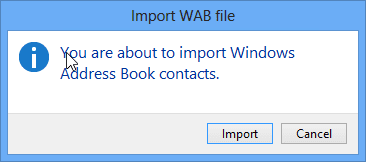
Double click on the .wab file and click Import. (This step is so easy and so fast you might not realize what happened.)
If you don't have the .wab file and still have access to the old computer, look for it at C:\Documents and Settings\username\Application Data\Microsoft\Address Book. It may be named username.wab. Copy it to the new computer.
Step 2: Using Outlook 2010 and older
If you use Outlook 2010 or older, you can import the Windows Contacts.
- Open the Import/Export wizard. In Outlook 2010/2013, it's at File, Open, Import; in older versions, it's on the File menu.
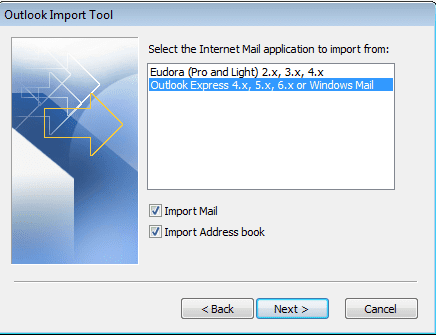
- Choose Import Internet Mail and Addresses. Click Next.
- Choose Outlook Express.
- Deselect Import Mail.
- Choose whether to allow duplicates to be created.
- Click Finish.
Depending on how many contacts you have, it can take from a few seconds to a few minutes to import the contacts.
Step 2: Using Outlook 2013
Outlook 2013 has limited import options. Your choices are Comma Separated Values (CSV) or vCards so you'll need to export the contacts from Windows Contacts in either CSV or as vCards. Because it's annoying to import a large number of vcards unless you use a macro, I recommend exporting in CSV format.
- Open Windows contacts. In Windows 7, type Contacts in the Start search field; in Windows 8, type Contacts on the Start screen. Press Enter to open Contacts.
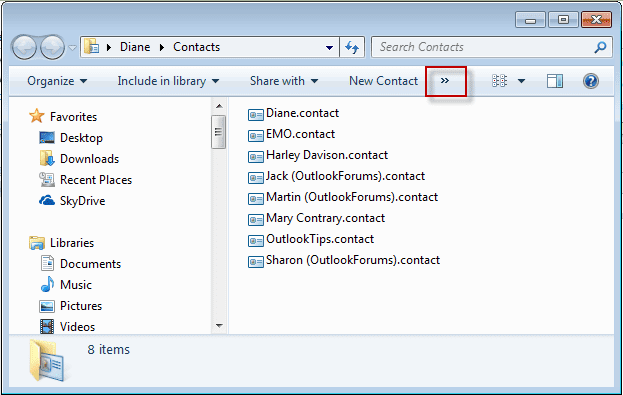
Click Export. If you don't see Export to the far right of Organize, expand the bar or maximize the window. - Choose CSV (Comma Separated Values) from the Export Windows Contacts dialog.
- Click Export.
- Click Browse and type in a name for your CSV file.
- Click Save, then click Next.
- Select the fields to include in the Export. I recommend select all fields. (You need to click in each box.)
- Click Finish the Export.
- Close the Export dialog.

Now switch to Outlook 2013.
- Open File, Open & Export.
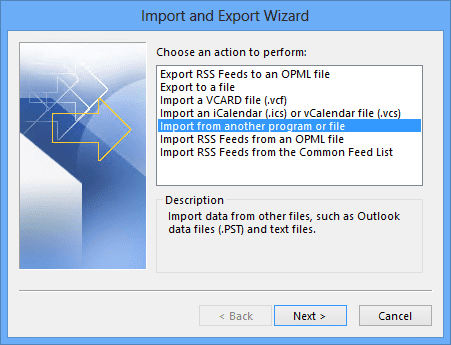
- Select Import/Export to open the Import/Export wizard .
- Choose Import from another program or file. Click Next.
- Choose Comma Separated Values.
- Browse to the file you exported earlier
- Choose whether to allow duplicates to be created.
- Select your Contacts folder.
- Click Finish.
Video Tutorial

Fabio says
Hi, i have imported more than 16000 contacts into Windows 7 contacts folder from a wab file. However i see that there are no more old Outlook Express emails group who ordered the contacts and now i have more than 16000 contacts all togheter . How can i restore the groups ?
Diane Poremsky says
yeah, outlook doesn't use those groups - it has contact groups but they won't really help much, except if you send to a group of people frequently - you'll have the 16,000 address + groups in the folder. Best option might be to sort the contacts into folders- use as few as folders as possible though.
Richard Macdonald says
Hi There I am having real trouble here. I saved my e mail contacts from 2003 computer as WAB contacts file onto my new computer. I imported this file to a file "Windows Contact Folder" but can not find this file on my new computer. I am on windows 10 and use Outlook 2013. Tried for hours today and just going round in circles?? Help please
Diane Poremsky says
Windows 10 Contacts folder is at C:\Users\%username%\Contacts.
Kim Overhamm says
Your instructions were beautiful, but the copy of my .WAB was an older version, and I must have selected the wrong option for allowing duplicates. My lists are out of date, and it only imported 1092 of 1686 addresses. Can I remove the Outlook 2007 address book that I just created, and start over with the latest .WAB? If so, please tell me how. Thank you!
Peter Dorpema says
I am using Office 2007. I followed your instruction on how to import an address book from windows contacts(wab file). Everything happens as you describe except for when it finishes it tells me no contacts were imported
hoe pieh cheng says
Hi, Diane, I had imported the contacts from Outlook Express 2003 into Outlook 2013. I can see a list of names appear in the Contact, but there is no email address / phone / company details. Only the names. Please help.
Diane Poremsky says
Is the address and the other missing information in the vcards you exported from the wab?
Rose Steele says
Thank you thank you!
Vivien Cournane says
Hi Diane I have been reading your great help to other users and wandered if you could help me. I have Outlook and using Windows 8.1
Everytime I start to type in an email address, ,the address pops up in a blue box,which I try to click on and nothing happens and I have to continue typing in the whole address even though it is already in my contacts.I guess there is a very simple way of doing this but I haven't been able to work it out ,Any help would be greatly appreciated,thank you
Diane Poremsky says
if you press enter when it comes up, does it enter the address for you? Tab should also complete it. If you need to select the correct address from the list, use the arrow keys to select it.
Steve Oliver says
Hi Diane, first, if you ever run into to someone like me who is lost in Outlook, here is a tip. You have been saying for me to go to the contacts folder in Outlook but you haven't told me where to find contacts folder. The word contacts doesn't exist anywhere. My daughter just clicked the two person carton icon at the bottom of the email view and it opened up contacts. Had she not done that, I would never have found it. There is no other way to go to contacts. How can Outlook assume we can figure all this out? Next, your view of the contacts folder is very different than mine. Mine was full of empty people faces...and my contact name and not much else...so we had to play with it to get to your view.
Alas we have finally arrive. Next I tried the Folder Icon to create a new folder and once again it said the Exchange Client will not allow me any folders. in your explanations Im not sure whether you are saying you have folders or you don't. But I cant make any the through the Folders ICON. Perhaps you could restate how I am going to do this using Outlook. It simply wont let me. If this is the end of the road, I am so disappointed with Microsoft to have dropped the ball here. This is as bad as Blackberry dropping the ball on so many issues with the Q10 I own. Its like they both fired their software teams and forgot to finish this product.
If you do have a way for me to make folders of email contacts please feel free to guide me once again. Thanks for getting us this far, one way or the other but I am still in the same boat!
Diane Poremsky says
I knew I shoulda switched to the compact navigation that uses icons instead of words to take the screenshot. :)
The error message is telling you that the outlook.com account can't have more than one contacts folder. This is a limitation of the outlook.com servers, not Outlook. I don't recommend using multiple folders for contacts anyway, it's too hard to find them.
Steve Oliver says
Hi Diane, I found a Contacts folder in Windows 8.1 by typing the word Contacts on the windows screen, but this is where we imported my Outlook Express contacts to, then we exported those to outlook.com. If I go to windows contacts and create folders, that is not the address book we see when we are in Outlook. In Outlook it uses the address book we imported and there is no synchronization with Windows 8.1 Contacts and folders that I can I can create there. Can you see where I am lost in this?
Diane Poremsky says
No, the windows 8 contacts don't sync with outlook.com - I'm not sure if they sync to that folder is you add the account to the Windows 8 mail app... but Outlook doesn't use that contacts folder. It uses the one in the outlook.com account added to the outlook profile.
This is where you should see the contacts who have electronic addresses - either in the address book or when you click To: https://screencast.com/t/xETqYKGD - if name only is not selected, you won't see any unless you type in the search field.
The contacts in Outlook.com will sync to the Outlook.com contacts folder in Outlook (if the account is configured)
https://screencast.com/t/z0I1Okhn - you'll either have words at the bottom or buttons - click them to switch between mail, calendar, and contacts.
Press Ctrl+6 to see the full folder list - Outlook.com calendar and contacts are in these folders. click one of the names to go back to the individual modules.
https://screencast.com/t/wrXpH77JbI
Steve Oliver says
Hi Diane, yes I have clicked my name. It doesn't change a thing. the address book look just like yours. No way to view categories any other way, just name, email address, and display name and the FILE, EDIT, and Tools menu has nothing in it to create folders. Can you show me how to create a folders in the address book? Thanks
Diane Poremsky says
So there isn't an address book under that that says "contacts in outlook.com" ? You don't create folders in this address book - you create them in the Contacts folders in Outlook. But Outlook.com supports only one contacts folder.
Steve Oliver says
Hi Diane,
you may not recall that I could not import OE Address book into Outlook as it said the server would not support that. So you told me to import into Outlook.com. Now, whenI view my address book in Outlook, it says on the book at the top ribbon that it is the address book of me at my outlook.com. So does this mean Im stuck? If so, I wish Microsoft would have offered more disclosure on this. It sold me the MSOFFICE 2013 suite, encouraged me to sign up email with outlook.com which I did in order to have synchronization of both address books and email with all the folder options I need. I bet the next thing you will be telling me is that I cant set up email folders either! These changes are so complicated and so less effective than using the old Outlook Express. What is wrong with thinkers and developers today? This seems like it is set up for people who don't know how to organize email or addresses and just fly through their lists of addresses and emails by the hundreds..how can anyone run a complex life that way? Maybe I need to go back to Outlook Express. How can I get it onto my windows 8.1? I bet you will be telling me I cant. Is there any email software out there that I can have on my laptop, and have different folders for email and for addresses and to perhaps tie it in on a website as well that can handle all of the capabilities I need?
Diane Poremsky says
if it looks like this, click on your name and choose Contacts in me(at)outlook.com

I have no idea what capabilities you need, but eM client is similar to outlook and works pretty good if you need a simple mail client.
steve oliver says
Hi Diane, I don't understand your last set of instructions. Viewing or making categories or List view. how do I find that? All I have in Outlook is a little icon saying Address book on the Home tab at the far right hand side top margin under Search People. Opening the Address icon gives me an address book with no viewing or category options. It only provides a basic search option. File, Edit, Tools, Search.
Diane Poremsky says
You won't do it in the address book, but in the contacts folder. This screenshot is the contacts folder and one contact is categorized via Outlook.com, so it syncs to my other computer, the two newsletter ones are categorized only in outlook. I can't edit those two on other computers or the category goes away.
Steve Oliver says
Hi Diane, I don't need the categories in Outlook.com as I do most email from Outlook. Although I just did this one from IPad which must be using Outlook.com. is there a way I can still set up categories on my Outlook that resides on my laptop? I do need these categories back and I have tried to play with the contact view settings with no clue how to modify this from anything other than a massive contact list that only sorts alphabetically. Why would Microsoft sell such a inefficient email software? I paid for this through MS Office 2013 and I am very disappointed and almost prefer to hang on to my old desktop windows XP where I can still use Outook Express.
Diane Poremsky says
It's only inefficient with Outlook.com/EAS (because EAS protocol doesn't support a lot of features - it was designed for early smartphones and efficient use of cellular bandwidth, circa 2000) and IMAP (because IMAP doesn't support a lot of features).
You can use categories on contacts in Outlook as long as you don't edit the contact in outlook.com. The Outlook categories will not sync up so you won't see them in Outlook.com or on other computers. If you need contact categories everywhere, only ever categorize them in outlook.com.
Set a list view - phone or list will do - then go to the view tab and click Categories in the Arrangement section.
Steve Oliver says
Thanks for the fix. I imported using Outlook.com. I have one other problem. I loved Outlook Express Address book because I could sort my hundreds of email address into sub folders that were readily viewable anytime I was in my address book. I had folders such as Family, Friends, Community, Websites, Business, Projects ...there must be over 30 sub folders. I am so disappointed that the modern Outlook 2013 has a prehistoric address book. Now I have 300 email addresses in it with no sortment of any kind. How am I going to manage this now. Building Groups is bandaid solution as the intent of groups is to send to a group. I have no intent of doing group emails often. But when I need to look up someone in my Career file, I just want to look under Career folder...
Diane Poremsky says
In Outlook when not using Outlook.com, categories are a great way to replicate the OE folders. It doesn't work very good with Outlook.com accounts though, due to the way outlook.com uses categories.
Outlook contact groups are not a good way to organize email addresses.
Steve Oliver says
Hello Diane,
I have Outlook 2013 and need to import my Outlook Express wab files. I have followed your video instructions all the way to the last step, but then a window came up when I selected 'Finish' and said 'Could not complete this operation because the service provider does not support it'.
What does this have to do with a service provider. Yes I do have an Outlook.com account as I decided to sign up for outlook.com email so that I could be in synche with my Outlook 2013 on my laptop with Outlook.com.
Diane Poremsky says
Outlook.com doesn't support importing and I'm assuming that is triggering the error. You have to options: import the CSV into Outlook.com using the website or import into a pst and move into the contacts folder.
Add a pst to your profile, and create a contacts folder in it then import into the contacts folder you created. move or copy the contacts into the outlook.com contacts folder.
Pam says
Wow! Diane, you have just saved me hours of work. Your instructions are so precise and easy to follow, I was done in no time. I have had Windows XP with Outlook Express for 10 years and have just bought a new PC with Windows 8 and I've installed Office 365 on it. The thought of exporting anything at all was very daunting. I was planning on asking my busy son-in-law (computer wiz) for help. Wait until he hears what I've done, thanks to you. Love your work.
Pam M.
Ron says
I was starting to think I was going to have to enter all my contacts one at a time until I found this page. Thanks!!! Easy to follow.
Tom Wisniewski says
Diane, thank you so very much. I have been trying to get help in moving Outlook Express files from an XP PC running Outlook Express to a Win 8.1 PC running Microsoft Outlook 2010 and I have not been able to find complete instructions for the Import and Export anywhere. Your instructions were clear and concise and if someone could not understand them, you even had a video.
I have spent many hours searching the web for help or calling Microsoft. They wanted $99 to help with a single incident. You are indeed a LIFESAVER. Thank you..
Tom Wisniewski
Debbie says
Diane, thanks soooooo much! I agree.....You are a lifesaver.
Debra says
Thank you so much. I was almost at the point of retyping them all into Outlook 2013
Tony says
Thanks so much. You've been a lifesaver.
Maria watson says
Hi Diane
Thanks for sharing the information about the outlook.I have been using windows XP and outlook configured on windows XP for quite some time.. Isn't this feature available in older versions of windows?
Thanks
Maria
Diane Poremsky says
The wab is available on WinXP and older versions. It was removed from Vista and up.