OutlookForum member X82 needs to change the subject of replies.
Instead of the subject reading "RE: Info", I must change it to a pre-set sentence like Authorization 0054213. The number will change but the first part is always the same. Is there a way of making outlook change the subject line?
A quick but "dirty" method is to use an InputBox to select a number, which then inserts the correct subject. (The code for this is at Change subject)
It's also possible to do this using a ComboxBox, but its more complicated and requires a UserForm.
Before using the macro, you need to set Outlook's macro security to Low or to warn. Then open the VBA editor using Alt+F11. More information on using the VBA editor is at How to use the VBA Editor
For a variation of the code that contains a proper Cancel command, see cancel-subjects.txt. Follow the instructions below, but add a second command button to the Userform and change the caption to Cancel.
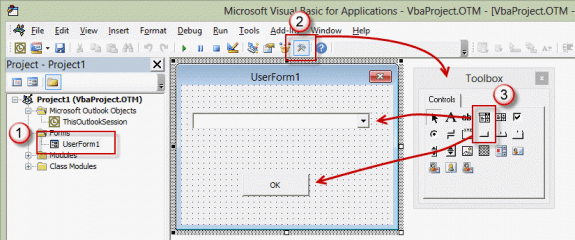
Step 1: Create the Userform.
- Right click on Project1 and select Insert > UserForm
- Open the control Toolbox and select a ComboBox and add it to the UserForm.
- Add a Command button.
- Right click on the Command button and choose Properties.
- Type OK (or Change Subject) in the Caption field.
- Right click on the UserForm and choose View Code.
- Paste the code below into the code window.
- Change the subject titles as desired. This list is for your reference only, not the actual text that will be added to the subject. The subject text is changed in the VBA macro code.
Private Sub UserForm_Initialize()
  With ComboBox1
    .AddItem "Subject 1"
    .AddItem "Subject 2"
    .AddItem "Subject 3"
    .AddItem "Subject 4"
    .AddItem "Subject 5"
    .AddItem "no change"
End With
End Sub

Private Sub CommandButton1_Click()
    lstNo = ComboBox1.ListIndex
    Unload Me
End Sub
Step 2: Add VBA macro for reply
Next you need to add the macro that creates the reply then asks you to select the new subject.
- Right click on Project1 and choose Insert > Module.
- Paste the code below into the Module.
- Change the subject lines to use the desired text. If you want to include the original subject, use oMail.Subject = "Subject " & objMail.Subject format.
To test, select a mail item and run the macro. The macro works with a selected or open message, thanks to the use of the GetCurrentItem function.
Public lstNo As Long

Public Sub ChangeSubjectOnReply()

Dim objItem As Object
Dim oMail As Outlook.MailItem

Set objItem = GetCurrentItem()
Set oMail = Application.ActiveExplorer.Selection(1).Reply

 oMail.Display

   UserForm1.Show

  '  MsgBox "user chose " & lstNo & " from combo"

    Select Case lstNo
    Case -1
         oMail.Subject = objItem.Subject
    Case 0
         oMail.Subject = "Subject 1"
    Case 1
        oMail.Subject = "Subject 2"
    Case 2
       oMail.Subject = "Subject 3"
    Case 3
       oMail.Subject = "Subject 4"
    Case 4
       oMail.Subject = "Subject 5"
    End Select
End Sub


Function GetCurrentItem() As Object
    Dim objApp As Outlook.Application

    Set objApp = Application
    On Error Resume Next
    Select Case TypeName(objApp.ActiveWindow)
        Case "Explorer"
            Set GetCurrentItem = objApp.ActiveExplorer.Selection.Item(1)
        Case "Inspector"
            Set GetCurrentItem = objApp.ActiveInspector.CurrentItem
    End Select

    Set objApp = Nothing
End Function
Video Tutorial
Import a ready to use form
Because this is more complicated than just pasting a macro, I have ready to use code available for download. Import it into the VBA editor and it's ready to run. ChangeSubject VBA
More Information
The second part of X82's question was how to get a code from the message body and add it to the subject. To do this you need to find the code in the body. You can do this by parsing the body and looking for a string. Basic instructions are at Parse text fields using VBA. For best results, it needs to be in the body in the same location, eg, as "Authorization: 123456789". Once you find the code and assign it to a string value, enter it into the subject using this format:
oMail.Subject = "Authorization " & strCode
VBA UserForm sample: Select from a list of templates

Gabriela says
Hi Diane,
This script is similar with what I would need and It would be great if you could help me out to adapt it to my need.
I will have an open email that I intend to forward (manually click send) to a certain email address, always the same one, but the subject line differs for each email. I want to enter a certain number in the combo box, and a certain subject to be auto-populated. Could you please help me with codding for this one?
Would be much appreciated!
Thank you!
Sameer says
How to use dynamic subject list?
Aaron Bolton says
Hi, I have used this code to setup a macro to add subject from a drop down. As per the example it works by selecting a contract and running the macro which works fine, however I would like to also be able to select a contact group to populate the To. It does not work when I do try to do this, is there a way I can make it work for a contract group?
Thanks
Jake says
Hi Diane,
If I will place the value I have from the combobox on the email body, how am I going to format it (font size, font style, bold)?
Thank you
Athena Passos says
Diane,
I'm trying to use the combobox to allow user to select between a list of carriers,
like "Carrier 1", "Carrier 2" and "Carrier 3", and based in the selection, the macro
populates the "To" field in the email with the respective emails for the carrier.
Is that possible?
Diane Poremsky says
Sure. In the combo box, you put the carrier names and in the Select case, you'd use oMail.To = "alias@address".
Jerald Nicholas says
Dear Diane,
Thanks a lot for the effort.
This is the one I am looking for a long time.
I would like to add some more things for my project. Please tell me how to set up hotkey(ALT+T) to run a macro in OUTLOOK 2013.
Looking forward for your reply
Thanks
Jerald Nicholas
Ashwin Mathew says
Hi Diane,
Thanks for this tutorial, I have this working with some minor modifications. I wanted to ask, is there any way to launch the macro when creating a new email in outlook? Instead of going through the developer tab ever time, I'd like to macro to run and prompt me for the subject line whenever I create a new email. Will be great if you can advise on this.
Thank you,
Ash
Diane Poremsky says
As long as the macro is one you run (not an automatic macro that runs when something happens) you can create a button on the ribbon for it. See https://www.slipstick.com/developer/how-to-use-outlooks-vba-editor/#button if you aren't sure how to do it.
Ashwin Mathew says
Hi Diane,
Thanks for this tutorial, I got this working pretty well with some modifications. I wanted to ask, is there any way to trigger this macro anytime a new email is created in outlook. Meaning I'd want the form where I select the subject lines to appear when I click "New Mail Message", instead of going through the developer tab ever time.
Thanks,
Ash
Diane Poremsky says
You need to use the newinspector - see https://www.slipstick.com/developer/code-samples/default-subject-messages/ for an example. I think (did not test) you'd add UserForm1.Show and select case lines to the newinspector macro.
Diane Poremsky says
This is working here -
Declare this in a new module (if you have other modules already in use, put it at the top of one)
Public lstNo As Long
Use the macros at the page i linked to and replace the inspector active macro with this
Private Sub m_Inspector_Activate()
Dim strSubject as String
Select Case lstNo
Case -1
strSubject = objItem.Subject
Case 0
strSubject = "Subject 1"
Case 1
strSubject = "Subject 2"
Case 2
strSubject = "Subject 3"
Case 3
strSubject = "Subject 4"
Case 4
strSubject = "Subject 5"
End Select
If TypeName(m_Inspector.currentItem) = "MailItem" And _
m_Inspector.currentItem.Subject = "" Then
m_Inspector.currentItem.Subject = strSubject
End If
Set m_Inspector = Nothing
End Sub
Konrad says
Thank you Diane for this tutorial. I was looking for such thing for a long time. I have couple of data files (*.pst)with folders created in them. Every folder name is a specific number assigned to specific topic. I was thinking, could you kindly write macro that lists folder names from all datafiles connected with Outlook, and after selecting, putting it to new e-mail subject?
Diane Poremsky says
Scanning folders to create an array of names and using that list of names in a dialog box is not a simple project, especially if you need to check multiple data files. Sorry.
Gareth says
Hey Diane. Last question I promise. Is there any way to add a Timer to the UserForm. Ideally I would like it that if the UserForm has been open for 30 seconds and the user has not selected a subject it closes?
Diane Poremsky says
There isn't a timer control, but it should be possible using the Win32 API. Use timer code, such as this sample and call it from the userform.
Gareth says
hey Diane I've pretty much got this working perfectly now. one issue I'm having, when the user types an email and clicks "Send" the pop-up dialogue is displayed asking the user to pick the pre-fix of their subject. I've noticed that the user can continue to type in the email whilst the form pop-up is shown, is there a way to disable typing in the email until the user selects something from the pop-up? thanks for all your help it's been greatly appreciated!
Diane Poremsky says
No, not that i have found that works with the email form.
Karolina says
Hi Danielle / All,
I've done everything as listed above but I keep getting the below message when running the macro. Please can you suggest what might need correcting?
Run-time error: '424'
Object Required
Diane Poremsky says
sorry for taking so long - I went on vacation and had a pile of comments to go through. :( Which line does it stop on?
Charles says
I am getting the same error
it is this line
Set oMail = Application.ActiveExplorer.Selection(1).Reply
Gareth says
thanks so much diane for taking the time to help, changing the reply to createitem worked, but still not exactly what i'm looking. is it not possible to have a userform load on the click of the "send" button, prompting for a subject to be selected, with a cancel button? really do appreciate all your help.
Diane Poremsky says
if you want it to kick in on every message, you need to use the reply event:
Private Sub oItem_Reply(ByVal Response As Object, Cancel As Boolean)
See copy attachments for sample code - try switching out the code in the reply macro.
Gareth says
hi diane, thanks for your quick replies. that worked a treat! well sort of, it works ok on replying to an email. is it possible to run this on a new email? basically what i need is whenever someone clicks "send", regardless, new email, or reply they need to select from the dropdowns, but they also need the option to cancel. thanks again.
Diane Poremsky says
If you want to run the macro and create a new message, replace
Set oMail = Application.ActiveExplorer.Selection(1).Reply
with Set oMail = Application.CreateItem(olMailItem)
To take over the New button, you need to use code similar to the code at the bottom of this page. Use something like this instead of the appt code:
If TypeName(m_Inspector.CurrentItem) = "MailItem" And _
m_Inspector.CurrentItem.Subject = "" Then
' do whatever
End If
Camil says
Hey Diane.
I got the above code to work I change couple of thing like I want to run this on new message in Outlook.. I'm need to know how to put a default recipient in the "to" field on the email.. select the request type from the combo box when you click "ok" it put the subject in correct but I'm need to set a default email address once that macro run.. Is there anyway to do this..
Diane Poremsky says
if you are using 1 address, omail.to = "email@address" will work, if you are adding an address, using the recipient collection to add it:
Dim objRecip As Recipient
Set objRecip = Item.Recipients.Add("email@address")
objRecip.Type = olTo
Gareth says
Hey Diane,
this doesn't appear to work. When I click cancel the UserForm closes but it sends the email anyway? What I need is:
- user types an email - >clicks "Send"
- a UserForm then Pops-Up where the user must select a "Subject" (from a dropdown)
- if they click "OK" the email sends with the subject listed added to the start of their subject
- if they click "Cancel" the UserForm closes but the email remains on screen and doesn't send (allowing them to make a change to the email if required). Is this do-able? If so could you maybe create a tutorial. It would be greatly appreciated. I'm so close to getting it! Thanks
Diane Poremsky says
It *should* work the way you want - it did here. Try the code at cancel-subjects.txt - it has a proper Cancel added.
Gareth says
is it possible to add a cancel button to this? what i'm trying to create is a pop-up, when the person tries to send an email they must select a subject classification from a dropdown. If they select one it then adds itself to the start of their subject, if they click cancel the pop-up window closes but the email remains on screen. is this possible?
Diane Poremsky says
Yes, it is possible to cancel. Add a cancel button (Command button) and use this code:
Private Sub CommandButton2_Click()
Unload UserForm1
End Sub
Andy McCarthy says
Thank you - yes, it's a control on a contact form, not a userform. I'm also reviewing the other links you posted. One I had already been through but couldn't quite make the connection to what I wanted. I appreciate your help!!
Diane Poremsky says
Also, see https://support.microsoft.com/kb/290819 - it's applicable in all versions.
This too - http://www.outlookcode.com/archive0/d/formcontrols.htm
Andy McCarthy says
Hi Diane - I'm trying to apply the above in a different scenario: populating a custom contact form's field with a numeric value based on what I select from a combobox in that same custom form. I have the combobox populated using myComboBox.AddItem and bound to "Profession." These "Professions" are various positions in my organization. I would like another field to auto-populate with a numeric value based on the Profession chosen. It's a weighting system we use. I need to load these weight values as well. At some point I'd like to learn how to use tables somehow to make updating the combobox list and the associated weight values easier, but for now, I'm completely stumped on how where to input the numeric weights and then to make the field's value dependent upon the combobox selection. Would you please point me in the right direction? As always, thank you very much!
Diane Poremsky says
This is with a Combobox control on a contact's form, not a userform, correct?
Andy McCarthy says
Hello Diane - I'm trying to modify the above to do something I think should be simpler (I hope). I inserted a combo box (bound to Profession field) to my custom contacts form and added this script (I have many items but only included one in this message):
Sub Item_Open()
Dim myComboBox
Set myComboBox = Item.GetInspector.ModifiedFormPages("Employee").Controls("Specialty")
myComboBox.AddItem("Specialty1")
End Sub
I'd like each "Specialty" to have a numeric weight associated and populate another field with that weight, based on what I select from the combobox. Would you please point me in the right direction for populating a field from a combobox selection?
Thanks!
Andy