If you want to set certain Outlook fields when you do a mail merge, you need to use an ItemSend rule.
To use, open the VBA Editor using Alt+F11 and expand Project1 until you see ThisOutlookSession. Double click on ThisOutlookSession and paste the macro in the right pane.
Updated July 26 2017: Changed the macro to use a codeword in the subject and remove the codeword before sending.
This macro is not limited to mail merges; it checks the subject of every message you send to see if it meets the condition of the If statement.
To avoid running the macro on all messages you send, I'm using a codeword in the subject. If the word is found, Outlook removes it from the subject and runs the macro on the messages, adding attachments and setting other fields as needed.
If you want to change the codeword, choose something unique that you would not expect to use in an email. Remember: the codeword is case-sensitive. What you use in the macro is also what you'll use in the subject field.
If you are setting a reminder, you'll want change the reminder date and time. You can set the reminder to a specific date and time using #10/30/2012 8:00:00 AM# format or use Now + 1 for this time tomorrow (or any number of days in the future). If you use the deferred delivery option, you can use SendAt + 1 to set a reminder for 24 hours after the deferred send time.
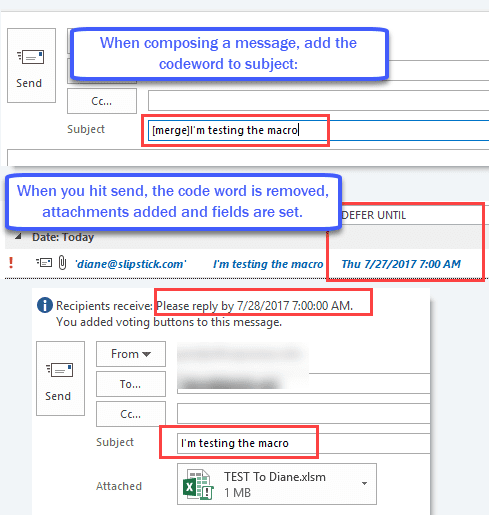
Recipients may have rules to remove the reminder, flag, and Importance fields.
Private Sub Application_ItemSend(ByVal Item As Object, Cancel As Boolean)

If InStr(LCase(Item.Subject), "[merge]") Then
'Defer delivery time
   SendAt = DateSerial(Year(Now), Month(Now), Day(Now) + 1) + #7:00:00 AM#
With Item
      .Subject = Replace(.Subject, "[merge]", "")
      .Importance = olImportanceHigh
      .VotingOptions = "I accept;I decline;I don't care"
      .ReminderSet = True
      .ReminderTime = SendAt + 1 '#10/30/2012 8:00:00 AM#
      .FlagRequest = "Please reply by " & .ReminderTime
      .DeferredDeliveryTime = SendAt
' to add an attachment, enter the path & name here
     .Attachments.Add "C:\Users\username\Documents\TEST.xlsx"
End With
  End If
End Sub
If you want to use a different attachment for each person, you'll need to use attachments that are the same name as a message field - the To field will probably be the easiest, although prone to problems. ("To" is the display name, not the email address.)
Item.Attachments.Add "D:\For merge\" & Item.To & ".docx"
Or use one of the utilities listed at Using Mail Merge in Outlook
Video Tutorial

Jerzy says
Private Sub Application_ItemSend(ByVal Item As Object, Cancel As Boolean)
If InStr(LCase(Item.Subject), "testtest") Then
'Defer delivery time
'SendAt = DateSerial(Year(Now), Month(Now), Day(Now) + 1) + #7:00:00 AM# - jutro o 7 rano
SendAt = DateSerial(Year(Now), Month(Now), Day(Now))
With Item
.Subject = Replace(.Subject, "[merge]", "")
.Importance = olImportanceHigh
.VotingOptions = "I accept;I decline;I don't care"
.ReminderSet = True
.ReminderTime = SendAt + 1 '#10/30/2012 8:00:00 AM#
.FlagRequest = "Please reply by " & .ReminderTime
.DeferredDeliveryTime = SendAt
' to add an attachment, enter the path & name here
.Attachments.Add "C:\1\2024test.pdf"
End With
End If
End Sub
I try & try
and do not work for office365n enterprice
Diane Poremsky says
Any error messages? What exactly happens?
It's working here.
I updated the file path to use a file in OneDrive and it failed because the attachment was not downloaded to the computer (only the shortcut). Once I downloaded it, it worked.
Kyle says
I am not having any luck at the moment. I've tried restarting outlook, but I'm still just receiving messages that say [merge] in the subject with no attachments. I've enabled all macros and can't seem to get any traction.
Here's the version of the code I'm using.
Private Sub Application_ItemSend(ByVal Item As Object, Cancel As Boolean)
If InStr(LCase(Item.Subject), "[merge]") Then
'Defer delivery time
SendAt = Now + TimeSerial(0, 2, 0)
With Item
.Subject = Replace(.Subject, "[merge]", "")
.Importance = olImportanceHigh
.DeferredDeliveryTime = SendAt
' to add an attachment, enter the path & name here
.Attachments.Add "Z:\"FILENAME".pdf"
End With
End If
End Sub
Yudhi says
Hi Diane,
Thank you for your great code.
I have tried in Outlook 2013 and its work but not when I tried in Outlook 2019. Whats setting should I change?
Fahri pratomo says
i did everything but still nothing happen, no attachment and the email keep being sent.
is this still working until today?
sam says
Hi Diane - Thank you for this - ive tried adding SentOnBehalfOfName = "user@domain.com" but it doesnt work. Any suggestions please?
Ross says
Could someone assist me with the following so that it will send individual attachments as mentioned above;
Private Sub Application_ItemSend(ByVal Item As Object, Cancel As Boolean)

If InStr(LCase(Item.Subject), "[#merge!]") Then
'Defer delivery time
   SendAt = DateSerial(Year(Now), Month(Now), Day(Now) + 1) + #7:00:00 AM#
With Item
      .Subject = Replace(.Subject, "[merge]", "")
      .Importance = olImportanceHigh
      .DeferredDeliveryTime = SendAt
' to add an attachment, enter the path & name here
     .Attachments.Add "C:\Users\username\Documents\TEST.xlsx"
End With
  End If
End Sub
Where do I include this...
Item.Attachments.Add "D:\For merge\" & Item.To & ".pdf"
Also, is there a way to use an email vs the display name?
Thank you
Hannes says
Quick help for anyone encountering the same problem:
The code word (["merge"]) needs to be written in small letters within the MS visual basic. Otherwise it will not work.
Paolo says
Thank you very much for this.
You saved me spending £30 on a plugin to do the same!
Santos says
This is so great.. and can we attach more than 1 file?
and how to edit this command, if we want to send it immediately?
Many thanks.
Diane Poremsky says
Remove the line to send immediately.
Repeat this line for each attachment - changing the path of course. :0
.Attachments.Add "C:\Users\username\Documents\TEST.xlsx"
Jerzy says
David manley says
This is great but what would the syntex be to add the BCC field and email addresses under with item in the macro?
nick says
I would also really appreciate to learn how to do this as well
nick says
found this which forces a BCC. Its not as elegent as this though. Wondering if its possible to combine them...
https://www.slipstick.com/outlook/email/automatically-bcc-all-message/
Rob Perkins says
Diane, I am trying to add the same attachment to multiple emails that are cued up in my outbox on outlook. I am trying to figure out a way to add the attachments through outlook or, preferably, I would like to add the attachments as part of the mail merge, before I merge the emails from Word into my Outlook outbox. I'm not familiar with macros/VBA so I wasn't able to get anywhere with some of the replies you had provided to similar questions. Would really appreciate any guidance! Thanks. P.S. I am on a Mac.
Diane Poremsky says
The PS part is the problem - Outlook for Mac doesn't use VBA. You'll need to do it in apple script - but I have very limited knowledge of apple script.
Jeza says
Hi Diane,
firstly thank you the video clip made it easy to understand and the use of a keyword was quite ingenious. I am not a VBA programmer, I've cut down your original code and am trying to use the code with a different email account which I have permission for in Outlook 2016.
Private Sub Application_ItemSend(ByVal Item As Object, Cancel As Boolean)
If InStr(LCase(Item.Subject), "[merge]") Then
With Item
.Subject = Replace(.Subject, "[merge]", "")
' to add an attachment, enter the path & name here
.Attachments.Add "C:\Users\username\Documents\TEST.xlsx"
'You can use .SentOnBehalfOfName property of outlook to send mail in the name of other user
.SentOnBehalfOfName = "user@domain.com"
.Display
.Send
End With
End If
End Sub
At the moment the sent on behalf will only work if I take Outlook offline and physically open the email then manually send it, then go back online. Ideally, I don't want there to be any need for manual intervention.
I've read up a bit and other posts say that the command SentOnBehalfOfName needs to be set first, in all the other examples it has been done in the context of creating something new, I can't work out the correct syntax for this code as it applies to an existing email.
Any help suggestions would be appreciated
Courtney S says
HI Diane - thanks for this! For some reason my subject line is still featuring [merge]. Could you help me figure out what I'm doing wrong?
.Subject = Replace(.Subject, "[merge]", "") is what I'm using in my code. Thanks!
Krunal Chauhan says
[merge] user for mail merge when you doing mail merge
Cathy M says
Diane: I have copied the vba text as shown above in my Outlook sessions and even put the test .xlsx file in the file you show in the video. Obviously, I am doing something incorrectly, because it sends immediately instead of going to my Outbox and the attachment is never attached. I have about 200 e-mails that need the same attachment so I it would be helpful if I could get this to work. I have Outlook 2010 and Windows 10.
MKS says
I have the same issue, only difference is, I'm trying to attach the pdf file. Any help would be appreciated.
Theresa H says
This is pretty amazing. Thank you!
Quick question. Is it possible to have 2 or more macros?
So let's say I have an "instructor checkin" for one and then a "course evaluation" down the road that will have a possible attachment. Is that possible?
Thank you again!
Theresa
Diane Poremsky says
Yes, it is possible. Exactly how you'd do it will depend on your needs - the usual way is to use if statements to change which attachments or settings are applied.
WS Cowles says
Great idea, but it's not working for me. I'm using Outlook 2007 and Exchange 2010. When I use the script, something is placing single quotes around every email which return as undeliverable...Any thoughts? Thanks!
Diane Poremsky says
Are the addresses messed up if you send without using the macro? Set outlook offline or disable the internet, generate the messages then open some from the outbox to check the address. Delete before going back online.
It's not uncommon for outlook to wrap addresses in single quotes but the macro doesn't touch the address field, so its more likely outlook doing it.
WS Cowles says
The emails weren't wrapped in single quotes if I send without the macro... So I googled outlook single quotes. This post suggests a change in auto-correct (uncheck "change straight quotes to smart quotes") that seems to work!
Diane Poremsky says
Interesting... i don't know why the editor settings would apply to the address fields but will look into it. (I started turning that option off years ago, which could explain why i haven't had a problem with the quotes in years.)
Outlook user says
This is amazing, thank you Diane! :)
Mike Zoo says
Is there any way to change the subject line so that it can say something besides "mail merge subject?" I changed it in the code so that it said "Test" instead of "mail merge subject" and the macro didn't work anymore.
Diane Poremsky says
in this line of the macro:
If InStr(LCase(Item.Subject), "mail merge subject") Then
change the subject to what you are using for a subject.
This allows you to use send other mail while the macro is present and only have it apply to specific messages.
it would also be possible to do something like '[merge] my real subject' as the message subject and remove [merge] as it's sent. (will add that version to the article)
Scott Arias says
I attempted to use this in Outlook 2013 but cannot get it to work. What changes need to be made?
Diane Poremsky says
What happened when you tried it? (It works in 2013/2016 - all versions from 2007 and up actually).
SJOCHLIN says
That is incredibly useful. I've been trying to add a .CC = "" to the 'With Item' and no luck. Any advice on how to do this?
Diane Poremsky says
adding .cc = "me@address.com" should work, but if you have values in the CC field, adding the recipient will preserve them -
Dim objRecip As Recipient
Dim strcc As String
strcc = "address@domain.com"
Set objRecip = Item.Recipients.Add(strcc)
objRecip.Type = olCC
(that is from https://www.slipstick.com/outlook/email/automatically-bcc-all-message/)
SJOCHLIN says
Fantastic! Thank you so much for tip above and timely response Diane!!! Very helpfu :)
tt - says
Looking for some help finding a work around - trying to send mass e-mail (merge) with numerous and specific attachments; I think VBA script may be my best bet; any thoughts??
Diane Poremsky says
Yes, either a script or an addin. As long as the attachments are always the same or you can identify the documents (such as the alias is in the file name), a macro will work fine. The addins usually offer additional features which can make mailmerge much easier.
Jason says
Thanks so much for this script, it's fantastic. One quick question. Is there a way to prevent attachments from being sent when I respond to replies with the same Subject?
Diane Poremsky says
This line looks for the subject - If InStr(LCase(Item.Subject), "mail merge subject") Then but instr will catch re: subject too.
You could look for the words on the left instead:
If left(LCase(Item.Subject), 18) = "mail merge subject" Then
or if you can't count (or the don't want to, especially on long subjects), do it this way:
strSubject = "mail merge subject"
If left(LCase(Item.Subject), len(strSubject)) = strSubject Then
Dylan says
My script looks like this:
Private Sub Application_ItemSend(ByVal Item As Object, Cancel As Boolean)
If InStr(LCase(Item.Subject), "Payment Method Update") Then
With Item
.Attachments.Add "C:\Users\DSIPERS\Desktop\EFT_Form_2015.doc"
End With
End If
End Sub
All I'm trying to do is add the attachment. I've set my security so that when I restart Outlook it asks me to enable macros for ThisOutlookSession. When I attempt to send an email to myself with Payment Method Update in the subject field, the attachment doesn't work. I've also tried sending to myself using the mail merge tool, although it seems this script should work on all outgoing mail with subject "Payment Method Update".
Diane Poremsky says
oh... it took me a while to see it - it's this:
LCase(Item.Subject), "Payment Method Update")
LCase = lower case. You are converting the subject to lower case then looking for proper case match. use lower case in the phrase to match and it will work
LCase(Item.Subject), "payment method update")
Linda Hummel says
Yeah! Setting the macro security to low did the trick! Thank you, thank you!
Linda Hummel says
Wow, amazing fast response, so thank-you!
I am trying to use it with mail merge as I want the email messages sent with high importance. The mail merge format is HTML - does that impact anything. Still not working on my side.
Diane Poremsky says
Some days I'm fast, some days I'm really slow. :)
If you have the complete macro, with this line at the top:
Private Sub Application_ItemSend(ByVal Item As Object, Cancel As Boolean)
and the macro is in ThisOutlookSession, it should work. HTML format won't matter - it only looks at the subject.
Did you set the macro security to low and restart outlook?
Linda Hummel says
VB beginner...I'm trying to use this with Outlook 2010. All I want is to set the Importance to high, so my VB looks like this:
If InStr(LCase(Item.Subject), "vmware exclusive invitation") Then
With Item
.Importance = olImportanceHigh
End With
End If
End Sub
Is this valid? It isn't working, so I'm obviously doing something wrong :(
Diane Poremsky says
it is correct and it's working here. Try commenting out the if/end if lines and see if it works on all messages.
Are you using it to apply to messages as they are sent? if not, the problem could in the identifying the message you want the macro to change.
JayBird says
I was using mailmerge tool kit and something updated this week that blew it up. This is a nice little substitute in a pinch. Thank you!
Brent says
I am a VB beginner, and this is incredibly helpful. However, I am not able to store this as a Macro - I keep getting prompted to enter a Macro name, which I attempt to name "Application_ItemSend", which fails with the message "Name conflicts with existing module, project, or object library". If I create a new Macro and copy the code into it, I am still unable to save it - I just keep getting prompted to create a new macro. The only modifications that I made to the macro are removing the LCase constraint and including another mail attribute beneath ".FlagRequest" - here is my revised code:
Private Sub Application_ItemSend(ByVal Item As Object, Cancel As Boolean)
If InStr((Item.Subject), "Testing") Then
With Item
.Importance = olImportanceHigh
.ReminderSet = True
.ReminderTime = #3/4/2014 9:00:00 AM#
.FlagRequest = "Please Reply by 3/5"
.VotingOptions = "Yes, my website is still active;No, my website is no longer active"
End With
End If
End Sub
Thanks in advance for your guidance!
Diane Poremsky says
do you have another macro by the same name? That is what the error is telling you. Press Ctrl+F and search for ItemSend with the option selected to search the Project.
Vlado says
Great macro, Thank you. I have just one small problem with this. I can't use capital letter in the mail subject. If I use capital letter (anywhere in the subject text), macro is not working.
Diane Poremsky says
Are you using all lower case in the string you are testing for? The lcase function will convert the subject to all lower case to test it against the string.
If InStr(LCase(Item.Subject), "mail merge subject") Then