 Another day, another macro in my "The Lazy Programmer Series", where I take existing code samples and tweak them to do other, similar things.
This code base, like many others I use, comes from Michael Bauer's VBOffice site and began life as Calendar: Delete the reminder of a meeting request.
This macro runs when Outlook starts and watches for new appointment items to be saved. When it finds one, it checks to see if it's an All Day Event, and if so, you are asked if you want to keep the reminder. While the tweaks here work with reminders, it can be tweaked to do almost anything when a new appointment or event is saved.
Step 1
To use these ItemAdd macros on this page, you need to add this code to the top of ThisOutlookSession:
Open the VB Editor by pressing Alt+F11. Expand the Project to display ThisOutlookSession and paste the following code into the editor. To test this macro without closing and restarting Outlook, click in the Application_Startup sub and click the Run button on the toolbar. Repeat this step after making modifications to the code.
Private WithEvents Items As Outlook.Items

Private Sub Application_Startup()
  Dim Ns As Outlook.NameSpace

  Set Ns = Application.GetNamespace("MAPI")
  Set Items = Ns.GetDefaultFolder(olFolderCalendar).Items
End Sub
Step 2
Paste one of the ItemAdd macros below into ThisOutlookSession, just after the End Sub of the Application_StartUp macro above.
Remove Reminders on All Day Events | Remove Default 18 Hour Reminders |
Remove Reminders on All Day Events
Private Sub Items_ItemAdd(ByVal Item As Object)
  On Error Resume Next
  Dim Appt As Outlook.AppointmentItem

  If TypeOf Item Is Outlook.AppointmentItem Then

    Set Appt = Item

'Checks to see if all day and if it has a reminder set to true
     If Appt.AllDayEvent = True And Appt.ReminderSet = True Then

'msgbox block - 3 lines
    If MsgBox("Do you want to remove the reminder?", vbYesNo) = vbNo Then
      Exit Sub
    End If

'appt.reminderset block - 2 lines
     Appt.ReminderSet = False
     Appt.Save

    End If
    End If
End Sub
Customize the Code
This code sample has a lot of potential - you can use it to change almost any field in appointments and events (timed appointments or all day events). It applies to all new appointment items, including those created by Outlook when you enter a contact's birthday. To get you started, I've included some ideas below.
Keep all except 18 hour reminders
Would you prefer removing all 18 hour reminders but want to keep reminders if you select a different reminder time? Remove the If Msgbox... End If block and replace the Appt.Reminderset block with the following code.
Private Sub Items_ItemAdd(ByVal Item As Object)
  On Error Resume Next
  Dim Appt As Outlook.AppointmentItem

  If TypeOf Item Is Outlook.AppointmentItem Then

    Set Appt = Item

' Checks the start time
 If Appt.ReminderMinutesBeforeStart = 1080 Then
     Appt.ReminderSet = False
     Appt.Save
    End If

End If

End Sub
Set a different "default" reminder
To change the default reminder from 18 hours to another value, remove the If Msgbox... End If block and replace the Appt.Reminderset block with the following lines. This sample sets the reminder to 6 hours before the start, or 6PM.
Private Sub Items_ItemAdd(ByVal Item As Object)
  On Error Resume Next
  Dim Appt As Outlook.AppointmentItem

  If TypeOf Item Is Outlook.AppointmentItem Then
    Set Appt = Item
If Appt.ReminderMinutesBeforeStart = 1080 Then
     Appt.ReminderMinutesBeforeStart = 360
Appt.Save

End If
End If
End Sub
Keep reminders based on subject
To leave the reminder for appointments beginning with a specific keyword or character, replace the If Msgbox... End If code with the following code. This sample checks the first character for a ! and if found, the reminder is left on. You can check more characters by changing the number and phrase in Left(Appt.Subject, 1) = "!".
For example, an all day event with the subject !Training Classes would keep the 18 hour reminder, while Working downtown would not have a reminder.
If Left(Appt.Subject, 1) = "!" Then
 Exit Sub
 End If
Set longer reminders for birthdays
To set a reminder more than 18 hours before for Birthdays, remove the msgbox block and replace the appt.reminderset code with the following. This will set a reminder for 7.5 days on all birthdays, including those created when you add new contacts to Outlook and enter a birth date. We're also adding the Birthday category.
Private Sub Items_ItemAdd(ByVal Item As Object)
  On Error Resume Next
  Dim Appt As Outlook.AppointmentItem

  If TypeOf Item Is Outlook.AppointmentItem Then

    Set Appt = Item

' Checks the start time
If Right(Appt.Subject, 8) = "Birthday" Then
Appt.ReminderMinutesBeforeStart = 10800
Appt.Categories = "Birthday"
Appt.Save

End If

End If

End Sub
Set longer reminders for the first appointment after lunch
To set longer reminders for appointments that occur at certain times of the day, you need to check the start time. When only the time is entered, it applies to that time, any date.
Private Sub Items_ItemAdd(ByVal Item As Object)
  On Error Resume Next
  Dim Appt As Outlook.AppointmentItem

  If TypeOf Item Is Outlook.AppointmentItem Then

    Set Appt = Item

' Checks the start time
If Appt.Start = "#1:00:00 PM#" Then

' appt.reminderset block - 2 lines
 With Appt
     .ReminderSet = True
     .ReminderMinutesBeforeStart = 75
     .Save
End With

End If
End If

End Sub
Set Free/Busy to Busy
This macro sets Free/Busy status to Busy when a new All Day Event is added to the calendar.
Note: when you are creating the All Day Event, the Free/Busy status will be Free. The macro changes it to Busy on Save.
Private Sub Items_ItemAdd(ByVal Item As Object)
  On Error Resume Next
  Dim Appt As Outlook.AppointmentItem

  If TypeOf Item Is Outlook.AppointmentItem Then

    Set Appt = Item

'Checks to see if all day and if it has a reminder set to true
     If Appt.AllDayEvent = True And Appt.BusyStatus = olFree Then

    Appt.BusyStatus = olBusy

'appt.reminderset block - 2 lines
     Appt.ReminderSet = True
     Appt.Save

    End If
  End If

End Sub
Run the Macro Manually on Selected Appointments
If you want to run the macro on selected appointments, you need to remove the startup macro and change the itemadd macro to run on demand.
Private Sub ChangeReminderSelected()
Dim Item As Object
For Each Item In ActiveExplorer.Selection
  On Error Resume Next
  If TypeOf Item Is Outlook.AppointmentItem Then

Dim Appt As Outlook.AppointmentItem

Set Appt = Item

'Checks to see if all day and if it has a reminder set to true
     If Appt.AllDayEvent = True And Appt.ReminderSet = True Then

 'appt.reminderset block - 2 lines
     Appt.ReminderSet = False
     Appt.Save

    End If
    End If
Next
End Sub
Run on upcoming events
This macro filters for events with a start date yesterday and 30 days in the future and changes the values. This speeds it up if you have a lot of all days events in the future (such as holidays or birthdays). You could filter to only apply it to items in certain categories or locations instead of going by date.
Because this is a manual macro, you need to run it on a regular basis, or use another macro to run it when a reminder fires. See Running Outlook Macros on a Schedule for more information.
Sub RemoveAllDayReminders()

  Dim objOutlook As Outlook.Application
  Dim objNamespace As Outlook.NameSpace
  Dim objSourceFolder As Outlook.MAPIFolder
  Dim fCount As Integer

  Dim CalItems As Outlook.Items
  Dim ResItems As Outlook.Items
  Dim sFilter As String
  Dim iNumRestricted As Integer
  Dim iChanged As Integer
  Dim itm As Object
  Dim tStart As Date
  Dim tEnd As Date

Dim Appt As Outlook.AppointmentItem

  Set objOutlook = Application
  Set objNamespace = objOutlook.GetNamespace("MAPI")
  Set objSourceFolder = objNamespace.GetDefaultFolder(olFolderCalendar)

  ' Get all of the appointments in the folder
  Set CalItems = objSourceFolder.Items

   ' Sort all of the appointments based on the start time
   CalItems.Sort "[Start]"

   CalItems.IncludeRecurrences = False

  ' 1 day ago
    tStart = Format(Now - 1, "Short Date")

  ' 30 days ahead to speed it up
    tEnd = Format(Now + 30, "Short Date")

   'create the Restrict filter
'If you want to filter by subject, location, or category:
   '& """urn:schemas:httpmail:subject""" & " LIKE '%subject%' OR " _
   '& """urn:schemas:calendar:location""" & " LIKE '%location%' OR " _
   '& """urn:schemas-microsoft-com:office:office#Keywords""" &  "LIKE '%category name%'"
   '"urn:schemas:calendar:alldayevent" = 1
'To apply to all except in a specific category:
   '& """urn:schemas-microsoft-com:office:office#Keywords""" &  "<> 'category name'"

sFilter = "@SQL= (" & """urn:schemas:calendar:dtstart""" & " >= '" & tStart & "' AND" _
& """urn:schemas:calendar:dtend""" & " <= '" & tEnd & "' AND (" _
& """urn:schemas:calendar:alldayevent""" & "=1))"

   Debug.Print sFilter
   ' Apply the filter to the collection
   Set ResItems = CalItems.Restrict(sFilter)

   iNumRestricted = 0

   fCount = ResItems.Count
 Debug.Print ResItems.Count
   'Loop through the items in the collection.

   For counter = fCount To 1 Step -1

Set itm = ResItems.Item(counter)

   iNumRestricted = iNumRestricted + 1

Debug.Print itm.Subject, itm.Start
Set Appt = itm
If Appt.AllDayEvent = True And Appt.ReminderSet = True Then

 'appt.reminderset block - 2 lines
     Appt.ReminderSet = False
     Appt.Save
     iChanged = iChanged + 1
End If
   Next counter

Debug.Print (iNumRestricted & " " & strSubject & " events were found; " & iChanged & " needed changed.")

MsgBox (iNumRestricted & " " & strSubject & " events were found; " & iChanged & " needed changed.")

Set objSourceFolder = Nothing

End Sub
Use other calendar folders
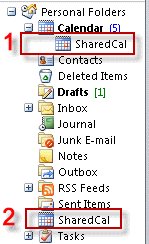 If you want to use the macro on other calendar folders, you have two options: apply the macro to all Calendar folders or only to a specific folder.
To remove reminders from all day events in folders that are not the default calendar folder, you need to change the Application_Startup code to look in a different calendar folder.
If the folder is is a subfolder under the default Calendar folder (#1 in screenshot), replace
Set Items = Ns.GetDefaultFolder(olFolderCalendar).Items
with:
Set Items = Ns.GetDefaultFolder(olFolderCalendar).Folders("SharedCal").ItemsWhen the folder in your default data file or mailbox at the same level as the Calendar (and Inbox folder) (#2 in screenshot) use:
Set Items = Ns.GetDefaultFolder(olFolderCalendar).Parent.Folders("SharedCal").ItemsTo run the macro on all Calendar folders, use
Set Items = Application.ActiveExplorer.CurrentFolder.Items
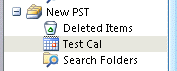 If the folder is in another mailbox or data file, you need to use a function to find the folder path and call the function in the Startup procedure.
To use a Calendar folder called "Test Cal" in a pst file named "New PST", replace Set Items = Ns.GetDefaultFolder(olFolderCalendar).Items with:
Set Items = GetFolders("New PST\Test Cal").ItemsThen get the function from Working with VBA and non-default Outlook Folders
How to use the macros on this page
First: You need to have macro security set to the lowest setting, Enable all macros during testing. The macros will not work with the top two options that disable all macros or unsigned macros. You could choose the option Notification for all macros, then accept it each time you restart Outlook, however, because it's somewhat hard to sneak macros into Outlook (unlike in Word and Excel), allowing all macros is safe, especially during the testing phase. You can sign the macro when it is finished and change the macro security to notify.
To check your macro security in Outlook 2010 and newer, go to File, Options, Trust Center and open Trust Center Settings, and change the Macro Settings. In Outlook 2007 and older, look at Tools, Macro Security.
After you test the macro and see that it works, you can either leave macro security set to low or sign the macro.
Macros that run when Outlook starts or automatically need to be in ThisOutlookSession, all other macros should be put in a module, but most will also work if placed in ThisOutlookSession. (It's generally recommended to keep only the automatic macros in ThisOutlookSession and use modules for all other macros.) The instructions are below.
Open the VBA Editor by pressing Alt+F11 on your keyboard.
To put the code in a module:
- Right click on Project1 and choose Insert > Module
- Copy and paste the macro into the new module.
To put the macro code in ThisOutlookSession:
- Expand Project1 and double click on ThisOutlookSession.
- Copy then paste the macro into ThisOutlookSession. (Click within the code, Select All using Ctrl+A, Ctrl+C to copy, Ctrl+V to paste.)
More information as well as screenshots are at How to use the VBA Editor
More Information
Calendar: Delete the reminder of a meeting request This removes reminders from incoming meeting requests. I used it as the base for this macro.
Solution to disturbing default reminder for Outlook all-day events This code sample checks the reminder hour and if its set to remind you before or after a specific time period (such as before 8 am or after 9 pm) it recommends a new reminder time.
More Lazy Programmer code:
Bulk Change Contacts code is easily tweaked to change any field in a contact.

astrid says
Hello! Thank you for your valuable work. I have been using this tip for several years now.
I have just read that the new Outlook will not be compatible with VBA. Do you have an idea of how we will be able to implement this kind of workaround by the time this software is forced on users (in 2029)?
Diane Poremsky says
At this time, they do not plan on adding any form of automation (outside of power automate). And power automate is generally limited in what it can do.
Amy says
Since the most recent update to Outlook, this macro no longer seems to work. Any suggestions for editing it to work again?
Diane Poremsky says
Any error messages? As long as you are still using classic outlook, it should work.
Frank says
I have been using these macros for quite a while now. They are so helpful! My favorite is the one to remove reminders on all day events. How can I make it run when entering events on a calendar other than the default calendar?
Diane Poremsky says
In the auto start macro you need to set it to look at the other folder.
Set Items = Ns.GetDefaultFolder(olFolderCalendar).Folders("subcalendar").Items
https://www.slipstick.com/developer/working-vba-nondefault-outlook-folders/
Marie says
This is amazing--thank you! It works perfectly on my default calendar. I can't seem to get it to work for another calendar that I shared with my team, even when I use the code for all calendars. Any help would be amazing!
Alex says
I have the following code under "ThisOutlookSession". Whenever I start Outlook 2019, it also asks me if I want to enable/disable the macro. Thus, Outlook executes it, but it makes no difference. My default reminder is stuck at 18 hours for an all-day event.
Private WithEvents Items As Outlook.Items
Private Sub Application_Startup()
Dim Ns As Outlook.NameSpace
Set Ns = Application.GetNamespace("MAPI")
Set Items = Ns.GetDefaultFolder(olFolderCalendar).Items
End Sub
Private Sub Items_ItemAdd(ByVal Item As Object)
On Error Resume Next
Dim Appt As Outlook.AppointmentItem
If TypeOf Item Is Outlook.AppointmentItem Then
Set Appt = Item
If Appt.ReminderMinutesBeforeStart = 1080 Then
Appt.ReminderMinutesBeforeStart = 360
Appt.Save
End If
End If
End Sub
Alex says
It doesn't seem to work for Outlook 2019.
Diane Poremsky says
it should - I will test it.
Remove or comment out the one error resume next line and if it errors.
Diane Poremsky says
It's working in 365, which is just a newer build of 2019.
Also, it only works on the default calendar - if you have more than one calendar, it won't work on the extras - only on the one that shows in the calendar peek or to-do bar.
Alex says
Thank you for your quick response. It still doesn't work. I'll need to play with it and see.
Diane Poremsky says
add this to the end of the app. startup macro, right before end sub.
msgbox "started"
then add this to the top of the itemadd macro -
msgbox "item detected"
and this to the bottom
MsgBox "Reminder " & Appt.ReminderMinutesBeforeStart / 60 & " hours before event"
Video of the macro working here -
https://www.screencast.com/t/oGCZAq595oE
Alex says
Thank you so much! I didn't know when I created an event, it would first STILL show 18 hours but the change would take place AFTER it is saved!
It worked at least for a while until I experimented with a custom template, ie. I changed from IPM.Appointment to IPM.Appointment_Private.
As a result of this change, now my reminder becomes None!
Afterward, I changed back to the original IPM.Appointment, but unfortunately, it is still stuck at None!
Here is my new code:
MsgBox "Reminder: " & Appt.ReminderMinutesBeforeStart / 60 & " hours before event"
If Appt.ReminderMinutesBeforeStart = 1080 Then
Appt.ReminderMinutesBeforeStart = 360
Appt.Save
MsgBox "Reminder: " & Appt.ReminderMinutesBeforeStart / 60 & " hours after event"
Else
MsgBox "Reminder: " & Appt.ReminderMinutesBeforeStart / 60 & " hours aren't changed"
End If
It would show for the all-day event, the reminder has been changed to 6 hours, and for the rest, it remains at 0.25 hours. Unfortunately, when I open an event to examine it, it is stuck at None.
Alex says
It is all working now, not just for IPM.Appointment but my custom IPM.Appointment_Private too! I didn't make further code changes and thus can't explain why it's working now. Perhaps something was broken in my Outlook, and it got cleaned up after several reboots.
Sam G says
Got my first job and this was driving me nuts when I click a day in the calendar making a cursor appear to quickly note something down that I'll have to think of that day, so thanks a lot for this!
However, I only restart my laptop less than every week, approximately. This way, a lot of appointments aren't changed before the dreaded 18 hours before. I have no VB experience, so could you tell me what other triggers are possible? Manually sounds like no time is saved, so ideally I'd like it to activate every time an appointment is created.
Diane Poremsky says
The macro normally run when you open a new event, but typing in the date field doesn't trigger item add.
I'll look at using other solutions to trigger it.
Pat Babcock says
Me again, with a bit of oddness! I've used the "Remove Reminders On All Day Events" macro above for some time. Works great. Love it! I was given a new machine at work and added it to Outlook right away. After the last Windows or Office update (really wasn't paying attention...), though, it stopped offering a yes/no option, and just an "OK" in the message box, and invariably deleted the reminder. Odd bodkins! I had to rewrite the message box routine as follows to get a Y/N option again:
Dim answer As Integer
answer = MsgBox("Delete the reminder?", vbQuestion + vbYesNo + vbDefaultButton2, "All Day Event")
If answer = vbNo Then
Exit Sub
End If
Not sure why it would have changed its behavior. (Actually, it may have been misbehaving right along because, until now, I'd deleted pretty much every reminder, so...) In any case, the more concise and straightforward code in your example will not yield a Y/N box on my instantiation of Outlook. Thought you'd be curious, too.
Sian says
Thank you for your guide, a really great help! I *think* I have followed your instructions correctly - I want to remove the default all-day reminder, but I would like the option to potentially set one in some cases, so following your instructions, I have the following code in my VBA window:
Private WithEvents Items As Outlook.Items
Private Sub Application_Startup()
Dim Ns As Outlook.NameSpace
Set Ns = Application.GetNamespace("MAPI")
Set Items = Ns.GetDefaultFolder(olFolderCalendar).Items
End Sub
Private Sub Items_ItemAdd(ByVal Item As Object)
On Error Resume Next
Dim Appt As Outlook.AppointmentItem
If TypeOf Item Is Outlook.AppointmentItem Then
Set Appt = Item
'Checks to see if all day and if it has a reminder set to true
If Appt.AllDayEvent = True And Appt.ReminderSet = True Then
Private Sub Items_ItemAdd(ByVal Item As Object)
On Error Resume Next
Dim Appt As Outlook.AppointmentItem
If TypeOf Item Is Outlook.AppointmentItem Then
Set Appt = Item
' Checks the start time
If Appt.ReminderMinutesBeforeStart = 1080 Then
Appt.ReminderSet = False
Appt.Save
End If
End If
End Sub
End If
End If
End Sub
However, when I try running it, it come up with the following compile error:
Ambiguous name detected: Items_ItemAdd
I'm sure I'm being an idiot and have missed something, as I have no coding experience. Would be wonderful if you can help!
Sian says
Thank you for your guide, a really great help! I *think* I have followed your instructions correctly - I want to remove the default all-day reminder, but I would like the option to potentially set one in some cases, so following your instructions, I have the following code in my VBA window:
Private WithEvents Items As Outlook.Items
Private Sub Application_Startup()
Dim Ns As Outlook.NameSpace
Set Ns = Application.GetNamespace("MAPI")
Set Items = Ns.GetDefaultFolder(olFolderCalendar).Items
End Sub
Private Sub Items_ItemAdd(ByVal Item As Object)
On Error Resume Next
Dim Appt As Outlook.AppointmentItem
If TypeOf Item Is Outlook.AppointmentItem Then
Set Appt = Item
'Checks to see if all day and if it has a reminder set to true
If Appt.AllDayEvent = True And Appt.ReminderSet = True Then
Private Sub Items_ItemAdd(ByVal Item As Object)
On Error Resume Next
Dim Appt As Outlook.AppointmentItem
If TypeOf Item Is Outlook.AppointmentItem Then
Set Appt = Item
' Checks the start time
If Appt.ReminderMinutesBeforeStart = 1080 Then
Appt.ReminderSet = False
Appt.Save
End If
End If
End Sub
End If
End If
End Sub
However, when I try running it, it come up with the following compile error:
Ambiguous name detected: Items_ItemAdd
I'm sure I'm being an idiot and have missed something, as I have no coding experience. Would be wonderful if you can help!
Mark G says
Diane. Thx for all your posts. Sadly, numbskulls (like me) need a non-code KISS "fix".
One phrase that I find really interesting is, "You cannot set a default reminder for all day events - it should either be 12 or 18 hours prior, depending on how it was configured.
To me this begs the questions:
1) Who "configured" it?
2) How does one re-configure it?
i.e. DELETE, then reinstall Outlook after configuring "X"
PS - We're running Office 365 / my reminders are 18 hour( #*@**!) / 12 would be "just-fine"
Diane Poremsky says
Pat Babcock says
There is a missing "End If in the "Remove Reminders on All Day Events" sub. It goes right before "End Sub" Tis is what it took to make the macro run on Outlook 365. Also, you need to enable macros (Options -> Trust Center -> Trust Center Settings button -> Macro Settings - > Notifications for all macros radio button. Then restart Outlook...)
Diane Poremsky says
Thanks for mentioning it. I've fixed it now.
Jeremy says
I was able to get this to work in Outlook 2013, but no luck in Outlook 2010. Is there something difference that needs to be done for Outlook 2010?
Thanks!
Diane Poremsky says
it should work in 2007 and up - possibly in older versions too. It was published in April 2012 so I would have tested it in Outlook 2010 and possibly outlook 2013 beta.
Do you get any error messages? Remove or comment out the on error resume next line and see where it errors.
Todd says
Is there any way to change the code so it sets all reminders to 'none'? We have an issue with Outlook 2016 where, even if you have the default user setting set to 'none' (by unchecking Default Reminders in Options), the user still receives the meeting request with whatever time you had it set to before you unchecked the box (5 minutes, 10 minutes, 15 minutes, etc.) and we can't seem to figure out what the issue might be, so we were hoping for a work-around.
Diane Poremsky says
I don't recall offhand if it was fixed - i think changing a file on the exchange server fixes it. (I'll look in the morning.) But yes, the macro can turn all reminders off. The macros look for new items on the calendar, so it needs tweaked a bit.
Todd says
I would like to know if there is an alteration to the code that could set the reminder to 'none'? We've been having an issue with Outlook 2016 not changing the reminder to 'none' even if the sender has it set that way and we would like to find some sort of work-around.
Diane Poremsky says
This is with an exchange account or are you syncing with a smartphone? If Exchange, the admin needs to update the server.
The itemadd macro on this page watches the calendar can remove the reminders. Remove the lines that ask if you want a reminder.
This sets it to false:
'appt.reminderset block - 2 lines
Appt.ReminderSet = False
Appt.Save
DanW says
I would like to use this Macro but already have your 'Zoom' macro in my VBA. How do I add this macro to my existing setup? When I add this new code at the beginning of my 'ThisOutlookSession', the macro won't compile (run). I'd like to have both if possible. Here's the code for Zoom:
Option Explicit
Dim WithEvents objInspectors As Outlook.Inspectors
Dim WithEvents objOpenInspector As Outlook.Inspector
Dim WithEvents objMailItem As Outlook.MailItem
Private Sub Application_Startup()
Set objInspectors = Application.Inspectors
End Sub
Private Sub Application_Quit()
Set objOpenInspector = Nothing
Set objInspectors = Nothing
Set objMailItem = Nothing
End Sub
Private Sub objInspectors_NewInspector(ByVal Inspector As Inspector)
If Inspector.CurrentItem.Class = olMail Then
Set objMailItem = Inspector.CurrentItem
Set objOpenInspector = Inspector
End If
End Sub
Private Sub objOpenInspector_Close()
Set objMailItem = Nothing
End Sub
Private Sub objOpenInspector_Activate()
Dim wdDoc As Word.Document
Set wdDoc = objOpenInspector.WordEditor
wdDoc.Windows(1).Panes(1).View.Zoom.Percentage = 125
End Sub
Private Sub objOpenInspector_Deactivate()
End Sub
--------------------------
If I add this new 'Reminders' code, where do I insert it or how to I add it so both will work?
Diane Poremsky says
sorry I missed this earlier - you need to combine the app startup (and the Dim line) - the Items_ItemAdd macro will go either before or after the inspector macros.
Option Explicit
Dim WithEvents objInspectors As Outlook.Inspectors
Dim WithEvents objOpenInspector As Outlook.Inspector
Dim WithEvents objMailItem As Outlook.MailItem
Private WithEvents Items As Outlook.Items
Private Sub Application_Startup()
Dim Ns As Outlook.NameSpace
Set Ns = Application.GetNamespace("MAPI")
Set Items = Ns.GetDefaultFolder(olFolderCalendar).Items
Set objInspectors = Application.Inspectors
End Sub
Peterson says
Hello, thank you for the solution. I was able to implement it easily. But I wonder, what should be changed in the code to remove this reminder when sending all day event invitation to others? So before I even create the calendar even localy.
Peterson
philready says
Hi Diane, How can see and/or remove reminders that came from another calendar that has been deleted?
This was another user's calendar that was restored for investigation purpose. It has now been deleted, but reminders from the calendar are still popping up
Diane Poremsky says
Restarting outlook with the cleanreminders switch should clear the reminders.
Natalie says
HI Diane - I have a question but I need you to forgive my lack of programming skills :)
I am using Office 365 Home Premium with Outlook 2013. I have three separate email addresses and each has an associated Calendar. I am trying to turn off reminders altogether for one of the Calendars but the setting to turn off reminders seems to be only a global one.
None of the Calendars are shared.
Is there any way I can use some of your fancy programming to facilitate the functionality that I am looking for?
Thank you in advance,
Natalie
Diane Poremsky says
Try these macros. You'll need to change the folders you're watching. For two mailboxes where neither are your default, use the display name as seen in the folder list (usually the email address in current versions)
Charles says
Diane - just wanted to say a big "Thank You!" for all you do for the community of users. I appreciate it very much.
aozmonster says
I do not have any VBA experience so I apologize for my naivete. But can someone help me modify this code so that it will change any/all events' status on my calender from "free" to "busy"? I will never, ever create an event on my calender that will show my time as "free". But all day events default to "free" and my coworkers (who have busy/free status visibility permissions of my calender only) see that I am "free" when I am actually out of town and they make plans based on that since they tell me that my calender "says that I am free all day"... This has caused problems for me since they tell my supervisor that I "told them" that I was free (ie. they read it on my calender). I create daily events months ahead and I don't have time to click every event for every single day and click the drop down menu then click "busy". Can you please help me? Thank you SO much if you have read all my nonsense.
Diane Poremsky says
You'll need this code:
Private WithEvents Items As Outlook.Items
Private Sub Application_Startup()
Dim Ns As Outlook.NameSpace
Set Ns = Application.GetNamespace("MAPI")
Set Items = Ns.GetDefaultFolder(olFolderCalendar).Items
End Sub
Private Sub Items_ItemAdd(ByVal Item As Object)
On Error Resume Next
Dim Appt As Outlook.AppointmentItem
If TypeOf Item Is Outlook.AppointmentItem Then
Set Appt = Item
' Checks the start time
If Right(Appt.Subject, 8) = "Birthday" Then
Appt.ReminderMinutesBeforeStart = 10800
Appt.Categories = "Birthday"
Appt.BusyStatus = olbusy
Appt.Save
End If
End If
End Sub
if you need help using the vb editor, see https://www.slipstick.com/developer/how-to-use-outlooks-vba-editor/
aozmonster says
Diane, I can't thank you enough for taking the time to do this for me. I will check out that link and let you know how it goes!
aozmonster says
Okay, so I tried to place this into a module but received errors. So I placed it into ThisOutlookSession. But now I'm not sure what to do. When I click "run" nothing happens, and I still have appointments showing up as "free"
Is there a way to have a "scanner" of some kind (for loop with an if statement maybe) that just changes every item in my calender showing as "free" to "busy"? And just have it run constantly, routinely, automatically, etc. That is really what I am trying to accomplish.
I know html, C, java, css, many more, I've just never done visual basic. I'm sorryyyyyyy :(
Diane Poremsky says
This macro works with new events - it won't touch existing events. It runs at startup (if macro security is set to low) and watches for new appointments to be added to the calendar.
Actually, in looking closer at it, it sets reminders, not free/busy. I changed it and tested it - i guess i didn't copy it and that macro was on my clipboard.
replace this
If Right(Appt.Subject, 8) = "Birthday" Then
Appt.ReminderMinutesBeforeStart = 10800
Appt.Categories = "Birthday"
Appt.Save
End If
with
Appt.busystatus = olbusy
Appt.Save
aozmonster says
OH My goodness it works FLAWLESSLY!!!! You have lifted such a weight off my back.
Even with old events, if I just delete then undo, they replace themselves as busy. This is going to save me so much time! Is there any way I can repay your generosity?
Diane Poremsky says
You're welcome. :) I don't think I would have thought of using delete and undo to trigger it. The best way to repay is to share my site with your friends who use outlook. :)
Jeff says
Is there a way to get this to not prompt when an invite to a meeting is recieved by outlook but only when you open it and accept the invite?
Diane Poremsky says
An if statement that checks to see if it is accepted should do it.
Charles Kelsoe says
I want to run this for all future all day appointments that are already in my calendar. How can I do that? It seemed from the instructions above that I could manually run the Application_startup() sub. I do - and it never hits the next sub.
Diane Poremsky says
No, it needs more changes to work 'manually'
Private Sub ChangeReminder()
Dim Item As Object
For Each Item In ActiveExplorer.Selection
On Error Resume Next
If TypeOf Item Is Outlook.AppointmentItem Then
Dim Appt As Outlook.AppointmentItem
Set Appt = Item
'Checks to see if all day and if it has a reminder set to true
If Appt.AllDayEvent = True And Appt.ReminderSet = True Then
'msgbox block - 3 lines
' If MsgBox("Do you want to remove the reminder?", vbYesNo) = vbNo Then
' Exit Sub
' End If
'appt.reminderset block - 2 lines
Appt.ReminderSet = False
Appt.Save
End If
End If
Next
End Sub
Kyle Jones says
Thank you for such a simple fix.
Max says
I got the same error as David and added an End If after Set Appt = Item. I compiled it without error. However, I'm still getting the all day reminders. This is what mine looks like:
Private Sub Application_Startup()
Dim Ns As Outlook.NameSpace
Set Ns = Application.GetNamespace("MAPI")
Set Items = Ns.GetDefaultFolder(olFolderCalendar).Items
End Sub
Private Sub Items_ItemAdd(ByVal Item As Object)
On Error Resume Next
Dim Appt As Outlook.AppointmentItem
If TypeOf Item Is Outlook.AppointmentItem Then
Set Appt = Item
End If
'Checks to see if all day and if it has a reminder set to true
If Appt.AllDayEvent = True And Appt.ReminderSet = True Then
End If
'appt.reminderset block - 2 lines
If Appt.ReminderMinutesBeforeStart = 1080 Then
Appt.ReminderSet = False
Appt.Save
End If
End Sub
Diane Poremsky says
Is Private WithEvents Items As Outlook.Items at the top of the macro? (It's not in what you pasted here.) Is the macro in thisoutlooksession and did you restart outlook or click in the application startup macro and click Run?
Diane Poremsky says
Are the appointments 18 hours? Also, the end if's should be grouped together at the end.
Add appt.Categories = "Done!" right after the If allday appt = true line so you can see if the macro is working.
David Lipetz says
Diane,
Using your code as-is in OUtlook 2103, when I create an all day event I get the following error message "Compile error: Block If without End If".
I am a newb at VB and do not see any obvious error. I tried it several times with same result.
What am I doing wrong?
Diane Poremsky says
It's not always "you" doing something wrong. :) The messages says there are mismatched if/end if statements, and it's right - it looks like the code is missing an end if. Sorry about that. Try another end if after the last one.
hstorey219 says
Hi Diane,
I like the code for removing the reminder for all day meetings, but I found a problem and don't know how to fix it, When someone sends me an all day meeting request and selects no response needed. The code does not catch the meeting request.
Diane Poremsky says
This line tells it to look for appointments: If TypeOf Item Is Outlook.AppointmentItem Then
For meetings, try
If TypeOf Item Is Outlook.MeetingItem Then
I'm not sure what you need for the 'don't require a response' ones, i'm on the road and its hard to look things up.
Genghis says
Hi Diane,
I wanted to only use the change default reminder to 15hours. I had a lot of problems with the code until I found your hint to put "Private WithEvents Items As Outlook.Items" at the top of all code in "ThisOutlookSession". Also needed to remove additional last "End If" above "End Sub".
Now I note the AllDay Reminder Default is still 18hours, but changes to 15hours after restart Outlook.
Excellent! Thanks.
Diane Poremsky says
Thanks for the reminder, I meant to remove the extra end if weeks ago and forgot. :(
Curtiss says
Diane,
I'm doing this in powershell, but it's the same thing.
is there a magic way to set the reminderminutesbeforestart value to 'blank'?
even if I set reminderset to 'false,', the ReminderMinutesBeforeStart value is still getting set whenever I create a new appointment. whether it's zero or 30 minutes, whatever the most-recently approved "default' reminder time is, the value is still there. if I set reminderminutesbeforestart=$null via script, it puts a zero in the value (it requires an integer), which I can see in outlook in the "remind beforehand" column, and which outlook still interprets as "remind zero minutes before start."
although, if I use powershell to search all my calendar items for {reminderminutesbeforestart -eq 0}, it returns both A. items that appear in outlook with a "remind beforehand" of zero AND B. items that appear in outlook with a blank "remind beforehand" (the former would exclusively be events I've created myself with reminder set to 'none,' and the latter would exclusively be meeting invites I've received from other people).
so, again, I can't find a way to delete the value of reminderminutesbeforestart. I believe that this value, and only this value, is what outlook.com/Hotmail uses to determine if and when to create a reminder. that is, outlook.com/hotmail doesn't care if the reminderset value is 'false' in outlook 2013. so if I create an appointment on This instance of outlook 2013 with no reminder, the appointment will still have a reminder on outlook.com/hotmail, which means any other instances of outlook 2013 (or any other activesync client) syncing with that outlook.com/hotmail account will get a reminder for that appointment.
rbmowbray says
Thanks for the new code but when I tried to implement it errors on the dim ByVal value.
Also, could you verify that by turning off the reminders in the File, Options, Advanced, tab it won't affect any other reminders? (Task, meeting, etc.)
I'm thinking different objects but wanted to verify this.
Thanks-
Diane Poremsky says
Turning off the reminders will affect all reminders - but its a good way to clear old reminders - when you turn it back on, the past due reminders are gone. (If i forgot to say 'turn it back on', sorry, I only meant to use it to clear past due reminders.) If you need to keep some past due reminders, then you'll need to either use code or edit the events. If you use a list view, in-cell editing, and show the reminder column, you can remove them fairly fast. For a few, click on the bells in the reminder column. For a lot, group by the reminder column and drag the Reminder: Yes group to the No group.
Is the code in ThisOutlookSession and is this line:
Private WithEvents Items As Outlook.Items
at the top of all code in ThisOutlookSession?
rbmowbray says
How do you remove calander reminders altogether without affecting the task reminders? Can this code be tweaked to eliminate all reminders from the past, present and future? Thanks
Diane Poremsky says
To remove all reminders, you need to run it manually on the folder - to do that, you'd change this line:
Private Sub Items_ItemAdd(ByVal Item As Object)
to
public Sub Items_ItemAdd()
dim ByVal Item As Object
remove the if and end if lines or change the conditions in the If line to apply it selectively.
Or, to clear the reminders in the reminder dialog, disable reminders in File, Options, Advanced and restart Outlook.
Jason says
Diane, hello again. I moved some things around and for some reason it is working now of course! This is great, my wife will be thrilled!
Diane Poremsky says
Yes, gotta keep the wife happy. :) (I milked that one for all it was worth every time my husband had a corporate transfer. :))
Jason says
Diane, thank you very much for the clear instructions on a very annoying topic!
I am getting the message box, however the appointment still has an 18hr reminder for me. I haven't changed any code and am using Outlook 2010.
Any typical mistakes I may have made?
Michel says
The above script helps me already a lot. I would like to use the script for my secretary, who manages the calenders of all our team members (app. 7 persons). If she adds an all-day event in one of the team members calenders, she would also like to disable the reminder.
Any thoughts on how to achieve this with some modifications to the above scripts?
Thanks in advance for replying.
Diane Poremsky says
How does she add the appointments? By opening their calendars and opening a new appointment?
Change Set Items = Ns.GetDefaultFolder(olFolderCalendar).Items to
Set Items = Application.ActiveExplorer.CurrentFolder.Items
That will allow it to apply to every calendar.
If she wants reminders in her calendar, but not the others and wants to default to always no reminder and no warning, you can check if its her mailbox. I'll have too look up the code for that.
Oliver says
Oh noooooooooo... Hm, well, thank you anyway. The macro still helps me a lot for other things!
Oliver says
I don't get it... I have experience in VBA with Excel and Access but I got some problems here: I use Outlook 2010 together with Windows Live AddIn. So we are talking about a calender that is not stored in a local *.pst file but is synced via MAPI. The name of the calender is "Birthdays". I pasted the first whole code snipped but changed Set Items = Application.ActiveExplorer.CurrentFolder.Items
To understand what the code is actually doing I wanted to debug it with pressing F8. I clicked in Application_Startup(), pressed F8 and the macro started. After the "Set Items" line it ended. Ok... but nothing happened. I still get birthday reminders. I wonder why Items_ItemAdd is not called. I think this is doing the whole work.
Am I doing something wrong or do I have to add a loop that goes thru all calender entries?
Thanks already for your help!
Oliver
PS. Hm, I think it worked with the standard calender which is called "Olivers Calender" but it did not work with "Birthdays". Phew, could you shortly explain me how this macro really works?
Diane Poremsky says
Birthdays is a special case - that is a calendar Hotmail generates for your contacts. AFAIK, it's not editable (It annoyed me too much - I ended up deleting it from Hotmail). Sorry.
Susan Modlin says
Is there a way to accomplish this on a Mac? Thanks.
Diane Poremsky says
I don't think so... and I just realized I forgot to save my Hackintosh image before I reformatted to install Win8 so i can't boot it to check. Dang.
Cliff Chambers says
You wre right. It was the smart quotes that were causing the problem. Will this method work with adding an event to someone else's calendar in the Shared folders as well?
Diane Poremsky says
As long as you identify the path to the specific folder, it will work on any folder.
Cliff Chambers says
The SharedCal folder is located at the same level as Calendar. The current folder line that you suggested works but I wanted to limit it to just the SharedCal folder.
Diane Poremsky says
It should work then. Oh... did you replace the quotes? They are probably smart quotes.
Cliff Chambers says
I get a Run-time error '440';
Array index out of bounds.
I checked the spelling of my calendar name.
Set Items = Session.GetDefaultFolder(olFolderCalendar).Parent.Folders(“SharedCal”).Items
Diane Poremsky says
Where is the folder in your folder list? A subfolder of the Calendar, at the same level as the Calendar, or in another pst?
You can also use Set Items = Application.ActiveExplorer.CurrentFolder.Items if you want to use it on the folder you are working in.
Cliff Chambers says
What if I have a shared calendar named "SharedCal" and I want to set the reminder to "none"? What part of the code needs to change to customize?
Diane Poremsky says
You need to get the folder path and use that.
Assuming the path is in the mailbox at the same level as the current calendar, replace the Set Items = Ns.. line with the following:
'Set Items = Ns.GetDefaultFolder(olFolderCalendar).Items
Set Items = Ns.GetDefaultFolder(olFolderCalendar).Parent.Folders("SharedCal").Items
If the folder is a subfolder of your calendar, use
Set Items = Ns.GetDefaultFolder(olFolderCalendar).Folders("SharedCal").Items