Dave offers this solution for Outlook users who want to open the Task module to a task list, instead of the To-Do list.
I have my Tasks set up in Tasks. I do not use the To-Do List. My Tasks are in Tasks, and I am constantly selecting that list to view, but Outlook thinks it should default back to the To-Do List, which is not where my Tasks are. How do I stop this from happening?
Our usual recommended solution is to create a custom view that includes only tasks and/or only tasks from a specific Tasks folder. This VBA solution does the same thing, by selecting a specific Task folder when you open the Task navigation module.
To use, add the following code to the top of the VB Editor's ThisOutlookSession.
To test the macro without restarting Outlook, click in the Application_Startup sub and click the Run button. Go back to Outlook, select the To-do folder then switch to Mail, then back to Tasks. The Tasks folder in the My Tasks section will be selected.
Macro to Use a Task Folder by Default
Open the VBA Editor using Alt+F11 and paste the following code in ThisOutlookSession. Click in the Startup sub and press Run to test it.
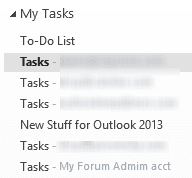
The index number in the following line controls which folder is selected when you switch to the Task Folder. This selects this second folder in the list. For example, to always use my "New Stuff" folder in the screenshot above, I'd change the index number to 5.
Set objNavFolder = objGroup.NavigationFolders.Item(2)
You'll need to sign the macro when you are done testing it or set Outlook's macro security to allow unsigned macros.
Dim WithEvents objPane As NavigationPane

Private Sub Application_Startup()
    Set objPane = Application.ActiveExplorer.NavigationPane

End Sub


Private Sub objPane_ModuleSwitch(ByVal CurrentModule As NavigationModule)
  Dim objModule As TasksModule
  Dim objGroup As NavigationGroup
  Dim objNavFolder As NavigationFolder

 If CurrentModule.NavigationModuleType = olModuleTasks Then
     Set objModule = objPane.Modules.GetNavigationModule(olModuleTasks)
     Set objGroup = objModule.NavigationGroups("My Tasks")

' Change the 2 to start in a different folder
     Set objNavFolder = objGroup.NavigationFolders.Item(2)
     objNavFolder.IsSelected = True
  End If
  Set objNavFolder = Nothing
  Set objGroup = Nothing
  Set objModule = Nothing
 End Sub
Use with any Navigation Module
You can use this macro with any navigation pane module by changing the 4 instances of "Tasks" to the appropriate module, folder type, or Group name.
| Module | Dim as Module Type | Module Type Name | Default Group Name |
|---|---|---|---|
| Tasks | TasksModule | olModuleTasks | My Tasks |
| Calendar | CalendarModule | olModuleCalendar | My Calendars |
| Contacts | ContactsModule | olModuleContacts | My Contacts |
| Notes | NotesModule | olModuleNotes | My Notes |
| Journal | JournalModule | olModuleJournal | My Journals |
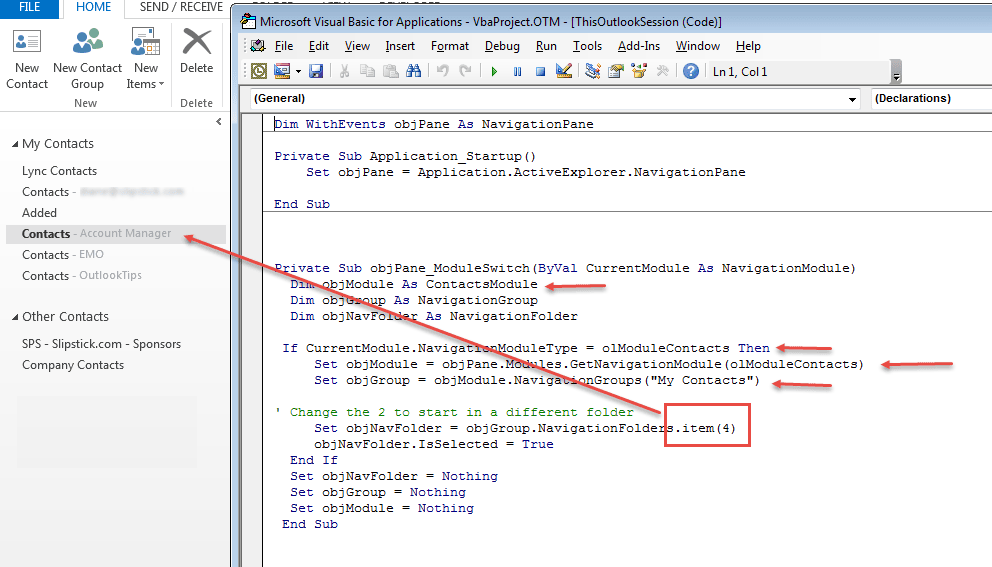
How to use this macro
First: You will need macro security set to low during testing.
To check your macro security in Outlook 2010 or 2013, go to File, Options, Trust Center and open Trust Center Settings, and change the Macro Settings. In Outlook 2007 and older, it’s at Tools, Macro Security.
After you test the macro and see that it works, you can either leave macro security set to low or sign the macro.
Open the VBA Editor by pressing Alt+F11 on your keyboard.
To use the macro code in ThisOutlookSession:
- Expand Project1 and double click on ThisOutlookSession.
- Copy then paste the macro into ThisOutlookSession. (Click within the code, Select All using Ctrl+A, Ctrl+C to copy, Ctrl+V to paste.)
More information as well as screenshots are at How to use the VBA Editor
More Information
OlNavigationModuleType Enumeration (Outlook)

Debbie says
Thank you! Thank you!
Taylor says
Thank you for this! I am having a problem with it not running in a 2nd Outlook window. For example, I open Outlook to my email and at the bottom of the navigation panel I right-click on Calendar to see it in a separate window. When I switch to Tasks in the 2nd window the macro does not work to select the 2nd folder of Tasks instead of the To-Do-List. Any suggestions?
Chad P says
This is fantastic. Thank you for sharing it!
Arjay56 says
Thanks Diane! This does exactly what I need!
Smithk354 says
I got what you intend, thankyou for putting up.Woh I am lucky to find this website through google.
Richard G says
Thanks for this. Works great, but with one strange anomaly I haven't been able to work out. If I start at - or interject - navigation to Outlook Today and then navigate to to a module other than Tasks, the following navigation to Tasks reverts to displaying the To-Do List. I'd be curious to see if others can replicate this.
BTW, one suggestion: note that you can use the folder name rather than the index to select the group item, e.g., Set objNavFolder = objGroup.NavigationFolders.Item("Main account tasks")
clearbluesky85 says
I was getting an error with "Dim WithEvents objPane As NavigationPane" saying that it is an invalid sub or function, then I realized that I had to put that line at the top in the general declarations section, since I had some other code already in ThisOutlookSession
Diane Poremsky says
You can have more than one code in ThisOutlookSession. If it has an application startup macro, add the line for this macro to it. The only time you'll have problems is if two macros use the same object names - if so, you'll need to rename one.
Andrew Gansler (@agansler) says
Awesome, works perfectly, thanks for curing a minor, but persistent headache!
neumatist says
I had a very similar experience to Chris Drake - so be warned. Worked fine for one session in Outlook (regardless of whether I shifted between 'mail' / 'calendar', etc. views), but it reverted back to the 'To Do List' as default as soon as I came out of Outlook and then reopened it. Pity.
Chris Drake says
This works great as long as you are staying in the same window. If, however, you are in, say, your Mail view, and in the navigation pane you RIGHT CLICK on Tasks and choose open in new window, then when the new window opens it will be defaulted to the dreaded To-Do List, not your Tasks even though the macro works if you just click on Tasks and let it open in the current window.