This code sample creates three new tasks based on one task, with the start and due dates of the each task in the series 2 - 5 days after the previous task.
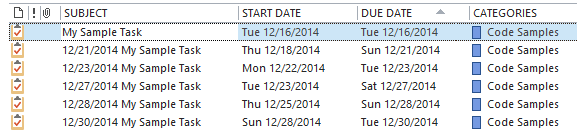
We also have a code sample that creates tasks from a selected appointment, with each task due in the days leading up to the appointment. The code can be tweaked to create a series of tasks or appointments from an email message or other Outlook items.
If you need to create a large number of tasks or skip weekends and holidays, it will be easier to create the tasks (or appointments) in Excel and Import them into Outlook or use a utility from the Tools section below. Sample workbook
The subject in my example includes the date of the task because it makes it easier to see that it is working. Once you are satisfied with the code, you can change the subject field as necessary.
To use, select the master task (or appointment) and run the macro. To make it easier to use, assign a toolbar or QAT button to the macro.
Create a series of tasks based on one task
Updated December 7 2014 to handle a large number of tasks more efficiently. Each subsequent task is based on the task before it. For example, Task # 3 (created by the Case 2 statements) starts 4 days after the previous task, which started 2 days after the first task. With some minor tweaking, it could base the start and end times off of the original task date. See Create a Series of Tasks Leading up to an Appointment for an example.
To create more than five tasks, change the value in the i = 1 to 5 line and add additional Cases.
Public Sub CreateTasks ()
  Dim obj As Object
  Dim Sel As Outlook.Selection
  Dim objTask As Outlook.TaskItem
  Dim objNewTask As Outlook.TaskItem
  Dim objFolder As Outlook.MAPIFolder

  Dim i As Long
  Dim sDate As Date
  Dim dDate As Date
  Dim strOriginalSubject As String, strSubject As String


  Set Sel = Application.ActiveExplorer.Selection
  If Sel.Count Then
    Set obj = Sel(1)
    Set objFolder = obj.Parent

If TypeOf obj Is Outlook.TaskItem Then

    Set objTask = obj

    strOriginalSubject = objTask.Subject

For i = 1 To 5

Set objNewTask = objFolder.Items.Add(olTaskItem)

 Select Case i

 ' each task is using the date of the previous task to calculate
 Case 1
  sDate = objTask.StartDate + 2
  dDate = objTask.StartDate + 5
  strSubject = dDate & " " & strOriginalSubject

 Case 2
  sDate = objTask.StartDate + 4
  dDate = objTask.StartDate + 5
  strSubject = dDate & " " & strOriginalSubject

 Case 3
  sDate = objTask.StartDate + 1
  dDate = objTask.StartDate + 5
  strSubject = dDate & " " & strOriginalSubject

 Case 4
  sDate = objTask.StartDate + 2
  dDate = objTask.StartDate + 5
  strSubject = dDate & " " & strOriginalSubject

 Case 5
  sDate = objTask.StartDate + 3
  dDate = objTask.StartDate + 5
  strSubject = dDate & " " & strOriginalSubject

End Select

      With objNewTask
        .Categories = objTask.Categories
        .Companies = objTask.Companies
        .ContactNames = objTask.ContactNames
        .Body = objTask.Body
        .StartDate = sDate
        .DueDate = dDate
        .Subject = strSubject
        .Save
      ' .Display
      End With

Set objTask = objNewTask
Next i

End If

Quit:
    Set objTask = Nothing
    Set objNewTask = Nothing
    Set obj = Nothing

End If

End Sub
How to use macros
First: You will need macro security set to low during testing.
To check your macro security in Outlook 2010 or 2013, go to File, Options, Trust Center and open Trust Center Settings, and change the Macro Settings. In Outlook 2007 and older, it’s at Tools, Macro Security.
After you test the macro and see that it works, you can either leave macro security set to low or sign the macro.
Open the VBA Editor by pressing Alt+F11 on your keyboard.
To put the code in a module:
- Right click on Project1 and choose Insert > Module
- Copy and paste the macro into the new module.
More Information
Create a series of tasks leading up to an appointment
The base for the code sample came from Journal: Create a new item based on an existing one.

TJ Singh says
Hello, I am new to this VBA coding. I am getting this error saying " Compile Error: User-defined type not defined" when I run the code.
I already changed the references and selected .DAO files.
Does anyone know what mistake I am making.
Diane Poremsky says
it means you are calling a procedure that is not referenced. I'm not sure how .dao files fit into this - this is an Outlook macro.
Did you edit the macro? it might help if you post your macro.
Nathan says
This is a great macro. How would I assign different categories to the tasks as they are created?
For example if i wanted task 1 to be in Category A, Task 2 Category B Task 3 Category A and so on.
Thannks
Diane Poremsky says
At the top of the macro, add a line to dim strCategory as string
In each case statement, add a line to set a category string
Case 1
sDate = objTask.StartDate + 2
dDate = objTask.StartDate + 5
strSubject = dDate & " " & strOriginalSubject
strCategory = "Category A"
Set the string as the category:
With objNewTask
.Categories = strCategory
Chieri Thompson says
What if you need to distribute tasks from another account? I'm the owner of my "personal" account and the other is shared among-st myself & coworkers (non of us are the owners of this account). Is it possible to send out tasks via VBA from a secondary account? I typically manually send out 4 tasks every morning from the secondary shared account.
Keith Brooks (@LotusEvangelist) says
How do you verify if the tasks have already been created? We have 2 different people doing updates but if they are not in synch we end up with duplicates. I want to use the subject as a reference as subjects are unique.
Chris Graves says
Hi Diane,
Is it possible in principle to use VBA in BCM (Outlook) 2010 to automate the emailing of a series of different html emails on a schedule?
Best regards,
Chris
Diane Poremsky says
You can use VBA to access BCM data - Outlook would be the one handling the work.
Chris Graves says
Hi Diane,
I am researching whether or not to use BCM 2013 four small business' CRM. Our main concern is to be able to automate elements of our sales process. In particular, we would like to be able to create a lead 'template' where each new lead is put into a process where every certain number of days a new html email will be sent to them. Is it possible to program this is VBA? I thought this was a good place for this question because the code you describe here pertains to scheduling events.
Beswt regards,
Chris Graves
Ernie Davis says
I would paste the code I ended up with here as well... but the code above is so complete and fluent, there were very few changes to the logic required. A little mild cleanup + the required customization and it was magic. Thank you all for the contribution!
David says
Excellent Diane. I'll have a play about with it and see what I can come up with.
Many Thanks Again.
David says
Hi Diane,
I have created a modified version of your code which will create tasks leading up to and after a calendar appointment and then assigns these tasks to the relevant project worker. The code is as follows (some of the code is redundant as it was 'homaged' from a different project)
Public Sub CreateNewTaskFromSelectedAppointment()
Dim obj As Object
Dim Sel As Outlook.Selection
Dim objAppt As Outlook.AppointmentItem
Dim objTask1 As Outlook.TaskItem
Dim objTask2 As Outlook.TaskItem
Dim objTask3 As Outlook.TaskItem
Dim objTask4 As Outlook.TaskItem
Dim objFolder As Outlook.MAPIFolder
Dim myDelegate As Outlook.Recipient
Set Sel = Application.ActiveExplorer.Selection
If Sel.Count Then
Set obj = Sel(1)
If TypeOf obj Is Outlook.AppointmentItem Then
Set objAppt = obj
Set objTask1 = Application.CreateItem(olTaskItem)
Set objTask2 = Application.CreateItem(olTaskItem)
Set objTask3 = Application.CreateItem(olTaskItem)
Set objTask4 = Application.CreateItem(olTaskItem)
'Create task #1
With objAppt
objTask1.Categories = objAppt.Categories
objTask1.StartDate = objAppt.Start - 1
objTask1.DueDate = objTask1.StartDate + 1
objTask1.Subject = "Text Advocate & Client about appointment tomorrow " & objTask1.DueDate & " " & objAppt.Subject
objTask1.Assign
Set myDelegate = objTask1.Recipients.Add("Lisa Sen")
Set myDelegate = objTask1.Recipients.Add("Aileen O'Halloran")
myDelegate.Resolve
If myDelegate.Resolved Then
objTask1.Subject = "Text Advocate & Client about appointment tomorrow " & objAppt.Subject
objTask1.Body = "FYI " & " " & objAppt.Subject
objTask1.DueDate = objAppt.Start - 2
objTask1.ReminderTime = objTask1.DueDate - 1
objTask1.Display
objTask1.Send
End If
End With
'Create task #2
With objAppt
objTask2.Categories = objAppt.Categories
objTask2.StartDate = objAppt.Start - 1
objTask2.DueDate = objTask2.StartDate + 1
objTask2.Subject = "Arrange Expenses For Advocate " & objTask2.DueDate & " " & objAppt.Subject
objTask2.Assign
Set myDelegate = objTask2.Recipients.Add("Aileen O'Halloran")
Set myDelegate = objTask2.Recipients.Add("Lisa Sen")
myDelegate.Resolve
If myDelegate.Resolved Then
objTask2.Subject = "Arrange Expenses For Advocate " & objAppt.Subject
objTask2.Body = "FYI " & " " & objAppt.Subject
objTask2.DueDate = objAppt.Start
objTask2.ReminderTime = DateAdd("ww", 1, strDueDate) 'Remind 1 Week before Due Date.
objTask2.Display
objTask2.Send
End If
End With
'Create task #3
With objAppt
objTask3.Categories = objAppt.Categories
objTask3.StartDate = objAppt.Start
objTask3.DueDate = objTask3.StartDate + 1
objTask3.Subject = "Update Client ODM Record " & objTask3.DueDate & " " & objAppt.Subject
objTask3.Assign
Set myDelegate = objTask3.Recipients.Add("Aileen O'Halloran")
Set myDelegate = objTask3.Recipients.Add("Lisa Sen")
myDelegate.Resolve
If myDelegate.Resolved Then
objTask3.Subject = "Update Client ODM Record " & objAppt.Subject
objTask3.Body = "FYI " & " " & objAppt.Subject
objTask3.DueDate = objAppt.Start
objTask3.ReminderTime = DateAdd("ww", 1, strDueDate) 'Remind 1 Week before Due Date.
objTask3.Display
objTask3.Send
End If
End With
'Create task #4
With objAppt
objTask4.Categories = objAppt.Categories
objTask4.StartDate = objAppt.Start - 1
objTask4.DueDate = objTask4.StartDate + 1
objTask4.Subject = "Arrange Another Appointment For Client " & objTask4.DueDate & " " & objAppt.Subject
objTask4.Assign
Set myDelegate = objTask1.Recipients.Add("David Kidd")
If myDelegate.Resolved Then
objTask4.Subject = "Arrange Another Appointment For Client " & objAppt.Subject
objTask4.Body = "FYI " & " " & objAppt.Subject
objTask4.DueDate = objAppt.Start
objTask4.ReminderTime = DateAdd("ww", 1, strDueDate) 'Remind 1 Week before Due Date.
objTask4.Display
objTask4.Send
End If
End With
On Error Resume Next
objTask1.Save
objTask2.Save
objTask3.Save
objTask4.Save
End If
Set objTask1 = Nothing
Set objTask2 = Nothing
Set objTask3 = Nothing
Set objTask4 = Nothing
Set obj = Nothing
End If
End Sub
I work across a number of projects and use different coloured labels to differentiate between them in my calendar. Therefore, I was wondering if it would be possible to assign a different series of tasks to other people dependant on the coloured label assigned to the calendar appointment?
Many Thanks
David
Diane Poremsky says
Some of the code here is messy for the same reason. :)
This is the line that assigns the task - objTask1.Recipients.Add("David Kidd") and instead of using a name, you can assign a name to a category and use it here. If the category is named for the person's alias or their full name, you could use strCategory = objAppt.Categories then use objTask1.Recipients.Add(strCategory) Outlook will resolve it on send (you can resolve it programmatically too.) Or you can use Select Case statements to link a category to a user. Something like this -
Select case objAppt.Categories
case "categry1"
strTo = "David"
case "category2"
strTo = "Mary"
end select
then use objTask1.Recipients.Add(strTo)