Outlook has a No Automatic Filtering setting in Junk Email Options, which turns off all junk filters but leaves the Blocked Senders List applied to incoming email.
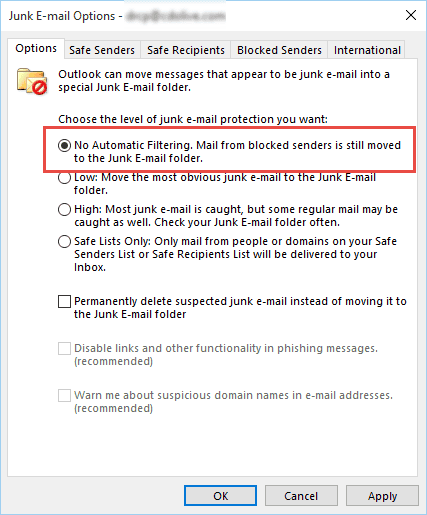
Some users complain that the filter continues to work after setting it to No Automatic Filtering and with the Blocked list empty. Other users prefer to use a different spam filter.
Before disabling the Junk Email Filter, see Dave's comment below.
For those users who want to disable Outlook's Junk email filter, there is a registry key that will disable the Junk email filter in Outlook 2007, 2010, and 2013. This key will completely disable the junk filter, including the Blocked list, and disable the Junk email options button. It will not affect third party spam filters.
 When the registry key is set, the Junk button will be grayed out, as seen in this screenshot.
To disable the filter, browse to the following registry key and add the DisableAntiSpam DWORD, setting it to a value of 1. If the key does not exist, you'll need to create it.
In Outlook 2016 and newer, open the registry editor and browse to
HKEY_CURRENT_USER\Software\Policies\Microsoft\office\16.0\outlook
DWORD: DisableAntiSpam
Value of 1 disables the junk filter, 0 enables it
In Outlook 2013, open the registry editor and browse to
HKEY_CURRENT_USER\Software\Policies\Microsoft\office\15.0\outlook
DWORD: DisableAntiSpam
Value of 1 disables the junk filter, 0 enables it
In Outlook 2010, browse to
HKEY_CURRENT_USER\Software\Policies\Microsoft\office\14.0\outlook
Outlook 2007:
HKEY_CURRENT_USER\Software\Policies\Microsoft\office\12.0\outlook

Do It For Me
If you don't want to edit the registry yourself, we have ready-to-use registry files. Download (right-click on the link and choose Save as) then double click to run, answering Ok or Yes as needed.
Outlook 2016 Outlook 2013 Outlook 2010
Outlook 2007
Restart Outlook for the registry edit to take effect. The Junk email folder will remain (but should not be created if you make a new default pst file) – you can delete the junk folder using OutlookSpy or MFCMAPI.
To re-enable the Junk filter, edit the reg file in Notepad, replacing the 1 with 0.
To remove the key, Open the registry editor, browse to the value then delete it.
More Information
How to Remove RSS Support from Outlook
- Add EU to the International Blocked TLD List
- Automatically Cleanup Outlook's Deleted Item and Junk Email Folders
- Blocking Mail From New Top-Level Domains
- Bulk Add Addresses to Safe and Blocked Senders Lists
- Don't Get Caught In a Phishing Hack
- Empty Multiple Deleted Items Folders using a Macro
- How to Block Foreign Spam
- Icon is not correct on the Junk Mail Folder
- Junk Email Filtering isn't Working in Outlook
- Junk Mail Filtering in Outlook
- Office 365 Fraud Detection Checks
- Outlook's "Not Junk" option isn't available
- Rules and Tools to Filter Junk Mail
- Samsung smartphones move email to the Junk folder
- Sending Autoreplies to Spammers
- Should You Respond to Junk Mail?
- Understanding the Safe and Blocked Senders lists
- Using Outlook's Junk Filter with Multiple Accounts
- Using Outlook's Junk Mail filter
- What Moved a Message to the Junk E-mail Folder?

Horatio Hornblower says
If you could please, update the line "In Outlook 2016, open the registry editor" to indicate that this is for any current Outlook version including MS 365.
I still reference this article often and it is causing some confusion for users. e.g.
https://learn.microsoft.com/en-us/answers/questions/5770109/disabling-junk-filtering-does-not-work
viciva says
There exists a freeware named FromJunkToInbox that moves any email delivered to the Junk Email folder to Inbox folder.
Caio Martinelli - Brazil says
Thanks a Lot!
David Slight says
For insiders this is the fix for 16188 :-)
Straydog says
Hello Diane,
I have Office 2016, I followed your instructions and I believe the filter was disabled. The folder now has a No Parking sign on it, but I am not sure that it is completely disabled because it is still there. How can I make it disappear, please?
Diane Poremsky says
that is the normal junk mail folder icon - the only way to know it was disabled is because the junk menu button is grayed out and no longer works.
Anita says
In Outlook 2013, I found no "Policies" in HKEY_CURRENT_USER\Software\Policies, so I went to HKEY_CURRENT_USER\Software\Microsoft\office\15.0\outlook and then created the key = 1. However, after rebooting, the junk button was Not greyed out, and the incorrect filtering continued (despite my safe sender list, rules, etc. to the contrary).
Diane Poremsky says
if the policy key path doesn't exist, you need to create it. Most, but not all, keys will work in either the user section or under policies. This is one of the few that only works in the policies section.
The registry file for outlook 2013 will set the correct key.
Anita says
I don't know how to create the policy key path. Would you please describe the steps to do it? Thank you.
Diane Poremsky says
If you are not familiar with editing the registry, the easiest way is to download and run the reg file for your version of outlook that is linked under 'Do it for me' - if your browser saves it as a text file, change the extension to .reg and download to run.
Otherwise, open the registry editor and find the path - if a key doesn't exist, right click and choose New Key and type in the name. See How to edit the registry if you've never one it before.
Tom says
The path for Windows 10 appears to be different....can you give that path because there is no policies folder anymore...I need to do this because even if I click on the "no automatic filtering", the next day something changes it back to low filtering.
Diane Poremsky says
This is with the hotmail account? Was the account migrated to the new server? If you are still on the old server, i believe that behavior is expected. If the policies key doesn't exist, add it. You can run the reg file I provided for your version of outlook then edit the registry to ch ange the value. (The path is the same in all OSs.)
Charles says
How does this work with a shared mailbox? We have had a case where junk e-mail still filters through with group polices applied to disable Junk e-mail as well.
Diane Poremsky says
It would definitely apply to all accounts open in the profile but I'm not sure if it applies to mailboxes open as shared boxes in a profile as they don't have client side options - server side options (such as rules) would apply to these mailboxes.
Mike says
Thanks Diane, using your script solved an irritating issue with the Junk filter. It was always and only putting good emails in there.
BTW, HKEY_CURRENT_USER\Software\Policies\Microsoft\office\16.0 was not in my registry. I had entries for 12.0, 14.0, and 15.0, but the script still worked.
Diane Poremsky says
The keys in the path are only present when added by the user or administrator.
Peter Talbot says
I moved to Microsoft 365 about a month ago and have been trying to disable the junk email feature. I found that in the Outlook Web App there was an option "other" at the end of the settings menu. This gave me access to a "Block or Allow" option where I could tick a box for "don't move email to my junk folder". Maybe that will do the trick...
Dlinux says
Ok, great idea but unfortunately, as others have pointed out, simply disabling the auto junk filter WILL NOT turn off the Blocked Senders list. I just tested this by first sending a message to myself from another address with no settings changed. As expected, the email arrived in my Inbox a second or two later. Then, I added that other address to the blocked senders list under Junk E-mail Options and sent another test mail. As expected, this one was sent directly to my Junk folder. Now, according to Poremsky above, disabling the junk filter in the registry should "disable the junk filter, including the Blocked list". So, I created the prescribed registry key and set it to 1. As expected, upon reopening Outlook, the button for Junk email was grayed out. However, when I sent another test email from the same external address, it STILL went into the Junk folder. Just to be certain nothing else was blocking it, I re-enabled Junk, went to Options>Blocked Senders, and removed my other address from the list. Without changing any other settings, I sent another test and this time it went to Inbox immediately. The only conclusion to draw is that turning off the Junk filter with this specific reg key WILL NOT turn off the Blocked Senders list. Outlook will continue to follow the list, regardless of whether Junk filtering is on or off.
To those complaining that emails continue to go to their Junk folder after disabling Junk, my advice is simply to go to Junk>Junk E-mail Options>Blocked Senders and remove any and all addresses that you'd like to receive mail from. If anything is on that list, it will be blocked no matter what!! Then, proceed with the steps above to disable automatic junk filtering.
Diane Poremsky says
What type of email account are you using? Which version of Outlook? It tested it to confirm they didn't break it in an update and disabling the junk filter in Outlook 2016 with POP account works exactly as I said it would - the blocked list is no longer blocked when the junk filter is disabled. (Outlook needs to be restarted for the key to take effect.)
You can delete the blocked list from the registry instead of changing the key. It's stored in the value 001f041a - use search to find it because the key it's in will vary depending on your version and in 2010 and up, there will be a value for each account that has blocked senders. (There is a value for safe lists too - just above or below 001f041a.)
Adam says
Could you please add a 'Do It For Me' .reg file for Outlook 2016 [64 bit ed.]
Thank you very much.
Diane Poremsky says
Done. The key works in both 32 and 64 bit Outlook.
https://www.slipstick.com/doit/DisableAntiSpam2016.reg
terry says
Hi, this did not work for W10, Office 2016 :(
Only ribbon button is greyed, can use junk by right-click item.
Diane Poremsky says
Hmm. The right click menu is disabled in my Outlook 2016 (version 1712).
fdfdssdf says
Diane, there is no such registry key in Windows 7 with Office 2013.
Diane Poremsky says
If the key doesn't exist, you need to create it.
Ngo says
Thanks Diane. Somehow, I missed that. The registry key disabled the Junk button, but my e-mails still come in with the [spam] tag on them. Any ideas how to get rid of it?
Diane Poremsky says
The spam tag is added by your mail server or an antispam program installed by your antivirus/security software. I'd start by logging into web access and checking there - depending on your server, you might be able to disable it. otherwise, you'll need to talk to your email administrator.
pctech says
I tried this fix in Outlook 2013 with Exchange environment. Spam filtering was disabled in Exchange. The Junk email folder and options became grayed out but emails are still going into Junk. Is there any way to disable it permanently and force all emails to go into inbox?
Diane Poremsky says
What does the infobar on the messages in the junk folder say moved the messages? What antivirus software do you use? Is it filtering mail?
jobibex says
I'm running Outlook 2007 and recently the junk mail filter went into a comma and stopped working. Every incoming email even those from blocked email land in my inbox. I don't recall changing any setting though.
Diane Poremsky says
is the filter still enabled? Was it changed to low? What type of email account are you using? Do you have a contact for yourself and if so, are you trusting all contacts?
Mike says
Hello all,
The Registry Hacks (Uh... "modifications") described MUST be done from an Admin account AND NO USER ACCOUNT can be logged into at the time. I'll paint a picture of what I did to myself. Outlook 2010 on Win 7 Ultimate x64. One Admin account and one User account on the machine. I entered the modifications manually and did not use the "Do it for me" provided above.
1) I "switched users" to the Admin Account while leaving the User Account logged in because a new Key couldn't be created in Regedit as a User due to User lack of permissions. It cried that it "Cannot create key: You do not have the requisite permissions to create an new key under Microsoft". Fine, thus I switched to Admin.
2) I used Regedit and built the Keys and Data necessary for the Hack while logged in as Admin.
3) I logged out of Admin and logged back to the User Account.
In other words, I left the User logged in and it has consequences. The Outlook Junk button 0/1 switch in the Registry Hack worked fine when logged into the Admin Account. The button was available when set to 0 and greyed out when set to 1. BUT when logged in as a User the Junk button was always available. Further, the "office/14.0/outlook" Keys and "DisableAntiSpam" Data that I had entered as an Admin WERE NOT THERE when Regedit was run as a User. They WERE there when logged in as Admin. Something MS-Security-Wise may be going on for the Keys to not be either displayed in Regedit or functional to the User account. I suspect that even though the Hack was applied while running as an Admin, the fact the Registry was open due to the User being logged in prevented the update to the HKCU hive for that User.
Summary:
1) The Hack was not functional as a User nor was it shown in Regedit while logged in as a User.
2) The hack worked fine when logged in as an Admin.
3) While logged in as a User, I ran an elevated (Administrative) DOS box and entered "Regedit" as the command. Regedit came up and showed the Hack Keys and Data properly. When running Regedit as a User, the Keys and Data were not there.
There are several fixes available, some more "complicated" than others. In my humble opinion the easiest fix is this:
The Problem:
1) When logged in as an Admin the Hack is showing properly in the Registry and worked, but not as a User. In fact the Keys and Data entered as an Admin don't even show up in the Registry (using Regedit) when logged in as a User.
2) The User account can't edit the Registry to add the Keys and Data.
The FIX:
1) Make the User an Admin
2) Log Out
3) Log back in
4) Add the Keys and Data for the Hack using Regedit (it is now happy to manipulate the "Policies" Key)
5) Make the User a User again
6) Log Out
7) Log back in
Now, when logged in as a User, the modifications are present in the Registry and Outlook will do what the Registry says to do; Disable the Junk button when set to a 1 and enable it when set to 0. THERE IS A CAVEAT that you need to be aware of. If you're logged in as an Admin, you are able to toggle the switch in the Registry at will (kill Outlook first) and when Outlook is started again, the change you made is reflected. BUT if you're logged in as a User, you can't. You have to jump through the hoop in the FIX above in order to toggle from 0 to 1 using Regedit. THE ADMIN REGISTRY SELECTION (0 or 1) WILL NOT AFFECT THE STATE OF THE USER REGISTRY SETTING. This all appears to have happened BECAUSE the User Account was logged in when the Hack was entered into the Registry in the first place (again, using Fast User Switching to get to the Admin Account in order to add the Hack). Making changes to that Key's Data as an Admin doesn't propagate to the Users HKCU hive.
The best medicine is preventative medicine here. Make CERTAIN that no User Account is logged in when making Registry changes as an Admin. This behavior MAY be isolated to the "Policies" Key path involved because of the Security ramifications of that particular Key. One is able to create other Keys in Regedit under HKCU while logged in as a User. I don't know what happens if the User logs off first to get to the Admin Account or if the problem or FIX above affects only logged on Users, or all Users, or if the FIX has to potentially be applied to EVERY User account on the machine on an individual basis should this happen to you. That paints an ugly picture if this were to happen in an Enterprise environment. I do know what happens if a User IS logged in while using Fast User Switching to get to the Admin Account to apply the modifications. Maybe someone has further insight?
Thanks,
Mike
Gav says
Hi Diane, Is there way if we can use Group policy to disable the junk e-mail button. Will it disable any rule as well which they would have created in the past related to junk e-mail?
Diane Poremsky says
You can. It's in the admin templates under Outlook > Outlook Options > Preferences > Junk Email. It's called Hide Junk Mail UI. It disables all client side filtering, including blocked list. It won't disable Rules in the Rules Wizard. If you want to allow the use of Blocked lists, set junk mail to no protection under Junk mail protection level policy.
Shirley Kennett says
Thanks, Diane, for your suggestion on another forum that if the registry key does not exist, go ahead and create it. This worked perfectly for me, has grayed out the junk email options, and nothing has been sent to my Junk folder--exactly as I wanted.
Dave Birren says
After turning Outlook's junk e-mail filer off via the registry mod noted above, the filtering continued. It wasn't quite as bad as before, but almost. After a while it occurred to me that Avast! also has a spam filter. I turned that feature's setting from medium to low filtering but I still got messages in the Junk folder. So I turned it off and turned the Outlook junk feature back on. Now it's working correctly.
So check any anti-spam program you may have running. It could be the cause. And if you can edit the way that program labels what it calls spam (however it modifies the message's subject line), you'll know if it's the culprit.
Diane Poremsky says
Thanks for sharing your experience! I'm sure it will help others.
Kay Goon says
All my emails are going into the junkmail folder. I've tried to follow instructions from the website but am very confused. Are there simple step by step instructions to help someone who isn't very savvy with computers?
Diane Poremsky says
What type of email account do you use? POP3, IMAP, Outlook.com or Exchange server
Do you use a smartphone to read your email?
The problem is probably not that you need to disable the junk filter but that something else is causing the problem.
Dave Birren says
Thank you! The registry entry (under HKEY...Policies) didn't exist, so I followed the "Do It For Me" instructions and it worked. Finally!
ITDawg says
Diane, We are new to Exchange and we continue to return to your site for quick, insightful information straight to the point.. .and for that, we THANK YOU!
I have one question related to this registry key. Often, applications will look in the HKEY_LOCAL_MACHINE hive if it does not find the entry in the Current User hive, therefore allowing a single entry to provide the setting for all users of the machine. I did try adding the key to HKEY_LOCAL_MACHINE\software\Policies\Microsoft\office\15.0\outlook however, it did not affect the Junk feature. Therefore, my question is do you know of a way that a single registry entry will turn this off?
Thanks!
Diane Poremsky says
I know outlook would need to be restarted, but I'm not sure if windows would need to be logged off or restarted.
You can set the policy keys using a logon script or by using group policy - if you aren't logging into a domain, you can use a local group policy to apply it to all users of the computer.
Joe Carpenter says
This does not work for Outlook 2013.
Diane Poremsky says
It works here. Which Office suite are you using?
Gregg says
Thanks for your reply, Diane!
Gregg says
Is it possible to do the same thing with Outlook 2003? I tried adding the regkey to: HKEY_CURRENT_USERSoftwarePoliciesMicrosoftoffice11.0outlook but it hasn't worked. Many thanks!
Diane Poremsky says
No, sorry, it was added to Outlook beginning with 2007.
jb says
I got it! I found the solution on another blog (not sure if you want me to credit it here so I respectfully won't).
It's a problem for people who have multiple email accounts. I have 6.
Outlook does Junk filtering on a per-account basis.Here's what you have to do:
1. Go to account settings and set a different address as default
2. Disable Junk filtering
3. Repeat steps 1 and 2 until you've set it for every account, then set whichever one you want as default again.
A bit tedious, but it took me less than 5 minutes. And works!
jb
Diane Poremsky says
Sorry about that, i usually don't think to mention the behavior for multiple accounts, unless I know multiple accounts are present in the profile.
Using Outlook's Junk mail with multiple accounts
jb says
Hi Diane. Thank you for your wonderful site and for this solution in particular. I've been a Slipstick reader since the late 1990s - I think I remember when Sue Mosher published her first book and used to subscribe to her email list!
I have Outlook 2010 on Windows 8.1. I retrieve my email via pop/smtp. This is a new installation on a new OS - my hard drive with Vista finally gave up the ghost. I mention that because I didn't have this problem with this same installation on Vista. I'll add that I had a backup of my pst from vista and am using the same one now.
I too was having the problem of messages being sent to junk mail even though I had that feature disabled, and yes it was Outlook sending them there. So I ran your registry script and the problem went away!
The problem now is that images in messages aren't displayed - even images for those in my safe sender's list. In an email, I get the info at the top of the message where I can choose to display images, add sender to safe senders, etc. But no matter what I try, I still can't see the images.
I assume this is because the registry hack prevents Outlook from accessing safe senders data. Does that compute?
So I reversed the hack and now I can see images. But I'm guessing the Junk folder will start filling up again eventually. Any suggestions? Thanks!
Diane Poremsky says
Yeah, with the registry key set, the safe senders list is not used, so you need to either show all external content or allow it one by one. That setting shouldn't prevent you from seeing the external content if you choose download external content - I'll have to check that.
If you set the junk mail setting to low or no filtering, does it still move a lot of mail to the junk folder?
Jerry says
hi Diane,
could you explain more details about why outlook junk mail feature still working after set no automatic filtering? is it a bug so we need to disable it in registry?
Diane Poremsky says
When its on no automatic filtering, the safe and blocked lists still work. The key disables the safe & blocked list. There seems to be a bug where the no automatic folder setting doesn't 'take' - i'm never quite sure if its user error or a bug or something else (like 3rd party software causing problems). The reg key puts an end to all problems and guarantees it won't be turned on accidentally,
Donna says
I have Outlook 7 and I am having the same problems with junk mail.
I have tried everthig I have read here and nothing works. I have very important emails going to junk and is marked spam.
Diane Poremsky says
By marked spam, do you mean the subject had something like [spam] added? An add-in or your mail server is doing that, not outlook. If outlook is moving them, when you look at the message in the juk mail folder, the infobar will say outlook did it.
Paul Williams says
Good morning Diana
I'm using Outlook 2010 with Windows 8 and I can't stop it putting files into Junk email, even though I have it turned off. I've tried your "Do it for me" file, but all I get is a Notepad file. I can't find any way to edit the registry.
Thanks
Paul
Diane Poremsky says
You need to right click and save the do it file and choose Save link as - then change the extension to .reg. IE's default setting is to offer to download them but Chrome & Firefox always open the reg files as text files in the browser window, rather than opening it as a reg file or making you save it.
Rookie says
Thanks for the article Diane, but I am still having some issues with emails going into my junk mail folder. I have done everything I can think can but am still having emails go into the junk mail folder in Outlook 2010.
List of things tried:
Turned off automatic filtering in OWA and Outlook
Reinstalled outlook
ran scan\repaired on the .pst
Disabled filtering on exchange for user
deleted stale rules via mfcmapi (this worked for about 24 hours)
Tried this registry addition turning off junk mail folder.
And I am still getting Junk mail! Help! FYI - most of the junk is actually coming from our own domain and it is only happening for 1 user.
Any help is greatly appreciated!
Diane Poremsky says
Does the infobar on messages in the junk folder say if outlook moved the message? Do you use an antispam addins? If you use the registry key to disable spam scanning, the mail is getting moved by something else - either an addin on the local computer or the Exchange server.
superarr says
My drill down in the registry did not reveal the labels that you proposed we change. The only thing I have at that location is the Calendar folder
Diane Poremsky says
If the keys don't exist, you need to create them - outlook doesn't create keys for the default settings.
Boontawee Home says
Thank Diane, this article help me alot!.
Martin Zhou says
Diane, the junk e-mail protection level options (No Automatic filtering, low, high, safe list only)in my 2010 outlook are all greyed out. I used to be able to make the choice. Thanks
Diane Poremsky says
This is a home computer? What type of email account?
Try closing outlook then right click on the shortcut and start it using Run as Administrator. Are they enabled now?
If not a home computer, the admin could have a policy in place.
Dave Offutt says
We use Outlook 2010 and don't want to totally disable Junk Mail Filtering. However we are very frustrated that in spite of the fact we have extensive ilsts of both "Safe Senders" and "Safe Receipients" the filter continues to send the emails to Junk Mail. This causes a tremendoue amout of wasted time having to carefully comb the Junk Mail for ligitimate Client emails.
Is there any way to fix this, short of totally disabling it?
Diane Poremsky says
Is Outlook doing it? Check the infobar on messages in the junk email folder. See What Moved a Message to the Junk E-mail Folder?
Diane Poremsky says
The folder is named Spam? That is not an Outlook folder - you have an add-in (usually install by your antivirus suite) that created the folder and is moving the mail to that folder. Disable the addin in Trust center (File, Options in Outlook 2010, or Tools, Trust Center in Outlook 2007)
Fiona says
Diane, your forum is so useful. I have been trying to solve this problem for ages - that so many legit emails go into my SPAM box despite changing the Junk settings in Outlook. I have followed your advice to go to the Trust Center - can you advise what I do once I'm in the Trust Center - I'm not sure what to do! Thank you!
Diane Poremsky says
You want to check the Addins - do you have an antivirus or antispam addin listed? (Addins is on the Options list in some versions.)
What does the infobar bar say? Look at the message in the Junk folder and under the subject line, before the message body, is a bar that will say if outlook moved it or if something else moved it (but not what the 'something else' is.)
Marie-Therese Riddell says
I did everything mentioned above and my mail still goes to the SPAM Folder.