A Powershell version is also available: Use PowerShell to Bulk Change Contacts
To change the default File As format used for new contacts, go to Tools, Options, Contacts options in older versions or File, Options, Contact (or People) options in Outlook 2010 and newer.
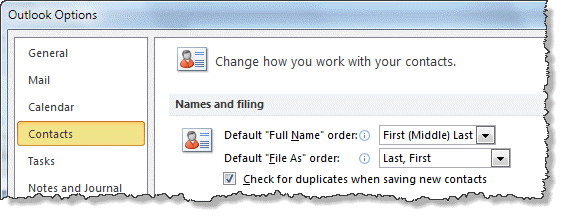
Outlook's Contact's offer a number of File As formats and this format can be used for the contact's name display in the Address Book. However changing the File As format on a large number of contact's is time-consuming when you need to change the contacts one by one. You can do it using VBA or a utility (listed below).
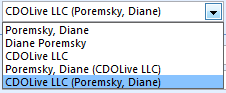
The file as format options are shown in the screenshot. The VBA code sample supports all 5 formats.
Along with changing the File As order, you can change the order Outlook assumes you use when you enter the name. This setting determines how the names populate the dialog when you press the Full name button. If the name order is wrong in FileAs ("Mary, Smith" when using last, first format), check this setting. If you choose Last First format you don't need to use a comma to separate the names when you enter them and First Last1 Last2 correctly puts the name in the middle position into the last name field, not the middle name field. Outlook will detect names separated by commas as Last, First format, regardless of the Fullname format setting.
VBA Sample
The following code sample supports all 5 File As formats available in Outlook. Press Alt+F11 to open the VBA editor then copy and paste into ThisOutlookSession. Uncomment the strFileAs line that uses the format you desire before running it. (Uncomment the line by removing the apostrophe from in front of the strFileAs = [name_format] command you wish to use.)
See page 2 (or the text file below) for code sample 2 to change the FileAs format on selected contacts.
To test for a value (such as Company name) and use a different File As format if the value is empty, you need to use an If... Then statement.
            With objContact
                If .CompanyName = "" Then
            ' Firstname Lastname format
                   strFileAs = .FullName
               Else
            ' Company name only
                   strFileAs = .CompanyName
               End If
               .FileAs = strFileAs
               .Save
            End With
See Bulk change FileAs format to match Outlook's default setting for a version of this macro that reads the default setting in the registry and applies it to existing contacts.
 To use, select the Contacts folder in Outlook then return to the VBA Editor and press the Run button or F5 to run the macro. You can run the macro later by pressing Alt+F8 (after selecting the Contacts folder) then choosing the macro and pressing Run.
To help eliminate errors, we have text files containing the VBA code samples available. To use, open the text file and Select all (Ctrl+A), copy then paste into the VBA editor. To save to your computer, right-click and choose 'Save Target as'.
Original code - change contacts in default folder | Change selected contacts in any folder
Public Sub ChangeFileAs()
'Fromhttp://slipstick.me/5z
    Dim objOL As Outlook.Application
    Dim objNS As Outlook.NameSpace
    Dim objContact As Outlook.ContactItem
    Dim objItems As Outlook.Items
    Dim objContactsFolder As Outlook.MAPIFolder
    Dim obj As Object
    Dim strFirstName As String
    Dim strLastName As String
    Dim strFileAs As String

    On Error Resume Next

    Set objOL = CreateObject("Outlook.Application")
    Set objNS = objOL.GetNamespace("MAPI")
    Set objContactsFolder = objNS.GetDefaultFolder(olFolderContacts)
    Set objItems = objContactsFolder.Items

    For Each obj In objItems
        'Test for contact and not distribution list
        If obj.Class = olContact Then
            Set objContact = obj

            With objContact
            ' Uncomment the  strFileAs line for the desired format
            ' Comment out strFileAs = .FullName (unless that is the desired format)

                'Lastname, Firstname (Company) format
                ' strFileAs = .FullNameAndCompany

                'Firstname Lastname format
                 strFileAs = .FullName

                'Lastname, Firstname format
                ' strFileAs = .LastNameAndFirstName

                'Company name only
                ' strFileAs = .CompanyName

                'Companyname (Lastname, Firstname)
                ' strFileAs = .CompanyAndFullName

               .FileAs = strFileAs

                .Save
            End With
        End If

        Err.Clear
    Next

    Set objOL = Nothing
    Set objNS = Nothing
    Set obj = Nothing
    Set objContact = Nothing
    Set objItems = Nothing
    Set objContactsFolder = Nothing
End Sub
Test for Names and Company
If you have a mix of contacts for people, with a value in the Fullname field, and companies, where the Fullname field is blank, you can replace the With objContact... End with code block with the snippet below.
This code checks for a value in the fullname field and if it's blank, it looks for a company name. If a value is in the company name field, it's used in the FileAs field.
            With objContact
             ' Test for blank name field
             If objContact.FullName = "" Then
                If objContact.CompanyName <> "" Then
                   .FileAs = .CompanyName
                End If
             Else
                .FileAs = .FullName
             End If
             .Save
            End With
Change Mailing address
If you need to switch the mailing address to the business address field (or from business to home address) you can check for a value in the business address field, and if not blank, copy it to the .MailingAddress field.
Use .HomeAddress if you want to make the home address the mailing address.
As with the code above, replace the With objContact... End with code block in the macro with the snippet below.
            With objContact
               If .BusinessAddress <> "" Then
                 .MailingAddress = .BusinessAddress
                 .Save
               End If
            End With
Customize the code
I call this code sample my "super-duper bulk contact changer macro" because it's so easy to change it to work on other Contact fields. Simply replace section in the original macro that changes the FileAs field with other fields.
For example, changing it to .Body = "" will erase text from the body, solving a problem Nox had syncing contacts to a smart phone. If the phone can handle some text, you could keep some of the text, replacing 1024 with the number of characters you want to keep.
      ' keep some text
               .Body = Left(.Body, 1024)
 If obj.Class = olContact Then
        Set objContact = obj

            With objContact

      ' erase the entire body
               .Body = ""

               .Save
            End With
End If
Common Errors
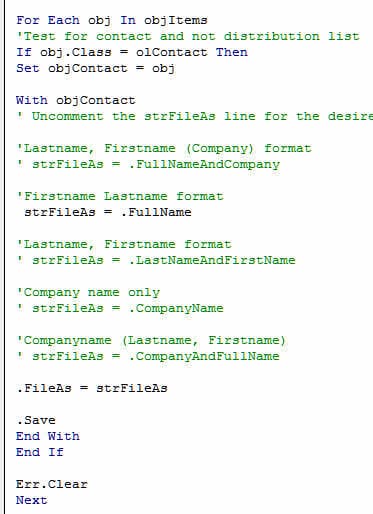
After pasting the code into the VB editor, the colors should be similar to the colors in this screenshot (and as seen in the code sample above).
Any text shown in Red has an error in it.
Blue, Black, and Green are "good", with the Blue color indicating VBA commands (If, Then, End etc), Black is your variables, and Green is used for comments. The second line in one of the 5 sets of Green lines needs to have Black text. You do this by removing the apostrophe (') from in front of the line. If more than one of those 5 lines is black, add an apostrophe to front of the format line you don't want to use. (In my screenshot, the second set is the format I want to use.)
Change only the 'subject' field used by the Address book
Note: this was written for an older versions of Outlook and is not needed with new versions.
Use the Outlook File As Order custom form to change just the display in the Address book, from Last name first, to First name first or use the File As entry.
Notes:
- This method will not change the actual sort order in the Contacts folder or format used on the File As field.
- Will return an error if there are distribution lists in the Contacts folder.
- This has the same options as you'll find in Tools, E-mail Accounts, View or change existing Address books, Outlook Address book properties, but also adds Last name first option and full File As format, including the Company name.
- Works on any contact folder - select the folder before clicking Run in the VB Editor or pressing F5. Leave the editor open and select another folder to use it on additional folders.
Tools
The original code works on the default Contacts folder and many users asked for a version that worked on the selected folder. We edited the code to change the selected contacts in any folder. Note that you do need to select the contacts, not just the folder.
Code Sample 2: Change FileAs on Selected Contacts
This code sample is an edited version of the previous code and works on the selected folder. I tested it in Outlook 2010 but it should work in all versions that the original code works with. This is the same code that is in the text file on page 1.
To use, you need to select the contacts. Use Select All (Ctrl+A) to apply it to all contacts in a folder or use Ctrl+click to select some contacts.
Public Sub ChangeFileAsSelectedContacts()
    Dim Session As Outlook.NameSpace
    Dim currentExplorer As Explorer
    Dim Selection As Selection
    Dim currentItem As Object
    Dim folder As Outlook.folder

    Dim obj As Object
    Dim strFirstName As String
    Dim strLastName As String
    Dim strFileAs As String

    Set currentExplorer = Application.ActiveExplorer
    Set Selection = currentExplorer.Selection

    On Error Resume Next

    For Each obj In Selection
    Set folder = currentItem.Parent
        'Test for contact and not distribution list
        If obj.Class = olContact Then
            Set objContact = obj

            With objContact
            ' Uncomment the  strFileAs line for the desired format

                'Lastname, Firstname (Company) format
                ' strFileAs = .FullNameAndCompany

                'Firstname Lastname format
                 strFileAs = .FullName

                'Lastname, Firstname format
               '  strFileAs = .LastNameAndFirstName

                'Company name only
                ' strFileAs = .CompanyName

                'Companyname (Lastname, Firstname)
                ' strFileAs = .CompanyAndFullName

               .FileAs = strFileAs

                .Save
            End With
        End If

        Err.Clear
    Next

    Set Session = Nothing
    Set currentExplorer = Nothing
    Set obj = Nothing
    Set Selection = Nothing
    Set currentItem = Nothing
    Set folder = Nothing
End Sub
More Information
More Bulk Change Contact articles at Slipstick.com:
- Bulk Change Contact's FileAs Format to Match Outlook's Default Setting
- Bulk Change File As Format for Contacts
- Bulk Move Phone Numbers to a Different Phone Field
- Macro to Swap First and Last Name Fields
- Show the Home Address on a Contact Form by Default
- Update Contact Area Codes
- Update Contacts with a New Company Name and Email Address






























This worked, thank you!! Is there a way to customize the format of the FileAs field? I want it to be "FirstName Lastname, (Company)"
If the default formats don't meet your needs, you can use a custom format in the script.
strFileAs = .LastNameAndFirstName &", (" & .CompanyName & ")"
oops... you want first last (company) - same deal, just different field names.
strFileAs = .FullName & ", (" & .CompanyName & ")"
could also do it like this -
strFileAs = .Firstname & " " & .lastname &", (" & .CompanyName & ")"
Hi... I need to do the opposite, I need to move the File As field into the First Name field can I just change str in the code?
Yes, you would use .firstname = .fileas
Is there a way to delete content in the Title field? Some of my contacts are saved as 'Mr', 'Ms', 'Dr', etc., and I wanted to bulk delete all entries in that field to provide consistency.
Yes, you can use the macro or PowerShell to delete it. The field name is .title
VBA change
PowerShell is here - it's a little easier because you don't need to change macro security settings.
https://www.slipstick.com/developer/powershell-bulk-change-contacts/
Thank you... I got so frustrated trying to get it to work, I exported into CSV moved my fields and now hope to bring it back in... if that doesn't work I'll run this powershell
So it should look like this?
$olApp = new-object -comobject outlook.application
$namespace = $olApp.GetNamespace("MAPI")
# Default Contacts folder
$Contacts = $namespace.GetDefaultFolder(10)
# Uses current folder
#$Contacts = ($olApp.ActiveExplorer()).CurrentFolder
foreach ($Contact in $Contacts.Items)
{
$contact.title - ""
$Contact.Save()
}
}
$olApp.Quit | Out-Null
[GC]::Collect()
I see two typos - sorry.
foreach ($Contact in $Contacts.Items)
{
$contact.title = "" this needs to be an equal sign.
$Contact.Save()
}
} There should only be one closing bracket.
This code will skip contact groups - otherwise, there will a PowerShell error when it looks for the title filed in the groups.
Is there a way to use this to change which phone numbers appear? The defaults are Business, Home, Business Fax and Mobile, and if you change which one displays in the drop-down, Outlook remembers your choice for that contact, but not for all contacts.
You can use a custom form to change it for all - https://www.slipstick.com/outlook/people/show-the-home-address-on-contact-form/ - and then can change the existing contacts to use the custom form but cannot change the order on the numbers using vba (other than changing which field the number is in).
Is there an option to file as first last (company)?
First last, no, only last, first
'Lastname, Firstname (Company) format
' strFileAs = .FullNameAndCompany
I use Office 2016 therefore Outlook 2016 with outlook.com as my exchange server.
Most of the mail attachments I send get converted to winmail.dat, whereas in Office 2007 they didn't. Obvious workarounds using cloud storage, but its the MOST frustating thing.
Tried to fix this for months. Looked at hundreds of Googled suggestions for setting format to HTML, and also doing the Disable TNEF registry hack to no avail.
What does work in some instances is to delete the email contact from pst/ contacts, and recreate new from scratch.
With a huge contacts list of several hundred entries, I did wonder if this script could be used to perhaps rewrite the mail send format HTML entry for each contact.
Appreciate your advice.
Ok, thank you for posting this. But, I am not making head or tails of it - I do not know what to do.. Maybe step by step for each option should be listed. "If you want to safe as Name Surname, then use this code: " Right now I am looking at the codes and do not understand what I am to do. The only thing I get is that this is the answer to my problem.
The page says ...
"To change the default File As format used for new contacts, go to Tools, Options, Contacts options in older versions or File, Options, Contact options in Outlook 2010 and newer."
Minor point:
For Outlook 2016, the menu path is File, Options, People.