Users often complain about the patchwork look of Outlook's calendar. This is caused by setting All Day Events to Show time as Busy and setting a color category on the item.
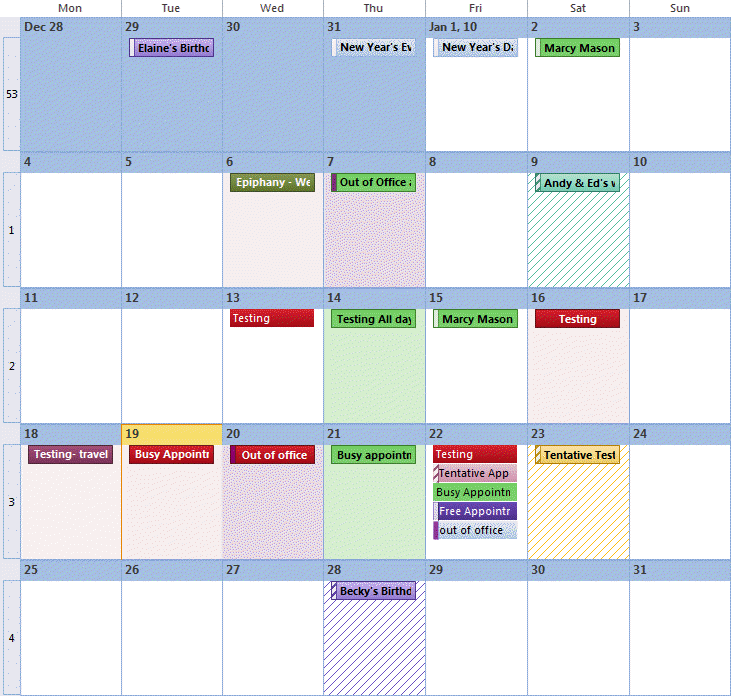
All Day events marked as Busy highlight the day with the category color. If the event is not assigned a color category, the day shading uses the calendar color.
Items marked with hash lines are Tentative. The hash lines are the category color, or if no color category is assigned, the lines are the calendar color.
Items marked Out-of-Office are always purple, with the block around the appointment text using the category color.
Timed appointments are shown in the category color and the Free/Busy indicator is shown in a small bar to the left of the appointment.
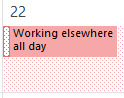 The new Outlook 2013 Working Elsewhere status uses a dotted background.
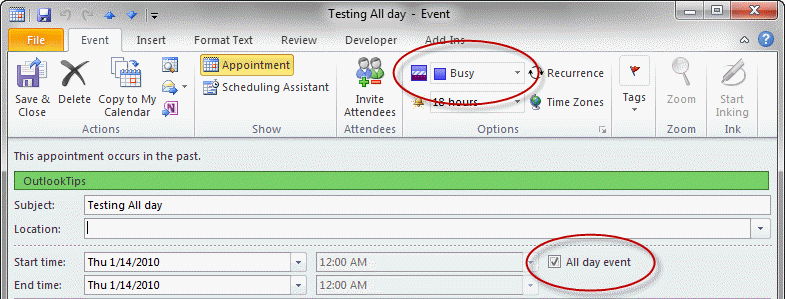 The Show time as command is in the ribbon and the All Day event checkbox is to the right of the time and date fields in an appointment form.
Timed appointments and color categories
Timed appointments are displayed in the category color with the Free/busy status shown in a small bar on the left side.
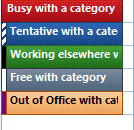
Outlook 2013 adds a new Free/Busy status: Working Elsewhere, which uses a dotted pattern in the Free/busy indicator on the left.
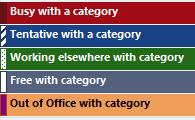 Busy appointments use a darker shade of the category color.
Tentative appointments have hash marks on the left.
Working Elsewhere appointments have a dotted pattern.
Free is white.
Out-of-Office is purple.
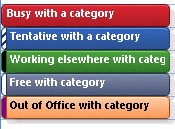
Outlook 2010's Free/busy indicators.
 Busy appointments use the category color.
Tentative appointments are displayed with hash marks on the left.
Free is white if you have all updates installed, otherwise, it's a lighter shade of the color category.
Out-of-Office is purple.
Note: Working Elsewhere isn't a Free/Busy option in Outlook 2010 or Outlook 2007, but Exchange mailbox users will see items marked for working elsewhere with a black bar in the Free/Busy indicator if they open their mailbox in Outlook 2010 or 2007.
Outlook 2007's Free/busy indicators:
 Busy appointments use the category color.Tentative appointments are displayed with hash marks on the left.
Free is white (Outlook 2007) or a lighter shade of the color category (Outlook 2010).
Out-of-Office is purple
Day and Week calendar colors
Day and Week calendars are also shown in the category colors when All Day events are marked busy or purple when the event is marked Out-of-Office. As you can see in this screenshot, when no category is assigned to an all day event, Tentative and Busy (and Working Elsewhere) shading is picked up from the calendar color.
Unlike previous versions, Outlook 2013 does not shade non-working hours or non-work days (as in Calendar Options).
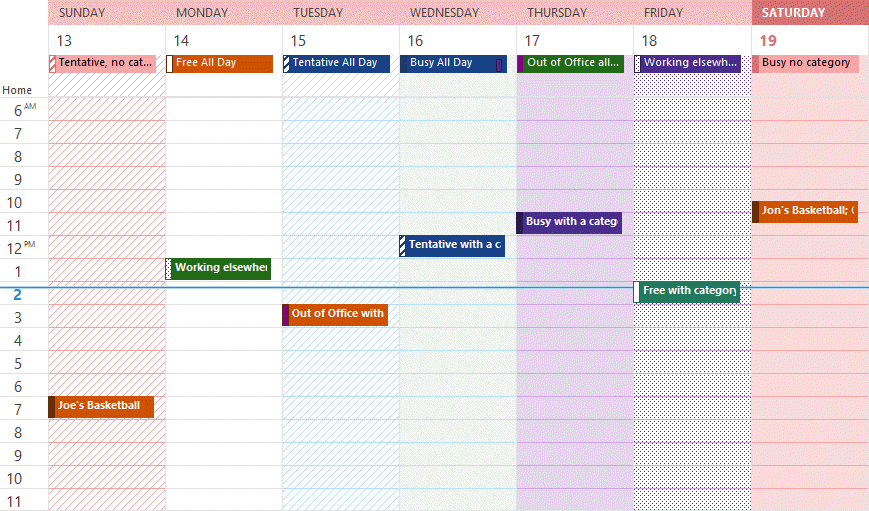
The blue line across the days indicates the current time in Outlook 2013's day and week views.

Piccolo says
Is there a way to turn off the "all Day" streaking of color feature? For instance, We use a birthday calendar that's purple. we just want it to show across the top who's birthday is today, we know at first glance it's purple and so it's a birthday... but then it unfortunately makes the entire day's column an unfortunate light lavender. no one wants this feature.
Diane Poremsky says
No, sorry, all day events will have a highlight on the date.
Larry says
I noticed your screen shots of monthly calendars show alternate months in contrasting background colors. Up until recently, I used Outlook 2007. I now have Outlook 2019 on a different machine. In 2007, I could get the alternating background color, but not in 2019. Is there a way to do that?
Hannah says
Hi Diane, I'm wondering whether it's possible to indicate on a shared calendar the time of day that one intends working on one project or another?
Perhaps a block of colour could show in the background? I'd prefer it not to appear as though I'm busy i.e. others with visibility of my calendar can book a meeting during the coloured-in time, but they can see that a particular time is being set aside for project x or y.
This shared way of working is new to me so thanks you for any advice you can offer...
Savanna says
Hello, not sure if you are still around Diane, but I cannot figure out why some of my events/appointments show up in a filled in color box, while others are only the colored text with no box. These are all events that are scheduled for at least an hour. I have included an image. Thank you.
Diane Poremsky says
Is this in Outlook.com on the web? Are some categorized and some not?
The ones with blocks are / used to be all day events - but I'm not sure where you are seeing this (I don't see it in my outlook on the web or outlook desktop) to check for sure.
David Borowiec says
Hi Diane,
I have noticed on different computers that the colors have changed for categories. The red used to link pink and have a little red tab for busy - now it's the opposite. I wonder if I screwed something up and need to change it back? The little busy tabs are all now lighter shades instead of darker
Dave Borowiec says
By the way this is Office 365 with latest updates
Tim says
Is there way to have an individual color for each appointment? Currently we are viewing four calendars and would like to have the corresponding color from outlook to reflect in the Calendar Printing Assistant.
alice says
I was trying to figure out a way if I could have more definite calender shaing on the current day when looking at week calender view. So the whole column for the day it is being lightly shaded with a colour that stands out from the rest of the area, same as it does for the title head, though extending for the day.
Thank you!
Diane Poremsky says
That is only possible if an all day event is marked busy and is assigned a category - then it will be shaded using the category color. (Out of office will be purple.)
Clarence says
Is there a way to have the blue line indicating the current time in my calendar advance automatically? I use several screens and it would helpful if I could just glance at the calendar for reference without having to click anywhere in the calendar to advance the line to the current time.
Thanks for any insights
Diane Poremsky says
No, unfortunately, outlook needs to be in focus to update the calendar.
Amber says
Hello, this has been bothering me for a while and I can't find an answer anywhere. In the image above there is a blue line running across the calendar to indicate the current time. In my version of Outlook (2010) there is only a yellow line on the far left (over the time). It does not extend across the calendar. Is there a way to make it do so?
Many thanks
Diane Poremsky says
No, sorry, you cant change how it displays in the calendar - many people complained about how hard it was to see, so they changed in the newer versions.
Susan says
Somehow the background color of my outlook calendar 2010 is blue, I want it to be white, how can I make that happen?
Diane Poremsky says
The entire background is blue? That would be the calendar color - right click on the Calendar name in the navigation pane and choose color.
Baz says
How can I change the dotted blue line to a more readily seen solid red line?
Diane Poremsky says
For the tentative marking or something else? Tentative can't be changed (and most other lines within the calendar can't be changed either.)
Colin Sanders says
Hello Diane
I'm a L3 sys admin.
Our company has a visually impaired staff member using Outlook 365 Professional v15.0.4805 run from a thick client Win 8.1 Surface pro.
Until recently all incoming calendar entries appeared in his calendar as high-contrast white on black, the same as any entries he creates, but last week something in the enterprise changed and now appointments from other people are showing up with coloured backgrounds ... many he cannot read.
I've explored his local settings and nothing appears to have changed. The only thing that we know of is that Office 2016 is being rolled out to all OTHER users in the company.
Where should I be looking and what am I looking for that may have changed to influence this?
Is it likely to be a Outlook?/Office?/Windows? setting at his client or a setting on the senders' end or an Exchange setting?
Any suggestions greatly appreciated.
Diane Poremsky says
>> now appointments from other people are showing up with coloured backgrounds ...
All appointments or just some?
I'd look at a sender's Outlook and Office settings.
Do you use a theme? I know that using a theme for email can affect the body of appointments. It's possible that something in the theme is not working with the high contract setting this users uses. If you don't use a specific theme for email, check the default word theme - some parts carry over to outlook.
Colin Sanders says
Hello Diane
Thank you for your earlier reply.
An update on the visually impaired user's calendar coloration issue.
I devised a custom View that would at-least ensure all incoming appointments for which he was a recipient, would be coloured White on Black to match his high contrast theme.
Last week I got to sit with the user and trial my workaround.
It worked for his own calendar but failed to alter the appearance of appointments in the *seven* other SHARED calendars which he administrates for :-(
Although I had been through the Windows and IE settings, I will check the Word settings in light of your comment as I'd forgotten about that interaction.
The main issue seems to be the general inability to control how an individual user can configure their own environment to deal with personal disabilities.
Any other tips or suggestions to tailor the personal experience will be appreciated.
Regards Col. Sanders
Diane Poremsky says
So the shared calendars don't honor the high contrast theme?
Colin Sanders says
Diane
I apologise, I did not realise you had replied to my last comment back in April last year!
I was again dealing with our impaired staffer and going through my notes to refresh where I got to with that problem and only then noticed your question.
You are correct in part ...
The shared calendar entries do not respect the custom views which I created and apply to the staffer's own calendar to make appointments which he is party to, provide suitable colour contrasts.
Meeting entries in the shared calendars do not respect the Custom View colour selections of his own calendar.
Even now, nearly a year later, a solution would still be appreciated by the staffer. :-)
Diane Poremsky says
>> Meeting entries in the shared calendars do not respect the Custom View colour selections of his own calendar.
What permissions are set on the calendar? If the user has sufficient permissions, they will see the shared calendar using the colors the owner set. If not, they will either have no category colors (but will see the calendar names in an open event) or if they have a category by the same name, will see it in their own color.
https://www.slipstick.com/exchange/view-shared-calendar-colors/
snejinka.koen@cbsa-asfc.gc.ca says
how to REMOVE the blue timeline
Diane Poremsky says
sorry, you can't remove it.
Jason says
Hi Diane, I am trying to see if there's a way to have a Cancelled meeting automatically updated to RED (or whatever color) when the cancellation notice is received.
The primary reason - we have many early morning hour meetings that are hosted by folks in the UK and then tend to get cancelled on occasion through the night (we're on the west coast of Canada). People want to know - can we colour code our cancelled meetings so we can flip open our calendar, see if it's Red or not...then based on that, determine if we need to get out of bed at 330a or not.
I've tried using "Meeting Status", but that seems to point to my response as opposed to the overall Meeting state.
Appreciate any help.
Hal Cassidy says
I am using MS Office 2013 Calendar in Month view. When I open there is a blue background in usually the current day however not always and if I scroll at all it moves about with no apparent logic. If I click on a day it will appear there with a little x in the upper right hand corner. This is so annoying and distracting that I may have to go back to 2010. Is there any way to turn this off? It is not an outline, but fills the date box completely.
Diane Poremsky says
Assuming you means they look like the screenshot below, the blue shows you the date you have selected - the white box with the x in the blue bar means it being edited. Press Esc to get out of edit mode. (You can click and type in any date to create an all day event.) Unfortunately, you can't turn this feature off.

It made my list of anooying features: Annoying Outlook 2013 Calendar Features
Bob Taylor says
I've been using my iCloud (shared) calendar in Outlook for several years and never had these colors show up until the last few days. My appointments and all-day events show up as purple, which says that I am out-of office. Like some others, I hate it, especially the shading, and wonder why it just now occurred. Is there any way to get rid of the purple?
Diane Poremsky says
You would need to set the appointments to "Free" to clear the color. (Busy uses a different color.) Outlook has always done this when appointments or events are set to busy, out of office, or tentative. Timed appt color the item, all day events color the entire day.
Jolanda Boelmea says
Dear Diane,
i manage 14 shared calendars and they keep changing color every single day! Why is that? It is SO confusing that one day blue is A' s calendar and the next day it's B's one. How can i make that they keep the same color always?
Thank you,
J. Boelema
University of Twente
Diane Poremsky says
The color is set based on the order they are opened. If the same ones are checked each time you open outlook, the colors shouldn't change. But if you need to open some, they will be assigned colors in a specific order.
Judie Scoville says
Not much to say other than I really hate it. Why so complicated, using a calendar should be a natural easy function & all these lines, colors & dots are not only unnecessary but irritating. Leave it alone!!
Geoff says
I wondered what the "free/busy etc." bars were - now I know. Thanks for your informative article.
Cathy says
Ms. Poremsky,
Just a word of thanks! I was searching the web for info on additional color options for the calendar mode (Outlook 2013). Your site and your responses have been the most help of any I've come across. While my problem will only be solved by MS, I've gained real, usable information from others' comments and your replies. Thank you all for sharing.
Julie says
Diane, I came to this page looking for the answer to a specific question and quickly found it... as well as the answers to a couple of other questions on my mind that I hadn't even gotten around to researching yet. Thank you, thank you, thank you for this resource.
Dana says
It is marked as busy, but the look in the cell is like it was marked with free time. It does not color the complete day. It is very bizarre!
Diane Poremsky says
Since it's a shared calendar... Is the category on everyone's master category list? If not, it'll show up as white for some people.
Dana says
Hi Diane,
I am trying to create a calendar for my company setting all day events with our workload status for the day. That way, the whole day will be a color showing our status like in the screenshots you have shared. We are on Office 2013, and I am trying to add the all-day event, set it as "busy", and then apply the color category. Well, no such luck with getting the entire day that color. I called our IT department and they told me that the latest 2013 upgrade removed that option, and I am getting very frustrated because I am seeing images of this being done! Is this something that you have heard of? Do you know of any settings I may need to change in order to achieve this? Thanks so much!
Diane Poremsky says
What happens when you apply it? Cells (or all day in day/week views) will be shaded if the event is busy and categorized. Some of the colors are barely discernable, like this pink. (well, its basely visible on one of my monitors. :))

JR the computershooter says
Thank you so much for the really great information on your site.
Kathi Chadwick says
Quick question. In Outlook, I use category colors. In normal view the colors are dark, but, when I go to Print Preview, the colors are lighter, and it prints lighter (i.e. if I use the dark blue category color, in Print Preview, and on the print out, it's light blue. Do you know what the issue might be?
Diane Poremsky says
The light printing is the printer driver. It's especially bad with HP printers. Unfortunately, it can't be changed.
Carmen says
Two OWA calendar quandries: My calendar prints with color blocks denoting the times of my appointments. My boss's calendar only print color type-how can we make the box show? Also, in the 'week' view, colleagues show the current week in the color of their calendar, and the other weeks in gray. Mine are all in gray. TIA for any feedback.
Diane Poremsky says
Are you all using the same printer and printer settings? Some printers can't print some of the lighter color backgrounds. Everything in gray scale would indicate the you are printing in gray scale.
steph says
hi diane,
is there a way to show when an appointment was last altered? unfortunately my boss has accused me of changing my calendar after an event, and i would like to show that I did not. any help gratefully received,
Adrienne says
Diane,
I have a shared calendar that a team needs to use. I want them to be able to see the colors for each of the entries, which I set using either categories or conditional formatting. How can I make sure they see the right colors on their end - currently it just shows gray for them. Do I do this through permissions on the mailbox or some kind of category master list? Help.
Jill says
Hi Diane,
I view and manage more than 9 calendars per day, is there any way to add more colors so I don't give the same color to more than one of my bosses? They just upgraded us to Outlook 365 but I only see 9 shades to choose from..really frustrating!
Diane Poremsky says
No, sorry, at this time 9 colors is the limit.
Paul says
Thanks for the article. I'm having a problem with Outlook Mac 2011. Whenever I click a new appointment on the calendar there's always a coloured category on it already. I always have to un-select it. I just can't figure out how to have it blank so I put my own category on it.
Any ideas?
Diane Poremsky says
Is it always the same category? I thought may you had a category selected in the left panel when you opened the appointment form but I can't repro it using Outlook 15 (my Outlook 2011 system isn't working :( )
Simond says
Hey Diane,
Hope you're well and thanks for the article. I have a dilemma that I am having a difficult time solving.
I would like to be able to send out colored meeting invitations to a small controlled group of 12 people. So, for example: I would like to be able to select Purple for this meeting invite, and I would like for it to appear Purple on the recipients' outlook calendars.
Am I able to do that? Do you know of a solution?
Thanks,
Simond
Diane Poremsky says
You can't control the color or if a category makes it through to the recipients. If you use Exchange server, the admin can set cet standard categories and colors using an addin, but you can't force this on outsiders.
Brittany says
Simond, Did you ever find a solution? I am having that problem as well.
Diane Poremsky says
You can send categories but you can't control the color of the category on other people's computers. (Unless you are using exchange and sending the meeting to coworkers - then the admin could install some utilities that give everyone the same categories.)
Rani Singh says
hello Diane,
Need a guidance from you. The entire calendar of the user has become blue. looks like user has created an all day event with status as "busy". Now he is unable to receive or accept any meeting requests. I asked him to remove the all day event and reset status but still issue is persisting. The complete calendar shows as scheduled. Please suggest what is the reason behind this and what resolution can we provide to them?
Diane Poremsky says
Switch to a list view and see if there is an appointment that spans multiple dates - you'll need to look at start and end dates or use the duration field. Delete it or correct the dates.
Peter says
>The blue line across the days indicates the current time in Outlook 2013's day and week views.
Is this possible in Outlook 2010?
Diane Poremsky says
Outlook 2010 has a line but it's not blue (it's orange) and the color can't be changed.
Dana says
Hello!
Somehow I managed to change my entire calendar and all dates in the future to be shaded as "working elsewhere" instead of just one appointment showing as working elsewhere. How can I change my available time back to "free" when I don't have an appointment or meeting booked already?
I don't see this covered in this thread yet.
Thank you!
~Dana
Diane Poremsky says
Did you make a multiday appointment? It should be one of the appointments on the first day this started - if you can't find it quickly in month view, use instant search - the query is showtimeas:"Working Elsewhere" look for something that recurs or spams multiple days.
Dana says
Well, I finally figured out what happened on this! One of my all day-recurring events/reminders were set to "Working Elsewhere" instead of "Free" and that is what blocked out my entire calendar.
Thank you so much everyone for all of your input! :)
~Dana
Diane Poremsky says
Thanks for the update. I'm sure it will help someone else!
Richard McBrien says
Reinstate previous/next month shading as an option in Outlook 2013 please +1.
Jim says
1-I recently moved from Outlook 2010 to Outlook 2013. In O-2010, I could color appointments so green were meetings, orange were priorities, clear-white were just reminders, etc. Colored calendar entries entered in O-2010 transferred to O-2013 when I did the cutover but I cannot set the colors in O-2013.
2-I understand that there is a color associated with Busy in O-2013 but I don't see it in my version. I could probably live with a different color with each status [free, tentative, busy...] but it does not work in my O-2013. Mine is MS Home & Office 2013 version of Outlook.
Diane Poremsky says
What type of email account do you use? Did you run 'upgrade to color categories'?
Right-click on the top level folder (where the data file name is) and choose Data File Properties from the menu - there should be a button for upgrading to color categories.
For screenshots, see https://www.slipstick.com/tutorial/how-to-upgrade-to-color-categories/
Brian says
Hi - any idea why other users cannot see appointments set up as "Working Elsewhere"? It sort of defeats the purpose of it. If I add an appointment to my diary and set it to "Working Elsewhere", no matter what I try, it does not appear in the "Scheduling Assistant" when my colleagues setup meetings with me. It seems to function like "Free" rather than a "Tentative".
All help appreciated!
Brian
Diane Poremsky says
What version of Outlook do they use? I'll see what i can find out.
Mark G. says
Is there any way to darken the grid lines in the calendar - it's almost impossible to read across the hours in the weekly calendar.
Diane Poremsky says
No, sorry, there is not. Depending on your version of outlook, changing the theme color might affect it a little, but it's probably not going to be enough to be helpful, assuming it changes at all (it doesn't change in Outlook 2013.)
Stacey says
Hi Diane - I have Outlook 2010. My boss works from two locations and would like to colour code his diary to show which location he is at. I can make a rule which colour codes the full day if I enter an all day appointment and select 'busy'. This means that people will think he is unavailable for meetings - so this doesn't work. Is there another way? I am hoping to colour code the column, not just an all day appointment at the top.
thanks,
Stacey
Diane Poremsky says
Unfortunately, the only solution is to use tentative with an all day appt to shade the date. (Outlook 2013 adds a working elsewhere option, which also shades the date.)
I usually recommend using Tentative and something like "At Location A, Available" as the subject.
Nancy Hankin says
Hi Diane: Already did that but I still have the top two inches colored which causes me to have to scroll up to see appointments. Sure would be nice to give us an option of NO color.
Diane Poremsky says
At most, you should have 30 minutes of shading + all day appointments. If no all day appt, the all day field should be narrow, about 1 appt high. (I can't get 12AM to stick.)
Can you post a picture somewhere so i can see what you see?
Nancy Hankin says
Outlook 2010 Professional. There is NO OPTION NOT to have COLOR or to chose white. This color runs about two inches down from the top of each day.
Diane Poremsky says
Correct, you can't choose white or no color, but you can reduce the shaded area by changing the non-working hours - more working hours = more white.

( This is the same calendar - i changed the working hours and set it to use the gray calendar color. Pink or any other color would look the same, more white, only color at the top and very bottom.)
Nancy Hankin says
Is there a way to have a WHITE or NO-COLOR option on Calendar backgrounds?
Diane Poremsky says
What version of Outlook? With the exception of all day event with categories, Outlook 2010 and 2013 should have white backgrounds during working hours, gray during non-working. (Have work hours from 12-12 for an all white day or week view.)
Keith says
Yes, I just got off the phone with Microsoft and that is what they said. Do you happen to know if this was an oversight or done on purpose? I have a hard time understanding why they would want to make it HARDER to distinguish between the months so I'd love the hear their reason for it. I did make a suggestion that it be reinstated. We'll see what happens.
Diane Poremsky says
Most of the things they did in Outlook 2013 was done to streamline it, remove "eye candy", and make it more "metro'y" and flat. I recall people complaining about it during the beta but really don't see many complaints about it. That said, I brought it up in the current beta. I'm not holding out much hope that they will bring it back though.
Keith says
I recently updated from 2007 to 2013. In 2007 the background of the months were alternating colors so that you could distinguish between the months on the "month view." For instance, all the days of January would be white while the days of February would be gray. It was easy to find February 1st because you knew it would be a different color. Right now, all of my backgrounds are white so it makes it difficult to see the distinction.
How do I change this? I have attempted to find it through Microsoft, but as usual, their help section doesn't help.
Diane Poremsky says
unfortunately, its not under your control. They removed the previous/next month shading.
dave dewilfond says
Sorry... meant to add, I am using Office 2010.
dave dewilfond says
Can anyone tell me what it means when there is a very narrow striped bar next to the appointment entry in the To-Do-Bar? all the rest have either no bar beside it or just a solid white bar. It is very narrow... not even a millimeter wide.
Charlene Van Maren says
I use colored catergories, but when I print the day's calendar (print/daily style/then type the page number I want (i.e. 6 for Saturday), some of the day's meetings print, and some of them do not. When I do this same function from my boss's calendar, all of the day's meetings print. This happens randomly. All of Monday's meetings may display when I print that day, but only some of Wednesday's may print, etc. Our IT department is stumped as to why this is happening. Could it be that somewhere I have checked a small box buried deep in some of the menus, but just can't find it now? We have tried a zillion different things now, and nothing works!
Diane Poremsky says
I'm not aware of any settings to control this. Which version of outlook? There were some bugs in some versions but they were fixed. If you have the same version, it's not and update. Filters can also affect it - but outlook should print what is on the screen. i would try resetting the view, if you haven't already, and see if it helps.
Zppy says
I would like to change the color of the "free time" to anything other than white....is that an option, or customize and create your own for the drop down?
Diane Poremsky says
It's not an option and is not possible. If the items are not categorized, you can use a custom view to color them or you could use a category to color them.
Lacy says
It is possible to change the hours on the white bar or free time? Mine is set up from 8-5, but I would like it to be 6-5 is that possible?
Diane Poremsky says
You can change your working hours - that is what controls this. File, Options, Calendar and adjust the workday start and end times.
Maegan says
I have meetings in red- everything else is the same color as the calendar- is there any way to just show the red events?
Diane Poremsky says
you are using a category? Create a filtered view that shows only items in that category.
Richard Watson says
My problem is that in 2010 my calendar printed with reasonably light category colors, that permitted reading the text after printing.
My categories ported ok to Office 365/2013 calendar, but now I have these very dark colors when I print (same printer and drivers). I have to squint to see the text they are so contrasty. Not sure why some are black font on the color and others are white font on the color. Is my only hope to redo my whole category color/category scheme to pick only the lighter colors? or is there an option to adjust the color printing
Diane Poremsky says
I'm not aware of an way to adjust the colors for printing. They used to be too light when printing and people complained, so they darked them.
Annujan Wignes says
Is there away to create a new color that isn't listed in outlook calendar? If there is may I know how please and thank you.
Diane Poremsky says
No, you are limited to the pre-defined colors.
Annujan Wignes says
Thank you so much for the quick reply. You are awesome!
Nick says
Thank you for your timely response! What do you mean by nn days?
Diane Poremsky says
The next 1 to 14 days.
Nick says
Is there anyway to remove the blue time bar indicating the time across the calendar?
Diane Poremsky says
No, sorry, there is not.
If you need to see the next nn days (but not today), hold ctrl and select them in the navigation calendar instead of using the week or next 7 days view. As long as you don't include today, the blue line won't be visible.
Kristy Burns says
I have my co-workers' calendars in my calendar as well but I do not want to see their color categorizing. We have such different business areas that it doesn't make sense for us to have a universal category listing.
Is there a way to hide the category colors when I very their calendar?
Also, is there a trick out there for adding additional calendar colors? Seems Outlook is only providing 9 color options and we need approximately 15.
Diane Poremsky says
The colors can't be increased, sorry. The color categories can't be hidden, but if you use Outlook 2013, you'll only see colors if you have the same category in your mailbox, you won't see the colors the other person set.
Megan says
I have my assistant's calendar in my calendar as well and i want to change the colour of her appointments rather than just having them a lighter shade of my own. Is this possible?
Diane Poremsky says
You mean when the calendars are overlaid, he's are lighter? That can't be changed. The calendar that has focus is brighter than the underlying calendars. You can assign color categories to her appointments, if you have Editor permissions to her calendar.
T.J.Jay says
Hi Diane is there ANY way at all that I can colour the day categories differently in outlook 2013?
I do shifts and it is very important to have a visual cue. if I disable or get rid of the email link (aol) to my outlook will this let me categorise (I think this has something to do with IMAP protocol which I don't understand) I would gladly lose this link feature if I could get my colour catagories back (if it ain't broke!)
Diane Poremsky says
When you use an IMAP account, you need to trick outlook into showing you the category picker - in the calendar, it's hidden on the Properties tab of each appointment. You can use keyboard shortcuts or macros to make categories easier to access. See
https://www.slipstick.com/outlook/outlook-categories-flags-and-imap-accounts/ for details.
dominick says
D, why aren't my appointment days highlighted on the to do calendar. They used to be bold when I had appointment
Diane Poremsky says
Is this Outlook 2013? The new (featureless) navigation calendar in the To-do bar doesn't bold the dates. In other versions, they should be bold if you have appointments marked Busy. In some versions, the appointments need ot be on the default calendar.
Tom Murphy says
Thanks so much for the information. I had these colored days showing up seemingly randomly in my calendar. Seems some all day events were marked as busy. I changed them to "free" and voila, no colored days! Thanks!
Crystalia says
Hi Diane,
I work in a school and would like to shade every other period rather than use time. Is tht possible? We have Outlook 2010. So, for example, period 1 is from 7:30-8:20. Can I shade that particular block of time?
Diane Poremsky says
The only way to shade blocks of time is with color categories. If you create appointments for each period, you can set a category to shade them.
Mel says
The blue line that shows what time it is falls behind if you do not touch your calendar. Any fixes? Perhaps a periodic automatic refresh?
Diane Poremsky says
There is no auto-refresh potion. F5 should refresh the window - every time I tried to confirm, I switched to another folder without thinking so i can't verify it works for this. F9 might refresh it too.
Diane Poremsky says
It looks like just clicking in something in the calendar will auto-refresh - but no, there is no way to auto-refresh it without actually touching the calendar.
RichardH says
See this workaround to this bug (it wasn't a problem in prior versions of Outlook):
https://www.codeproject.com/Tips/740068/Fixing-the-Time-Bar-on-Outlook-Calendar
Jens Rubæk says
Because some sync. tools does not support this new status - like sync. to Windows Mobile.
Diane Poremsky says
Oh, and it defaults to free, not oof, on windows phones. That's bad.
Jens Rubaek says
Is it possible to remove the show as status "Working elsewhere" from Outlook 2013?
Diane Poremsky says
No, sorry. I'm curious as to why you want to, it was the most popular request for years.
N67 says
Why does the purple category never show up as purple?
Diane Poremsky says
What color does it show up as? You can edit the category names and color as desired in All Categories.
Tom Manuel says
Hi Diane,
When printing a calendar, do you know how to hide the free/busy status? I'd like it if I could print in a Weekly Agenda Style with all events and times and showing category color (which I can do just fine) but without the little blue or white box next to it showing the free/busy status.
Thoughts?
Thanks!
Diane Poremsky says
That can't be hidden in the outlook print command. Did you try using the Calendar Printing Assistant?
M Benton says
I would like to change the color of ONE day on the Outlook Calendar, not the entire month. How do I do that??
Diane Poremsky says
With an all day event marked Busy - assign a category that uses the color you want to use.