• Outlook User
  • New Outlook app
  • Outlook.com
  • Outlook Mac
  • Outlook & iCloud
  • Developer
  • Microsoft 365 Admin
    • Common Problems
    • Microsoft 365
    • Outlook BCM
    • Utilities & Addins

Appointments That Extend Past Midnight Appear Wrong

Slipstick Systems

› Outlook › Appointments That Extend Past Midnight Appear Wrong

Last reviewed on February 13, 2018     8 Comments

Applies to: Outlook (classic), Outlook 2010

Appointments that span two days but are less than 24 hours are displayed on the calendar as two appointments, one from the start time to midnight, a second one for midnight to the end time, as seen in this screenshot. This is how it has always "worked" in Outlook and most people consider it the "correct" behavior.
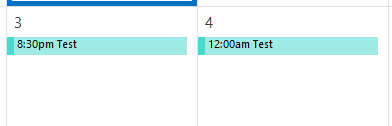
How the calendar used to work

If you are showing end times and the calendar is wide enough, the end times will also display.
end time display if there is room

To add the end times to the view, go to the View tab, View Settings, Other Settings button and enable end times.
Show end times

In day or week view, the appointment spans the hours it covers and is not in the all-day section.
day or week view

The Change Everyone Hated

The product team listened to the extensive negative feedback and reverted to the way it worked previously (and described at the top of this article), as of the March 9 2016 update.

The December 2015 update for Outlook 2010 (KB 3114409) changed the behavior of appointments which span midnight (for example 8 PM – 5 AM) but are less than 24 hours long. Everyone hated seeing all appointments that spanned 2 days as one appointment spanning multiple days. This the same way that appointments that are longer than 24 hours display in Outlook's calendar. (It's possible users would have been ok with the change if the end time was correct, rather than always displaying 12:00 AM)
monthly view of the calendar

In the day or week view these appointments are in the all-day appointment section, with the time period shaded if the appointment is marked Busy, Out of Office, or categorized. The period for Tentative appointments has hash marks, although they are almost as invisible as Free appointments.

calendar with the new behavior

There is one problem: the appointments include the start and end times; however, the end time is always 12:00 AM. When you hover over the appointment the correct end time is displayed in the screen tip.

Screen tip with the correct time

A second issue is the lack of visibility. Yes, busy, out of office and categorized appointments are easy to see, but only if the calendar color is not too close to the appointment color. Appointments marked Free won't show up at all.

This sample shows the unwanted behavior with appointments marked Tentative, categorized, Busy, Out of Office, and Free. (Because the days are narrow, the start and end times don't display.)
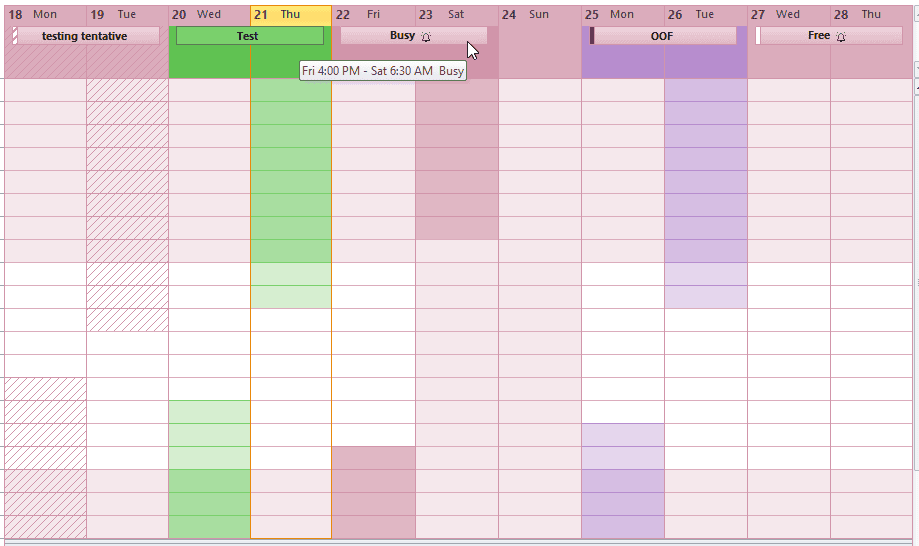
sample with busy, categorized, out of office, and tentative

Appointments That Extend Past Midnight Appear Wrong was last modified: February 13th, 2018 by Diane Poremsky

Related Posts:

  • Daylight Saving Time Calendar Display Bugs
  • Check start and end times of new appointments
  • Understanding Outlook's Calendar patchwork colors
  • Make 'Today' stand out more in the calendar

About Diane Poremsky

A Microsoft Outlook Most Valuable Professional (MVP) since 1999, Diane is the author of several books, including Outlook 2013 Absolute Beginners Book. She also created video training CDs and online training classes for Microsoft Outlook. You can find her helping people online in Outlook Forums as well as in the Microsoft Answers and TechNet forums.

Subscribe
Notify of
8 Comments
newest
oldest most voted
Inline Feedbacks
View all comments

Alan Lowrance
April 27, 2017 11:03 am

I've also noticed if you have an all-day event from 12:00am, the "end time" is 12:00am the next day which when you're printing it becomes confusing. You see Monday 12:00am to Tuesday 12:00am and at a glance you could make some costly assumptions. Why doesn't it put it at Monday 12:00am to 11:59pm or something so you see Monday to Monday instead of seeing Monday to Tuesday?

0
0
Reply
Diane Poremsky
Author
Reply to  Alan Lowrance
April 27, 2017 4:55 pm

they have 24 hours going midnight to midnight - 11:59 would be less than 24 hours. Yeah, it can be confusing - even in list view. I've had more than one person see that and think its wrong.

0
0
Reply
Ray Bailey
February 25, 2017 4:24 pm

I am using Windows 10 Outlook 2016 desktop. I just received a batch of appointments via CSV file that are exhibiting the same problem as this one. I have verified the CSV and the original source (Excel) source, everything appears it should display properly.
The displayed END TIME is 12:00 AM the following day while the actual time in the opened appointment shows the proper end time.
Any ideas, since this is 2017?

1
0
Reply
Diane Poremsky
Author
Reply to  Ray Bailey
February 27, 2017 1:03 am

Which build of Outlook do you have? The volume license MSI might have this 'feature' in it, depending on your build. If you have a subscription version, try resetting the view.

0
0
Reply
Ray Bailey
Reply to  Diane Poremsky
February 27, 2017 2:43 pm

Outlook 2016 of Office 365 v: 16.0.7766.7080 32 Bit. All updates installed.
Changed view, reload different calendars, copy to another calendar..nada.

0
0
Reply
Diane Poremsky
Author
Reply to  Ray Bailey
February 28, 2017 10:48 am

That build definitely doesn't have the code that displays appointments that span 2 days but less than 24 hours "wrong". But... after rereading this (and creating appointments in an empty calendar) - it sounds like you have the "correct" behavior. (I updated the article to make it clearer and added a screenshot that includes the end times. )

0
0
Reply
Alan Lowrance
Reply to  Ray Bailey
April 27, 2017 11:07 am

Yeah, that's my problem too. When admin assistants are printing itineraries for people with all-day events, it'll say 12:00am the next day which is technically right but very confusing. If you see you are staying at Hotel XYZ from Monday till Weds 12:00am that means you actually need to check out on Tuesday. Is it a problem with 12-hr time, where we can't display Monday 0:00 till Tuesday 24:00? With 12 hour settings it should then default to 11:59pm or something instead so it will say the correct day.

0
0
Reply
Diane Poremsky
Author
Reply to  Alan Lowrance
April 27, 2017 5:00 pm

the person who creates the calendar (or who prints it) could change the all day events to end at 11:59 - or put the dates in the subject or notes.

Can you use the week agenda (day planner) style?

0
0
Reply

Visit Slipstick Forums.
What's New at Slipstick.com

Latest EMO: Vol. 30 Issue 34

Subscribe to Exchange Messaging Outlook


Support Services

Do you need help setting up Outlook, moving your email to a new computer, migrating or configuring Office 365, or just need some one-on-one assistance?

Our Sponsors

CompanionLink
ReliefJet
  • Popular
  • Latest
  • Week Month All
  • Use Classic Outlook, not New Outlook
  • Mail Templates in Outlook for Windows (and Web)
  • How to Remove the Primary Account from Outlook
  • Disable "Always ask before opening" Dialog
  • Adjusting Outlook's Zoom Setting in Email
  • This operation has been cancelled due to restrictions
  • Reset the New Outlook Profile
  • How to Hide or Delete Outlook's Default Folders
  • Removing Suggested Accounts in New Outlook
  • Change Outlook's Programmatic Access Options
  • Opt out of Microsoft 365 Companion Apps
  • Mail Templates in Outlook for Windows (and Web)
  • Urban legend: Microsoft Deletes Old Outlook.com Messages
  • Buttons in the New Message Notifications
  • Move Deleted Items to Another Folder Automatically
  • Open Outlook Templates using PowerShell
  • Count and List Folders in Classic Outlook
  • Google Workspace and Outlook with POP Mail
  • Import EML Files into New Outlook
  • Opening PST files in New Outlook
Ajax spinner

Recent Bugs List

Microsoft keeps a running list of issues affecting recently released updates at Fixes or workarounds for recent issues in classic Outlook (Windows).

For new Outlook for Windows: Fixes or workarounds for recent issues in new Outlook for Windows .

Outlook for Mac Recent issues: Fixes or workarounds for recent issues in Outlook for Mac

Outlook.com Recent issues: Fixes or workarounds for recent issues on Outlook.com

Office Update History

Update history for supported Office versions is at Update history for Office

Outlook Suggestions and Feedback

Outlook Feedback covers Outlook as an email client, including Outlook Android, iOS, Mac, and Windows clients, as well as the browser extension (PWA) and Outlook on the web.

Outlook (new) Feedback. Use this for feedback and suggestions for Outlook (new).

Use Outlook.com Feedback for suggestions or feedback about Outlook.com accounts.

Other Microsoft 365 applications and services


New Outlook Articles

Opt out of Microsoft 365 Companion Apps

Mail Templates in Outlook for Windows (and Web)

Urban legend: Microsoft Deletes Old Outlook.com Messages

Buttons in the New Message Notifications

Move Deleted Items to Another Folder Automatically

Open Outlook Templates using PowerShell

Count and List Folders in Classic Outlook

Google Workspace and Outlook with POP Mail

Import EML Files into New Outlook

Opening PST files in New Outlook

Newest Code Samples

Open Outlook Templates using PowerShell

Count and List Folders in Classic Outlook

Insert Word Document into Email using VBA

Warn Before Deleting a Contact

Use PowerShell to Delete Attachments

Remove RE:, FWD:, and Other Prefixes from Subject Line

Change the Mailing Address Using PowerShell

Categorize @Mentioned Messages

Send an Email When You Open Outlook

Delete Old Calendar Events using VBA

Repair PST

Convert an OST to PST

Repair damaged PST file

Repair large PST File

Remove password from PST

Merge Two Data Files

Sync & Share Outlook Data

  • Share Calendar & Contacts
  • Synchronize two computers
  • Sync Calendar and Contacts Using Outlook.com
  • Sync Outlook & Android Devices
  • Sync Google Calendar with Outlook
  • Access Folders in Other Users Mailboxes

Diane Poremsky [Outlook MVP]

Make a donation

Mail Tools

Sending and Retrieval Tools

Mass Mail Tools

Compose Tools

Duplicate Remover Tools

Mail Tools for Outlook

Online Services

Calendar Tools

Schedule Management

Calendar Printing Tools

Calendar Reminder Tools

Calendar Dates & Data

Time and Billing Tools

Meeting Productivity Tools

Duplicate Remover Tools

Productivity

Productivity Tools

Automatic Message Processing Tools

Special Function Automatic Processing Tools

Housekeeping and Message Management

Task Tools

Project and Business Management Tools

Choosing the Folder to Save a Sent Message In

Run Rules on messages after reading

Help & Suggestions

Submit Outlook Feature Requests

Slipstick Support Services

Buy Microsoft 365 Office Software and Services

Visit Slipstick Forums.

What's New at Slipstick.com

Home | Outlook User | Exchange Administrator | Office 365 | Outlook.com | Outlook Developer
Outlook for Mac | Common Problems | Utilities & Addins | Tutorials
Outlook & iCloud Issues | Outlook Apps
EMO Archives | About Slipstick | Slipstick Forums
Submit New or Updated Outlook and Exchange Server Utilities

Send comments using our Feedback page
Copyright © 2025 Slipstick Systems. All rights reserved.
Slipstick Systems is not affiliated with Microsoft Corporation.

:wpds_smile::wpds_grin::wpds_wink::wpds_mrgreen::wpds_neutral::wpds_twisted::wpds_arrow::wpds_shock::wpds_unamused::wpds_cool::wpds_evil::wpds_oops::wpds_razz::wpds_roll::wpds_cry::wpds_eek::wpds_lol::wpds_mad::wpds_sad::wpds_exclamation::wpds_question::wpds_idea::wpds_hmm::wpds_beg::wpds_whew::wpds_chuckle::wpds_silly::wpds_envy::wpds_shutmouth:
wpDiscuz

Sign up for Exchange Messaging Outlook

Our weekly Outlook & Exchange newsletter (bi-weekly during the summer)


Please note: If you subscribed to Exchange Messaging Outlook before August 2019, please re-subscribe.

Never see this message again.

You are going to send email to

Move Comment