Like the macro that creates copies of each occurrence in a series, this macro gets the dates of each occurrence, printing it to a new message instead of creating appointments.
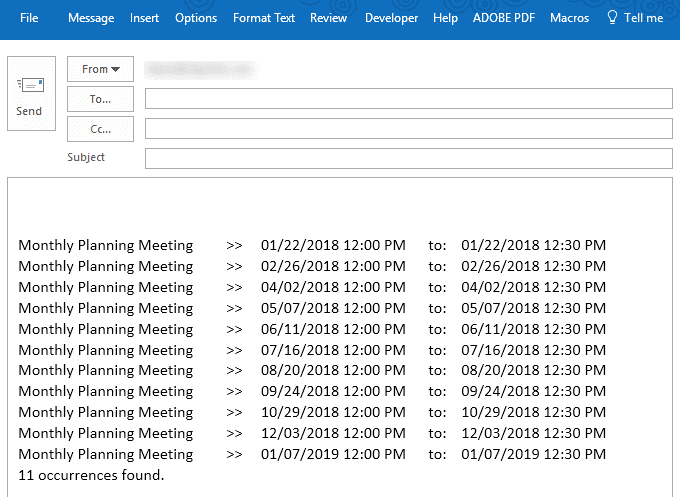
Using the macro
However, the filter (sFilter) needs to be edited for older versions, as [IsRecurring] does not work. Use this instead:
sFilter = "[Start] >= '1/1/2000' And [End] < '" & tEnd & "' And [Subject] = " & strSubject
Also, leading or ending spaces (" My Appointment" or "My Appointment ") in the subject will cause the macro to fail, returning 0 appointments found. Removing the spaces from the subject should take care of it. You could move or copy the recurring appointment to a new Calendar folder and remove the subject filter.
Print a list of all dates in a series
Open the VBA Editor using Alt+F11. Expand the Project to display ThisOutlookSession on the left. Double click to open it and paste the code below into the right side. Select a calendar folder then run the macro.
As written, this macro limits the events to the next 10 days. You can increase or decrease this by changing the number of days in the future here:
tEnd = Format(Now + 10, "Short Date")
To use, select a recurring appointment or meeting and run the macro.
I highly recommend using list view when you use this macro.
Sub PrintRecurring()

   Dim CalFolder As Outlook.MAPIFolder
   Dim CalItems As Outlook.Items
   Dim ResItems As Outlook.Items
   Dim sFilter, strSubject, strOccur As String
   Dim iNumRestricted As Integer
   Dim itm, ListAppt As Object
   Dim tStart, tEnd As Date

   ' Use the selected calendar folder
   Set CalFolder = Application.ActiveExplorer.CurrentFolder
   Set CalItems = CalFolder.Items

   ' Sort all of the appointments based on the start time
   CalItems.Sort "[Start]"
   CalItems.IncludeRecurrences = True

   ' Set an end date
    tEnd = Format(Now + 10, "Short Date")

    strSubject = Application.ActiveExplorer.Selection.Item(1).Subject

   'create the Restrict filter by day and recurrence
   sFilter = "[Start] >= '1/1/2000' And [End] < '" & tEnd & "' And  [IsRecurring]  = True And [Subject] = " & strSubject

   Set ResItems = CalItems.Restrict(sFilter)

   iNumRestricted = 0

   'Loop through the items in the collection.
   For Each itm In ResItems
      iNumRestricted = iNumRestricted + 1

 ' Create list of dates
 strOccur = strOccur & vbCrLf & itm.Subject & vbTab & " >> " & vbTab & Format(itm.Start, "mm/dd/yyyy hh:mm AM/PM") & vbTab & " to: " & vbTab & Format(itm.End, "mm/dd/yyyy hh:mm AM/PM")

   Next

' After the last occurence is checked
' Open a new email message form and insert the list of dates
  Set ListAppt = Application.CreateItem(olMailItem)
  ListAppt.Body = strOccur & vbCrLf & iNumRestricted & " occurrences found."
  ListAppt.Display

   Set itm = Nothing
   Set ListAppt = Nothing
   Set ResItems = Nothing
   Set CalItems = Nothing
   Set CalFolder = Nothing

End Sub
List all events this year
This version of the macro list all events in this calendar year. All day events display the day only. Multiple day events are listed by day, although not sorted by day. If you want multiple day events listed once, the macro can easily be changed.
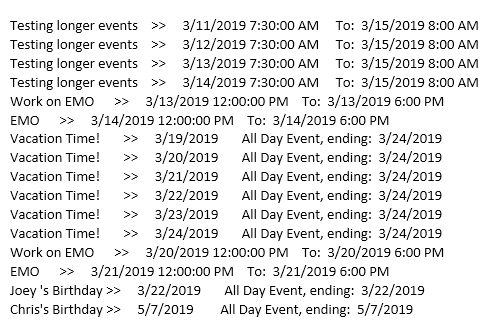
Use an If statement to filter by a keyword or subject. (The sample macro below filters for the word vacation anywhere in the subject.)
If itm.Categories = "Vacation" Then
If InStr(1, LCase(itm.Subject), "vacation") > 0 Then
Sub ListAllAppts()

   Dim CalFolder As Outlook.MAPIFolder
   Dim CalItems As Outlook.Items
   Dim ResItems As Outlook.Items
   Dim sFilter, strSubject, strOccur As String
   Dim iNumRestricted As Integer
   Dim itm, ListAppt As Object
   Dim tStart As Date, tEnd As Date
    Dim strStart As String
    Dim mStart As Date

   ' Use the selected calendar folder
   Set CalFolder = Application.ActiveExplorer.CurrentFolder
   Set CalItems = CalFolder.Items

   ' Sort all of the appointments based on the start time
   CalItems.Sort "[Start]"
   CalItems.IncludeRecurrences = True

   ' Set start end date
    tStart = Format(Date, "1/1/yyyy")
    tEnd = Format(Date, "12/31/yyyy")

   sFilter = "[Start] >= '" & tStart & "' And [End] < '" & tEnd & "'"
Debug.Print sFilter
   Set ResItems = CalItems.Restrict(sFilter)

   iNumRestricted = 0

   'Loop through the items in the collection.
   For Each itm In ResItems
      iNumRestricted = iNumRestricted + 1

'use if filtering by category or subject
'If itm.Categories = "Vacation" Then
'If InStr(1, LCase(itm.Subject), "vacation") > 0 Then

' prettify the date & times
If itm.AllDayEvent = True Then
 mStart = Format(itm.Start, "m/d/yyyy")
 strEnd = "All Day Event, ending: " & Format(itm.End - 1, " m/d/yyyy")
 Else
 mStart = Format(itm.Start, "m/d/yyyy hh:mm AM/PM")
 strEnd = " To: " & Format(itm.End, " m/d/yyyy h:mm AM/PM")
End If

' Create list of dates
' list multiple day events by day
If itm.duration > 1440 Then
For i = 1 To itm.duration / 1440
strOccur = strOccur & vbCrLf & itm.Subject & vbTab & " >> " & vbTab & mStart & vbTab & strEnd
mStart = mStart + 1
Next
Else
' not multiple day
 strOccur = strOccur & vbCrLf & itm.Subject & vbTab & " >> " & vbTab & mStart & vbTab & strEnd
End If

' remove the If statement block above and use just this line for one entry for multiple day events:
' strOccur = strOccur & vbCrLf & itm.Subject & vbTab & " >> " & vbTab & mStart & vbTab & strEnd


'use with category/subject filter
'End If

Next

' After the last occurence is checked
' Open a new email message form and insert the list of dates
  Set ListAppt = Application.CreateItem(olMailItem)
  ListAppt.Body = strOccur & vbCrLf & iNumRestricted & " occurrences found."
  ListAppt.Display

   Set itm = Nothing
   Set ListAppt = Nothing
   Set ResItems = Nothing
   Set CalItems = Nothing
   Set CalFolder = Nothing

End Sub
How to use the macros on this page
First: You need to have macro security set to the lowest setting, Enable all macros during testing. The macros will not work with the top two options that disable all macros or unsigned macros. You could choose the option Notification for all macros, then accept it each time you restart Outlook, however, because it's somewhat hard to sneak macros into Outlook (unlike in Word and Excel), allowing all macros is safe, especially during the testing phase. You can sign the macro when it is finished and change the macro security to notify.
To check your macro security in Outlook 2010 and newer, go to File, Options, Trust Center and open Trust Center Settings, and change the Macro Settings. In Outlook 2007 and older, look at Tools, Macro Security.
After you test the macro and see that it works, you can either leave macro security set to low or sign the macro.
The macros on this page should be placed in a module.
Open the VBA Editor by pressing Alt+F11 on your keyboard.
To put the code in a module:
- Right click on Project1 and choose Insert > Module
- Copy and paste the macro into the new module.
More information as well as screenshots are at How to use the VBA Editor

Cory says
i know this is an old thread, but it's been a great help.
i get an error message when using this macro with a number at the start of the subject.
is there a fix for this?
Thanks
Diane Poremsky says
what is the error message?
Cory says
here is the error message i am receiving
Run-time error '-2147352567 (80020009)':
Cannot parse condition. Error at ":30".
Diane Poremsky says
Sorry I missed this before. Do you know what line it quit on? It looks like a problem with a time.
JD says
Silly Question it was....;) it get Resolved Diane...Thanks....
WCR says
What was the solution? I also have recursive and nonrecursive.
JD says
Hi Diane,
Tricky resolution. :)
This code only adds the recursive items. I am applying includerecurrences=false in if condition stil it is not able to sort non-recursive. How could we fetch recursive as well as non-recursive items on the fly..
rich says
I'm using Outlook 2007 sp3 mso (12.0.6607.1000) at work (us army). when i run this macro it always says 0 occurrences no matter which item i have selected (in list view).
Am I doing something wrong ?
Thanks
Diane Poremsky says
I'm looking into it. The problem is with the restrict filter - it's not working with the subject and isrecurring field - this works, but includes all appt in Outlook 2007 and under.
sFilter = "[Start] >= '1/1/2000' And [End] < '" & tEnd & "'"
Diane Poremsky says
Correction - subject works but leading or ending spaces cause it to fail. As long as you don't have single appt with the same subject, the IsRecurring isn't necessary.
sFilter = "[Start] >= '1/1/2000' And [End] < '" & tEnd & "' And [Subject] = " & strSubject
Joel Kotarski says
Hi there. Got it fixed - just do this:
sFilter = "[Start] >= '1/1/2000' And [End] < '" & tEnd & "' And [IsRecurring] = True And [Subject] = '" & strSubject & "'"