Over the last several weeks, several people asked if they could do a mail merge from Contacts to Outlook email directly. Yes, it is possible to insert contact data into an email message, merge style, although it's generally easier to merge to email using Microsoft Word's Mail Merge.
Your options are:
Use VBA to start a new email message and insert contact fields into the message. This works great for the subject field (and the To field). If you are inserting contact fields into the body, it works best if the message is short or the contact fields are added to the top of the message body. The deferred birthday greeting to contact code sample uses this method.
Create a template with bookmarks for the fields you want to use. The code sample below uses this method to merge a contact's data to a new message.
This screenshot shows the template and the merged email message.
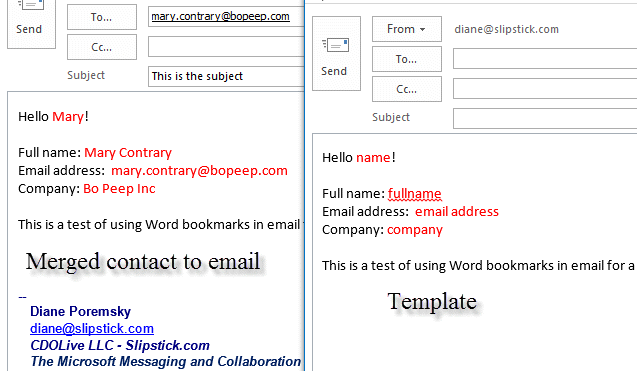
Mail merge code sample
To use this code:
- Set macro security to low for testing.
- Download the template.
- Copy and paste the code into the VBA editor.
- Set a reference to Word object model in the VB Editor's Tools, References menu
- Make sure the path to the template is correct in the code.
- Select a contact in Outlook and run the macro.
Public Sub MailMergeNoWord()

If TypeName(ActiveExplorer.Selection.Item(1)) = "ContactItem" Then
 Set oContact = ActiveExplorer.Selection.Item(1)

Dim objItem As MailItem
Set objItem = Application.CreateItemFromTemplate("C:\path\to\template\bookmark-test.oft")

With objItem
   .To = oContact.Email1Address
   .Subject = "This is the subject"
  ' send from another address; sendas permission required
   .SentOnBehalfOfName = "sales@domain.com"
   .Display
End with


'after the message is open and addressed to the contact, use reference word to put fields into bookmarks
    Dim objWord As Word.Application
    Dim objDoc As Word.Document
    Dim objSel As Word.Selection
    On Error Resume Next

'Set objItem = Application.ActiveInspector.CurrentItem
        If objItem.Class = olMail Then
            Set objInsp = objItem.GetInspector
                Set objDoc = objInsp.WordEditor
                Set objWord = objDoc.Application
                Set objSel = objWord.Selection


       'create a bookmark, repeat these two lines for each bookmark
        objSel.GoTo What:=wdGoToBookmark, Name:="name"
        objSel.TypeText Text:=oContact.FirstName

        objSel.GoTo What:=wdGoToBookmark, Name:="fullname"
        objSel.TypeText Text:=oContact.FirstName & " " & oContact.LastName

        objSel.GoTo What:=wdGoToBookmark, Name:="email"
        objSel.TypeText Text:=oContact.Email1Address

        objSel.GoTo What:=wdGoToBookmark, Name:="company"
        objSel.TypeText Text:=oContact.CompanyName
End If

Else
MsgBox "Sorry, you need to select a contact"
End If

    Set objItem = Nothing
    Set objSel = Nothing
    Set objWord = Nothing
    Set objInsp = Nothing

End Sub

Jason says
can you do the same and pull data from an external database (e.g. excel file)?
Diane Poremsky says
You can use an external database in a mailmerge, either using the built in mail merge function in Word or using a macro. I don't have any macro examples that use Excel data in a merge though.
Trevor says
yes ocontact.UserProperties (“custom”) was the correct function. Thanks
Crista says
Thank you for this post, what is the code to pull a custom field. I tried:
objSel.GoTo What:=wdGoToBookmark, Name:="custom"
objSel.TypeText Text:=oContact.Find("custom")
But that did not work. I know I am missing something simple here.
-Trevor
Diane Poremsky says
In VBA you need to use userproperties, try ocontact.UserProperties ("custom") - I'm not quite sure if that is the correct syntax but don't have time to verify it right now.