I had two questions this week that were similar. In one, the user wanted to decline a meeting but keep a copy of the appointment, the other user wanted to forward accepted meeting to another mailbox.
While these requests don't sound all that similar, the same basic VBA code can be used for both. With one request, we need to copy the fields to a new appointment then decline the meeting, the other one is forwarded then accepted. You can use the basics of these macros to do other things with incoming meeting requests.
Both macros need the GetCurrentItem function listed at the end of this page. This allows you to either select a meeting request in the message list in your inbox or open it to accept or decline.
Rather than using the Accept or Decline buttons, you need to use the macro to accept or decline the meeting then "do whatever". You can add the macro to a button on your QAT, ribbon, or toolbar.
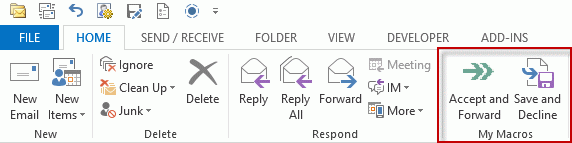
Accept and Forward a Meeting
Don't forget to also add the GetCurrentItem (at the end of this page) to Outlook's VBA editor.
Sub AcceptandForward()

Dim oAppt As MeetingItem
Dim cAppt As AppointmentItem
Dim oRequest As MeetingItem

Dim oResponse

Set cAppt = GetCurrentItem.GetAssociatedAppointment(True)
Set oRequest = GetCurrentItem()

Set oAppt = oRequest.Forward
oAppt.Recipients.Add "alias@domain.com"
oAppt.Send

Set oResponse = cAppt.Respond(olMeetingAccepted, True)
oResponse.Send

Set cAppt = Nothing
Set oAppt = Nothing
Set oRequest = Nothing

End Sub
Decline and keep a copy of the meeting
Don't forget to also add the GetCurrentItem (at the end of this page) to Outlook's VBA editor.
Sub SaveAndDecline()

Dim oAppt As AppointmentItem
Dim cAppt As AppointmentItem

Dim oResponse

Set cAppt = GetCurrentItem.GetAssociatedAppointment(True)
Set oAppt = Application.CreateItem(olAppointmentItem)

With oAppt
    .Subject = "Declined: " & cAppt.Subject
    .Start = cAppt.Start
    .Duration = cAppt.Duration
    .Location = cAppt.Location
    .Save
End With

Set oResponse = cAppt.Respond(olMeetingDeclined, True)
oResponse.Send

Set cAppt = Nothing
Set oAppt = Nothing

End Sub
Accept and Move the Invite
When you accept a meeting, the invitation is moved to the deleted items folder. Moving it to another folder is just 4 added lines. Use the macro at the top of the page and add these lines, with oRequest.Move after the Send (or Display) line.
The folder needs to exist at the same level as the Inbox. If you want to move it to subfolder, use Session.GetDefaultFolder(olFolderInbox).Folders("SharedCal"); to use a folder outside of the current data file, see Working with VBA and non-default Outlook Folders.
' add to top section
Dim myFolder As Outlook.folder

' add after Dim section
Set myFolder = Session.GetDefaultFolder(olFolderInbox).Parent.Folders("Accepted Invites")


oResponse.Send
oRequest.Move myFolder


'last line before end sub
Set myFolder = Nothing
Accept and Forward a Copy to Another Address
When Exchange server users forward a meeting request, the organizer may be notified the meeting was forwarded. The organizer or administrator can disable this feature, but if you aren't sure if it's disabled and want to avoid generating the notification, you can use a macro to generate a new meeting request and forward it to the address.
This should only be used to forward meetings to your personal account, not to forward the meeting information to other users.
Sub AcceptAndForward()

Dim oAppt As AppointmentItem
Dim cAppt As AppointmentItem
Dim meAttendee As Outlook.Recipient
Dim oResponse

Set cAppt = GetCurrentItem.GetAssociatedAppointment(True)
Set oAppt = Application.CreateItem(olAppointmentItem)

With oAppt
    .MeetingStatus = olMeeting
    .Subject = "Accepted: " & cAppt.Subject
    .Start = cAppt.Start
    .Duration = cAppt.Duration
    .Location = cAppt.Location
    Set meAttendee = .Recipients.Add("me@mydomain.com")
     meAttendee.Type = olRequired
    .Send
End With

Set oResponse = cAppt.Respond(olMeetingAccepted, True)
oResponse.Send

Set cAppt = Nothing
Set oAppt = Nothing

End Sub
GetCurrentItem Function
With either of these macros (and many others on this site), you need to use the GetCurrentItem function if you want to use the macro with either opened items or selected items. You only need to have this once within your VBA project and can use it with as many macros as you want.
Function GetCurrentItem() As Object
    Dim objApp As Outlook.Application

    Set objApp = Application
    On Error Resume Next
    Select Case TypeName(objApp.ActiveWindow)
        Case "Explorer"
            Set GetCurrentItem = objApp.ActiveExplorer.Selection.Item(1)
        Case "Inspector"
            Set GetCurrentItem = objApp.ActiveInspector.CurrentItem
    End Select

    Set objApp = Nothing
End Function
How to add the macro to Outlook and create a toolbar button
Note: you'll also need to open a meeting request and add a button to it, if you want the macro easily accessible from an opened message.

dronics says
Hi Diane,
I'm trying to use the "Accept and Forward a Copy to Another Address" on Outlook 2016 and it seems to work with my gmail account. Only thing is that it doesn't delete the meeting invite in my inbox like the normal "Accept" does.
I know that you answered someone with a similar issue in the comments but I think this was back in 2015/2016.
Could you let me know what needs to be done to the "Accept and Forward a Copy to Another Address" vba to delete the meeting invite please?
Marion says
Could it be that it doesn't work with MS Office Professional Plus 2013 in combination with exchange server? I get an error message. It says: "The operation failed. The message interfaces have returned an unknown error. Cannot resolve recipient" When I debug I see a yellow arrow at the line .Send
Diane Poremsky says
it works with exchange - at least in cached mode. Are you using classic online or cached?
I'll see if i can repro that error - it sounds like it is not connecting to the address book.
Marion says
I guess I use the cached one. In the company we use outlook from the Office package. It is installed on all the laptops.
Diane Poremsky says
Which macro are you using?
Does the address its being sent to have single quotes or other characters around the email address?
Marion says
I used the Sub AcceptandForward()
And I replaced alias@domain.com for my mailaddress
Marion says
I have used Accept and Forward a Copy to Another Address. The macro runs without problems if I cut and paste the text from the macro as it is on this page (with the address "me@mydomain.com"). It is when I replace the me@mydomain.com mail address for my own outlook.com or gmail.com address when the error occurs.
Diane Poremsky says
What is the error message?
Marion says
I have tried a few things. The macro works fine when I leave out the dot between my first name and last name in the first part of the email address. So "firstnamelastname@....." works fine, but "firstname.lstname....." doesn't. Unfortunately, my mail address is the one with the dot in it. Also, when the macro has run, the invitation email is still in the inbox.
Diane Poremsky says
So this line: oAppt.Recipients.Add "alias@domain.com"
when the alias had a got in it, fails?
oAppt.Recipients.Add "al.ias@domain.com"
There is no reason why it shouldn't work as long as the address is in quotes but I will see if i can repro.
KLE says
GetCurrentItem only seems to work with selected meeting invite (email) item and not with a selected meeting item in calendar view. How could this be achieved?
Thanks.
Diane Poremsky says
Set cAppt = GetCurrentItem.GetAssociatedAppointment(True) is looking for the appointment associated with the appointment, not the appointment itself. Application.ActiveExplorer.Selection.Item(1) applies to the selected item.
FWIW, it's recommended to accept or decline from the email, not from your calendar - accepting from the calendar doesn't delete the matching email.
Nick says
I am using Script 3 to Accept the appointment to my Calendar and then send a
copy to a shared team calendar. The original MeetingItem is left in my inbox.
I attempted to use the oRequest.Delete line but I don't believe oRequest is
defined in that example.
I am a total noob at this and am learning a lot through this site and googling but
I have reached the point where I am just guessing now.
Sub AcceptAndForward()
Dim oAppt As AppointmentItem
Dim cAppt As AppointmentItem
Dim meAttendee As Outlook.Recipient
Dim oResponse
Dim oRequest As Outlook.MeetingItem
Set cAppt = GetCurrentItem.GetAssociatedAppointment(True)
Set oAppt = Application.CreateItem(olAppointmentItem)
With oAppt
.MeetingStatus = olMeeting
.Subject = cAppt.Subject
.Start = cAppt.Start
.Duration = cAppt.Duration
.Location = cAppt.Location
Set meAttendee = .Recipients.Add("email address removed")
meAttendee.Type = olRequired
.Send
End With
Set oResponse = cAppt.Respond(olMeetingAccepted, True)
oResponse.Send
Set oRequest = MeetingItem.Delete(olMeetingAccepted, True)
oRequest.Delete
Set cAppt = Nothing
Set oAppt = Nothing
Set oRequest = Nothing
End Sub
Diane Poremsky says
At the top, either right before or right after Set cAppt, add this line:
Set oRequest = GetCurrentItem()
(and use the GetCurrentItem function)
GA Nielsen says
The Accept and Forward Copy is working for me but it creates a duplicate appointment. How do I prevent this from happening?
Guillaume de Fombelle says
Thanks for the code for declining and saving!
What would be the line to be added, for the status to show as available?
I tried .MeetingStatus = 1 and others without success
Note: I also added .ReminderSet = False which seems to make sense
adsa says
Keep getting an error run time error 438 : object doesn't support property or method
brandonrsullivan says
Hi Diane,
Little help with a tweak, please.
I want to decline a meeting but be able to easily change the response later. I tried Save & Decline, but it creates a copy. Can I Decline and Save the original to my Calendar as Free?
As my schedule changes, this would allow me to easily change my response from the event and inform the organizer of my change in status.
Thanks!
Diane Poremsky says
I am not aware of any way that will allow you to decline and keep the cancelled appointment, sorry. Tentative was intended for situations like this where you aren't sure if you can attend.
brandonrsullivan says
Thank you so much for the quick reply. The scenario is not quite as you mention, however. Frequently I decline meetings I have already accepted because a more important event is created. This more important event is then canceled and I want to rejoin the original meeting. It is never tentative at all, you see.
However, in terms of "logic" what I would like to do is to suppress the deletion of an event not from the invite, but from the appointment itself. So would it be possible to create a Macro that would send the decline message to the organizer, but not perform the delete activity? If this is possible, then I'd add in the script to set Free/Busy as "Free".
Does that clarify or add any thoughts on possibilities?
Thank you so much.
Brandon
Aaron B. says
Diane,
I'm looking to use these scripts to forward to an external email account (my gmail account) and have it not inform the organizer of the forward as I am only doing this get it on my gmail calendar, does this method work in that scenario?
Diane Poremsky says
The accept and forward one should trigger the notification. The decline and save would not - I'll get the code to forward the appt instead of saving it.
Diane Poremsky says
Ok... new version of macro is near the end of the article.
Colton Spe says
When I try to add multiple recipients to the Forward it fails. For example:
oAppt.Recipients.Add "email1;email2;email3,etc"
Any ideas? Thanks in advance
Diane Poremsky says
Try using oAppt.To "email1;email2;etc"
Curt Faulk says
Diane:
As usual, you devise the most interesting and useful code for your fan base. (Yes, we EXIST!)
What code would be inserted to remove the "FW:" in the Subject to keep that text from appearing in the Calendar entry on the target calendar?
Diane Poremsky says
something like there, where 4 = the # of characters before the subject ("FW: ")
oAppt.subject = right(oappt.subject, len(oappt.subject - 4))
Chris says
Thanks you so much for this!
It forwards the email beautifully to another email, however it doesn't delete the invite as it would with a normal acceptance (I'm using Outlook 2010).
Can you help with this?
Many thanks,
Chris
Diane Poremsky says
At the end, try oRequest.delete (for the first macro)
Gary Ricks says
Diane - thanks so much for all of the excellent code here - makes my job easier every day! Question on meeting acceptance notifications - how do we find those and move those?
Thanks!
Diane Poremsky says
I assume you mean responses you get back. If you just want to move them, you can configure it in File, Options (it's under tracking options). Rules can also do it - look for the message class of IPM.SCHEDULE.MEETING.RESP.POS and do something.
TJ says
I was searching for this a long time. Looks great and seems to work, poorly I have to work with Outlook 2003. Is there a way to adopt this skript?
Diane Poremsky says
It should work with 2003 too (and older) - it doesn't have anything that is special to the newer versions.
Andy says
LOVE LOVE LOVE these macros! (Also the one to generate an e-mail to all who haven't responded to a meeting notice!)
In Outlook 2010, when I run the macro for Decline and Save, the Meeting Notice still shows in my Inbox.
Is there a way that I can get this to go away, as well? Right now, after using the Macro, I have to again Decline the meeting and then it will be gone from my Inbox.
Any help would be very much appreciated!
Diane Poremsky says
You need to use oRequest.Delete or .Delete if using a With/End with block.
dstarmerd S says
When I save and decline, the status still stays "busy". How would I change it as part of the macro to "free"?
Diane Poremsky says
You need to set the buy status on the associated appt. Then save it.
cAppt.busystatus = olfree
cAppt.save
Frohberg says
Dear Diane,
Here is what I came up with. It seems to work, though I'm not that much of a pro.
Sub Delete_All_Declined()
Dim oOL As New Outlook.Application
Dim oNS As Outlook.NameSpace
Dim objItem As Outlook.AppointmentItem
Set oOL = CreateObject("Outlook.Application")
Set oNS = oOL.GetNamespace("MAPI")
Set oAppointments = oNS.GetDefaultFolder(olFolderCalendar)
For Each objItem In oAppointments.Items
On Error Resume Next
x = 1
Do Until x > objItem.Recipients.Count
' 0 = no response, 2 = tentative, 3 = accepted, 4 = declined,
If objItem.Recipients(x).MeetingResponseStatus = 4 Then
If objItem.Recipients(x) objItem.Organizer Then
objItem.Recipients(x).Delete
x = x - 1
objItem.Save
End If
End If
x = x + 1
Loop
Next
MsgBox "Done"
Set oAppointmentItem = Nothing
Set oAppointments = Nothing
Set oNS = Nothing
Set oOL = Nothing
Set objItem = Nothing
End Sub
I would thank you very much for input (mistakes or optimization).
Best
J. Frohberg
Diane Poremsky says
I'll test it this afternoon but it looks perfect. Thanks for sharing.
Frohberg says
Dear Diane,
I wanted to ask you if it is possible to use the structure of these macros for following idea. I want to delete all participants of a meeting who declined the invitation from the list of participants.
Background: We use Exports to excel to monitor the status of our meetings and number of attendees. Unfortunately, the information whether someone declined or accepted a meeting request is not represented in Excel exports thus making it impossible in Excel to tell how many participants really will come to a meeting (or am I mistaken?).
If it is not possible to do it at once, maybe it's possible to open a relevant meeting as soon as an email arrives which declines the meeting and remove the senders address from the list of participants?
Thank you very much for your help
Best J. Frohberg
Diane Poremsky says
It should be possible but I don't have any code samples handy that do it. I'll have to see what i can come up with.
Marco says
I am trying to do something similar, but am a little stuck:
I would like to forward meeting requests I accept to another e-mail address.
Normally I would use a simple outlook rule for this. However, before forwarding the accepted meetings, I would like to strip the body and any attachments, in effect only forwarding subject and location of the meeting. Do you know how to do this?
Diane Poremsky says
Two choices: create an email with the fields you want. Code sample here -
https://www.slipstick.com/outlook-developer/forward-meeting-details-to-another-address/
or something like this for the body -
Set oAppt = oRequest.Forward
oAppt.Recipients.Add "alias@domain.com"
oappt.body = ""
oAppt.Send
Because the attachments should be embedded, removing the body might remove the attachments. If not, you'll need something like this
(from https://www.slipstick.com/outlook-developer/remove-attachments-from-sent-messages/)
Dim lngAttachmentCount As Long
Set myAttachments = myItem.Attachments
lngAttachmentCount = myAttachments.Count
While lngAttachmentCount > 0
myAttachments(1).Delete
lngAttachmentCount = myAttachments.Count
Wend
HarleyDavis says
If it is a Resource mailbox and you are also rebuilding an entire set of calendar folders for different users? No, a forward won't work. That would require grabbing each set of resource bookings for each person, then forwarding for each room, and do it again for each person for each room... And so on. With 17-30 users and 35 rooms? That could end up being worse than trying to send each one individually.
I just want to input all the events for each user on their new, clean calendar (all events are meetings with resources only), and activate a single send for all of the events. A For Each loop looks right, but I haven't been able to get any scripts to work.
Example Algorithm:
For Each appointment in Default Calendar folder
Select appointmentType
Case "Meeting Item"
apt.send()
Case "Appointment Item"
apt.save()
End Select
Next
Harley Davis says
Great stuff. I might just try and tweak it a little. I need to send selected meeting requests, not forward, SEND as they are (as if updating them), and there are thousands. The come from a recovered set, and they are all functional on my calendar, but I need them to send to their recipients. We had to rebuild, so many of our boxes were completely lost, including some resource boxes. However, most of our main boxes were backed up, along with a list of all the boxes, and recovered. I just need it to be able to send all meeting requests again. I know the user-recipients will get them again, but they should only get an update if their copy is as intact as mine, and only the resource boxes we lost will respond back. I can sort that out later.
Diane Poremsky says
If only the one mailbox is missing the meetings, you can forward the meeting to that address - forwarding has the same affect as resending.
Don Chairez says
Thank you. I am always confused by Outlook. Superb advice.
Johan says
Thanks! Very helpful.