After the Outlook.com accounts are moved to the new server, you'll be able to add the account to Outlook as an Exchange account or to any email client using POP3 or IMAP.
While IMAP is recommended because changes sync to the server and to your other devices, you can use POP if you really want to. However, you'll need to enable it Outlook.com's Settings as it is disabled by default in the new Outlook.com accounts.
Note that you will need to use a POP client that supports oAuth2 protocol. If you use one of the Outlook clients, you must use auto account setup to add the account.
- Log into Outlook.com using a web browser.
- Click File > Settings or the Gear icon (in the top right of the page) then choose Options.
- Under Mail, locate Forwarding and IMAP in the Mail settings list.
- Click the link to authenticate your account.
- Slide the button to the right to enable POP next to Let devices use POP.

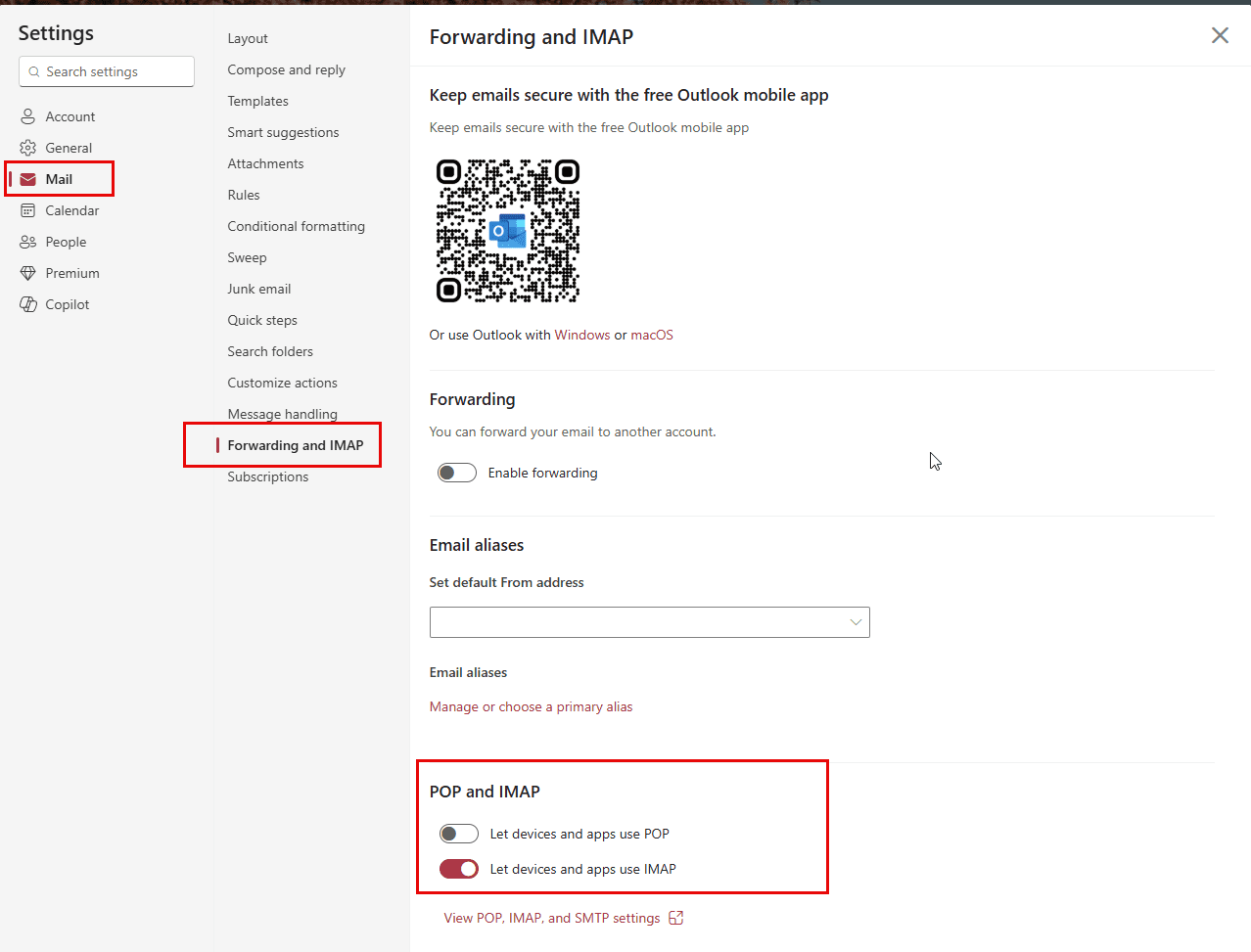
Now you can add your (migrated) Outlook.com account to POP client that support oAuth2 . Click the link to get the POP server name and port numbers needed.

Leave a Reply