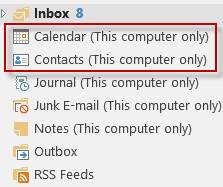
 Beginning with Outlook 2013, there are changes in how IMAP accounts are handled.
Instead of using two data files, one for IMAP email and one for your calendar and contacts, Outlook 2013 uses an .ost file for IMAP accounts and stores appointments, tasks, contacts, and notes in the IMAP data file, in folders labeled "(This computer only)".
While users with just one email account in their profile may like having only one data file, it's really not in most user's best interest to use the IMAP .ost file for calendars and contacts.
This is problematic for a number of reasons, including the fact that you can't move an IMAP .ost file to another computer or profile. You need to export the contents of the non-mail folders to a .pst file to move them to a new computer (or a new profile). You can't backup the .ost and easily recover the appointments and contacts from it. You need to export the folders on a regular basis to back them up.
In addition to the issues involving backing up or moving your calendars and contacts, you also won't be able to set a range of flags and reminders or use Categories on the items stored in the IMAP .ost file.
New Appointments are saved in the wrong calendar | Set reminders on Tasks in IMAP
Configuring special IMAP folders in Outlook 2013
The solution? Use a .pst file for your calendar and contacts. If you have a POP3 account in your profile, set it as default and move your calendar and contacts to the folders in the pst file. You can remove the (This computer only) folders by closing Outlook, deleting the IMAP .ost file then reopening Outlook. It will create a new .ost file without the special Outlook folders.
Create a local pst file
If you have a pst file in your profile you want to use for Calendar and Contacts, set the data file as the default then move any appointments or contacts in the 'This Computer Only' folders (steps are in Section B)
Follow the steps in Section A if you need to create a pst folder.
A. Create a local pst file:
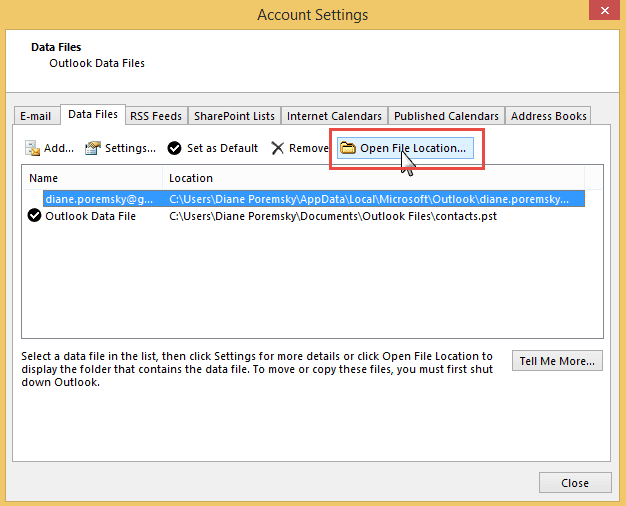
- Go to File, Account Settings, Data Files tab

- Click Add, type in a name for the pst file
- Set it as Default data file

- Close Outlook and reopen it
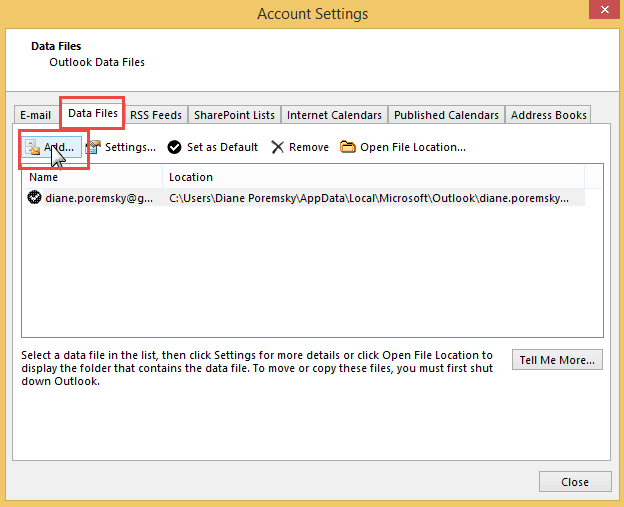
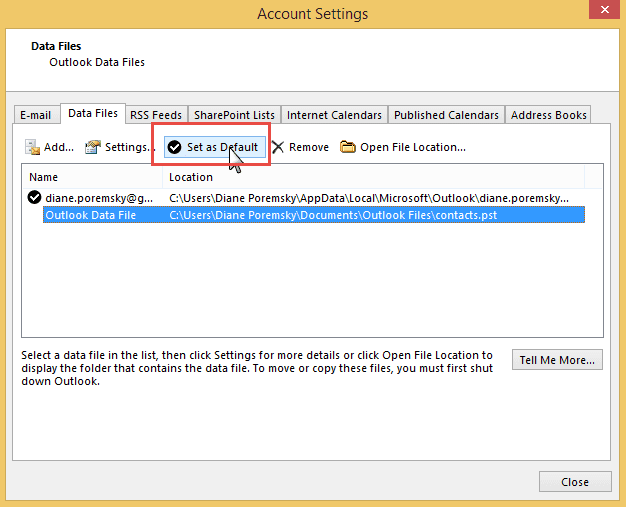
B. Move Contents from the '(This Computer only)' folder to the folder in the *.pst file:
- Switch to the Calendar (This Computer only) folder
- Go to the View tab, select Change View
- Switch to a List view
- Select All and move or drag the appointments to the new calendar folder
- Repeat the steps above for Contacts, Tasks, and Notes if you have contents in those folders.
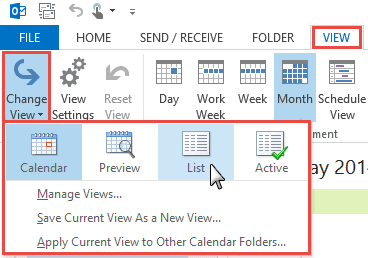
C. Remove the (This Computer only) folders from the IMAP data file
- Close Outlook.
- Open Windows Explorer, type %localappdata%\microsoft\outlook in the address bar
- Delete the IMAP ost file
- Restart Outlook
Create a local pst file video tutorial
Folder order and Start up folder
After adding the pst file for calendar and contacts, you may want to rearrange the navigation pane, putting the IMAP account at the top and the Calendar & Contacts pst at the bottom.
I also recommend choosing a different start up folder if Outlook starts in the pst file's Inbox. Make this change in File, Options, Advanced. The option to choose a start up folder is near the top of the screen.
https://www.youtube.com/watch?v=j3f0lxBPhjU
Tools
Using Safe PST Backup, you can back up your Outlook in any situation. Use Safe PST Backup for migration and the whole Outlook data files you have created will be backed up to the last date. Back up Email archive, Contacts, Calendar and other folders automatically. Incremental backup will be done regardless if Microsoft Outlook is running or not. Updated Safe PST Backup 3.00 allows to filter data by more parameters. Added single panel to set backup rules without configuration file |

Rebecca C. says
THANK YOU DIANE! This worked for me!
I was able to use your instructions to create a .pst file on my old computer, transfer all my calendar and task items from my (this computer only) folder to the new .pst folders, then move that .pst folder to my new computer and set it up. THANK YOU!
Not only do I now have my calendar and task files on my new computer, but I can now COLOR CODE my calendar. AMAZING! I have been trying to figure out how to do this for 8 months! I was told my IMAP can not sync, nor can it support color-coding calendar entries. I never heard or saw a suggestion to use a .pst file. THANK YOU! I'm in business now!
By the way, I am using Microsoft 365 Apps for Business on Windows 10 Pro. On a 3-year-old Dell computer.
Aremel says
I've recently run into an issue where the Apple iCloud calendar and contacts won't sync with Outlook 365. I have been researching and trying to fix this for almost two weeks to no avail. Any ideas or new suggestions as to why this has started happening? It's worked fine for several years.
Bernd says
Hello - I am having problems restarting outlook 365 after deleting the .ost file. Upon restart Outlook stop responding, it looks like it re-created a new but incomplete .ost, I delete that new .ost and restart outlook again which now repopulates but the "This Computer only" folders are still there. Any idea what I am doing wrong?
Jeff says
Diane, I am using Office 20019 and successfully created a new calendar following your instructions to remove 'this computer only'. Everything works on my PC thanks to your instructions, but I cannot see / link to the new calender via Outlook.com or Microsoft Outlook for android app.
Can you suggest a solution for this problem as I can view / modify my emails on Outlook.com or Microsoft Outlook for android app.
Diane Poremsky says
Do you have the outlook.com account in your profile? If so, and if its the default data file, you would use its calendar.
Tony Davis says
Huge thanks, Diane. If you're able to answer this quicky, I'd be very grateful. My default .ost is my Hotmail address. If I use your detailed instructions above, will I then go on to delete all of my calendar contents and addresses from my Hotmail? Will I then be able to sync these across my mobile devices using the .pst file? Nervous as I'm self employed and my calendar is my income! Many thanks, Tony.
Robert says
Diane you are a lifesaver! I've read a million articles about this problem and only yours works. After leaving a job, I had to transition from MS Exchange to Outlook 365, lose my corporate email and get my gmail personal address working in Outlook, all while not losing my contacts or calendar. You nailed it! Thanks again.
Mark says
Hi Diane
I cannot see my calendar in the outlook mobile app on iphone, inbox and sent emails are fine. I am using outlook 365 on my pc with my default email account set up as IMAP. The calendar in outlook under "My Calendars" displays as : Calendar (This computer only). How can I setup outlook so that the outlook calendar will sync between PC and and mobile app. Calendar on mobile app appears to display gmail calendar not the outlook calendar.
Steve says
Best instruction on how to fix the "(this computer only) issue. Thank you!
James M Shepherd says
Hi Diane - I have an IMAP account that is accessed via Outlook 365 and there is one folder that I can't seem to convert to IMAP. No matter how many times I try to subcribe and update, the properties still show the folder to contain Mail & Post items instead of IMAP items. The folder does have the correct number of emails and it does seem to update properly. When I review the list of IMAP subscribed folders, it is in the list but it's NOT an IMAP folder. It's also the one and only folder (1 of 25) where I can't copy the view settings to match the rest of the IMAP folders. What am I missing? I've done this successfully many times with other folders. Should I delete the folder and recreate perhaps?
Thanks for your help.
Jim
Camille says
Hi Diane - thanks for this great information. My question is, after I've set up the pst calendar on my main computer, should this sync now to my other computers with Outlook or do I need to set up the new pst calendar on my other computers?
Rikki Morrison says
Had to get a new computer. Updated to Office 2019 at same time. You post saved my bacon!!! Thank you so much. Switching from a .pst only file to a combination of .ost and .pst worked like a charm. Can now do categories with my calendar and contacts, again. Thank you!
david wojtkowski says
hi Diane. I have the THIS COMPUTER ONLY problem only affecting some tasks (not sure why it's only some, maybe it's when I add a tasks when I'm not connecting to WIFI like on a plane?). Those tasks never show up on outlook today or on reminders or anything. The rest of my email works just fine - I have two email accounts.My data file shows the two OST accounts and then an icloud archive pst account. What should I do so I never get a THIS COMPUTER ONLY task? you are so helpful - thank you!
Diane Poremsky says
If an imap ost file is set as the default data file, you'll always have the 'this computer only' folder. You would need to add a pst file and set it as default.
How many Task folders do you have in your profile? Are the tasks that don't show up in outlook today in the same folder as ones that do show up?
david wojtkowski says
Thanks Diane. I think I just have what's below. No, the ones that are in THIS COMPUTER ONLY and don't give reminders or anything show up in TO DO LIST and then when I click on the adomain list I get all the regular things. I'd rather the d99@gmail.com be the primary but not sure how to do that. I don't want to lose any data. Thanks for your help!
Under data files I have 3
david@adomain.org xxxx.ost
d99@gmail.com xxxx.ost
icloud archive icloudarchive.pst
Diane Poremsky says
If you want to use the domain address instead of gmail as the default data file, you can set it as default in File > Account Settings > data files tab. It may or may not fix the problem though.
Or you could set icloudarchive.pst as default and use it for tasks, calendar & contacts.
I know flagged mail in imap accounts does not have reminders - tasks may not either (I'll need to boot up a test machine to check - I use exchange accounts on this computer.)
(FYI I edited your addresses so spammers can't get them from here.)
Alistair says
Thanks for this.
I've manged the process on my laptop, but the calendar in my Outlook on my phone is still not there.
Do I have to uninstall and re-add the account or should it all just sync automatically?
Android phone by the way if that makes any difference.
Cheers
Ali
Diane Poremsky says
The calendar needs to be in outlook.com or you need to use a sync utility to sync it with gmail calendar to show up on the phone.
james says
Thank you for this! This has worked for my computer but my iphone is not syncing to calendar still, even after resetting that address on phone.
Diane Poremsky says
Are you using the icloud addin to sync?
Linda Smith says
Thank you so very much. This was so helpful and now I can categorize my calendar.
Matt Miller says
Hello!
I have outlook.com 2016 data file syncing so I can see my calendar across multiple devices. Problem is when I accept a meeting (IMAP, this computer only) then I have to copy to outlook.com calendar to sync across devices, which then creates an additional attendee to each calendar meeting (@outlook.com). This is confusing and not professional for customers to see.
If I follow above and create a PST data file, will it sync to outlook.com to avoid this situation? Thanks in advance.
Carol Ptak says
Absolutely fantastic advice. Works exactly as described. Best post ever
James says
Thank you. That was extremely helpful and informative.
Brian Kelly says
Hi. I'm confused. In Step B it says Select All and move or drag the appointments to the new calendar folder. How do I do that? And at the end, don't I want to make the data file with the email in it the default?
Diane Poremsky says
That assumes you have events on the 'this computer only' calendar and want to move them to a local pst.
If there is not a calendar folder in the pst, either create one yourself or restart outlook after setting the pst as default. (Step A)
If you make the datafile with the email in it - which is an imap ost - if its set as default, the 'this computer only' folders for calendar & contacts will be used.
Brian Kelly says
I got it. It all worked beautifully. I had one additional problem: Sending x of y status wouldn't clear. Had to leap flames to get and send mail. After clearing everything out of the old .OST, I whacked it. Outlook created a new one. Problem solved.
A.Doug Ferris''' says
Diane, thank you for addressing IMAP accounts (Comcast email) and Outlook 2016 on my laptop. It was very helpful. I created a PST of Calendar & Contact items from my OST file, but I did not delete and restore my OST file because I have extensive email Folders and Sub-Folders that I can’t risk losing. Going this route meant I had to remove some “Duplicate Calendar Popup“ items and consolidate many of my special contact folders, but it was worth the effort.
Benard says
Dear Diane
I followed your advise to create a separate PSD file for Calendar and Contacts probably about two year ago. I do synchronize my Outlook 2016 with CodeTwo Sync für iCloude. I didn't have any Problem anymore since then. Before my claendar and my synchronization crashed every couple of moth, specially after Windows updates.
I am so pleased with the solution now and I would like to thank you again for this excellent advise wich you published.
Bernard
Michele says
Thank you! There is no way I would have ever figured this out on my own. This issue has been bugging me for the longest time.
Eric M says
Thank you! You are THE authority on Outlook.
Dan Stapleton says
With the new way Outlook 2016 handles IMAP accounts and stores contacts and calendar data, it looks like I'll not be able to synch my iPhone to contain mail, contacts and calendars as before with MS Office 2010. With Outlook 2016 I've ended up with three sets of calendars and contacts (One file each for "This Computer Only," my email data file and an Outlook Data File) and no good way to merge them to have them automatically update and be available for an iPhone/iTunes synch. Won't I have to regularly keep merging my calendar and contacts among three files manually to maintain a single set of contacts and a calendar? I can't imagine how few MS Office/iPhone customers could manage to set this up and still not be able to use and synch the features they need. These changes must be for marketing/business reasons only as they doesn't seem to benefit the users. Is my only option to go back to Outlook 2010 to do this?
Diane Poremsky says
How did you do it before? You either need to use outlook.com/exchange accounts or iCloud addin. If you use the iCloud addin, It will move the 'this computer only' folders to the imap account's trash folder. Or set a pst or exchange account as default data file and get rid of the 'this computer only' folders.
If you have outlook.com/exchange: set the exchange data file as default. Move calendar & contacts from the imap folder to the exchange account then close outlook and delete the imap data file. Open outlook and the 'this computer only' folders will be gone. iPhone sync with outlook.com/exchange. (If the imap account is your 'main' email, you can set it up so that inbox is shown when you first start outlook.)
No outlook.com/exchange: you need to use iCloud addin or a 3rd party utility such as companion link (or gsyncit, if using a gmail account).
Monica C says
Thank you! Thank you! THANK YOU!!!!!!!!
Bill Young says
The .ost files all reappeared in the Explorer folder...\Microsoft\Outlook\..., with all their data(!); but not the Outlook folders '(This computer only)'. Is that normal?
Diane Poremsky says
The 'this computer only' folders are only created if you set the imap data file as the default data file, so yes, it is correct.
Bill Young says
Brilliant! Many thanks. I am now on my way to understanding and consolidating Outlook 365 Calendars and Contacts. Who knows? I may even find out how to synchronize Outlook 365 data with the Outlook app on my phone, without using Google as an intermediary.
Jim M. says
Hi. Thanks for the article. Unfortunately, When I performed the above steps on several of my office computers, the reminders window no longer shows up for the calendar items that were moved. Is there a way to resolve this? I have a few upset people who are not getting the reminders.
Thanks
Diane Poremsky says
if the pst is set as default, it should be indexed and triggering reminders. Click in the Instant search field, then Search tools, locations to search. Is the pst selected?
August G says
Hi Diane - moved to a new PC which upgraded outlook from 2010 to 2016. Outlook auto configured my comcast account as imap (previously same account was pop3 under . I coped all the calendar entries into the new calendar folder on the new PC using a .pst file to transfer them. Now when i try and sync iPhone with outlook locally via iTunes, calendar entries will not transfer. Contacts do. I notice iTunes says that i am using exchange (which i am not) presumably due to the imap designation of the comcast account.
Is there some reason that iTunes does not sync calendar entries but does sync contacts
Diane Poremsky says
I'm not sure why it's syncing one and not the other, i think it should. (Most people use icloud to sync, not itunes, myself included, so i haven't tested itunes sync.)
Is nothing syncing or do a few things sync?
My typical recommendation is to use a pst for calendar and contacts and set it as default, to avoid losing calendar and contacts in the 'this computer only' folders but its not necessary when you sync as copies are available on the phone.
Deb says
Thank you, Diane for this blog. I will look for my issue in the comments. This week I got MS365 through godaddy. While in the 365, my husband noticed that on Outlook other emails were listed that we don't utilize on outlook. We deleted both. One was my aol.com. I didn't know it would wipe out my entire On this computer only OUTLOOK. I never used outlook to ready my aol mail and thought I was just stopping aol email from going through to outlook. I've recovered my email, but I need my contacts/address book. I've done deep scans with online recovery software...they find email but say my contacts, calendar and notes are corrupted. I had a MS tech support remote into my computer and he said the MS store could get it back. He had me download the file onto thumb drive and store said they needed hard drive. Most people say the address book is in computer and nothing really gets deleted. I hope that's true. Where would I go to find my 2013 OUTLOOK on this computer only file? I have Win10. Any suggestions? Thanks so much.
Diane Poremsky says
unfortunately, if you don't have a backup and the mail is not left on the server, you won't be able to recover imap data files when you delete the account from outlook. Outlook cleans up after itself when you delete an account and permanently deletes the data file. The only hope of recovering the data file is using deleted file recovery programs as soon as possible after deleting the account. The longer you wait, the less successful you'll be. Sorry.
Ted Smith says
What a great post and YouTube summary tutorial! This is the best things I've found for solving IMAP problem for Outlook 2013/2016. Thank you!
Jeni Swink says
Thank you for the information Diane. I have used Outlook for years, maybe decades. When I had to upgrade to a new computer with Windows 10 and Microsoft 2016 I no longer had color coding for my calendar. I finally was able to speak with customer support, after two days of bouncing around all the self help tabs, and was told with IMAP I had to live without color in my calendar. But, with your suggestion above I am able to keep my IMAP email and have my pst calendar with color. It is so much easier to read my calendar now.
Andrew Marks says
Diane:
I have a related issue to the one below where Outlook sets up mail folders for the .pst file I created for calendar and contacts. I have a Comcast IMAP account and have created a pst file to keep my calendar, contacts, etc. Sometimes when I send an email with an attachment from my IMAP account it ends up in the Sent folder of the pst file account. It's not clear what triggers this, as not all emails with attachments end up in that Sent folder, but all of the emails that do end up there have an attachment. I believe that the designated recipients are still receiving these emails with attachments, but there are no copies in my IMAP Sent folder, nor on the Comcast server when I log into email through the internet. This is quite annoying and I would love to know how why this is happening and how to fix it.
Andrew
Diane Poremsky says
What version of Outlook are you using? Are the messages with the attachments that end up in the pst created the same way as the others? I'm thinking there are at least 4 possible scenarios:
1. Reply and Insert an attachments (would expect this to go into the imap sent);
2. Start new message while viewing the inbox, add attachment (would expect this to go into the imap sent);
3. Start new message from calendar (or any pst folder). It shouldn't matter but there is the potential to save in the pst sent folder.;
4. Right click on file, send message. Like 2 & 3, which folder/data file is in focus could make a diff.
(another 'it shouldn't matter... but...')
oh and a 5th... what Antivirus/security software do you use? If it scans outgoing mail it could be contributing.
If you can repro the behavior, you could run outlook in safe mode and see what happens.. but if it's not easily repro'd, it makes it hard to test (safe mode is annoying for long term use.)
To open Outlook in Safe mode: Close Outlook then hold Ctrl as you click on the Outlook icon. You'll get a message asking if you want to start in Safe mode. Click Ok.
Andrew Marks says
I'm using Outlook 2016. I'm not sure what parameters cause those emails to end up in the pst sent folder, as I do use scenarios 1, 2, and 4 (but not 3). I use Avast antivirus and I believe it does scan outgoing mail. I will run a test tonight trying to send using each of scenarios 1, 2 and 4 to see if one of those causes email to be saved in the pst sent folder. I will say that I don't believe that any of the pst folders are ever in focus when I perform any of the scenarios above.
The last email that ended up in there I think was sent by using the "Send file as Attachment" function in Word. Now that I think of it, this may be a fifth scenario (related to No. 4, but from within another MSOffice program rather than through Windows Explorer).
Andrew Marks says
After testing, the issue occurs whenever I send a file from within Word or Excel using the File Send as Attachment function. Is there anything in the registry or elsewhere that can change that behavior?
Diane Poremsky says
That uses simple mapi to send mail, so it makes sense in the same way it would if you used right click, send email option. I don't think this key will help at all (unless you have more than one account) - i will try to repro and report it.
HKEY_CURRENT_USER\Software\Microsoft\Office\16.0\Outlook\Options\Mail
DWORD value: NewItemsUseDefaultSendingAccount
Value: 1
M West says
Have you ever experienced outlook 2010/2013 adding the IMAP 'Calendar (This computer only)' folder randomly, sometimes months after being properly configured to NOT have it? Ex:
-office 365 account added first as exchange account; data file set to default
-IMAP account added second; in account settings, this IMAP account was 'set to default' on the email tab for new message default delivery but the exchange account above is still set to default on the data files tab
-all was working fine on 4 machines but randomly 2 of them had the IMAP calendar (this computer only) appear (about 6 months after install) and now their appointments are going to the wrong calendar by default
The users are not tech saavy and have not been messing with any settings so I am not sure what could have caused outlook to suddenly add the calendar. Any advice?
Diane Poremsky says
I have not seen this happen, at least not under normal circumstances - such as removing the exchange account and adding it back. The imap data file would be set as default for the few minutes the exchange account was gone.
Otherwise... Is the 365 account using cached mode? (It's the default and recommended, but can be turned off.) I wonder if something caused the office 365 account to load slowly and the imap account 'took over' until it loaded. (It's usually the other way around - imap loads slower and causes the Favorites list to re-order.)
To remove the folder, make sure nothing went into the this computer only folders and delete the imap ost. Outlook will recreate it.
Mr Guiness says
Followed the above which seems to have worked but I still cant share my calendars.
Any thoughts on how I can set this up so we can share diary's between my work team.
Diane Poremsky says
You can only share calendars using an Exchange account, not using a pst file or imap account. There are sync utilities - see https://www.slipstick.com/outlook/sharing/sharing-outlook-calendar-and-contacts/
Ron says
I wondered if you might know how to help me with an Exchange-to-IMAP issue I'm having. I've been migrating the contents of an old Exchange account to a Gmail account via IMAP. At some point after successfully transferring plenty of messages, I dragged a batch from the Exchange to the IMAP account and Outlook crashed. Each time I launch Outlook with that profile, it crashes within a minute or so, after it attempts to begin syncing that transfer, I think. From their respective web interfaces, neither the Gmail nor the Exchange account has the messages. I imagine they're in some kind of limbo, waiting in some system file to be transferred. I can only get Outlook to work by creating a new profile and adding the accounts to it. Is there some way I can find the correct data file behind the scenes and get the accounts to see the messages that are still in limbo so that they'll get moved?
Diane Poremsky says
If outlook opens with the old profile, there might be something in the sync errors folders that will give you a clue (but not much more than that), otherwise no, there is no way to discover what is in limbo in that profile.
Ashley says
I had to re-import my .ost and now my (This computer only) calendar is gone. Is there any way to retrieve it?
Thank you.
Diane Poremsky says
Do you have a copy of the data file or a backup of it? Outlook 2013/2016 tend to delete it when you remove an account from the profile but chech anyway - the file is stored in %localappdata%\microsoft\outlook - paste that in the address bar of file explorer and press enter. if an older copy of the ost is there, the contents can be recovered using a utility.
Bernard says
Dear Diane
I was struggeling now for 3 days because, after Windows 10 update, my Calender was not working anymore. I use iCloude for Window and CodeTwo for iCloude to synchronize the calender on my iPhone with my Outlook on the Windows PC. My Standard Kalender was hidden in the Trash Folder of the IMAP mail account, which made me suspicious.
Your article gave me the right hint.
I created a separate PSD Folder just for Calender and Contacts, and defined it as my Standard Folder. I deleated the IMAP ost file as you mentionned and restarted Outlook 2016. Then I reinstalled iCloude for Windows new, and also reinstalled CodeTwo for iCloude new. Lucky enough I had an actual calender in iCloude. So CodeTwo just reloaded my Outlook calender in the PSD file with the actual dates. Now everything works fine again and my dates are always sychronized between the iPhone and Outlook.
Thank you so much for your very valuable Input.
Luiz Cabral says
Hello Diane. I tried your procedure but after the deletion of the ost file, when I open outlook 2016 again, it recovers the ost file from the imap data and maintains all the "this computer only" folders. I put my pst as the default folder. What could I be missing? Thanks
Diane Poremsky says
did you set the pst the default data file before closing outlook and deleting the ost file? did you delete the correct ost file? its not unusual to have an ost left over from a previous profile, although it is less common these days.
Outlook puzzled says
I have one email account; it's imap/smtp (Comcast). My goal was to move the calendar and contacts to a .pst, per the instructions here, so that I easily back them up with the rest of my data files without backing up the big .ost file, and so that I could name them anything I want, and not have to deal with a "contacts1 (this computer only)" folder. I thought I could have just one .ost for the server-hosted mail items like inbox, sent, outbox, etc., and one .pst for my non-server-hosted calendar and contacts.
When I followed the instructions above, all went well except one thing: When I designated the .pst as the default data file, Outlook automatically added an inbox to it--along with the other mail folders like drafts, outbox, etc.) So now I have two files with inboxes in them. Is there no way to just have the default contacts and calendar in a file that isn't also a mail file?
Diane Poremsky says
>> I thought I could have just one .ost for the server-hosted mail items like inbox, sent, outbox, etc., and one .pst for my non-server-hosted calendar and contacts.
You can - the imap will have a separate ost file (if you have multiple imap accounts, each will have an ost of their own), all pop3, calendar, contacts can share a single pst.
>> Outlook automatically added an inbox to it--along with the other mail folders like drafts, outbox, etc
This is correct behavior. The default data file always has the default folders. You can't get rid of them (well, you can try hiding them using a macro, but outlook will unhide them eventually). I recommend putting the IMAP data file at the top of the navigation pane, setting it's inbox (or your calendar) as the default start folder, and maybe using the Favorites pane for the folders you use the most. When you make these changes, having those extra folders is less annoying.
This video shows what changes to make:
https://www.youtube.com/watch?v=j3f0lxBPhjU .
You can use a macro to hide folders in the pst file, but outlook will sooner or later unhide the inbox, drafts, sent folders.
https://www.slipstick.com/outlook/delete-outlooks-default-folders/
Claire Long says
I need help with my Outlook files. I have 6 email addresses in Outlook, all setup as IMAP. For some reason, some of the folders I have made under these accounts are showing as ‘this computer only’ and I cant seem to get these to subscribe. The only way I can find to fix this is by creating new folders – making sure that they aren’t showing as ‘this computer only’ and then moving the emails across. It’s a very tedious task and I want to know if there is a shortcut?
Secondly, sometimes when I create a new folder, it still shows as ‘this computer only’, why does it do this??
Diane Poremsky says
‘this computer only’ means exactly that - they are local only to this computer and data file. If anything happens to those folders, the contents will be lost. If they are mail folders, log into your web access and create a new folder, then move the mail into it when it syncs to Outlook. If they are outlook's special folders (calendar, contacts, etc), export the contents to a pst then set it to default for best results.
Barbara Hume says
I 've had the same issue for months now and while I've read tons of info on this, don't really understand the mechanics of IMAP versus POP3. ALL my new IMAP mail folders get created as "this computer only" and won't synch with my IPAD (which is why I converted to IMAP). (1) Why is this happening? (2) Is there a way to fix this in Outlook? (3) Is my only option to go back to the web server to correct? (as you mention above) I'm using W10, Outlook 2016, Cox Comm. Thank you in advance - Barb
Diane Poremsky says
Sorry I missed this earlier. It's hard to say why the folders didn't sync - but 'this computer only' tells me they probably aren't syncing. Log into web mail and see if the folders are there. It's possible the imap server doesn't support user-created folders where outlook has them. Create a couple of folders and see where they sync to in outlook. This shows you where the folders sync to. If creating folders at this position continues to create 'this computer only' folders, you'll need to create the folders in web mail.
Rob says
Your instructions say:
"Switch to the Calendar (This Computer only) folder"
How do I do this?
Diane Poremsky says
In the calendar module, double click on the calendar marked 'this computer only'. The change the view to a list view (View tab, change views).
Rob says
Your instructions say:
"Delete the IMAP ost file"
How do I know which one this is? I see nothing that says "IMAP" or "ost" in any of the file names.
Diane Poremsky says
It should be the file named for your email address. By default, extensions are hidden - you can turn them on from the File Explorer ribbon, View tab. But all you really need to do is Right click on the IMAP account in the navigation pane and choose Open File Location. That will open File Explorer to the location where the folder is and the account's data file will be selected. close Outlook, then delete the data file.
CHRIS AMADOR says
Is there a way to have an outlook calender to sync to my iphone if the outlook calender is under one email and my email on my phone is a different email?
It also says (This comptuer only)
Diane Poremsky says
There are two ways to sync outlook calendar & contacts with the phone - use icloud (or itunes, if you turn off icloud) or use outlook.com/exchange mailbox. Well, a 3rd way: use companionlink. The apple id address doesn't matter - the account type you use in outlook does.
Dave says
I've lost my contacts in Outlook 2016. I removed and then added back the account to resolve a syncing issue. I was thinking I could retrieve the contacts from a backup of the .ost file. I see from your article that wasn't a good plan. You made the comment "You can't backup to .ost and easily recover the appointments and contacts from it." Does that mean there is a way, but it is just harder? I'll follow your tips for backups in the future, but I'm still hoping there is a way to recover the contacts from the .ost file.
Diane Poremsky says
Do you have the ost file with the contacts in it? If so, one of the ost to pst products will likely be able to recover them. https://www.slipstick.com/problems/pst-repair/convert-an-exchange-offline-file-ost-to-a-personal-file-pst/ (they should all have trials so you can confirm if the contacts are in it, before buying)
Unfortunately, you can't open the ost in a new profile - if it's a copy of an ost created by the current profile, you can try this - set outlook offline (or disconnect from the internet), close outlook and put a copy of the backup in %localappdata%\microsoft\outlook. Rename the current ost (add .old to the end) and rename the backup to the original name of the current ost. Try reopening Outlook. If you're lucky, Outlook will open ok and you can export the contacts to a pst. If not, you'll need a 3rd party recovery program.
Shahid says
Okay I found when my restored emails are getting deleted. It's when that folder syncs. It cleans out the folder??? Normal behaviour?
Diane Poremsky says
No, not really normal, but it really depends on how you restored.
If you had an imap data file and deleted stuff from the server then tried to restore an older ost, they ost will be cleaned out to match the server.
If you are importing mail from a pst file to reload the server, it should not be deleted. It sounds like the server is considered the correct copy in case of conflicts or missing messages.
Shahid says
I have one more question. I want to keep my deleted emails and want to permanently delete them manually because sometimes I need to refer to one of them. Thanks
Diane Poremsky says
Outlook won't automatically empty deleted items (unless you enable it) but many mail servers will to save space. I honestly would not use the deleted folder for storage - it's risky and you could lose those messages. Use a quick step to file the messages in a folder until you really are ready to let go of the messages for good. (Outlook 2016's new Archive button is good in this scenario - a simple keystroke to file mail.)
Shahid says
Hi Diane,
I have had the worst last 3 days. I am using Outlook 2013 and I had a POP3 Yahoo account. Life had been good for 15 years. Then 3 days ago I stopped getting emails from Yahoo into Outlook. I called Tech support (local ISP) and he said that I should be using IMAP and went and deleted my POP# Outlook account and created an IMAP account. Still no emails coming in. Anyway a day later all was well (probably it was a Yahoo issue) First problem is all this syncing and then I lost of data from my personal folders. I restored them fro backup and I saw all of them. Then an hour later I went back and the folders were empty???
What's going on?
Can we tell Outlook which folders to sync or it will always sync all of them?
Diane Poremsky says
The pst files were emptied out? What addins do you use? IMAP would not delete stuff from pst files. IMAP folders will sync so everything on the server matches what is in the data file (ost file)
You have some control over the folders that sync in the send receive settings - but anytime you view a folder, it will sync.
Chip R says
Okay... maybe my brain isn't working correctly... but I'm confused. I'm using Outlook 2013 connected to an IMAP server (gmail). I originally set this up only using the single workstation... so the "this computer only" thing wasn't an issue. But things have changed and now I need to access my saved email folders on multiple machines. So how can I get all of those folders that show up on "this computer only" into imap folders that will sync across all my devices. I try creating folders/ "labels" in gmail... but they don't show up in my folders in outlook. I tried updating folder list and subscribing to imap folders (the "labels" DO show up in the query, but do NOT show up in the folders list.)
Am I doing something so wrong?
Diane Poremsky says
Are thy mail folders? If the folders are subscribed, they should show up in outlook. The only folders that should be 'this computer only' should be the folders for calendar, contacts, tasks, notes. Those are not synced to the server and will always be computer-only - we usually rcommend seting a pst file as default to store these folders in.
LUDOVICO says
hi Dianne, thanks for the post.
I am using 2 pc and 1 laptop, the three of them with outlook2016
we are using IMAP and I was wondering if I can sync the calendar in between the three machines and maybe 2 smartphones (1 android and 1 IOS)
My understanding of this forum is that i can't, but I hope you can suggest some way. thank you very much
Diane Poremsky says
Why are you using imap? When you use outlook.com or an exchange account, the outlook.com account should be added as exchange, then it will sync to the between the computers.
John says
Hi Diane:
This is the second time I used your procedure. Thanks for the posting. I had to replace my computer and had a fresh install of outlook 2016. I had to transfer my contacts/calendar from my IPhone via a copy program to outlook. Before I did it I set up the separate datafile before hand. Contacts transfer went smooth into the new file but then somehow the calendar transfer created a separate identical file named file for the calendar, (~data file.pst.tmp). So now I have 2 calendars that show up under Identical names? I tried to eliminate the .tmp file but it will not allow me to delete or rename. Any solutions would be kindly appreciated.
Diane Poremsky says
the temp file is just a temp file - outlook uses it when it syncs and it should disappear when outlook is closed. Switch to the folder list (Ctrl+6) so you can see where the second calendar folder is or if it's a duplicate of your other calendar.
Anonymous says
Microsoft strikes again....
Rayco says
Diane, any thoughts on a new 2016 outlook client install that will autodiscover the on-premise 2010 exchange server. it can send and receive email fine, but fails to display the calendar and contact items as the previous 2010 outlook client did?
Diane Poremsky says
Was the account added as an exchange account? Are the calendar and contacts folder empty or missing? If empty, is a view set?
Steve Gulbranson says
Hello Diane, I have 2 questions. Most of my users have several inbox folders that they use to categorize mail from our Exchange Server (Exchange 2010) If I create a local PST for calendars and contacts then try to delete the IMAP data file to get rid of the This computer only files, is there a way to move all the inbox folders also? Also I am getting an error when I go to delete the old data file. It says it is associated with the mailbox so It won't let me delete it. Thanks for any and all advise!
Diane Poremsky says
Why is Exchange set up as imap? t should be set up as exchange - then you eon't have this compute only folders.
Tapa says
Thank-you for the post. I was struggling with importing calendar items from my old to new calendar. Now, I simply followed your article and copy-pasted all the calendar items to my new calendar. Thanks again!
Jackie MS says
Maybe I should also have said I am using outlook 2016 by the looks of it (hard to find where this is stated), and I have this local outlook .pst file when I go in to accounts.....
Diane Poremsky says
To check the account type, go to File, Account settings- to the right of the account name it will tell you the type of email account. If the folders are labeled 'this computer only' it should be an imap account, if they aren't labeled but don't sync up to the server it's probably a pop3 account.
Jackie MS says
Hi
I think this is my issue but I just want to check. I have a one.com email account which we use Outlook to access it through. All worked fine but recently we get the This computer only message when we make a new folder in the inbox. As I need my emails on my telephone this is very annoying. How do I get these folders in the inbox to stop being this computer only and sync with my phone aswell? I dont know what pst files or IMAP are??
Can you help with a very basic step by step guide to solving this?
Many thanks
Diane Poremsky says
You want to use iamp - this will sync changes (read, deleted mail) to the server so the change is seen on the other computer. You could use pop3 and leave mail on the server so it can be accessed by the device but changes won't sync. First verify the account type in File, Account Settings and if it's not imap, then set up the account using the manual option and choose imap - you'll need the server names and port # from the mail provider.
Jim says
P.S. Have you found a way to save sent items in a local (.pst) Outlook Data file?
Diane Poremsky says
The only way I know to do it (if you aren't using a version that lets you choose) is to disable saving sent items in Outlook options then use an After sending rule to copy to a different folder. This won't work for gmail accounts (possibly others), as they save the sent item at the server-level and outlook can't control that.
Jim says
THANK YOU! I recently upgraded to a new computer and when I made the switch I upgrade from Office 2010 to Office 365 (2016). I use Outlook extensively and because of the above issue things were a mess! I also sync to an Android phone via Companionlink which further complicated things! After many useless forums, googles, Bings, etc., I stumbled on your article. Thank goodness! This article is very simple and clear and has great step by step instructions that work! My problems are solved! I might add that in order to get rid of the "This Computer Only" in the folder pane view you have to click on it. Says file can't be found and poof, it disappears! Thanx again. JS
Paul Barick says
Hey Diane,
can the contacts on my computer be made to sync seamlessly and automatically with my android outlook app? i cant seem to be able to figure it out...
Diane Poremsky says
No, not if you use imap or pop3. Those contacts are stored only on outlook and you'd need to sync them to gmail (using an 3rd party utility) or use outlook.com (which runs on exchange server).
Michael says
Hello. I'm using Outlook on three different PCs at once (all the same account). Two of them sync with each other with no problem. The third will only sync when I close Outlook and reopen it. I've look through all settings and have hit a road block. Any ideas?
Diane Poremsky says
I would start with deleting the SRS file for the profile and restarting outlook. It's at %appdata%\microsoft\outlook (type or paste that into the File Explorer address bar)
Craig Conrad says
I've been on Office 2016 for 5 months, using IMAP to my private email server (MDaemon), using a local PST and, of course, an OST. Just within the past few days, I've noticed some of my sub-folders getting "(This computer only)" added to the end of the folder name. These are email folders, not contacts. I can usually rename them and remove that text, but I don't know why it is there to begin with and its implication.
Any insight?
Diane Poremsky says
I would verify they are on the server and are syncing back - that text generally means the folder doesn't sync to the server. I don't know why it's happening - see if there are any sync errors in the sync issues folder. This might help to identify the problem.
Rich Rehm says
I'm trying to use IMAP to sync my various emails accounts using Outlook (2013 and 2016). I've read the posts regarding maintaining an OST file as well as a PST file for calendar, contacts, etc. Can the PST file be saved to a utility such as Dropbox so that I can access it from various sources such as a home desk top, mobile laptop, etc.? I'm trying to figure something out short of the 3rd party software solutions mentioned here or moving my email accounts to outlook.com. Thoughts?
Diane Poremsky says
You shouldn't save pst files you are using to a synced folder - outlook puts a lock on the pst and sync utilities will create copies, which can eat up your free space. You can use it to store backups but shouldn't open the pst directly from the synced folder.
Jeff Zens says
Hi again Diane;
Recently I have come across a vexing problem. From time to time (but not consistently) Outlook will re-download ALL email messages from my IMAP server to mailboxes within Outlook. I have not changed any settings in Outlook, have not added nor deleted any accounts, and the behavior does not happen each time I open Outlook. Any ideas on what might be the cause of this issue?
Diane Poremsky says
outlook will periodically check folders for changes and resync if any are found. It usually just resyncs the changed items but if everything is seen as changed, then it will resync it all. I'm guessing something on the server is updating the mailbox and causing outlook to think everything has changed.
Tony says
Hi Diane. I just purchased a new pc and Outlook 2016 and have had a terrible time setting up my contacts. I was using Windows Live Mail on my old laptop and did not like the default Mail program in Win 2016. I assume it has to do the IMAP Comcast accounts set up as well as a "My Outlook Data File(1) account which I don't recall setting up. I made an excel matrix which shows the entries under Contacts, my email ID account, the "My Outlook Data File account and the individual folder "contacts" under my email ID account. Do you accept emails with attachments or is there a suggestion for help. MS support was not able to help me. Thanks!
Diane Poremsky says
Sorry I missed this earlier. Did you get the problem solved? While i don't do email support, forums.slipstick.com accepts screenshots and attachments.
Henning von Kalm says
I am having a related issue to this I believe
I am a user of Outlook 2016 and use a lot of folders to handle my email flow. I recently tried to add this email account to Apple Mail on my Ipad and only a subset of folders are showing up in that app. I did some research myself, and i guess it has to do with the way the folders are set up in Outlook (the ones that do not show on the ipad are IMAP folders in Outlook). Any workaround to this? Would of course like to have all my folders on the ipad and work on that device as i do in the Outlook app. Any help much appreciated!
Diane Poremsky says
if the account is set up as imap on the ipad, it should have the same folders that an imap account in outlook has.
If outlook is set up as pop3, those folders won't sync.
Aaron says
Hi Diane, I am converting from an old laptop to a new laptop. Backed up my PST, moved it to the new machine, and am attempting to import it. The import process is not working - initially I got an error message that my IMAP account would not accommodate "folders within folders," and now (trying it again) I'm getting no response from the machine at all. I added the backup PST file as a new Outlook data file, but that only brought over the folder structure and not the old emails. My historical emails are really important, as is keeping my folder structure. Not sure what's going on...not sure what to do next. Thoughts?
Diane Poremsky says
did you copy the pst from the other computer or export it? Was the account on the other computer pop3 or imap? it sounds like it was an imap account and the folders are imap folders - look at the View, change view tab - imap view names are different. https://www.slipstick.com/developer/code-samples/change-outlook-folder-type-export/ shows how to fix it, if you need the mail.
No need to move mail if using imap - just move the pst that has calendar & contacts.
John says
i think iam set in oulook 2010 can use this tutorial.
Thank you
Diane Poremsky says
Outlook 2010 requires a pst in a profile if using imap and will create it if you don't have one in the profile, so no, this really doesn't apply if using Outlook 2010.
Ken Minetti says
Will this then Sync my contacts and calendar with the imap server?
Diane Poremsky says
No, imap syncs mail only. At this time, outlook can sync only exchange or outlook.com accounts.
Ken says
Hello,
I followed your instruction. Once the Cal-Contacts PST is created, should the mailbox folders be deleted? (Inbox, outbox, etc) It's a bit confusing for the user to see the extra unused items
Diane Poremsky says
After you create the pst, set it as default and restart outlook, you need to close outlook (after making sure the 'this computer only' folders are empty) and delete the ost file to get rid of those folders - outlook will resync it.
if the imap data file is huge, you can use MFCMAPI to delete the folders.
https://www.slipstick.com/outlook/delete-outlooks-default-folders/
Mike Blackwell says
Diane,
I have used a POP3 account with RoadRunner as my ISP for nearly two decades (now Outlook 2007 on a windows machine, Outlook 365 on a laptop, and Outlook app on iPhone). Since I will be moving soon, I needed to create a new email address as the ISP may change. I have a new email account (IMAP), which seems to be working fine, but I have reservations about the syncing. Although nice to have the phone email automatically synced, I worry about making inadvertent mistakes. I'm very comfortable with .PST files; just copy to new machine and done. Also, easy for a safe back up. I notice in this article you discuss backing up Calendar and Contacts to a local pst file. I don't use Calendar, but do use Contacts. Is it also possible to back up the emails to a local pst file? That would provide a back-up from stupid mistakes (you only realize they are stupid after you make them).
Diane Poremsky says
You can export the imap account in outlook to a pst file to have it as a backup.
Sylvia says
Diane,
I know you may be hesitant to endorse any particular 3rd party app to sync calendar/contacts, but is there one that you know of that is more user friendly and with less issues.
Thanks
Diane Poremsky says
I like gsyncit and companionlink. They seem to be the most popular sync apps.
Jeff says
For years I have used CompanionLink (computer side app) with DejaOffice which is installed on the mobile device. These two work together seamlessly as they are both by the same developer. They are a great option right now to sync Outlook data with mobile devices.
Matt says
Does it matter whether the new pst file is saved locally or in OneDrive?
Diane Poremsky says
Yes, it does. It should be on the local drive as it will cause sync issues if it's open in outlook and stored in onedrive. This increases the likelihood of corruption. You can store copies of the pst in onedrive as backup - just don't open it in outlook.
Lina says
What currenlty google apps free edition can't use outlook?
Thanyou
Lina
Diane Poremsky says
gmail can use outlook for email, either using imap or pop3. You can't sync calendar and contacts directly and would need to use a 3rd party utility.
jamila says
Out Look 2013 using Windows 10 Enterprise
1. I had an IMAP account
2. The IMAP account was set to auto archive so all old emails were no longer available
3. I updated my .OST File with all Old emails and Sent files and Contact information so that my existing IMAP account now contained all old information
4. I imported my updated OST File into my IMAP Account
5. I created a POP3 account
6. Of course there was no mail in the POP3 Inbox and nothing in the Sent Files
7. BUT I found my contact list completed in the new POP3 Account
8. I copied the mail from the Inbox of the IMAP into the new inbox of my POP3 account
9. I copied the mail from the Sent Folder of the IMAP account into the new Sent Folder of the POP3 Account
10. I went over the new POP3 account carefully, making sure all email. sent mail and contacts were in place
10. In Outlook 2013 I went to File/Account Settings then selected the IMAP account and deleted it
11. I returned to the POP3 account and my contact list was gone
I really need it back what can I do?
Diane Poremsky says
Was the contact list in the pop3 pst file or was it in a folder labels 'this computer only'? Do you have a backup copy of the contact list?
Sylvia says
Hi Diane,
I have several IMAP email accounts that I use for various reasons. Should I delete all of the ost.files after creating the pst.file and setting it as Primary?
Diane Poremsky says
No, only delete the ones that have calendar and contacts folders with 'this computer only' in the name. Switch to the folder list (Ctrl+6) to see the data files and all of the folders in a list.
Emily Leonard says
Please help - I have lost everything but email. Can't find what I saved.
Diane Poremsky says
Did you have calendar and contacts in folders labeled 'this computer only' ? if so, and if the data file was deleted, the contents are lost. It's really better to add a pst to your profile and set it as default for calendar and contacts.
If they were in a pst, they are there, somewhere. you would need ot delete the pst from the hard drive to lose them.
Alex C says
Hi Diane,
I deleted the IMAP file but the Calndar (this computer only) is still there. Thank you.
Diane Poremsky says
This is in the calendar module? if you click on it, does it disappear?
Jann C says
Hi Diane,
Thank you for this great article!
I am using outlook 2013 to view my Zoho-hosted email and calendar, including my other Hotmail and Gmail accounts.
The zohocalendar added as IMAP is created as a 'This computer only' calendar (lets call this CalendarA). I then also added this same calendar to outlook as a URL (lets call this CalendarB) to monitor that all calendar entries from both calendars are syncing.
I use Google Calendar to monitor all my appointments on my Android phone and use the Outlook app to monitor all my emails.
CalendarA shows appointments that were created/received via outlook but not does not reflect in CalendarB, therefore the appointments do not show up on my phone either.
What is the best way for ensuring all my calendar entries show up in outlook2013 and my phone?
My preference:
computer: Outlook2013 for both calendar and emails
phone: Google calendar and Outlook app for emails
Diane Poremsky says
This computer only folders don't sync and calendar links added as subscribed calendars are one-way sync. You would need to use a sync utility to combine the calendars.
Sugi says
Hello All !,
I have my outlook 2016 imap account set up in my system and also my mobile, since today morning i am not able to receive any email in the system by i am able to see all the received emails in my phone. Can someone assist me on this?
Cheers !!
Diane Poremsky says
Are you getting any error messages? Usual cause is a transient error - they usually go away within a few minutes to a few hours.
Kate says
I got a different computer and followed your steps (except I imported the calendar/contacts/tasks from my current computer via a .pst file). Everything from my calendar/contacts/tasks was transferred, but it appears I've lost all the color coding I had on my calendar and task list. Is there a way, other than going through each future appointment, to get the color coding to automatically appear on my imported calendar on my new computer?
Diane Poremsky says
Color categories are stored in the default pst - so you lose them when you changed defaults. The items still have the category names and running the Upgrade to color categories command should add them to the master list, but outlook will choose the colors. There are macros you can use to "save" the color assignments but you need to run it with the old pst as default then add them back with the new data file as default. It's generally not worth the hassle if the list is short.
Michael C says
Hello Diane,
I have Outlook 2016 on my laptop and Outlook app installed on my Android phone. I've configured both with my imap Google email account. Email is flowing normally but my calendars aren't synching between the devices. When I create an appointment on either device, it only shows locally and doesn't sync. However, I received an appointment via email and when I accepted the appointment it showed up on both devices. The Outlook client on my laptop shows the calendar as "this computer only", and I've verified all synch items are enabled on my Android phone. Do I need to create a .PST for on my laptop for that calendar?
Diane Poremsky says
imap is email-only. if you want to sync appointments, you need to use a sync utility or an outlook.com account. The meeting behavior is correct - google adds it to the calendar and outlook adds it to it's calendar.
Sylvia Delarosa says
Diane, if we make these changes for the calendar and contacts, will we run into problems when we use a sync app? For example, when I add my email address to the app will it be able to find the calendar/contacts to sync since they're now in a pst.file?
Diane Poremsky says
Yes, it should work fine. The only thing that really matters is if the sync app can see the folders and use them. That won't be a problem with a pst.
Ron W says
Diane, I followed the instructions in the video. When I deleted the IMAP ost file, I lost all my emails in Outlook. How can I recover them? Thank you
Diane Poremsky says
The imap ost syncs with the server and the emails in it will sync back down from the server.
Dave says
I just got a new desktop, including Outlook 2016. All my emails, contacts etc were on a PST, and they migrated fine and Outlook sees that file. I also have an IMAP gmail account, and it has no contacts or calendar items associated with it. I have not deleted the (This Computer Only) folders yet.
The Problem: When I try to send an email, the email addresses don't resolve. Apparently it has no clue that there's a boatload of contacts a couple of inches away in the PST folder. Is there a way to fix that?
Diane Poremsky says
Sounds like the profile is corrupt. Right click on the contacts fodler with all of the contacts in it. Choose Proeprties then outlook address book - is it checked? If you can, add a check. If you can't, you'll need to make a new profile and add the pst to it, don't import it into a new pst.
rpul says
Hello Diane..
I have sync my office email with outlook 2016 using IMAP.
But how i want to create a subfolder under inbox in the outlook 2016 but i dont want my office email to appear that inbox. it because my office email inbox quota just about 150mb. so using outlook i can storage an email without any problem about quota.
Thanks.
Diane Poremsky says
You'll need to use a local pst - if you add the folder in the imap account it will sync up to the server. File, Account Settings, Data File tab, New to create a pst. Create the folders you need and move the mail to it.
Kathryn says
I have a problem with Outlook 2013 calendars. Since I upgraded to Windows 10 if someone else sends me an appointment request and I accept it this is inserted into the calendar this computer only. I cannot make diary entries in this computer only calendar and have to make my diary entries in one called my email address. This means I have to have two calendars open at the same time - one for diary entries sent for others and one for the entries I make. I can merge the two but this does not solve the problem of why I cannot make entries in the this computer only calendar. Do you have any advice please?
Diane Poremsky says
My recommendation is to set a pst file as the default data file in File, Account Settings, Data File tab then close Outlook and delete the imap ost so it is recreated without the 'this computer only' folder. Make sure you move any items in the this computer only folders into the fodlers in the pst before you delete the imap ost file.
raj says
hi Diane, I have a folder on my other computer which i want to get the emails from there into an archive folder on my new machine using outlook 2016. the current outlook is connected to Google APPS. When i try and down load it I get an error that this service is not available. Can you please assist me. Will really appreciate it. Many thanks rja
Diane Poremsky says
Is the folder stored in the imap account or is it in a pst on the other computer? If its in a pst, you can just move the pst or export the folder to a new pst then move the pst.
I don't think google apps supports outlook 2016 yet. If the folder is in the imap account and you can't get the google sync utility to work, you can set it up as an imap account. This will give you email on the new computer but not calendar and contacts.
Steve C says
Hi Diane,
Cannot see 50% of my IMAP Folders
Windows 10, Office 365 - both clean re-installs within the last 24 hours.
After an Outlook update last year, I am now unable to see all the folders I created about 70 in total. I can see and access all the folders on my iPhone but have the following problem that I know others have too:
1. Added INBOX to the Root Path
2. The most I can see at any one time are about 50% and are from K-Z - I have only seen A-K twice after re-installing Office 365 but after the update - they disappeared
3. Every Send/Receive updates the folder structure "refreshes" and I can lose 1 or all of the visible folders or maybe still see them them
4. I have subscribed all folders and tried unsubscribing them - makes no difference.
5. What I have got now after the clean re-installs are a few emails with Synchronization Log which show [8004DF12-0-0-560] - I am not sure if that is relevant?
Any help would be very much appreciated!
Diane Poremsky says
Do you need inbox in the root path? With that set, you may only see folders under the inbox.
What does the sync error message show in red text?
SteveC says
I have all of these folders under the Inbox and they did show until an 365 update last year. Would moving them to outside of the Inbox help them to show? i will try it with one that doesn't show.
Sorry i realized that the sync message was an old one that suddenly had messages in it after re-installs
Diane Poremsky says
No, moving them out of the inbox may not help and it might prevent the contents from syncing. Was the account changed from POP3 to IMAP?
SteveC says
Hi Diane,
I have been through all the suggested "fixes" on the internet - I am sure there are more out there. [New profile, INBOX added, New profile, All your ideas and many more]
However, my Techie has the mail server and he is running Outlook but 2013 version so he can't understand what is going as his are visible:
1. He can see all of my folders on the Mailserver with all the emails intact - as can be seen on my iPhone
2. We tried 2 other email programs - Thunderbird and Email. Both had the same problem of showing only a few of the folders
3. He then took a copy of each folder, removed a .xml file and copied it [on the server] to the new email
4. We got to 29 folders [A-K] everything was OK and on adding #30 - we lost all the subscribed folders. Thought it was a crooupt folder but adding differnt folders made no difference - the structure in my outlook was lost
5. For the next 24 hours I re-freshed the IMAP folders and at got varying results - the minimum was 5 folders and right now over 40 show i.e. K-Z
6. I am currently trying to see if latency is the problem as I am 6,500 miles form the server but hey, it used to work!
It seems to me that a Microsoft update has caused the problem and are NOT putting in the time to fix what they broke. Maybe it is because most user have .PST files so there is less pressure to get it fixed but it has been like this for over 6 months and every time I contact Microsoft, they go back to square 1.............. so frustrating!!!
Any further ideas from your readers or yourself would be appreciated even alternatives but as I pay for 365, I feel it should work!
P.S. I have a "spare" laptop coming in the next few days - what to do with it - which email program to use?
SteveC says
Hi Diane,
I found the solution and of course the answer was blindingly obvious. it took me 6 months to find out what really should have taken 20 minutes at the most.
After downloading ANOTHER email program and getting the same results, I started to think what were the constants involved in the process after clean install - Windows 10, Office 365 and............. the Kaspersky anti-virus. So I immediately disabled the anti-virus and did a sync of the folders in a new email program I had never heard of called MailBird, but is very quick.
I didn't need to go those long paths to nowhere as within seconds I could see the folders loading................... A quick check on the internet showed that Kaspersky was giving problems and their support gave me a removal tool and a link to the right download. Yes, it works and I have my folders and email back!
I feel stupid but, on the bright side, I have learned so much............... such as "DO THE BASICS, FIRST".
All's well that ends well!
Diane Poremsky says
Any of the AV softwares that add an Outlook addin can cause this issue. I have a least one article about AV integration problems on this site, but of course it's never the article that the person with the problem finds. :)
Kornel Gyenis says
Hi Diane, I see you are really an Outlook proffessional. Yesterday this happened with me: There was an Outlook 2013 with one IMAP account, and later another IMAP account was added to it. I wanted to migrate the contacts and calendar items to the new account, but these folders are missed from the old IMAP account. I think it caused the changed default folders. Is it true? When I could restore it these folders were empty. The ost file was not removed, I think it was somehow rebuilded. In which cases can the ost file be rebuilded, or what do you think what happened here? Thank you for kind help!
Diane Poremsky says
if anything caused the ost to be rebuilt, you would lose anything stored in the 'this computer only' folders. Just adding a new account or changing which is set as default *shouldn't* cause outlook to rebuild the ost tho. But if you lost those folders, something clearly happened.
I do not recommend using those folders for calendar and contacts - use a pst so the calendar & contacts are safe.
Bruce says
Hi Diane.
Fro some reason some of my Email Folders in Outlook have "This Computer" Only" next to the name. So when I changed computers, set up Outlook on the new one, it downloaded all my folders from Gmail but not the onces that are local on my old PC. How do I have ALL folders sync with GMAIL?
Diane Poremsky says
They are created when you use an imap account and set it as default. Those folders won't sync (that's why they are labeled 'this computer only') - you need to export them to a pst and copy it to the other computer. I recommend using the pst, not the 'this computer only' folders for calendar and contacts - it's safer.
Jatin says
Hi Diane,
I have followed above steps and all the calendar items moved to Calendar from This computer only to pst calendar.
Now for the Step C: Remove the (This Computer only) Folder, will this affect my mails or it will just deleted This Computer Only Calendar Folder.
Thanks,
Jatin
Diane Poremsky says
It will cause the imap data file to be rebuild - without those folders. Your mail will be redownloaded. As long as you didn't import a data file and tried to upload mail, your mail is safe on the server.
If you imported mail and it did't all sync up, then you'll lose anything that didn't sync up.
dmkg says
Hello Diane
I recently changed all my email accounts from POP to IMAP and also created a Contacts.pst file and transferred all the contacts etc to that and made it the default data file. Each of the IMAP accounts now has an ost file associated with it. In your instructions you say "Remove the (This Computer only) folders from the IMAP data file" which I assume are the ost files.
Would I be right in saying that I can safely deleted these ost files and all new contacts, tasks etc will be stored in the Contacts.pst file?
Diane Poremsky says
The ost files hold the email. You only need to delete any that have the this computer only folders so outlook can rebuild it - this is to remove some of the confusion of have multiple folders and to prevent outlook from putting meeting requests on the 'this computer only' calendars. If the folders only contain mail folders, then you don't have to delete them.
Marv says
Diane: Thank you very much for this article. I had been struggling mightily to get my sync from my outlook to my iphone working and my calendar categories back in order since i upgraded to Outlook 2016.
Veselina says
Hello,
I am not a computer literate, but hopefully I will be able to ask my question properly.
I am using an IMAP outlook 2016 and I want to be able to create a shared calendar with my colleagues in the company that I work in. The calendar needs to be read/write one so that all people with permission to write in it can do it. It needs to be incorporated within the outlook app on the PCs and if possible, to be accessible over the phone.
I tried with Outlook Hotmail Connector but it seems that it does not support Outlook 2016.
What do you suggest?
Thanks and Best Regards
Diane Poremsky says
If you are using Outlook 2016, you can use Outlook.com, but it will be added to outlook using auto account setup and will be either an ActiveSync account or Exchange account. (They are moving accounts to the new server running Exchange.)
It would certainly work for you - users would be able to either use the web or outlook to view the calendar and if the outlook.com account is shared (or everyone has an outlook.com account) visible on the phones.
Veselina says
Thank you.
However, how do I create a shared calendar and incorporate it in outlook (not the web version but the installed one)?
BR
Diane Poremsky says
You can only share calendars if they are in outlook.com or an exchange mailbox.
Jamie says
I just started using the gsyncit4 software to sync my google calendar and outlook 2016. Yet I do not have the categories options which i like to use. Can this software be used with a calendar that has the categories options in outlook?
https://www.fieldstonsoftware.com/software/gsyncit4/index.shtml
MAN it took time to figure out out to sync google calendar with outlook!! Whew!
Diane Poremsky says
I believe so - "GOOGLE EVENT COLOR SUPPORT: Added ability to sync Google event colors with Outlook categories."
Nick says
Thank you for this Diane,
How does making a .pst file impact new email messages? If it's set as default, will they stop going to the imap file and folders?
Diane Poremsky says
It won't affect the email, only the default location for new contacts and appointments. IMAP accounts will always use the imap data file.
Steve says
Hi,
I am new to Outlook and Gmail IMAP and probably don't know enough about it to ask my question intelligently. But I will try.
I've had a Gmail POP3 account set up in Outlook 2013 for some time, and it worked well. Recently, I created a second Gmail account and set it up as an IMAP account in Outlook 2013 on the same computer. It seems to work fine at sending and receiving email, but the process wiped-out the address book or contact list (whatever it is properly called) that I was using with the POP3 setup. Following instructions I found here and there on the NET, I have imported my contacts/address book into the IMAP Gmail account on the Gmail webpage, but I can't find a way to get them back onto my computer. Is there a procedure that would restore my contacts list/address book to Outlook 2013 on my computer?
Thank you,
Steve
Diane Poremsky says
outlook doesn't sync with gmail contacts - you need to have them in a pst file in outlook. I don't recommend importing them into an imap data file, in the folders labeled 'this computer only' because they are only in that folder and can't be recovered if something happens to the data file. You probably had them in a pst before - and you should set that pst as the default in outlook.
John says
Hello Diane, I sent a post today but don't see it. Did you receive it? Thanks?
Diane Poremsky says
it's here. I keep messages in moderation until i am ready to reply, otherwise the message gets lost.
John says
Dear Diane. Fantastic and useful blog; thank you.
BACKGROUND: I just upgraded to Office 365 personal account and then setup an outlook.com account in order to keep my PC and phone (Samsung/Android) in sync. I have the MS Outlook app installed on my phone. I do not have an exchange server. Only using my PC.
QUESTIONS:
1) my outlook.com contacts file does not appear to allow formatting (so no documents, bold/underline formatting, hyperlinks are in the notes section of these contact records). I still have the original outlook contacts folder which has all the same contacts with the docs and formatting. Is there a way to keep PC and phone in sync and not loose the docs and formatting?
2) whenever I add a contact it goes into the original outlook contacts. Does this automatically get synced into the outlook.com contacts so I'll see it on my phone and outlook.com?
I have:
- Office 365
- Gmail (Imap)
- multiple pop3 addresses
- outlook.com
I also have 3 calendars:
1) Calendar (this computer only)
2) Calendar- Outlook
3) Calendar - john...@outlook.com; I only use/check this one in order to keep in sync on my phone
Thank you, John
Diane Poremsky says
1. Yeah, the old server doesn't support attachments and formatting. But the accounts are moving to Office 365 infrastructure (aka Exchange online back end) and patience is a virtue :) Hang on to the originals and when the outlook.com account is migrated to the new server, remove it from outlook and use autoaccount setup to add it back.
See https://www.slipstick.com/outlook/outlookcom/outlook-com-migration-status/ for more details.
2. No, only contacts in the outlook.com contacts folder in outlook sync. You'll need to either move them or set the outlook.com data file as default. Same for calendar- only appointments in the calendar folder in the outlook.com data file sync.
do not use any this computer only folders. Make sure the imap data file is not set as default and the 'this computer only' folders are empty. Close outlook and delete the imap ost then reopen outlook to create a new data file without those folders. The other two calendars bewlow to outlook.com and your pst. Either should be set as default.
April says
Hi Diane,
I have tasks that I've deleted keep returning. I have several IMAP accounts in Outlook. Would this resolve that problem?
Diane Poremsky says
The IMAP account shouldn't affect Tasks. Do they come back if you use Shift+Delete to delete them? Where are the Trasks stored?
John Hunt says
Hi I have a question here. My girlfriend uses Windows 8 running Outlook (Office) 2010. She has two email addresses that are Gmail accounts and her Outlook is set to pickup the mail from Gmail via IMAP. Can someone tell me why her computer or why Outlook needs to create big pst files ? She had one 4GB file for one of her accounts and the other account was 15GB. If it's IMAP why does Outlook have to download the emails as well and create these big pst files ?
Diane Poremsky says
outlook (or any other mail client) syncs the entire mailbox when you use imap. You can set gmail to only sync the last 5000 or 10,000 messages. if you used outlook 2013/2016, you could set outlook to only sync a few months. Make sure you aren't subscribed to the [gmail]\all mail folders - that is a duplicate of all of your email.
Troy Bartson says
I use POP (via Roadrunner) to be the intermediary between my Outlook 2016 email on laptop (Windows 10) and my HTC ONe M8. This is so I do not accidently delete any needed emails. This works fine for me.
However, I would like to set up my Outlook 2016 to sync my calendar and contacts with my HTC. Cayn I use this as IMAP? Right now my calendar will sync using Outlook.com as the intermediary but my contacts are not syncing.
Thanks.
Diane Poremsky says
IMAP only syncs mail. You'd need to use outlook.com, Exchange server (office 365 business) or a sync utility. Do you know if your account was migrated to the new outlook.com server yet? When it does, contacts should sync better.
Jason says
Diane - I am using Outlook 2013 IMAP I believe and I have it synced with my iPhone, iPad etc... I am not having any issue with the mail or anything else but I cannot get my calendar to sync at all. When I try to look at the settings it does show that the calendar is (on this computer only) which I think may be the issue. I thought maybe this article might be pertaining to my issue. Anyone else having this issue?
Diane Poremsky says
IMAP is email only and the calendar (and contacts) labeled 'this computer only' are only on the computer. you need to use outlook.com or office 365 Exchange to sync between outlook and devices. otherwise, you'll need to use a 3rd party utility.
Rachel L says
Hi
I am trying to access my outlook calendar on my ipad. when I open up my outlook app it is coming up as a blank calendar. My outlook email does come up. If I follow the above should that help the situation? My calendar in outlook on my pc says "this computer only"
thanks so much
Rachel
Diane Poremsky says
> My calendar in outlook on my pc says "this computer only"
The calendar is on the computer only, not synced to a server. You need to have the calendar in outlook.com or exchange server to sync between devices and outlook desktop.
Clay says
Hi Diane. A different Outlook question for you. Outlook 2013 set up for IMAP email. When I open email, no mail downloads, even though there is mail out there. In order to download email I must first open the calendar, then back to email. Then the emails download. I must do this every time I want to check for mail. Once I do this the pending emails download. Then, if I want to check later, I have to do this again, open Calendar, then back to email. This started about two months ago. I think it is a setting, but I cannot find where it might be. Any ideas?
DJ says
recently the company i work for switched are emails(outlook 13) from pop to imp and didn't export are folders before they did,is there a way to retrieve these folders?
Diane Poremsky says
Do you have the pst the pop3 accounts used? If so, you have all of the old mail that was deleted from the server. Default location is either in My Documents\Outlook Files or %localhost%\microsoft\outlook (paste in address bar of windows explorer to open path).
Lee Dockstader says
Hi Diane, I'm moving a Outlook 2007 .pst to new computer with Outlook 2016 on Windows 10. I want to also have the e-mail, contacts and calendar sync with an iphone so I plan on using IMAP with the Go Contact Sync Mod utility. I've done this before as per your instructions (thanks!) and it worked great. Does syncing contacts and calendar still work with the above setup?
Danie says
Thank you! I had this issue with Outlook 2016 running on Windows 2007. Deleting the .ost data folder seem to have solved my issue.
Thank you for sharing your knowledge!
Alan says
Thanks, this was very helpful. I have one query: I haven't deleted the .ost file because I have created a number of folders associated with the IMAP account to which i move email items for later reference. I'm scared i'll lose these folders if i delete the .ost file. Is this true and is there a way of deleting the 'this computer only' files without losing the extra folders I've created?
Diane Poremsky says
You can rename the ost and see if the folders were synced, or export everything to a pst before you delete or rename it. If you use rules you'll want to export them too. Category colors might be lost - those are stored in data file. you wont lose the category names on items, just colors.
Tony B says
I am using Outlook 2016 on my PC and my laptop. The two are synchronised so that messages can be accessed, deleted, saved etc on either computer. Any changes/deletion etc made on one computer will show up on the other via the IMAP folder "subscription" facility.
However, entries made on the Calendar on my PC Outlook program do NOT show up on my laptop (and vice-versa). This is considerably annoying and inconvenient. The calendars are marked as "this computer only".
I have read your instructions but am not sufficiently confident in my technical ability (or understanding) to follow them as it seems I might lose data.
What are the risks? What will I lose?
Diane Poremsky says
imap only syncs mail, not calendar and contacts. You'll need to use a sync utility to share them between computers, such as one of the tools on this page - https://www.slipstick.com/outlook/sharing/sharing-calendar-and-contacts-over-the-internet/
Rich Rehm says
I'm sure this has been asked and answered in the past; why is Outlook 2016 not able sync calendar and contacts, but it will using Outlook.com? Is this MS's attempt to force you away from GMail and over to Outlook.com?
Diane Poremsky says
Gmail (and others) uses caldav and carddav protocols to sync - Outlook doesn't support them and shoehorning them in is a problem (because much of the outlook code predates the protocol). Microsoft is working on a solution - i'm hoping we'll see it this summer.
Bob says
Is there a way in Outlook 2013 to recover a folder if the folder and contents are older than 12 months? We just learned about the automatic deletion setting in Outlook.
Diane Poremsky says
If the messages were deleted from the server, no. They can't be recovered. Outlook doesn't automatically delete stuff unless you use AutoArchive to delete instead of archive. Outlook's sync setting will only sync the recent messages, but the older ones are available on the server.
Mike Phillips says
Thanks - excellent advice! My calendar is now working and nicely color coded
Stacey says
Thanks so much for your help!!
Stacey says
I followed these steps to resolve my calendar syncing issues, but now I'm not getting any emails in Outlook. I did not yet delete the .ost file, because when I looked at the email account setting I saw the following.
Selected account delivers new messages to the following location:
stacey.crane@hotmail.com\Inbox
in data file C:\Users\stace_000\...\Outlook\stacey.crane@hotmail.com.ost
Any suggestions?
Thanks in advance!
Stacey says
Further to what I wrote above, I've been testing the calendar syncing to ensure it works. I have two main calendars - Exchange (hotmail) and iCloud.
When I add an appointment using my iphone to the Exchange calendar, I can see the appointment online in OWA (Outlook Web App), but I can't see it directly in Outlook (I did close Outlook and re-open it). Also, when I add an appointment directly in Outlook to the Exchange calendar, I don't see it either online in the OWA, nor does it get transmitted to my iphone.
Just further related issues to address!
Thanks,
Stacey
Diane Poremsky says
Was your Hotmail account moved to the new server yet? You can log into outlook.com - if the banner says "Outlook Mail (Preview)" remove the account from outlook and let autoaccount setup add it back. It should sync perfectly then.
I'm assuming you are looking at the correct calendar in outlook - the one created when you added the Hotmail account to outlook as an outlook.com (EAS) account type.
Diane Poremsky says
Is the Hotmail account setup in Outlook as an IMAP account or as an EAS account? You'll only need to remove the ost if using IMAP.
Sandesh says
It is an Icloud account. i used the prompts through outlook and advance options to setup. after trying all the different settings outlook just started synchronizing and hanging for hours.
i had to re-install 2010 today after numerous issues with the 2013 package.
Thanks for your response though.
Sandesh says
Hi Diane, i have followed every step and created the pst file and deleted the ost file but once I open up again "this computer only" is still there as well as the seperate default pst file. The pst file is still defaulted on the data tab
Diane Poremsky says
Who is your IMAP account through? Did you add the account using autoaccount setup or using a utility?
ALESSANDRO says
Hi Diane, I have a problem with the sent folder of Outlook 2013 running on a Windows 8.1 machine. since a few days all sent messages of all my IMAP accounts (all but GMail one) show a 0B size and no attachment icon. when i open the messages they are fine, and attachments are there, only it does not show. I have tried everything, uninstalled and re installed Office 365, deleted the account and created new ones, but there is no way: the problem is there. I run Outlook 2013 on another machine with Windows 7 and the same IMAP email accounts, and there is no problem there. can you help me? thank you. Alessandro
Diane Poremsky says
Are the 0 size messages synced online or two the other computer? if you have copies of the messages online, you could delete the data file and let it resync, but 0 size messages often means they haven't synced to the server and you'll lose them if you delete the data file. If the messages have all synced up, then the data file is corrupt and its safe to delete it and let it resync.
Elan says
Hi Diane,
Thank you for your dedication!
I am still having issues syncing to my iPhone Calendars.
I did as you mentioned and set my default data file to be the PST. I then deleted my OST. All my calendars are within the PST and not within the This Computer Only Calendar. I restarted outlook, and still no sync. I am noticing that it is rebuilding my OST file upon restart.
Any idea as to what I can do?
Thanks in advance!
Elan says
One thing I noticed, calendar events that I create in outlook do not show up on my iPhone, but calendar events that are sent to me do show up.
Diane Poremsky says
this is because the phone receives the email and creates the event on the calendar (or your email server does this.)
Diane Poremsky says
>> I did as you mentioned and set my default data file to be the PST. I then deleted my OST. All my calendars are within the PST and not within the This Computer Only Calendar.
How are you syncing with your phone? if the events are in a pst, you need to use iTunes or a 3rd party utility.
Elan says
I am using a windows PC and my events are in a pst. Do you have any references on how to use iTunes or a 3rd party utility to sync the pst to the iPhone? Thank you kindly.
Diane Poremsky says
To use iTunes to sync over WiFi or usb, you need to turn off over the air sync on the phone, otherwise, it uses iCloud (and sucks calendar, contacts, tasks out of the PST and into the iCloud data file). I don't have any links handy, but will look for some.
Alicia Duffy says
I'm using a imap from yahoo to my outlook so that I can still view emails on my iphone and any computer (going thru yahoo) and it works great with syncing BUT when I try to send a email from outlook 2013 and I hit the To: none of my outlook contacts will show up. I can go into my contacts and send an email directly but can not search for them by name in any of the search fields. Is there a way to keep my emails syncing across the devices but get outlook outgoing emails (thru yahoos imap server) to recognize my outlook contacts? Thank you!
Diane Poremsky says
Are you using iCloud to sync with the phone? Open the Address book (Ctrl+Shift+B) then click it's tools, options. At the bottom, select the default contacts folder.
Shiro Kobayashi says
Hi Diane,
My office is using an exchange server and one of the managers is sharing his calendar with everyone. He has colour coded everything using the categories function and has changed the names of the categories. I just added a few more users to his calendar but some of the old users are now having issues with no colour coding or the ability to bring up the updated category list. Is there a fix for this? Its been driving some of us crazy for weeks.
Diane Poremsky says
What permissions do the users have to the calendar? Do the same categories exist on their master category list?
Dionisis Falireas says
Diane hi,
I have followed your steps in your excellent outlook with full success. Only one minor problem! :-) I want to revert the procedure. That is, to put back the contacts to (This computer only) just as it was before. What should I do? Is there any other way apart from unistalling and reinstalling outlook?
Please advise,
Best Regards,
Dionisis
Diane Poremsky says
If you set the imap data file to be the default data file, it will create the 'this computer only' folders. Once that happens, you can copy them from the pst to the this computer only folder.
Patrick Kane says
Thanks. This was useful information and was presented in a concise manner. Very helpful.
wernerfloridarealestate says
how do I go back to pop3? I had no reason to move to IMAP
Much more importantly how do I backup and restore everything with IMAP.? With pop3 I copied PST's in and out no problem.
Diane Poremsky says
You wouldn't need to backup imap - it's stored on the server. If using Outlook 2013 and you have stuff in folders labeled 'this computer only' you'd need to export those folders to back them up.
To switch back to POP3, add the account in File, Add (or account settings, new), choosing the manual setup then POP3 - you'll put in the server names (and port # on the More settings, Advanced tab). Then remove the imap account.
Mike R says
Diane,
I have an IMAP account that is definitely saving the messages on the server. But all items in my "Sent Items" folder in Outlook 2013 show 0 bytes and no attachment icon.
Opening the e-mail, I can see it has the attachment and it's valid and can be opened.
Many, many posts on the web about this topic, just wondering if there is any solution or workaround?
Thanks for your help....
Diane Poremsky says
That usually happens when you try to upload messages and for whatever reason, it fails. Try this: create a new folder and move a couple of the 0 byte messages into it. Does the file size change and do they sync up?
BBK says
To give you more insight of my case, I have already made a mess trying to migrate to exchange and lost everything.. I called my service provider and changed back to IMAP, restored my system an had everything intact!.
Now I'm considering two options (after trying many many things with no result), making the .ost data the default again, copying back the calendar/contacts/tasks and then deleting the .pst.
Or more drastically, restore the system again to the point I begun with (not feel very comfortable with the second option).
I really appreciate your feedback.
BBK says
As I'm not using the IMAP calendar and contacts (only want to use the .pst one with the entries copued), to prevent any issue (and really to see if it solved the reminders problem)I already deleted the .ost file, restarted.
I have only tested with recurring ones, the old ones copied to the new .pst. For example I take a future date and set the reminder for a few more days (so it should pop righ now) no luck :( .. Create a new one a few days ahead, with the reminder set for a few days early (matching today's date) and it pops immediately.
Already tried the command Outlook /cleanreminders
BBK says
I really hope you can help me :( .. When I create new calendar entries with reminders just to check.. they do show immediately.. But the problem is witht all the other entries (120+) I copied from the ost file. Restarted a couple times, still the same
Diane Poremsky says
All appointments are affected or only recurring ones?
BBK says
Now I am a little more confused :( I set the calendar view to list.. Manually added the reminder for every calendar entry.. Now I restarted outlook and the reminder window (basically the only way I can keep up to date with payments. etc.) still doesn't open! I switch back to calendar view and when I open the recurring entries, when I open the entire series I can see the reminder I just set, but when I open "'just this one" the reminder is set to 'none'.
Diane Poremsky says
Are you looking at past dates? If the date is in the past, the reminder is none. Future dates will have the correct reminder.
BBK says
Thank you very much for this useful information!
I have limited experiencie with IMAP and the new OST file instead of the classic PST.
So I switched some time ago to IMAP with Godaddy after a few HDD deaths that leave me lost!.
The calendar is just as important to me as the emails so I discovered with your article that my contacts and calendar were not backed up in the server (I will back up the newle created pst)... I followed step by step and now I have two questions: If the additional calendar, contact and tasks (this computer only) doesn't bother me.. 1 )Do I still have to delete the imap ost file? (the internet in my country is really SLOW and I don't want to wait for all the mail and folders to recreate). Or this is only to stop the "this computer only" calendar. contacts and tasks from showing?
2) Do I have to leave the new pst data file as default after finishing?
and most important,
3) After all the proccess (less deleting the imap ost) now I see the reminders that I had set for all my calendar entries are gone! (all set to 'none').. I'll begin to manually reset all the reminders (many of them!).. is this normal after draging (moving) the imap calendar to the new pst calendar.
Thank you so much for your help!
Diane Poremsky says
1. No, if you are going to continue to use those folders you don't need to delete the ost. If you switch to a pst file for calendar and contacts and don't delete the ost, then some new appointments and contacts will end up in the imap data file.
2. No, not if you are going to keep using the imap data file for calendar and contacts. You'd only set the pst as default if you are using it for calendar and contacts.
3. No, its not normal. You shouldn't lose the reminders.
Don Stevens says
Hi Diane, Great Post and lots of feed back!
I have Outlook 2013 on my laptop and desktop. I also use Office 365 outlook web email sometimes. How does removing these contacts and calendars and creating new pst files effect me? Will I still be able to create a new contact or calendar event in Office 365 Outlook web client...... and have these synch with my laptop outlook 2013?
thank you,
don
Diane Poremsky says
If you are using Office365 Exchange (or even Outlook.com), it only syncs calendar and contacts with the folders in that mailbox. Removing the imap calendar and contacts folder won't affect the account.
ScottS says
Thanks for your clearly worded wisdom, Diane.
The same as many others here, the OST used with IMAP/SMTP is giving me fits. I had to delete and restore my IMAP/SMTP connection with Outlook 2013, so lost my Calendar, Contacts, Notes, etc.
Not all hope is lost, however. I have two choices for how to get those items back into Outlook 2013, and would like your advice on which way to go.
Choice 1: A few months ago I had created a PST from the 'this computer only' OST, and archived it in an offline backup. I can restore that file, add it as a data file, then move the Calendar, Contacts, etc. into a new PST that I will continue to use.
Choice 2: My Calendar and Contacts are on my Android phone. I use CompanionLink to synch the phone to Outlook, but I have not synched since I lost the Calendar, Contacts, etc. Is there a way to create, just from the phone, the missing Calendar, Contacts, etc?
Do you recommend Choice 1, or Choice 2?
For me, the phone Calendar and Contacts are more current than the archived file, so Choice 2 is preferred, if it's possible.
Thanks in advance for your advice, Diane.
Diane Poremsky says
I would add a pst to the profile, set it as default then sync sync with companionlink, with the phone set as the source. Use the pst for calendar and contacts going forward. If anything is missing after the sync, you can get it out of the backup pst.
Ben says
Do I create a new/separate PST file for each of the 3 email accounts or point all 3 to the same PST? (Its ok if all use the same calendar).
And do any of the 3 email accounts have to be changed from their current IMAP setting to POP3?
Thanks
Diane Poremsky says
You can use 1 pst for the calendar and contacts shared by all 3 accounts. You don't need to change any of the accounts from imap to pop.
Ben says
Hi Diane,
Wow you really are an MVP. This thread started in 2013 and here we are in 2015 and you appear to be the only one on the Internet still trying to help people get these .OST and .PSTs playing nice with each other.
I trying to find the clear cut directions as to what I need to do.
Issue: Outlook & iPhone are not syncing calendar and contacts
Outlook 2013
iPhones 5
3 email accounts
Can not change the IMAP to POP3 on the accounts, Outlook has the box grayed out under Account Settings
Currently, I have 3 .OST files located in the path you have mentioned.
I have one Internet Calendar Subscriptions.PST file located in the same folder.
Syncing the phone through iTunes will not update the calendars or contacts.
Do I follow the steps you have listed above and get all 3 accounts over to a POP3 account/.PST files?
If yes, how do I import the content from the OST files to ensure that the emails/sent/folders contain the same/old/new files in the new POP3/.PST files?
Once I have the new POP3/.PST files and set as default, will syncing through iTunes keep both Outlook and the phone synch'd?
Thanks again MVP Diane!
Diane Poremsky says
What you need to do is set a pst file as default data file, move any appointments and contacts that are in the This computer only folder to the calendar and contacts in the pst. Once the pst file is set as default and outlook restarted, iTunes will sync with the pst. If you want to keep separate contacts and calendar for each account, you can create additional folders in the pst. (I wouldn't be that's just me.) It will work - I set a client up like this earlier today.
dynastydiva says
Diane, thank you for your suggestions. I tried to run macros on the 2014_11_30_Calendar.pst file I had created pre-crash to try to convert the email-type entries that are in a mail-type subfolder of a blank calendar-type folder, on both the folder and the sub-folder, but I couldn't get it to work. I have given up on that and am working on making my post-crash rescued Calendar.pst more complete, including re-establishing my colour categories and hiding the unnecessary folders. For the latter MFCMapi macro you suggested has worked fine.
Regarding the contacts folder rescued from my pre-crash .ost file into a .pst file, yes, the Job Title is shown in the Title field, so "Vice President International Relations" appears as one of the Title choices in the contact entry. It appears, correctly, in the Job Title field and also, incorrectly, in the Title field. If the contact originally had a "Mr" or "Ms" in the Title field, these are still there, but this is a minority of the contacts. Can you please help me with a macro to correct this?
Diane Poremsky says
As long as we can identify what needs deleted, and it sounds like we can, it should work. We'll start with this code - https://www.slipstick.com/outlook/contacts/swap-first-and-last-name-fields/ - then we just need to change it to strip out the job title.
This seems to work ok on my one test - replace the same code in the macro with this
For Each obj In objItems
'Test for contact and not distribution list
If obj.Class = olContact Then
Set objContact = obj
With objContact
If .Title <> "" Then
.User1 = .Title
.Title = Replace(.Title, .JobTitle, "")
.Save
End If
End With
End If
Err.Clear
Next
dennisgaudenzi says
Ok, thanks Diane! Even if i did view in browser, Avast would take over then right?
Diane Poremsky says
It *should* (assuming the exploit is in their database).
dennisgaudenzi says
Hi Diane,
I am running Outlook 2013 with Avast. I cannot send email so I disabled avast and it sends fine. I would just keep it disabled, but I am worried about viruses of course. I think that outlook downloads all attachments to HDD (if I recall correctly) but what about other non-attachment email viruses? If there a way to fix this sending issue without disabling?
Thanks for the help!
Dennis
Diane Poremsky says
Attachments are written to the hard drive before opening, as are embedded HTML elements (images and scripts) - so they will be scanned when opened. Outlook won't run active content, so scripts won't run when you open a message. As long as you don't use the option to View in Browser, you will be ok.
matthew moran says
I don't know if you've answered this..
I have a client who is using Outlook 2013. Setup to use IMAP.
We converted to pop (for various reasons). I moved all mail folder into a temporary PST, removed the imap account and setup a new pop account. I set the new pst file as the default.
I neglected to move contacts (critical) and calendar (not as important). I cannot find the original .ost that was used. Anyway to recover/find those contacts?
Thanks.
Diane Poremsky says
No, unfortunately, if they were in the 'this computer only' folders, you can't recover them. When you removed the imap account, the ost file Outlook used for the email, calendar, and contacts was deleted from your hard drive.
matthew moran says
Thanks. I was able to recover everything from their iPhone. Sort of a poor implementation on data safety but lesson learned.
Diane Poremsky says
That is being kind. Poor is an understatement. Their heart was in the right place: they wanted to clean up after themselves, to avoid leaving a lot of old files laying around on small SSD drives. But if they are going to do it, they need to make 100% sure the data in those 'this computer only' folder is backed up.
matthew moran says
Ha! Okay.. "poor" was a euphemism for WTH! What a mess!!
I do plan to blog about it.
Thanks for the great information you provide though.
dynastydiva says
I recently had to restore my hard drive to factory state (Windows 8.1) and re-install Outlook 2013 to access my IMAP account. From your other webpages I now understand I need to use .pst files for my Calendar and Contacts instead of the .ost file. I do have a .pst file where I had saved only my Calendar 3 months ago, with all my appointments for the last several years and my correct categories. When I open it in Outlook to try to use it instead of the blank "this computer only" Calendar, it shows up as a calendar-type folder called "Outlook Data File" which contains no appointments and has a mail-type subfolder where each appointment is an email message with a little calendar icon within it. How can I get this to be recognised or converted as a Calendar-type .pst file?
Alternatively, after reading your webpages I used Kernel 3rd party software to convert the Calendar part of my pre-crash.ost file to a .pst file which is included within the Data Files settings of Outlook. It has all my appointments and the correct colours for the categories but the not the actual category names I had previously established, only the original 6 colors. Will I have to, and is it better to, re-establish and re-assign categories to the thousands of calendar appointments which have been rescued in this post-crash .pst file?
Diane Poremsky says
Restoring categories: select the root of the data file (this is the top level of the data file - ie, 'Outlook Data File'), right click and choose Properties, then upgrade to color categories.
So kernel was able to recover the contents of the ost created by Outlook 2013? That's good to know - the files were not recoverable previously.
dynastydiva says
Thank you for your prompt reply. I first tried to upgrade to color categories while the RecoveredCalendar.pst file was accessible as a data file in parallel with the IMAP ost file but not designated as the default. This did not work. It worked once I designated RecoveredCalendar.pst as the default, at least in having Outlook's 10 original generic categories like "Must Attend". I can now (tediously) re-establish the 50 categories I had before and use the shortcut keys to get to the Categories dialogue box, as I have in the past by following your very helpful webpages.
Kernel DOES recover the sections of my pre-crash .ost file that I wanted as separate pst files. This worked fine (with the exception of the Categories I had before) However, the RecoveredContacts.pst file has converted the Job Title to the Title, so the Full Name is entered as "Vice President International Relations Jane Smith", which makes the file unusable. Unless they fix this bug soon I'm going to have to revert to a Contacts.pst file which is several months older which kind of misses the point.
With the Calendar and Contact pst files alongside the IMAP mail file, it seems that navigation tree now has 3 branches and is quite long. It does not seem to be possible to delete the unused Inbox etc folders in my Calendar pst file or to access the 3 types of files except through a long Folder view. Is there any way to avoid this minor inconvenience?
Could you answer my earlier question on why the 2014_11_30_Calendar.pst file I had created pre-crash only shows as a blank calendar with all the appointments showing up as emails in a mail sub-folder?
Diane Poremsky says
You can try to hide the unused default folders - see https://www.slipstick.com/outlook/delete-outlooks-default-folders/ but Outlook might unhide it. I would put both the calendar and contacts into the same pst file (which is set as default).
On the full name, when you click the full name button, which field is the title in? If it can be easily identified, a macro can fix it.
On the calendar pst, are the events showing as messages or appointments? It's possible the folder type is wrong - moving the items to a new folder should fix it (assuming I understand the problem correctly). The macro at https://www.slipstick.com/developer/code-samples/change-outlook-folder-type-export/ should fix it too, if you change the folder type to a calendar folder.
JBINMN says
Hi Diane -
I have a bit of a spin on the issue you discuss in this article. I have an iPhone and Outlook 2013. I also have a .PST that houses my calendar and several POP3 email accounts. I've set the PST to be the default data file in Outlook. I also have several IMAP email addresses with GoDaddy. Using this configuration, iTunes finds my contacts and calendars in the PST just fine and sync's them correctly.
Recently, I've gotten an Exchange email account. When I add that to Outlook, it becomes the only thing that iTunes sees. In other words, it doesn't matter that I have set the PST to be the default data file. iTunes ONLY sees the Exchange account. The obvious difference between the Exchange account and the GoDaddy IMAP accounts is that the Exchange account includes a calendar.
To trouble shoot the issue, I've used MFCMAPI to change the name of my PST calendar and contact folders. But, as soon as I add the exchange account, all iTunes sees is that.
Any ideas on how to add an Exchange email and still make iTunes see the PST?
Thanks much in advance for your help.
Diane Poremsky says
The easiest solution is to use the Exchange calendar and contacts folders instead of the pst file - then you won't need iTunes or iCloud and can sync directly between exchange and the device.
I think the problem is that the Exchange account is set as default and it uses it's data file - I'll see if i can repro on one of my test machines.
Andrew Gould says
This has helped me fix a really irritating problem that MS support could not. Since installing Outlook 2013 I have not been able to send a mailmerge from a GMail account by switching the default account from the IMAP one I usually use to the GMail.
By deleting the IMAP .ost and making the .pst the default it now works. Mail merge had been driving me crazy; a simple task so difficult to execute. Now using Categories (Groups don't work but you would thing they would...) it works. Thanks!
Sia Jain says
Hi Diane,
I have an IMAP email account. I created in outlook and now I am trying to share/publish my calendar. I don't have a webdav or outlook.com access. I tried creating a .pst but it does not let me still share the calendar. I need it really urgently, kindly suggest me a way around.
Diane Poremsky says
You can't share calendars using an IMAP account - you either need to publish the calendar or use a utility (if you need to share with people on your own network).
Sia Jain says
But the publishing of calendar is only allowing me a 90 day publish?
Diane Poremsky says
That is your default calendar? It limits the amt your can publish because it is expected to be frequently updated.
Dj says
Any known way to recover local emails from an Outlook 2013 IMAP OST file? I have a user who's computer crashed and they had lots of emails and contacts that were in their ost file. I know you said you have not had any luck converting to a pst.
Diane Poremsky says
No, sorry, at this time none of the recovery products will be able to recover it. all of the mail should be on the server, so just calendar and contacts would be missing (still a big loss).
Jeff says
Hello, Diane;
Thank you for your patience and work with users who read your blog! I've completed the steps you describe here, and everything seems to function appropriately. I note that the "Auto-Complete"/Suggest" functions do not provide email options as I am addressing a new email. Is that because the "Contacts" folder is in a different data file...and is there a solution for this?
Diane Poremsky says
No, that doesn't affect it. Does it show any names at all? It doesn't prepopulate, it only shows addresses you've sent mail to.
Jeff says
No names show up at all. I have also gone through the steps Microsoft laid out to remedy this problem, without success. This is clearly different (and less useful) than what I experienced in earlier versions of Outlook
Diane Poremsky says
If you send a message to someone then immediately address a new message to that person, does autocomplete work?
Jeff says
Hello, Diane;
I tried this yesterday; the email address autocomplete functioned correctly, and today it is still working. Does this function only operate for addresses that are manually typed in the first time? I seem to recall that with earlier versions of Outlook, Autocomplete would look at the contact list for candidates.
Diane Poremsky says
It works for addresses you sent mail to - either typed in, selected from address book, or Replied to. It doesn't prepopulate the list with names in the address book.
Kaushal Shah says
Hi,
I have configured IMAP account in Outlook 2013 (From Office 365 Premium), now the problem is when I create IMAP account its also crate one local PST file with IMAP account so when I save any mails in drafts then its saved in local PST draft folder, I want to save its on IMAP draft folder. Can you please let me know how can I do this?
The other thing is its require to set Inbox folder as a root folder, If I can not set the same as a root folder then what happen
Kaushal Shah
Diane Poremsky says
Hmmm. It shouldn't do that in outlook 2013. Did you create the profile in an older version and upgrade? Outlook 2013 doesn't create a PST for imap accounts, it doesn't need one.
Jeff says
To clarify my earlier comment: I inspected the file marked as "Default" to search for the "TCO" files and didn't find them there. I then looked at other files and found six "This Computer Only" folders associated with the first email address I set up in Outlook 2013. If I delete that file, what happens to the email address and messages associated with it?
Jeff says
Now I'm really confused. I right-clicked the file, found the location, and discovered that this is the file into which I copied my contacts and my calendar. If I delete the data file, the calendar and contacts go away, no? I don't see any folder marked "This Computer Only" in that data files structure.
Diane Poremsky says
In Outlook, press Ctrl+ 6 to view the complete folder list - you'll be able to see what is in the folder. If you have 'this computer only' folders, you need to verify they are empty before you delete it. Move/copy the calendar and contacts, tasks to a pst if you find any.
Jeff says
Hi again, Diane;
So far so good. I'm up to the point of deleting the IMAP file (to remove the "This Computer Only" issue. Trouble is, I have 5 IMAP email addresses (and two more to add). Which one(s) get deleted? I can send a screenshot via PM if that would be of any benefit.
Diane Poremsky says
The only data file that should have those 'this computer only' folders (make sure they are empty first!) is one that was set as default. Right click on the top of the folder (where the email address is) and choose Open File Location. It will open windows explorer with that file selected. Close Outlook, delete the file and restart outlook.
Jeff says
Hi, Diane;
I've read all of the responses/back-and-forth on this issue here on your blog, and I don't think this question has been asked or answered.
Your post indicates certain work-arounds that will permit the use of reminders, categories (which I need to use) and other functionality available in earlier versions of Outlook. The workarounds presume the availability of a POP3 account. All of my accounts are set up as IMAP, so how would a user like me address this issue?
As a second question, I have heard "rumors" that Microsoft is considering a patch for Outlook 2013 that would address this issue. Have you heard anything to that effect?
Thanks!
Jeff
Diane Poremsky says
I'm not aware of any patches to address and of the issues with reminders - part of the problem is that most imap servers don't support them.
My recommendation for imap accounts is to configure Outlook 2013 the same way 2010 and older did it - with a pst file set as default for calendar and contacts. It's safer and eliminates the risk of losing your calendar and contacts accidently.
PeterM says
Thank you for your info and your replies to everyone.
I've followed your instructions: moved all contacts and calendar items to a PST file. PST file is default Then deleted the OST file with Outlook closed.
When I reopen there are again Contacts (This computer only) and Calendar (This computer only), while you say they shouldn't be there.
The Calendar contains a number of birthdays (probably the ones where I entered the birthday in the contact).
The Contacts folder is empty.
The problem is that new calendar items and new contacts are added to 'This computer only', so I still have the problem of a split system.
Do you have any idea how to solve this?
(Using Windows 7, Office 365, IMAP account via my own domain)
Susie Early says
The messages are on the Cox webmail. Are there detailed instructions on how to delete the IMAP ost and let outlook rebuild?
Diane Poremsky says
Close Outlook. Type or paste %localappdata%\Microsoft\outlook in the address bar of windows explorer. Press Enter. The folder where the ost file is should open. Delete or rename the one that is named for your email account. Restart Outlook.
Susie Early says
Am using IMAP.
One computer only.
Anyway to recover the mails?
Also,
have just realized that my system restore (Windows 7)has not been backing up. So I am not able to restore to any point.
Diane Poremsky says
Email is not stored in the system restore, so it won't help you. Are the messages on the server? You can delete the IMAP ost and let outlook rebuild it - that usually fixes most problems like this.
Susie Early says
I hope you can help...
I had to get a new new computer in March 2014 due to XP support ending.
I am running Windows 7 Pro
with Office Home & Business 2013
and use Cox as my ISP
I am unable to view ANY emails prior to the current (June) month. I have not deleted any of the older missing emails.
Up until 1:30pm today (6-29-14) everything was working fine.
This is happening only in the in box.
Thank you for your help!
Diane Poremsky says
Are you using a POP3 or IMAP account? Are you using more than one computer to download your email? It sounds like maybe a POP3 account downloaded all the mail and deleted older mail (older than 2 weeks) from the server.
Susie Early says
Thank you so much for your response-do you know where I can find a fix for this?
Susie Early says
IMAP
No, only one computer
marcus92013 says
oops, Here's the link https://www.dropbox.com/s/w1ntazmtcp3bhi7/OL%202013%20Contacts%20View%20on%20default%20Contacts%20file%202.JPG
Diane Poremsky says
It looks like you might have 2 outlook data files in the profile. Go to File, Account Settings, Data Files to check.
marcus92013 says
Here's the link to the screenshot. I'm thinking it must be the people [virtual] view, so my next task is to identify which folder actually contains the contact records that I create thru the various methods of adding contacts. Is there a trick to that ? Thanks for helping a non techie, like me.
Diane Poremsky says
no screenshot. :) Select a contact and in the reading pane, or in the opened contact card, is a link to the real contact on the right. It will say the folder its in, and if you have more than one account in the profile, it will include the account name "Contacts (alias@slipstick.com)"
marcus92013 says
Can you tell me why I don't see the change Contacts buttons under View on my default Contacts folder ? I can change the views on all the other contacts folders but not the one that receives new contacts when I enter them. I could send you a screenshot, if that helps ?
Diane Poremsky says
it all works the same for me with an imap account. Which view are you using? The various group by views don't work with the default people view. It that is not the problem, I'll need to see a screenshot.
marcus92013 says
I've tried to change the view by applying a business card view in another folder to the default view, and then all the records disappear ? How can I send you a screenshot ?
Diane Poremsky says
You can upload a photo to OneDrive, dropbox, etch, or a photo sharing service then post a link to it. Changing the view wouldn't delete items, but a filter on the new view could hide them.
bambinobeats123 says
Hi Dianne,
This seemed to work for me with my contacts and calendars. However, it still doesn't allow me to use categories? Do you know if this is correct? Thanks
Diane Poremsky says
It should let you add categories to messages, but they are not fully supported in IMAP and changes may not sync to the server and could be lost.
Robin Adkins Vosler (@RobinVosler) says
Hi Diane! I left a question earlier on a different string, but after finding this one, I definitely believe it belongs here. I have read through the 100+ questions and answers, and I didn't see an exact answer.
In Outlook 2013, using IMAP - I deleted the Email Account in a Profile, because I was having issues with sending mail and synchronizing and I read online (somewhere else) to delete and re-add the account. Well, it deleted all of the emails in my inbox, although I still have the .ost extremely large file on my drive. When I re-add the account (same account), it sets up a new .ost file. I thought there was a way to point the account to the existing .ost file. Is this possible? I have done everything from ForcePSTPath (and deleting that) to now I have been waiting many hours trying to convert the .ost file to a .pst file.
Is this the only way to get those emails back or is there something else I can do? I was hoping I could direct the email account (same info as before) to the existing .ost file!!!! Any help you can give me would be greatly appreciated! Thanks for your time!
Diane Poremsky says
When you use an imap account, outlook needs to create a new data file because they are tied to the specific account. Only pst files (from pop accounts or used as archives) can be opened in any profile. Sorry. The mail should all download - because its an imap account everything is synced - so nothing is lost, except for the waste of bandwidth.
if there truly are messages there that are not on the server or you can't connect to the server, and the account was recently deleted, you can use system restore to go back before the account was removed. Export to a pst file then restore back to 'today'.
Melissa Boyd says
Thanks so much Diane! For some reason, I can only find the .ost file that I "think" is what was used prior and not the .pst. Outlook doesn't want the .ost file and I can't figure out how to find and re-add the original .pst file. Ideas? Should I try to turn my .ost file into a .pst file and if so, what tool would you recommend?
Diane Poremsky says
AS far as i know, you can't convert the Outlook 2013 IMAP ost files - at least not the last time I tried. They only open with the account that created them and the ost to pst converter software didn't work with the imap ost files.
What is the last modified date? if you know its the one you had before the update, you could use system restore to roll back then export the calendar, contacts, and tasks folders (and notes, if using) to a new pst then restore back to today.
What version of Outlook did you use previously? Was it installed on this computer? pst files are typically in My Documents\ Outlook files or in the local appdate folder - %localappdata%\Microsoft\outlook.
Melissa Boyd says
Oh, sorry, I forgot to say, I am now left with empty contacts and calendar with (this computer only) after. I've never had these before so don't know why they just showed up. ::(
Melissa Boyd says
Hi Diane, I don't think I've come across someone as helpful and consistent as you are and I really appreciate all the support you have provided. I do hope you might be able to help me with something that I just don't understand. I'm not too techy but here goes: I have a new laptop running Windows 8.1 and Outlook 2013 using IMAP. No problems at all until just a few days ago when all of my contacts and calendar information vanished. I still have my email but that's it. The only thing I ran that day was a windows update but now I don't have my contacts and calendar. Are you able to help me in a dumb-down way that I can understand????
Diane Poremsky says
Were the calendar and contacts in a separate pst file or in the imap data file? It sounds like they were in the imap folders (even though you said you didn't have the 'this computer only ' folders before) and something caused outlook to create a new data file, which only contains the server content, everything that was in the 'this computer only' folders is lost.
What you want to do is set a pst file as the default data file and use it for calendar and contacts - if you have a pst file you used with older versions of outlook, you can use that same pst file in outlook 2013. Then, after making sure the 'this computer only' folders are empty, close outlook and delete the imap account's data file. Outlook will resync everything that is on the server, but you won't have the 'this computer only' folders.
indigo bay says
Do you have a resolution to this problem. It's a disaster!! All hinges on "this computer only". I sync'd MS 2013 and IPHONE and lost all my contacts and calendar from my IPHONE. Manually re-enter everything.....please help!!
Diane Poremsky says
How did you sync? You shouldn't lose the contacts - or at least not to the point that you can't resync them to restore. The best solution is to use the separate pst file for calendar and contacts - set it as default and it'll sync using itunes.
Joel Bailey says
Hi Diane:
thanks for this helpful thread, I keep coming back to it for reference. Is there a good way to save my emails to/from or regarding clients on my desktop files? Each time I send or receive an EM, I have to manually copy it to my client file, but it usually has the same email title over and over again, so I have to copy, paste, then rename each time. Making a rule for this doesn't seem to work, since I can't save in a folder outside of Outlook. Just wondering if someone has already created this wheel.
thanks again,
Joel
Diane Poremsky says
you can use a macro to save email messages in the folder on your hard drive. This has the basic code: https://www.slipstick.com/developer/code-samples/save-selected-message-file/ although you'll want to use an itemsend macro with an if statement that looks for a phrase in the subject.
Diane Poremsky says
FYI, I added an itemsend macro to the page linked above.
Fred Bob says
just installed office 365 on 4 computers and am now attempting to use reason to configure. Not working for me.
These computers will be in 4 locations for my use only.
Is there any way to disable keeping mail offline for my fastmail.fm account?
I do not want to keep ANY messages offline on any of the computers.
I have 30 gigabytes of mail on the fastmail.fm server. These messages contains lots of images and other big files. And I do not want to wait to download 20-100 megabytes every time I fetch mail.
I do not understand how downloading the full messages, and all the spam crap, is enhancing my OL experience. This makes no reasonable sense to me.
Anything I can do?
Diane Poremsky says
No, not and use it in Outlook. You'd need to use web mail.
With Outlook 2013, you can configure IMAP and Exchange mailboxes to download only recent mail - as only mail that was received in the last month - it goes up from there if you need more than 1 month but don't want it all.
If there is a lot of spam, you should enabled a spam filter on the server so it doesn't clog up the mailbox.
Liz says
Ah, well it's a lesson to be learnt!
Strange thing though, I have three IMAP accounts: "postmaster","info" and "contact". I had deleted postmaster and info but the calendar was attached to contact...how did I manage to delete the calendar?
For info, the .ost files for "contact" show that they were created 2 months ago and modifies yesterday.
Thank you for your help.
Diane Poremsky says
So you have the old ost file used by the old profile or did you delete the old profile 2 months ago?
What I'm guessing happened: the contact account's data file was set as default and the calendar was created in it. (A Contact folder would be created in the default data file also, and used for newly saved contacts.)
Alan GBX says
Thanks Diane. Problem fixed! It was a view thing. The default view on the new pst file is (ridiculously) 'hide messages' . Changed it to view IMAP messages and suddenly all my backed up messages were available in a pst file so now I can cleanup the server without losing my old messages. Thanks again. Don't know what we'd all do without experts like yourself.
Diane Poremsky says
Thanks for the update! I'll need to test it (and then report it), but it sounds like the export carried some imap properties into the pst file, which should not happen.
Norm says
Hi Diane, I completed the instructions as you indicated in the article (thanks! not even MS help could do that) but the new inbox will not "capture" my emails. Outlook forces me to create another inbox where the emails are downloaded. When I try to delete the data file it says I can't do that because it contains the email account. I can't delete the second email account because I then get no emails at all. Is there a way to get my emails into the inbox I created as per your instructions above? Thanks.
Diane Poremsky says
When you use an imap account, it creates the data file because it needs to sync with the server. The pst file you created is only for calendar and contacts. You could use rules to move mail into the pst file but this will remove the messages from the server too.
Liz says
Hello Diane,
You seem to have the answers so I REALLY hope you can help me! I've been battling with Outlook 2013 all day. None of my accounts would send emails, stating that I had a problem with the SMTP. Anyway, I sorted that by deleting the profile and reinstalling it. All went well....apart from the fact that I have a completely blank calendar!
All accounts are on IMAP (I know you're not a fan!), therefore all profiles are .ost.
I have tried to "click Recover Deleted Items" but didn't find the corresponding option in the "file" menu of the profile in which the calendar was stored.
I have looked in the deleted items folder, to no avail.
How can I recover my calendar please?
Diane Poremsky says
Oh. I'm afraid I probably won't be able to help you. Were the appointments in the imap account's Calendar (labeled 'this computer only")? If so, they are probably lost.
Your only hope is that the data file wasn't deleted when you removed the account (Outlook 2013 is supposed to delete it). Go to %localappdata%\Microsoft\outlook (paste it in the address bar of windows explorer) - is there more than one ost file named for your imap account? If so, the old one wasn't deleted and you can use system restore to restore your old profile and export the calendar to a pst. After it is exported you can delete the profile and try again. But this all hinges on having a data file to export.
It's not that I'm not a fan of IMAP - it's actually better once you get used to it - but I'm not a fan of storing calendar, contacts, and tasks in the imap data file in Outlook 2013.
Alan GBX says
The export seems to go through the motions and creates a 1.9GB pst file which seems reasonable, but if I import it into an existing pst file within Outlook I get empty folders and if I just use Outlook to open it I only get the outlook folders and no messages apparently in any of them. I must be missing something but I do not know what?
Alan GBX says
Well that is my point. Exporting it to a pst file does not appear to be working. It goes through the motions and creates a sizable pst file but when I open the pst file in outlook 2013 the folder structure is there but no messages in any of them. Just a message at the top of the frame saying 'We didn't find anything to show here'. I have tried opening it and importing it - no joy either way. Help.
Diane Poremsky says
Try resetting the view on folder or choosing another view - I suspect the folder is erroneously marked as an imap folder. If that doesn't work, you'll need to use mfcmapi to change the folder type. I'll write up the instructions for that since i suspect it might become more common. :(
Alan GBX says
We are using Outlook 2013 and IMAP which, as you know, creates an .ost file. I am trying to backup or export this ost file to a .pst file before physically deleting all emails from the server . We don't want to lose the emails but the server quota is full. I can back ost up but when I open the resultant pst file it only shows the folder structure and none of the emails. Importing it doesn't seem to work either. What can I do?
Diane Poremsky says
How are you backing it up? Exporting it to a pst file should get everything.
Becky Blankinship says
I'm not sure what view, When i hit the view tab "compact" is chosen. I don't think it is a sync problem, because i did a search in the inbox for all mail pertaining to a certain job and moved all of those to the particular folder. But when clicking on that folder nothing is there. I can move them to another folder and i see them. It is only certain folders that I can't view. I spent several hours on the phone with OUtlook support to even get it to work correctly. She finally created a new profile and changed the gmail to a pop account. Then the emails finally synched to one large inbox. so that's when i started moving them to appropriate folders.
Diane Poremsky says
I think its a view or filter problem. Can you find the messages/ see them in the search results if you search the folder?
Becky Blankinship says
I recently upgraded from XP/Outlook 07 to Windows 8.1/OUtlook 2013. I finally got my outlook to send/receive (gmail account) but my sub folders do not have the emails in them. There is a number beside them as if they do, but they are empty. I can move an email from the inbox to a subfolder and it disappears. Cannot find it. Any suggestions?
Diane Poremsky says
What view are you using on the folders? A view hiding the messages would be my first guess. Second guess is that outlook is just slow to sync and you need to be patient. (It can take a while to completely sync a newly added imap account - as much as 24 hours if the mailbox is huge.)
Robert says
Thanks for the instruction re enabling categories in calendar, email, etc. It was quite easy to follow and to implement. Good job!!
Michael says
Thanks for this blog, your original post, and all your follow up comments Diane. A great service.
I am running Outlook 2013 on a Windows 7 machine. Mail provider is Network Solutions, and I'm using IMAP.
When composing an email, if I attempt to save it, it gets saved as a draft, but Outlook starts saving multiple copies of the same draft email....hundreds if I don't stop it.
Think this is an Outlook 2013/IMAP setting issue, or something with NetSol? Thank you!
Michael
Diane Poremsky says
Its probably a little of both, since outlook doesn't do that with most IMAP accounts. I'll see what I can find out.
marcus92013 says
I'm seeing similar behavior with imap accounts.
Joel Bailey says
Sorry, disregard, it took about 10 mins, but the test calendar input eventually showed up on the gmail calendar. Would still like to figure out how to carry-over my categories for the contacts, but I'm happy having categories for both calendar and contacts now, thanks again. :-) Joel
Joel Bailey says
Thanks Diane, I tried this, and I now can use the categories options (ie I can color-code my appointments and contacts), although the categories in my contacts did not populate. However, now my calendar is not syncing through gmail, did I do something wrong? When I input an appt in the calendar in outlook, it does not show on my google calendar or phone. . .
Joel Bailey says
Hi Diane:
I have 2 IMAP accounts on O2013, and am very frustrated by 2 particular limitations:
1. I can no longer use colored categories for calendared items or contact groups; and
2. I can't seem to find my deleted mail.
I think your recommendation is to convert to a .pst folder and delete the .ost's, but will this allow me to categorize my contacts and use the colored categories in my calendar? I am a bit chicken to start deleting files again, as I screwed this up a few months back.
thanks for any input,
Joel
Diane Poremsky says
If you have calendar and contacts in an IMAP ost file (new feature in Outlook 2013) then your color category options are limited, because they are limited in IMAP. My recommendation is to export the contents of the 'this computer only' folder to a pst file and set it as default. After verifying everything was exported, you can close Outlook and delete the imap ost files then restart Outlook to recreate the imap files without the 'this computer only' folders. It will resync everything - if you have a lot of mail, wait to do this step when you have time to leave it open to sync everything.
Deleted mail should be in the IMAP folders - I know gmail's trash folder is under [Gmail] folder.
Luke says
Thanks Diane. All of the Yahoo accounts have the "Mail to Keep Offline" setting set to "All", but they seem to only retain about 90 days of IMAP mail. They also seem to enforce this synchronization on the server as well.
Diane Poremsky says
I don't see a setting on yahoo that only syncs newer messages so i don't know why that would be happening. Unless its a yahoo thing.
Luke says
Hi Diane, thank you very much for volunteering your expertise. I have a number of accounts in Outlook 2013 (GMail, Exchange, a GoDaddy IMAP account and several Yahoo IMAP accounts).
The GoDaddy IMAP accounts sync and retain all mail without issue. The Yahoo IMAP accounts will only keep about 90 days of mail. I would like to retain all mail and purge as needed manually as I do with other accounts.
Can you help?
Many thanks,
Luke
Diane Poremsky says
Go to File, Account Settings and double click on the Yahoo account - what is the Sync Slide set for? I think 90 days is the default.
mikecronk says
I solved it another way in the end and used an old laptop running Office 2007, created the email account looking at the new servers, changed the old account to look at the archive servers then dragged and dropped.and left it to synchronize. For some reason it worked in 2007 but wold not work in 2013/365. Curious.
mikecronk says
Hi Diane, I am running Office 365 and have recently had to create new IMAP emails accounts as the company hosting our email has moved service to a subsidiary company in the UK. ON one of the email accounts the IMAP email and folders have not copied across correctly to the new account (all the others did). All the emails are showing "0" data size and none of the IMAP folders are appearing on other devices, just the inbox and saved. I have re installed the old IMAP account connected to the the suppliers archive servers and all emails and folders have populated correctly. They are just not copying across. Any ideas?
Diane Poremsky says
Did you try exporting? That is the best way with an imap account as it insures the full message is downloaded.
Malcolm says
Hi Diane - I have set up gmail (IMAP) as an account in Outlook 2013 (Windows 7). It sends and receives ok. Received mail appears in the inbox, but there is no record of sent mail that is sent from the IMAP account. Can you help?
Diane Poremsky says
Gmail should save a sent copy in the mailbox online and it should sync to the IMAP account's sent folder - look for it under the [Gmail] folder in your folder tree.
Dan says
Interesting posts.
I had a problem with an Outlook 2013 that kept crashing just a few seconds after start up. I had 1500+ emails in Trash can and when I emtied it Outlook stopped crashing.
Is there any limitation of folder objects in Outlook 2013?
(Inbox has 5000 emails and that seems to work...)
Has this behavior changed since Outlook 2010?
OST-file only 0,5Gb
Diane Poremsky says
No there is no limit on the number of items you can have in the folder. Keeping the inbox under 5000 usually makes it more responsive though, but that doesn't affect other folders.
I'm guessing something in the deleted folder was corrupt and causing problems - Outlook checks all of the folders when it starts up.
Laszlo Mercz says
Dear Ms Poremsky,
I am using Outlook 2013 (Office 365) on Windows 7 with one POP and five IMAP accounts. When receiving new messages for one of the IMAP account, sometimes a message appears in the Input box for a second (hardly could notice the subject) then disappears in a black hole. Looking the spam and trash or the deleted messages, there is nothing.
I also checked my accounts with webmail, there is nothing. I also noticed, that when a message is addressed to two of my accounts (to be sure to get it), there is message in the Input box of one account, but nothing in the other. I can see in the destination list both e-mail addresses.
I also asked my provider, the biggest in Switzerland to see on their side, but so far they can not see anything happening.
This is an embarrassing situation, as my contacts will think, that I am not handling their messages correctly, no answer, and no acknowledgement.
Could you please suggest some solution?
Best regards, Laszlo Mercz (Geneva)
Diane Poremsky says
This usually happens when two computers are checking the mailbox and one is configured to use POp3 and delete from the server.
Vander Olden says
I deleted the IMAP account and reinstalled it. So far, so good.
Jørgen Fabrin says
Solutions Please?
/JFA
Diane Poremsky says
What do you need a solution for? :)
Vander Olden says
I found a copy in a folder labeled "Trash". I deleted it, but that did not fix the problem. The error message popped up again. I searched every other folder in my Outlook Gmail account and did not find any more copies. Help!!
Diane Poremsky says
if its not in the Outbox (may be in the default pst) or in the Sent or Trash folders, the nuclear option should clear it - close Outlook, Delete the imap data file then restart outlook.
Vander Olden says
I tried to send an email with photo attachments earlier today. Apparently the combined size of the files exceeded the size limit. I received an error message from Outlook that says "Your IMAP server wants to alert you to the following: Message too large." I clicked "OK" and proceed to send the files by other means. It is now several hours later and the error message keeps popping up! I have closed it countless times, but it keeps coming back. I have closed and restarted Outlook and the computer itself, but the message will not go away. Is this an Outlook issue or a Gmail issue?
Diane Poremsky says
Is the message in the Outlook? If so, delete it. Check the Sent and deleted folders. If outlook is trying ot sync it to the server, you'll get this message. Delete it from outlook.
Sean Gaylord says
Diane, Under Outlook 2010 and earlier, I could use a single inbox in my outlook.pst for a POP account and an IMAP account. I'm migrating to a Win8.1/MSO2013 system and cannot seem to merge the two types into a single folder system. Is there an easy fix or will I have to uninstall 13 and go back to 10?
Thanks.
Diane Poremsky says
The only way to do that in Outlook 2010 was to deliver the pop3 mail to the IMAP account's inbox. That is still possible in 2013.
marcus92013 says
Thanks Diane,
I have the same situation with multiple imap accounts. Can you give us some guidance on how we get the mail from multiple [imap] mail accounts into a single inbox ? Cheers, Mark
Diane Poremsky says
You can't. You'd need to use POP3 if you wanted all of them in one mailbox. Or you can use Instant search - I have a macro that will create an instant search quickly.
https://www.slipstick.com/how-to-outlook/how-to-create-a-unified-inbox/
Peter Roussounis says
thanks for the tip Diane, I have googled the app password situation, it appears ill just take the easy way out and disable 2 step verification in gmail...appreciate your help.
Diane Poremsky says
It works fine with Outlook, you just need to use the app password - at least as long as you are saving the password and not using it as a test account. I use it with gmail and yahoo and it's fine. I tried it with outlook.com but it was too annoying because I use that as a test account and frequently delete it and recreate it. (I keep a copy of the app passwords in an outlook note so i don't need to log into the web interface to recover them.) Using two-factor authentication
Peter Roussounis says
Thank you Diane for your prompt reply, as it happens I did set two factor authentication in my gmail settings, using my mobile number, I am not sure about " app password" though,
Diane Poremsky says
To use a gmail app password, go to https://www.google.com/settings/security?hl=en and click the Settings link. You'll need to log in - then will enter a name for the app. A 16 digit password comes up - copy it with the mouse and paste into the Outlook password dialog. I also add it to Notes so i can avoid making new app passwords if i redo the account in outlook.
Peter Roussounis says
Dear Diane, any help you can offer with the following issue, will be most appreciated.
I installed a new fresh Genuine copy of Windows 7 Home Premium x64 bit, on an Asus P5 G41-T M-LX mainboard, with no issues of any sort, fully updated Windows, and added all the usual software required to run my PC, Adobe Reader, Flash Player etc.. Installed Avast anti virus free version 9, Internet explorer 11, + Google chrome, I then installed Microsoft Office 2010 Student edition, and a Genuine copy of Outlook 2013. I wanted to access my gmail account through Outlook, so I set up the gmail settings re IMAP, I then went about opening Outlook for the first time, and opted to set up an email account, that being the gmail account. I followed usual set up proceedure and all worked just as expected, the test email was sent and the account worked fine in Outlook. The problem began when I decided to change the gmail account password to a new one, I went into gmail and set a password with 16 charachters and saved the new password, re logged in to gmail to see that the new password worked and it did. I then thought I would need to enter the new password into Outlook, all down hill from there on. I went into accounts, highlighted the gmail account and changed the password to the new one, since then I can not access the gmail through Outlook, at first it brings up a username and password box, to which I type in the new password, alas for some reason it will only accept a 15 charachter password before giving an error ding sound, so I thought oh well maybe Outlook 2013 only allows 15 charachters for passwords, then re-set the gmail account with a shorter password, back into Outlook enter the new password and an error message about the imap server just keeps coming up, If you can offer any suggestions I would be most grateful, also if I were to just completely uninstall outlook 2013 from Windows, and then re-intall it, and start again do you think that this would work the way it originally did, before I changed the gmail password the first time? many thanks Peter
Diane Poremsky says
Do you have two factor authentication enabled? If so, you need an app password.
Stefan says
Is there any solution to this problem so far?
Diane Poremsky says
Well, I'm not sure which problem it is, so I'm going to say No. :)
Paul says
That worked, thanks very much for the suggestion. Once I unsubscribed the hidden folders in Outlook the problem disappeared.
Paul says
Thanks Diane. I'm not trying to delete any folders at all so a rogue message is possible. I didn't use the laptop for 10 days over Christmas and then got the messages as soon as I booted up Outlook in the New Year.
The other thought is that when I migrated from a POP 3 account to IMAP last year I tried to retrieve old emails by importing them from a .pst file. This caused me a lot of problems and I only managed to import some of the data. The folders are showing but most are empty. If I delete these on webmail might that work?
Diane Poremsky says
Yes, it could be because of the importing. I'd unsubscribe those folders in Outlook then try deleting the folders online and see if the error goes away.
Michael Strauss says
Diane,
Your comments are always insightful and thank you for all your help!
I use Outlook 2010 on my PC and recently upgraded my wife from Outlook 2003 to Outlook 2013 on hers, and frankly I like it so far. My concern is that I use my Calendar and Contacts constantly and your description of the .ost file has me concerned. I could create a .pst like you have suggested, but since I use iCloud for my calendar and contacts do I need to even worry about the protecting Calendar/Contacts?
If I ever have an issue, or migrate to a new computer, I will have all my emails through my IMAP account and all my Calendar/Contacts through iCloud. Right?
Thank you again!
Michael S.
Diane Poremsky says
Right. When you use iCloud, the contacts and calendar are in the icloud data file, and safe. It's only when you use the 'this computer only' folders that you need to worry.
Paul says
Hi Diane,
I'm having some issues with IMAP and Outlook 2013 with a persistent pop up message reading: Your IMAP server wants to alert you to the following: Cannot delete folders with sub-folders. I spoke to the provider godaddy who advised exporting data to a .pst file then deleting and reinstalling the email account. However, I'm also having problems exporting the file because of an endless stream of sync issues that prevent it being completed successfully. Any advice gratefully received.
Paul says
Hi Diane,
I have an IMAP email account and I'm having problems with a persistent pop up message in Outlook 2013: Your IMAP server wants to alert you to the following: Cannot delete folders with sub-folders. I have spoken to the provider godaddy about ways to resolve this; they suggested exporting to a .pst file and then deleting and recreating the email account. However, I'm also having trouble exporting the .pst file because it is spooling through thousands of sync issues when trying to export with no obvious end in sight. Any help very much appreciated.
Diane Poremsky says
Are you trying to delete folder that contacts a bunch of subfolders or is this a rogue message?
If it's a rogue message, do you know what you did to trigger it?
If you want to delete the folders, try adding a pst to your profile and dragging the folder to the pst - I'm not sure it will work to drag the parent folder and all the subfolders, but it should be fairly fast to drag each folder individually. Do one folder first and see how it goes. The other option is to log into the account using web mail and delete the folder there.
rsbrux says
Thanks for responding, Diane, and sorry to take so long to get back to you. I don't know what you meant by "then delete the imap pst", because I can't get Outlook 2013 to create or use a PST file for IMAP accounts. It seems to insist on using OST files for IMAP accounts. As workaround I have created a rule to place copies of sent messages in the Sent folder of my PST file, which I have always used for contacts and calendar. Although the rule appears to be associated with only one IMAP account, it seems to work for from any/all of my IMAP accounts. The main drawback of this approach is that the copy in the PST file is made before the message is actually sent. To make sure the message really went out, I still have to consult the sent folder of the corresponding IMAP account, which Outlook 2013 is now using. I am not sure whether the latter is due to Improvement/update of Outlook 2013 or to my recreation of the accounts in question. In the case of one IMAP server (Horde?) which apparently does not support XLIST, Outlook has created its own "Gesendete Elemente" (German for "Sent Elements") folder on the server, although the server already has a "Sent" folder, and does not allow me to assign this function to another folder (e.g. the one created by Outlook).
Diane Poremsky says
Sorry about that, it was a typo. Outlook 2013 uses ost files for imap, older versions used pst for imap but since imap is an offline mailbox type, they switched to ost for it.
The rule should be moving sent items as they are sent, not before. For the horde server, log in and check the setting - does it have an option where you can select the special folders? https://www.slipstick.com/how-to-outlook/configuring-special-imap-folders-outlook-2013/
Chris Stevens says
Hi Diane - hope you can help.
Just migrated to Outlook 2013 and I use an Access Database to send emails using an Outlook Template (OFT). Worked fine in 2010 but in 2013 I get a message saying that I 'do not have permission to save into a folder'. I have identified that it is definitely failing at the point where I use SendMail in Access VBA. Outlook 2013 is obviously blocking access to the mail sending process.
Any ideas or pointers to where I should looking would be much appreciated.
Chris
Mark says
Outlook 2013 - WORST PIECE OF **** OF ALL TIME
The **** responsible for this **** should be fired.
IMAP IS COMPLETELY AND TOTALLY **** AND DOES NOT WORK
The **** who programmed this should have read some books on IMAP and how it works...
People who hired them should have asked them some technical questions...instead of believing the **** they had written on their CV's.
Diane Poremsky says
This is a G rated website. :) I know other people feel the same way you do, but please keep the comments "clean".
Dillon F says
Should Outlook be creating another .ost by itself after I delete it from %localappdata%\microsoft\outlook? I still have the created .pst set as default, is there a way to completely get rid of the .ost, Essentially I want everything saved offline, and not with my IMAP account other than sent and received mail.
Diane Poremsky says
When you use an imap account in outlook 2013, the data file type is an ost file. This is a change from earlier versions where imap accounts used a pst file.
If you want to use a pst file, you either need to use rules or remove the imap account and create it as a pop3 account. You can't use auto account setup to add pop3, outlook will always create an imap account.
Juan says
does not work on safe mode either. Nothing else installed those days.
Juan says
??? none of those either
Diane Poremsky says
Do you know when the problem started? What updates were installed about the same time?
Does it work in Safe mode? Maybe we're looking at the wrong cause, although I'd be surprised.
Juan says
Thanks but oddly enough, that update is not listed in my computer ??????
Diane Poremsky says
What about KB2837643? That also includes the bits from 618. Also look for KB2885093.
Juan says
I still keep on crashing if I activate the send/receive for my aol account. All others coming in fine. Baffled. Have tried everything but deleting and reinstalling the account
Diane Poremsky says
If its crashing, you need to remove KB2837618. There is no way around that at this time. Sorry.
Kranti Mohan says
Setting root path folder as inbox,all my outlook client customzed folders along with emails message in it,all have disappear.This is infact much more serious issue for me.Pls. help.This happened a minute before.We are in deep trouble.
Diane Poremsky says
They are still on the server, outlook just isn't looking for them. Remove inbox as the root path and try the other method of showing all folders in the hierarchy.
Giovanni Neri says
This is a bit frustrating for an italian... Wouldn't it have been better to let the user to select the preferred folders ? Regards
Diane Poremsky says
Yes, it would be much better... I'm hoping they will change it. Myself and the other MVPs have been bugging them about it - we just have to wait and see if we were successful. Outlook 2010's way definitely was better.
Giovanni Neri says
Dear Diane,
I have a further question. In Outlook 2013 (IMAP) how can we select the message drafts folder? Thank you in advance. Regards
Prof. Ing. Giovanni Neri - Dipartimento di Ingegneria dell’Energia Elettrica e dell’Informazione “Guglielmo Marconi “ - Bologna University - Viale Risorgimento 2 -
40136 BOLOGNA - Italy
Diane Poremsky says
You can't select any special folder in Outlook 2013. Outlook picks the folder based on information it gets from the server. If you can set the special folders on the server, outlook *should* pick the correct one to use, but it doesn't always work, especially with non-english folder names.
Giovanni Neri says
HI Diana, great ! Your message (which I don't see quoted) :
Try setting the root to the Inbox. File, Account Settings, double click on the account then More Settings, Advanced tab. Type Inbox as the root
WORKED BEAUTIFULLY !!! THANK YOU SO MUCH !
Giovanni Neri says
If the problem is the same as mine (which so it seems) it is impossible to synchronize ALL IMAP subdirectories (included obviously INBOX) even after removing and adding back repeatedly the account
Giovanni Neri says
Dear Diane, although you promised an answer on the 21st of November (while you were traveling home from a business trip) so far I haven't received it. If useful, anyway, I can also provide you with all details of my account which I have obviously several times cancelled and set anew to no avail. I asked you also about the version you quoted (15.0.47xx) compared with mine (15.0.4551.1005) and how I could get this updated version apparently not available for the italian version of Outlook 2013. I confirm that the same account with the same parameters can be used with no problem with Outlook 2010, be it with Windows 7 and/or Windows 8. Regards
Diane Poremsky says
Sorry about that, I'm still digging through mail. This is caused by the recent updates - KB2837618 or KB2837643 - you could uninstall them...
Or try setting the root to the Inbox.

File, Account Settings, double click on the account then More Settings, Advanced tab. Type Inbox as the root.
Disabling the option to show only subscribed folders may help - right click on a folder in the imap mailbox and choose IMAP folders, then untick when showing hierarchy...
Dallas Anderson says
Did we find a solution? I have the same issue as above.
Diane Poremsky says
For the new problem of missing mail in the inbox, try removing the account from your profile and adding it back.
Joel Bailey says
Hi Diane:
Very cool of you to respond to all these Q's, I've tried to learn from them before asking, but I'm still confused. Wife recently switched to O2013 (Office 365) and has 2 gmail accounts, another IMAP (through my website provider), and I created a hotmail acct for her as well, to access outlook.com. She physically re-entered about 200 contacts, through her Outlook program, under what she thought was her gmail program.
An IT guy at her real estate firm added another email to her outlook program, and now her contacts are all missing. I tried the "restore" function on her gmail account, but this only on brought back about 30 of her contacts.
I did also note that the (this computer only) addendum is on her People window, and the data files are .OST instead of .pst. I tried to follow your posts above re making a separate .pst for her contacts, but I can't find a way to check the .OST files to recover her contacts.
I've been looking for about 3 days now, and am about ready to admit defeat and help her manually re-enter all the contacts, do you have any recs as to how to check the .OST files to see if the contacts are there? I've tried removing the email accts and re-adding, but this doesn't seem to work. I can see the .OST files in the data file function, and have tried to export them into a .CSV or .pst file, but it doesn't seem to work.
thanks so much for any input,
Joel
Kranti Mohan says
Yes, Mr. Giovanni Neri is correct,even after setting auto-update,System doe not go beyond below updates patches
MO Professional Plus, (15.0.4551.1004), MSO(15.0.4551.1005)32-bit.
Jim says
Can you please tell me why I lost my emails on outlook 2013? I reinstalled as a pop3 got my emails back but want to go back to IMAP. But my emails don't load, do you know why that would be?
Diane Poremsky says
It happened after a recent update? They did some work on the imap protocol and need to refresh the data file. The mail should come back within a few minutes.
Juan says
I thought I had all updates. (They are set to automatic). My version is: 15.0.4551.1005 How do I force an update to 15.0.47xx?
Giovanni Neri says
Sorry, I was wrong: the same problem occurs with the 32 bit (same italian version).
Diane Poremsky says
I'll take a look at it asap - I'm traveling home from a business trip so it will be a few hours.
Giovanni Neri says
My Office version (italian, 64 bit) is the latest available and is 15.0.4551.1004. Please notice that the problem DOESN'T occur with the 32 bit version. Where can I find a further update (not available through Windows Update)?
Juan says
Funny my account is set up for auto updates but im on 15.0.45. How do i force an update?
marcus92013 says
I'm seeing "The most recent Click-to-Run release is version 15.0.4623.1003" I've tried turning Auto UpDate of and then on again, but this is the latest I can see. What am I missing ??
Cheers,
Diane Poremsky says
Thanks for the reminder that I need to check the updates for this system - it's still at 4615. :) Which Office suite do you have? Did you try using Update Now? (Under File, Office Account, Update Options)
marcus92013 says
I'm using Office Home and Business 2013
Giovanni Neri says
Windows 7 full update. Upgraded I from Outlook 2010 to Outlook 2013- IMAP account perfectly working with 2010 - no .ost sync with 2013. This drives me mad. TIme is money and I have spent already many, many weary hour trying to find a (probably not existing) solution. I refrain from bad words but in this case..... Prof. Giovanni Neri - Bologna University
Diane Poremsky says
Do you have the latest updates installed? check file, office account, office updates to check. You should have v15.0.47xx if you have the updates.
Deborah says
Hi Diane,
I am having a hard time sharing my calendar. I have an IMAP email account. The share calendar tab is greyed out. I am using Outlook 2013. Any suggestions?
Juan says
Outlook 2013 here running on Windows 8.1 with 16gb of ram. Use Avast anti virus.
I have disabled avast and adobe from my addins. My Outlook updates my imap accounts (go daddy, gmail) but not my aol (also on imap). It gets stuck and "stops responding" when "Check for New Mail AOL Folder".
Using it on Safe Mode where it is more stable but still crashes ocassionally. Problem only started today. Upgrade to 8.1 was last week, and update to Avast on Monday.
Ideas??? Frustrated......
Diane Poremsky says
Do you have the November updates installed? The updates include a lot of imap fixes.
Juan says
Thanks for taking the time to look at my problem!
I understand that I have all updates on my system. (no further updates show up as available). I downloaded the configuration tool but do not know how to read it.
I tried one account at a time and have identified the problem only affects my aol account. Ideas?
Tess says
Hi, someone on the MS Community site posted this fix, which worked and my Inbox is now restored.
It works for Outlook 2013:
FILE - Account Settings - Account Settings - Change - More Settings - Advanced
Where it says Folders - Root folder path:
Enter: inbox
Ryan says
I had a problem exporting calendar and tasks with a single IMAP account using Outlook 2013. When the calendar portion would go to export the calendar events would all open up individually. Any ideas on what might be wrong?
Diane Poremsky says
Do you know if you have all updates installed? If so and if its still not working, open a pst in outlook and drag the appointments to the pst calendar. Use a list view, select all then drag.
Greg Andrews says
Diane,
I have done what you suggest, but now that my calendar events are in my PST file, will my colleagues on our corporate exchange server still be able to see my availability via my calendar now that it's in a PST? If not how can I give them ability to see my availability?
Diane Poremsky says
If you use Exchange server, you need to keep your calendar items in the exchange mailbox. Only IMAP and POP3 users should have appointments in a pst file.
Ian Jackson says
We use IMAP folders and my users have folders that state 'this computer only'. These OST files are large >25gb and have (as you'd expect given the size) become corrupt and now doesn't open correctly. I am testing some commercially available 'recovery tools' without much luck. If I run the instructions posted above what would happen to the local data? The data isn't saved on the server just 'this computer only'. Any ideas on how to restore the original 25gb ost file.
Diane Poremsky says
You cannot restore an ost file. I highly recommend keeping the calendar and contacts in a pst file not the imap ost, especially since its so large.
Tess says
Hi Diane, I came across this thread while searching for a solution to a recent problem that occurred after last week's upgrade. I have posted on the MS Community site but the suggestions they made (reset folders and create new profile) have not worked.
I have several IMAP accounts and two of them are not showing the Inbox on my PC. (I am receiving emails just fine on webmail, Iphone and ipad however).
I have removed and re-created the accounts. All the other folders are showing (Sent, Deleted etc) but not the Inbox.
Has anyone else experienced this?
BW
Tess
PS: I will try your PST fix for sorting out the idiosyncratic behaviour of Contacts and Calendar, but I am concerned what will happen with the Icloud synching.
Diane Poremsky says
Yes, others are affected. Microsoft is investigating and removing the updates should fix it until they sort it outt.
Diane Poremsky says
double checking - is this outlook 2013? if so, were the November 2013 updates installed? There were changes implemented by the update that require the folders to be refreshed (emptied, resynced) and reindexed. It can take some time if the mailbox is large, and while the inbox should be synced first, that doesn't always happen. If they don't come back within a few hours or so its not this problem.
Desen says
Hi Diane
I had Outlook 2007 installed on my pc & now installed to 2013,all worked well but my folder under inbox 2007 does not appear in 2013.Any idea how i can recover these
folders.
Best Regards
Desen
Diane Poremsky says
Has it come back yet? Outlook 2013 changes how imap accounts are handled and needs to recreate the data file (as an ost).
Elli says
Diane,
Our company uses a webmail based email system that is set up through Outlook via IMAP. About 10 machines in our company are using Outlook 2013 and we have been experiencing some issues.
A few people have reported that all of the sudden new email is not being downloaded into their inbox. If they log into their webmail account using an internet browser they can see all of their mail. To try and fix this issue I've done the following - no success:
1. Performed at scanpst.exe on the .OST file to fix any errors
2. Verified proper connectivity to the webmail server in Outlook by checking incoming and outgoing ports (we use SSL ports) and testing the connections. I get perfect connectivity both inbound and outbound.
3. Verified that the size is not a factor (IMAP configured .PSTs in past versions of Outlook could not exceed 2GBs in size.
What I've had to do to resolve this:
1. Export their entire .OST mailbox file to a .PST as a backup
2. Close Outlook, delete their IMAP account entirely from Control Panel -->Mail (32bit)
3. Go to the directory containing the .OST file and delete it.
4. Recreate their account (from scratch)
5. Wait for all their mail to re-download.
The other issue I've seen in Outlook 2013 is that a folder called "sync issues" is now present among the other folders. The number of sync issues keeps climbing. From what I can tell it appears to have no impact on the functionality but it's just something that wasn't there in Outlook 2010 and earlier.
Any suggestions would be greatly appreciated! Thanks
Diane Poremsky says
> 3. Go to the directory containing the .OST file and delete it.
That is the only thing you need to do.
Thee sync issues folder isn't new and you should only see it in the folder list, not the mail pane. Outlook 2013 is more talkative and creates more entries.
Do you have the November update installed? That should fix at least some of the problems, and a future update (probably in the spring) will address sync issues.
Johan says
Hi Diane!
I have a friend with Office 365 on Win8. She has both imported calendars from Google(with the same procedure as used to with importing .pst), and also created new Calendar in Outlook as well as importing old .pst. Now the problem is that she has a bunch of calendars that can't be deleted, but she do not want to delete all! The account is set up as a EAS account. Is it possible follwoing your guide and edit .ost file in offline mode to delete just a few ofthese calendars? We tried to repair .pst and repair Office but did not change the possibillity to delete calendars; these calendars location is outlook.com, and I start to understandthat the issue is that we have looked on the wrong type of file .pst instead of .ost.
/Johan
kranti mohan says
Dear Ms. Diane Poremsky,
You correctly diagnostic it.It solved the issue.God bless Microsoft so that they released the update before Dec.itself.
Grateful to you for doing a favour to us.
Sincerely Yours,Kranti Mohan
kranti mohan says
Version=1
EventType=APPCRASH
EventTime=130286439083903281
ReportType=2
Consent=1
UploadTime=130286439085931285
ReportIdentifier=b6488e91-4ac6-11e3-a5b4-6431509e17e6
IntegratorReportIdentifier=b6488e90-4ac6-11e3-a5b4-6431509e17e6
Response.BucketId=3882966945
Response.BucketTable=1
Response.type=4
Sig[0].Name=Application Name
Sig[0].Value=OUTLOOK.EXE
Sig[1].Name=Application Version
Sig[1].Value=15.0.4535.1006
Sig[2].Name=Application Timestamp
Sig[2].Value=5232c18a
Sig[3].Name=Fault Module Name
Sig[3].Value=wwlib.dll
Sig[4].Name=Fault Module Version
Sig[4].Value=15.0.4535.1507
Sig[5].Name=Fault Module Timestamp
Sig[5].Value=52282ac6
Sig[6].Name=Exception Code
Sig[6].Value=c0000005
Sig[7].Name=Exception Offset
Sig[7].Value=00f26c1f
AppName=Microsoft Outlook
AppPath=C:\Program Files\Microsoft Office\Office15\OUTLOOK.EXE
Diane Poremsky says
Hmmm. wwwlib.dll. I wonder if it's related to the Oct update for word that is causing problems for people opening meeting requests. Symptoms are the same, but for meetings. If its the same problem, it will be fixed in the update on Dec 10.
If https://support.microsoft.com/kb/2817631 installed, you can try uninstalling. You have the MSI installation of Office, so you can uninstall just the update.
Peter says
Very Very Very pleased I came across this thread!! Thank you Diane! Had the same issues as Martin and You too have solved my problem - if you believed all the other stuff Ive read on this subject you would hate Apple and Outlook 2013 - such a simple remedy!!
Kranti Mohan says
contacts are not in the IMAP Contacts (The computer only) folder?
We did not drag them from deleted back to the contacts folder?
Using basic Gapps (free) email server,IMAP option client with MSO2013. Window 7 professional
MO Professional Plus, (15.0.4535.1006), MSO(15.0.4535.1507)32-bit.
People>Contact list> under My Contacts having 11300 contacts. Auto migrated/upgraded from MS2007 to MS2013 in March, 2013.
Inbox repair tools has been run 03 times since last 6 months in safe mode..
A strange behavior for outlook 2013 contacts, for some & not all, double clicking on contact(in order to edit/view/modify),outlook get restarted.
The only alternate tedious/painful option left is right click on contact>move to Delete/trash & recreate same contact again.
Diane Poremsky says
Is there an entry in the event log when outlook restarts?
kranti mohan says
A strange behaviour for outlook 2013 contacts,for some & not all,double clicking on contact(in order to edit/view/modify),outlook get restarted.The only alternate option is right click on contact>move to Delete/trash & recreate same contact again.Window 7,
(15.0.4535.1006), MSO(15.0.4535.1507)32-bit.
Diane Poremsky says
Sounds like there is some corruption in the contact. Are the contacts in the IMAP Contacts (The computer only) folder? Did you try dragging them from deleted back to the contacts folder?
Heidi Tuai says
I am really frustrated that the calendar does not have color options for 2013 or at least that I can find. I was able to select color categories for my tasks. Why can't we do this for the calendar? And I am not talking about changing the background color. I want to be able to select different colors for different appointments. Is that really too much to ask for?! Please advise.
Diane Poremsky says
You can assign categories in IMAP accounts, although its really better to use a pst file, not the This computer Only folders in an imap data file. Categories and IMAP accounts
Cynthia Prater says
That did not work either. I also tricked selected drives "This PC" and the C drive and nothing came up. Not sure what to do. I accepted an appointment from someone and it put it in the wrong calendar and now it won't sync to IPHONE.
Diane Poremsky says
You don't really need to delete the data file - when you restart outlook it will make a new data file, using a new name. You can then go to File, Account Settings, Data file tab and select the new data file then click the Open File Location folder - the old data file should be there and you can delete it. (Assuming 2010/2013. In older versions, use File, Data File Management instead.)
Cynthia Prater says
Hi thanks for the valuable information. I completed all items through step 5, but when I went to delete the IMAP files and typed in %localappdata%\microsoft\outlook, my Windows 8 computer does not find it. I tried entering each section one a time in the search bar, but its not there. Is there another solution to this? Thanks.
Diane Poremsky says
That is the right location for the folder. Click the view tab in Windows Explorer and add a check ot Hidden items - see if that shows the folder.
George says
I found the answer to my question. I didn't know that there was a folders view. I opened the folder view and was able to delete the folders that I wanted.
Thanks for your help
George says
My Mail is where my only email account. I have a aol mail folder a 2008 folder also my mail folder. The aol mail folder is where I store mail after its been read. The 2008 folder is an old email account. My mail is the email account that I created when I installed outlook 2013. I'd like to eliminate the 2008 folder. but it has the notes my contacts,notes
my calendar is in aol mail.
I guess my real question was how to remove the note folder under the note folder. since they don't seem to show up any where that I can delete them.
After that I will try your video to move that info to a new folder.
George says
When I first installed outlook 2013 pro. I did a search for outlook* in the c: directory
I found a bunch of items called outlook whose property said that they were an internet shortcut. But using windows explorer I can't find these files. I also noticed that every time I opened outlook a new item was created. I had 47 items. So I disabled the outlook today and they seem to have stopped being created.
What are these files or what ever they are used for and why do so many get created.
Thanks
RAC
George says
I tried to move the notes folder from aol.mail to My mail. After the move I can't find the new note folder. So I tried again to move the note folder to my mail. Now in the box to select where to move the folder I see that my mail has notes folder with a sub folder of notes. How to I delete the sub folder?
Thanks
Diane Poremsky says
My Mail is in Outlook? Can you right click and delete it? Or drag it to the deleted items folder... or just drag it out of the inbox (if it's the only notes folder you have).
Sally Webster says
Diane,
When I try to send emails to people from gmail I get a message saying that outlook can't connect to the server right now. This only happens when I copy and paste an address in or use a hyperlink from a website to auto fill the recipient section. I can reply to somebody that has emailed me with no problems.
I have tried removing the account and the re adding it, but this doesnt work.
Any suggestions?
Many thanks
Diane Poremsky says
When it happens, double click on the address in the to field before you send it - is the address properly formatted? I know in some cases it's formatted as smtp:alias@dimain.com. Remove smtp: and it will send.
savalt2 says
Thanks, I came to the same conclusion and unsubcribed to all but the primary folders (inbox, sent, etc), I set the send/receive to 1 minute when offline, put Outlook offline, and then it seemed to work. It still gets about 60 - 100 emails downloaded (synched) at a time and then shows an error in the logfile, but then loops back and seems to have gotten them all. I have a very fast internet connection so after a few hours it seemed to bring down the whole 1GB .ost file. Cheers.
Diane Poremsky says
We don't recommend using send and receive times closer than 5 - 8 minutes, but if it worked, then it didn't negatively affect you. Or it was the cause of the error - when a send and receive is still working and a new one is started, it can result is errors and in some cases, send and receive hangs.
savalt2 says
- Using Outlook 2013 to access Yahoo through IMAP
- although Yahoo does not really support IMAP access for desktops, it generally works and is working on several computers for me (only support for mobile devices)
- I installed new computer, created the Yahoo profile which works fine and starts to create a new .OST file
- starts downloading oldest first (from 2002) but completes after about a minute having only downloaded a couple of months worth of emails
- I can hit Send/Receive, Update Folder to start another synch process and it downloads another batch of about a month or two of email;
- seems there is a timeout or a set amount of emails that can be downloaded at a time
- I can manually continue to click on the Update Folder button but it would take a long time; also it doesn't feel like it really downloads all emails during that period of time (haven't had a chance to verify)
- on my other computers where this has worked, I have the complete, up to date, 1 GB OST file which is about 1 GB in size
- I know that .OST file is really just a local cache of the mail sitting on the Yahoo server but it seems there should be a way for me to put it in the Outlook folder and have it set up as the local cache (.OST) file for my Yahoo account; as is well noted in forums, when adding the the new email account to my profile, it automatically creates a brand new .OST file and starts the synch process (although with Yahoo, never seems to get anywhere near completion).
- tried setting up a Send/Receive group and selecting "Schedule an automatic send/receive every 1 minute" but it doesn't seem to automatically poll Yahoo
- I would be happy to have a brand new yahoo.ost file created as long as it downloaded all emails (I search for stuff often and want to have all the email locally but I don't want to use a .PST file and have issues accessing from different computers).
- if I can't get a complete .OST file created, I'd like to find a way to get the complete .OST file from one of my other computers to be used as the .OST file on the new computer with only new emails being added to it
- I’ve set up many email accounts (exchange, Hotmail, yahoo, gmail, etc) so it’s unlikely to be any simple settings, etc; again, it’s only one computer that the synch stalls out on, but works on several other computers (exact same settings, yahoo account, etc). Any suggestions ?
Many thanks.
Diane Poremsky says
It's just goofiness in how imap accounts work. sorry. They sync and pause during download to see if there is anything to upload. its usually not noticeable, save for the slowness. It can take some time for everything to sync - I'd allow 24 hours, more if your Internet is slow.
Try using they sync slider (file, account settings, select account) to only get newish mail, then increase it after a few day. If you have a lot of folders, You could unsubscribe from most folders then resubscribe to a few at a time and wait for them to sync before adding more.
Tanya says
Hello Diane, I have a question about sync IMAP of Outlook 2007 and Outlook 2013. I see that sync is just not working between those 2. I can't see sent messages that are sent in Outlook 2007 and vice versa. In Outlook 2013 the only folder I see is "this computer". Is there any solution? Thank you.
Diane Poremsky says
If Outlook 2013 can't identify the sent folder, then, no, there is little you can do. Is this with your gmail account?
rsbrux says
As you point out, the "this computer only" folders are a challenge to back up.
Is there some way to get Outlook 2013 to use a PST file for the other such folders as well? For example, each of my IMAP accounts has a Sent (this computer only) folder.
How can I get Outlook to use the Sent folder in my PST file (or at least the Sent folder on my IMAP sever) instead?
Diane Poremsky says
Outlook uses the server's sent folder if it can identify the sent folder (using XLISt from the server or by name matching) - for whatever reason, Outlook can't identify the correct folder. If you set a pst as the default and close outlook then delete the imap pst, does it create the sent folder or use the one in the pst file?
Felipe Manzatucci says
Many thanks Diane. I have created the folders under Inbox, and this is exactly where they disappear. I receive no error messages, they just simply disappear, right before my eyes... It is very strange, and not very technical at all... Is it worth deleting the account and doing the set up again? The interesting thing is that if I create a new folder in the mail server interface, I then open Outlook and there it is. I suppose this is the only way to get round it? Many thanks for your help!!
Diane Poremsky says
You can try a new account in outlook, but it could be a limitation of the mail server. Were you able to create folders in older versions of outlook?
Felipe says
Hi Diane. Your help is certainly much appreciated and useful. I have just upgraded to Outlook 2013 and have noticed some significant changes. I set it up as IMAP, and what I find is that any folders or subfolders I create in Outlook disappear within seconds of being created. It looks as though it will not let me create folders from Outlook, and only respect those created in the mail server. Is this normal? Many thanks!!
Diane Poremsky says
It should work, but you may need to create them under the inbox.
Do you get any error messages when you create them? I know some people said they received a message indicating they couldn't create a folder in that location and needed to do it in the inbox. (I forget the exact wording of the message.)
Henning von Kalm says
the "name not available" has disappeared. Not sure what happened there.
But two issues remain:
1) When rightclicking an email address and adding it to the address book, it gets added to the pst address book, not the icloud address book. Is there a fix?
2) The bigger and more annoying issue is that neither the "search people" or "search all contact items" actually return any search results from the icloud address book. is there an easy way around for that?
Diane Poremsky says
1. Ticloud is supposed to sync the folders. Do you see a sync button? See if it does anything. (it has always been buggy.) otherwise, there are only two workarounds: set the iCloud as default data file. It wont work with 2013 though. Second option is to copy or sync the folders. Sync tools are here - iCloud sync tools .
Copy using vba has a code smaple that works with calendar, it can easily be changed to do contacts.
Rich says
I was using IMAP on outlook 2013 and wanted to switch everything to a pst so I did an export to a PST of everything, but when I import it it seems to put the calendar and contacts in like they are folders under mail. The Contacts and Calendars are empty. Any Ideas?
Diane Poremsky says
Did you have appointments and contacts in the imap data file? If not, delete those folders and don't worry about it. If you had appointments and contacts, did you remove the imap account from your profile? You'll need to export the calendar and contacts to a pst and verify they are correct before exporting all of the mail. If you removed the account already, you can use system restore to bring it back.
Henning von Kalm says
Not sure if my comment from yesterday went through.
In any case, I relooked at the thread and now seem to have resolved most of the issues. Some remain though:
1) I have two contacts now. One for the PST, the other for iCloud. Can this be boiled down to 1 and that one being iCloud?
2) When searching for contacts, I get the actual contact card but also a number of entries called "name not available". Any thoughts on how to get rid of that?
Thank you!
Diane Poremsky says
You can delete the contacts in the local pst.
I haven't seen 'name not available' entries here, so I'm not sure where they are coming from. Are they 'real' contacts or autocomplete entries? The Search People field returns autocomplete entries in the search results, but here it shows the address as the name.
Martin Wild says
I now have a contact file in the email section that shows the contacts as if they were emails, the actual contacts section of outlook has no contacts in it, and I cannot synchronise outlook contacts to my HTC, having lost them after upgrading to outlook 2013 on a new laptop. How do I get back to the way things worked for the last five years? About that time I seem to remember changing a contact on my mobile on the beach and it updated on my laptop fifty miles away. Now I cannot even do the same with the phone physically connected by a USB cable to my laptop! theres progress for you. Manufacturers "progress" = users regre(t)ss.
Diane Poremsky says
Do you have a backup copy of your contacts? Do you have any idea what might have went wrong that the contacts ended up in the mail folders? Are you using sync software or syncing over the air with the HTC?
Henning von Kalm says
I followed your instructions but when opening outlook after having deleted all the imap accounts, it's back to where it was at the beginning?
Diane Poremsky says
Did you have a pst file set as default data file? The imap account should not create the 'this computer only' folders when it's not the default data file.
Mark Foley says
Diane, thanks your site is invaluable. I just did the same on Outlook 2013: copied all calendar and contacts to a .pst located on shared storage, removed the .ost and .pst files in %appdata%\local\Microsoft\outlook. Upon restarting outlook it did re-create the .ost file. There is no .pst file in that ...\outlook folder, calendar and contacts appear from the new .pst just fine, but I still see Calendar (This Computer only). How can I get rid of this folder from appearing in Outlook?
Diane Poremsky says
You need to have a pst in the profile and set it as default then either delete the ost and let outlook rebuild the ost or use MFCMAPI to delete it.
Henning von Kalm says
How do I delete the IMAP pst? Do I go into mail settings, then email accounts, then email tab, and delete all email accounts listed with the type listed as IMAP/SMTP?
And to answer your question, the source says "Outlook (Contacts (This computer only), vonkalm@gmail.com)". I obviously only want to use icloud to sync contacts.
When press Ctrl+6, I see 2 different contacts. One for "Contacts (This computer only)" listed under my gmail account, the other "contacts" listed under my icloud account. Obviously want to only have one address book across various email accounts.
Apologies for the million questions, this is all very new to me.
Diane Poremsky says
If you have contacts, appointments, tasks, notes in the 'this computer only' folders, make sure you export them to a pst file before removing the imap pst. You will not be able to recover them of you don't. (You can, but it's much easier and cheaper if you export them first). Look in the folders, if there are contacts, select all (Ctrl+A) and drag to the iCloud folder. For appointments, use a List view.
to delete the imap pst, close Outlook. paste %localappdata%\Microsoft\outlook in the address bar of windows explorer and press enter. Delete ot rename the pst that is named for your imap account.
Henning von Kalm says
So I decided to remove outlook entirely and reinstall it. This seems to solve part of the problem, but I continue to have issues with the following:
1) I continue to have more than 1 address book – one that says “contacts” and one that says “contacts (this computer only)”. How do I change that to just being one single address book?
2) When clicking on a name that I do not have in my address book and add them to the contacts, they go into nirvana land and do not show up in either of those address books?
Looking for help here. Thank you so much
Diane Poremsky says
With the pst set as default, close Outlook and delete the IMAP pst. When you restart Outlook it will create a new ost for the imap account and won't create the 'this computer only' folders in it. Oh, and check those folders for calendar, tasks, and contacts before you close outlook- move or export if there is anything in the folders. (Use list view in calendar.)
If you right click on the person, and choose open contact card, what is listed under "view source"? That is where the contact is. Go to folder list (Ctrl+6) - how many contacts folders can you find?
Henning von Kalm says
I am struggling and need help. I am using Outlook 2013.
So it looks as though I only have one address book (if i go into account settings, under address books, only one is listed) but I think there are more than that. For example, when I go and add a new contact, the new contact shows up on my ipad, but when i go into PEOPLE and use the search box above the contacts, it does not show up.
What am I missing?
Diane Poremsky says
It sounds like you are either using iCloud or outlook.com/exchange accounts. How many folders are in the Contacts navigation pane?
You might not be missing anything. Are you using Instant search "Search Contacts (Ctrl+E)" or the Search People box above the Address book button? Search People results include the autocomplete cache and may not include all contacts as a result.
Mark says
Hi, thanks for the excellent advice. My only issue is the Outlook today shows the inbox information from the PST (which is empty) rather than from the Inbox in IMAP generated OST file, which is where my mail is actually being delivered. Any way to have Outlook Today point to the IMAP inbox folder?
Thanks.
Diane Poremsky says
Choose Customize Outlook Today, then Choose Folders and select the other Inbox (and any other folders you want to include).
Anthony Rodolfo says
Hi Diane,
I lost the contacts folder during the upgrade. I assumed it is in the old ost data file. And yes, the old ost file is in the correct outlook directory.
Anthony Rodolfo says
I have outook 2013 trial with imap workijg fine. I uninstalled it and bought the retail version. When I tried to use the old ost data file, outlook does not list it as an option. Instead it creqted a new pst file wih h "this computer only " beside almost all folders. I wpould like to put everything back the way it was. I cant even see my contacts. Please help.
Diane Poremsky says
It should have picked up the profile you were using before. Were your contacts stored in a folder labeled 'this computer only'? Those are tied to the profile that created the ost file.
Is the old ost file at %localappdata%\microsoft\outlook? (paste that line in the address bar of windows explorer and press enter).
Gavin Gossett says
I have installed a MS Exchange account, a POP3 account and two IMAP accounts in Outlook 2013. Neither of the two IMAP accounts have an "Outbox" in the folder list.
Any ideas? Seems like I need an outbox for each account, right?
Thank you!
Gavin
Diane Poremsky says
No, you don't need an outbox in the IMAP folders. They will use the Outbox in the POP3 data file.
Martin Schreiber says
That worked! You fixed it! You are fabulous, Diane! Thank you!!!!!!!! Thank you!!!!! Thank you!!!!
Martin Schreiber says
I just upgraded from O2010 to O2013. I have an IMAP account hosted by Go Daddy. The email seems to be working OK, but all my calendar items are on the calendar called "Calendar - Personal Folders" and there's a new calendar on my computer called "Calendar (This Computer Only)", which is empty. Naturally, when I sync my iPhone (using iTunes) with my computer, it tries to sync with the empty calendar, so now my calendar in the iPhone is empty. Same thing for my contacts. I do want to keep using IMAP for contacts and calendar because it syncs them with my iPhone automatically. Do I just need to export all my calendar data from "Calendar - Personal Folders" to "Calendar - (This Computer Only)"? If so, how do I do it?
Diane Poremsky says
I would set the personal folders as the default rather than import into the 'this computer only' folders. Go to File, Account Settings, Data Files and select the Personal folder file and set it as default.
K Stone says
Hi Diane, I have same issue as Martin. I set my Outlook default to my personal folders .pst. I restarted both outlook and itunes, but when I sync the iphone 5 still is not picking up or sending entries back and forth. (not syncing)
Any thoughts to help?
Thankyou!
Diane Poremsky says
I'm looking into it - others are complaining of the same problem.
Brian Hey says
Any good way to salvage the contacts from one of these ost files? I have an issue where a client was downgraded back to office 2010 but the contacts were not exported prior.
Thanks for the post.
At this point Outlook 2013 is not worth using.
Diane Poremsky says
Only using a commercial recovery utility or using system restore to bring back the account and export - actually, since the profiles are separate, if you didn't delete the profile or the ost file, you should be able to install the Home Premium trial and export. It can be installed 'side by side' with Outlook 2010, so you won't need to uninstall Outlook 2010.
See if the profile is still at HKEY_CURRENT_USER\Software\Microsoft\Office\15.0\Outlook\Profiles - if so, Home Premium should work.
Jeff says
Hi, Diane;
First, if this comment is in the wrong post, I hope you can move it where it belongs. It deals with IMAP folders, so I add it here.
I have created a folder in Outlook into which I have moved some large emails containing photos. This folder has grown to over 20MB, which apparently exceeds the size limit for my email provider's server-Outlook sync. The size creates a local sync error when Outlook tries to sync folders with the server, and the errors happen repeatedly.
On the advice of my email provider, I "unsubscribed" the large folder hoping to solve the problem. However, the folder seems to "resubscribe" itself without any action on my part. In other words, I cannot get the "unsubscribe" function to stick. I don't know if this is happening as a result of some quirk in Outlook, or as a result of some action from the server.
All I want to do is have a local place to store these emails with photos that doesn't result in repeating errors during the sync process. Any ideas?
Thanks.
Diane Poremsky says
As long as the folder is in outlook, it will re-subscribe automatically. If you want the messages only stored in a local folder, you'll need to use a pst file. I would probably create a second new folder on the imap server and move some messages to it, to get the first folder under 20mb instead though. You definitely want to get them out of the folder with the errors because if anything happens to the iamp data file you'll lose the unsynced content.