I'm seeing a lot of complaints with "lost" appointments and meetings saved to the wrong calendar in Outlook 2013 when IMAP accounts are in the profile.
Another common complaint is that users are unable to Categorize appointments and contacts, and flag options are limit to flag or no flag.
Incoming meetings are placed into the "This computer only" calendar. I want all appointments added to the calendar in my default .pst file. This is so frustrating. I want to define a "default calendar" and have ALL appointments go there, regardless of the email account they arrived in, and that now seems impossible. What was Microsoft thinking?
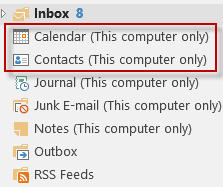 Microsoft was thinking about all of the people who complained about needing two .pst files in a profile that had only an IMAP account.
The problem with the way Outlook 2013 handles Calendar, Contacts, Tasks, and Notes goes beyond which calendar the meeting requests are added to. Categories and Flags will not work "as expected" on items in the IMAP folders.
Too many people are in the habit of deleting IMAP .pst files or accounts when they think something is wrong with Outlook. If they do this when they have a single IMAP data file in Outlook 2013, they will lose their calendar, contacts, notes and tasks unless they remember to export those folders first. Because the new IMAP data file is tied to the account that created it, it will require expensive recovery tools to recover the contents if System Restore can't restore the profile.
The solution? Make sure all calendar, contacts, tasks and notes are exported or moved from the IMAP .ost folders to a local .pst (which is set as the default data file).
Create a local pst file
To create a local pst file:
- Go to File, Account Settings, Data Files tab
- Click Add, type in a name for the pst file
- Set it as Default data file
- Close Outlook and reopen it
- Move the contacts from the Contacts (This Computer only) folder to the Contacts folder in the new pst file
- Switch to the Calendar (This Computer only) folder
- Switch to a List view
- Select all and move or drag the appointments to the new calendar folder
Repeat Step 5 for Tasks and Notes, if necessary.
To remove the (This Computer only) folders from the IMAP data file:
- Close Outlook.
- Open Windows Explorer, type %localappdata%\microsoft\outlook in the address bar
- Delete the IMAP ost file
- Restart Outlook
Create a local pst file video tutorial
More Information
Outlook Categories, Flags, and IMAP Accounts Includes workarounds for adding categories to items in IMAP folders.

Martin Beecher says
Hi Dianne, great content here and easy to read, thanks, I appreciate your time and effort!
Like most people here, I guess, if I use the default calendar, the event is put on (this computer only) which does not then sync with other devices, e.g. mobile.
In your article 'To remove the (this Computer only)' I am not sure which IMAP ost file to delete to get rid of '(this computer only)'. I have four email accounts with an ost file associated with each of them as viewed in %localappdata%\microsoft\outlook. Three of them are IMAP accounts but my Outlook.com is Microsoft Exchange. My default email ost is an IMAP account. What do I delete?
Diane Poremsky says
Switch to the folder list = Ctrl+6 - and find the this computer only folder. You can right click on the root folder then choose open file location to open Explorer with that data file selected. I usually recommend renaming it first - this is just in case you forgot to move appointments or contacts or tasks out of the folders.
Mike says
Hi Diane,
I created a new local 'default' .pst file, and now all appointments I'm invited to go to a single calendar. Thank you.
However, now, whenever I receive an email, the message goes straight to the Junk or Spam folder for the email account it is sent to. I have no spam filters set on any account, so I can't cancel any rules within Outlook, because none are set there. I've been in touch with the people who host my email addresses, and they've checked that the movement to spam folders has not been set-up their end? Could this be something to do with the local .pst file I created, because that's what's changed since yesterday, when all the emails were arriving and staying in their respective in-boxes :-)
Do you have any idea of a solution, please?
Thanks in anticipation
Dennis Crawford says
Diane,
I am having similar issues with Outlook 2013. We converted to IMAP when I installed my new computer. I think I am getting things fixed as I go through the weeks. My wife and I use the same calendar, contacts, etc. Should I just stay with the IMAP this computer only or is there any benefit to go back to pst files.
Thanks
Diane Poremsky says
I would use a pst file for calendar and contacts - its safer if anything happens to the imap ost. If you and your wife have separate profiles you can both use the pst file. If you go back to a pst, after copying everything in the this computer only folders into the pst, set the pst as default and delete the ost so outlook can rebuild it without those folders.
Roman says
In my case (Outlook 2016 of Office 365 at Mac OS Sierra as default mail and calendar app where the default account is at MS hosted Exchange (Office 365) + bunch of IMAP accounts) all incoming invites arriving to any of IMAP folders are not accepted to the main (Exchange) calendar but to to "This computer only" calendar. + there is no easy way to move or copy the event to the default (Exchange) calendar.
Diane Poremsky says
Does each imap account have a 'this computer only' folder? If there is only one calendar, they would all go to the same calendar. (I'll check it on my mac in the morning).
Mark Baker says
Aloha Diane,
I am using Outlook 2016, Windows 7, multiple IMAP accounts, and gSyncit. I never had a calendar called "This Computer Only" until about two months ago. I read through your instructions and others. I was able to remove the calendar by deleting the.OST file. Unfortunately, two weeks later it came back. Can you tell me what triggers the creation of the “This Computer Only” file?
Thanks,
Mark
Diane Poremsky says
Those folders are created when an imap data file is set as the default data file.
Davor says
Dear Diane,
Firstly thank you for all info you put up, it has been very helpful so many times. I have a question with regards to the calendar issue this computer only. I have agmail account that i set up as imap, and it is showing as this computer only. How can I keep the gmail calendar as default in outlook but that it does not show this computer only? when i do the process you mention above, firstly it does not get rid off the this computer only, secondly I would like that my default appointments are saved in gmail account but if pop is the default, the new appointment will go to the pop calendar. If its not possible to make calendar on gmail imap with removed this computer only, what third party software would you recommend to sync pop calendar with gmail calendar on the server side not locally. Basically since I dont have the exchange, I am trying to mimic syncing outlook calendar on pop with gmail calendar on server so that I can then sync the calendar on my phone. In general I would be happy to set up a call with you as I am not quite happy with my whole outlook setup together with my phone, so I would appreciate your advice if possible.
Thanks,
Davor
Diane Poremsky says
you need to set a pst as default then outlook will use it's calendar. then you close outlook and delete the imap ost file from %localappdata%\microsoft\outlook and let outlook resync everything. This will remove the this computer only folders.
Right now, the only way to sync gmail calendar and contact is using a utility such as companionlink. Microsoft is working on a solution but i dont have an ETA for it's release.
Allard van Krevel says
Hello Diana,
I have a problem with synchronizing my local Outlook 2013 calendar with the Outlook.com calendar. The default data file is Outlook.com - personal-email-address.ost. My personal email address is coupled to Outlook.com. The personal email has an IMAP account in Outlook 2013. Incoming meeting requests end up in my personal email calendar (only this computer) so they don't synchronize with my Outlook.com calendar. And for outgoing meeting requests I have to choose the Outlook.com account to make them end up in the default (Outlook.com) calendar. How can I make meetings to be sent from and to my personal email address AND synchronise with Outlook.com?
Vishal says
Hi Diane,
I am facing issues with organizing meetings in calendar. I am using microsoft exchange account (office 2016). Meetings are getting created randomly between Mailbox calendar & PST calendar. This is happening for both the meetings, I am creating & also meeting request I am getting. I want all meetings to be organize in Mailbox calendar only, because for these meetings only I am getting the reminder.
Diane Poremsky says
How many accounts are in your profile? Meetings go on the calendar that associated with the account or that you are working in - so it sounds like you have an account using a pst file, I would move everything in the second calendar (use a list view, select all and drag to the mailbox calendar) to the exchange calendar then delete the calendar in the pst. This article explains how - https://www.slipstick.com/outlook/delete-outlooks-default-folders/
FWIW, you should get reminders for both calendars (but only the default one is on the to-do bar and outlook today) if you have an account delivered to the pst, otherwise, see https://www.slipstick.com/outlook/reminders-archives-pst-files/. (My preference would be one calendar - less likely to miss a meeting or appointment.)
Jerry B Byrd says
The only problem with this solution is that the calendar invites will not come from the imap email account unless each time one remembers to change the sending account. This is very frustrating! Bad, Microsoft; bad dog!
Diane Poremsky says
Assuming it is the default account, they should if you don't have a pop account using the pst file.
(Glad I didn't name my dog microsoft. :))
CFP Board Help Desk says
Hello Diane,
I hope you can help me with this. The CEO and his assistant is having calendar syncing issues. The assistant will create a calendar invite for the CEO and the invites will go out and people will accept them. However, she made a change to the invite title but it never updated. I had her logon to the portal and many calendar meetings are missing. I have other users that have to close/reopen Outlook in order to see invites.
pcorun says
Hello, I am having an issue creating calendar events in outlook 2013. My emails come from my work address via IMAP and I use outlook.com for my calendar, tasks and contacts. When I try to create an appointment by using the quick step function, I get the following error "The Calendar folder cannot be found" and does not continue. I get a different error when I drag the email to the tasks pane. The error is "Cannot move the items. The operation cannot be performed because the message has changed"
Is there any solutions to these problems??
Diane Poremsky says
They quick step is looking for a calendar in the IMAP data file - you won't be able to use the quick step. Use the Meeting button to create a new meeting with everyone on the message or drag (or use Move to command) to create an appointment with the contents of the email in the appointment body.
pcorun says
Thanks!! that seems to be an acceptable work around.
Brian Wells says
Diane
read all of this and i think it is part of my problem but not sure!
i upgrded to Office 2013 form 2010 as aprt of taking out subscription to Office365 in May this year. when setting up Outlook, i wnated a PC based file for email, contacts, tasks. i have two IMAP accounts; one gmail and one sfr. i can then move incoming and outging email to my local file within outlook.
while the sfr email acocunt is set as default for mail, i synchronise wiht google agenda (which is linked to my phiione as well). up to last week, any invitaitons sent to me would place copies in my calander unique to the PC and my default clander linked to google agenda.
all changed last week when i noticed that an external meeting reauest was present in my default calander but, when i accepted the invitaiton, it ONLY appears in the caander unique to the PC. further, the aceptance email does not get delivered.
can you advise any avenues to investigate please?
Brian
Annette Shimada says
here's an odd thing. I never HAD this problem before... but now I do (calendar and "calendar "this computer only"). ALLLLL my meetings booked into the "calendar" for the last several years, and now suddenly -- without my knowingly changing any settings -- new incoming meetings are getting booked in "calendar (this computer only)." Is there some simple setting that I can adjust?
Diane Poremsky says
Sorry I missed his earlier. You have an imap account in Outlook 2013 and set the imap account as default. See https://www.slipstick.com/outlook/2013/imap-accounts-outlook-2013/ for the solution.
pb@fresults.com says
This was a great help, except when i moved all y appointments from one calender to the other l lost all the categories, it looks like if you sort the list by category this does not happen, any way to get the categories back?
Diane Poremsky says
What type of account did you move the appointments to? You shouldn't have lost the categories, but if the categories are not in the master list in the data file, they'll all be white.
Dan says
Hi Diane,
Thanks for your great work here!
I followed your above tutorial but my newly created pst calendar is not synced online with my Exchange OWA calendar (office365 small business premium).
I have two accounts in Outlook 2013, one is my company IMAP email and the other is the OWA email address.
Meeting requests sent to my OWA email address are saved to the online cal, which is ok, but meeting req. sent to my company email (IMAP) are saved to my local machine calendar, or the newly created pst cal, which is not synced online with OWA Exchange calendar.
I have also tried to add in Outlook Web App my company IMAP email, as a Connected Account, but even this looks like impossible for Office 365, which accepts only Gmail, Outlook or Yahoo connected accounts - if I am not assuming wrong.
The only method that works now is to manually Copy each item form my local machine cal to the Exchange calendar, using 'Copy to my Calendar' button - copy this item to your main calendar.
If Exchange is my MAIN Calendar, why all new meetings/appointments are saved by default to the other calendar?!
Any suggestion would be very welcomed.
Thaks!
Dan
Diane Poremsky says
You can use any POP3 or IMAP account as a connected account with Office365.
Does a calendar folder exist in the IMAP folder? That is where the meeting requests received by the imap account should save. If you want them saved in the OWA account, you need to use VBA to move them (or move them yourself).
virtualhost (@vrtlhost) says
Before deleting the ost file, don't forget to backup any other "this computer only" tagged folders as the contents of those folders will also be deleted.
Diane Poremsky says
Yes! Also back up/export the folders if you are deleting the account and creating a new one.
Dave Garrett says
I love this lady! This has frustrated me ever since I got this new computer.