A user in the Microsoft Community forums was having a problem setting flags and reminders in his IMAP account after upgrading to Outlook 2013:
With my IMAP account I do not get the full flag follow-up options (tomorrow, next week, etc.). I know that in Outlook 2010 the work-around is a custom quick-step that saves email as task with text. But this work-around does not work for Outlook 2013. Am I missing something?
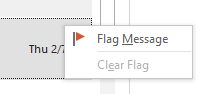
It doesn't work because data files associated with IMAP accounts don't support flags and reminders and Outlook 2013 uses the IMAP data file for the special Outlook folders (calendar, contacts, tasks).
This was not a problem in previous versions of Outlook because a pst file was required with IMAP accounts, to store the calendar, contacts, and tasks folders. Outlook 2013 changed how IMAP accounts are handled - they now use an .ost file (Offline store). The .ost supports the special Outlook folders and Outlook 2013 does not require a local pst file.
This change is good for people who didn't like having two sets of folders for one email account but it's bad for other reasons. Users risk losing their calendar, contacts, and tasks if they delete the IMAP account. The .ost file is used by the account that created it and the contacts can't be recovered. The special folders need to be exported BEFORE removing an IMAP account from a profile.
It's also bad for people who create tasks from email and set a reminder or follow-up flag. Tasks in the .ost have the same limitation as email - no reminders or different flag options.
The solution: add a local pst file to the profile and use it for tasks. (I'd also use it for calendar and contacts, so you don't risk losing them.)
Add a new pst and set it as default
- Go to File, Account Settings, Data Files.
- Click Add.
- Type in a name for the pst file and click OK.
- Select the new pst and click the Set as default button.

- Return to Outlook.
- Close and re-open Outlook.
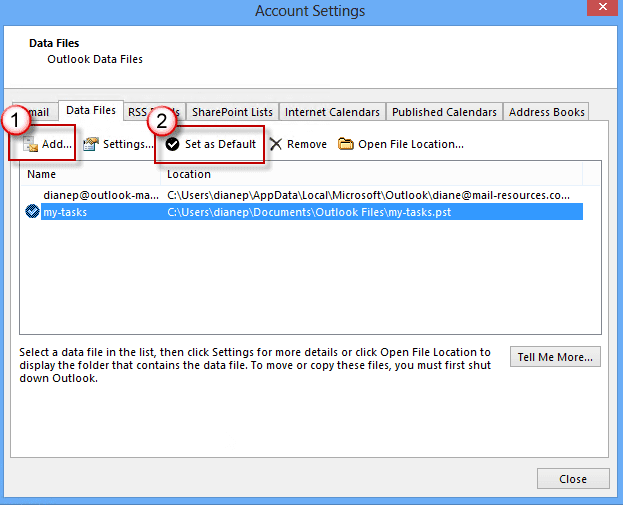
When Outlook re-opens, it will create the special folders in the now-default .pst file.
If you have the .pst file Outlook used with your IMAP account in an older version of Outlook, you can add it to the profile and set it as the default data file. In Step 3 above, select the old pst file. After you set it as default you won't need to close and re-open Outlook.
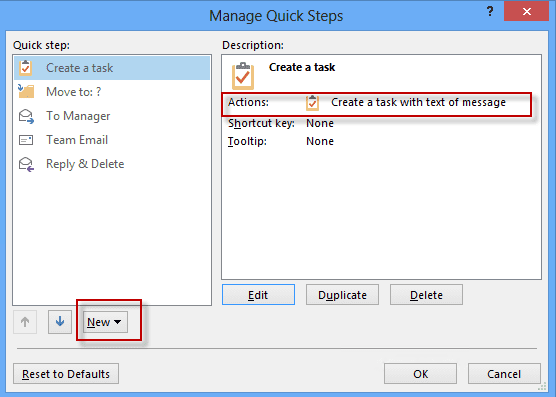
Create the Quick Step that creates tasks from the email. Because the new data file is set as default, the quick step should use it by default.
Video Tutorial: Add a .pst file to your profile
More Information
Outlook Categories, Flags, and IMAP Accounts Includes workarounds for adding categories to items in IMAP folders.

I Tomass says
Hello
I just followed your video 5 times and done everything you showed, however, i can not get just made task to show up in my-task section.
It shows only in my IMAP account and not my-tasks pst account.
Why so ?
Thanks for your help
Best,
Tom
Diane Poremsky says
Does the imap account have a task folder (labeled 'this computer only')? You'll need to make sure a pst file is set as default data file, make sure the 'this computer only' folders are empty then close outlook and delete the imap data file.
Cat says
Hi Diane, I followed your youtube video but when I click the Tasks in Quick Steps to make the new task from the email it says "The Tasks folder cannot be found". Any ideas on how to fix this?
Diane Poremsky says
It's because you are using a different data file for tasks - see https://www.slipstick.com/outlook/quick-steps-bug/ for more information.
Di says
Just got an Office 2013 update installed and now my Outlook calendar and contacts are gone. I used to have my IMAP AND outlook. Now it shows "Other Calendars" and "Calendar Sample." I used to have my Outlook calendar here. How do I get it back or have I LOST all appointments and contacts??
Michael says
I created the local pst file for Tasks and made the Quick Action button. My problem now is that when I go to the email (which is Hotmail), the set of Quick Actions is completely different and doesn't include the Quick Actions from the pst folder. Your explanation was very clear, thank you for that. I just need to resolve this one last step.
Diane Poremsky says
the quick actions are per account. What does the quick action do?
spiamg says
Interesting. I'm a recent convert from Thunderbird and can say that Outlook is no fun. I followed your tutorial but something goes wrong when I click Quick Step and create a task (@ 1:05 in the video). I cannot find a "tasks" folder anywhere, so I'm stuck.
What do I do?
Thanks for your thoughts.
Diane Poremsky says
The shortcut for the Task module is Ctrl+4, or Use the keyboard shortcut of Ctrl+6 to open the folder list - you'll see all of the folders in your profile in the view.
karen says
didnot work it shouldn't be so complicated to do some thing that was so easy to do before
LeeMurr says
I am still having issues with the new Microsoft Office 365 and the IMAP and flags - I don't know if it is because my boss has separate folders for several different emails - one of which is IMAP - (through Go-Daddy) - is the only real fix for this to change from Go-daddy?
Diane Poremsky says
It's probably not GoDaddy - it's more likely a limitation of IMAP in Outlook and changing imap hosts won't help. Switching from IMAP to Exchange online (Office 365) would help.
Joel says
Hey Diane:
I really, really like my Outlook 2007 ability to categorize both my Contacts (now People) and calendar items (ie color-code them). I'm using an IMAP acct, which I understand will not support these categorizations. I'm going to try to create the data file .pst you recommended above, but I'd really like to able to sync with my smartphone (Note 3). Is there a way to accomplish the categorization and sync with both? Would it work if I went back to POP3
Thanks,
Joel Bailey
Diane Poremsky says
Calendar and contacts are not going to sync unless you use a 3rd party application to handle the sync and switching to pop3 won't help matters. You can use a local pst for calendar and contacts and keep the mail in the imap account so its available to the smartphone.
Steven Beaver says
If you have an "Outlook.com" account and you have it setup as an "Exchange ActiveSync", it works much better than creating a task with a copy of the email text as instructed here.
What you have to do is click on the flag for the message, then go to "Tasks" where that flagged email will be in the "Today" section and right click on the flag and it will allow you to set your reminder as you did in previous editions of Outlook. This is WITHOUT having to create a PST data file as instructed above.
You can set the due date and reminders just as you did in Outlook 2010 and earlier.
Diane Poremsky says
Correct, these instructions are only for IMAP accounts, not for Outlook.com (formerly Hotmail) accounts. Although Outlook.com accounts can be configured as IMAP, they are generally better with EAS sync and certainly have more features.
Lino Oliveira says
This workaround don't work if you need to use an IMAP account to ensure the syncronization with an Windows Phone handset.
Diane Poremsky says
It works - the task won't sync to the phone, but tasks stored in an IMAP account won't sync with the phone anyway.
Senthil says
Hi Diane,
I have customized BCM for one of my client and the Follow-Up flag was working fine in Outlook 2010. When they upgraded to 2013, the Follow Up flag doesn't work anymore. It happily works for email items but not the Leads, Contacts in BCM. I can see all the options (Today, Tomorrow, This Week etc.,) and I've followed your video and managed to create a Quick Step to create a task for the follow up. The issue I've is the subject for the task comes as empty. I was assuming it would take the name of the contact as the subject for the task.
Can you please shed some light to this issue?
Thanks
Senthil
Webmaster says
What type of email account do you use? Try setting a local pst as default data file.
Bert says
WHY WHY WHY is outlook 2013 so much more complicated than 2010? we just want our reminders to work.............. we don't want to have a full time job trying to make OUTLOOK do what it used to do for us. NOT AMUSED with 3013.
Diane Poremsky says
Reminders should work like they did in Outlook 2010 if you are using the same configuration.