If you have Contacts in Microsoft Outlook's Contacts folder but they are not accessible when you click on the To button, check these settings:
Are you using the "wrong" view?
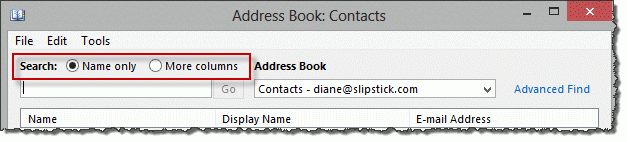
Is Name Only selected at the top of the Address book dialog? When More Columns is selected as the Search option, the address book will only display names if you search.
Is the expected address book set as the default address book?
- Open the Address Book using the Address Book button on the ribbon
- Click Tools, Options
- Which contacts folder is selected in When opening the address book, show this address list first?


Is the Contacts folder enabled as an Address Book?
Make sure the Contact folder is enabled as an email address book.
To do this, right-click the Contacts folder, choose Properties then Outlook Address Book.
Is the box to Show this folder as an email address book checked?

In Outlook 2013 and up, the Show folder as an email address book should be checked and grayed out for the default address book. If you have Microsoft Exchange accounts in your profile, each Exchange account's default contacts folder will be enabled as an address book and grayed out.
If this is grayed out (but not checked)...
If this is not checked but grayed in Outlook 2013, Outlook 2016, or newer, you'll need to make a new profile to fix it.
If you are using Outlook 2007 or Outlook 2010 and the checkbox is grayed, you'll need to remove the email account and re-add it or make a new profile as you can't remove the Outlook Address Book service in these versions.

Imported Addresses are Missing from Address Book
If only imported addresses are missing from the address book, the addresses need to be resolved. If you have just a few, you can delete the email address from the contact and retype it, then Save the contact. If you have a lot of contacts to fix, a macro can make short work of it. See Imported Addresses are Missing from Address Book for the macro and instructions.
Remove the account from Outlook
If the solutions above do not fix the problem, your address book may be corrupt. You may be able to fix it by removing all accounts from your profile and adding the accounts back, otherwise, you'll need need to make a new profile.
In many cases its better to make a new profile because a missing address book service means the profile is corrupt. This is especially true if you used Windows Easy Transfer to move the profile from one computer to another. Taking the time to make a new profile now may save you a lot of time in the future.

Go to Account settings, Email tab and select the account. Click Remove. Click Add and recreate the account.

Marty S. says
I just now realized that my "To" button to select recipients in Outlook mail does not call up my contacts.I do not use Outlook that often unless its family related or something special.
I downloaded Outlook from Apple Apps and it has updated a few times to my knowledge already with out any issues til today.
Plaese advise.
Lynn Herzeg says
Hi Diane,
Thank you for posting this. My problem is that I have five folders of contacts in my outlook contacts, and most of the time when I click on the To box, to write an email, all the folders appear, and I can select the recipient from whichever folder. However intermittently, only one of the folders appears. The other four are no longer in the drop-down menu, nor do they appear when I begin typing a few letters of the recipient`s name in the To box, as happens when the folders are indeed visible in the drop-down menu. Any idea why this is happeningÉ
GabeRusso says
Contact lists are not working ever since we switched to O365. Can't open the lists in the outlook app but can see them in outlook.com...But if I add it to an email, view it, try to add/remove recipients, etc. it gives me the same object missing error if I try to view/expand the list. From that point it will not send. (This is something that specifically started from O365 and didn’t have this in the older configuration) any suggestions?
Jackie Mangelsdorf says
When I start typing an email address, the contact options are now showing above the to field. I am not able to see all of the options or scroll through them. How do I change the setting to get the contact options to show below the to field again?
Diane Poremsky says
There is a bug in the current update. Microsoft is aware of the issue.
I'm tracking this bug and will update it when I hear from Microsoft about when it will be fixed.
https://www.slipstick.com/outlook/autocomplete-opens-upward-outlook/
Douglas Holdridge says
A favorite feature in Thunderbird email is the ability to select an entire Address Book and add to Bcc ...... I've been unable to find a similar feature in outlook.com.Is there one?
Diane Poremsky says
In Outlook on the web, there is no easy way to do this - you can select all and click Send mail, but it add the names to the To field. You need to drag them, one at a time to the BCC field.
It's a easier in Outlook desktop. You can select all in the Address book and add to the BCC field.
Diane Poremsky says
In Outlook desktop, click the To button then select hold Shift and scroll to select the last - then hit the BCC button.
Douglas Holdridge says
Sorry to bother.....but I just realized what happened. Other name first and last names all data imported is placed in the Notes Section. I'm now in the process of updating all contacts with the data items that made it to the Notes Section.
Outlook.com comments/reviews could have been more forthcoming ..... would have saved a lot of people a lot of time and stress. And why in the world did they name it Outlook.com!
Diane Poremsky says
I would have deleted the imported contacts, looked at the file in Excel and made sure the column headers were correct and try importing again.
Douglas Holdridge says
Diane, I'm having the same issues with outlook.com. I imported the contacts from Thunderbird and they will display when I access the Contacts folder. However no names appear when I try to access from New Message To, Cc, Bcc. I've been wrasslin' with this issue for several days and so far you are the first to present any solutions......albeit none of them work with outlook.com. Would really appreciate any information you might have.
Thank you
Doug
Jim Moss says
None of this made any sense.
Diane Poremsky says
What are you having problems with? Are you using Outlook desktop software? If so, which version and build number?
right says
Hi sir, i have problem with my outlook 2013 contact I have my old PST file and the new PST file .If i put my old PST file default when i create new mail it shows my email contacts but if i select the new PST file default none of the contacts will not come.
in my address book also empty if put old PST and the new PST i don't know where the address save not visible any where help
Diane Poremsky says
The autocomplete list is stored in the pst file - its a hidden item so you can't see it.
do you have contacts in the contacts folder in either pst file? That is what is used to populate the address book.
right says
Address book is empty .I haven't save contacts on address book while composing email, I will type manually .Ones i did that automatic save on the pst
Yes it must be in the PST file
ahmed says
i have a problem that the address book is empty and show me that there are no entries why also when i open it from chrome browser ,the contacts appear ,,why??????
Diane Poremsky says
Do you show Contacts in the contacts folder in Outlook desktop? If so, and if the Address book when you click To - it's either set to look at the wrong contacts folder or you have the filter set to all fields. Those are covered in the first and second sections / first and second screenshots.
Campbell says
My Outlook Address Book is suddenly no longer showing me the full list of addresses. They are still there because if I search for a particular address it finds it, but I cant see the full list.
CAmpbell says
Oops, okay I have found the problem, the "Name Only" button had been changed to "More columns"
Tom says
Dear Diane: A co-worker recently was trying to be a good samaritan and clean out her email folders. She inadvertently deleted her default .pst folder. (I have NO idea how she even got to those folders?) I found the .pst in her trash bin and restored the file, but now her address book is gone (along with several other folders that were, at one time, present along with inbox, sent, etc.) I have looked at the properties page of her address book and 'Show this folder as an email address book' is indeed grayed out. I see your steps listed if it's grayed out, but I wanted to check and see if perhaps there is any other solution to recover her address book, now that we know she deleted her default .pst first? Thank you... I've used your site before, and it's appreciated.
Libralibs says
Hi Diane, I am using outlook 2003 on my new computer and have migrated the Contacts successfully. As much as the addresses are there in the Address Book, I cannot auto complete the email address when I type a new email. Please help.
Diane Poremsky says
are they working yet? addresses won't show up until after you send mail to the address.
Mary Chollet says
Hi. It's my understanding that to export my Contacts in a CSV file, I need to grab the Contact folder from my Nav pane. But I don't have a Contact folder! Never saw one in 7 years of Outlook 2010. So I tried to create one per your instructions. I did this TWICE using two different parent folders, and the folder did not show up either time. I rebooted, closed and reopened. Nada. Help, please!
Diane Poremsky says
Do you see it if you switch to the Folder list (Ctrl+6) ? If not, what do you see?
Don says
Does this apply to Outlook 2016?
When I click on the email button on a Contact record I get Select Name: Contact instead of an opened email with that contact addressed.
Diane Poremsky says
The first part does, but you can't repair corrupt address books and need to make a new profile.
To be clear, you select a contact from the contacts folder and click Email button in the ribbon and get the select name dialog?
If you open a contact and click the Email button to the left of the address field (under Full name, company, file as etc), you will get the select names dialog - that button is used to select and view Email1, email2, and Email3.
Don says
When I use the email button on the ribbon (thank you for pointing that out) I get an email opened up with both email addresses (this contact has 2 email addresses) - is this normal?
Diane Poremsky says
Unfortunately, yes. When you use that button with one contact selected, it adds Email2 (and Email3) if present - you need to delete the one you don't want to use. If you select 2 or more contacts, it will add just Email1 from each contact.
Don says
Didn't the Email button to the left of the address field used to open an email with the address that is selected?
Diane Poremsky says
No, te email button has always opened the address book. I will see if i can find an old virtual machine and grab a screenshot.
Diane Poremsky says
As an fyi, this is the screenshot from outlook 2003 - https://www.screencast.com/t/pM6groXwER - 2007 and newer uses the same design as 2013/2016, with 1 button for the email2/3 selector and the address book picker. These were separate in 2003 and older.
C R says
Hi Diane,
I am re-posting this with more detail. You can ignore the earlier one.
I have Office/Outlook 2013 and am having a nasty problem. My contacts are not searchable from the search box and they are not visible in the "People" tab. The item count at the bottom left is fine so the contacts are there but the view says "We didn't find anything to show here ". I also know the contacts are there because the reminders on those contacts keep popping up.
I tried the tricks on this page but "Show this folder as an e-mail address book" check box is checked and grayed out. It is not a corrupt profile issue as I have created and deleted multiple sets of new profiles trying to figure out this problem.
After a lot of tedious work, I narrowed down the problem to a handful of corrupt contacts and one corrupt email. (there may be more but this is what i have found so far). Unfortunately, scanpst aborts with an error and cannot fix the PST. I ran many passes on scanpst over several days without any luck. It always fails right at the end of “Looking for lost data…” “Phase 6 of 8” with the error message “An unexpected error prevented access to this file. Use a disk error checking program…”
There is no problem with the disk and I have defragged it and checked it multiple times.
I can delete the corrupt email but when I try to empty the "Deleted Items" folder, it crashes Outlook.
For the contacts, some of the corrupt ones, I cannot even open but some other contacts I can open but cannot edit them or delete them.
Outlook safe mode is of no help. I cannot delete the corrupt email or the corrupt contacts even in the safe mode.
I have tried exporting the contacts hoping to start from a fresh file but no luck there either. When I use the Import/Export facility, I get the message saying "The items in the "Contacts" folder cannot be imported or exported. The file C:\***privatepath*** cannot be accessed"
Scoured the web and no help anywhere.
Is there a way to recover from this? How can I delete the corrupted items or export to a new file so that I can start fresh.
I have a lot of contacts built over 30+ years with notes so manually recreating them is not an option.
Thank you very much for any help you can give.
Diane Poremsky says
Sorry i missed this earlier (trying to work my way through 300 comments :() - did you get it fixed? If the you are in the contacts folders and not seeing results, it could be a corrupt view - restart outlook using the /cleanviews switch. views are stored in the default data file, so a new profile won't fix it, if you use the old data file. If you suspect the pst is corrupt but can open it in outlook, you could try exporting it to a new pst. Exporting will not include views, rules, and a few other things that are stored as hidden files in a pst that could be causing the corruption.
mahmoud kamal says
hi
i have question i used outlook 2016 and my contact apper in adreess book but when i try to send mail i have to write full e-mail it's seem like there is no contact i but them again and it's work but if i close outlook and open it i have to put them again and again every time i close outlook and open it ,,,
soo Any soultion plz it's too important !!!!!!!!!!
Neil I says
I am seeing this behavior on Outlook 365, apologies if this is the wrong thread, but I can't find any info specific to 365. The contact is listed in my contacts, I have sent and received email to/from him, but the only way he appears in the search is if I type his email and not his name. I verified that the name is listed correctly in my contacts, etc. Any help would be appreciated!
Diane Poremsky says
it sounds like search is finding the autocomplete entry - if you disable this "feature", search should find the contact (see https://www.slipstick.com/outlook/2013/search-people-finds-contacts-exist/)
If you click the To button, is the contact listed? if not, then the contact could be missing a resolved email address.
Frank Watkins says
I have Windows 10 and Outlook 2010. All of my contacts are not displaying. I believe the folder is corrupted and I've tried everything I know and have read to repair the Address Book.
1. I removed my account, shut down Outlook, and even restarted my laptop..
2. I added my account using the same .pst file, still no contacts.
3. Checked the properties on the contacts folder under the Outlook Address Book tab the box which say show this folder as email address book is shaded out which I believe means it is corrupted.
4. I ran the scanpst.exe several times, nothing...
5. I tried adding a new address book and it says it already exists.
Help... Can I somehow recover my contacts?
Diane Poremsky says
on #3 - is it checked and grayed or just grayed? Checked and grayed is standard for the default contacts folders (so you can't undo it).
In the contacts folder, add a new contact - 1Test for the name and a@b.com for the address. Does this show up when you click the address book?
If the address book is corrupt, you need to make a new profile.
Frank Watkins says
As a note, I can send and receive emails.
Frank Watkins says
I have Windows 10 and Outlook 2010. I lost my contacts and have tried just about everything....
Deleted email account backed out of outlook, shut down PC, and went back into Outlook and added a new email account.... still no contacts...
went to contacts folder properties and the Outlook Address Book selection for email book is shaded out. (corrupted as I understand it..)
Ran scanpst.exe, nothing...
Tried to add new Outlook Address Book, fails saying already exits.
I'm pretty sure the contacts folder in the .pst file is corrupted but I can not figure out how to fix it..
Thanks
Diane Poremsky says
>> I'm pretty sure the contacts folder in the .pst file is corrupted but I can not figure out how to fix it..
I'm guessing it's the address book server (see my other response) - but the if the problem is with the pst, it's usually because the email addresses are not resolved. This can happen if you import contacts but rarely happens with existing contacts.
I would recommend a new profile - keep the old profile until you see if the new one works. Add one account ot the new profile and add the old pst - see if the address book works.
Bruce says
I made the mistake of using i cloud, with realizing it would remove my contacts and calendar from outlook. I removed the i cloud, but i can no longer see my contacts folder or calendar under personal folders. Driving me a bit batty trying to add them again. I can see them if I click on the small icon at the bottom. Can you pleassseeee help me restore them to their original location.
Diane Poremsky says
When you removed the icloud, did you backup the calendar and contacts? icloud will offer to make a local copy of the calendar and contacts when you sign out of the icloud.
>> I can see them if I click on the small icon at the bottom
are you clicking the calendar and contact icons in the navigation pane buttons? Go to the folder list - use ctrl+6 or the folder button - and see where the calendar and contacts folders are.
Bruce says
I did save them as pst files on my PC.
Diane Poremsky says
open the pst in outlook or import it into your current pst.
TheAncient says
I just upgraded a second computer to Windows 10.
Computer 1 runs Outlook 2013 and uses a data file (.pst) located on an a network drive. This computer correctly shows "My Contacts" with sub-folders "Contacts", "Infrequent", and "OLD".
The second computer also uses Outlook 2013 and accesses the same data file on the network drive. Under "My contacts" it only shows the sub-folder "Contacts". Sub-folders "Infrequent" and "Old" are nowhere to be found.
Any ideas where they could be hiding?
BJ in VA Mountains says
I am using Outlook and Windows 10. My address book had two set of addresses. One is my Contacts with my email address (which is perfect) and one is iCloud (which does NOT show any names, had about 200 contacts in it).
I can start typing a new email, when I click on To: I type a name that was in the iCloud address book and the address comes up.
I know the info is on the computer, but I cannot view the list of names and email addresses.
How do I get the iCloud address book back?
Thank you!
the fern says
i recently upgraded my computer to windows 8.1, and loaded it with office 2013, unfortunately, the auto complete folder in outlook is blank, and i cant get the addresses i previously used. please help?
Diane Poremsky says
Are you talking about the Suggested Contacts folder or the autocomplete list that shows names when you type in the To field? What version of Outlook did you use before?
Kayton Knax says
ONE FIX: Something that is easily overlooked, when you import it may not match up the email address field, in which case it will import names without email addresses. When you click To, Outlook is smart enough to omit the names without email addresses.
Diane Poremsky says
Outlook won't display contacts that don't have electronic addresses (email or fax #) when you click To. If the import was bad and something is in the address field, Outlook might show it (although it rarely shows contacts that does have a resolved address)... but what happens more often is the address imports but isn't resolved so outlook doesn't show the contact when you click To.
Malcolm says
Hi Diane. I use Outlook 2010 with Win 10 on a 64 bit system. I just did a bit of Outlook fine tuning and .....
I have two email addresses. One for work, (an info address) and a private one. They are POP accounts with the info pointed to deliver emails to my private address. This is the one I use for all emails. There are of course two pst files. It all works perfectly except I have lost my contacts list. I can see my address book contacts are pointing to my info data file and not my personal file. This is obviously why I cannot see any contacts in the To box. It is blank.
Can you advise how I can make Outlook point to my contacts in the personal file please.
Thanks for your help
Malcolm
Diane Poremsky says
If you click the dropdown on the right side of the address book dialog, do you see the other address list? Open the address book using the button on the ribbon, click Tools, Options and select the other contacts folder...
Jean says
Hello, I have a blue bar across the top of Outlook that says, "Outlook.com Send Insert Save Draft Options Cancel. In "People" the contact shows up. In Outlook, the contact does not show up on "To"... I have to enter the contact's name in the search bar to get her added to the email. Any help?
Frustrated IT guy says
Microsoft FAIL FAIL FAIL FAIL
Chris K. says
Thanks so much Diane.
I had been tearing my hair out over something as simple as using the "wrong view".
Every post of yours is informative and easy to follow. Keep up the amazing work, you are desperately needed!
john schindleer says
Sorry it took a while to get around to this, but /cleanviews had no effect. I think I have some non-standard views, like two calendars displayed, possibly custom arrangement of the reading pane, etc. They are all the same, and 'reset view' is grayed on the individual views.
john schindler says
Yes, I have tried resetting or selecting other views. Sometimes, during searching for contacts, some information that looks like the expected display will flash for a second.
Diane Poremsky says
It sure sounds like a bad view. You can try using the cleanviews switch -it sometimes works when resetting a view doesn't, but it will wipe out all other custom views in your profile - and I can't guarantee 100% that it will fix the problem.
john schindler says
I have Outlook 2010 on Windows 7 64bit.
Recently, the contacts were not available for search or display. The contacts folder properties showed that "show this folder as an e-mail address book" is checked--gray but checked. At the bottom of the screen, I'm told that there are 2380 items are present, and this info also shows next to the folder name "Contacts".In the main area of the screen it says "there are no items to show in this view." The column headers include Full Name, company, etc. so it should be a useful view. I read in several places that this means the profile is corrupt.
I removed the profile, loosing four email account configurations, made a new profile, pointed it and the new email account to the original pst file and I still cannot see the contacts.
I can create a new contact with an email, and this contact will be suggested/auto filled in a new email.
What should I try next?
Diane Poremsky says
It sounds like the items are just hidden from view. Did you reset the view on the folder? Or change the view?
Kim says
I missed on crucial step in the process of importing from Outlook Express in CSV format and that was not paying attention to the mapping of fields. I assumed (always a bad idea) that the email address would be mapped from OE to Outlook without a fuss. I actually had to map this field. If the field was not mapped the data would show up in Contacts aka "People" in 2013 but would not show up in the Address Book. After mapping and importing again everything is there. A good reminder for me of a basic rule - pay attention to detail. 3 hours wasted, my own fault :)
Diane Poremsky says
Thanks for the update - I'm sure you aren't the first and won't be the last to make that mistake. :)
Lynn Shoberg says
I am having this issue also. We have a new Win 8 computer using Outlook 2013 old computer XP using Outlook express. What do you mean mapping? I thought I followed the steps correctly.
Diane Poremsky says
Mapping is the last step in the import wizard, where you tell outlook the field names in your import file. Coming from Outlook Express, the field names should be correct.
Are the contacts in the Contacts folder? If you open a contact and delete then retype the address, does it show up when you click the To button? It's not uncommon for imported addresses to not resolve - Outlook doesn't 'see' the address and won't use it.
Carol Larson says
My internet provided "migrated" my outlook express and now all my contacts have disappeared. there is nothing in either the contacts folder or the address book. Can I retrieve them without having to reenter all? This happened about 12 weeks ago and I created a new list from scratch. I would like not to have to do this again.
Diane Poremsky says
What did they migrate it to? Do you still have the Outlook Express address book available? What version of Outlook are you using? If you still have the address book it can be imported into Outlook.
(See Upgrading from Outlook Express for file locations)
Omer Causey says
I am using the latest updates of Outlook 2010 and Windows 7 on a 64-bit Toshiba Satellite S855 laptop -- - both installed with the recommended or automatic defaults. I have never seen anything labeled as "Instant Search."
There are five email accounts: three POPs and two IMAPs. Two are Gmail accounts; two are associated with websites hosted by GoDaddy; one is the Exchange server at my office. Everything is also pushed to my Samsung Galaxy Note 3 running the latest Android OS.
I am not concerned with Calendar - only Contacts and email. I have not been able to make "Import" work and merging the various PST files using any of the recommended methods short of third-party software has proven impossible.
The laptop was previously assigned to a different single user. I have been unable to transition to a new user successfully. The login for the new user works, but all work is being saved to the previous user's files. I have not been able to remove the old user's file structure even though the new user has full Administrator authority.
Contacts were originally migrated to the Toshiba from a Dell running Windows XP and Office 2003.
Omer Causey says
If I delete my profile and create a new one per the recommendation above, am I going to lose (or be unable to use) my existing PST file(s). I have tried variations of this suggestion over the last two weeks. None have worked as represented, and now I have several versions of PST files -- none of which can be reliably accessed.
The various instructions on how to merge PST files are so obtuse as to be worse than worthless.
I just spent an hour entering 60 email addresses for a new client. All seemingly went well, but when I tried to create a group from those addresses, they were nowhere to be found.
Any suggestions?
Diane Poremsky says
If the data files are pst files, you won't loss anything if you make a new profile. If you use Outlook 2013 with an imap account, you need to make sure calendar and contacts aren't in the imap data file because you will lose them if you don't export them first. If you don't have duplicates, importing from the pst files is the easiest way to merge.
Are the contacts in the contacts folder? Can you find them using Instant Search?
Barry says
Hi, this did not work. Followed exactly as described.
This was a new Outlook installed on a new pc and have never been able to see the contact list.
Unfortunately for me is that when following this "new profile" procedure (which it originally was a new profile) I lost all rules, accounts and settings. I have many accounts and rules and it is going to take me a while to put them all back in. And in the end, I still have no email contacts when I am in the new mail and click on "To"
When in the contacts tab, I see all (nearly 700) emails and contacts.
In the contacts and folder tab, the check box is grayed as mentioned above, but it is checked, but grayed. But can not un-check and recheck as it is grayed and not an available option.
I have been an outlook user since the late 90's and have never encountered this problem.
Very upsetting and disturbing.
This should never even be an issue at this age and time of 2014. Come on MS!
Any other ideas anybody beside the "new profile" as this is very time consuming and it didn't work.
Diane Poremsky says
The categories and rules are in the default data file and you should recover them if you use the same data file in the old and new profiles. Or just restore the old profile: did you delete your old profile? If not, use it, or use system restore to recover it.
Outlook 2013 prevents users from unchecking the default contacts folder as an address book. Are you using an older pst file you used before or did you import it into a new pst? It sounds like the addresses on the contacts are not resolved, which can happen when you import.
Caroline P says
I think I love you... I've been searching for hours for an answer to this, and it was exactly the same issue. I never changed mine either, but there you go.
Rudi says
Just as I was about to create a new Outlook profile for one of my team members in an attempt to remedy the missing contacts issue, my CTO showed me this easy workaround:
Create a new email
Click the To... button
Add every contact from every Address Book to the To-> field
Save the email
Your Contacts should now be automagically restored.
We successfully tested this workaround on Office 2010 & 2013.
Hope this trick will help someone.
Diane Poremsky says
Yes, that usually works to repopulate the autocomplete cache. A new profile will not restore the autocomplete cache - you'd need to use this method in the new profile.
jacqui stevens says
I signed on to Microsoft live mail and all my contacts have disappeared!!! The whole box is blank...any suggestions please.
Diane Poremsky says
Which version of Outlook are you using? Do you see the Contacts in any folder in the folder list? (Ctrl+6 opens the folder list)
Martha Bagwell says
I just spent 2 hours trying to fix the 'address list doesn't populate when i click the To. ' The 'fix for me was to click the Name only in the Contacts Search box. How this got changed in the first place though is a mystery to me! Sometimes the obvious eludes me.
garrick youngberg says
Hello,
The answer about having to delete and recreate your profile to fix the lost addresses is EXACTLY what I was trying to AVOID!!! Good ol microsoft...
Again FAIL!!
My addresses are in my contacts directory but you just can't access it from the "To" button when writing an email
Thanks to you for stating the obvious but its still very sad and BS...
Sincerely,
garrick
Diane Poremsky says
Unfortunately, this is one of the few areas where a new profile is required in Outlook 2007/2010 to fix a problem. :(
JustGemini says
Hi Diane, in Outlook 2013 when starting a new email, and one clicks To, in previous versions of Outlook you could see all the field with Company name. Outlook 2013 doesnt show them. Have tried everything, read everything, but cant find a way to show the other missing columns. PLEASE help me as need to urgently email several companies, each with 100's of employees, and no way to select/find them. Huge thanks!!!
Diane Poremsky says
The fields you see depends on the source of the addresses- if they are in contacts, you will only see the email address, display name, and full name (it can't be changed). If the source is Exchange global address list, you will see the company name.
Rather than using the To button, if you find use the contact=s folder you will have better search functions - select the contact and click the email button to start a new message.
Julie says
Hi Diane. I have tried all of the suggestions here. DO you think my user's profile is corrupt at this point or is there something else you might suggest? Julie
Diane Poremsky says
It could be - you can try making a new profile (keeping the old one) and see if it works. If it does, delete the old one.
Julie says
I've already tried to create a new one and it exhibits the same behavior. Maybe I missed a step? or what do you suggest?
Diane Poremsky says
Just the one user is affected? Blowing away the profile should reset the search and the default contacts. It sounds like maybe the mailbox is corrupt. Can you post a screenshot of what the user sees?