A user in the Microsoft Answers forum wanted to know how to use a Word macro to apply formatting to selected text in Outlook 2010.
Outlook does not (and never had) a macro recorder but you can use some VBA code that was recorded in Word, in Outlook macros provided you reference the Word object model, and set the Word object and selection (as seen in the code below). You'll need to set the reference in the VB Editor's Tools, References menu. You'll also need to have macro security set to low or or sign the macro with a certificate to use it.
See How to use Outlook’s VBA Editor for help using the editor, setting security levels, and signing macros.
I tested this macro in Outlook 2010 and Outlook 2013; it should also work in Outlook 2007.
Format Selected Text Macro
To use, open the VBA Editor (Alt+F11) and paste the code into a module. Select a block of text while composing a message and run the macro.
   Public Sub FormatSelectedText()
    Dim objItem As Object
    Dim objInsp As Outlook.Inspector

    ' Add reference to Word library
    ' in VBA Editor, Tools, References
    Dim objWord As Word.Application
    Dim objDoc As Word.Document
    Dim objSel As Word.Selection
    On Error Resume Next

'Reference the current Outlook item
    Set objItem = Application.ActiveInspector.currentItem
    If Not objItem Is Nothing Then
        If objItem.Class = olMail Then
            Set objInsp = objItem.GetInspector
            If objInsp.EditorType = olEditorWord Then
                Set objDoc = objInsp.WordEditor
                Set objWord = objDoc.Application
                Set objSel = objWord.Selection


' replace the With block with your code
       With objSel
       ' Formatting code goes here
            .Font.Color = wdColorBlue
            .Font.Size = 18
            .Font.Bold = True
            .Font.Italic = True
            .Font.Name = "Arial"
       End With

            End If
        End If
    End If

    Set objItem = Nothing
    Set objWord = Nothing
    Set objSel = Nothing
    Set objInsp = Nothing
End Sub
Change font size of entire email
This macro selects the opened message and changes the entire message to use a uniform font size (12pt in my example) and saves the change.
You need to set a reference to the Word object model in the VB Editor's Tools > References menu.
Public Sub ChangeTextSize()
    Dim objItem As Object
    Dim objInsp As Outlook.Inspector

    ' Add reference to Word library
    ' in VBA Editor, Tools, References
    Dim objWord As Word.Application
    Dim objDoc As Word.Document
    Dim objSel As Word.Selection
    On Error Resume Next

'Reference the current Outlook item
   Set objItem = Application.ActiveInspector.currentItem
   If Not objItem Is Nothing Then
      If objItem.Class = olMail Then
        Set objInsp = objItem.GetInspector
          If objInsp.EditorType = olEditorWord Then
            Set objDoc = objInsp.WordEditor
            Set objWord = objDoc.Application
            Set objSel = objWord.Selection

' put the message into Edit mode
If objDoc.ProtectionType = WdProtectionType.wdAllowOnlyReading Then objDoc.UnProtect

  With objSel
' Select entire message
   .WholeStory

' Formatting code goes here
   .Font.Size = 12

  End With
         End If
      End If
  End If
objItem.Save

    Set objItem = Nothing
    Set objWord = Nothing
    Set objSel = Nothing
    Set objInsp = Nothing
End Sub
Find and Format Text Code Sample
This example creates appointments for the selected contact(s), adds their name and address to the appointment body then changes the font used for their name and address to 14 point bold. This method can be used with any word or phrase stored in a variable.
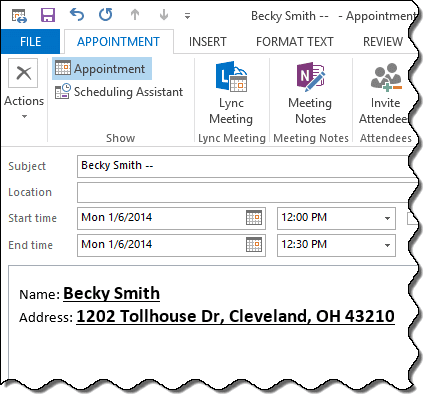
The original macro this code sample came from collects data from all selected contacts and creates a string to use in a single appointment but I simplified it for this example. The original macro is at Outlook 2007 Calendar.
Sub CreateAppointmentSelectedContact()

 Dim ObjItem As Object
 Dim strFullName As String
 Dim strPhone As String
 Dim strAddress As String
 Dim strDynamicDL2 As String
 Dim strDynamicDL3 As String
 Dim StartDateTime
 Dim itmAppt

 Set oContact = ObjItem
 Set objApp = CreateObject("Outlook.Application")
 Set objNS = objApp.GetNamespace("MAPI")
 Set objSelection = objApp.ActiveExplorer.Selection

 For Each ObjItem In objSelection
 If ObjItem.Class = olContact Then

 strFullName = ObjItem.FullName
 strPhone = ObjItem.HomeTelephoneNumber
 strAddress = ObjItem.HomeAddressStreet & ", " & ObjItem.HomeAddressCity & ", " & ObjItem.HomeAddressState & " " & ObjItem.HomeAddressPostalCode

 strDynamicDL2 = ("Name: ") & strFullName
 strDynamicDL3 = ("Address: ") & strAddress

 Set MyFolder = Session.GetDefaultFolder(9)
 Set itmAppt = MyFolder.Items.Add("IPM.Appointment")

 itmAppt.Subject = strFullName & (" -- ") & strPhone

        With itmAppt
            .Body = strDynamicDL2 & vbCrLf & strDynamicDL3
        End With

 StartDateTime = Date + 3.5
 itmAppt.Start = StartDateTime
End If
 Next

itmAppt.Display

Dim objInsp As Outlook.Inspector
Dim objWord As Word.Application
Dim objDoc As Word.Document
Dim objSel As Word.Selection


Set objInsp = itmAppt.GetInspector
Set objDoc = objInsp.WordEditor
Set objWord = objDoc.Application
Set objSel = objWord.Selection


 objSel.Find.ClearFormatting
 objSel.Find.Replacement.ClearFormatting

    With objSel.Find.Replacement.Font
       .Size = 14
       .Bold = True
       .Underline = wdUnderlineSingle
       .Color = wdColorBlack
    End With

    With objSel.Find
       .Text = strFullName
       .Replacement.Text = strFullName
       .Forward = True
       .Wrap = wdFindContinue
       .Format = True
       .MatchCase = False
       .MatchWholeWord = False
       .MatchWildcards = False
       .MatchSoundsLike = False
       .MatchAllWordForms = False
    End With
 objSel.Find.Execute Replace:=wdReplaceAll

     With objSel.Find
       .Text = strAddress
       .Replacement.Text = strAddress
       .Forward = True
       .Wrap = wdFindContinue
       .Format = True
       .MatchCase = False
       .MatchWholeWord = False
       .MatchWildcards = False
       .MatchSoundsLike = False
       .MatchAllWordForms = False
    End With
 objSel.Find.Execute Replace:=wdReplaceAll

Set objInsp = Nothing
Set objDoc = Nothing
Set objSel = Nothing
Set objMsg = Nothing


Set objMsg = Nothing
 Set ObjItem = Nothing
 Set objFolder = Nothing
 Set objNS = Nothing
 Set objApp = Nothing

 End Sub
How to Use Macros
First: You will need macro security set to low during testing.
To check your macro security in Outlook 2010 and above, go to File, Options, Trust Center and open Trust Center Settings, and change the Macro Settings. In Outlook 2007 and older, it’s at Tools, Macro Security.
After you test the macro and see that it works, you can either leave macro security set to low or sign the macro.
Open the VBA Editor by pressing Alt+F11 on your keyboard.
To put the code in a module:
- Right click on Project1 and choose Insert > Module
- Copy and paste the macro into the new module.
- Set a reference to the Word Object Model in the VBA editor's Tools, References dialog.

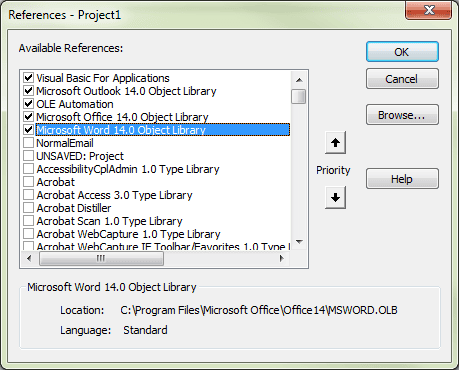
More information as well as screenshots are at How to use the VBA Editor

Michael Scott says
Hi, I am trying to run a macro to add a content control checkbox to a task. It runs correctly when I use it in an email but not a task. I get a run-time 445 error. I'm not sure if I need to add another reference library? Thanks.
Tim Wilson says
I can always trust SlipStick to provide the solution. I have to paste some test with links over from ServiceNow to Outlook. This was an easy solution to reformat it from Times New Roman to Calibri.
Greg says
Hi Diane, I am trying to search and replace text in an email with nested tables. I get a runtime error 4065 this command is not available at the objSel.Find.Execute Replace:=wdReplaceAll line. Any ideas on a solution - I am using outlook 2016.
` Public Sub Fix_text()
Dim objItem As Object
Dim objInsp As Outlook.Inspector
' Add reference to Word library
' in VBA Editor, Tools, References
Dim objWord As Word.Application
Dim objDoc As Word.Document
Dim objSel As Word.Selection
Dim t As Word.Table
'On Error Resume Next
'Reference the current Outlook item
Set objItem = Application.ActiveInspector.CurrentItem
If Not objItem Is Nothing Then
If objItem.Class = olMail Then
Set objInsp = objItem.GetInspector
If objInsp.EditorType = olEditorWord Then
Set objDoc = objInsp.WordEditor
Set objWord = objDoc.Application
Set objSel = objWord.Selection
For Each t In objSel.Tables
' replace the With block with your code
With objSel
objSel.Find.ClearFormatting
objSel.Find.Replacement.ClearFormatting
With objSel.Find
.Text = "New"
.Replacement.Text = "August"
.Forward = True
.Wrap = wdFindContinue
.MatchCase = False
.MatchWholeWord = True
.MatchAllWordForms = False
End With
objSel.Find.Execute Replace:=wdReplaceAll
End With
Next t
End If
End If
End If
Set objItem = Nothing
Set objWord = Nothing
Set objSel = Nothing
Set objInsp = Nothing
End Sub
Diane Poremsky says
It's working here and the code looks good. I think that error is a permissions error, but it doesn't make sense.
jeff says
Thank you, thank you, thank you! I always wanted an easy way to underline questions in an email so the recipient(s) would see them. Your examples helped tremendously. You rock!
Liam Cousins says
Hi Diane, I'm not sure if you're still answering enquiries here at this blog? I would really appreciate your assistance in creating a macro that inserts the current date and time into a task. Quick Parts are no good since the date entered is the static date entered into the quick part or alternatively is a dynamic date and or time, which updates to show the current date and or time. I"m looking for 'date/time' stamp which is current as it is first logged but thereafter does not update. Perhaps this is not exactly clear? Perhaps you can help?
I would appreciate your help with this.
Many Thanks,
Liam
Diane Poremsky says
I am, but I'm really behind (I get a lot of questions and one vacation kills my ability to keep caught up. :( ) Sorry.
You need the date in the body or in the date fields? Insert > Date and time will insert a static date / time or you can use a macro to insert 'now'. See https://www.slipstick.com/outlook/insert-the-date-and-time/ for more information.
Christophe says
Hi, the following macro works fine under MS Word. Can someone help me to translate it for MS Outlook 2016. Thanks. Christophe
Sub RemoveMailHistory()
'
' Remove mail history from cursor position to end of text
' Works fine under MS Word
'
Selection.EndKey Unit:=wdStory, Extend:=wdExtend
' Selection.Delete
End Sub
Diane Poremsky says
If you set the word object, you can use most work commands. see https://www.slipstick.com/developer/word-macro-apply-formatting-outlook-email/ for an example.
Amanda Gerardo says
I've successfully used this macro to change font, size and color of selected text, but I'm wondering if there's a way to add onto the macro to action two other things. I'd like to have the macro select all text in the email body, change the font (this part already done), and then restyle the hyperlinks (to the default hyperlink style of underline and blue). I have this setup in Word as follows, but can't figure out how to translate it over to outlook. Any help would be much appreciated!
Selection.WholeStory
Selection.Font.Name = "Verdana"
Selection.Font.Size = 10
Selection.Font.Color = wdColorBlack
Dim H As Hyperlink
For Each H In ActiveDocument.Hyperlinks
H.Range.Select ' (A)
Selection.ClearFormatting ' (B)
H.Range.Style = ActiveDocument.Styles("Hyperlink") ' (C)
Selection.Font.Size = 10
Next H
Diane Poremsky says
We're setting objSel to be a selection, so replace Selection with objSel in your code. WordEditor is the activedocument, so change it to objDoc. You might need to assign an object to Range - but try this. oh, and dim h as word.hyperlink.
objSel.WholeStory
objSel.Font.Name = "Verdana"
objSel.Font.Size = 10
objSel.Font.Color = wdColorBlack
Dim H As Hyperlink
For Each H In objDoc.Hyperlinks
H.Range.Select ' (A)
objSel.ClearFormatting ' (B)
H.Range.Style = objDoc.Styles("Hyperlink") ' (C)
objSel.Font.Size = 10
Next H
Diane Poremsky says
Had to test it. :)
I replaced the with block code in the original macro with this
' replace the With block with your code
With objSel
.WholeStory
.Font.Name = "Verdana"
.Font.Size = 10
.Font.Color = wdColorBlack
Dim H As Word.Hyperlink
For Each H In objDoc.Hyperlinks
H.Range.Select ' (A)
.ClearFormatting ' (B)
H.Range.Style = objDoc.Styles("Hyperlink") ' (C)
.Font.Size = 10
Next H
End With
Amanda Gerardo says
It doesn't seem to be working. :( Any idea what I'm doing wrong?
Public Sub FormatSelectedText()
Dim objItem As Object
Dim objInsp As Outlook.Inspector
Dim objWord As Word.Application
Dim objDoc As Word.Document
Dim objSel As Word.Selection
On Error Resume Next
Set objItem = Application.ActiveInspector.CurrentItem
If Not objItem Is Nothing Then
If objItem.Class = olMail Then
Set objInsp = objItem.GetInspector
If objInsp.EditorType = olEditorWord Then
Set objDoc = objInsp.WordEditor
Set objWord = objDoc.Application
Set objSel = objWord.Selection
With objSel
.WholeStory
.Font.Name = "Verdana"
.Font.Size = 10
.Font.Color = wdColorBlack
Dim H As Word.Hyperlink
For Each H In objDoc.Hyperlinks
H.Range.Select ' (A)
.ClearFormatting ' (B)
H.Range.Style = objDoc.Styles("Hyperlink") ' (C)
.Font.Size = 10
Next H
End With
End If
End If
End If
Set objItem = Nothing
Set objWord = Nothing
Set objSel = Nothing
Set objInsp = Nothing
End Sub
Diane Poremsky says
are you in a compose window or have the message in edit mode? do you get any error messages?
it works - kinda cool to watch - the message ran it on has a ton of links not visible on screen that are changed before it does the links on the right.
Video is here: https://screencast.com/t/vgwI9xAStR
Amanda Gerardo says
Actually...I messed with some settings and got it to work! The only thing is that the hyperlinks are changing from Verdana to different fonts (Times New Roman in some places and Calibri in others). Any idea why that would be happening or how to fix it?
Thanks so much for all of your help! This is going to be an amazing shortcut for our office!
Diane Poremsky says
Hyperlink fonts are set in Word's Options - under Advanced, Web options, fonts. - adding the font.name along with the size should fix it. Default is times roman. I don't know why it's using a different font for some since you cleared the formatting - they should all use the font set in word options.
Phil Reinemann says
In Office 2007 I'd like to modify "Format Selected Text" to "Insert Unformatted Text" that is on the clipboard? (Not the Office clipboard the Windows clipboard - which could be from any app or in another or the same Outlook email.)
In Word the essence of the macro is basically the line "Selection.PasteSpecial DataType:=wdPasteText".
I've also seen (perhaps in Office 2003) "selection.PasteSpecial (msoClipboardFormatPlainText)".
Diane Poremsky says
See https://www.slipstick.com/developer/code-samples/paste-clipboard-contents-vba/ and https://www.slipstick.com/developer/code-samples/paste-formatted-text-vba/ for the 2 methods you can use.
Phil Reinemann says
I found a simpler solution (less lines of code) here: https://superuser.com/questions/25170/what-would-an-outlook-2007-macro-to-automate-paste-special-unformatted-text-lo/30488#30488
Phil Reinemann says
By the way, when I didn't reference the Microsoft Word Object Library I got something like "Compile error: User defined object not defined." and the debugger pointed to the "Dim objWord As Word.Application" line.
Diane Poremsky says
Yeah, the object not defined error will always point to a bad reference - in most cases, it's just a variable that is not dim'd.
Phil Reinemann says
Diane, I figured it out. I think the confusion was the way the comment was broken into two lines. Made me think three references had to be made. Maybe make it " ' In VBA Editor pick Tools (menu)->References and check the Word Object Library."
(BTW, in my Office 2007 the "Microsoft Word 12.0 Object Library" is half way down.)
Phil Reinemann says
Diane, the "Format Selected Text Macro" is just what I need (with a few mods) but with respect to the macro comments:
' Add reference to Word library
' in VBA Editor, Tools, References
Is that what the following three Dim lines do or is it something else entirely, and how is that done?
Scott Tsukamaki says
Is there a way to do this without selecting the text? Something like upon open then it automatically formats it?
Diane Poremsky says
do you want all of the text formatted the same? If so, yes, it can be done. For a new message, you'd just need to change the default font for that message. If you want to format just a portion, its more difficult to do.
Gene Wedge says
Great stuff! Thanks for making those connections clear. More of a pain than I thought it should be, but hey - whatever works.
Steven Bayne says
Thanks Diane, your format text macro and instructions are a life-saver.
The one thing that I can't figure out is the code for changing the email page background. When I recorded the macro in Word the code to change the page background appears to be ActiveDocument.Background.Fill.ForeColor.RGB = RGB(182, 204, 240), but when I put this in the formatting section of the macro, the macro runs, but does not change the email background color.
Do you have any advice?
Colin says
Thanks Diane - your macro is at least now letting me access the select text, but not inserting the quote characters in the correct places, and/or is replacing/overwriting the selected text with quote characters. However, I think I can work that out with a little experimentation.
Thanks again
Colin says
Hi again Diane
The introductory paragraph to this article implies that Word macros can be used in Outlook?
"..... but you can use some VBA code that was recorded in Word, in Outlook macros provided you reference the Word object model. You'll need to set the reference in the VB Editor's Tools, References menu. You'll also need to have macro security set to low or or sign the macro with a certificate to use it."
I made the changes you suggested, and tried to run this code, but to no avail. What type of object is "objsel"?
Sub WrapSingle()
Dim lngCc As Long
Dim lngCw As Long
Dim objSel As Selection '<< Is this the correct declaration
lngCc = objSel.Characters.Count '<< Problem here = object variable not set
lngCw = objSel.Words.Count
With objSel
.MoveLeft Unit:=wdCharacter, Count:=1, Extend:=wdExtend
.MoveRight Unit:=wdCharacter, Count:=1
.TypeText Text:="'"
Select Case lngCw
Case 1
objSel.MoveLeft Unit:=wdCharacter, Count:=lngCc
Case Else
objSel.MoveLeft Unit:=wdWord, Count:=lngCw
End Select
objSel.TypeText Text:="'"
End With
End Sub
Thanks again
Diane Poremsky says
objsel is how we refer to the selection object. You need to dim and set the word objects, just like in the macro on this page
Dim objWord As Word.Application
Dim objDoc As Word.Document
Dim objSel As Word.Selection
Set objDoc = objInsp.WordEditor
Set objWord = objDoc.Application
Set objSel = objWord.Selection
This should work:
Public Sub WrapSingle()
Dim objItem As Object
Dim objInsp As Outlook.Inspector
' Add reference to Word library
' in VBA Editor, Tools, References
Dim objWord As Word.Application
Dim objDoc As Word.Document
Dim objSel As Word.Selection
On Error Resume Next
Dim lngCc As Long
Dim lngCw As Long
'Reference the current Outlook item
Set objItem = Application.ActiveInspector.CurrentItem
If Not objItem Is Nothing Then
If objItem.Class = olMail Then
Set objInsp = objItem.GetInspector
If objInsp.EditorType = olEditorWord Then
Set objDoc = objInsp.WordEditor
Set objWord = objDoc.Application
Set objSel = objWord.Selection
lngCc = objSel.Characters.Count
lngCw = objSel.Words.Count
With objSel
.MoveLeft Unit:=wdCharacter, Count:=1, Extend:=wdExtend
.MoveRight Unit:=wdCharacter, Count:=1
.TypeText Text:="'"
Select Case lngCw
Case 1
objSel.MoveLeft Unit:=wdCharacter, Count:=lngCc
Case Else
objSel.MoveLeft Unit:=wdWord, Count:=lngCw
End Select
objSel.TypeText Text:="'"
End With
End If
End If
End If
Set objItem = Nothing
Set objWord = Nothing
Set objSel = Nothing
Set objInsp = Nothing
End Sub
Colin says
Hi Diane
The macros do not (yet) include error handlers. Below is the code for wrapping the selected text within single quotes. It starts, but returns a "Run time error (429) - ActiveX Component can't create object" at line 3 (lngCc = Selection.Characters.Count)
Sub WrapStringWithSingleQuotes()
Dim lngCc As Long
Dim lngCw As Long
lngCc = Selection.Characters.Count
lngCw = Selection.Words.Count
Selection.MoveLeft Unit:=wdCharacter, Count:=1, Extend:=wdExtend
Selection.MoveRight Unit:=wdCharacter, Count:=1
Selection.TypeText Text:="'"
Select Case lngCw
Case 1
Selection.MoveLeft Unit:=wdCharacter, Count:=lngCc
Case Else
Selection.MoveLeft Unit:=wdWord, Count:=lngCw
End Select
Selection.TypeText Text:="'"
End Sub
I have no experience with Word or Outlook VBA (but am proficient with Excel VBA), so this code is from a recording, but with subsequent modifications. As a result, I appreciate that it is probably inefficient and/or uses inappropriate objects, properties & methods.
Any re-write would be much appreciated. (As mentioned in my original post, I hoped to use the same macro to reformat text in both Word and Outlook.)
Thanks
Colin
Diane Poremsky says
you can't just use a recorded word macro in outlook, you need to set the document and selection object so outlook knows to use it. Basically, you need to pop your code in the macro, in place of the
With objSel
End With
with the dim's at the top, something like this should replace the with...end with.
lngCc = objSel.Characters.Count
lngCw = objSel.Words.Count
With objSel
.MoveLeft Unit:=wdCharacter, Count:=1, Extend:=wdExtend
.MoveRight Unit:=wdCharacter, Count:=1
.TypeText Text:="'"
Select Case lngCw
Case 1
objSel.MoveLeft Unit:=wdCharacter, Count:=lngCc
Case Else
objSel.MoveLeft Unit:=wdWord, Count:=lngCw
End Select
objSel.TypeText Text:="'"
End Select
End With
Colin says
I've (1) copied the Format Selected Text Macro from this site, and copied two MS Word 2010 macros (that wrap the selected text in single or double quotes) into a standard module in my Outlook 2010 VBE, (2) enabled reference to the MS Word 2010 Object Library, and (3) changed Outlook macro security to notifications, but still can't get the macros to fire in Outlook!!
Can someone (anyone??) please advise me as to what is wrong??
Many thanks in advance.
Diane Poremsky says
Remove (or comment out) all error handlers. Do you get any errors? Add msgbox "start macro" at the beginning of the macro (and some within it). Does the message box come up?
Cary Belas says
Hi, if i insert a hyperlink into the email and only want this hyperlink in a large font size. how can do it ? thanks
Diane Poremsky says
Manually? Select the hyperlink and format it. Depending on your stationery, you may need to change the font size after its hyperlinked. If you want all hyperlinks larger, you can change the hyperlink style.
Diane Poremsky says
I don't think you can avoid the undo issue - you are making 5 changes, so 5 undos. Remove formatting you don't want to use and only select the text you want formatted.
With objSel
' Formatting code goes here
.Font.Color = wdColorBlue
.Font.Size = 18
.Font.Bold = True
.Font.Italic = True
.Font.Name = "Arial"
End With
Amil says
Thank you!!
Also note that you can do things like ".Font.Size = .Font.Size - 1".
My only issue is that undoing my Macro takes multiple undo steps. For example, after using your Macro, I need to press ctrl-Z 5 times to undo each of the text modifications. Any ideas?
True Disbeliever says
Kewl, Diane!
I wonder if something like the following code can be adapted to overwrite an Outlook email's styles with styles from NormalEmail.dotm.
Here's a one-style example that I captured from Word:
Application.OrganizerCopy Source:= _
"C:\Users\whitney\AppData\Roaming\Microsoft\Templates\NormalEmail.dotm", _
Destination:="Document1", Name:="Acronym", Object:=wdOrganizerObjectStyles
Best regards,
Lino Wchima says
Hi Diane, very useful and well coded. Now it works in my Outlook 2010. Thanks.
Eric Campbell says
I tried this and got a user defined type not defined for the line
Dim objWord As Word.Application.
What I really want to do is have an outlook macro that does a find and replace of soome text. It was trivial to record the macro in word, but I couldn't do that in Outlook, so I am looking for a way of creating it in outlook withouot having to learn the entire internal structure of the product.
Diane Poremsky says
Did you set a reference (VBA's Tools menu) to Word?
There is a a sample macro here - Office Dev blog at msdn and one at outlookcode.com that replaces text on send.