• Outlook User
  • New Outlook app
  • Outlook.com
  • Outlook Mac
  • Outlook & iCloud
  • Developer
  • Microsoft 365 Admin
    • Common Problems
    • Microsoft 365
    • Outlook BCM
    • Utilities & Addins

Customize a Skype for Business Invitation

Slipstick Systems

› Outlook › Customize a Skype for Business Invitation

Last reviewed on August 11, 2016     8 Comments

Applies to: Outlook (classic), Outlook 2007, Outlook 2010

An Office 365 user had a problem: their default Skype for Business invitations added phone numbers used by the corporation worldwide but he only created meetings with people in certain locations and wanted to include only those phone numbers in his invitations. He found "Use Word Macro to Apply Formatting to Email" and wondered if the same method could be used to change the numbers.

When I set up a Skype for Business Meeting, it uses a default template that has dial-in numbers for multiple countries as configured by our Admin. Since we are a large company, that template is standard for everyone. For my specific meetings, I have to then replace the entire default with only the dial-ins for countries I am going to be conferencing. Is there a way to replace the entire Skype defaulted message with my customized version with the click of a button?
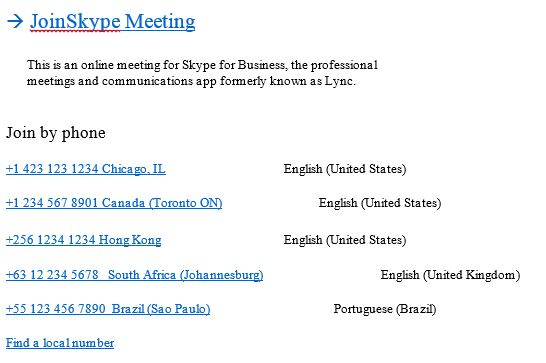
Skype meeting before changing numbers

There are two ways you can do this: create HTML stationery to replace the template and use Regex to get the meeting code so you can recreate the link to the meeting or use a macro to delete or replace the numbers in the meeting invitation, using the method in "Use Word Macro to Apply Formatting to Email".

This code sample uses the Word object model to select the numbers you are replacing and replaces then with the new number and new hyperlink. It then finds the remaining numbers and deletes the entire row.
invitation after removing numbers

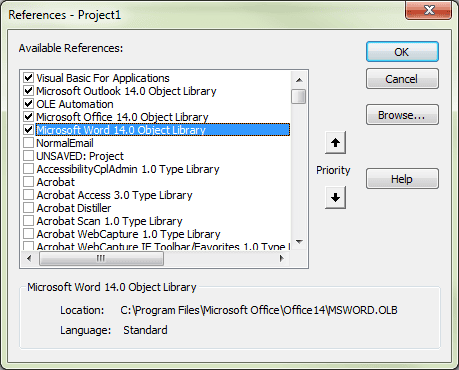
To use this macro you need to set a reference to the Word Object Model in the VBA editor's Tools, References dialog. You'll also need to change the phone number strings to the correct values.

After creating the Skype meeting, run the macro to update the numbers.

Sub EditSkype()
    Dim objApp As Outlook.Application
    Dim objItem As Object
    Dim objInsp As Outlook.Inspector
    Dim objWord As Word.Application
    Dim objDoc As Word.Document
    Dim objSel As Word.Selection
    Dim oRng As Word.Range
    
    Dim i As Long
    Dim iReplace As Long, iDelete As Long
    Dim strLink As String, strLinkText As String
    Dim strDeletePhone As String, strAddPhone As String
    
    Set objItem = Application.ActiveInspector.currentItem
    If Not objItem Is Nothing Then
        If objItem.Class = olMail Then
            Set objInsp = objItem.GetInspector
            If objInsp.EditorType = olEditorWord Then
                Set objDoc = objInsp.WordEditor
                Set objWord = objDoc.Application
                Set objSel = objWord.Selection
                 Set oRng = objDoc.Range
 
' user wanted to clean up phone # left in
    objItem.HTMLBody = Replace(objItem.HTMLBody, "English (United States)", "")
    
' Replace 2 numbers
For iReplace = 1 To 2

Select Case iReplace

Case 1
    strDeletePhone = "+1 234 567 8901 Canada (Toronto ON)"
    strAddPhone = "+1234 567 8901 Portland, OR"
Case 2
    strDeletePhone = "+256 1234 1234 Hong Kong"
    strAddPhone = "+35321 1234567 Ireland"
    
End Select
    
With oRng.Find
    .Text = strDeletePhone
     .Execute
   If .Found Then
   oRng.Paragraphs(1).Range.Select
    strLink = "tel:" & strAddPhone
    strLinkText = strAddPhone
    objDoc.Hyperlinks.Add objSel.Range, strLink, "", "", strLinkText, ""
  End If

End With
' fix the hyperlink color
With oRng.Find
    .Text = strAddPhone
    .Wrap = wdFindContinue
 .Execute
  If .Found = True Then oRng.Font.Color = RGB(0, 102, 204)
End With

Next iReplace

' Delete 2 numbers
For iDelete = 1 To 2

Select Case iDelete

Case 1
    strDeletePhone = "+63 12 234 5678"
Case 2
    strDeletePhone = "+55 123 456 7890"

End Select

 Set oRng = objDoc.Range

 With oRng.Find
    .Text = strDeletePhone
   While .Execute
     oRng.Paragraphs(1).Range.Delete
   Wend
 End With

Next iDelete

            End If
        End If
    End If
    
End Sub


How to Use Macros

First: You will need macro security set to low during testing.

To check your macro security in Outlook 2010 and above, go to File, Options, Trust Center and open Trust Center Settings, and change the Macro Settings. In Outlook 2007 and older, it’s at Tools, Macro Security.

After you test the macro and see that it works, you can either leave macro security set to low or sign the macro.

Open the VBA Editor by pressing Alt+F11 on your keyboard.

To put the code in a module:

  1. Right click on Project1 and choose Insert > Module
  2. Copy and paste the macro into the new module.
  3. Set a reference to the Word Object Model in the VBA editor's Tools, References dialog.
    Reference the Word object model in Outlook's VBA Editor
  4. Customize the meeting ribbon or Quick Access Toolbar to add a button to the macro for easy access.
More information as well as screenshots are at How to use the VBA Editor

Customize a Skype for Business Invitation was last modified: August 11th, 2016 by Diane Poremsky
Post Views: 60

Share this:

  • Share on Facebook (Opens in new window) Facebook
  • Share on X (Opens in new window) X
  • Share on Reddit (Opens in new window) Reddit
  • Share on Bluesky (Opens in new window) Bluesky
  • Share on Mastodon (Opens in new window) Mastodon
  • Email a link to a friend (Opens in new window) Email

Related Posts:

  • Format Contact phone numbers to use with Skype
  • Use Word Macro to Apply Formatting to Email
  • Resize images in an Outlook email
  • Format Images in Outlook Email

About Diane Poremsky

A Microsoft Outlook Most Valuable Professional (MVP) since 1999, Diane is the author of several books, including Outlook 2013 Absolute Beginners Book. She also created video training CDs and online training classes for Microsoft Outlook. You can find her helping people online in Outlook Forums as well as in the Microsoft Answers and TechNet forums.

Comments

  1. Steve Walsh says

    January 24, 2019 at 9:15 am

    This solution is EXACTLY what I am looking for my needs as the company I work for is larger and the tollfree numbers listed in the stock skype template don't meet my needs. I have tried running the macro however it appears to jump to the end of the macro bypassing majority of the code at the lines based below.

    Set objItem = Application.ActiveInspector.currentItem
    If Not objItem Is Nothing Then
    If objItem.Class = olMail Then

    Reply
    • Diane Poremsky says

      January 26, 2019 at 9:27 pm

      Try commenting out this line and the matching if statement and see if it works
      If objItem.Class = olMail Then

      Reply
      • Steve Walsh says

        January 27, 2019 at 3:01 pm

        Thanks for replying I tried this and it threw compile errors. Perhaps I did it wrong. Could you send the code as you want me to test?

        Currently my skype template has the below. I'd like to append 2 lines to it so it can have a number for Canada and United States.

        Join by phone

        +35315661080 (Dial-in Number) English (United Kingdom)

        Find a local number

  2. Ricki says

    May 17, 2017 at 5:51 am

    This is excatly what I was looking for, but unfortunatly, the macro does not react at all. I did follow the guidelines above. I am using Outlook 2016. Any advice?

    Reply
    • Diane Poremsky says

      May 23, 2017 at 11:59 pm

      Do you have macro security set to low and restarted Outlook?
      Any error messages?
      Does the macro run at all? Add msgbox "Running" to it to see if the message box comes up.

      Reply
      • Peter says

        October 11, 2017 at 6:56 pm

        Diane,
        In your post above you wrote, "There are two ways you can do this: create HTML stationery to replace the template and use Regex to get the meeting code"

        Do offer instructions for how to do this?

      • Diane Poremsky says

        October 12, 2017 at 1:17 am

        I don't have instructions but will look at writing some. It will require using VBA - so if you can't use the current macro, using the default f=template won't work either.

      • Diane Poremsky says

        October 12, 2017 at 1:20 am

        I was probably thinking of doing something like this - https://www.slipstick.com/outlook/email/create-new-message-using-html-file-stationery/ - you'd create your own template and then use a macro to insert the template and replace the meeting code placeholder with the one for the meeting.

Leave a Reply Cancel reply

Your email address will not be published. Required fields are marked *

Visit Slipstick Forums.
What's New at Slipstick.com

Latest EMO: Vol. 31 Issue 10

Subscribe to Exchange Messaging Outlook


Support Services

Do you need help setting up Outlook, moving your email to a new computer, migrating or configuring Office 365, or just need some one-on-one assistance?

Our Sponsors

CompanionLink
ReliefJet
  • Popular
  • Latest
  • Week Month All
  • Deleting Auto-Complete Entries No Longer Works
  • Use Classic Outlook, not New Outlook
  • How to Remove the Primary Account from Outlook
  • Understanding Outlook's Calendar patchwork colors
  • How to Hide or Delete Outlook's Default Folders
  • Reset the New Outlook Profile
  • Change Outlook's Programmatic Access Options
  • Disable "Always ask before opening" Dialog
  • Adjusting Outlook's Zoom Setting in Email
  • Removing Suggested Accounts in New Outlook
  • Deleting Auto-Complete Entries No Longer Works
  • Sync Issues and Errors with Gmail and Yahoo accounts
  • Error Opening iCloud Appointments in Classic Outlook
  • Opt out of Microsoft 365 Companion Apps
  • Mail Templates in Outlook for Windows (and Web)
  • Urban legend: Microsoft Deletes Old Outlook.com Messages
  • Buttons in the New Message Notifications
  • Move Deleted Items to Another Folder Automatically
  • Open Outlook Templates using PowerShell
  • Count and List Folders in Classic Outlook
Ajax spinner

Recent Bugs List

Microsoft keeps a running list of issues affecting recently released updates at Fixes or workarounds for recent issues in classic Outlook (Windows).

For new Outlook for Windows: Fixes or workarounds for recent issues in new Outlook for Windows .

Outlook for Mac Recent issues: Fixes or workarounds for recent issues in Outlook for Mac

Outlook.com Recent issues: Fixes or workarounds for recent issues on Outlook.com

Office Update History

Update history for supported Office versions is at Update history for Office

Outlook Suggestions and Feedback

Outlook Feedback covers Outlook as an email client, including Outlook Android, iOS, Mac, and Windows clients, as well as the browser extension (PWA) and Outlook on the web.

Outlook (new) Feedback. Use this for feedback and suggestions for Outlook (new).

Use Outlook.com Feedback for suggestions or feedback about Outlook.com accounts.

Other Microsoft 365 applications and services


New Outlook Articles

Deleting Auto-Complete Entries No Longer Works

Sync Issues and Errors with Gmail and Yahoo accounts

Error Opening iCloud Appointments in Classic Outlook

Opt out of Microsoft 365 Companion Apps

Mail Templates in Outlook for Windows (and Web)

Urban legend: Microsoft Deletes Old Outlook.com Messages

Buttons in the New Message Notifications

Move Deleted Items to Another Folder Automatically

Open Outlook Templates using PowerShell

Count and List Folders in Classic Outlook

Newest Code Samples

Open Outlook Templates using PowerShell

Count and List Folders in Classic Outlook

Insert Word Document into Email using VBA

Warn Before Deleting a Contact

Use PowerShell to Delete Attachments

Remove RE:, FWD:, and Other Prefixes from Subject Line

Change the Mailing Address Using PowerShell

Categorize @Mentioned Messages

Send an Email When You Open Outlook

Delete Old Calendar Events using VBA

VBA Basics

How to use the VBA Editor

Work with open item or selected item

Working with All Items in a Folder or Selected Items

VBA and non-default Outlook Folders

Backup and save your Outlook VBA macros

Get text using Left, Right, Mid, Len, InStr

Using Arrays in Outlook macros

Use RegEx to extract message text

Paste clipboard contents

Windows Folder Picker

Custom Forms

Designing Microsoft Outlook Forms

Set a custom form as default

Developer Resources

Developer Resources

Developer Tools

VBOffice.net samples

SlovakTech.com

Outlook MVP David Lee

Repair PST

Convert an OST to PST

Repair damaged PST file

Repair large PST File

Remove password from PST

Merge Two Data Files

Sync & Share Outlook Data

  • Share Calendar & Contacts
  • Synchronize two computers
  • Sync Calendar and Contacts Using Outlook.com
  • Sync Outlook & Android Devices
  • Sync Google Calendar with Outlook
  • Access Folders in Other Users Mailboxes

Diane Poremsky [Outlook MVP]

Make a donation

Mail Tools

Sending and Retrieval Tools

Mass Mail Tools

Compose Tools

Duplicate Remover Tools

Mail Tools for Outlook

Online Services

Calendar Tools

Schedule Management

Calendar Printing Tools

Calendar Reminder Tools

Calendar Dates & Data

Time and Billing Tools

Meeting Productivity Tools

Duplicate Remover Tools

Productivity

Productivity Tools

Automatic Message Processing Tools

Special Function Automatic Processing Tools

Housekeeping and Message Management

Task Tools

Project and Business Management Tools

Choosing the Folder to Save a Sent Message In

Run Rules on messages after reading

Help & Suggestions

Submit Outlook Feature Requests

Slipstick Support Services

Buy Microsoft 365 Office Software and Services

Visit Slipstick Forums.

What's New at Slipstick.com

Home | Outlook User | Exchange Administrator | Office 365 | Outlook.com | Outlook Developer
Outlook for Mac | Common Problems | Utilities & Addins | Tutorials
Outlook & iCloud Issues | Outlook Apps
EMO Archives | About Slipstick | Slipstick Forums
Submit New or Updated Outlook and Exchange Server Utilities

Send comments using our Feedback page
Copyright © 2026 Slipstick Systems. All rights reserved.
Slipstick Systems is not affiliated with Microsoft Corporation.