One thing that really annoys me about Outlook is that I can right click on a message and do pretty much anything I might want to do, except create a search folder.
I like to create search folders for people who hire me then when the project is finished, I delete the search folder.
Find Related is slow and not persistent. Plus, looking over the list of search folders helps me remember who I'm looking for. :)
Use VBA to create an Instant search for messages from the selected contact.
VBA to the rescue (as always!) The following code creates a search folder using either the sender's display name or email address. It's an amazingly fast search. Next on my to-do list: use VBA to replace the Activities tab.
Error # -2147219964 : Cannot create folder. is trying to tell you that the folder name exists. Use the DeleteSearchFolder macro to delete it, then recreate it. Run-time error '-2147352567 (80020009)': Array index out of bounds means you do not have an email message selected.
Create search folder for message sender macro
Open the VBA editor using Alt+F11, paste the code into the editor. Select a message and run the macro.
The current iteration works on the default Inbox (and subfolders) and Sent folder. It can easily be tweaked to use a selected contact:
Dim oMail As Outlook.ContactItem
strFilter = oMail.Email1Address
Updated March 11 2015: Results include messages sent to and from the sender which are in the Inbox (and subfolders) and Sent Items folder. The From filter looks for messages from the sender's email address; the To filter checks for both the email address and the sender's display name. The Search folder uses the Sender's name, not the email address.
Sub SearchFolderForSender()

On Error GoTo Err_SearchFolderForSender

Dim strFrom As String
Dim strTo As String

' get the name & email address from a selected message
Dim oMail As Outlook.MailItem
Set oMail = ActiveExplorer.Selection.Item(1)

strFrom = oMail.SenderEmailAddress
strTo = oMail.SenderName

If strFrom = "" Then Exit Sub

Dim strDASLFilter As String

' From & To fields
Const From1 As String = "http://schemas.microsoft.com/mapi/proptag/0x0065001f"
Const From2 As String = "http://schemas.microsoft.com/mapi/proptag/0x0042001f"
Const To1 As String = "http://schemas.microsoft.com/mapi/proptag/0x0e04001f"
Const To2 As String = "http://schemas.microsoft.com/mapi/proptag/0x0e03001f"

strDASLFilter = "((""" & From1 & """ CI_STARTSWITH '" & strFrom & "' OR """ & From2 & """ CI_STARTSWITH '" & strFrom & "')" & _
" OR (""" & To1 & """ CI_STARTSWITH '" & strFrom & "' OR """ & To2 & """ CI_STARTSWITH '" & strFrom & "' OR """ & To1 & """ CI_STARTSWITH '" & strTo & "' OR """ & To2 & """ CI_STARTSWITH '" & strTo & "' ))"

Debug.Print strDASLFilter

Dim strScope As String
strScope = "'Inbox', 'Sent Items'"

Dim objSearch As Search
Set objSearch = Application.AdvancedSearch(Scope:=strScope, Filter:=strDASLFilter, SearchSubFolders:=True, Tag:="SearchFolder")

'Save the search results to a searchfolder
objSearch.Save (strTo)

Set objSearch = Nothing

Exit Sub

Err_SearchFolderForSender:
MsgBox "Error # " & Err & " : " & Error(Err)

End Sub
Search folder for All Accounts
This code sample creates a search folder in the selected account in your Outlook profile. As written, the search folder searches the Inbox, Sent Items, and Archive folder as well as the folder the selected message is in. (It also searches subfolders within those folders.)
It will work in both the default account and in secondary accounts or data files that support search folders.
Updated June 2 2021 to add the Search folder to Mail Favorites.
Sub SearchFolderForSenderAllAcct()

Dim strName As String
Dim strFrom As String
Dim storeName As String
Dim currentFolder As String
Dim prompt As String

' get the name & email address from a selected message
Dim oMail As Outlook.MailItem
On Error Resume Next
Set oMail = ActiveExplorer.Selection.Item(1)

If oMail Is Nothing Then GoTo Err_SearchFolderForSender

strName = oMail.SenderName
strFrom = oMail.SenderEmailAddress
Debug.Print strFrom, strName

currentFolder = Application.ActiveExplorer.currentFolder.FolderPath
currentFolder = Replace(currentFolder, "\\", "\")

pos = InStr(4, currentFolder, "\")
storeName = Replace(Left(currentFolder, pos), "\", "")
Debug.Print pos, storeName

If strFrom = "" Then GoTo Err_SearchFolderForSender

 Dim oStores As Outlook.Stores
 Dim oStore As Outlook.Store
 Dim oFolder As Outlook.folder

Set oStores = Application.Session.Stores
Debug.Print oStores.Item(storeName).DisplayName

If oStores.Item(storeName).DisplayName Then
Set oStore = oStores.Item(storeName)
  Set oFolder = oStore.GetSearchFolders.Item(strName)
    If Not oFolder Is Nothing Then
       prompt$ = "Search folder for '" & strName & "' already exists. Do you want to add it to Mail Favorites?"
          GoTo AddtoFavs
      Else
      End If
    End If


Dim strDASLFilter As String

' From & To fields
Const From1 As String = "http://schemas.microsoft.com/mapi/proptag/0x0065001f"
Const From2 As String = "http://schemas.microsoft.com/mapi/proptag/0x0042001f"
Const To1 As String = "http://schemas.microsoft.com/mapi/proptag/0x0e04001f"
Const To2 As String = "http://schemas.microsoft.com/mapi/proptag/0x0e03001f"

strDASLFilter = "((""" & From1 & """ CI_STARTSWITH '" & strFrom & "' OR """ & From2 & """ CI_STARTSWITH '" & strFrom & "')" & _
" OR (""" & To1 & """ CI_STARTSWITH '" & strFrom & "' OR """ & To2 & """ CI_STARTSWITH '" & strFrom & "' OR """ & To1 & """ CI_STARTSWITH '" & strName & "' OR """ & To2 & """ CI_STARTSWITH '" & strName & "' ))"

'Debug.Print strDASLFilter

Dim strScope As String
strScope = "'\" & storeName & "\Inbox', '\" & storeName & "\Sent Items','\" & storeName & "\Archive', '" & currentFolder & "'"
'  Debug.Print strScope
Dim objSearch As Search
Set objSearch = Application.AdvancedSearch(Scope:=strScope, Filter:=strDASLFilter, SearchSubFolders:=True, Tag:="SearchFolder")

'Save the search results to a searchfolder
objSearch.Save (strName)
Set objSearch = Nothing

prompt$ = "Do you want to add '" & strName & "' to Mail Favorites?"
AddtoFavs:
   If MsgBox(prompt$, vbYesNo + vbQuestion + vbMsgBoxSetForeground, "Add search folder to Favorites?") = vbYes Then
  ' continue
  Else
   Exit Sub
  End If

'Debug.Print oStores.Item(storeName).DisplayName
  Set oFolder = oStore.GetSearchFolders.Item(strName)

  Set objNavigationPane = Application.ActiveExplorer.NavigationPane
  Set objNavigationModule = objNavigationPane.Modules.GetNavigationModule(olModuleMail)
  Set objNavigationGroup = objNavigationModule.NavigationGroups.GetDefaultNavigationGroup(olFavoriteFoldersGroup)

  'Add folder to Favorites
     objNavigationGroup.NavigationFolders.Add oFolder

Exit Sub

Err_SearchFolderForSender:
 MsgBox "You need to select an email message!"

End Sub
Create a search folder for categories
This version of the macro creates a search folder using two categories creates a search folder using one or two categories. If there are more than two categories assigned, it uses just the first two categories (which in Outlook is the last two categories you assigned.)
If a message has more than two assigned, that message will be found as the search filter looks for category1 and category2; we can't tell it to only use those two (and ignore if more than two categories).
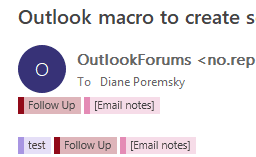
In the example in this screen shot, the search folder that is created will find all messages with the first categories.
Sub SearchFolderForCategories()

On Error GoTo Err_SearchFolderForSender

Dim strCat1 As String
Dim strCat2 As String

' get the name & email address from a selected message
Dim oMail As Outlook.MailItem
Set oMail = ActiveExplorer.Selection.Item(1)


 arr = Split(oMail.Categories, ",")

' if only one category
    If UBound(arr) = 0 Then
      strCat1 = arr(0)
      strDASLFilter = "(" & """urn:schemas-microsoft-com:office:office#Keywords""" & "= '" & strCat1 & "')"
    End If

If UBound(arr) > 0 Then
' Check for Category
'get first 2
    For i = 0 To UBound(arr)
  Debug.Print UBound(arr)
    strCat1 = arr(0)
    strCat2 = Trim(arr(1))
    Next
    strDASLFilter = "(" & """urn:schemas-microsoft-com:office:office#Keywords""" & "= '" & strCat1 & "' AND " & """urn:schemas-microsoft-com:office:office#Keywords""" & "= '" & strCat2 & "')"
    End If

Debug.Print strDASLFilter

Dim strScope As String
strScope = "'Inbox', 'Sent Items'"

Dim objSearch As Search
Set objSearch = Application.AdvancedSearch(Scope:=strScope, Filter:=strDASLFilter, SearchSubFolders:=True, Tag:="SearchFolder")

'Save the search results to a searchfolder
objSearch.Save (oMail.Categories)

Set objSearch = Nothing

Exit Sub

Err_SearchFolderForSender:
MsgBox "Error # " & Err & " : " & Error(Err)

End Sub
Category Search folder for non-default account
This code sample creates a search folder in the selected secondary account in your Outlook profile. As written, the search folder searches the Inbox, Sent Items, and Archive folder as well as the folder the selected message is in. (It also searches subfolders within those folders.)
This code will check for one or both of first two categories on the selected message.
Sub SearchFolderCategoryNonDefaultAcct()

On Error GoTo Err_SearchFolderForSender

Dim strCat1 As String
Dim strCat2 As String

' get the name & email address from a selected message
Dim oMail As Outlook.MailItem
Set oMail = ActiveExplorer.Selection.Item(1)


'get the folderpath of current folder
currentFolder = Application.ActiveExplorer.currentFolder.FolderPath
currentFolder = Replace(currentFolder, "\\", "\")

' keep store name, not folder paths
pos = InStr(4, currentFolder, "\")
storeName = Replace(Left(currentFolder, pos), "\", "")
Debug.Print pos, storeName


Dim strDASLFilter As String


 arr = Split(oMail.Categories, ",")

' if only one category
    If UBound(arr) = 0 Then
      strCat1 = arr(0)
      strDASLFilter = "(" & """urn:schemas-microsoft-com:office:office#Keywords""" & "= '" & strCat1 & "')"
    End If

If UBound(arr) > 0 Then
' Check for Category
'get first 2
    For i = 0 To UBound(arr)
  Debug.Print UBound(arr)
    strCat1 = arr(0)
    strCat2 = Trim(arr(1))
    Next
    strDASLFilter = "(" & """urn:schemas-microsoft-com:office:office#Keywords""" & "= '" & strCat1 & "' AND " & """urn:schemas-microsoft-com:office:office#Keywords""" & "= '" & strCat2 & "')"
    End If

Debug.Print strDASLFilter

Dim strScope As String
strScope = "'\" & storeName & "\Inbox', '\" & storeName & "\Sent Items','\" & storeName & "\Archive', '" & currentFolder & "'"

Dim objSearch As Search
Set objSearch = Application.AdvancedSearch(Scope:=strScope, Filter:=strDASLFilter, SearchSubFolders:=True, Tag:="SearchFolder")

'Save the search results to a searchfolder
objSearch.Save (oMail.Categories)

Set objSearch = Nothing

Exit Sub
Delete the Search folder
To delete the search folder you created using the code above, you can use a macro such as this one.
This is a tweaked version of the macro at (Less Than) Portable Search Folders.
Sub DeleteSearchFolder()

    Dim CommonViewsEID As String
    Dim CommonViewsEIDString As String
    Dim CommonViewsFolder As Folder
    Dim ACTable As Table
    Dim oRow As Row
    Dim SFDefinitionEID As String
    Dim SFDefinitionItem As StorageItem


Dim strFilter As String
Dim oMail As Outlook.MailItem

Set oMail = ActiveExplorer.Selection.Item(1)
strFilter = oMail.SenderName


CommonViewsEID = Session.DefaultStore.PropertyAccessor.GetProperty("http://schemas.microsoft.com/mapi/proptag/0x35E60102")
    CommonViewsEIDString = Session.DefaultStore.PropertyAccessor.BinaryToString(CommonViewsEID)
    Set CommonViewsFolder = Session.GetFolderFromID(CommonViewsEIDString)

    Set ACTable = CommonViewsFolder.GetTable("[Subject] = '" & strFilter & "'", olHiddenItems)

    Set oRow = ACTable.GetNextRow()

    If (Not (oRow Is Nothing)) Then
        SFDefinitionEID = oRow("EntryID")
        Set SFDefinitionItem = Session.GetItemFromID(SFDefinitionEID)
        SFDefinitionItem.Delete
    End If

End Sub
Searching other fields
You can search any Outlook field if you know the field name and filter code to use. The easiest way to find out what you need to replicate a filter is to create a filter in Outlook then check the SQL tab.
You can use the httpmail and mailheader namespace schemas for some fields, but some search queries, such as the sender's actual email address, need the mapi property tag.
The httpmail and mailheader schemas are listed on the following pages at MSDN: urn:schemas:httpmail: Namespace and urn:schemas:mailheader: Namespace.
To pick up a value from a different Outlook field, change the field name in
strFilter = oMail.SenderEmailAddress and change the search string used in strDASLFilter
This long filter covers the common search fields.
strDASLFilter = """urn:schemas:httpmail:fromname"" LIKE '%" & strFilter & "%' " + _
"OR ""urn:schemas:httpmail:textdescription"" LIKE '%" & strFilter & "%' " + _
"OR ""urn:schemas:httpmail:displaycc"" LIKE '%" & strFilter & "%' " +  _
"OR ""urn:schemas:httpmail:displayto"" LIKE '%" & strFilter & "%' " +  _
"OR ""urn:schemas:httpmail:subject"" LIKE '%" & strFilter & "%' " +  _
"OR ""urn:schemas:httpmail:thread-topic"" LIKE '%" & strFilter & "%' " +  _
"OR ""http://schemas.microsoft.com/mapi/received_by_name"" LIKE '%" & strFilter & "%' " +  _
"OR ""http://schemas.microsoft.com/mapi/id/{00062008-0000-0000-C000-000000000046}/8586001f"" LIKE '%" & strFilter & "%' " +  _
"OR ""http://schemas.microsoft.com/mapi/id/{00062008-0000-0000-C000-000000000046}/85a4001f"" LIKE '%" & strFilter & "%' " +  _
"OR ""http://schemas.microsoft.com/mapi/id/{00062041-0000-0000-C000-000000000046}/8904001f"" LIKE '%" & strFilter & "%' " + "OR ""http://schemas.microsoft.com/mapi/proptag/0x0e03001f"" LIKE '%" & strFilter & "%' " +  _
"OR ""http://schemas.microsoft.com/mapi/proptag/0x0e04001f"" LIKE '%" & strFilter & "%' " +  _
"OR ""http://schemas.microsoft.com/mapi/proptag/0x0042001f"" LIKE '%" & strFilter & "%' " + "OR ""http://schemas.microsoft.com/mapi/proptag/0x0044001f"" LIKE '%" & strFilter & "%' " +  _
"OR ""http://schemas.microsoft.com/mapi/proptag/0x0065001f"" LIKE '%" & strFilter & "%' "
More Information
Search Object (Outlook) (MSDN)
(Less Than) Portable Search Folders (MSDN)

Anil Kumar Katta says
Is there any way that we can create a search folder based upon the email subject as a text.
this is use case: I click on a button on the outlook, a popup will appear, i put email subject sugh as "Sales Reports - 2023", then click on OK. then the VBS should pick this key word and create a search folder and collect all emails from the inbox?
Marek says
Hi, Diane,
exactly as you put it.
However, the macro stops at Set objSearch = Application.AdvancedSearch(Scope:=strScope, Filter:=strDASLFilter, SearchSubFolders:=True, Tag:="SearchFolder")
with error message -2147024809 (80070057): the operation cannot be completed as one parameter or more are improper.
I am using Windows 10, MS Outlook 10.
What’s wrong with this macro and what can I do to fix the error.
HARIPARSAD R says
Outlook related mails - how to set custom search scope using VBA ?
Like; 'olSearchScopeCurrentFolder' searches Current folder & 'olSearchScopeSubfolders' searchs current folder and its sub folders. Id need to search Inbox, its subfolders & an another folder outside inbox tree. How to manage this ? kindly advice.
Marek says
Thanks, Diane, for your excellent macros. There is one problem, that I cannot solve at myself and look forward to your help. I do appologize that for a lack of time I have not read all other comments to this thread.
Your procedure reads at the end:
In fact, the result is that the new folder with a specified name is created as a subfolder in "Search folder". However, if I want to write a code to do certain operations (such as sort mails in this subfolder by category the system does not see the parent search folder at all and I cannot do anything with mails in this new subfolder. Will you please guide me how to solve the problem.
Best regards
Marek
Diane Poremsky says
you need to use getsearchfolders if you want to use code on search folders,
https://docs.microsoft.com/en-us/office/vba/api/outlook.store.getsearchfolders
Marek says
Thanks a lot. Your advice (as it always does) has helped to solve my problem. Thanks a lot.
Attilio Cioli says
Great!
Looking forward for the hard coded example. It will work out perfectly because the target account is known and not supposed to change
Thanks!
Diane Poremsky says
This code will create a search folder in the selected data file and add it to favorites.
How to Create an Outlook Search Folder using VBA (slipstick.com)
Attilio Cioli says
Hello Diane,
first of all I wanted thank you for sharing your knowledge. Please allow me to ask you a question
I have multiple accounts in my Outlook and I have tried the SearchFolderForCategories sub.
The search folder created by objSearch.Save (oMail.Categories) it is always created under the same account. Do you know if it is possible to change this and specify under which account I want it to be created ?
Many thanks
Best,
Diane Poremsky says
As written, it is for the default account only. It is possible to get the current store and create it in that - I've been meaning to do that but haven't had tome yet.
Actually, in checking my mailbox, I do have one that is hard coded with the mailbox name. I'll add it to the page.
ETA: decided to make it work with whatever data file is selected
Chooriang says
What if I want to retrieve the latest/ the newest email from/ to specific email address, what could be the filter?
Diane Poremsky says
You can't limit it to the newest or last - you can filter by date - received today, this week etc. But it will show all messages (or none) that arrived with that period that meet the other conditions.
PHill says
Hi, I was wondering if there's a way to make a search folder for searching message class that contains "EMS"? also when I try the categories one im getting array index out of bounds
ramzi darghouth says
Thanks for this article. I just wanted to share something i had created on the basis of learning about this. Its been bugging me for years as i can't stand outlook subfolders (mainly because i want to file things with multiple labels rather than sticking it in one of many possible virtual drawers / folders.
What gets a bit painful is having to manually filter by typing in the category in the search field, which can be a bit cumbersome as you end up with results that include the words or phrases that match (in the body, subject etc) but no exclusively the category.
So i created this macro that basically spits out automatic search folders for every category in your categories list. If you're clever with your category names, you can use the letters or numbers to sub categorise them into say live projects starting with an L, prospective projects starting with a P, and any prefixes that work for you.
Here is the code, its probably a bit of dogs dinner, but it took me a while to understand this as i'm not a programmer, i just like to find ways to minimise faff in my day to day wrestling with software, usually ms office based. Hopefully someone will find it useful.
Sub UpdateSearchFolders()Dim colStores As Outlook.Stores
Dim oStore As Outlook.Store
Dim oSearchFolders As Outlook.Folders
Dim oFolder As Outlook.Folder
Dim oCheck As Boolean
On Error Resume Next
Set colStores = Application.Session.Stores
For Each oStore In colStores
Set oSearchFolders = oStore.GetSearchFolders
For Each oFolder In oSearchFolders
'filter folders to delete
oCheck = InStr(1, oFolder.FolderPath, "\\your@emailaddress.com\search folders\L")
If oCheck Then
oFolder.Delete
End If
Next
Next
Dim catList As Outlook.Categories
Dim oCat As Outlook.Category
Set catList = Application.Session.Categories
Dim strScope
strScope = "'Inbox','Sent Items'"
For Each oCat In catList
Dim strFilter
strFilter = """urn:schemas-microsoft-com:office:office#Keywords"" LIKE '" & oCat & "'"
Dim oSearch As Search
Set oSearch = Application.AdvancedSearch(Scope:=strScope, Filter:=strFilter, SearchSubFolders:=False, Tag:=oCat)
oSearch.Save (oCat)
Next
End Sub
Raj Kuttikate says
Hi Diane,
Thank you for the unified box code that is very useful.
I was wondering if you did have a code for flagged emails across different mail accounts in a single outlook profile.
It would be also good if we have an option to choose or exclude a particular inbox or folder.
Thanks
Diane Poremsky says
excluding inboxes is difficult to impossible (the code on this page is limited to one data file, only instant search supports all mailboxes in the profile. Its either all or the current one.
doing flagged messages or other searches is easy - do an instant search, copy the search criteria and paste it into search string.
txtSearch = "folder: (Sent Mail) sent: (this week)"
Stuart says
Hi Diane
This is a great macro - it's almost what I've been searching for. Would you be able to help me make a couple of small changes please?
First, I'd like the macro to search my entire mailbox (ideally without hard-coding my name but it's not essential).
Second, I'd like to only search for messages from the contact selected when the macro invoked, not search for a match on their email address.
Is that possible?
Many thanks!
Stuart
Diane Poremsky says
Use this as the scope
strScope = "'" & Application.Session.GetDefaultFolder(olFolderInbox).Parent.FolderPath & "'"
Stuart says
Hi Diane
Thanks for the quick response. The code now searches the entire mailbox (great!) but still returns all emails where the contact email address is mentioned.
What I'd like it to do is list all emails from (or from and to) that contact.
Is that possible ?
Thank you again for your help.
Stuart
Diane Poremsky says
You need to use To and From fields in your search queries (the code on this page only searches the to and from fields)
Jan Pedersen says
Hi Diana
I would like to create a search folder with below criteria.
Search folder : "Mail from and to specific People" (Criteria: From 'sender' and Sent to 'sender' )
Scope:" Sent Post" and "Inbox including Sub folders"
I didn't understand your last answer from 31 march, 2017 9:34
"You need to use To and From fields in your search queries (the code on this page only searches the to and from fields)"
Regards Jan
Diane Poremsky says
I'm not sure I understand my answer either. :) It looks like i updated the code in March to do those folders and all of the to/from fields ( the email address and display name are two separate fields).
Stuart Moore says
Hi Diane
Might you be able to show me what the search string should look like, in order to just search for email from or to the selected contact (not anywhere where the contact is mentioned).
Thanks very much for your help.
Diane Poremsky says
you ned to use the from: field - from:name or to:name.
Mathieu Guilsou says
Hello Diane. Thank you. Your article is very interesting. Do you think it is possible within outlook to schedule a form that will be able to capture and to provider the "strFilter" string that will be used by strDASLFilter variable within the advancedSearch functionnality ? ..... i have tried but without any success. I have created a form ... but it seems that the advancedSearch functionnality has to be included within the "ThisoutlookSession" folder and not without the code associated to the userform .... Thank to you. Mathieu
Bob Narindra says
can we have this not make a search folder and just show the search results?
Diane Poremsky says
This macro does create a search folder...
Marek Czerski says
Hi, Diane,
I do undestand your reply as the purpose of the macro is not to display show results (search folder), but I have the same problem as Bob Narindra presented and for the last 3+ hours I have searched your website (and other websites), to find a reply to the question how to programmatically show test results, i.e. a saved and named search folder.
I also tried a code with your getfolder function i.e. Set Application.ActiveExplorer.CurrentFolder = getfolder("XXX"), but getfolder function failed to return the search folder at all.
Unfortunately, all my efforts failed to bring a desired result and I feel quite lost as I do not understand all that problem as compared to other folders. Your advice will be really appreciated, including that why your getfolder function fails to get any search folder.
Best regards from a great and grateful fun of your IT competence and of this site.
Marek Czerski says
Sorry, I should have indicated in my previous mail that I am using Outlook of MS Office 2010 under Windows 10 64-bit.
Diane Poremsky says
The version doesn't really matter - but creating it as an instant search using a macro is fairly easy - I have a code sample here - in the Search for messages to or from a sender section.
Use Instant search to find messages from a contact (slipstick.com)
Andreas says
Hi
I'm using Outlook 2013 ann VB for applications 7.1
the script works fine but if I change the DASL Filter to the SQL Output of query builder I don't get it to work at all
VBA does not accept the Syntax of the query builder SQL window
I would like to have a query like this:
("urn:schemas:httpmail:fromname" LIKE '%sender1%' OR ("urn:schemas:httpmail:displayto" LIKE '%sender1%' AND "urn:schemas:httpmail:fromname" LIKE '%sender2%') OR ("urn:schemas:httpmail:displaycc" LIKE '%sender1%' AND "urn:schemas:httpmail:fromname" LIKE '%sender2%'))
Sender1 is the Person I want to check for
Sender2 is fix (me)
overall the script should emulate something like the All by Person from Notes.
any help or hint is highly welcome
Kind regards
Andreas
Diane Poremsky says
I assume you put it together like this (but a lot more complicated :)) With sender1 and sender2, you need a strFilter2.
strDASLFilter = """urn:schemas:httpmail:fromname"" LIKE '%" & strFilter & "%' " + _
"OR ""urn:schemas:httpmail:displaycc"" LIKE '%" & strFilter & "%' " + _
"OR ""urn:schemas:httpmail:displayto"" LIKE '%" & strFilter & "%' " +
Andreas says
Thank you for the prompt reply
I need the nested conditions with AND because I check inbox and sent items and I only want to see my conversation with this Person and not all the mails sent by others to where this Person is also in to or CC
It works perfectly as a predefined search Folder using query builder but I don't get it to work in vba
this is the changed Version but as said the nested condition does not work for me.
Sub SearchFolderForSender()
On Error GoTo Err_SearchFolderForSender
Dim strFilter As String
Dim strFilter2 As String
Dim oMail As Outlook.MailItem
Set oMail = ActiveExplorer.Selection.Item(1)
strFilter = InputBox("Name for all person")
strFilter2 = "my Name"
If strFilter = "" Then Exit Sub
Dim strDASLFilter As String
strDASLFilter = ("urn:schemas:httpmail:fromname" LIKE '% strFilter %' OR ("urn:schemas:httpmail:displayto" LIKE '% strFilter %' AND "urn:schemas:httpmail:fromname" LIKE '% strFilter2 %') OR ("urn:schemas:httpmail:displaycc" LIKE '% strFilter %' AND "urn:schemas:httpmail:fromname" LIKE '% strFilter2%'))
Dim strScope As String
strScope = "'Inbox', 'Sent Items'"
Dim objSearch As Search
Set objSearch = Application.AdvancedSearch(Scope:=strScope, Filter:=strDASLFilter, SearchSubFolders:=True, Tag:="SearchFolder")
'Save the search results to a searchfolder
objSearch.Save (strFilter)
Set objSearch = Nothing
Exit Sub
Err_SearchFolderForSender:
MsgBox "Error # " & Err & " : " & Error(Err)
End Sub
Diane Poremsky says
This: ("urn:schemas:httpmail:fromname" LIKE '% strFilter %' OR ("urn:schemas:httpmail:displayto" LIKE '% strFilter %' AND "urn:schemas:httpmail:fromname" LIKE '% strFilter2 %') OR ("urn:schemas:httpmail:displaycc" LIKE '% strFilter %' AND "urn:schemas:httpmail:fromname" LIKE '% strFilter2%'))
needs a lot more double quotes and ampersands. "(" & """urn:schemas:httpmail:fromname""" & "LIKE '%" & strFilter & "%' OR (" &... and so on.
Larry in AZ says
Hello Diane.
I am using the code that you posted above. Thanks for the information. It has caused me to try to expand upon it, but I am having troubles trying to make my ideas work.
I am trying to create a Search Folder where any of the following are true:
1) keyword matches found in my "Inbox" by "from", "subject" or found in the message body
2) keyword matches found in my "Sent Items" by "to", "subject" or found in the message body
3) keyword matches found in my archived rec'd messages by "from", "subject" or found in the message body
4) keyword matches found in my archived sent messages by "to", "subject" or found in the message body
I guess my trouble is building the query.
Any assistance that you (or anyone else) can provide would be greatly appreciated!
Thanks in advance.
Diane Poremsky says
Create the query in a search folder and get the sql from the SQL tab - then put it in the code. The sample query at the bottom of the page have some of the fields you'll need, they just need to be put together.
Larry in AZ says
Thanks Diane. However I do not understand your reply. I do not have an SQL tab that I can find. I'm using Outlook 2010.
Thanks.
Evan says
Could you please rewrite the script to create a search folder based on selected item's categories?
Diane Poremsky says
You'd change strFilter = oMail.SenderEmailAddress to
strFilter = oMail.Categories
and strDASLFilter = "(""" & From1 & """ CI_STARTSWITH '" & strFilter & "' OR """ & From2 & """ CI_STARTSWITH '" & strFilter & "')"
to strDASLFilter = "(""" & Categories & """ CI_STARTSWITH '" & strFilter & "')" (I don't test it, so it might not be exactly correct.)
Note that if an item has multiple categories, this will use both and only items in all categories will be found.
Danny says
Hi Diane, first of all, your article is very interesting to me, and I am a beginner of Outlook VBA.
For years, I dream to realize a customized search folder which can capture any new email (unread) & it's same subject mails (read and supposed in Inbox & Sent Items folders), surely there are not just one new emails in Inbox.
Could you please help?
thank you so much in advance.
Diane Poremsky says
You want a search folder for all unread messages plus any sent items that match the unreads? you can't do that using a filter - you need to use the conversation view in Outlook and include items in other folders.
Danny says
thanks for your prompt reply.
I set an search folder already with ticking Inbox & Sent Items two folders. I want it to show only those unread emails, AND any read emails which has same subject as these unread ones, possible creating such search folder by coding like SQL or VBA? I ever tried the method as you said, but the view of the conversation is not good, i.e., the group head is not like any others like Subject group head, it's not obvious, and all my "to do" emails are in Inbox & Send Items, AND some already finished ones moved to "Personal\TobeAchieved" one, then by conversation & other folders, it will popup again!
I am working around by creating another exact search folder (ticking Inbox & Sent Items), in this one, i always sort by Subject & fold it! it will make quicker to find Unread mails group.
If coding not possible or too complex, i will use this workaround one.
thanks again!
Diane Poremsky says
You can create a search folder for new unread mail only, but you would only be able to limit it to a subject if you create a search folder for the subject. Sorting by the subject might be better.
Danny says
Hi Diane, the method i know, just because by this conversation view looks not very good...that's why i want to have coding to customize it, since it's not workable, i will give up, thank you anyway!
Diane Poremsky says
Yeah, coding won't work, definitely not in search folders. If you can find an instant search query that works, that can be coded to make it faster to use.
Chris says
Hi Diane.
Quite new to this, but tried anyway to follow this approach to create a searchfolder based on the categories assigned to a selected email. The searchfolder is indeed created and named according to the assigned categories, however for some reasons the folder remains empty without picking up any of the emails... any ideas?
Diane Poremsky says
How many accounts are in your profile? This only works with the default account.
Darryl says
Hi Diane! This is a wonderful macro...any idea how to make it work with the multiple accounts? Many thanks.
Darryl
Diane Poremsky says
Search folders only work with one account - but the (poorly named) Search folder for All Accounts macro should create a search folder in the selected account.