Once request I hear often is for the ability to open a meeting request that was just added to the calendar after accepting the request in the Inbox.
After I receive a meeting invitation I would like to be able to modify the reminder timer then accept the invitation to avoid having to accept the meeting, THEN (remember when it was for and) open the event from my calendar and modify the reminder timer.
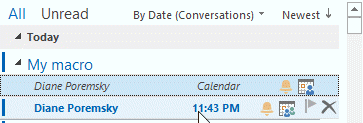 If you are using Outlook 2010 or 2013 conversation view with all folders enabled, the associated meeting request will be in the Inbox with the meeting request. You can open it, change the reminder and add categories before accepting it.
Or you can use a macro to open the associated appointment, set the fields, and accept the meeting.
This macro is based on the autoaccept a meeting using rules macro.
Set a reminder on the associated meeting macro
Press Alt+F11 to open the VBA editor. Right click on Project1 and choose Insert > Module. Paste the code below into the module and edit as needed. Add a macro button on the toolbar or ribbon. Don't forget to change your macro security so the macro will run. Screenshots and more details can be found at How to use the VBA Editor.
Select the meeting request in the Inbox and run the macro. As written, the macro sets a remind beforehand time of 1080 minutes, adds a category to the meeting, and sets the busy status to OOF.
Public Sub ChangeMeeting()

Dim oRequest As MeetingItem
Dim oAppt As AppointmentItem


Set oRequest = Application.ActiveExplorer.Selection.Item(1)
If oRequest.MessageClass = "IPM.Schedule.Meeting.Request" Then
   Set oAppt = oRequest.GetAssociatedAppointment(True)

' set fields on the appt.
With oAppt
       .ReminderMinutesBeforeStart = 1080
       .Categories = "Slipstick"
       .ReminderSet = True
       .BusyStatus = olOutOfOffice
       .Save ' use .Display if you want to see the appt. and set the reminder yourself
  End With

End If

' use this to autoaccept
Dim oResponse
 Set oResponse = oAppt.Respond(olMeetingAccepted, True)
 oResponse.Send

'delete the request from the inbox
oRequest.Delete

End Sub
Use a rule to set a reminder
Create a run a script rule to use this macro to set a reminder on incoming meeting requests.
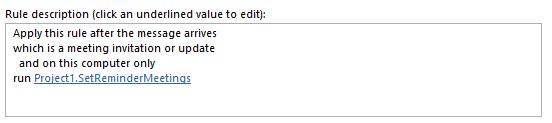
This script gets the associated meeting item from the meeting request and address a reminder to it.
You'll need to change the reminder before start time, unless you want a 40 minute reminder. If you use a time that is not one of the default times, you can easily verify if the macro is working.
A security update disabled the Run a script option in Outlook 2013 and 2016's rules wizard. See Run-a-Script Rules Missing in Outlook for more information and the registry key to fix restore it.
Sub SetReminderMeetings(oRequest As MeetingItem)

Dim oAppt As AppointmentItem
Set oAppt = oRequest.GetAssociatedAppointment(True)

' change the reminder time
oAppt.ReminderMinutesBeforeStart = 40
oAppt.ReminderSet = True
oAppt.Save

End Sub
How to use the macros on this page
First: You need to have macro security set to the lowest setting, Enable all macros during testing. The macros will not work with the top two options that disable all macros or unsigned macros. You could choose the option Notification for all macros, then accept it each time you restart Outlook, however, because it's somewhat hard to sneak macros into Outlook (unlike in Word and Excel), allowing all macros is safe, especially during the testing phase. You can sign the macro when it is finished and change the macro security to notify.
To check your macro security in Outlook 2010 and newer, go to File, Options, Trust Center and open Trust Center Settings, and change the Macro Settings. In Outlook 2007 and older, look at Tools, Macro Security.
After you test the macro and see that it works, you can either leave macro security set to low or sign the macro.
Macros that run when Outlook starts or automatically need to be in ThisOutlookSession, all other macros should be put in a module, but most will also work if placed in ThisOutlookSession. (It's generally recommended to keep only the automatic macros in ThisOutlookSession and use modules for all other macros.) The instructions are below.
The macros on this page should be placed in a module.
The macros on this page need to go into ThisOutlookSession.
Open the VBA Editor by pressing Alt+F11 on your keyboard.
To put the code in a module:
- Right click on Project1 and choose Insert > Module
- Copy and paste the macro into the new module.
More information as well as screenshots are at How to use the VBA Editor

Ben Francom says
Came across this in 2022 searching for this same solution. For better or for worse, you can do this with Power Automate:
https://www.mobile-mentor.com/insights/never-miss-a-meeting-again-with-microsoft-power-automate
Chad Knudson says
I'm trying to use your macro to accept an appointment, set reminder to none, and busy status to free. Everything is working except the busy status is not changing to free, can you tell me what I'm doing wrong? Here is my modified code based on yours...
Sub Accept_No_Reminder_Free_Status()
Dim oRequest As MeetingItem
Dim oAppt As Outlook.AppointmentItem
Set oRequest = Application.ActiveExplorer.Selection.Item(1)
If oRequest.MessageClass = "IPM.Schedule.Meeting.Request" Then
Set oAppt = oRequest.GetAssociatedAppointment(True)
'set fields on the appt.
With oAppt
.Categories = None
.ReminderSet = False
.BusyStatus = olFree
.Save
End With
End If
'autoaccept and send response
Dim oResponse
Set oResponse = oAppt.Respond(olMeetingAccepted, True)
oResponse.Send
'delete the request from the inbox
oRequest.Delete
End Sub