Use this macro to disable the blank subject warning in Outlook 2010, Outlook 2013, and Outlook 2016.
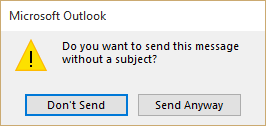
If you are looking for a macro to warn you that the subject is blank in earlier versions of Outlook, see Macro to Warn Before Sending a Message with a Blank Subject.
Please note: If you need help with this macro, please use the comments section below.
To use, open the VBA Editor using Alt+F11 and paste this into ThisOutlookSession.
Reprinted with permission of Peter Marchert
Option Explicit
'======================================================================
' Prevents Outlook 2010 no-subject warning message
' (c) Peter Marchert -//www.outlook-stuff.com
' 2010-07-15 Version 1.0.0
' 2010-07-19 Version 1.0.1
' 2010-08-01 Version 1.1.0
' 2010-08-31 Version 1.1.1
'======================================================================

Private WithEvents colInspectors As Outlook.Inspectors

Private Sub Application_Startup()

Set colInspectors = Outlook.Inspectors

End Sub

Private Sub colInspectors_NewInspector(ByVal Inspector As Inspector)

Dim objItem As Object

On Error GoTo ExitProc

Set objItem = Inspector.currentItem

If InStr(LCase(objItem.MessageClass), "ipm.appointment") > 0 Then
If objItem.MeetingStatus = 0 Then GoTo ExitProc

End If

If objItem.EntryID = "" Then
If objItem.Subject = "" Then objItem.Subject = " "
If objItem.Location = "" Then objItem.Location = " "

End If

ExitProc:

Set objItem = Nothing
Set Inspector = Nothing

End Sub

Private Sub Application_ItemSend(ByVal Item As Object, Cancel As Boolean)

On Error Resume Next

Item.Subject = Trim(Item.Subject)
Item.Location = Trim(Item.Location)

End Sub

Private Sub Application_Quit()

Set colInspectors = Nothing

End Sub
How to use the macro
First: You will need macro security set to low during testing.
To check your macro security in Outlook 2010 or 2013, go to File, Options, Trust Center and open Trust Center Settings, and change the Macro Settings. If Outlook tells you it needs to be restarted, close and reopen Outlook. Note: after you test the macro and see that it works, you can either leave macro security set to low or sign the macro.
Now open the VBA Editor by pressing Alt+F11 on your keyboard.
To use the macro code in ThisOutlookSession:
- Expand Project1 and double click on ThisOutlookSession.
- Copy then paste the macro into ThisOutlookSession. (Click within the code, Select All using Ctrl+A, Ctrl+C to copy, Ctrl+V to paste.)
Application_Startup macros run when Outlook starts. If you are using an Application_Startup macro you can test the macro without restarting Outlook by clicking in the first line of the Application_Startup macro then clicking the Run button on the toolbar or pressing F8.
More information as well as screenshots are at How to use the VBA Editor.

HB8 says
This happens to work great but the problem is that it causes an error when scheduling Zoom meetings. Error 300 topic. it is because this script is forcing the subject to be blank. Is there any way to fix this so Zoom meetings can be set without issues?
RamyJo says
Will this work for outlook.com? If not, is there a way to disable that feature when using outlook.com? Thanks!
Diane Poremsky says
It is outlook desktop for windows only (works with any account type). You can't use VBA in Outlook on the web.
There is no way to disable the warning in Outlook on the web - sorry.
Josh says
I have Outlook 2016 and I can't even do step 1. No VGA box opens when I press Alt and F11.
Diane Poremsky says
Is VBA addin enabled in File > Options > Addins?
Customize the ribbon (Options > customize Ribbon) - and enable the Developer tab. You can open the VBA editor using the button on the left of that ribbon.
Josh says
Thank you. I eventually got it by using the "Tell me what you want to do..." and putting in "Open VBA Editor".
Rob says
Works with 2016
MgDizzle says
Thank you! This Macro worked seamlessly when you follow the explicit directions! Kewl Stuff!
rachel says
Thanks Diane! Will this work on 2013 outlook too?
Diane Poremsky says
yes, it will work with 2016 and 2013.
rachel says
whats the starting point and end point I need to copy paste into the outlooksession?
Diane Poremsky says
You should include everything from Option Explicit to the last End Sub. If you double click in the code to select all then copy (either right click, copy or Ctrl+C) you'll copy the entire code piece, properly formatted (Even though it might be on big block of text after you double click.)
Sasha says
Works beautifully! Thank you!!!!!!! I hate that message!
Chris says
Works like a charm ..... thanks - it was driving me insane !
JohnnyCakes says
You must also do this for it to work (which is on the original page from which this is copied):
Whilst in Outlook select File > Options > Trust Center > Trust Center Settings > Macro Settings > Seelct "Enable all macros..." > Tick "Apply macro security..." > OK.
Dale Thompson says
I had to disable this "IF" statement for the macro to work, as my e-mails have an EntryID:
'If objItem.EntryID = "" Then
If objItem.Subject = "" Then objItem.Subject = " "
If objItem.Location = "" Then objItem.Location = " "
'End If
Kaci says
I entered the code into ThisOutlookSession, and it still prompts me before I send a message. I copied the code starting at "option Explicit"... do I include that as well?
Diane Poremsky says
This is an application start up macro - you need to restart outlook or click in the Application startup macro and press Run. This macro needs to be in ThisOutlookSession to work.
mac says
didn't work...now how to delete the code ???
Diane Poremsky says
Open the VBA editor (Alt+F11) expand Project1, select the code, delete it and Save the project.
shadi bartsch says
pressing alt and F11 doesn't do anything
Diane Poremsky says
That will open the VBA Editor. You can also open it by enabling the Developer ribbon in File, Customize ribbon then clicking the Visual Basic button on the Developer ribbon.
paolo says
hi. where will i enter that command? i mean where could i find thisoutlooksession? please help
Diane Poremsky says
Press Alt+F11 to open the VB editor then expand the Project folder on the left. ThisOutlookSession is under it.