Joel asked
I get a lot of pictures from a photographer, he writes the details in the email body. Is there a way to save each email in a separate folder, the name should be the subject line? and the email body should be saved as a text file?
Sure, you can do this using VBA.
This macro creates a folder in your Documents folder using the subject name (after removing any illegal characters) and then saves the message (as HTML) and any attachments to the folder.
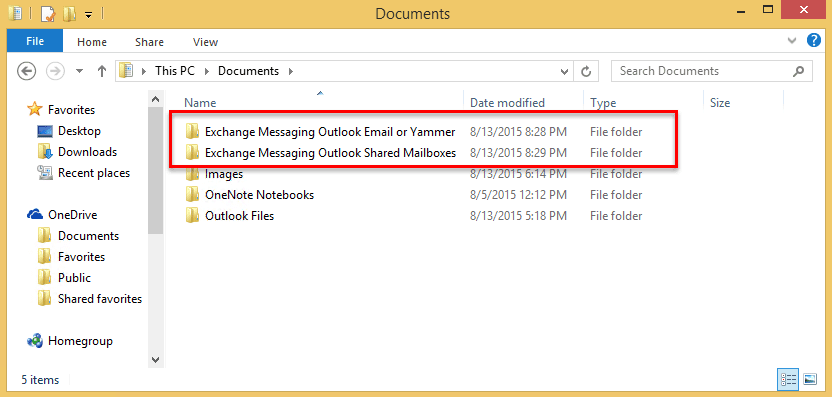
If you want the message saves as a text or doc file, change
objMsg.SaveAs strFolderpath & strName & ".htm", olHTML to
objMsg.SaveAs strFolderpath & strName & ".txt", olTXT or
objMsg.SaveAs strFolderpath & strName & ".rtf", olRTF
To save it as a message file, use
objMsg.SaveAs strFolderpath & strName & ".msg", olMsg
To use, select the message then run the macro.
Public Sub SaveMessagesAndAttachments()
Dim objOL As Outlook.Application
Dim objMsg As Outlook.MailItem 'Object
Dim objAttachments As Outlook.Attachments
Dim i As Long
Dim lngCount As Long
Dim strFile As String
Dim strName As String
Dim strFolderpath As String
Dim strDeletedFiles As String
 Dim sFileType As String
Dim enviro As String
enviro = CStr(Environ("USERPROFILE"))

Dim fso As Object
Dim oldName

Set fso = CreateObject("Scripting.FileSystemObject")

    On Error Resume Next
Set objOL = CreateObject("Outlook.Application")
Set objMsg = objOL.ActiveExplorer.Selection.Item(1)
 strName = StripIllegalChar(objMsg.Subject)

strFolderpath = enviro & "\Documents\" & strName & "\"
If Not fso.FolderExists(strFolderpath) Then
    fso.CreateFolder (strFolderpath)
End If

 objMsg.SaveAs strFolderpath & strName & ".htm", olHTML

    Set objAttachments = objMsg.Attachments
    lngCount = objAttachments.Count

    If lngCount > 0 Then

    For i = lngCount To 1 Step -1

    strFile = objAttachments.Item(i).FileName
    Debug.Print strFile
    strFile = strFolderpath & strFile
    objAttachments.Item(i).SaveAsFile strFile

    Next i
    End If

ExitSub:

Set objAttachments = Nothing
Set objMsg = Nothing
Set objSelection = Nothing
Set objOL = Nothing
End Sub

Function StripIllegalChar(StrInput)
    Dim RegX            As Object
    Set RegX = CreateObject("vbscript.regexp")

    RegX.Pattern = "[\" & Chr(34) & "\!\@\#\$\%\^\&\*\(\)\=\+\|\[\]\{\}\`\'\;\:\<\>\?\/\,]"
    RegX.IgnoreCase = True
    RegX.Global = True

    StripIllegalChar = RegX.Replace(StrInput, "")

ExitFunction:
    Set RegX = Nothing

End Function
Save Attachment to a Specific Folder
This version of the macro saves the attached images to a specific folder using a filename format that includes the date. I use this to save images from incoming email. If you want to save the files but don't want to rename them, remove the lines that change the oldName to the newname.
Select the message then run the macro.
Public Sub SaveAttachments()
Dim objOL As Outlook.Application
Dim objMsg As Outlook.MailItem 'Object
Dim objAttachments As Outlook.Attachments
Dim i As Long
Dim lngCount As Long
Dim strFile As String
Dim strFolderpath As String
Dim strDeletedFiles As String
 Dim sFileType As String
Dim enviro As String
enviro = CStr(Environ("USERPROFILE"))

Dim fso As Object
Dim oldName

Set fso = CreateObject("Scripting.FileSystemObject")

    On Error Resume Next
Set objOL = CreateObject("Outlook.Application")
Set objMsg = objOL.ActiveExplorer.Selection.Item(1)

strFolderpath = enviro & "\Attachments\" '& Format(objMsg.SentOn, "yymd")

    Set objAttachments = objMsg.Attachments
    lngCount = objAttachments.Count

    If lngCount > 0 Then

    For i = lngCount To 1 Step -1

    strFile = objAttachments.Item(i).filename
    strFile = strFolderpath & strFile
    objAttachments.Item(i).SaveAsFile strFile

'Get the file name
 Set oldName = fso.GetFile(strFile)
 Debug.Print oldName
 sFileType = LCase$(Right$(oldName, 6))
 Debug.Print sFileType

 DateFormat = Format(objMsg.SentOn, "yymmdd-")
 newName = "RC" & DateFormat & sFileType
 Debug.Print newName
 oldName.Name = newName

    Next i
    End If

ExitSub:

Set objAttachments = Nothing
Set objMsg = Nothing
Set objSelection = Nothing
Set objOL = Nothing
End Sub
Save a Message and Attachments to a New Folder
This is the macro I use to save a message and it's attachments to a new folder named for the message subject. I shorten the subject to 40 characters to avoid problems with long file names.
To use, select one message and run the macro. If more than one message is selected, it runs only on the first message.
Public Sub SaveMessagesAndAttachments()
Dim objOL As Outlook.Application
Dim objMsg As Outlook.MailItem 'Object
Dim objAttachments As Outlook.Attachments
Dim i As Long
Dim lngCount As Long
Dim StrFile As String
Dim StrName As String
Dim strTime 'As String
Dim StrFolderPath As String

Dim FSO As Object
Dim oldName

Set FSO = CreateObject("Scripting.FileSystemObject")

On Error Resume Next
Set objOL = Outlook.Application
Set objMsg = objOL.ActiveExplorer.Selection.Item(1)

' remove illegal characters and shorten name
 StrName = StripIllegalChar(objMsg.Subject)
 StrName = Left(StrName, 40)

strTime = DateValue(objMsg.ReceivedTime) '& TimeValue(objMsg.ReceivedTime)

' I use this to reduce changes of duplicate names
strTime = Format(objMsg.ReceivedTime, "-hhmmss")
Debug.Print strTime
strFolderpath = CreateObject("WScript.Shell").SpecialFolders(16)
    Debug.Print strFolderpath
    On Error Resume Next
StrFolderPath = StrFolderPath & "\Attachments\" & StrName & strTime & "\"

' create folder if doesn't exist
If Not FSO.FolderExists(StrFolderPath) Then
    FSO.CreateFolder (StrFolderPath)
End If

' Save message and as html and doc file type
 objMsg.SaveAs StrFolderPath & StrName & ".msg", olMsg
 objMsg.SaveAs StrFolderPath & StrName & ".doc", olRTF
 objMsg.SaveAs StrFolderPath & StrName & ".htm", olHTML

 'save any attachments also
    Set objAttachments = objMsg.Attachments
    lngCount = objAttachments.Count

    If lngCount > 0 Then

    For i = lngCount To 1 Step -1

    StrFile = objAttachments.Item(i).FileName
    Debug.Print StrFile
    StrFile = StrFolderPath & StrFile
    objAttachments.Item(i).SaveAsFile StrFile

    Next i
    End If

ExitSub:

Set objAttachments = Nothing
Set objMsg = Nothing
Set objSelection = Nothing
Set objOL = Nothing
End Sub
How to use macros
First: You will need macro security set to low during testing.
To check your macro security in Outlook 2010 or 2013, go to File, Options, Trust Center and open Trust Center Settings, and change the Macro Settings. In Outlook 2007 and older, it’s at Tools, Macro Security.
After you test the macro and see that it works, you can either leave macro security set to low or sign the macro.
Open the VBA Editor by pressing Alt+F11 on your keyboard.
To put the code in a module:
- Right click on Project1 and choose Insert > Module
- Copy and paste the macro into the new module.
More information as well as screenshots are at How to use the VBA Editor

César says
Hi Diane, thanks so much for your great solutions. I'd like to get a kind of mix of the 2 codes of you shown below.
My question is.
How to save selected emails as docx or pdf, each with its respective attachments (if any) in a folder named = email subject?
https://www.slipstick.com/developer/code-samples/save-messages-and-attachments-in-a-new-folder/
https://www.slipstick.com/developer/convert-messages-rtf-format-save-doc-file-type/
Frank says
Im trying to save as a pdf instead of an html. Changing hmtl to PDF doesn't work.
objMsg.SaveAs strFolderpath & strName & " - " & SName & ".htm", olHTMLDiane Poremsky says
That won't work if the message is not pdf. This shows hwo to do it https://www.slipstick.com/developer/code-samples/save-outlook-email-pdf/ - it saves selected messages as pdf, so you could call it from the macro on this page - although it won't save in the same folder as the others without tweaking.
Sam says
I've tried everything I can, but I can't get this to work with a do loop.
How can I use the first code above, but so It will work with all emails that I have selected?
Diane Poremsky says
Replace:
On Error Resume Next
Set objOL = CreateObject("Outlook.Application")
Set objMsg = objOL.ActiveExplorer.Selection.Item(1)
With these lines:
Dim objItems As Outlook.Items
Dim objFolder As Outlook.MAPIFolder
Set objOL = Outlook.Application
Set objFolder = objOL.ActiveExplorer.CurrentFolder
Set objItems = objFolder.Items
For Each objMsg In objItems
After the end if, add this:
Next
Sam says
I'm still having issues. When I add your modifications, I'm able to make it output the folder names, but nothing goes into the folders.
Here is my original code that works when I select (1) email. If I replace what you're saying it doesn't work.
Public Sub SaveEmailsAndAttachments()Dim objOL As Outlook.Application
Dim objMsg As Outlook.MailItem 'Object
Dim objAttachments As Outlook.Attachments
Dim i As Long
Dim lngCount As Long
Dim strFile As String
Dim dtDate As Date
Dim SName As String
Dim strName As String
Dim strFolderpath As String
Dim strDeletedFiles As String
Dim sFileType As String
Dim fso As Object
Dim oldName
Set fso = CreateObject("Scripting.FileSystemObject")
On Error Resume Next
Set objOL = CreateObject("Outlook.Application")
Set objMsg = objOL.ActiveExplorer.Selection.Item(1)
strName = StripIllegalChar(objMsg.Subject)
strFolderpath = "E:\Downloads\" & strName & "\"
If Not fso.FolderExists(strFolderpath) Then
fso.CreateFolder (strFolderpath)
End If
Set objAttachments = objMsg.Attachments
lngCount = objAttachments.Count
If lngCount > 0 Then
dtDate = objMsg.SentOn
SName = Format(dtDate, "yyyy-mm-dd", vbUseSystemDayOfWeek, vbUseSystem)
For i = lngCount To 1 Step -1
If objAttachments.Item(i).Size > 5200 Then
strFile = objAttachments.Item(i).FileName
Debug.Print strFile
strFile = strFolderpath & SName & " - " & strFile
objAttachments.Item(i).SaveAsFile strFile
objMsg.SaveAs strFolderpath & strName & " - " & SName & ".rtf", olRTF
objMsg.SaveAs strFolderpath & strName & " - " & SName & ".msg", olMSG
End If
Next i
End If
ExitSub:
Set objAttachments = Nothing
Set objMsg = Nothing
Set objSelection = Nothing
Set objOL = Nothing
End Sub
Function StripIllegalChar(StrInput)
Dim RegX As Object
Set RegX = CreateObject("vbscript.regexp")
RegX.Pattern = "[\" & Chr(34) & "\!\@\#\$\%\^\&\*\(\)\=\+\|\[\]\{\}\\'\;\:\\?\/\,]"
RegX.IgnoreCase = True
RegX.Global = True
StripIllegalChar = RegX.Replace(StrInput, "")
ExitFunction:
Set RegX = Nothing
End Function
`
Diane Poremsky says
Except for wordpress screwing up the ampersands and greater thans, the code looks ok and more importantly, it works when i tested it here.
Kurt says
Diane, I took your savemessagesand attachments and tried to incorporate
your browse function. But am having a few issues. Can you look at my script and advise. ?
Thanks, KURT
issues:
1) Folder not being created. (with quoteID number from subject lline)
2) E-mail msg is being saved, attachements are saved. to path below.
I would like them saved to a folder that I have created and named from number
in the subject line.
3) attachments are being named which ever folder I pick from browse.( I just want attachments to be saved what ever they are named in e-maiil)
Public Sub SaveMessagesAndAttachments()
Dim objOL As Outlook.Application
Dim objMsg As Outlook.MailItem 'Object
Dim objAttachments As Outlook.Attachments
Dim i As Long
Dim lngCount As Long
Dim StrFile As String
Dim StrName As String
Dim StrFolderPath As String
Dim strPath As String
Dim sFileType As String
Dim FSO As Object
Dim oldName
Set FSO = CreateObject("Scripting.FileSystemObject")
On Error Resume Next
Set objOL = CreateObject("Outlook.Application")
Set objMsg = objOL.ActiveExplorer.Selection.Item(1)
StrName = Left(StrName, 6) ' quoteID number is 6 characters.
StrFolderPath = BrowseForFolder("P:Clients17")
' create folder if doesn't exist
If Not FSO.FolderExists(StrFolderPath) Then
FSO.CreateFolder (StrFolderPath)
End If
' Save message as msg file type
objMsg.SaveAs StrFolderPath & StrName & ".msg", olMSG
'save any attachments
Set objAttachments = objMsg.Attachments
lngCount = objAttachments.Count
If lngCount > 0 Then
For i = lngCount To 1 Step -1
StrFile = objAttachments.Item(i).FileName
Debug.Print StrFile
StrFile = StrFolderPath & StrFile
objAttachments.Item(i).SaveAsFile StrFile
Next i
End If
ExitSub:
Diane Poremsky says
Sorry I missed this earlier. The problem with the code is a missing slash at the end of the folder path so it thinks the selected folder is part of the file name. Add the slash to the strfolderpath right after you select the folder. (If wordpress/php removes the slash, it belongs inside the quotes at the end.)
StrFolderPath = BrowseForFolder("P:\Clients17")StrFolderPath = StrFolderPath & "\"
(looks like wordpress left the slash but screwed up the 'and' sign. :( )
Diane Poremsky says
The macro I tested (and works here) is attached.
Diane Poremsky says
Sheesh - I missed #1 - use this for the strfolderpath:
StrFolderPath = BrowseForFolder("P:\Clients17")StrFolderPath = StrFolderPath & "\" & StrName & "\"
Kurt says
Hello, I am trying the save message and attachments, when I run. I get compile error: sub or function not defined. on thisline.
StrName = StripIllegalChar(objMsg.Subject)
Am I doing something wrong ?
Diane Poremsky says
Do you have the StripIllegalChar function? It's at the need of the first macro on the page.
Kurt says
OK. I added the StripIllegalChar function, it works now.
I would like to modify this. Instead of saving folder to a specific destination, I would like to have window open to choose location to save folder.
Can you help with that ?
Kurt
Diane Poremsky says
You need to use the browseforfolder function - https://www.slipstick.com/developer/code-samples/windows-filepaths-macro/
Tuan says
Hi,
I am new to this forum and novice to VBA.
When I run the third code above, there is an error
"Outlook can not save or create this file. Make sure that the disk you want to save the file on is not full, write protected or damaged"
It work with the 2 other codes, so I don't think it is error about the right to save files.
What could be the reasons and how to fix.
Thks
Petar says
Hi,
what code will be, if i wanted to save selected messages and attachments separately (one mail per folder). Name of folder should be subject + date + time or sender mail adress + date + time. In folder should be saved mail in txt/html format and all attachments from that mail.
Diane Poremsky says
This part of the code sets it to be saved in a folder that uses the message subject:
strName = StripIllegalChar(objMsg.Subject)
strFolderpath = enviro & "\Documents\" & strName & "\"
you'd add a line to add the date and time to the subfolder name:
strName = strName & Format(objMsg.ReceivedTime, "yyyymmdd-hhmmss")
for address, you'd add objmsg.senderemailaddress to it ( or & " " & objmsg.senderemailaddress)
Flavo says
Hi , Diane How can I save a file include into a email by hyperlink?
Diane Poremsky says
you want to save an attachment and insert a link to the attachment in the original message? I have a macro here - https://www.outlook-tips.net/code-samples/save-and-delete-attachments/
Flavio says
Hi Diane , thank you for your replay and useful code but i'll try to explain better (better than before) what i would like to do. I receive many e-mail with link . In this link is present the attachment , then if i click on it attachment start a window that ask if I want open or save(download) the real doc (it is often a pdf). I would like to create (if is possible) a macro that save automatically this kind of pseudo attachment file too. The other file's attached (txt,word,excel and so on) are saved by code that you posted here . Best Regards
Diane Poremsky says
Ah. I have macros that will open the links but you'd need to use clickyes or a windows macro to respond to the open or save dialog (unless you choose never ask again). https://www.slipstick.com/developer/code-samples/open-hyperlinks-email-message/ will open the links (as long as the links are from the same domain, you could change the pattern so it only opens these links.)
Flavio says
Thank you Diane you are an angel :-)
Abhijeet says
Hi
I have macro that macro send emails with attachment but 500 emails to send so i can not add those in sent item folder
from setting i remove this add after sending email to sent item folder
problem is some emails send without attachments so i want identify which emails sent with & without attachments so please tell me any macro that copy paste emails from sent item folder paste in particular folder & then delete that permanently
Please help me
Max Walsh says
How would I modify this macro to allow for export of all the selected messages at once instead of one at a time?
Diane Poremsky says
You need to loop thru the messages - i have same code here - https://www.slipstick.com/developer/code-samples/working-items-folder-selected-items/ - you just need to put the macros together. The section from strName line down to the End if would go inside the 'do whatever' loop.
Marie Ries says
Are attachments saved anywhere? I'm new to outlook, having been a Eudora user. I've looked around but so far haven't found an attachments file (Outlook 10).
Diane Poremsky says
I could have guessed you used Eudora - that is a question all Eudora users ask. Outlook doesn't save attachments to the hard drive like Eudora does - they stay in the data file or mailbox until you delete the attachment from the message or delete the message. If you want them saved to the hard drive, you need to save them yourself or use a macro to save them.
Brandon says
Hi Diane,
How do I change this so it can be runs with a rule?
Do I just add (item As Oulook.MailItem) next to Sub name?
Diane Poremsky says
That and remove lines that dim or set the message object -in this case, objmsg:
Set objMsg = objOL.ActiveExplorer.Selection.Item(1)
The rule identifies the message - oh, and you might want to use (objMsg As Oulook.MailItem) so you don't have to edit the code to change the message object name to 'item'.
See [post2post id="382"] for more information on run a script rules.
Alex says
Hi Diane,
When I run the above macros.Nothing is happening I mean I cannot see my attachments being saved anywhere?
Diane Poremsky says
Remove or comment out the one error resume next line - then ruin it. does it stop anywhere?
This sets the folder name and path as the documents folder in your user account path (usually c:\users\username\documents\) & the email subject. If you changed the path, make sure you use the ending slash.
strName = StripIllegalChar(objMsg.Subject)
strFolderpath = enviro & "\Documents\" & strName & "\"
Maza Jei says
Very helpful code again, thanks!
I was wondering is it possible to use VBA to unzip ZIP files automatically to same folder with attachments, if email contains them? Also if ZIP file could be deleted after successful unzipping, that would be great.
Diane Poremsky says
Yes, you can. if you use a 3rd party zip program that has a command line function, you can use it, or use a function that uses the windows zip function.
This code, after saving the attachment, will unzip it to the same directory. You'll need to use error handling or an if statement that checks for the file type. You could get fancy and use a subfolder too.
Extract strFile, strFolderpath
This function goes at the end of the page.
Sub Extract(ByVal myZipFile, ByVal myTargetDir)
Dim intOptions, objShell, objSource, objTarget
Set objShell = CreateObject("Shell.Application")
' Create a reference to the files and folders in the ZIP file
Set objSource = objShell.NameSpace(myZipFile).Items()
' Create a reference to the target folder
Set objTarget = objShell.NameSpace(myTargetDir)
intOptions = 4
' UnZIP the files
objTarget.CopyHere objSource, intOptions
' Release the objects
Set objSource = Nothing
Set objTarget = Nothing
Set objShell = Nothing
End Sub
Joel says
Amazing!
I use the Date & Time option, works like a charm!
Thanks Tons!
Joel says
Thank you!
One more question.
If there is a folder with that name, for instance 2 emails with the same subject, I want it to create 2 separate folders. How do i do that?
Thanks in Advance!
Diane Poremsky says
You'd need to check for the folder and add a number to the second one - there are several ways to do it - this is one way:
If Not fso.FolderExists(strFolderpath) Then
fso.CreateFolder (strFolderpath)
Else
strFolderpath = strFolderpath & "1\"
fso.CreateFolder (strFolderpath)
End If
Note: this method above creates a subfolder under the previous folder. Plus it might be better to use the received time in the folder name.
Diane Poremsky says
I think this is probably the better code - because it covers multiple messages sent with the same subject, using one of the two Time formats
'serial date format like used in Excel
strTime = CDbl(objMsg.ReceivedTime)
'or date and time
strTime = Format(objMsg.ReceivedTime, "yyyymmddhhmmss")
strFolderpath = enviro & "\Documents\" & strName & strTime & "\"
If Not fso.FolderExists(strFolderpath) Then
fso.CreateFolder (strFolderpath)
End If
Diane Poremsky says
This is another option for a date format (you can add a space or character to the full date and time format version too-
strTime = Format(objMsg.ReceivedTime, "-hhmmss")
Joel says
Thank You!
Works perfect!
One more question, how do I change the save to folder?
Thanks again!
Diane Poremsky says
Change this line - strFolderpath = enviro & "\Documents\" & strName & "\"
enviro gets the windows user account folder- you can hrd code it with a folder path instead. strFolderpath = "C:\somewhere\" & strName & "\"