This page covers mail options for online services such as AOL, Outlook.com (including MSN and Hotmail), GoDaddy, iCloud, and Yahoo.
If you enabled two-factor authorization on your account you will need to use an app password in Outlook, not your real password
To access "webmail" in Outlook, your email account needs to support POP3 or IMAP unless there is a third party add-in available. The exception is Outlook.com, which syncs Outlook.com's calendar and contacts with Outlook 2010, Outlook 2013, and Outlook 2016 using Microsoft Exchange account type.
Gmail | Hotmail/MSN/Outlook.com | iCloud | GoDaddy | Yahoo! | AOL | Tools
Gmail
Gmail supports both POP3 and IMAP. You need to enable it in Gmail's Mail settings. You can control how much mail Gmail allows POP3 or IMAP clients to download from this page and what Gmail does with their copy after you download the messages.
If you have enabled 2-factor authentication in Gmail, you need to use an app password in Outlook. If you are not using 2-factor, you will need to enable less-secure apps. Additional information and a list of sync utilities to sync Gmail Calendar & contacts is available at "Configure Gmail Accounts in Outlook".
Coming soon to Outlook: sync Gmail calendar and contacts using the Microsoft Cloud.
Note that Gmail's labels aren't true folders in Gmail but are treated as IMAP folders in Outlook. As a result, you'll download the mail twice, once in All Mail folders and again by label. Outlook 2013 and above does not sync this folder to Outlook; if you use an older client, you can unsubscribe to this folder. Right-click on the root level of the IMAP pst (where it typically has your email address) and choose IMAP folders from the menu to subscribe or unsubscribe folders. Subscriptions are saved per server, so the changes will apply to all email clients you access the mailbox with.
Note: Google Apps users need to get the server names from their account settings.
Gmail POP3, IMAP, and SMTP Server Settings
To configure Gmail accounts for POP3, use
Incoming mail server: pop.gmail.com
Use Port: 995 and SSL (More Settings, Advanced tab)
To configure an IMAP account, use the following server name. Note that if you use Outlook's Auto Account Setup feature, the account should be configured as an IMAP account by default.
Incoming server: imap.gmail.com
Use port 993, SSL (More Settings, Advanced tab)
Outgoing mail server (SMTP): smtp.gmail.com
Use Port 587, Use TLS (More Settings, Advanced tab) or Port 465 and SSL.
Require Authentication (Outgoing Server tab)
This screenshot shows the server settings for GMail IMAP and SMTP. If your version of Outlook has the option to Do not save sent items, it should be checked for Gmail IMAP accounts as Gmail will save sent messages for you.
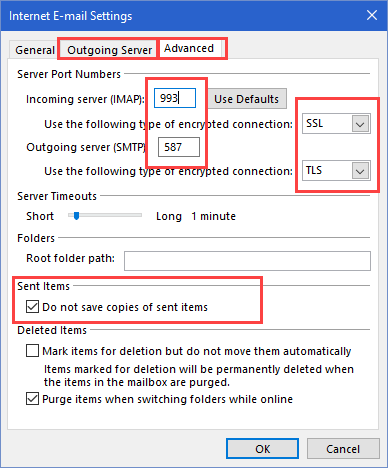
To control whether full messages or just headers are downloaded, hit Ctrl+Alt+S to open the Send/Receive dialog. Select the email group and click Edit. Then select the IMAP account - change the download option in Receive mail. If you use 'custom behavior', select each folder to configure. In Outlook 2013 and above, full messages are downloaded by default.
| Service | Server | Port |
|---|---|---|
| Incoming POP server | pop.gmail.com | 995/SSL |
| Incoming IMAP server | imap.gmail.com | 993/SSL |
| Outgoing SMTP server | smtp.gmail.com | 587/TLS |
Hotmail, MSN, Outlook.com
Outlook.com accounts support Microsoft Exchange, POP3, IMAP. POP3 downloads only the Inbox, while IMAP syncs all email folders. Additionally, Microsoft Exchange syncs Calendar and Contacts. Microsoft Exchange service is recommended if you use Outlook 2010, 2013, or 2016. Outlook 2003 and Outlook 2007 will need to use POP3 or IMAP and sync email-only. (Until October 31 2017, Outlook 2007 users can use Microsoft Exchange. See "Outlook 2007 with Office 365 and Outlook.com" for more information.)
As Outlook.com is using Office 365 on the backend, you should use auto-account setup to configure the account as an Exchange account. If you want to use IMAP, use the IMAP settings below. POP3 support is disabled by default but can be enabled in Outlook.com account settings. See "Outlook.com Migration Status" for step-by-step instructions for re-configuring accounts.
POP3 and IMAP work with all versions of Outlook and with all POP3 and IMAP mail clients.
Outlook.com IMAP Configuration
To set up an Outlook.com IMAP account in Outlook, you'll need to use the manual setup option. Server settings are below; don't forget to set the Outgoing Server tab (in More Settings) to authenticate with the mail server.
Incoming IMAP Server: outlook.office365.com
Outgoing SMTP Server: smtp.office365.com
Click More Settings button, then Advanced tab. Select SSL as the encryption type for the incoming server. The port should change to 993 automatically. Change the SMTP encryption to TLS and the port number to 587.
Screenshots and step-by-step instructions are at Setting up an Outlook.com IMAP account
Outlook.com POP3 Configuration
POP3 support is disabled by default for Outlook.com accounts. If you want to use POP3, enable it in Outlook.com's Options.
Incoming server name: outlook.office365.com
Outgoing server: smtp.office365.com
While setting up the account, click on the More Settings button and on Outgoing Mail Servers tab, select the My server requires authentication box. Most people will need to use the default option of Use same settings as my incoming server.
Click the Advanced tab, and under Server Port Numbers, enter the following information:
In the Incoming mail (POP3) box, type 995.
In the Outgoing mail (SMTP) box, type 587.
Under both Outgoing mail (SMTP) and Incoming mail (POP3), select the ‘requires secure connection (SSL)’ check box. In Outlook 2007, choose Auto; use SSL for Outlook 2003.
Under Delivery, select the Leave a copy of messages on server check box if you want to see your messages when you use Hotmail in a web browser, your mobile phone, or other e-mail programs. By default, Outlook will delete the messages from the Hotmail server when they are downloaded to your computer.
We have screenshots of these dialogs at Configuring Hotmail, Live, or MSN Support in Microsoft Outlook
| Service | Server | Ports |
|---|---|---|
| POP Server | outlook.office365.com | 995/TLS |
| IMAP Server | outlook.office365.com | 993/TLS |
| Outgoing Mail | smtp.office365.com | 587/STARTTLS |
HTTP Protocol in Outlook 2003 and 2007
Microsoft long ago discontinued HTTP (WebDAV) support for Hotmail accounts. If you want to use a mail client, you'll need to use autodiscover to set up Microsoft Exchange service (recommended), POP3 or IMAP (any email client). For more information, see MSN (and Hotmail) Access Denied?.
Exchange ActiveSync (EAS) was turned off in February 2017 for use by Outlook desktop clients (it still works for smartphones). If you want to sync calendar and contacts to your desktop, you must use Outlook 2010 or newer and autodiscover to configure the account as Microsoft Exchange account type.
iCloud
When you use the iCloud add-in in Outlook, it should set up the account correctly. If you need to set up the account yourself, use auto-account setup or the following server information.
You will need to use 2-step authentication if you don't use the iCloud addin to add the account to Outlook.
| Service | Server | Port |
|---|---|---|
| Incoming IMAP mail server | imap.mail.me.com | 993/SSL |
| Outgoing SMTP mail server | smtp.mail.me.com | 587/SSL |
Username: Use your iCloud alias or your full iCloud email address.
Password: Your iCloud password or app password
In More Settings, check these settings:
Outgoing Server tab: Use SMTP authentication.
Advanced tab: Use SSL (or Auto) for both incoming and Outgoing servers. Incoming port is 993, Outgoing port is 587.
GoDaddy
While not a true online service, it is very popular with users and many users struggle to get it working in Outlook. GoDaddy supports POP3 (in addition to webmail) with the lowest-end accounts (including free accounts received with domain registration) and POP3 or IMAP on higher value paid accounts.
The incoming mail server will be one of the following: pop.secureserver.net, mail.domain_name.tld, or pop.domain_name.tld. Use Port 110 or 995 for SSL. (Replace domain_name.tld with the domain name you purchased).
If your account supports IMAP, use imap.domain_name.tld or imap.secureserver.net
The outgoing mail server can be either smtp.domain_name.tld or smtpout.secureserver.net. GoDaddy supports ports 25, 80, and 3535; or if you need SSL support, port 465. Make this change in More Settings > Advanced tab. GoDaddy does not always require authentication. Try it without authentication and if it fails, configure authentication on the Outgoing tab, choosing the option to authenticate with the incoming address and password.
| Service | Server | Ports |
|---|---|---|
| Incoming POP server | pop.secureserver.net | 995/SSL |
| Incoming IMAP server | IMAP.secureserver.net | 993/SSL |
| Outgoing SMTP server | smtpout.secureserver.net | 465/SSL |
The most up-to-date information is in GoDaddy's Help files at
Yahoo!
As of October 2020, Yahoo (and AOL) require an app password with Outlook. See Using Yahoo and AOL accounts in Outlook for more information.
As of November 2013, Yahoo! provides free POP3 access to all subscribers (Plus accounts are now "Ad Free" accounts). You can also use IMAP, which is recommended because it syncs changes with all computers and devices.
Yahoo supports Second Sign in verification, which is also known as two factor authentication. You will need to use a special app password in Outlook at this time. Two factor authentication is recommended because it makes it more difficult, if not impossible, for a spammer or hacker to use your email account. To enable it, go to the Gear icon > Account Info > Set up your second sign-in verification
Yahoo! IMAP Settings
As of February 9 2011, the IMAP server names and ports are
Incoming Server - imap.mail.yahoo.com
Outgoing Server - smtp.mail.yahoo.com
Username: full Yahoo email address
Password: your Yahoo password
Click More Settings button to access these settings on the Advanced tab:
Incoming Port - 993 (requires SSL)
Outgoing Port - 465 or 587 (requires SSL/TLS or Auto)
On the Outgoing Server tab, select My outgoing server (SMTP) requires authentication box and Use same settings as my incoming mail server.
imap-ssl.mail.yahoo.com, port 143 also works for the incoming server
For best results, disable Outlook's option to purge deleted items on folder change. This appears to cause sync errors.
Yahoo! POP3 settings
Incoming Mail Server: pop.mail.yahoo.com
Outgoing Mail Server: smtp.mail.yahoo.com
User Name: Your Yahoo ID. You may need to use your full Yahoo email address.
Password: Your Yahoo password.
DO NOT enable Require logon using Secure Password Authentication
Click More Settings.
On the Outgoing Server tab, select My outgoing server (SMTP) requires authentication box and Use same settings as my incoming mail server.
Configure the server ports on the Advanced tab.
Incoming server (POP3) port: 995
Select This server requires an encrypted connection (SSL)
Outgoing server (SMTP) port: 465, 587, or 25
Set the encryption type to SSL or TLS
I recommend leaving a copy of messages on the server.
| Service | Server | Port |
|---|---|---|
| Incoming POP server | pop.mail.yahoo.com | 995/SSL |
| Incoming IMAP server | imap.mail.yahoo.com | 993/SSL |
| Outgoing SMTP server | smtp.mail.yahoo.com | 587/SSL |
Video Tutorial
[wpvideo 5W13UCEn w=600]
America Online
As of October 2020, AOL requires an app password with Outlook. See Using Yahoo and AOL accounts in Outlook for more information.
AOL subscribers can use Outlook to read their AOL e-mail accounts. AOL supports both POP3 and IMAP, with AOL recommending IMAP. When you use autodiscover to setup your account, Outlook will use IMAP. If you want to use POP3, you need to configure it yourself.
POP3 Account configuration:
Incoming Mail Server: pop.aol.com.
More setting dialog: use port 110 for standard or 995 for SSL connections. AOL recommends setting Outlook to Leave messages on the server.
Outgoing Server address: smtp.aol.com. Use port to 587 or 465 for SSL.
IMAP account configuration:
Incoming Mail Server: imap.aol.com
Outgoing Server: smtp.aol.com
More Settings: On the Outgoing server tab configure the outgoing server to use Authentication, choosing the Use same settings as my incoming mail server option. On the Advanced tab, configure the SMTP to use port 587. OK the dialogs and setup is complete.
| Service | Server | Port |
|---|---|---|
| Incoming POP server | pop.aol.com | 995/SSL |
| Incoming IMAP server | imap.aol.com | 993/SSL |
| Outgoing SMTP server | smtp.aol.com | 587/SSL |
More Information
If you are new to IMAP, the messages are stored on your server and a copy is downloaded to your local machine. When you delete the messages locally, a line is drawn through the message in Outlook's message list indicating the message is marked for deletion. To delete the message from the server (and remove it from Outlook), you need to Purge the messages from the server (Edit, Purge deleted messages menu).






























Good Day Diane
Hope you can help. Been having this pop up for a long time.
What are you using for the server names? It needs to match the certificate. If you can't use a server name that matches you can use a hosts file to do it.
Security Certificate Warning in Microsoft Outlook (slipstick.com)
Regards,
Bob Corder
Diane, your help has been invaluable over the years, but I'm still struggling to understand how my Yahoo IMAP acccount works with Outlook 2016 and what I can and cannot do as far as "subscribing" to folders and how that works. When I set up my Yahoo IMAP account on my desktop, in order for emails to download from the server to Outlook, it seems I need to specify "Inbox" as the "Root folder path." When I do this, Yahoo "Inbox" emails are downloaded, but none of the emails in Yahoo "Folders" are downloaded. Can you explain why that is or point me to one of your wonderful tutorials that explains it? Thanks so much!
My yahoo works fine without a root folder.... did you right click on the top of the mailbox (should be your email address), choose IMAP folders... then query - the subscribed folders tab shows subscribed folders, all folders are shown on the fist tab. Select folders on the first tab then click the subscribe button to subscribe to folders.
I am using Yahoo basic mail, Chrome, & Windows 7. No gear icon to be found anywhere for me to get into settings, preferences, headers, etc.
Problem = When I Reply or Forward an email it has all this code looking stuff and it breaks up and stretches out all of the communication. How do I fix this? I have been searching for a solution for 7 hours now and finally found you.
Thank you in advance.
Are you using Yahoo in Outlook or just yahoo in a web browser? In the browser, there is a gear icon to the right of your name near the top of the page. I don't know if there are any settings that will control this though.
I have managed to configure my yahoo email to outlook (thank you) I can receive emails but am unable to forward/reply or send a new email.
The buttons are greyed out? I have an activate button on the top of the screen but dont want to buy. Can you help?
You need a license for Office. If the trial expired Outlook drops to read-only mode - you can't create new items which includes forwards or replies. There is no way to continue to use office legally without buying it.
Would someone please tell me how to get rid of the Google interest based e-mails that show up at the top of my list of e-mail every time I open it up? They are certainly not of interest to me, they are just a pain in the butt!
this is at gmail.com ? Go to https://mail.google.com/mail/u/0/#settings/inbox and deselect promotiions.
I have tried to add yahoo to my Outlook 2016 and I keep receiving the same message stating that my user name/password or security settings may be incorrect. My user name and password are correct, so it must be my security settings. Please tell me how to fix this. Thank you so much.
do you use multifactor passwords to log in from a web browser? If so, you need to use an app password in outlook.
Create app passwords at https://login.yahoo.com/account/security
Thank you so much! This saved me hours of frustration