The recommended method of using Gmail accounts in Outlook is to use IMAP. However, this only syncs email, not your Gmail calendar and contacts. If you don't have a Google apps account you'll need to use a utility to sync your Gmail calendar and contacts to Outlook. See Google Calendar Sync Utility for sync options. Google business customers can use the Google Sync utility to sync calendar and contacts to Outlook.
If you are not using Outlook 2019 or newer and IMAP, you will need to enable two-step verification and use an app password in Outlook as Google removed the option to Allow less secure apps on May 30, 2022.
If you have two-step verification enabled, you will need to use an app password in older versions of Outlook. If Outlook doesn't ask for the second authentication, get an app password.
 Sync Outlook to Google Calendar, Contacts, Tasks! Two-way sync is enabled by default, or choose one way sync. Set the Auto Sync feature for every 15 minutes or manually sync on your own. Outlook Categories map to Google Groups One user-license is valid on up to 3 PCs. Free Trial Available.
Configure the account
If you let Outlook configure your Gmail account, it will set it up as IMAP. If you don't want to use IMAP you'll need to configure the account manually.
To configure Gmail accounts for POP3, use
Incoming mail server: pop.gmail.com
Outgoing server name (SMTP): smtp.gmail.com
Use the following settings for IMAP:
Incoming server name: imap.gmail.com
Outgoing server name (SMTP): smtp.gmail.com
Use your full Gmail address, including @gmail.com or @your_domain.com as the username. If you enabled two-factor verification on your Gmail account, you need to use an app password in Outlook. See "Using Outlook with 2-step verification" for more information.
If you don't use two-factor authorization on your Gmail account, you need to Allow less secure apps in Gmail settings at the end of the Gmail Security options page. See Gmail in Outlook: unable to connect to email for more details.
In More Settings, Advanced tab, set the Incoming server to use SSL encryption. This will automatically change the port to 995 for POP3 or port 993 for IMAP. The Outgoing server supports a couple of options.
If you use Outlook 2016 (or another client that support STARTTLS) use STARTTLS and port 25, otherwise use port 587 and TLS encryption.
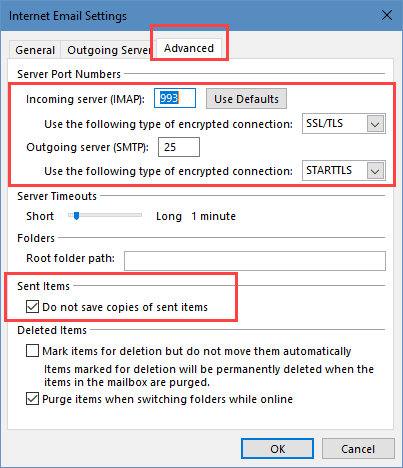
On the Outgoing Server tab, select My outgoing server (SMTP) requires authentication and Use the same settings as my incoming mail server.
Note: this screenshot is from Outlook 2016; options on the lower half of the dialog in other versions will vary.
Sync the All Mail folder
GMail's All Mail folder displays all messages in the mailbox and does not sync to Outlook because it creates duplicates of all messages, wasting hard drive space. If you really, really want to display it in Outlook, follow these steps:
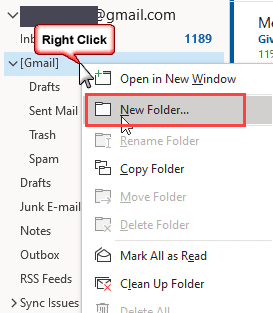
- Right-click on [Gmail] folder and choose New Folder...

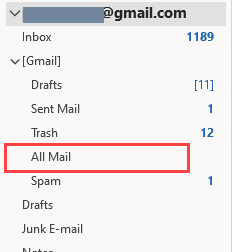
- Name the new folder All Mail.
- Select the All Mail folder and see if it starts syncing mail. If not, follow the next steps.
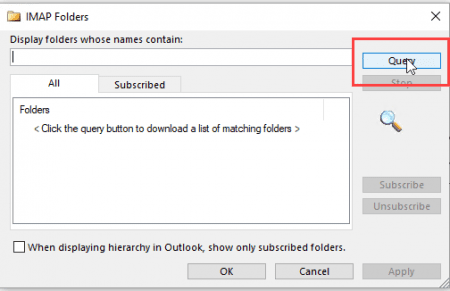
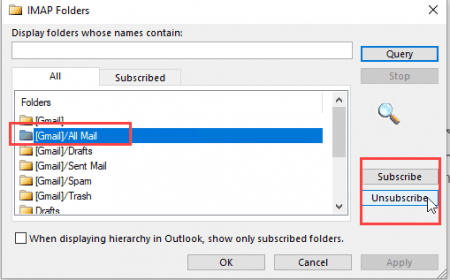
- Right-click on any folder in the Gmail account, select IMAP Folders...
- Click the Query button.
- If [GMail]/All Mail is not subscribed (yellow folder icon on left), select it and click Subscribe.
- If it is subscribed, select it an Unsubscribe, Apply then Subscribe.
- Click OK to close the dialog.
- To begin syncing email do one of the following:
- If the All Mail folder is selected, click Update folder command on the Send/Receive tab
- Right-click on the folder and choose Process Marked Headers.
- If the folder is not selected, switching to the All Mail folder should start the sync process.
Note: you may need to restart Outlook for the folder to start syncing.
Subscribe to folders
You can control what folders are visible in your IMAP clients by subscribing or unsubscribing from IMAP folders.
Right click on any folder in your IMAP account and choose IMAP folders... to open the IMAP folders dialog. Click on the Query button to list all folders or type a few letters in the Query field then click Query to display only folders containing those letters.
Folders displayed with a small envelope icon are subscribed, those without the envelope are visible only using your server's web access.
Select a folder and click the Subscribe or Unsubscribe button to change it.
I do not recommend subscribing to the [Gmail]/All Mail folder. This duplicates all messages in the other folders and will double the size of your data file.
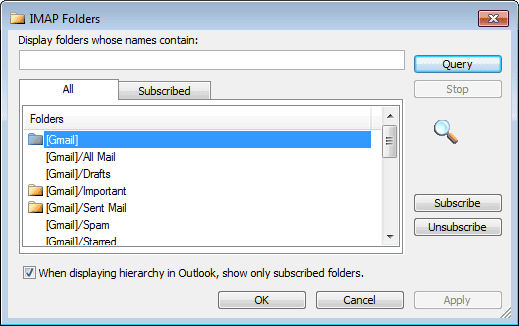
Note that the subscribed folder list is stored on the server and will apply to all devices you access using IMAP. You can't subscribe to all folders on your desktop computer and only the Inbox on your tablet or laptop.
Unsubscribe the All Mail folders
Deleted Items folder
Please note: in current versions of Outlook, users cannot choose where to store deleted items.
Outlook 2010 introduced the ability to save Deleted items on the IMAP server. As with sent items, this works fine for most account types but has unintended consequences with Gmail accounts.
The problem is with how Gmail manages email, using Labels instead of folders. Labels are converted to folders for IMAP access. Deleting a message removes all labels from the message, leaving the message in the [Gmail]/All Mail folder, which shows all messages, whether or not they are labeled. To delete a message from all folders, you will need to move it to the [Gmail]/Trash folder.
Moving deleted messages to your [Gmail]/Trash folder will delete the message in all folders. Deleting a message from the Trash folder deletes it permanently.
If you use Shift+Delete to permanently delete messages, they will be deleted in Outlook and from the account online, bypassing the Deleted items folder. They cannot be recovered.
Do not configure Outlook to empty deleted items on exit. It can take "forever" for Outlook to close when used with IMAP accounts. Gmail will keep deleted items for 30 days before deleting them permanently.
Sent Items folder
Beginning with Outlook 2013, you cannot choose the Sent folder; Outlook asks the IMAP server which folder it should use. If the server supports XLIST or enhanced-list, or Outlook can match a folder on the server to it's folders by name, sent items will be stored in the Sent folder on the server, otherwise they will be in the local Sent Items folder.
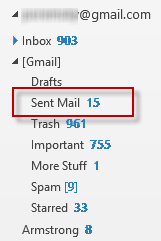 In Outlook 2013 (and newer), Gmail uses the Sent folder on the server. This folder is automatically subscribed to your IMAP account; expand the [Gmail] folder to find the Sent folder.
Messages sent through the Gmail account will sync down to Outlook on the next sync, or when you open the Sent folder.
In Outlook 2007 and 2010 you can choose a Sent folder for your IMAP accounts. While there is no problem using a folder on the IMAP server with most IMAP accounts, you DO NOT want to save a copy of sent items in the Gmail folders. Saving a copy in the Gmail folders will result in two copies of Sent Messages. If you use Gmail's SMTP server, Gmail will put a sent copy in the [Gmail]/Sent Mail folder automatically.
Either configure Outlook to not save sent copies of the Gmail mail or Save it in your local sent folder. Saving a copy locally will result in two copies of the sent message (one local and one saved by gmail online), but this is necessary if you use BCC and later want to check who a message was sent to.
Junk Email
Do not enable Outlook's junk mail filter. Gmail's spam filters are generally better than Outlook's junk mail filter and using both can result in confusion.
Tools in the Spotlight
Do you need a solution to sync Outlook and Gmail Calendar and Contacts when Gmail ends ActiveSync? CompanionLink keeps Microsoft Outlook and your Google account synchronized. Make changes in Outlook and those will update your Google account. And vice versa. Set the auto-sync feature to automate the entire process. CompanionLink works with any Google, Gmail, or Google Apps account. | |
CompanionLink synchronizes Outlook data with phones and other supported desktop applications and web-based services (like Google). Companionlink supports all versions of Outlook, including Outlook 2013 32-bit and 64-bit, and Windows 10. Version 9 |

Tools
Sync Outlook using Sync2 for Microsoft Outlook without a server. Sync Microsoft Outlook with Google Calendar, and Android phone. Synchronize Microsoft Outlook between multiple PCs using an external USB device, shared network folder of FTP. Share Outlook Calendar with Google Calendars. Sync Outlook Calendar, Contacts and Tasks folders. Includes improved product installation process and first start user experience. The update comes with improved performance of the software. Try the new Sync2 2.86 version now. | |
Use AkrutoSync to synchronize your Outlook Contacts, Calendar, Tasks and Notes directly with any Android, iOS (iPhone or iPad) or Windows Phone devices. AkrutoSync runs on your computer, not in the cloud. The program works with the phone's built-in apps, so there are no additional apps to install on the phone. After the initial set-up, the program syncs automatically. It works over Wi-Fi or the Internet. Akruto syncs Outlook with unlimited number of phones and tablets even if they are different brands and operating systems. Synchronization history feature lets you restore data if you change or delete something inadvertently. | |
Software to sync Outlook Calendar appointments with Google Calendar events. Allows you to sync one-way with either Outlook or Google as master as well as 2way sync by last changed appointments/events. Option to schedule a sync at regular intervals. | |
CompanionLink for Mac keeps Outlook for Mac contacts, calendars, tasks, and categories synchronized with either a Google account, smartphone, or tablet. You can choose your destination in the Settings menu of the software. Two-way direct sync. | |
Contacts Sync - Synchronize Outlook Contacts with Gmail - Freeware and Pro version. 2way contacts sync, sync Outlook Categories, pictures, notes, sync by last changed contact, skip Outlook Category, sync Outlook Contacts to 2 Gmail accounts, Preview Sync with option to download entire Outlook/Gmail contact list as single CSV file and more. | |
EVO Collaborator for Outlook is a CardDAV and CalDAV add-in supporting 32 and 64 bit Outlook 2007 to 2013. Sync Outlook address books with CardDAV servers and calendars and tasks with CalDAV servers. Works with SabreDAV based WebDAV servers, iCloud and Yahoo and AOL (in read only mode). Map Outlooks default address book, calendar or task within a CardDAV/CalDAV profile. | |
GO Contact Sync Mod synchronizes your Microsoft Outlook contacts with your Google Mail address book, including pictures, categories and notes. Since version 3.5.6 it also syncs your Outlook Notes on demand to Google Drive. Since version 3.7.0 it also syncs your Outlook Calendar Appointments on demand to Google Calendar. This Mod fork adds many enhancements and bug fixes to the obviously dead project 'Go Contact Sync'. | |
gSyncit is an Outlook add-in that allows for two-way synchronization between Outlook calendars, contacts, notes, and tasks with your Google, iCloud, AOL, Fruxx, Yahoo, Memotoo and many other "DAV" enabled services. Also includes support for syncing attachments for calendar events. Works with Microsoft Outlook 2007, 2010, 2013, 2016, 2019, 2021 or Office 365 (Desktop Client) on Windows 7 and newer. | |
Outlook CalDav Synchronizer is a free Outlook Plugin, which synchronizes events, tasks and contacts between Outlook and Google, SOGo, Nextcloud or any other CalDAV or CardDAV server. Supported Outlook versions are Office 365, 2019, 2016, 2013, 2010 and 2007. | |
Outlook Google Calendar Sync is completely free and syncs between any Outlook calendar and a Google calendar of your choice - either in a single direction or two-way. Attendees, reminders, free/busy attributes are all synced, events can be merged with existing if necessary, and even words in calendar subject's can be obfuscated if you have security concerns. Syncs can be configured on an automatic schedule, or simply upon request. It does not need to be installed (can just be unzipped) and works behind web proxies. Supports Outlook 2003 right through to Outlook 2016 64-bit! | |
Outlook4Gmail is a free Outlook add-in providing easy contacts synchronization of your Outlook and Gmail accounts and address books.This add-in uses these Outlook and Gmail contact details: Name, Company, Phones, Emails, Addresses, Dates, Persons, Notes, etc. You define the direction of synchronization/update: you can sync or update either the Outlook or the Gmail address book (one-way synchronization) or choose to update both accounts simultaneously (two-way synchronization). Paid version syncs Gmail calendar too. | |
Automatically synchronize your Outlook calendar and contacts with Google or iCloud. Access Outlook calendar and contacts on your Android phone or iPhone/iPad. |
More Information
Recommended IMAP client settings (Gmail Help)
Deleting IMAP messages (Gmail Help)
Additional articles on using Gmail with Outlook






























My husband and I have separate gmail accounts as well as our original shared account (used for sign ups, etc) and separate computers. How can I get only my gmail on my outlook? It continues to download all of the emails from the original shared account. That account is the one that our Google account was started from. Thanks.
If you didn't add the account as a separate account in Outlook, do you have the shared account connected to your account - either forwarding mail to it or have it configured as a linked account in Gmail settings.
If you added the account to outlook, remove it in File > Account Settings > account Settings > email - select the account and click Remove.
This does not work on Outlook 2016 and G-Suite gmail
You should use the gsuite sync utility with these accounts so calendar & contacts sync... but were you able to get it configured? You need to either allow less secure apps or use an app password (with 2-factor auth enabled) if your outlook build doesn't ask for the 2nd factor.
I would just like to thank you for your advice on solving my gmail/outlook 2016 (Office 365 business) account. Having spent probably 12 hours on this over 3 weeks, your solution of changing the outgoing server to STARTTLS and Port 25 did the trick (perhaps along with removing IMAP links to unnecessary Google labels particularly allmail, and cleaning out my google trash folder/s). I am indebted to you and have promoted your web page on this to the Microsoft community forum who weren't able to help me.
Hi,
I Hope you can really help me with my problem.
I have my GMail on Outlook 2010 for more than 2 years now, but last week the e-mail was hacked & that caused some problems.
I connected with Google Support Team & we went step by step to solve each problem. Last thing we did is that i deleted my gmail account from outlook & re-configured it again.
Now after doing this, am facing a problem with the synchronization. In the Send/Receive box, the synchronization keeps working & never finishes. This is the case since last Thursday. This usually get my outlook stuck & it have to close it & re-open it frequently.
Any solutions for this problem???
No error messages?
Are there any sync issue messages? Switch to the folder list (Ctrl+6) to see the folder.
We used to have another e-mail on another server, but we canceled it, but didn't remove it from outlook for the emails history in addition to that we have to keep it so as not to lose the connection for the new e-mail server (sorry am not an IT so this is as far as i understand about this point).
This usually cause that there is error with send/receive for emails not activated.
But I have been working with these setups for more than 2 years now & it was OK. It's just now after what i explained above, this problem appeared.
>> but didn't remove it from outlook for the emails history
Was it set up as pop3? if so, you can remove the email account from outlook but keep the data file. if it was set up as imap, export the mail to a pst file then remove the account from outlook.
>> This usually cause that there is error with send/receive for emails not activated.
You can set the account to not check for mail in Send /Recieve settings. Ctrl+Alt+S then Edit the group and untick the send and recieve options for the account
I don't have a problem with the error i receive in Send/Receive for the inactivated accounts.
What am facing now problem with is the not finishing - keep loading synchronization for my activated gmail one.
When they reconfigured the account, did they use auto account setup or do it manually? I remove the account and add it back using auto-account setup.
If that doesn't work, there could be a "bad" message on the server causing problems - this would be a message that was corrupted by the hackers. Are there any messages in the Sync issues folder?
no it was manual configuration.
I really can't thank you enough for your responses to my problem.
All of a sudden today, the problem was solved by itself. :)
Thanks a million again.
It may have been a Gmail issue - I know a few weeks ago there were problems syncing, but AFAIK, that was solved and I hadn't seen any other complaints recently.
no there is no error related to this account at all appear.
my work email is through Outlook and when I need to email someone with a gmail address Outlook will not deliver it. I was able to until recently. How do I fix this? The error message reads.This message was created automatically by mail delivery software.
A message that you sent could not be delivered to one or more of its recipients. This is a permanent error. The following address(es) failed:
.....................gmail.com
host p3nlsmtpcp-v01.prod.phx3.gdg [72.167.191.78]
SMTP error from remote mail server after end of data:
552 5.2.0 jB9HeCJzIPLzb :: CPANEL :: Message rejected for spam or virus content ::
Please include this entire message when contacting support ::
The recipient server is rejecting the message as it thinks it is infected with a virus or is spam: "Message rejected for spam or virus content". This means your domain or SMTP server could be on a black list - it also could mean something in the message triggered a spam filter, such as a signature or links in the message.
I am using Windows 10 and Outlook 2016. I have had a Gmail account forever. Today I began getting a dialogue box that showed the imap.gmail.com input, my gmail email address and asked for my password. Every single password I can think of, including my current gmail password failed. I reset my Google password and that didn't help, so I deleted the email account assuming I could just add it again as a "new" account. When I do that Outlook remembers my old email and password, so I am back to square one except I have deleted my old gmail folders.
Do you have any idea how to fix this?
Thank you,
Barry.
Wild guess... you got an email from gmail that said you had less secure apps enabled and you took their advice and disabled it. When you do this, you need to enable 2-factor authentication and use an app password in outlook.
(That is the common scenario lately.)
Oh, and a second option is to turn allow less secure apps back on. :)
Diane,
Please help with following problem: I have Outlook 2016 with a company gmail account synced with G suite sync and another gmail address with IMAP - mails only.
1. How can I add a second (private *.gmail) gmail account which syncs contacts and calendar too?
2. When I add a private hotmail account, it doesn't work. I can only reply to mails I received but I cant write mails to new mail addresses. When I connect my hotmail account only via IMAP, it does´nt sync calendar and contacts.
Please advise what I can do.
Thank you so much
Thomas
The gmail account should work as an imap account... on hotmail, you may need to make a new profile for that account if you need to sync calendar and contacts.
Hi Diane,
I move from Outlook 2010 to Outlook 2016 (365 Home) and got all my accounts automatically transferred, also Gmail (Imap). For Gmail, I could receive and send but realized that connection with imap folders was not (always ?) working (moving emails out of my inbox in outlook would not mirror in gmail online or app). So I turned to 2FA and created a password app for Mail. deleted the gmail account from outlook and try to recreate it. I get a message that outlook cannot access IMAP with the current encryption method. All gmail imap settings are fine and I tried all combinations.... Any idea how this can be solved ?
Did you let auto account setup add the gmail account to your profile? It should get everything correct - and you will need to use the app password if using 2-factor auth.
The screenshots show the settings from my gmail account in Outlook 2016. auto account setup added it for me.