• Outlook User
  • New Outlook app
  • Outlook.com
  • Outlook Mac
  • Outlook & iCloud
  • Developer
  • Microsoft 365 Admin
    • Common Problems
    • Microsoft 365
    • Outlook BCM
    • Utilities & Addins

Outlook Tasks are missing from the To-Do List

Slipstick Systems

› Outlook › Outlook Tasks are missing from the To-Do List

Last reviewed on July 2, 2021     15 Comments

There is a new To-do List view bug, introduced in the January 2019 update, build number 1901. Until it is fixed, you can rollback one build or group by one field, sort by the other field. For more information, see Group By Views don’t work in To-Do List

This bug is fixed in version 1712 (Build 8827.2179). To get the latest update immediately, open Outlook and choose File > Office Account > Update Options > Update Now.

Several users noticed their tasks disappeared in the To-Do Bar and To-Do List.

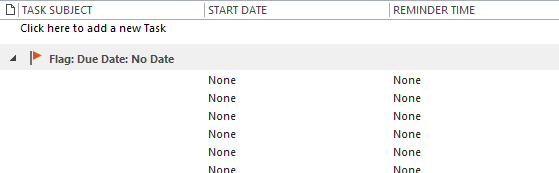
Suddenly items on my To-Do-List disappeared. Some tasks are shown but others appear as blank lines. In the To-Do List, the subjects are blank.
to-do bar tasks are missing

Flagging a message causes erratic behavior in viewing the To Do List, with nothing showing under Today except a lot of blank entries. Tasks for today are no longer visible in the list - although they can still be seen when looking at the Tasks page.

tasks missing from todo barThis bug affects all users with more than one data file in their profile.

If the data files are pst files, the problem only occurs if an email account is delivering mail to a pst or the pst is enabled for reminders.

There a few workarounds you can use to see your tasks again:

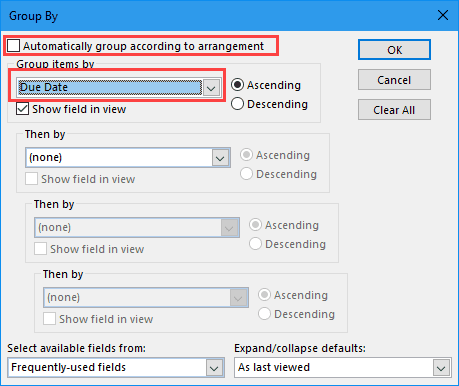
  • Turn off the option to automatically group by a field in View Settings.
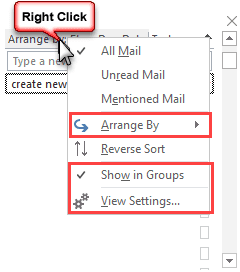
  • Right-click on the row of field names and untick Show in Groups
  • Group by Category or Folder (any arrangement that does not group by a date).

If you need to group by the Start date or Due date, open View Settings, Group By. Untick Automatically group by arrangement and select Due Date in Group items by selector.
disable automatic grouping

To change the view on the Task list in the To-do Bar, right click on the row above the tasks that reads “Arrange by” and choose a different arrangement, untick Show in Groups or choose View settings to customize the view.
customize the view in the to-do bar

More Information

Flagged emails in pst file corrupt to do list
Uninstall Updates in Office 'Click to Run'

Outlook Tasks are missing from the To-Do List was last modified: July 2nd, 2021 by Diane Poremsky
Post Views: 100

Related Posts:

  • Move or Delete Appointments in bulk
  • Messages appear duplicated in message list
  • Filter the To-Do List to Show Only Tasks
  • Group By Views don’t work in To-Do List

About Diane Poremsky

A Microsoft Outlook Most Valuable Professional (MVP) since 1999, Diane is the author of several books, including Outlook 2013 Absolute Beginners Book. She also created video training CDs and online training classes for Microsoft Outlook. You can find her helping people online in Outlook Forums as well as in the Microsoft Answers and TechNet forums.

Comments

  1. Barbara says

    December 29, 2019 at 7:46 am

    I am having this problem. SOME of my categorized tasks don't show up on my list. I have multiple email accounts I'm working with. I cannot find any pattern. I need to have my task list grouped by categories.

    Suggestions?

    Reply
  2. WPIT says

    February 19, 2019 at 8:29 am

    I have the same issue but to-do list remains empty regardless of group/view settings or build. I rolled back to jan 14 build but no difference. The tasks show under tasks but not under to-do list. Even when creating a task directly in to-do it doesn't show. View has already been reset, no filters etc.

    Reply
  3. Steve says

    February 4, 2019 at 10:09 pm

    Looks like a recent build has brought this problem back again. This evening all of my To Dos stopped working. I can follow these steps and restore them but I cannot sort by Due Date and then by Priority like I could previously. Version 1901 (Build 11231.20130).

    Reply
    • Diane Poremsky says

      February 5, 2019 at 12:58 am

      Another user can't group by category and due date - I opened a bug report on it. I'll add this to it.

      Reply
      • Sandro says

        February 11, 2019 at 7:26 am

        same issue here. All To do and tasks disappear when I try to categorise by category AND Due date. Version 1901

      • Diane Poremsky says

        February 12, 2019 at 10:19 am

        This is a new bug, introduced in the latest update. You can rollback one build or group by one field, sort by the other
        https://www.slipstick.com/outlook/group-views-dont-work-to-do-list/

        As of today, it is still in the 1903 build. :(

    • Mino says

      February 12, 2019 at 1:19 am

      I have the same problem since last week. When I use "group by" with more then one field, I get "we didn't find anything to show here". Please help

      Reply
      • Diane Poremsky says

        February 12, 2019 at 10:19 am

        This is a new bug, introduced in the latest update. You can rollback one build or group by one field, sort by the other
        https://www.slipstick.com/outlook/group-views-dont-work-to-do-list/

      • stuart says

        February 12, 2019 at 4:30 pm

        What do you mean by roll back one build? My tasks have just disappeared to. Software engineers aren't time and workload experts and I cringe everytime they tinker with something that doesn't need fixing. This has been an annoying issue with microsoft and their peeps since 2007/2010

      • Diane Poremsky says

        February 12, 2019 at 4:57 pm

        Run the installer to remove the current build (which broke group by in tasks and category shortcuts) and go back to the last know good build. The instructions are on the page I posted earlier (and is also at the top of this page).

  4. Chris DeWitt says

    September 21, 2018 at 1:02 pm

    My right click is different than what you show above but I'm not sorting by date. I did change it to sort by Category and Show in Groups is not ticked but I still do not see the tasks that have disappeared.

    Reply
    • Diane Poremsky says

      September 22, 2018 at 12:42 am

      What is your Outlook build number? Do you have all updates installed?

      Reply
  5. Random Guy says

    July 2, 2018 at 6:54 pm

    Thanks - changing the view selection criteria worked!

    Reply
  6. C T says

    January 30, 2018 at 10:22 pm

    Thank you so much Diane I did the View Settings option and that worked beautifully! My entire memory and business life rests in Outlook tasks. I was panicking until I saw your post. You are a genius!

    Reply
  7. Frank Power says

    January 26, 2018 at 1:48 pm

    useful - I guessed it was an upgrade bug - they are becoming all too common.
    not back to where it was but usable.

    Reply

Leave a Reply Cancel reply

Your email address will not be published. Required fields are marked *

Visit Slipstick Forums.
What's New at Slipstick.com

Latest EMO: Vol. 31 Issue 7

Subscribe to Exchange Messaging Outlook


Support Services

Do you need help setting up Outlook, moving your email to a new computer, migrating or configuring Office 365, or just need some one-on-one assistance?

Our Sponsors

CompanionLink
ReliefJet
  • Popular
  • Latest
  • Week Month All
  • Use Classic Outlook, not New Outlook
  • How to Remove the Primary Account from Outlook
  • Reset the New Outlook Profile
  • Disable "Always ask before opening" Dialog
  • This operation has been cancelled due to restrictions
  • How to Hide or Delete Outlook's Default Folders
  • Change Outlook's Programmatic Access Options
  • Use Public Folders In new Outlook
  • Removing Suggested Accounts in New Outlook
  • Remove a password from an Outlook *.pst File
  • Sync Issues and Errors with Gmail and Yahoo accounts
  • Error Opening iCloud Appointments in Classic Outlook
  • Opt out of Microsoft 365 Companion Apps
  • Mail Templates in Outlook for Windows (and Web)
  • Urban legend: Microsoft Deletes Old Outlook.com Messages
  • Buttons in the New Message Notifications
  • Move Deleted Items to Another Folder Automatically
  • Open Outlook Templates using PowerShell
  • Count and List Folders in Classic Outlook
  • Google Workspace and Outlook with POP Mail
Ajax spinner

Recent Bugs List

Microsoft keeps a running list of issues affecting recently released updates at Fixes or workarounds for recent issues in classic Outlook (Windows).

For new Outlook for Windows: Fixes or workarounds for recent issues in new Outlook for Windows .

Outlook for Mac Recent issues: Fixes or workarounds for recent issues in Outlook for Mac

Outlook.com Recent issues: Fixes or workarounds for recent issues on Outlook.com

Office Update History

Update history for supported Office versions is at Update history for Office

Outlook Suggestions and Feedback

Outlook Feedback covers Outlook as an email client, including Outlook Android, iOS, Mac, and Windows clients, as well as the browser extension (PWA) and Outlook on the web.

Outlook (new) Feedback. Use this for feedback and suggestions for Outlook (new).

Use Outlook.com Feedback for suggestions or feedback about Outlook.com accounts.

Other Microsoft 365 applications and services


New Outlook Articles

Sync Issues and Errors with Gmail and Yahoo accounts

Error Opening iCloud Appointments in Classic Outlook

Opt out of Microsoft 365 Companion Apps

Mail Templates in Outlook for Windows (and Web)

Urban legend: Microsoft Deletes Old Outlook.com Messages

Buttons in the New Message Notifications

Move Deleted Items to Another Folder Automatically

Open Outlook Templates using PowerShell

Count and List Folders in Classic Outlook

Google Workspace and Outlook with POP Mail

Newest Code Samples

Open Outlook Templates using PowerShell

Count and List Folders in Classic Outlook

Insert Word Document into Email using VBA

Warn Before Deleting a Contact

Use PowerShell to Delete Attachments

Remove RE:, FWD:, and Other Prefixes from Subject Line

Change the Mailing Address Using PowerShell

Categorize @Mentioned Messages

Send an Email When You Open Outlook

Delete Old Calendar Events using VBA

Repair PST

Convert an OST to PST

Repair damaged PST file

Repair large PST File

Remove password from PST

Merge Two Data Files

Sync & Share Outlook Data

  • Share Calendar & Contacts
  • Synchronize two computers
  • Sync Calendar and Contacts Using Outlook.com
  • Sync Outlook & Android Devices
  • Sync Google Calendar with Outlook
  • Access Folders in Other Users Mailboxes

Diane Poremsky [Outlook MVP]

Make a donation

Mail Tools

Sending and Retrieval Tools

Mass Mail Tools

Compose Tools

Duplicate Remover Tools

Mail Tools for Outlook

Online Services

Calendar Tools

Schedule Management

Calendar Printing Tools

Calendar Reminder Tools

Calendar Dates & Data

Time and Billing Tools

Meeting Productivity Tools

Duplicate Remover Tools

Productivity

Productivity Tools

Automatic Message Processing Tools

Special Function Automatic Processing Tools

Housekeeping and Message Management

Task Tools

Project and Business Management Tools

Choosing the Folder to Save a Sent Message In

Run Rules on messages after reading

Help & Suggestions

Submit Outlook Feature Requests

Slipstick Support Services

Buy Microsoft 365 Office Software and Services

Visit Slipstick Forums.

What's New at Slipstick.com

Home | Outlook User | Exchange Administrator | Office 365 | Outlook.com | Outlook Developer
Outlook for Mac | Common Problems | Utilities & Addins | Tutorials
Outlook & iCloud Issues | Outlook Apps
EMO Archives | About Slipstick | Slipstick Forums
Submit New or Updated Outlook and Exchange Server Utilities

Send comments using our Feedback page
Copyright © 2026 Slipstick Systems. All rights reserved.
Slipstick Systems is not affiliated with Microsoft Corporation.