Outlook's Immersive Reader view centers the text on the page and lets you use wider spacing between the letters, split words into syllables, change the page background color, or view the text one, three, or five lines at a time.
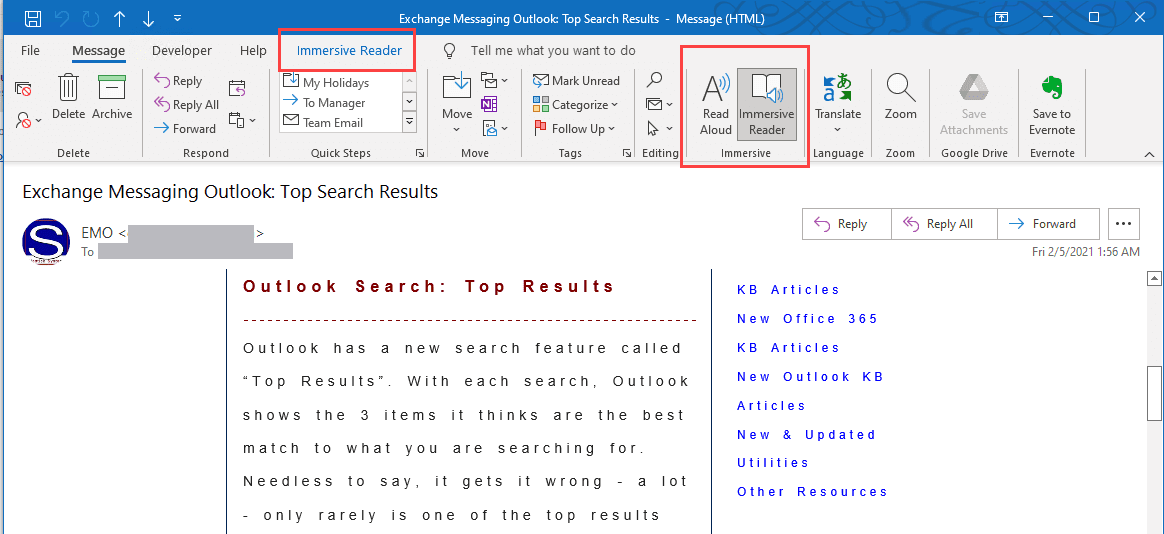
When the Immersive reader is enabled, it is on when reading or composing messages. When it’s turned on, most incoming messages will use the immersive reader (some HTML may not). Appointment, Task, and Contact's Notes field are affected when the Immersive reader is on.
The Immersive button on the right end of the Message tab (of an open message) will turn it on; turn it off by clicking the button again or clicking the Close button on the Immersive Reader tab. In the main Outlook window, turn the Immersive Reader on from the View tab, it’s on the far-right side of the ribbon.
When Immersive Reader is turned on, the Immersive Reader tab is visible, with blue text. You can use it to read and compose messages and when enabled, it is on, until you turn it off.

While it can help you focus on the text, if it is turned on accidently and you don’t know what it is or how to turn it off, it’s more annoying than helpful.
I had several users who had no idea what they did to change the look of their email. The first user tried to explain it as dots between all of the words, which made me think formatting marked were turned on (Ctrl + Shift + 8 to toggle them off and on).

Unfortunately, that just added more dots between the words and he shared a screenshot, which “spoke 1000 words”. I saw the Immersive reader tab and the dots marked the syllables.
None of the users recall enabling the Immersive view, and none noticed the Immersive Reader tab that is visible (with blue text) when it’s enabled.
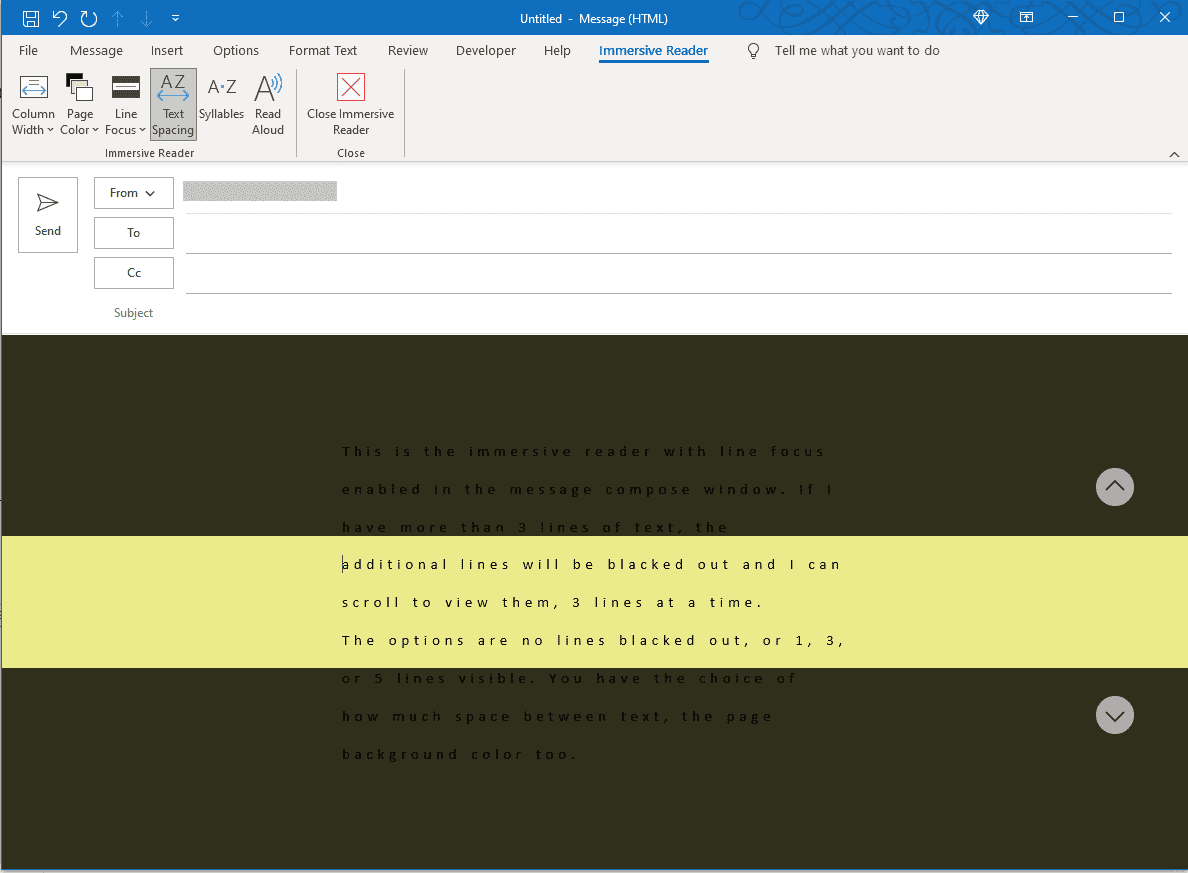
When you are using the Immersive Reader, you can control the column width, page background color, text spacing, and how many lines of text are shown. Use the mouse wheel or the arrow buttons onscreen to scroll. With the Syllables option enable, words are split into syllables.
Note that Line Focus doesn't work well to read HTML formatted email and doesn't work in plain text messages. It works fine when composing messages.
Immersive reader is available in Word, OneNote, Outlook, Teams, Edge, and more.

Bill Dyszel says
Does anybody know if there's a way to make the Outlook immersive reader look like the Edge immersive reader? In Edge, it genuinely makes things easier to read. In Outlook it doesn't. It has to do with font size and typeface, which are not readily adjustable in either app.
Diane Poremsky says
No, not for reading. There is a little more control when you use it for writing but even then there are few options.
Jim Garrison says
How can I "save" Immersive Reader changes. I make a change and then I go to another e-mail folder. When I come back to the one I made the changes to the changes are gone. Is there a way to make the changes permanent?
Diane Poremsky says
Closing it - either using the Close Immersive reader button on the immersive reader ribbon or clicking the immersive reader button to toggle it off should apply to all future mails.
There is not a registry key to disable it.
Diane Poremsky says
So the immersive reader in on in specific folders? When its on, it should be on in every folder until you click the Close Immersive Reader button.
Kevin says
How can I get assistance from you on an Outlook issue.
Diane Poremsky says
You can post a question in the forums at forums.slipstick.com, if I have an article about the problem, in comments on that article, or if you want private help - create a meeting - Diane Poremsky - Online scheduling (oncehub.com)
Jing says
I have the email centered and cannot adjust. I highly doubt my immersive reader is turned on. But i cannot see the blue text or this function in my outlook. Is it possible it's hidden somewhere?
Diane Poremsky says
It shouldn't be hidden. Which version and build of Outlook are you using?
Jing says
I am using version 2108, outlook of microsoft 365.
Jing says
This is how it looks like.
Diane Poremsky says
That looks like the immersive reader. Is there anything on the Review tab?
Diane Poremsky says
Did you look in ribbon or Quick Access Toolbar customizations to see if there is a command for Immersive reader in the All Commands group? If so, add it to the ribbon/qat.
Jing says
In commads, i don't see " Immersive reader" as an option, also nothing in my review tab too.
GRANT M JOHNSON says
I wish I had found this when I was trying to find out why my emails were stuck at 6 inches wide. I couldn't figure out what to search. I have been just dealing with it for months and finally asked for help today and they had it fixed in 2 min. Immersive reader? Does that really need to be right in the middle of my screen just waiting to be accidentally clicked on? I kept looking for a solution from inside my email which is when you are actually dealing with the effects of immersive reader. I don't believe you can turn immersive reader off from within an email though. I hope someone is really appreciating this feature to offset my frustration.
Diane Poremsky says
You can edit the ribbon to remove the button - I'll see if there is a reg hack to disable it.
Paul Wenman says
Thanks for this. I have recently found Immersive reader switched on by default. Even if I switch it off and close Outlook, it's on again when I open it again. Any ideas?
Diane Poremsky says
When its turned off, it should stay off. It should be a reg key - I'll look for it.
Lauren says
Hello - Was there ever a solution re: disabling the "on by default" option?
Dave says
Diane - Thanks for all you do but have you found a way to disable immersive reader?
Thanks