• Outlook User
  • New Outlook app
  • Outlook.com
  • Outlook Mac
  • Outlook & iCloud
  • Developer
  • Microsoft 365 Admin
    • Common Problems
    • Microsoft 365
    • Outlook BCM
    • Utilities & Addins

Using Outlook's Clean Up Tool

Slipstick Systems

› Outlook › Email › Using Outlook’s Clean Up Tool

Last reviewed on October 18, 2023     19 Comments

An Outlook user discovered the Clean Up Folder command and had a question about it:

I decided to right-mouse button click on one of the folders in my mailbox to mark the messages all read when I noticed another option in the popup that said, “Clean up Folder”. I decided to click on it. It said that it would remove “redundant emails”. What does Outlook consider to be redundant?

Clean Up removes redundant messages in a thread of folder. What is a redundant message? Redundant messages are the previous messages in a thread that are also quoted in the replies. In a long email thread, you could end up several copies of the early messages and the Clean Up Folder command moves these redundant messages in the current folder (or current folder and subfolders) to the designated "Cleanup" folder, leaving you with all the content but fewer messages. It will not remove true duplicated messages; it will not trim quoted text from replies.

The Clean Up folder (and subfolder) commands will clean up all threads in a folder (and subfolders, if that option was selected), while clean up conversation will remove the older messages from the selected thread.

Clean Up will not remove duplicate messages. It's usually faster to use a "duplicate remover utility", however, if the duplicates are due to importing or re-downloading messages, "you can add the Modified date field to the view and sort by it". Everything imported or downloaded later will have the same modified date. Select them and delete.

If you didn't select a clean up folder, Outlook will use the Deleted Items folder.
clean up commands on ribbon
By default, Outlook won't clean up categorized, flagged, or digitally signed messages. Change these settings in File, Options, Mail.

In addition to Clean Up Folder, Outlook can also Clean Up Conversations, removing older messages in a thread that are quoted in newer messages. Right click on any thread and choose Clean Up Conversation in the context menu or look for it on the Clean Up button in the Delete Group on the Home tab. Clean up Folder and Clean Up Folder & Subfolders commands are also on the Folder tab.

When you use Clean Up, a dialog box will remind you that redundant messages will be moved to the designated folder (unless you ticked the Don't show this message again box). Click the Settings button on the dialog to open the Options dialog to the Mail page. Clean up options are partway down the page, where you can choose a different folder and other options.
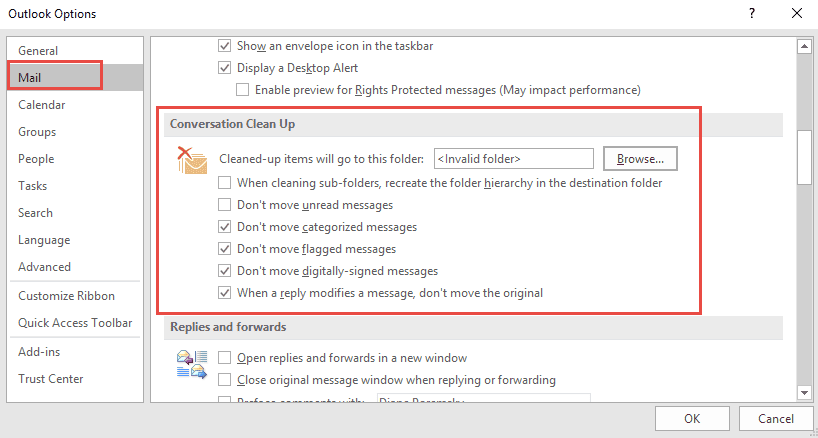
change cleanup folder location in options

More Information

"Show Dialogs Dismissed with "Don't Show Dialog""
Using Outlook's Clean Up Tool was last modified: October 18th, 2023 by Diane Poremsky
Post Views: 73

Related Posts:

  • Ignore Conversations in Outlook
  • To Use Internet-Style Quoting
  • Can I use my own stationery in replies?
  • The Blue Line and Inline Replies in HTML messages

About Diane Poremsky

A Microsoft Outlook Most Valuable Professional (MVP) since 1999, Diane is the author of several books, including Outlook 2013 Absolute Beginners Book. She also created video training CDs and online training classes for Microsoft Outlook. You can find her helping people online in Outlook Forums as well as in the Microsoft Answers and TechNet forums.

Comments

  1. Erik says

    December 17, 2020 at 9:31 am

    Yes, the "Clean-Up" function is great, but it only does the folder you right-click. In the ribbon, there is a "Cleanup Folders and Sub-folders" which will also include subfolders. Regretfully, it's not possible to traverse all top-level folders in a PST or OST. I'm looking for a script that can do that, then clear the delete-items folder and then compact the PST/OST... Anyone who can give that a kick-start maybe?

    Note: While "Clean-Up" doesn't work between folders, I did find a way to do that (and basically do a whole PST/OST). Create a search and make sure all emails are found, then right click there and do "Clean-Up" :)

    Reply
  2. Mudassir Hassan Hassan says

    June 13, 2020 at 9:28 am

    Hi Diane,
     
    Checked your blogs, Liked your writing style and thanks to you that I found a good solution for removing duplicate email in my outlook, But I want to know whether there is any solution for removing duplicate emails with attachment. As I have found that the email with attachment still present in the list.
     
    Thanks in Advance,
    Regards,
    Mudassir Hassan Khan

    Reply
    • Diane Poremsky says

      September 23, 2020 at 11:17 pm

      You'd need to use a duplicate remover or a macro if the clean up tool doesn't remove it.

      Reply
  3. ian n says

    September 13, 2018 at 6:41 pm

    does cleanup work with a o365 shared mailbox

    Reply
    • Diane Poremsky says

      September 14, 2018 at 1:48 am

      No, it does not. It only works with accounts in your profile. You could create a profile with only the shared mailbox in it (sign in using your username and password), then you could run clean up.
      https://www.slipstick.com/exchange/create-rules-and-oof-shared-mailbox/

      Reply
  4. Trainer says

    April 25, 2018 at 7:52 am

    Can you schedule this? For example, Outlook would automatically clean up Inbox every morning.

    Reply
    • Diane Poremsky says

      April 27, 2018 at 10:02 am

      No, as far as I know, it is not exposed in the object model and cant be automated. Sorry.

      Reply
      • Laura Lee says

        May 20, 2020 at 1:29 pm

        Has this functionality been added yet? I would love to have this run every time an email comes in or at least every hour to keep my inbox clean. it doesnt appear that you can create a rule for it.

      • Diane Poremsky says

        September 23, 2020 at 11:19 pm

        No, not yet and honestly, I don't think it will. A macro kicked off by a reminder can do it though.

  5. saplitziotis says

    March 14, 2018 at 4:19 am

    Is there any option to disable it via GPO? I need the policy ID

    Reply
    • Diane Poremsky says

      March 14, 2018 at 8:49 am

      Yes, you can disable it using GPO. Instructions and a link to a workbook with the command id's is at
      https://www.slipstick.com/how-to-outlook/group-policy-disable-commands/
      The Clean up commands do not use the work 'clean' in the command name - it's called ThreadCompress* - ThreadCompressSplitButton disables the entire button, which is id 21471

      Reply
  6. Chris says

    November 17, 2016 at 6:50 am

    Hi,
    In order to centralize all the old mails of our organisation we imported the pst-files of all the collegues in one central "archive" mailbox. This mailbox contains a lot of doubles and i'm trying to clean them up. The clean-up function of Outlook 2013 works fine, but only with mails that do not have an attachment. It doesn't work with mails having attachments. Is there a way to remove automatically such mails?
    Thank you in advance for your reaction.

    Reply
    • Diane Poremsky says

      February 2, 2017 at 10:19 pm

      You can use a search folder to find all messages with attachments.

      Reply
  7. Donn says

    July 25, 2016 at 2:43 pm

    I consider the change in the list of recipients as a change to the message. How do I get Outlook 365 not to delete/move messages where the recipients have changed, but the text of the messages have remained unchanged?

    Reply
    • Diane Poremsky says

      July 26, 2016 at 12:10 am

      You'd need to flag, categorize, or mark unread the message (with the option to not move those enabled in options. I think the categorize and flagged options default to not move.)

      Reply
      • Leonard Raphael says

        February 2, 2017 at 4:59 am

        whatya think, does it work as promised or does it move stuff that shouldnt be moved+

      • Diane Poremsky says

        February 2, 2017 at 10:17 pm

        I haven't had time to test it - try it and let us know. :)

      • Kathy Kardynalski says

        February 21, 2017 at 12:30 pm

        I have been trying to manually clean up my inboxes a few at a time. As I have a bazillion and three emails, this is taking forever. :)

        So I'm very intrigued by this new feature. If I understand correctly, if all the boxes in the settings are unchecked, it will move all but the last message in a thread, except if they have attachments. Is that right?

        I just did ran this on my work inbox and it cleared out about 1100 emails. A quick glance shows that they are indeed not the final reply. I moved them to an "archive cleanup" folder rather than deleting them. The only thing so far I don't like is losing my original email, but I think if I check that last setting, this will be fixed. Before I trash the cleanup file, I'll go in and save the originals that are important to me.

      • Diane Poremsky says

        February 21, 2017 at 3:03 pm

        Yeah, it's great fore your scenario. I'm not sure if the last option will completely solve the problem of keeping the original message unless you trim it in the reply.

Leave a Reply Cancel reply

Your email address will not be published. Required fields are marked *

Visit Slipstick Forums.
What's New at Slipstick.com

Latest EMO: Vol. 31 Issue 7

Subscribe to Exchange Messaging Outlook


Support Services

Do you need help setting up Outlook, moving your email to a new computer, migrating or configuring Office 365, or just need some one-on-one assistance?

Our Sponsors

CompanionLink
ReliefJet
  • Popular
  • Latest
  • Week Month All
  • Use Classic Outlook, not New Outlook
  • How to Remove the Primary Account from Outlook
  • Reset the New Outlook Profile
  • Disable "Always ask before opening" Dialog
  • How to Hide or Delete Outlook's Default Folders
  • This operation has been cancelled due to restrictions
  • Change Outlook's Programmatic Access Options
  • Use Public Folders In new Outlook
  • Removing Suggested Accounts in New Outlook
  • How to Delete Stuck Read Receipts
  • Sync Issues and Errors with Gmail and Yahoo accounts
  • Error Opening iCloud Appointments in Classic Outlook
  • Opt out of Microsoft 365 Companion Apps
  • Mail Templates in Outlook for Windows (and Web)
  • Urban legend: Microsoft Deletes Old Outlook.com Messages
  • Buttons in the New Message Notifications
  • Move Deleted Items to Another Folder Automatically
  • Open Outlook Templates using PowerShell
  • Count and List Folders in Classic Outlook
  • Google Workspace and Outlook with POP Mail
Ajax spinner

Recent Bugs List

Microsoft keeps a running list of issues affecting recently released updates at Fixes or workarounds for recent issues in classic Outlook (Windows).

For new Outlook for Windows: Fixes or workarounds for recent issues in new Outlook for Windows .

Outlook for Mac Recent issues: Fixes or workarounds for recent issues in Outlook for Mac

Outlook.com Recent issues: Fixes or workarounds for recent issues on Outlook.com

Office Update History

Update history for supported Office versions is at Update history for Office

Outlook Suggestions and Feedback

Outlook Feedback covers Outlook as an email client, including Outlook Android, iOS, Mac, and Windows clients, as well as the browser extension (PWA) and Outlook on the web.

Outlook (new) Feedback. Use this for feedback and suggestions for Outlook (new).

Use Outlook.com Feedback for suggestions or feedback about Outlook.com accounts.

Other Microsoft 365 applications and services


New Outlook Articles

Sync Issues and Errors with Gmail and Yahoo accounts

Error Opening iCloud Appointments in Classic Outlook

Opt out of Microsoft 365 Companion Apps

Mail Templates in Outlook for Windows (and Web)

Urban legend: Microsoft Deletes Old Outlook.com Messages

Buttons in the New Message Notifications

Move Deleted Items to Another Folder Automatically

Open Outlook Templates using PowerShell

Count and List Folders in Classic Outlook

Google Workspace and Outlook with POP Mail

Newest Code Samples

Open Outlook Templates using PowerShell

Count and List Folders in Classic Outlook

Insert Word Document into Email using VBA

Warn Before Deleting a Contact

Use PowerShell to Delete Attachments

Remove RE:, FWD:, and Other Prefixes from Subject Line

Change the Mailing Address Using PowerShell

Categorize @Mentioned Messages

Send an Email When You Open Outlook

Delete Old Calendar Events using VBA

Repair PST

Convert an OST to PST

Repair damaged PST file

Repair large PST File

Remove password from PST

Merge Two Data Files

Sync & Share Outlook Data

  • Share Calendar & Contacts
  • Synchronize two computers
  • Sync Calendar and Contacts Using Outlook.com
  • Sync Outlook & Android Devices
  • Sync Google Calendar with Outlook
  • Access Folders in Other Users Mailboxes

Diane Poremsky [Outlook MVP]

Make a donation

Mail Tools

Sending and Retrieval Tools

Mass Mail Tools

Compose Tools

Duplicate Remover Tools

Mail Tools for Outlook

Online Services

Calendar Tools

Schedule Management

Calendar Printing Tools

Calendar Reminder Tools

Calendar Dates & Data

Time and Billing Tools

Meeting Productivity Tools

Duplicate Remover Tools

Productivity

Productivity Tools

Automatic Message Processing Tools

Special Function Automatic Processing Tools

Housekeeping and Message Management

Task Tools

Project and Business Management Tools

Choosing the Folder to Save a Sent Message In

Run Rules on messages after reading

Help & Suggestions

Submit Outlook Feature Requests

Slipstick Support Services

Buy Microsoft 365 Office Software and Services

Visit Slipstick Forums.

What's New at Slipstick.com

Home | Outlook User | Exchange Administrator | Office 365 | Outlook.com | Outlook Developer
Outlook for Mac | Common Problems | Utilities & Addins | Tutorials
Outlook & iCloud Issues | Outlook Apps
EMO Archives | About Slipstick | Slipstick Forums
Submit New or Updated Outlook and Exchange Server Utilities

Send comments using our Feedback page
Copyright © 2026 Slipstick Systems. All rights reserved.
Slipstick Systems is not affiliated with Microsoft Corporation.