Microsoft introduced a new autocomplete feature in Outlook 2016, instead of showing only recently used addresses in autocomplete, it lists “Other Suggestions”. As with the previous autocomplete menu, recent addresses can be deleted by either selecting the entry then pressing Delete or using the X to the right of the name.
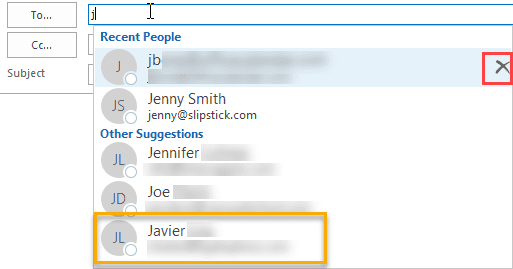
To enable the old-style autocomplete list, you need to add the DisableAutoCompleteUpdate value to the Option key.Download a ready to use reg file: DisableAutoCompleteUpdate
HKEY_CURRENT_USER\Software\Microsoft\Office\16.0\Outlook\Options
DWORD: DisableAutoCompleteUpdate
Value: 1
Since Other Suggestions entries don’t include the X, how do you delete them?
The easiest way, if Outlook cooperates, is to type enough of the name so that it moves up to the Recent People section, where it can be deleted.

If Outlook doesn’t cooperate, you’ll need to switch to Contacts and type all or part of the address into the Search Contacts field. On the Search ribbon, select All Contact Items (first button on the left of the Search ribbon).

The autocomplete entries are stored in a hidden folder called 'recipient cache', which is included in the All Contacts Items search. Autocomplete cache entries will only contain an email address; if you click the three dots in the contact card, the View Profile command, which shows you which folder the contact is in, is missing from the bottom of the menu (after Call). Select and delete the contact.

While we’re on the topic of the autocomplete cache entries showing up in instant search, I’ll mention that the DoNotIncludeNickNameCacheInSearch registry key breaks the new autocomplete dialog. It’s purpose is to limit the Search People results to actual contacts but with both Search People and autocomplete using the same control, it means the nickname cache is not included in autocomplete either.

Chris says
I am using the most current version of Outlook desktop on a Microsoft 365 subscription as of May 2021. I have tried this, and even confirmed that the bad address no longer shows up when I search All Contact Items now that I have deleted it, and exited and restarted Outlook, but the bad address still comes up as an "Other Suggestion." I even deleted the two sent items from my mailbox in which I had accidentally typed the incorrect address that now keeps coming up as a suggestion, and emptied by Deleted Items folder, and yet the suggestion is still on the list. Any thoughts on why?
Jef says
Thanks, so simple.
Stupid feature.
Julian Raffay says
This is brilliant. So simple and well documented. Thank you.
dcliff says
Can't find the "All Contacts Items". My version is Office 365 Enterprise (Subscription). Any applicable version of this solution for the type of my Office? Thanks.
Michael Gioia says
errr... when I go to 'All Contacts Items' I can't string search anything in there.. it's empty...
When I go to Recipient Cache (via unhiding the folder temporarily via mfcmapi) I get what LOOKS like my Suggestions .. but it doesn't add up.. the Suggestion in question i'm trying to delete.. appropriately/ironically/frustratingly.. is not in the list.. grrr ? Any ideas ?
Using Microsoft Outlook for Office 365 (ver 16.0) for what it's worth...
Jim Strowe says
Interestingly enough when I did the steps the items was removed until I restarted Outlook and boom it was back. The bad address entry also shows up and auto completes in Outlook Web Access that suggests this bad information is also stored at the exchange server.
This is a foolish bad feature from our friends at MS. I've got a user with a bad address that I can't remove that spoofs an executive... bad bad bad. Thanks Microsoft it's not a bug it's a feature
Diane Poremsky says
>>
The bad address entry also shows up and auto completes in Outlook Web Access that suggests this bad information is also stored at the exchange server.
>>
The autocomplete list is stored in the mailbox. The suggested list is addresses who sent you mail recently - do you have the spoofed email in your mailbox? If so, delete it.
Jim Strowe says
What was interesting is that prior to my user using OWA I DID have him dump the autocomplete cache. I was rather surprised to have the address show up in OWA. I wasn't kidding on the "it's a feature" not a bug since where I work it's a pretty common expression from the developers. (sometimes with a few verbal embellishments)
I had my user delete the email and said leave auto complete off till tomorrow then lets turn it back on. It was a classic CEO phish which of course polluted his name cache and then "picked it" when he had to email the CEO. The fact that MS hides the email name now in Outlook is a screwy bad security feature. (of course MS is the same company that still hides file extensions by default)
adam says
Hi, does this work for outlook365. Looks like im unable to search for this hidden folder. Thanks.
Diane Poremsky says
It works for Outlook desktop software, all versions.
Dave Atkinson says
doesnt work for me outlook 2019
Diane Poremsky says
Autocomplete is broken right now. :( It should be fixed in about a week.
Dave Atkinson says
still stuck with the new version of autofill suggested contacts
Diane Poremsky says
Did you roll back office? That is the only solution until Microsoft releases the update in about a week.
Outlook User says
Thank you so much for this!! I had a contact suggestion showing for the past year with the same name as a contact I actually use so it was driving me mad now I’ve managed to rid the suggestion of the wrong contact
Jane says
It is ironically weird. There is no X (delete) option in MS office 365 via the application; however, if you log in via your Webmail (access your email via the browser), you can actually delete the suggested contact from the list. Hope that helps.
John says
Oh wow.....I spent an hour trying to figure out how to do this (delete one contact's old email), and your post, Jane, allowed me to do it in one minute!!! Thank you so much.
Vincent says
You can also make the Recipient Cache folder visible using MFCMAPI. Select the Recipient Cache folder and change the PR_ATTR_HIDDEN value to False by deselecting Boolean in the properties, the folder will then be visible in the Contacts section in Outlook.
Kate says
Can anyone comment if the registry edit solution is still valid? I am in the registry folder indicated above and can't find anything that resembles a DWORD option to change.
What on earth were they thinking not allowing deletions on all the autofill options? (rhetorical)
Diane Poremsky says
I have not tested it recently, but will double check. The value is unlikely to exist already - you'll need to create it.
On the deletions, who knows. You can clear the normal autocomplete individually or in whole, but not the suggested addresses they find for you. :(
Diane Poremsky says
It works. I have a reg file for it at https://www.slipstick.com/reg/DisableAutoCompleteUpdate.reg
Ted Wham says
@Diane Poremsky,
There is an obscure little utility called Hide Outlook Folders (HOF) that is published by the equally obscure (but useful!) German developer ITSTH. For US$10 HOF allows the user to choose which folders are shown and which are hidden in Outlook. After you (kindly) indicated that "Contact/Recipient Cache" is the folder that holds these only-sometimes useful entries I used the HOF tool to make the folder visible. Worked like a charm and now I can see and delete these entries as I wish. Easy peasy.
FYI, I am not affiliated with, or compensated by this software publisher.
Cheers!
Haja Shaikh says
Hi
How can i restore old Autocomplete list style for O365 for Mac
as i am not able to delete contacts with Work or Other tab is appearing
Diane Poremsky says
i'm not aware of a way to restore the old format in Outlook for mac. Sorry.
Curtis says
Didn't work for me. I had to actually send an email to the address to get it to appear in the Recent People list and then I could delete it.
Gabriel Smoljar says
I deleted the items from All Contact Items but it was not removed from suggestions until I had rebooted my PC. Restarting Outlook was not enough,
Michael says
In Outlook 2016 -How do I remove one of my old, no longer used, e-mail addresses from the FROM list. I have three e-mail addresses I can choose to send the e-mail from and I want to remove one of them. Thanks
John Nitti says
Fully typing the Other Suggestions email and memorizing, worked. I was then able to delete the contact name with the "X" on the right side. Thank you.
Bernard Cadogan says
Sorry, this doesn't seem to apply to Outlook 365 (subscription version) in Aug 2018. I have email addresses that I have deleted from the Contacts but I still get them coming up in "Other Suggestions" and I cannot find them in the Contacts search. Also I cannot find a file called Recipient Cache (even a hidden one). Maybe Outlook 365 is working differently from the box version? The problem is an infuriating one - quite possibly allied to the problem whereby you change someone's Display Name but the old name keeps getting substituted - somewhat distressing for a husband whose wife has died when they had a common email address and we cannot get the system to use the new Display Name even though it accepts the change!
B Fowler says
OMG, this is awesome!! I've been dying to figure out how to get the old autocomplete list back...thank you!!!
Nelson Pardee says
Wow- that's a lot of info. Unfortunately, I can't figure out how it helps. Outlook is giving me a lot of unuseful suggestions, people that I don't have in my contact list. And it's not bringing up people that I use a lot- in the current example, someone I use regularly doesn't even appear until I get past her first name. When I type "jenn" for jennifer, I get five people that were in emails I received (not sent to) very infrequently- maybe once, that are not in my contact list. In fact, there are five people in my contact list that have jenn, but they don't appear as a suggestion. This feature has become a shadow of its former self.
Diane Poremsky says
Yeah, it's really annoying IMHO. if you keep typing jennifer, do the other names comes up? If you click the To button, can you find the jenn's?
They have a registry key that brings back the small single line list and I think its autocomplete-only - but you lose the images which many people like. https://www.slipstick.com/outlook/good-autocomplete-list/ (just noticed I have the key listed above too. :))
Evelyne Krachenfels says
Hello Diane
Since many many years I follow your tips for Microsoft problems! There are the most reasonable tips I ever found in all the tutorials.
Thank you very much for your great support!
Go ahead like this.
Evelyne from Switzerland