All versions of Outlook support automatic name checking, also known as Autoresolve. This feature allows you to type a name, or even just the first few letters, and the name resolves a few seconds after you tab out of the field. When one match is found, the name has a solid underline. When more than one possible match exist you’ll see a red wavy underline. Right click on it to choose an address. When more than one match exists for a name you’ve used before, Outlook resolves to the last name used and uses a green dotted line to alert you that other possibilities exist. Right click to see the other addresses.
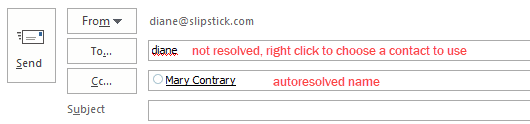
Autocomplete is the feature that shows addresses of people you’ve sent messages to previously and you can select matches as you begin typing. Autocomplete collects the addresses when you send new messages or reply. You can clear the autocomplete cache by clearing the autocomplete cache or delete one address at a time as you type and then Delete.
How to use Automatic name checking:
- Start a new message.
- Type the text you want to use for the nickname into the To box.
- Fill in the subject and start typing a message.
- When you see the name in the To box underlined with a red squiggle, right-click on the name. You'll see a choice of matching names from your address book. Choose the one you want to use. If the contact you want is not listed, press Ctrl+K to bring up the Check names dialog then click More Names to browse for the correct contact.
The next time you want to send a message to that person, just type in the text from Step 2 again. Outlook will automatically get the address for you and will underline the full name in a dashed green line to highlight that auto-resolution did its job.
There is one limitation that "gets" many users: when you use auto-resolution, Outlook searches the address books in order and when it finds a match in one address book, it stops looking in the other address books.
Autoresolution or Automatic name checking
All versions of Outlook support Autoresolve. Also known as automatic name checking, this feature allows you to type a name, or even just the first few letters, and the name resolves a few seconds after you tab out of the field. When one match is found, the name has a solid underline. When more than one possible match exist you'll see a red wavy underline. Right click on it to choose an address. When more than one match exists for a name you've used before, Outlook resolves to the last name used and uses a green dotted line to alert you that other possibilities exist. Right click to see the other addresses. When Name checking is disabled in Tools, Options, Email Options, Advanced Options it won't do it as you type the names in but it will check and resolve them when you hit Send. You can force an autoresolve at anytime using Ctrl+K.
Here's some additional information on how multiple address lists, including the GAL, affect the resolution process.
What fields does Outlook use to look up names for address resolution? It depends on the address list. For the Exchange Global Address List (GAL), it searches several fields -- display name, surname, mailbox alias and office (but, significantly, not first name).
For Contacts and Personal Address Book, the search fields include name and email address fields, but *not* the Nickname field on contacts.
Name resolution searches only one address list at a time. Use the Address book's Tools, Options dialog to control the order in which lists are searched in Outlook. Let's say you have the GAL set as the first list, followed by more than one Contacts folder. If there are matches in the GAL, you won't see any addresses from Contacts. If there is no match in the GAL, then it searches the first Contacts folder in the list. If no matches in that contacts folder, then it searches the next Contacts folder. If you think about performance, this makes a lot of sense. Searching across all address lists in your name resolution list could take a very long time.
For example, entering "William" and pressing Ctrl+K might display a list that includes William Gates, Bart Williamson, and Jane Williams. If there are no matches in the GAL for William, then you might also get names from the PAB with addresses like williamg@domain.dom. The search is always a "starts with" search, looking only at the beginning of the fields. It would not find a name like Alice Fitz-Williams because "Williams" here is not at the beginning of the surname.
Disable Automatic name checking and/or AutoComplete
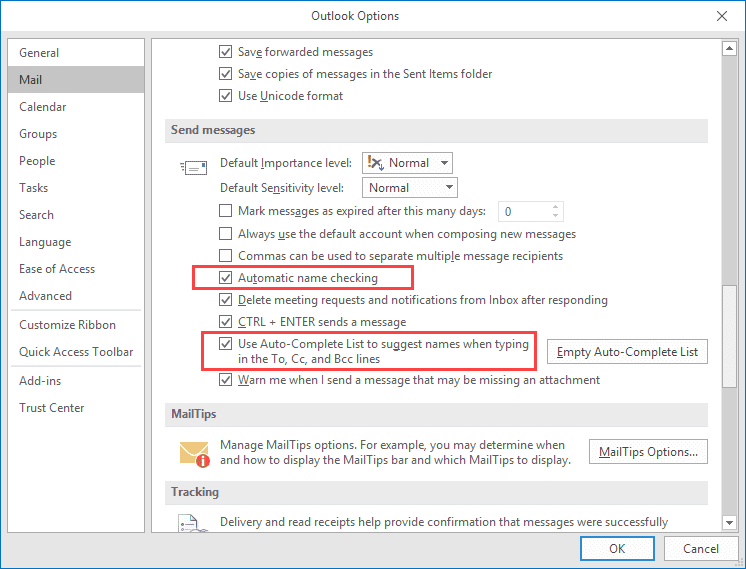
To change the Autocomplete or Automatic name checking settings in Outlook 2010 and newer, go to File, Options, Email and scroll to near the end.
If Automatic name checking is disabled, Outlook will still resolve the names when you send the message, but not immediately. You can force Outlook to resolve the names by pressing Alt+K on your keyboard.
In Outlook 2007 and older, you can disable autoresolution in Tools, Options, E-mail Options, Advanced E-mail Options, Automatic name checking. When this is turned off, Outlook will still resolve the names, but not immediately. You can press Alt+K to force auto-resolution at any time before sending the message; otherwise Outlook will always resolve the address when you send the message. If a match isn’t found, you’ll be asked to pick names using the Check Names dialog.
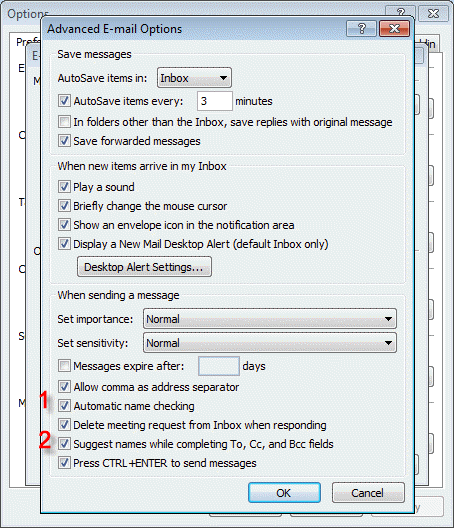
To disable Auto-complete in Outlook 2007 and older, go to Tools, Options, Preferences, E-mail Options, Advanced and deselect ‘Suggest names while completing to To, CC, BCC fields’
The following tools can be used to view the contents of the auto-complete cache.
Tools
Open source project to read MS Outlook autocomplete (NK2) files and extract email addresses. Beta version 0.5 | |
Use NK2Edit to edit or delete information stored in the NK2 file or Outlook 2010/2013's Autocomplete Stream, including the display name, the email address, the exchange string, the Drop-Down display name, and the search string. Free for home use; Commercial license available. | |
Use NK2View to view, edit or delete entries in Outlook's .NK2 AutoComplete file. Export the records to text, html, or xml files. Freeware. Version 1.37 |
More Information
Enabling the Contacts folder as an Outlook Address Book
Tip 132: Suggest names doesn't work? (Outlook-tips.net)
Tip 99: Autoresolve and Autocomplete (Outlook-tips.net)

Ronald Paisley says
Using outlook 19 mail. the auto complete when adding address in to the To: field, displays with a initial symbol and address
This makes the list bigger and I need to scroll. Can I change it where there is no initial symbol so I can see more of the list?
Diane Poremsky says
There is a bug in the current build - April 29, 2021 Version 2104 (Build 13929.20296) - the issue may be related to that. And there is no way to fix it right now - the "good autocomplete list" - a small, single file list that is enabled using a registry key won't help due to the bug.
Roy Hanlin says
Will we receive a fix soon for the autocomplete situation?
Diane Poremsky says
I don't know. They just opened the bug report this morning so it's a bit early to guess at how soon it will be fixed.
My article on the bug is here-
https://www.slipstick.com/outlook/autocomplete-opens-upward-outlook/
Roy Hanlin says
I am not computer savvy so likely will need to wait for a fix with a new download. Thank you!
Harry Warner says
Diane, thank you for the explanation. You're the only I found who has done so. But, I'm with Roy. Will need to wait for the fix to return to the old autofill format. Hopefully soon.
Detlef Bock says
When I want to send a message to someone I enter the name into the address field. Imediately the full name comes up (if I used that address before). But clicking on it doesn't enter the name, it simply vanishes and I'm stuck with the first letter(s) that I entered. Any idea what would cause this problem?
William Farrow says
Hi,
I have moved away from Outlook based email onto gmail.
However, I have to return to Outlook to search for older email addresses using Autocomplete, then copy to gmail. I cannot access these email addresses by searching contacts.
Is there a way to access all my previous email addresses to import them into gmail or save in a database?
Diane Poremsky says
Get the utility NK2Edit and export the autocomplete list to a CSV - gmail should be able to import it.
Venkat PP. says
Thanks and useful information.
Have query.
I am using O365 Pro Plus. Is it possible to disable the auto-complete feature in Outlook for external email addresses/domains only
Regards
Venkat
Diane Poremsky says
No, it's all or nothing.
manas says
How we can stop auto-complete feature in O365 web version outlook? Kindly suggest. Thanks
Anonoymous says
Some addresses in the autocomplete cache are not in users' contacts. This related to at least Outlook 2013. It was necessary to restore a backup or rename the current cache file with the name of active cache file.
Diane Poremsky says
auto complete is a list of all addresses you sent mail to, not just people in you contacts.
sambasivarao says
hi
this is sambasiva Rao .
i am using office home and business 2016.
Problem is while selecting any mail id from my address book it was not showing in my TO address.
while adding manually it was working fine ,any solution
pls
Diane Poremsky says
You'd select a name in the Address book and add it to the address field in the dialog but it wasn't added to the To field? That is a known bug - it might be fixed already, if not, it will be soon.
Ray Bernard says
Diane, very helpful info!
I am having an MRU list problem (most recently used) that started with the most recent Office update. A more-than-15-year-old feature is now gone!
I'm using Outlook 2016 under Windows 7 (have Win10 on laptop, like Win7 better for now). For years I have used the Display Name with an embedded email address in the email recipient fields, because I use the format of "Name (Company Name)". It makes a multiple-recipient list very readable.
When I reply or forward email for informational purposes, The Display Name is presented followed by the email address. This lets me delete the email address for cases where the original recipient would not want the address forwarded. Sometimes people write to me from a personal or alternate email address, and would not want that forwarded to others.
The most recently used list (MRU) no longer is built from the display name, but is a two-line drop-down list item containing the Name and Email Address fields. When I select from the list, I don't get the Display Name. I get the Name only with embedded email address.
To get the Display Name, I have to type part of the Display Name and press Ctrl-K to display the Check Names dialog and make the selection. I sent dozens of emails each day, usually to multiple recipients. Now I have to use Ctrl-K hundreds of times per day (many multiple recipients) more than I used to.
Even when I type or paste in the full Display Name and press Enter, I now get the Name with embedded email address.
The only way I can simplify this is at all is to go to my Sent Items folder, and copy the Display Name version of the recipient from a To: or Cc: field and paste it into an email address. That only helps when I have many individuals to include and I can find a sent email with most or all of the recipients in it.
It only works copying the Display Name version of the email address from other email. I tried making a list in the body of an email and in Word by creating making a link out of the Display Name, , but when I paste it into the To: or Cc: field, it expands into Display Name .
I have been using this Outlook capability for over 15 years, and now it is broken!
Is there any way to get this functionality back???
-Ray
John says
Diane,
This is great information! One question - I have an Access database which holds customer contact information.
I have some VBA code that allows the user from click on a button, opening an Outlook e-mail template, and then populate the TO with an e-mail address from Access.
However, when the user does this, they (occasionally) receive the error message in Outlook: "Could not complete the operation. One or more parameter values are not valid".
We tried to resolve by clearing their auto-complete cache, but that did not fix the problem. This only happens when the e-mail is being sent with an address pulled from MS Access - but again, not consistently...do you have any thoughts?
Thank you very much!
Diane Poremsky says
are you getting any other values from the database? Is outlook always open before you use the macro?
K Pravin says
Dear Diane,
is there is any feature like we have in whatsapp, if we use @will populate the user lists and i can select the one i want in MS Outlook.
Diane Poremsky says
I'm not familiar with whatsapp, but the only thing outlook has is autocomplete and autoresolution. Autocomplete displays a list of recently used addresses, autoresolve looks for a contact matching a name you type.
@name is used for mentions (in outlook 2016) - if you type it in the body, a list of names pops up and the address is added to the To field.
Libby Kokes says
I'm trying to get Outlook to recognize the names that autocomplete in the To field and save them to my Contacts, and I assume those names are in the autocomplete cache. I looked online and found that I need to run the debuNK2 installer to read that cache. But what do I do once I have the debuNK2 program up? It asks me to insert the file that I want to have read (presumably the one with all the email addresses I've sent stuff to before and want to save to my contacts list) but don't know where this file is located on the computer. If it's the Outlook offline work file attached to the email account that shows up in "open file location" once I've hit Account Settings > Account Settinngs > Data Files in the Outlook application, I also can't access that. Trying to save these contacts ultimately to be able to export them as a .CSV file. Thanks for any guidance you can provide!
Diane Poremsky says
if you have a newer version of outlook, you have an autocomplete stream file (Stream_Autocomplete_[code].dat)in %localappdata%\microsoft\outlook\roamcache (copy and paste or type it in the address field of file explorer and press enter).
FWIW, i use nk2edit - i know it can export the stream to a csv file.
startagl says
As of 2010 I read that MS is no longer using the NK file. So now what? Because MS has still not given its users a way to back up and restore the autocomplete list. Yes I can pivot my table a thousand different ways but I can not backup my autocomplete list. So I guess pivot tables trump normal day to day operations. Awesome!
Diane Poremsky says
its in an autocomplete stream file now - in %localappdata%\microsoft\outlook\roamcache. 2010 "backs" the list up to suggested contacts, which users hated so its gone from newer versions.
Ben says
Auto-resolve isn't working in Outlook 15.2 on my Mac. I'm expecting it to show me matching email addresses from the exchange server when I start typing a recepient's email address. How do i configure it to turn that feature on?
Diane Poremsky says
I'll have to double check on my mac, but auto-resolve should find the address after it's typed - autocomplete will show it as you type but autocomplete may only hold addresses you previously sent mail to, it depends on your version of exchange and version of outlook.
Thomas says
Hi Diane,
I am not sure if you are familiar with Outlook.com's interface, but since the update in December of 2016, I have not been able to turn off the Auto-Complete feature which suggests e-mail addresses in the To, Cc, Bcc fields. I read up all over the web and heard many people having the issue and not able to turn off Auto-Complete.
Before the update in December, we could go to Option and under privacy, prevent Auto-Complete from working, but now there is no button/box to check and the feature was turned back on by default. Do you know if there is a way to disable the Auto-Complete feature on Outlook.com? (Not the Outlook program installed on PC's, but the web-based version)
Thank you for any input you can share on this.
Diane Poremsky says
Because outlook.com now has exchange on the backend, you have exchange features - and AFAIK, there is no way to turn off autocomplete. The server builds a list of people who you send mail to, get mail from, or have in contacts and add them to the autocomplete list.
Carol says
Hi Diane. This is a great article - thanks so much for the info. Question on check names in Outlook 2016. I have a contact created for email 'abcd@gmail.com'. If I address a message to 'abcd' and click Check Names, it resolves to my contact and the display names shows. If I enter 'abcd@gmail' it resolves. If I enter 'abcd@gmail.com' and click Check Names, it resolves to 'abcd@gmail.com' instead of my contact so I don't get the display name. I can't figure out why the full address would fail.
Diane Poremsky says
the full address resolves on its own (as its a valid address), so it won't check the address book.
Garry Slocombe says
Further to my previous post, I ended up having a look at NK2Edit and it also finds and reads the 2016 autocomplete file. It is also really easy to use and I have all that I was looking for.
Thanks again for your great, helpful, site.
Garry says
Hi Diane
Thanks for this list of utilities that will create your autocomplete list from Outlook. However, from what I have read, it appears that Outlook 2016 doesn't use a .nk2 file and all these utilities require it. We are having a problem internally where often used names stop being autocompleted. I would like to have a time series of the list so that I can see how many there are (ie more than the 1000 limit) and when, and if, list members have disappeared. It may also provide me with other explanations as to why the names seem to disappear. I have found it surprisingly difficult to gather this information.
Diane Poremsky says
correct, newer versions use a different file but at least one of the utilities can read it (Nk2edit).
Norma says
In my hotmail email addresses, I cannot edit some. I have to delete them and start afresh. It still won't let me delete an email address where I made a typo or if they have two addesses and I need to delete one. I am not real literate in this.
Diane Poremsky says
This is in Outlook installed on your desktop? What version of Outlook and windows are you using?
Richard says
I run Microsoft 2003 and have recently installed Windows 10. I now find in Outlook that the auto name suggestion does not work. As I type a few letters of the email address the suggested email address(es) appear however if I select one of the email address and press return nothing happens. Any suggestions?
Diane Poremsky says
it should work with enter, but try Tab and see if that is working.
This is with Outlook 2003? There are some bugs with it on the newer OS - will need to double check to see if this was one of the issues. You could try resetting the autocomplete cache, but it will wipe it out and need to be rebuilt.
Richard says
Hi Diane
Thanks for your suggestion re using TAB, unfortunately no success.
I am using Outlook 2003 (and this has been happening since I "upgraded" to Windows 10).
From extensive consultation with Dr Google I have found a work around by going to Tools/Mail Format and unchecking use of Word 2003. However I no longer have a spell check facility available so it's a nightmare typing emails!
With the change over to Windows 10 neither of my printers will now scan. I'm at the verge of reinstalling Windows 7!
Diane Poremsky says
on an older computer, going back might not be a bad idea. If you only upgraded within the last 30 days, you can easily roll back to win 7.
Diane Poremsky says
BTW, spell check on send should still work - just not spell check as you type.
Richard says
Hi Diane,
I'm having the same problem as Marco.
I have Outlook 2003 and have the suggested names box checked (and auto name). I have just "upgraded" to Windows 10 (from Windows 7).
Since upgrading to Windows 10 I now find that when I start to type in an email address the suggested address options still come up but when I hit enter it sticks with the 2 or 3 letters I've type. In other words I can't choose one of the suggested email addresses.
Any suggestions. Thanks
Diane Poremsky says
if you use the arrow keys to highlight the item then press Tab does it enter the address?
Ash says
Great post Diane. Not sure if I am too late. When testing in my lab, I notice that first name in GAL is actually being used. I named a user Billy Green, change the display name and other filed to not include Billy at all. When enter Billy in Outlook, press the check names button, Billy Green is also returned. I am running on Exchange 2013, using GAL rather than OAB.
Diane Poremsky says
Yes, if you are using exchange, it will check the gal - it goes through all of the address lists in order, until i finds on with a match. It will also look at the email address - so billy in billy@domain.com will be found.
Ash says
Actually there is no billy in the fields you mentioned above except for the first name (display name, surname, mailbox alias and office, none of them contains Billy at all, I used something like user1 to fill those fields, eg. user1green@domain.com). With further research, I found this article:
https://social.technet.microsoft.com/wiki/contents/articles/22653.active-directory-ambiguous-name-resolution.aspx
It looks those attributes are those been used by the check names feature.
Marco says
my email auto fill has for some is not working. the email address comes up once I type the first/second letter however once the highlighted address comes up i have to manually put in the address.?
Diane Poremsky says
So you aren't able to either select the address or press tab to load it?
Johannes says
Dear Diane,
maybe you can help me with a huge problem I have using Outlook together with a data base. Let me give you a frequently occuring situation:
I communicate with a person via LinkedIn, which offers the possibility to just hit reply in Outlook to a generic Email address (gibberishshshsh@reply.linkedin.com), which I would do. Later, I get the Email adress (e.g. name@gmail.com) of the person, store it in my data base, click it in the data base, a new message in Outlook opens with "Name" in the TO-field. I type, I press send, and in the moment I press "send", it seems it's doing an automatic alt+k and changes the email address to the one we communicated first with (in this case: gibberishshshs@reply.linkedin.com - but it happened with regular email addresses - private vs. work etc. before).
I have unchecked all Email options, except of "suggest names while completing...", especially I have unchecked the "Auto name checking" option.
I have had it with Outlook 2010 and with Outlook 2013, I have altered the settings several times. Sometimes it happens while I'm still typing, often only after I press "send".
Hope to get an answer
Johannes
Diane Poremsky says
Is the database putting just the name or the name and address in the to field? If it enters it as full name <email@domain.com>, it should resolve correctly. Otherwise, you need to disable suggest names (or clear the entry from autocomplete) - when you see the wrong address come up, select it and delete. This will cause it to look it up in contacts.
Michael McNally says
So would I be correct in saying that email addresses is NOT one of the fields auto-resolution searches? In my company, we have lots of mailboxes with multiple email addresses attached. If I type one of those secondary addresses (which may not match anything in "display name, surname, mailbox alias and office"), the name does not resolve. It delivers correctly, but the address does not resolve to the display name. Is there any way to get these addresses to resolve?
Diane Poremsky says
the secondary addresses on a mailbox would not resolve - they should if you create a contact for them.
susan says
my contact list is up to date. i type in a person's name and though it recognizes this email name and address, pretend example:
i.e., "sam jenkins" <sammyjulia@yahoo.com) - when i click on it, it shows up in the 'TO' BOX' as an error - i.e., sam jenk x in RED. what's going on
Diane Poremsky says
it's coming up in the autocomplete list? If you delete it from the list and either type in the address or select it from contacts, does it work?
Lakshmi says
Hi Diane, This helps, thanks :)
I have a query, though.
In the 'TO' field how do I enable 'keyword' based find? Example:
There is an email id, (ABC INDIA MSSQL DATABASE )
When I type ABC, then this email address gets auto complete but
when I type 'MSSQL' then there is no drop down box options..
Bascically it searches based on 1st word ONLY.
Is there a way to enable such function?
Diane Poremsky says
No, you can't change how it works. It searches on the first word of the display name and email address - so "MSSQL <India@domain.com>" would be found by typing M or I.
jitendra pastaria says
Thanks it help me, although my issue was "control k" was not working with "display name", after 2-3 ticks i found solution "unchecked " " allow comma" and it resolved issue
Lixi says
Hi Diane,
I'm trying to code a macro that would give me a warning if I'm sending attachments to external email. Part of my code is like this "InStr(1, strtemp, "@") > 0 And InStr(1, strtemp, "domin.org") = 0 to pick out external emails. But I noticed it outlook auto complete the recipients so it only shows as a nickname, instead of the full address with an @, this macro wouldn't work. If there a way to solve this? I tried to change the subseting code to "InStr(1, strtemp, "@hitchcock.org") = 0", which seems to work, but I'm not 100% sure. Thanks a lot!
C Sierra says
When one of our owners is in the process of composing an email and she'll type in a letter, for instance K, the associated email would come up with an email address starting with D.
Any suggestions as how to correct this?
Diane Poremsky says
So the wrong address is associated with a person? The only way I know to fix this is to reset the cache - you can either delete the bad entry when it appears or clear the entire cache.
Shashank Darisi says
Hi,
I am developing a macro in excel wherein I want to send the name of the person to an outlook email. The name of the person is in the excel data and I want that through code I should automate the ctlr+k feature in outlook so that I don't need to provide the entire email address through excel...just the name...can you help me/point me in the right direction pls?
Diane Poremsky says
That is resolving the recipient.
Single address can use this:
strAddy = cell value here
Set objRecip = Item.Recipients.Add(strAddy)
objRecip.Resolve
for multiple addresses use
Dim objOutlookRecip As Recipient
Dim Recipients As Recipients
'Resolve each Recipient's name.
For Each objOutlookRecip In objMsg.Recipients
objOutlookRecip.Resolve
Next
if the recipient many not exist in outlook and can't resolve, you should use an if statement
if not objOutlookRecip.Resolve then...
'error handling
end if
Trudy Licano says
Thanks, Diane for your prompt response. I'm mystified that MS would sell workgroup software like Outlook, shared folders, shared calendar, and yet there's no option make the shared folder the automatic "go-to" folder for auto-fills and Check Names. Sigh - really, Microsoft, what are you thinking! Okay, thanks, Diane. Regards, Trudy Licano
Trudy Licano says
We are using Windows Pro 7 and Office 10 and about to move our emails to a MS Exchange Server. Up until now we have had our own in-house server. The question is this: Is there a way to set it up so each of us only pull contact information from one Shared Contact Folder (cache) and our autofills or when we use Check Names, both of those pull from only the Shared Contact Folder (cache)? Up until now autofills and using Check Names draws from each person's personal contact folder and as the owner of the company I don't anyone to have a separate contact folder because then we are out of sync with updates one person has and another doesn't. Btw, for 30 years my staff has been approximately 5-7 members, so not a large workgroup but still making sure everyone is in sync with contact information is important. I don't allow personal contacts to be on our computers. It's 'business only' contacts and each of us have access to those contacts' information.
Diane Poremsky says
You can set up a Contacts folder in Public Folders and every one can use it and access it when they click To. It won't replace the contacts folder in their mailbox, but is an easy way to share contacts.
Contacts in shared mailboxes can't be set as address books, unfortunately, or that would be a good option for sharing contacts.