Following the June 13 2017 security update, users discovered published custom forms no longer worked because VBScript behind the form and some controls are blocked with the following error message:
To help prevent malicious code from running, one or more objects in this form were not loaded. For more information, contact your administrator.
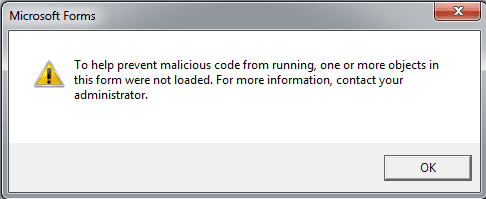
This was fixed in the July 27 2017 update but "broken" again by the September 12 2017 update. If you continue to get this error message, you (or additional security updates) may have disabled ActiveX in Word or Excel. Instructions are here.
The cause of problems with the September 12 2017 update is intentional: Microsoft disabled custom form script functionality. If you need it enabled, you'll need to set two keys, one to enable scripting and a second one with the message class name of each form that has code behind it.
Run this form will not work unless you add the default message class to the second registry key as well. After a new form is published, you'll need to add the form name to the registry too.
After adding the keys, you'll need to restart Outlook.
If the keys in the path don't exist, you'll need to create them.
If Outlook is 32 bit and Windows 64-bit, the keys are here
Windows and Outlook are the same bitness
If Windows and Outlook both have the same bitness, you'll use these keys.
Reminder: You'll need to add a registry value for each message class that will contain scripts. For example, if the custom form is IPM.Contact.custom, you’ll need to create a string value using the custom form’s message class. Add IPM.Contact to enable Run this Form during the design process. After the form is published, remember to add the form name to the registry too.
Outlook 2016
HKEY_LOCAL_MACHINE\SOFTWARE\Microsoft\Office\16.0\Outlook\Security
DWORD: DisableCustomFormItemScript
Value: 0 (to enable)
HKEY_LOCAL_MACHINE\SOFTWARE\Microsoft\Office\16.0\Outlook\Forms\TrustedFormScriptList
REG_SZ: IPM.Contact.custom-form-name
Value: (leave blank)
Use this sample registry file to add the Outlook 2016 keys to the registry. Save it as a text file and add your form names to the TrustedFormScriptList key, then save as a reg file and double click to run.
Outlook 2016\Windows (same bitness)
Outlook 2013
HKEY_LOCAL_MACHINE\SOFTWARE\Microsoft\Office\15.0\Outlook\Security
DWORD: DisableCustomFormItemScript
Value: 0 (to enable)
HKEY_LOCAL_MACHINE\SOFTWARE\Microsoft\Office\15.0\Outlook\Forms\TrustedFormScriptList
REG_SZ: IPM.Contact.custom-form-name
Value: (leave blank)
Use this sample registry file to add the Outlook 2013 keys to the registry. Save it as a text file and add your form names to the TrustedFormScriptList key, then save as a reg file and double click to run.
Outlook 2013\Windows (same bitness)
Outlook 2010
HKEY_LOCAL_MACHINE\SOFTWARE\Microsoft\Office\14.0\Outlook\Security
DWORD: DisableCustomFormItemScript
Value: 0 (to enable)
HKEY_LOCAL_MACHINE\SOFTWARE\Microsoft\Office\14.0\Outlook\Forms\TrustedFormScriptList
REG_SZ: IPM.Contact.custom-form-name
Value: (leave blank)
Use this sample registry file to add the Outlook 2010 keys to the registry. Save it as a text file and add your form names to the TrustedFormScriptList key, then save as a reg file and double click to run.
Outlook 2010\Windows (same bitness)
Outlook 2007
HKEY_LOCAL_MACHINE\SOFTWARE\Microsoft\Office\12.0\Outlook\Security
DWORD: DisableCustomFormItemScript
Value: 0 (to enable)
HKEY_LOCAL_MACHINE\SOFTWARE\Microsoft\Office\12.0\Outlook\Forms\TrustedFormScriptList
REG_SZ: IPM.Contact.custom-form-name
Value: (leave blank)
Sample registry file to add the Outlook 2007 keys to the registry. Save it as a text file and add your form names to the TrustedFormScriptList key, then save as a reg file and double click to run.
Outlook 2007 32bit, Windows 32bit
Windows 64-bit and Outlook 32-bit
You'll need to add a registry value for each message class that will contain scripts.
For example, if the custom form is IPM.Contact.custom, you’ll need to create a string value using the custom form’s message class. Add IPM.Contact to enable Run this Form during the design process. After the form is published, remember to add the form name to the registry too.
Outlook 2016
HKEY_LOCAL_MACHINE\SOFTWARE\WOW6432Node\Microsoft\Office\16.0\Outlook\Security
DWORD: DisableCustomFormItemScript
Value: 0 (to enable)
HKEY_LOCAL_MACHINE\SOFTWARE\WOW6432Node\Microsoft\Office\16.0\Outlook\Forms\TrustedFormScriptList
REG_SZ: IPM.Contact.custom
Value: (leave blank)
You can use this sample registry file to add the Outlook 2016 32-bit/Windows 64-bit keys to the registry. Save it as a text file and add your form names to the TrustedFormScriptList key, then save as a reg file and double click to run.
Outlook 2016 32bit, Windows 64bit
Outlook 2013
HKEY_LOCAL_MACHINE\SOFTWARE\WOW6432Node\Microsoft\Office\15.0\Outlook\Security
DWORD: DisableCustomFormItemScript
Value: 0 (to enable)
HKEY_LOCAL_MACHINE\SOFTWARE\WOW6432Node\Microsoft\Office\15.0\Outlook\Forms\TrustedFormScriptList
REG_SZ: IPM.Contact.custom-form-name
Value: (leave blank)
You can use this sample registry file to add the Outlook 2013 32-bit/Windows 64-bit keys to the registry. Save it as a text file and add your form names to the TrustedFormScriptList key, then save as a reg file and double click to run.
Outlook 2013 32bit, Windows 64bit
Outlook 2010
HKEY_LOCAL_MACHINE\SOFTWARE\WOW6432Node\Microsoft\Office\14.0\Outlook\Security
DWORD: DisableCustomFormItemScript
Value: 0 (to enable)
HKEY_LOCAL_MACHINE\SOFTWARE\WOW6432Node\Microsoft\Office\14.0\Outlook\Forms\TrustedFormScriptList
REG_SZ: IPM.Contact.custom-form-name
Value: (leave blank)
You can use this sample registry file to add the Outlook 2010 32-bit/Windows 64-bit keys to the registry. Save it as a text file and add your form names to the TrustedFormScriptList key, then save as a reg file and double click to run.
Outlook 2010 32bit, Windows 64bit
Outlook 2007
HKEY_LOCAL_MACHINE\SOFTWARE\WOW6432Node\Microsoft\Office\12.0\Outlook\Security
DWORD: DisableCustomFormItemScript
Value: 0 (to enable)
HKEY_LOCAL_MACHINE\SOFTWARE\WOW6432Node\Microsoft\Office\12.0\Outlook\Forms\TrustedFormScriptList
REG_SZ: IPM.Contact.custom-form-name
Value: (leave blank)
Use this sample registry file to add the Outlook 2007 32-bit/Windows 64-bit keys to the registry. Save it as a text file and add your form names to the TrustedFormScriptList key, then save as a reg file and double click to run.
Outlook 2007 32bit, Windows 64bit
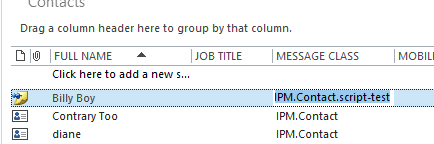
Accurately copy the form name
You can accurately copy the form name from a list view if the Message Class field is in the view and in-cell editing is enabled.
You'll need to add the Message Class field to the view, while in-cell editing is turned on by default with list views, except for Mail folders.
Macro to create a reg file
The following macro will write the custom form names in the selected folder to a text file (in your documents folder) then check for duplicates and save a cleaned copy as a .reg file. You'll need to change the registry path if you aren't using Outlook 2016 32-bit on Windows 64-bit.
This will write all message class EXCEPT the default message class to the text file, including all of the messages classes used for NDRs, meeting responses, etc. These do not need to be added to the registry. I added an If statement to remove some of these default form types but may have missed a few.
I tested this on a folder with 5000 items and it took just a few seconds.
To-dos: check all folders and convert to a VBScript.
Sub CreateTrustedFormScriptList()
  Dim CurItem As Object
  Dim CurFolder As Folder
  Dim AllItems As Items
  Dim strReg As String
 Dim objFS As New Scripting.FileSystemObject, objFile As Scripting.TextStream

  ' Use your User folder in the save path
Dim enviro As String
enviro = CStr(Environ("USERPROFILE"))

   Set CurFolder = Application.ActiveExplorer.CurrentFolder

If Not CurFolder Is Nothing Then

    Select Case CurFolder.DefaultItemType
    Case 0
        strDefaultClass = "IPM.Note"
    Case 1
        strDefaultClass = "IPM.Appointment"
    Case 2
        strDefaultClass = "IPM.Contact"
    Case 3
        strDefaultClass = "IPM.Task"
    End Select

   Set AllItems = CurFolder.Items

   For Each CurItem In AllItems

  If CurItem.MessageClass <> strDefaultClass Then

 ' check for other message classes outlook uses
 ' there may be more
   If CurItem.MessageClass = "REPORT.IPM.Note.NDR" Or _
    CurItem.MessageClass = "IPM.Schedule.Meeting.Resp.Pos" Or _
    CurItem.MessageClass = "IPM.Post.Rss" Or _
    CurItem.MessageClass = "REPORT.IPM.Schedule.Meeting.Request.NDR" Or _
    CurItem.MessageClass = "IPM.Sharing" Or _
    CurItem.MessageClass = "REPORT.IPM.Note.IPNRN" Or _
    CurItem.MessageClass = "REPORT.IPM.Note.DR" Or _
    CurItem.MessageClass = "IPM.Note.SMIME.MultipartSigned" Or _
    CurItem.MessageClass = "IPM.Schedule.Meeting.Request" Or _
    CurItem.MessageClass = "IPM.DistList" Then
   Else
        strReg = Chr(34) & CurItem.MessageClass & Chr(34) & "=" & Chr(34) & Chr(34) & vbCrLf & strReg
    End If
   End If
   Next

  End If

strFile = enviro & "\Documents\TrustedFormScriptList-" & CurFolder.NAME & ".txt"

  Set objFile = objFS.CreateTextFile(strFile, False)
  If objFile Is Nothing Then
    MsgBox "Error creating file '" & strFile & "'.", vbOKOnly + vbExclamation _
      , "Invalid File"
    Exit Sub
  End If

With objFile
    .Write "Windows Registry Editor Version 5.00" & vbCrLf & vbCrLf
    .Write "[HKEY_LOCAL_MACHINE\SOFTWARE\WOW6432Node\Microsoft\Office\16.0\Outlook\Forms\TrustedFormScriptList]" & vbCrLf
    .Write strReg
 End With

 objFile.Close

' remove dupes
' based on macro at
' https://www.experts-exchange.com/questions/27309860/VbScript-to-remove-Duplicate-rows-from-CSV-File.html#a36545408
Dim tsIn, tsOut, dic, TheLine, Repeat
Set dic = CreateObject("Scripting.Dictionary")
dic.CompareMode = vbTextCompare 'NOT case sensitive. omit for case sensitive
Set tsIn = objFS.OpenTextFile(strFile)
Set tsOut = objFS.CreateTextFile(strFile & ".reg")

Do Until tsIn.AtEndOfStream
    TheLine = tsIn.ReadLine
    If TheLine <> "" Then
        If dic.Exists(TheLine) Then
            Repeat = True
        Else
            Repeat = False
            dic.Add TheLine, TheLine
        End If
    Else
        Repeat = False
    End If
    If Not Repeat Then tsOut.WriteLine TheLine
Loop

tsIn.Close
tsOut.Close
Set tsIn = Nothing
Set tsOut = Nothing
Set dic = Nothing

  MsgBox "Done."

  Set objFS = Nothing
  Set objFile = Nothing
  Set objItem = Nothing

End Sub
Enable ActiveX
If you get the error when you open a form and some controls, including the message or body control, ActiveX is disabled.
Open Word, go to File > Options > Trust Center > Trust Center Settings. Select ActiveX Settings and allow ActiveX and check the Safe mode option.
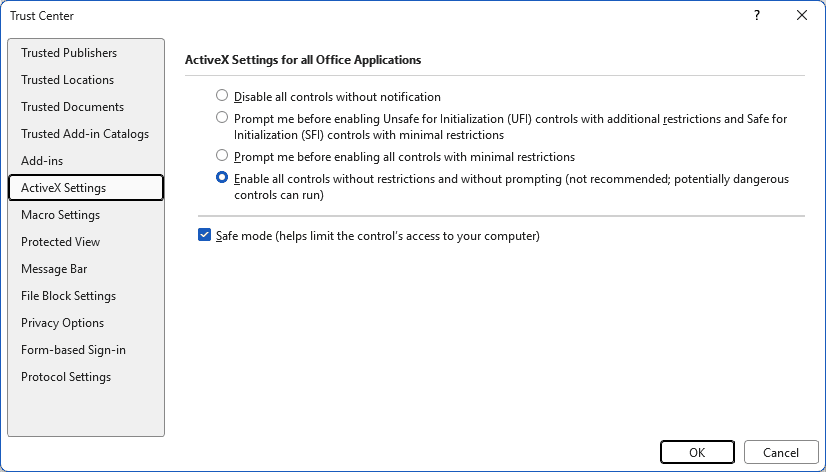
I recommend starting with the most restrictive option and testing it to see if your form still errors. Only use "Enable all controls without restrictions and without prompting (not recommended; potentially dangerous controls can run)" if neither of the Prompt options solve the problem.
While ActiveX is generally safe in Outlook, a rogue ActiveX control in a document or spreadsheet downloaded from the internet could infect your computer. Always use "Safe mode (helps limit the control’s access to your computer)"
The setting is stored in this registry key:
HKEY_CURRENT_USER\Software\Microsoft\Office\Common\Security
DWORD: DisableAllActiveX
Values: 0 (allow all)
DWORD: UFIControls
Value: 2 (use Safe mode). Allowed values are 1 - 6.
The allowed values for UFIControls are as follows.
- Regardless of how the control is marked as Safe For Initialization (SFI), load it and use the persisted values (if any). Does not trigger a prompt.
- If marked Safe For Initialization (SFI), load the control in safe mode and use persisted values (if any). If not SFI, load in unsafe mode with persisted values (if any), or use the default (first-time initialization) settings. Does not trigger a prompt.
- If marked SFI, load the control in unsafe mode and use persisted values (if any). If not SFI, prompt with message that it is marked unsafe. If the user chooses No at the prompt, do not load the control. Otherwise, load it with default (first-time initialization) settings.
- If SFI, load the control in safe mode and use persisted values (if any). If not SFI, prompt that it is marked unsafe. If the user chooses No at the prompt, do not load the control. Otherwise, load it with default (first-time initialization) settings.
- If SFI, load the control in unsafe mode and use persisted values (if any). If not SFI, prompt that it is marked unsafe. If the user chooses No at the prompt, do not load the control. Otherwise, load it with persisted values.
- If SFI, load the control in safe mode and use persisted values (if any). If not SFI, prompt that it is marked unsafe. If the user chooses No at the prompt, do not load the control. Otherwise, load it with persisted values.

George says
Hi guys, I struggled most of tonight trying to get form control button to work without success. Eventually I gave up. Good news is I think Active X Control Button might do the trick achieving something similar.
There are two types of buttons that user can add on a worksheet.
METHOD 1 (Form Control Button) which I tried and could not get to work, and I gave up.
====================================================================
I had a play with Outlook 2019 form VBScript, trying to create some sort of intelligent CommandButton1_Click().
I am using offline 64 bit desktop version Outlook 2019 , on 64 bit Windows 10 .
I tried tutorials from these 3 links shown below, and could not get the button to work (as in there is a button; the button is clickable from inside Outllook 2019 Appointment form, but does nothing).
https://stackoverflow.com/questions/54329511/how-do-i-hook-into-a-button-click-event-on-a-custom-form
https://www.slipstick.com/developer/custom-form/create-hyperlink-outlook-form/
https://www.slipstick.com/outlook/custom-form-security/
I applied Diane's registry hacks and unforunately still the VBScript would not run on clicking the CommandButton1.
METHOD 2 (Active X Control Button) which worked for me
=============================================
Apparently there is another way to get a CommandButton1 going. You don't have to trigger from within a form.
You can trigger it as an ActiveX Control Button. This occurs at a level above/outside of the form.
Following these two links shown below, I was able to construct a CommandButton1 that actually does something when clicked.
I have not dived into coding this ActiveX Control Button to manipulate the desired current appointment, but I am hopeful it's achievable. Checkout the reply from al1en from the first link shown below. He explains the two methods to do button well.
https://superuser.com/questions/536134/how-do-i-change-the-name-of-a-command-button-in-excel
https://analysistabs.com/vba-code/excel-userform/commandbutton/
The second link applied to Excel. But I was able to apply the same approach to Outlook no problem. Some of the tools he mentioned are hiding inside the menus along the top, you can look for them.
You might find these useful (if you can't find where they are):
Developer ->
INSERT -> UserForm
VIEW -> Code
VIEW -> Toolbox
Filip says
The office 2013 in which all works fine is at the picture. After KB4475563 even with your registry - crippled. Not working.
Office 2019 first verison, ok, running, Today's version: Crippled.
I believe the same will be valid for 2016.
Filip says
Hi Diane,
I am frustrated. I use customized Forms over 20 years. Some time ago I discovered the registry keys here. I successfully aplied them for the versions of Office where my soluytions stopped working.
However.
Office 2019.
After I install 32-bit EN version of Outlook 1812 Build 11126.20188 Click To Run, everything still works (of course I have to do the rocket science with all the Registry you describe here).
If, however I check File - Account - Office Updates and let him update to the last version..... guess what. It again stops working. regardless registry.
I have the same experience in Company notebook with Office 2016 where some KB fix is installed that causes scripts stop working. Regardless registry. I think it is this one: KB4475563.
This is a real Hell. Nigtmare. Hours, days spent in hopeless tests anger and despair. I think we shall say bye bye to our solutions in long term. I spent years to grow the solutions and I have to start from scratch but I have no idea which platform to choose now. This one lasted at least 22 years. Now MS Office team does not understand the product. They cripple it with every new version.
Is there some chance someone could ping the MS team to fix this Form functionality to still keep it working even after upgrades ? I have no clue what is "security--related" about it now.
I was hoping Diane that you have some channel to push this through.
For now, I have disabled updates at Office but this workaround will end some day.
Thanks a lot for this article again and have a nice day
Brett says
Hi folks. Just finding this as we are finally switching to newer Outlook. Reg keys work fine. The odd thing i see is that when editing the form is that if i so much as open the script editor (View Code), the code no longer works. I have to save, close, re-open to get it working again.
I have added the name of my custom form in the reg keys, and it does work when i first open it!
Any ideas? Thanks!
Filip says
Oh my God ! People in MS who take care of Outlook must have fallen onto their heads. I am half dead after having found your post here. Good news in bad news. The good one is, registry workaround works. But I will get mad soon. One of the greatest advantages was that VBS worked seamlessly everywhere synced at replicas !! They literally killed this feature. It is against it's nature. I needed 1 hour to understand and implement the registry branches. I curse the one who decided to cripple Outlook this way. Thank you Diane, you saved my life. Is there any power on the earth how to make Outlook back functional without spending a day tweaking? I also used VBScript at the form to generate GUID. I had to spend several hours to arrive at this: https://support.microsoft.com/en-us/help/4036837/run-time-error-70-permission-denied-generate-guid-with-office-vba Oh MY GOD. They recommend to use Visual Basic instead which does not work at the forms. How the he*l can be generating GUID dangerous or unsafe. When I combine it with this hack I arrive at one day hacking my Outlook to work again. Nigtmare. I wonder what they come with the next version.
Diane Poremsky says
I have no idea why generating the guid is dangerous, but they have been doing a lot to block obscure exploits, including run a script rules and vbscript controls.
https://support.office.com/en-us/article/VBScript-controls-blocked-in-Office-365-client-applications-8937ad5a-01a1-48d2-8595-910116907876
Paul Sawchuk says
Diane, thank you for this article! Any indication if MS will deprecate support for VBScript in custom forms at some point?
Diane Poremsky says
It's not on the roadmap. They need to maintain backwards compatibility but may eventually disable it - but not for a very long time.
Roy Glixon says
Outlook 2019 form scripting does not work, even with the published registry patches. I have opened a high priority Microsoft support case after proving the malfunction. I have also added a request to the Microsoft uservoice site. Please access the site and vote on that posting to get scripting working again in the new version.
https://outlook.uservoice.com
Roy Glixon
Silver Partner
Diane Poremsky says
It's the same codebase as an outlook 365/2016 build from summer, so it should work. I'll see what my support contact knows.
Dawn says
I had this working fine on my previous Dell laptop but I just got a new laptop this week and when I installed Microsoft Office these registry strings do not exist. Both laptops are Windows 10 Pro 64 bit and Office 32 bit. Any suggestions?
Diane Poremsky says
You need to add the keys if they do not exist.
Are you using the preinstalled version of office? The keys should work with it - but it uses a virtual registry and you wont see any of the keys outlook adds.
Danny says
Hi Diane, what about for Organizational Forms Library. Does the key still works.
Thanks,
Diane Poremsky says
Yes, it should. If its not working for you. let me know. Thanks.
Dave Michaels says
Hi Diane,
Any update on this regarding Public Folder custom forms?
Many thanks!
Diane Poremsky says
I thought I saw something a couple of weeks ago - but can't recall if it was in a kb or something from my support contact. I'll check on it. (That will teach me for not reading it immediately. :))
David Grice says
This is slightly OT, sorry, but I was wondering if you had any ideas about how I could access the Outlook object model in order to return the VBScript behind it.
I have a spreadsheet that trawls across multiple network folders searching for various files (*.vbs, *.hta, *.xlsm, *.accdb, etc) and retrieves all the code behind them. For Excel it access the project object and retrieves all code in all modules.
I am doing this so our security teams have a clear picture of all the user-generated code across the network, and only have Outlook forms left to do.
I guess I need to get to the MailItem object but have no idea how to access the VBScript code programmatically.
With what I have for all the other file types I can now identify all the links between all the files and identify any malicious code.
Diane Poremsky says
As far as I know, you can't read the script behind the form using VBA - it can execute it. I don't think Redemption (http://www.dimastr.com/redemption/home.htm) can do it - but that would probably be the best chance.
Warren Chan says
Hi Diane, thanks for all your input over the years. With this issue, your solutions works for me once the security updates have been uninstalled and registry key edits made. If i then re-install the security updates, it stops working. Can the uninstalled security updates be reinstalled or should they be blacklist from our updates?
Diane Poremsky says
once the keys are set, it should work with the updates installed - that is the purpose of the reg entries. :) Are the forms in shared mailboxes? Some people are having problems with that but i don't have a solution for that at this time.
Warren Chan says
Thanks Diane. The forms are in a public folder saved in the folder forms library. Outlook runs on a PC with Win 7 Pro with Office 2010 (both 32 bit)
Diane Poremsky says
That is probably why the key isn't helping - its basically the same problem with shared mailboxes.
AndrewJ says
Hi, Firstly thanks to everyone who contributed to this discussion.
Secondly we are seeing this exact issue with a calendar form and I was wondering if there is any new information has become available since December 2017.
Thanks in advance...
Diane Poremsky says
I'm not aware of any new information - you will need to add the ipm of the form in the registry.
AndrewJ says
Diane,
Thanks for the response. We have added the IPM of the form details to the registry and can now get our form to run when the calendar owner is using it. However, it still wont run when the is accessed from a shared folder.
When the form is used from a shared folder the VBA behind the form doesnt is blocked by something from running.
Diane Poremsky says
Yeah, others have had issues with shared folders. Microsoft insists they should work. I'll bug them about it again.
Pallavi says
hi Diane,
We also have Custom forms which have stopped working on the latest Outlook 2016 build version . Until September 2017 Outlook builds, and after the mess of June security updates, we at least had a solution to either add the registry fix or downgrade the Outlook version. This enabled the custom forms. But after September 2017, none of the registry fixes or downgrade options are working and hence none of our custom forms are working. the business is affected. Could you please advise any solution on this latest Outlook build?
Diane Poremsky says
The registry key should definitely fix the issue after the Sept updates. You need to set these two keys, repeating the form name in the TrustedFormScriptList key for each form.
HKEY_LOCAL_MACHINE\SOFTWARE\WOW6432Node\Microsoft\Office\16.0\Outlook\Security
DWORD: DisableCustomFormItemScript
Value: 0 (to enable)
HKEY_LOCAL_MACHINE\SOFTWARE\WOW6432Node\Microsoft\Office\16.0\Outlook\Forms\TrustedFormScriptList
REG_SZ: IPM.Contact.custom-form-name
Value: (leave blank)
Marc says
Hi Diane,
the keys don't work for appointment forms if the appointment is in another users calendar. It only works for your own calendar. Is there a solution?
Cheers
marc
Diane Poremsky says
It's supposed to... is the form name the same in that calendar? If not, you need to add the form name to your registry.
Marc says
Hi Diane,
same form, same name.
People also report this problem, on TechNet. See the last posts.
In our case, managers open appointments in their team members calendars. VBS is not executed in the appointment form. Even if the managers have full access on the calendars. Everything worked before the patch. VBS is executed when people open appointments in their personal calendar. Seems like the registry settings only work for personal calendars.
Cheers
Marc
Diane Poremsky says
i'll try to repro again - i know gabe and I both tried to repro it when the key first came out and the first complaints came in, but we weren't able to.
Did you also try this key - this would only fix issues with controls, not code behind the form.
HKEY_CURRENT_USER\Software\Microsoft\Office\15.0\outlook\Security\AllowActiveXOneOffForms
DWORD: AllowActiveXOneOffForms
Value: 1
Paul says
Doesn't work for me - script is still not running when the form is run from a shared folder.
Diane Poremsky says
Is the shared mailbox cached locally?
Marc says
Doesn't work for me as well. Where do I change the caching behaviour?
Our scenario: We create appointments in our employees calendars by the exchange API. The message class is custom like: IPM.Appointment.Our-Special-Type. We have an outlook form for that class provided for all users over the organisational forms within outlook/exchange. We use outlook 2013 and 2016. The VBS in the form runs with your recommended RegKeys in my personal calendar on my own appointments. It doesn’t run on appointments in calendars of my colleagues when I open them in my outlook. This was working before the security updates. All we need to do was to allow scripts in shared and public folders in the Trust Center under E-Mail Security. But changes there has no effect since the patch.
Diane Poremsky says
In File, Account settings, double click on your account then click More Settings. The caching settings for shared folders is there.
Marc says
Exchange Cache Mode? Is active, but doesn't change the behaviour if we deactivate it.
Pallavi says
Same problem we have , the registry fix just does not seem to affect the shared calendars and we are unable to run our custom forms. Any help on this is really appreciated, all our users are blocked for now
Diane Poremsky says
I'll remind them I'm waiting for an answer - my contact was out of the office for awhile (and is out for the holidays) so I can't say when i'll know anything.
Jörg says
I can contribute the following information to the problem:
The error message only occurs for appointment-forms that contain Microsoft Forms 2.0 controls and are assigned to shared calendar folders of other Exchange users.
For example, if the standard appointment form is changed in such a way that only Outlook controls are positioned on page 2 of the form and on page 3 a Microsoft Forms 2.0 element (e. g. Edit-Element) is inserted (without any VBScript), the form opened without an error message, but when switching to page 3, the following error message is displayed:
"To help prevent malicious code from running, one or more objects in this form were not loaded. For more information, contact your administrator."
The problem also occurs in Outlook version 15.0.4997.1000 (January 2018), although all registry entries are set according to the instructions.
It does not matter whether the form was published in organizational forms library or personal forms library.
The form works normally in public calendar folders that were created additionally (no Exchange users).
In Outlook version 15.0.4927.1002 (May 2017) the form works fine in all calendar folders.
Paul says
I've enabled both checkboxes to cache locally and restarted Outlook, but it didn't help. Shared Calendars still don't run any vb script. Do those registry settings need to be changed on the exchange server or something?
Has anyone been able to get code to run in a custom appointment on a shared calendar?
ABCD says
Perfect...works great..Thanks a lot Diane
Dave Gerrard says
Hi Diane,
We had this problem and solved by uninstalling the specific Outlook patches however it appears that the issue is being repeated on a new Windows 10 pc running Office 2013.
Do you know if the reg hacks above will work in Windows 10? or is there something else in Windows 10 that is stopping the Outlook Forms from loading properly.
Cheers,
Dave
Diane Poremsky says
The hacks are specific to outlook, not windows, so yes, they will work.
Neil says
We have a problem, although this fix works when applying the registry per form, there are hundreds of contacts discovered and hundreds we probably haven't discovered with this problem.
Is there a way to apply this fix for all form names?
Diane Poremsky says
You need to run a script to pull in all of the form names (but only from org library) and set registry keys for them. Microsoft support has the script available here - Script & Instructions to get form names from org library
Diane Poremsky says
I added a VBA macro to the page that creates a .reg file with the custom form classes (for 64-bit windows, 32-bit Outlook 2016 - that needs edited for other versions).
David says
I have an Add-in (TimeMeter) installed on an Office 2010 system. The form quits working every time the Microsoft updates apply. I have been uninstalling the updates (June and September) up to now, but would prefer to fix via registry. Problem is I can't figure out how to find the form and then the message class for that form.
Are there powershell commands I can run to get a list of forms and their message classes? If not, how do I search my outlook to find the form name and message class?
Diane Poremsky says
there is a script - Script & Instructions to get form names from org library - but if its just one form (or a limited number), add the message class field to a list view and copy the form name from that field.
Diane Poremsky says
actually, that may not help you - it only sumps org library forms, not personal forms.
Diane Poremsky says
I added a VBA macro to the page that creates a .reg file with the custom form classes (for 64-bit windows, 32-bit Outlook 2016 - that needs edited for other versions).
Christian says
Thank you so much Diane. This works perfectly with my Office 2016/Win 8.1.
Mike says
Wondering is you know of any work around for Custom Forms that have code embedded in it.
Sub Item_Open()If (instr(item.subject,"RE:")) = 0 And (item.attachments.count > 0) then
item.HTMLBODY = "Please review the attached invoice(s). Once reviewed please choose the <b><u>APPROVE</u></b> or <b><u>DENY</u></b>" &_
" button located above.<br><br>" & "Total Number of Attachments: " & item.attachments.count & "<br><hr> Accounting"
setButtonState True
else
setButtonState False
End if
Item.save
End Sub
Sub CommandButton1_Click()
TakeAction "APPROVED"
'msgbox("Approved")
item.Forward
End Sub
Sub CommandButton2_Click()
TakeAction "DENIED"
'msgbox("Denied")
End Sub
Sub TakeAction(strAction)
Dim objMail, objItem
Set objMail = Item.Forward
With objMail
.To = "invoices@haugpartners.com" 'Item.SenderEmailAddress
.HTMLbody = "Invoice(s) attached to the e-mail have been " & strAction
.OriginatorDeliveryReportRequested = True
If msgbox("Do you want to edit the Message" & vbcrlf & "before sending....",4,"Sending.....") = vbYes then
.Display
Item.close olSave
else
.send
Item.close olSave
End if
End with
'item.save
'Item.close olSave
Set objItem = Nothing
Set objMail = Nothing
End Sub
Sub SetButtonState(bolState)
dim objPage, objCntl
Set objPage = Item.GetInspector.ModifiedFormPages
Set objCntl = objPage("Message").Controls("CommandButton1") ' This is the line I am getting the error from
objCntl.visible = bolState
Set objCntl = objPage("Message").Controls("CommandButton2")
objCntl.visible = bolState
Set objPage = Nothing
Set objCntl = Nothing
End Sub
Diane Poremsky says
The registry key that sets DisableCustomFormItemScript & TrustedFormScriptList should fix this. You'll need to restart Outlook after setting the key.
Magnus says
Many thanks Diane, this information is absolutely vital and the suggested fix worked perfectly for my OL 2013 on Win 10, both 64 bits. Having spent days designing a custom task form just to see the functionality vanish twice after implementing required updates from Microsoft is not a pleasant experience, and hardly feasible in the long run. I would be lost without web sites like this one.
Bill says
Thanks. This is a life-saver. I have 32-bit Office 2010 running on 32-bit Windows. That works perfectly. However on a different system, using the registries shown for 32-bit Office running on 64-bit Windows is not working for me. Any thoughts?
Diane Poremsky says
What version of office is on the other computer? If 2013/2016, is it a subscription? (I tested 3 of the 32/win64 keys - didnt test 2013.)
Is the form name correct?
Joseph Awe says
This is not working for me either. I have Office 365 version of Outlook 32bit version 1708 (build 8431.2079). I have entered all the keys and none of my 7 custom forms with form scripts work.
Diane Poremsky says
Are you using 32 or 64 bit windows? Did you restart Outlook - and verify the form names are correct in the registry?
Joseph Awe says
I am using WIndows 7 Pro 64bit.
I am using Office 365 version of Outlook 32bit version 1708 (build 8431.2079).
All registry entries were made.
Outlook 2016 was restarted and the fix did not work.
The computer was restarted, then Outlook started, and the fix did not work.
This is also occurring on a WIndows 10 Pro 64bit computer.
I am using Office 365 version of Outlook 32bit version 1708 (build 8431.2079)..
Registry fixes di not fix the problem.
This problem does NOT exist on a Win 10 Pro 64bit computer running Office 365 version 1701 build (7766.2099)
Diane Poremsky says
>> This problem does NOT exist on a Win 10 Pro 64bit computer running Office 365 version 1701 build (7766.2099)
Yeah, it's new. I tested it with 32bit Outlook (all 4 versions) on Win 64bit (7,8.1,10)- the keys work. Did you use the reg key file or type it in yourself? (Try the file.)
Joseph Awe says
Further info...
All entries are correct in my Reg settings. The name of the form is fully qualified without spaces (e.g. IPM.Task.TB_Ticket).
What I discovered is that existing items (contact, task, note or appoinment) work on non 1708 version of Office 365 Outlook 2016 32bit with this reg fix, but...
It does not work when NEW items using a custom form with a script inside are created.
I have 3 custom forms in my Contact folder.
IPM.Contact.TB_Company
IPM.Contact.TB_Contact
IPM.Contact.TB_Employee.
For existing items, the custom script works.
For new items, the reg fix allows TB_Company to run but not TB_Contact nor TB_Employee. It just displays the "To help prevent malicious code" error an does not run the script.
I will be doing further testing.
Diane Poremsky says
I know for forms designer, you need an entry for IPM.Contact - I wonder if that would work for new forms. (New forms work here, but i have set IPM.Contact to test forms designer too.)
Diane Poremsky says
Oh, and make sure the message class name is correct. It tested it with messages classes that did not contain spaces - if yours contain spaces, try it both with and without double quotes around the name.
Joseph Awe says
This problem exists in both WIndow 7 32bit and 64 bit
Windows 10 64 bit.
Current 1708 (build 8431.2079 Click-to-Run).
This is with the following settings in the Trust Center
Email Security
check - Allow script in shared folders
check - Allow script in Public Folders
Macro Settings
Enable all macros
Diane Poremsky says
Correct, all versions are affected - it's a new change and affects Outlook 2007 and up. Those settings don't control this change - you need to set the registry key as it is not exposed in the interface.
Paul says
@Joseph is it on a shared calendar or shared mailbox? I'm able to get the registry fix to work on personal folders but not shared ones. I'm wondering if the registry keys need to be applied on the exchange server.
Diane Poremsky says
>> registry fix to work on personal folders but not shared ones.
this is a common problem.
Paul says
>> >> registry fix to work on personal folders but not shared ones.
>>this is a common problem.
Is there a solution? If there is no solution, do you know if Microsoft is working on a patch? I haven't been able to get any further information on this.
Diane Poremsky says
I'm waiting to here - I will send a reminder, but not really expecting an answer until after the new year.
Eric Kromps says
OK, we've just run into this ourselves. Works great on personal folders but not on shared folders. Any update on this issue since December 2017?
Diane Poremsky says
No, no update. Sorry.