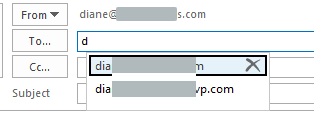
Users are reporting a problem in Outlook 2019, 2016, and Outlook 365: the autocomplete list is messed up. It may open upward, not downward, the autocomplete lines may be taller than normal, and you cannot delete entries from the list using your mouse, only the Delete key.
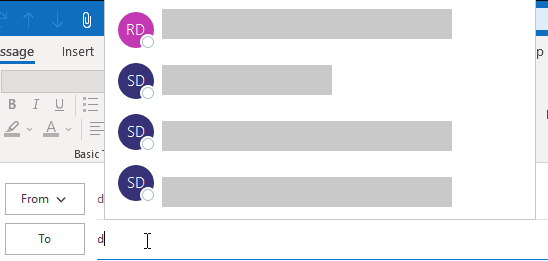
In Outlook 2016 and 2019 the menu is larger (and has initial circles), plus the X is missing to delete autocomplete entries.
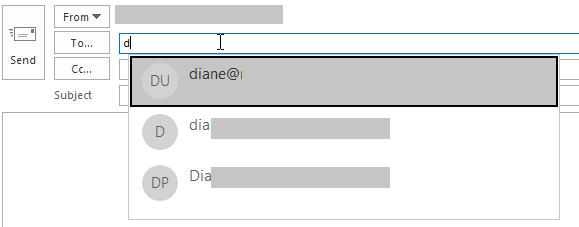
This is a bug in the latest Office updates and Microsoft is aware of the problem. The only workaround for Office 2016 and 2019 is to rollback to the previous build. Outlook 365 users can delete the DisableAutoCompleteUpdate value from the registry.
If you are using the DisableAutoCompleteUpdate registry key so Outlook uses the older simple autocomplete list, removing or renaming the value should fix the autocomplete list opening upward.
The key is at
HKEY_CURRENT_USER\Software\Microsoft\Office\16.0\Outlook\Options
DWORD: DisableAutoCompleteUpdate
How to revert to an older build
If you want to rollback your office installation, set Outlook / Office to not install updates automatically then use the rollback script to go back a build or two.
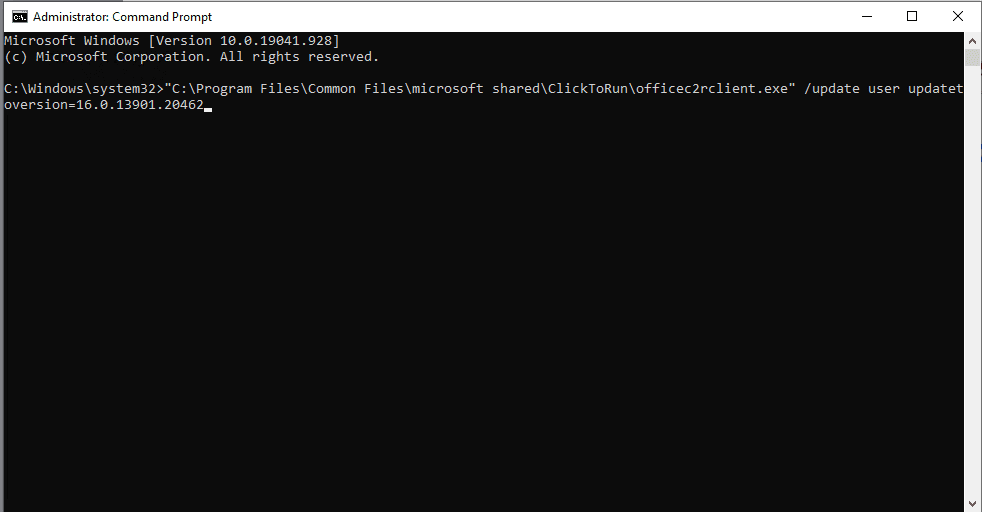
Type cmd on the Start screen to find the Command Prompt then right click on it and choose Run as Administrator
Paste this in the command window and press enter to revert to the April 23 build.
"C:\Program Files\Common Files\microsoft shared\ClickToRun\officec2rclient.exe" /update user updatetoversion=16.0.13901.20462
| Recent build numbers | |
|---|---|
| Release Date & Version | Build number |
| April 29, 2021 Version 2104 | 13929.20296 |
| April 23, 2021 Version 2103 | 13901.20462 |
| April 13, 2021 Version 2103 | 13901.20400 |

Riccardo says
Hi, i'm using Outlook 365 with Exchange server. The auto-complete option is already flagged but when i click on the address string the list only appear with text, without the images & status that other users have from the Skype for business application. I didn't want to delete the addres cache to see if resolve, any other ideas or suggestions?
Thanks
Jan says
Hello Diane, is there any possibility to change autocomplete to classic view for Outlook 2021? This uncomfortable view is shown since I´v installed it. Thank you very much, Jan
elese says
Hi! I am using the Outlook app at work and emails auto complete just fine but when I use Outlook web(what everyone else at work uses) the emails don't auto complete. Do you know why this would be? Can I somehow save the email cache from the outlook app and import it into Outlook Web?
Diane Poremsky says
The web app and desktop app have two different autocomplete caches. Web app should include address of people who sent you mail and your contacts though.
Ron says
I use the latest version of Edge browser on Win 10. OWA does not offer a suggestion of email addresses (which aren't in Contacts or GAL) until I manually type it in (and that is normal behavior). I understand we must type in the address at least once for OWA to offer a suggestion later on. It does not offer a suggestion of email addresses of those who sent you email either (like you mentioned in your reply).
However, I can only reuse those typed-in addresses after I type it in. The next day OWA does not offer that same email address that I typed in the day before. I don't clear cache at all. I just close Edge browser without even signing out. Nothing is selected in the "Choose what to clear every time you close the browser".
Does anyone know why this is happening?
Lil Baby says
RUN:%LOCALAPPDATA%\MICROSOFT\OUTLOOK\RoamCache
Diane Poremsky says
You can clear the autocomplete cache from File > Options > Mail. (But that won't fix the bug this article refers to.)
Marco says
Hello,
I'm using Outlook latest update (v. 16.0.14131.20278). If I set option Options -> Send messages -> Use Auto-Complete List to suggest names, Auto-Complete works properly. Quit Outlook and run it again, I find that option unchecked.
It seems it does not keep the value.
Any idea?
Diane Poremsky says
It might be because of this:
There is a new feature that was enabled by default that syncs settings in the cloud and it is causing changes to revert when you restart outlook.
Go to File > Options > General. In the Cloud Storage Options, remove the check from "Store my Outlook settings in the cloud"
https://www.slipstick.com/outlook/outlook-saving-preferences/
Marco says
Wow, you got it at the first try!!! Thanks a lot.
It'd remain to understand the useness of saving in the cloud settings that cannot be updated, but that's another story.
I'd have another issue for you, I don't know if this is the right place.
In the above outlook version I'm using a pop3 account. It happens that some of my sent email messages get lost, i.e. I don't find them in the Sent folder and it's not a matter of rules. They simple disaper, not all of them, but quite enough. I used scanpst, which found errors, corrected them, scanned multiple times until was ok. No way, after some sent messages, they start getting lost again and the .pst gets corrupted. I created a new .pst and imported items from the old one. Nothing, same problem, sent messagges disaper (not all and not always) and .pst get corrupted.
I checked my SSD hd, no errors found.
I think it's an Outlook bug, but I did not find reference to in on the Net.
I enabled the log feature and was able to collect logs genereted when sending a message that then disapeared, just in case....
Thanks,
Marco
Paul says
Thank you Diane,
You made my day. I had a user with this autofill problem. your guidance helped to fix it.
Thank you so much again!!
paul cummins says
you dont need to do any software update to fix this autofill change, you have this change to your email autofill because you somehow selected Bing to be your default search engine instead of google, just simply goto your settings and change back to google for web, email and all other apps on your computer and things will go back to normal!
Diane Poremsky says
Um, I don't think you are talking about the same thing - this is definitely a bug in the outlook desktop software - and it was fixed in an update.
Joshua Brown says
I confirmed the reg entry does not work with build 13929.20372, it does work with the latest build 13929.20386
LCP says
Hi Diane - any idea on when an update will be out for Outlook 365? We are having the issue with the email addresses running up the page and off the screen when typing in the To, Cc, and Bcc lines but only for those using MS Exchange
Diane Poremsky says
It was released Monday afternoon. What build are you on? Check for update then restart outlook and see if it works.
LCP says
I just checked for updates and ran it and now all is good! Thank you for replying :)
WILLIAM LANE says
HOW DO YOU CHECK FOR AN UPDATE?
Diane Poremsky says
File > Office Account > Update button.
Stuart Cairns says
This looks too easy:-) Does it prevent security updates being applied though?
Diane Poremsky says
If you disable updates and rollback, yes, it prevents security updates from being installed. But this specific bug was fixed in an update that came out last evening. Check for updates and restart Outlook (even if no update is found) to fix it. If it's not fixed, wait a couple of hours and try again - Microsoft trickles updates out slowly, in case there are some really nasty bugs in it.
Andy Gardiner says
I have a strange iteration of this issue, two machines, both the same build, one does this and the other doesn't... any ideas?
Diane Poremsky says
Are the autocomplete addresses 2 lines on both or does one use single line for addresses? An update came down overnight that should fix it - addresses should be back to one line per address in 2019.
NMT says
Yes now issue resolved Thank u so much
Yu-Ting Shen says
Hi Team,
For office 2019, 2016, please try(worked for me)!
HKEY_CURRENT_USER\Software\Microsoft\Office\<x.0>\Outlook\AutoNameCheck
create a New, and then select DWORD value MaxNickNames
set the value to 20 or something.
Diane Poremsky says
So, basically, set the value really low.
GAD says
That worked! Legend!
abdullah says
not able to find it
Diane Poremsky says
The key doesn't exist - you need to add it.
Yu-Ting Shen says
Don't use this option anymore! and remember to remove it if it has been done.
After the windows update, this key change will cause autocomplete caching issue
Diane Poremsky says
Yeah, after the fix came out, it would cause the cache to only have the last few names in it.
Andrew says
Oh man, thank you!! This has been driving me nuts.
Ed D says
Oh my god, this fixed it. I just spent an hour trying to fix this on someones computer and it was driving me crazy. Thank you so much!!
Skips says
Fantastic. Very cleaver and so easy.
Jarod Lee Olszynski says
The fix does work, but as soon as Windows Update runs again the problem resurfaces.
Diane Poremsky says
Did you set outlook to not install updates in File > Office Account?
Fred says
Excellent fix, thanks a lot!
Outlook user says
SO SO HELPFUL THANK YOU!
Dave says
Thank you, thank you, thank you!!!!!
Yurda says
Thank you so much. This fixed the issue for me. It was driving me crazy. Greatly appreciated.
Chris says
Just found this, thank God; I thought I was going crazy.
peter pf says
Thank you very mouch for this,
what a bad Bug for power users.
regkey DWORD is todo as 64bit ?
iven if Office ist installed as 32bit on an 64 bit System - is that true or no matter if DWORD in 32 or 64
the rollback did it in 5 minutes.
Diane Poremsky says
Reg key is DWORD, regardless of the bitness. I don't think there are any QWORD values for Office.
MIke says
Thank you!! Searched high and low and by some tag search term consisting of autocomplete and outlook found this. Appreciate your knowledge and fix, spent hours, and Microsoft wanted me to reinstall everything lol.
Wil says
Dear Dr. Diane,
Thank you so much! My users were about to hurt me... their battle cry is always "you should test Microsoft's updates before allowing us to suffer"... On a team of one person (3 if you count me, myself and I) I am not really setup to QA every Microsoft patch alone for all their products. But somehow you manage to do it!
Thanks for sharing your prescription for better computing!
Sincerely,
William
Matt S. says
I have not noticed any issue with autocomplete but I did notice that MS removed the built in date searches (i.e. all mail this week). I reverted back to 13901.20400 but that didn't help. My second laptop has version 2008, build 13127.21506 but it won't let me revert on my primary laptop. Any idea how to get the "all mail last week" function back?
Diane Poremsky says
They're improving search and instead of the received:thisweek type searches, you can use natural language - so try typing received this week in the search field and see if it works for you. I'm not sure if they will add commands for the natural language searches.
When I search for received this week, I get mail that was received Sunday until now and a banner at the top of the search results. (see screenshot) "received Last 7 days" search did not work. :(
Matt S. says
Thank you. I tested and, if I do sent and received last month, it does display everything sent and received last month. To me, that is an incredibly useful feature.
Diane Poremsky says
Yea, it is useful.
H Rey says
I have managed to roll back my Office 2019 but the problem still exists, kind of! It is toggling between working and not working everytime I exit from Outlook 2019. Is there a way of fixing this?
Btw, I've been experiencing another Outlook 2019 issue for the past week. When sending emails, some emails don't get stored in Sent Items folder.
They do get sent out but a copy doesn't get stored. It is a random effect. Has anyone else noticed this over the past week? I'd appreciate your help.
Thank you from Ireland.
Diane Poremsky says
What do you mean by this? " It is toggling between working and not working everytime I exit from Outlook 2019. " ?
On sent messages - I've seen a few reports over the last week or so - only the last 2 mentioned outlook 20109 and one user (did not mention Outlook version) was for a gmail account, so I passed it off as "user error" s a gmail saves all messages sent through its service. I'll test it in my 2019 installs and see if I can repro.
H Rey says
Ok, after roll-back I noticed "Use Auto-Complete List ..." is correctly selected under File>Options>Mail>Send Messages. The auto-complete function works and all is good.
If I exit out of Outlook 2019 and go back in, this time "Use Auto-Complete List ..." is not selected and the function does NOT work.
If I exit again and go back in, "Use Auto-Complete List ..." is selected again.
The above sequence repeats over and over.
Diane Poremsky says
That sounds like the cloud bug - File > Options > General - do you have an option at the top to sync settings to the cloud? Uncheck it. The settings should be stable once you do.
Outlook is not saving preferences (slipstick.com)
H Rey says
Fixed. Thank you so much.
I'm old school and never been a fan of the "cloud". This confirms it!
Thanks again Diane.
Erin says
Sent messages: I have seen this odd sent problem on a couple of computers lately too with onsite Microsoft Exchange 2016 and Outlook 2016 (Win 10 Pro). Some emails aren't showing up in the Sent folder, but yet if you know what to search for, we've luckily been able to find them and use Outlook's tool to "Move" them from wherever the heck they are stored to where we could get at them. Not sure what is going on with that one yet. But we just ran into this at work with a colleague of mine yesterday when he was trying to find something he had sent to an outside user to confirm he had sent it. Scary/oddly enough this was noticed on an email that had been sent out on April 1, 2021! (Hmm... cruel Microsoft April Fool's joke?? Ha)
Diane Poremsky says
Are they replies? There is an option to save sent items with replies and the 'save settings to cloud' option is known to change preferences.
When they are found, the folder name should show if you hover over the message in the results or you can add the in folder field to the view - it would be interesting to know where they are going.
H Rey says
I can't find those "sent" emails in any other folder on my Outlook. Luckily Gmail keeps a copy in the Sent folder but I rather don't rely on Gmail's copy.
Can I take it that by turning off the "cloud" setting, this bug is also fixed?
Diane Poremsky says
I don't know... but the sent messages in gmail should sync over when the sent folder syncs. If you open the sent folder, do they sync within a few minutes?
Erin says
Unfortunately no, both messages we were looking for were new messages being sent to someone at both a gmail account and another domain email they had. My colleague is out right now, but I'll have him search for the email again and see if we can figure out what folder it says it was sitting in. I didn't think to go looking for an "in folder" column when we were messing with it. There should be no cloud involved since we do not use Office 365 here (except for a few Mac users) and our Exchange is on-premise and always has been. But I will try to find this setting to see if it could still be interfering! Thank you for the thoughts and I'll report back on the folder it ended up in. We'll see if that tells us anything!
John says
Thank you for the Fix, was very helpful
Monica G says
Perfect. Thanks so much for the solution. This has been driving me batty for a couple days!
Charlie W says
Did not work for me. Not sure why.
Diane Poremsky says
The key didn't work or rolling back didn't work?
The key will fix it only in office 365 - IF you set the key.
Rolling back should fix it for everyone.
Sean S says
I have the O365 and the reg fix didn't work for me. I didn't try rolling back.
Diane Poremsky says
It should be fixed later this week.
Adrian says
Massive relief to find this, and huge respect to Diane
BIG Thank you !!!!
Sam A. says
Do you think Microsoft will fix this in the next Windows updates?
Diane Poremsky says
It will be fixed in an office update - expected in approximately 2 weeks.
Jim Vernon says
You can delete the entries by pressing Shift-Delete. You will most likely have to rebuild your Autocomplete list after this "feature" has been corrected, though.
Bruce says
THANK YOU so much!! This solution worked for me and saved me a great deal of time and frustration.
Max says
Thank you so much for posting about this. I have been swamped with client tickets today about this. Because they are on 365, there is not a lot that we can do, but it's good to know that it's a wider problem.
JoeE says
I am using Office 2016 and I simply did a full uninstall of Office and then reinstalled to fix autocomplete issue.
Tim Reed says
Thank you!!!! You're a life saver.
Matuke says
Thanks! but what if the program Office 2019 was installed through the microsoft store? This specified path does not exist. And the update was made automatically in the microsoft store.. how can I install a previous version?
Diane Poremsky says
The key is not the problem on 2019... and you'll need to live with it in the store version, or switch to click to run. Reverting to an older version would wipe out your accounts - and at that point, you might as well switch to click to run.
But if you switch to click to run, if you use IMAP and have 'this computer only' folders for calendar and contacts, you need to export them first. Back up and custom templates too.
The Windows Store Outlook App (slipstick.com)
Matthias Rost says
Awesome! Yesterday I haven´t found anything related to this problem. I was sure that this behavior isn´t normal but what was causing it? Now it´s official (case # created by MS as I read in the comments) that this is a bug.
Your description of the issue, the workaround with CMD and a video on top (disable updates in outlook/office software itself) is more than I´ve expected. I was happy to just find a website with information about that our company isn´t the only one struggling with this contact-mess.
Thanks for showing us all this well done workaround. I´ve tried it on 1 of 3 our affected PCs (till now *fingers crossed*) and it works smoothly. Took about 5 minutes.
Greetz from Germany
carlos Silva says
Hi, first of all thank you for this solution, saved my day at the office.
I have just one question, i have some versions of office 2019, does this rollback script work with this version?
Best regards,
Diane Poremsky says
Yes, it will work with 2019, 2016 and 365 - they are all version 16.
carlos Silva says
Thank you.
Rick says
Thank you for this. FYI you can delete it just does not have the X. Mouse over the entry and hit delete on your keyboard it worked for. Hopefully they fix soon.
Diane Poremsky says
Thanks for mentioning that.
Henk de Jng says
Thank you!! outlook 2016pro works correct again:)
Larry Kahm says
Thank you for posting this.
Took a bit of searching to find it, but this does solve one of my client's immediate problems.
His "recent" list is huge, and with a maximized window, the list was scrolling up and off the laptop screen so he didn't think there were any entries.
If I didn't remote in to see it, I would never have understood a verbal explanation.
Here's to hoping a fix is provided soonest...
Diane Poremsky says
Tentatively set for sometime during the week after next - so approximately 2 weeks, give or take.
Al Miller says
Thanks Diane. Please keep us posted when/if the fix gets rolled out.
Brian says
This thread is filling up too, on the same issue
Thanks
Brian says
"Microsoft is aware of the problem"... evidence?
Thanks
Diane Poremsky says
My contact in support gave me the case # assigned to it when he opened the support case after I figured out a repro.
It's a funky bug - I can only repro using the reg key - not in either of my two 2019 retail installs. The retail install have the new style autocomplete list that is missing the X to delete entries, but open downward.
Richard Haynes says
. . .thank you. ! .I've had two calls already this morning, haven't tested yet, but I'm confident this will resolve the issue.
Microsoft is aware, but will they FIX it is the real concern. :-)
Diane Poremsky says
I'm confident they will fix the upward issue and the lack of X to delete entries - not so sure about the old style single line autocomplete list.
Subscribers have had two-line entries "forever" - but they see the display name and address on separate lines, so there is hope the perpetual versions will get the smaller single lines back (because they have 2 line width, but still one line).
Michael Schober says
Thank you VERY much! This worked for me!
Tomer says
Thank you! i was looking for info about this for a while (:
Milano says
Thank you, this "NEW" Autocomplete make me mad!