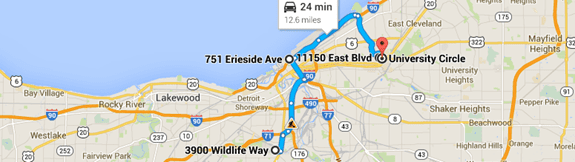
While Outlook's MapIt button can be reprogrammed to use another map service, you'll need to use VBA if you want to use a second map service or map multiple addresses or locations at once.
 Jerry wanted to use Zillow but he uses Outlook 2003 and Outlook 2003's map service can't be reprogrammed, so in the first example, I'm using Zillow. Although Zillow seems to accept anything Outlook throws at them (%20 for spaces, + as word separators, no separators), their default spacer is a dash, so I'm using a function to replace spaces in the address with a dash. It makes a prettier URL too. :)
I'm constructing the address from the individual address fields but you could simply use strAddress = oContact.BusinessAddress or strAddress = oContact.HomeAddress.
This macro may work in Outlook 2002 and Outlook 2000; however I did not test it in those versions. It was tested in Outlook 2003 and up.
Map an Address Macro
Press Alt+F11 to open the VBA editor and paste the code into ThisOutlookSession. Customize the toolbar, ribbon, or QAT, by adding the macro to a button in the main Outlook window. Select the Contact and run the macro.
Sub MapAddress()

  Dim strURL As String
  Dim oApp As Object
  Dim strAddress As String

  Set oApp = CreateObject("InternetExplorer.Application")

If TypeName(ActiveExplorer.Selection.Item(1)) = "ContactItem" Then
 Set oContact = ActiveExplorer.Selection.Item(1)

strAddress = oContact.BusinessAddressStreet & "-" & oContact.BusinessAddressCity & "-" & oContact.BusinessAddressState

ReplaceSpaces strAddress
strURL = "https://www.zillow.com/homes/" & strAddress

oApp.navigate (strURL)
oApp.Visible = True

'wait for page to load before passing the web URL
Do While oApp.Busy
  DoEvents
Loop
 End If

Set oApp = Nothing
End Sub

Private Sub ReplaceSpaces(strAddress As String)
  strAddress = Replace(strAddress, " ", "-")
End Sub
For google maps, use this url:
strURL = "https://maps.google.com/maps?f=q&source=s_q&hl=en&geocode=&q=" & strAddress
Map a Meeting Location
Use this macro to map an address in a meeting or appointment's Location field.
This macro will work with either selected or opened appointments. You'll need the GetCurrentItem function to use it.
If you need to use a location in the appointment body, use regex to capture the address.
Sub MapLocation()

  Dim strURL As String
  Dim oApp As Object
  Dim strAddress As String

  Set oApp = CreateObject("InternetExplorer.Application")

 Set oAppt = GetCurrentItem()

strAddress = oAppt.Location

ReplaceSpaces strAddress
strURL = "https://maps.google.com/maps?f=q&source=s_q&hl=en&geocode=&q=" & strAddress


oApp.navigate (strURL)
oApp.Visible = True

'wait for page to load before passing the web URL
Do While oApp.Busy
  DoEvents
Loop

Set oApp = Nothing
End Sub


Private Sub ReplaceSpaces(strAddress As String)
  strAddress = Replace(strAddress, " ", "-")
End Sub
Add the maplink to the meeting body
This sample code shows how to add a link to the map to the body of a meeting (or appointment).
 Sub MapMeetingsLocation()

  Dim strURL As String
  Dim oApp As Object
  Dim strAddress As String


 Dim oAppt As AppointmentItem
 Set oAppt = Application.ActiveInspector.CurrentItem

strAddress = oAppt.Location

ReplaceSpaces strAddress
strURL = "https://maps.google.com/maps?f=q&source=s_q&hl=en&geocode=&q=" & strAddress

oAppt.Body = oAppt.Body & vbCrLf & strURL

Set oApp = Nothing
End Sub
Map Multiple Addresses or Locations
You can get directions to multiple addresses using Google Maps with a URL formatted like this: https://www.google.com/maps/dir/street+city+state+zip/street+city+state+zip.
Use Current+Location to begin at your location or add your address as the first string. https://www.google.com/maps/dir/Current+Location/street+city+state+zip/street+city+state+zip.
I'm using a select case statement so we can use one macro for both appointments/meetings and contacts. I'm also using an If Statement to get a home address if the business address doesn't exist.
To use, select the contacts in first stop to last order and run the macro. Appointment locations are mapped first appointment to last. It works with any calendar or contacts folder in your profile.
Public Sub MapMultipleAddresses()

Dim Session As Outlook.NameSpace
Dim currentExplorer As Explorer
Dim Selection As Selection
Dim oItem As Object
Dim strURL As String
Dim oApp As Object
Dim strAddress As String

Set oApp = CreateObject("InternetExplorer.Application")
Set currentExplorer = Application.ActiveExplorer
Set Selection = currentExplorer.Selection

On Error Resume Next

For Each oItem In Selection


Select Case oItem.Class
 Case olContact
 If oItem.BusinessAddressCity = "" Then

 strAddress = strAddress & "/" & oItem.HomeAddressStreet & "+" & _
    oItem.HomeAddressCity & "+" & oItem.HomeAddressState

 Else
  strAddress = strAddress & "/" & oItem.BusinessAddressStreet & "+" & _
    oItem.BusinessAddressCity & "+" & oItem.BusinessAddressState

 End If

Case olAppointment, olMeeting
 strAddress = strAddress & "/" & oItem.Location
End Select

Err.Clear
Next

' replace spaces with +
strAddress = Replace(strAddress, " ", "+")

' use dir/Current+Location to start at your location
' or add your address to the url
strURL = "https://www.google.com/maps/dir" & strAddress

oApp.navigate (strURL)
oApp.Visible = True

'wait for page to load before passing the web URL
Do While oApp.Busy
    DoEvents
Loop

Set oApp = Nothing
Set Session = Nothing
Set currentExplorer = Nothing
Set oItem = Nothing
Set Selection = Nothing
End Sub
Using Firefox or Chrome Browser
If you want to use a different browser, you need to use the shell command to load the browser then pass the url to it. The shell command will look like this, with the full path to the browser. You need a space between the path to the browser and the url.
Shell ("C:\Program Files (x86)\Google\Chrome\Application\chrome.exe" & " " & strURL), vbNormalFocusThe path in my examples is for 64-bit Windows. If you use 32-bit Windows, the path will be C:\Program Files\Google\Chrome\Application\chrome.exe
Sub MapAddress()

  Dim strURL As String
  Dim strAddress As String

If TypeName(ActiveExplorer.Selection.Item(1)) = "ContactItem" Then
 Set oContact = ActiveExplorer.Selection.Item(1)

strAddress = oContact.BusinessAddressStreet & "-" & oContact.BusinessAddressCity & "-" & oContact.BusinessAddressState

ReplaceSpaces strAddress
strURL = "//www.zillow.com/homes/" & strAddress

'Shell ("C:\Program Files (x86)\Mozilla Firefox\firefox.exe" & " " & strURL), vbNormalFocus
Shell ("C:\Program Files (x86)\Google\Chrome\Application\chrome.exe" & " " & strURL), vbNormalFocus

End If

End Sub

Private Sub ReplaceSpaces(strAddress As String)
  strAddress = Replace(strAddress, " ", "-")
End Sub
Create your own MapIt button in a custom form
To create your own MapIt button in a custom form, you need to remove a few lines of the code. This goes in the View Code window. Add a command button called cmdMap to call the script.
Sub cmdMap_click()
Set oApp = CreateObject("InternetExplorer.Application")
strAddress = item.BusinessAddressStreet & "+" & item.BusinessAddressCity & "+" & item.BusinessAddressState
strAddress = Replace(strAddress, " ", "+")
strURL = "//maps.google.com/maps?f=q&source=s_q&hl=en&geocode=&q=" & strAddress
oApp.navigate (strURL)
oApp.Visible = True
End Sub
To use Chrome use the following VBScript. Change the path to the browser to use FireFox or another browser.
Sub cmdMap_click()
Set Shell = CreateObject("WScript.Shell")
strAddress = item.BusinessAddressStreet & "+" & item.BusinessAddressCity & "+" & item.BusinessAddressState
strAddress = Replace(strAddress, " ", "+")
strURL = "//maps.google.com/maps?f=q&source=s_q&hl=en&geocode=&q=" & strAddress
Shell.exec("C:\Program Files (x86)\Google\Chrome\Application\chrome.exe" & " " & strURL)
End Sub
To add buttons to map Home or Business address, use this code and two buttons, one called cmdMapBiz, and the other cmdMapHome.
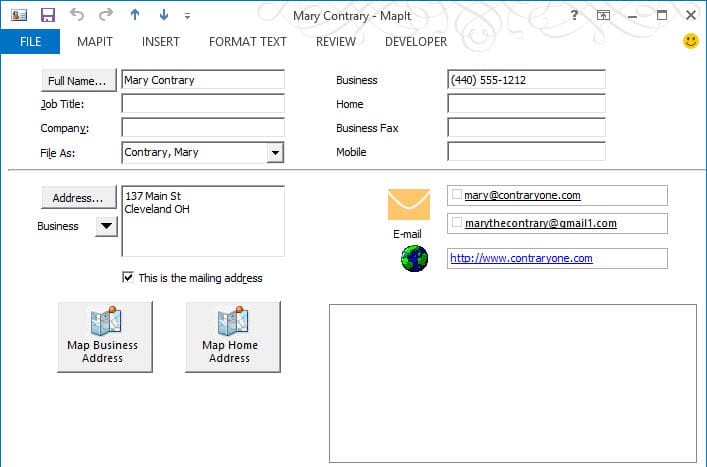
To create this form, I added pictures to labels (in the label's Advanced Properties) and renamed them cmdMapBiz and cmdMapHome. (I also added pictures to the email and web address labels.)
Dim strAddress

Sub cmdMapBiz_click()
strAddress = item.BusinessAddressStreet & "+" & item.BusinessAddressCity & "+" & item.BusinessAddressState
strAddress = Replace(strAddress, " ", "+")
MapAddress
End Sub

Sub cmdMapHome_click()
strAddress = item.HomeAddressStreet & "+" & item.HomeAddressCity & "+" & item.HomeAddressState
strAddress = Replace(strAddress, " ", "+")
MapAddress
End Sub

Sub MapAddress()
Set Shell = CreateObject("WScript.Shell")
strURL = "//maps.google.com/maps?f=q&source=s_q&hl=en&geocode=&q=" & strAddress
Shell.exec("C:\Program Files (x86)\Google\Chrome\Application\chrome.exe" & " " & strURL)
End Sub
How to use the macros on this page
First: You need to have macro security set to the lowest setting, Enable all macros during testing. The macros will not work with the top two options that disable all macros or unsigned macros. You could choose the option Notification for all macros, then accept it each time you restart Outlook, however, because it's somewhat hard to sneak macros into Outlook (unlike in Word and Excel), allowing all macros is safe, especially during the testing phase. You can sign the macro when it is finished and change the macro security to notify.
To check your macro security in Outlook 2010 and newer, go to File, Options, Trust Center and open Trust Center Settings, and change the Macro Settings. In Outlook 2007 and older, look at Tools, Macro Security.
After you test the macro and see that it works, you can either leave macro security set to low or sign the macro.
Macros that run when Outlook starts or automatically need to be in ThisOutlookSession, all other macros should be put in a module, but most will also work if placed in ThisOutlookSession. (It's generally recommended to keep only the automatic macros in ThisOutlookSession and use modules for all other macros.) The instructions are below.
The macros on this page should be placed in a module.
Open the VBA Editor by pressing Alt+F11 on your keyboard.
To put the code in a module:
- Right click on Project1 and choose Insert > Module
- Copy and paste the macro into the new module.
More information as well as screenshots are at How to use the VBA Editor






























Hi, I've just started working on this project, to allow our Scheduling Coordinators to Map addresses of the Consultant's appointments as well as make a calendar entry above the appointment for Drive Time and Distance. The Consultant's home address is given as a recurring appointment at 07:00 each day, so it can be used as the "previous" appointment for the first call, and the previous appointments from there to the end of the day are used to map the drive times. I'm just diving in to this, and I'm already getting confused. If you're still looking at this page, Mrs. Poremsky, I hope I can ask you a question or two. Mainly, how would I get access to the Location of the previous appointment for the day? And is it possible to create that "Drive Time" entry automatically? If there's an easy way to have that Drive Time "appointment" include a link to Google Maps driving directions that would make it a truly beautiful thing. We use the "Maps for Outlook" add-in, but the developer has disappeared & later Updates to Windows and Outlook have rendered "Maps for Outlook" impossible to install or repair to a working state. Thank you… Read more »
What if I only want the map with Stickpin and contact's name. Also, stuck trying to create a custom button. I am really inexperience at this stuff.
the first & second macro should do just the stick pin. i'm not sure you can add the contact's name - that would be a feature of the map service. If they support adding a label, then it should be possible.
How to create buttons is at https://www.slipstick.com/developer/how-to-use-outlooks-vba-editor/#button
Thanks -- This helped out alot!
I have been working on this and was hoping to use the 'Address Selector' data field. I see it listed in fields that can be added to a label in the value tab of the control but it is not listed in the MSDN contact properties (see below).
MSDN ContactItem Properties
Is there a way to access this column in VBScript?
Also, I have added Custom Fields (ClientNumber). How do you access these custom columns?
ONE LAST question: There seem to be many differences between VBA and VBScript. Is this documented somewhere?
Thank you so much
Frank
Thanks, this is really great.
Hello Diane, I would like to have a macro in Outlook (when I make an appointment) which extracts the traveldistance (and driving time) from google maps.
How do I do that?
You might need to use the google maps API. You can pass the address to google (from the location field) and get directions, but getting the values back would be the problem.
Thanks, Really this code is very useful for me.
I need to put all my contact on one google map.
What can I do??
Not using this code, but it should be possible if you have them in a CSV. That's how it was done in the past anyway. Looks like its still done that way - you can use either CSV or XLXS file format.