One of my email contacts has a new email address as their company changed their domain name. I have deleted and re-entered her correct email address about half a dozen times in the address book and yet my PC still thinks I am sending her emails to her old domain.com instead of her new domain.com. When I entered her name it defaults to the "olddomain.com" address even though it is nowhere to be found on my PC. I have to select her "newdomain.com" address from the address book for it to work. Has anyone experienced where Outlook is keeping this old email address info? How can I can purge it?
This is an all too common experience for many users.
Use the arrow key to select the incorrect address and press the Delete key.
You can clear the entire autocomplete file: in older versions you need to delete the *.NK2 file from your hard drive, while Outlook 2010 and newer has a button to clear the Autocomplete cache in Options (screenshot below).
Outlook 2010 and newer
Beginning with Outlook 2010, Outlook does not use the NK2 file; it stores the autocomplete cache in the mailbox or data file and caches the addresses in an autocomplete stream at C:\Users\%username%\AppData\Local\Microsoft\Outlook\RoamCache. You can type or paste %localappdata%\Microsoft\Outlook\RoamCache in the address bar of Windows Explorer then press Enter to open the folder location where the cache is stored in a file named Stream_Autocomplete_0_[long GUID].dat.
Clear the autocomplete cache using the File, Options, Mail, Empty Auto-complete list button.
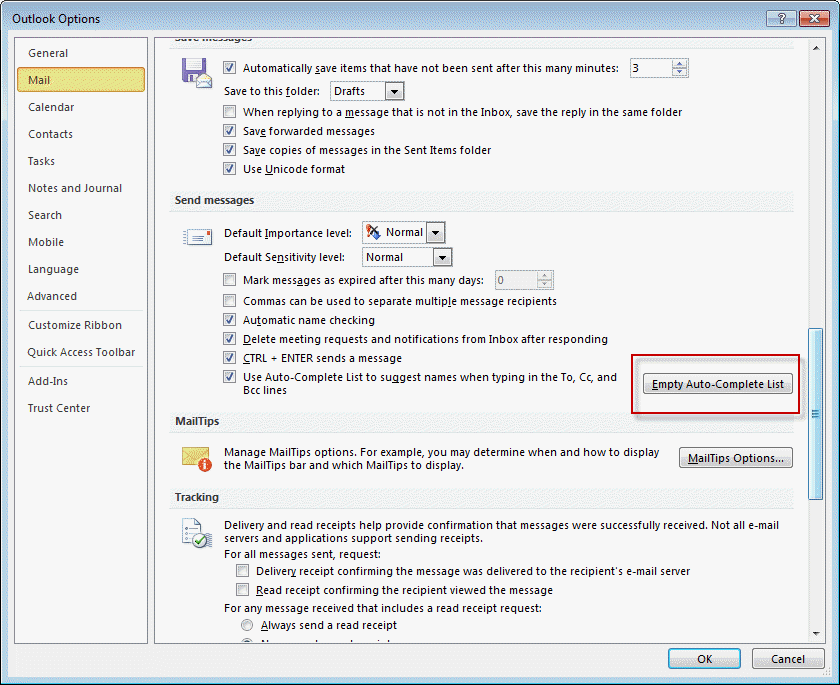
You can also use the /cleanautocompletecache switch to clear the cache.
Close Outlook. Press Windows key + R to open the Run command and type or paste the following line and press enter to start Outlook. (There is a space before /.)
outlook.exe /cleanautocompletecache
If addresses are not saving in the auto-complete list between Outlook sessions and clearing the cache doesn't fix the problem, you may need to delete the RoamCache file. Instructions are at Outlook doesn't save Autocomplete.
See Suggested Contacts and Auto-Complete Lists to learn more about Outlook 2010's autocomplete cache and suggested contacts.
Outlook 2010 also creates a contact for people you send mail to, as insurance if the autocomplete cache becomes corrupt. Look for these contacts in the Suggested Contacts folder. This unpopular feature was removed from Outlook beginning with Outlook 2013.
Clear the NK2 file in Outlook 2007
The nickname files (.nk2) used by Outlook 2007 (and 2003) is found at C:\Documents and Settings\%username%\Application Data\Microsoft\Outlook if you are using Windows XP/2000 or C:\Users\%username%\Application Data\Microsoft\Outlook.
You can access this folder by pasting %USERPROFILE%\Application Data\Microsoft\Outlook in the Address bar of Windows Explorer.
Close Outlook then delete or rename the *.NK2 file. When you restart Outlook it will create a new, empty NK2 file.
Nickname cache is empty
We use Outlook and my users aren't very good at adding email addresses to the Contacts folder and rely heavily on the autocomplete cache, but it gets replaced often. Why does it seem so fragile?
If the users are losing addresses of people they recently replied to (but not older addresses), it's because Outlook crashes or does not close properly and the changes are not written to the NK2 file. The existing *.NK2 shouldn't be replaced by a clean *.NK2 if this happens, but new addresses you've sent new mail to or replied to won't be saved to the file. Less used addresses are replaced by new addresses when the NK2 contains 1000 addresses in Outlook 2003 or 2000 address if using Outlook 2007.
If all addresses disappear, it means something is corrupt and Outlook is replacing the NK2 with a new, clean one.
If you're using the autocomplete cache as your address book because it's too much effort to right click on an address and save it as a new Contact, you should use a utility that creates contacts from all addresses you reply to, as the autocomplete cache is not a good substitute for contacts.
Import addresses from NK2
When you upgrade from Outlook 2007 and earlier in-place and use the same profile, Outlook 2010 or 2013 should import the NK2 you used with your previous Outlook version automatically on the first run. If Outlook didn't import the NK2 automatically, or you are using a new computer and didn't think to move the NK2 file, or you made a new profile, you can import the NK2 after the first run by using the ImportNK2 switch.
When you import the NK2, the contents of the file are merged into the existing nickname cache that is currently stored in your mailbox.
To import .nk2 files into Outlook 2010 and newer, follow these steps:
- Make sure that the .nk2 file is in the following folder:
%appdata%\Microsoft\Outlook
The .nk2 file must have the same name as your current Outlook profile. (By default, the profile name is "Outlook.") - Press Windows Key + R to open the Run dialog.
- In the Open box, type (or paste) outlook.exe /importnk2, and click OK to import the NK2 into your profile.
The .nk2 file is renamed with a .old file name extension on the first start of Outlook 2010. If you need to re-import the .nk2 file, remove the .old file name extension.
Use the nicknames with new profiles
If you create a new profile you can copy the NK2 file used by your old profile. You'll need to rename it so it matches the name of your new profile.
How to clear names from the cache
To remove single addresses, select the name using the arrow keys then press Delete. In Outlook 2010, you can also click the x beside the name to delete it or use the Backspace key.
To remove all of the addresses from the autocomplete cache in Outlook 2007 or 2003, either delete the NK2 file (at %USERPROFILE%\Application Data\Microsoft\Outlook ) or go to Tools, Options, Email Options, Advanced Email Options and deselect the option to suggest names near the bottom of the dialog.
In Outlook 2010, clear the cache using the File, Options, Mail dialog, Empty Auto-complete List button.
Remove an Address from the Auto-Complete Cache Tutorial
Auto-Complete Cache Editing Tools
Tools
Open source project to read MS Outlook autocomplete (NK2) files and extract email addresses. Beta version 0.5 | |
Use NK2Edit to edit or delete information stored in the NK2 file or Outlook 2010/2013's Autocomplete Stream, including the display name, the email address, the exchange string, the Drop-Down display name, and the search string. Free for home use; Commercial license available. | |
Use NK2View to view, edit or delete entries in Outlook's .NK2 AutoComplete file. Export the records to text, html, or xml files. Freeware. Version 1.37 |
Autocomplete List Cache Size
There is a limit of 1000 names on the autocomplete cache in Outlook. The limit can be raised in Outlook by use of a registry setting. Note: this value will not exist by default and is only needed if you want to change the limit.
Outlook 2016, 2019, 365:
HKEY_CURRENT_USER\Software\Microsoft\Office\16.0\Outlook\AutoNameCheck
Outlook 2013:
HKEY_CURRENT_USER\Software\Microsoft\Office\15.0\Outlook\AutoNameCheck
Outlook 2010:
HKEY_CURRENT_USER\Software\Microsoft\Office\14.0\Outlook\AutoNameCheck
Outlook 2007:
HKEY_CURRENT_USER\Software\Microsoft\Office\12.0\Outlook\AutoNameCheck
Outlook 2003:
HKEY_CURRENT_USER\Software\Microsoft\Office\11.0\Outlook\AutoNameCheck
Outlook 2002:
HKEY_CURRENT_USER\Software\Microsoft\Office\10.0\Outlook\AutoNameCheck
DWORD: MaxNicknames
Value: Between 1 and 2000, in decimal
Do It For Me
The following registry files will change the registry key to 2000 entries. Download the file for your version of Outlook and double click to run.
Outlook 2003 Outlook 2007 Outlook 2010
More Information
To learn more about the files Outlook uses and where they are stored, visit
Outlook & Exchange/Windows Messaging Backup and Dual-Boot.
OUTLOOK.EXE continues running after you exit Outlook
Outlook 2010's Suggested Contacts and Auto-Complete Lists

Robert M says
Hi - I put in a detailed comment yesterday but it disappeared. I'll be brief here. Is there a way to move an autocomplete cache from one Outlook [2019] Profile to another? Your steps aren't working when I follow them in this case, though they have worked for me a number of times before.
Thanks in advance!
Robert M says
Hi Diane,
I have used your suggestion(s) here to move the Autocomplete file before but today I have what I think is different.
Briefly, I HAD TO create a new Outlook Profile [Tim] as the ownership of this particular email address went from the tech support guy whom set up my friend Tim's website and email address. Tim took over ownership and the account was not migrated but deleted from the tech's GoDaddy account and added to Tim's GoDaddy account.
I still can see the Autocomplete working in the old Outlook Profile (but the email doesn't) but not in the new one.
I have made extra copies of the 925 KB .dat file just in case. But - and I can tell by putting a "new" address in the new Autocomplete - I close Outlook, find the new Profile's Autocomplete, rename it to the one from the other Profile [Outlook], then restart Outlook. But when I send a test email to an "old" address, nothing comes up in Autocomplete. If I send that email, then close Outlook, I see that the .dat file is back to 6 KB or something around there. And the time stamps keep me looking at the right versions, I believe.
This is Outlook 2019. Is there a way to export the Autocomplete from one Profile [Outlook} and import it to the new one [Tim]?
I thank you for your advice and hope that you can guide me thru this situation.
Robert
Ron Bohlander says
I found the info in this article about the autocomplete cache from Outlook (applicable to Version 2111 in the section about Outlook 2010 or Newer) very helpful in moving a family member from one computer to a new one. Thank you!!
Thomas Richardson says
Hi Diane, Great article, really useful. Any idea how MS calculates the weights in the NK2/autocomp file?
Matt van Leeuwen says
Hi Diane,
I know you're an Outlook mastermind, but not sure if this extends into Excel! Is it possible to pull the Auto-complete list into Excel using VBA? I have code that pulls the "Contacts" list, but I'm trying to do the same with the Auto-complete. To do so, the code needs to know the "name" of the list. For example, "Contacts", "Global Address List", etc... as seen in the following code snippet.
***** Set olAL = olNS.AddressLists("Global Address List")
Appreciate any insight!
Diane Poremsky says
You can't use VBA (I don;t think redemption can read it either, but will check) to access the autocomplete list - but nirsoft.net's NK2Edit can read the autocomplete file.
Matt van Leeuwen says
Thanks for the prompt reply! I was hoping to avoid external programs, as I'm building this for my company. Greatly appreciate your response!
S.S says
Hi, Diane
Outlook 365; "There is a limit of 1000 names on the autocomplete cache in Outlook" So.. what happens when cache is full (>over 1000 names)
How does Outlook then "behaves" with new email addresses? Many thanks!
Diane Poremsky says
The oldest addresses are removed. Outlook orders the address by recently used - so old addresses you haven't used should be removed.
Navid says
I have Outlook 365/2016 64 bit. The AutoNameCheck registry SubKey does not exist on 2 PCs I have checked: HKEY_CURRENT_USER\Software\Microsoft\Office\16.0\Outlook\AutoNameCheck
Diane Poremsky says
If the key doesn't exist, you need to add it.
JpaulJ says
I'm using Outlook 2013 (IMAP) and when I add a contact from within an email it is only stored in the autocomplete list(?). I was hoping to add the contact directly to the Contacts address book. I can only see this person when I click on To: and search the displayed list. He never actually shows up in my People address book.
How do I fix this? I thought I might import the autocomplete list, but it appears to also include my address book contacts.
Diane Poremsky says
When you save a contact by right-clicking on the address and choosing Add to Contacts, it is added to the default contacts folder. That is why you see it when you click on To.
Can you find it if you search People? How many contacts folders do you have?
Trav says
I just tried the NK2Edit tool. Marvellous piece of software!
My AutoComplete cache disappeared. This allowed me to recreate it from my sent items.
Can't recommend this tool highly enough!
Eli says
This is Great I used debunk2 to convert .Dat file.
1. The DAT file has larger Size that’s your auto-complete list
2. Make a Backup copy for your File.
3. Rename .dat to .NK2 file
4. Used the debunk2-0.5-win32
5. Point the file .NK2 to Open it
6. Save the file .TSV or .CSV Comma-Separated Values
7. Open the file in a notepad or Excel
8. Select All field to COPY
9. Open the outlook create new email and paste all address and hit enter at the end of your list.
you don't need to sent that's email to everyone, Just close the email open the new e-mail to test all the new list populated.
Dummy e-mail will fool the outlook to re-Index the .Dat was corrupt before.
Good luck!!
Eli M
Jen says
We are migrating from outlook 2007 to outlook 365 pro plus click to run. We did not migrate users nk2 however some are seeing autocomplete entries. It this because they are stored in a hidden file in the message store?
Diane Poremsky says
Could be - the list is stored as a hidden message in mailboxes or data files and if you upgraded in-place, Outlook would convert it to the new stream format on first run.
Murray Davidson says
Your advice was excellent Diane. It's helped dozens of people in our department in their move from Outlook 2007 to 2013 to have their autocomplete lists imported.
Charlotte B says
Thanks for this article. We have a number of people who rely heavily on autocomplete and get very upset when addresses get dropped off the number stack or they can't find something there exactly where they expect. You recommended a utility that automatically converts autocomplete to suggested contacts - is that one of the ones above and if so which one? Bonus if it can make some sort of local backup in case the machine dies.
I found a reg key for increasing the number of contacts kept to 2000 which we will be using for those folks.
Diane Poremsky says
NK2Edit from Nirsoft works well and can read both NK2 and autocomplete streams from newer versions. (Sorry I missed this earlier. )
Steve Green says
Our auto-complete lists frequently contain email addresses that do not match the character(s) we have typed. For instance, if I type the letter "d" the first address in the list is sean.normoyle@testpartners.co.uk
I installed NK2Edit and found a few things:
The erroneous addresses are all on our domain.
The erroneous addresses are all Exchange accounts.
Outlook doesn't just look for matches in email addresses. It also looks for matches at the start of the "cn" variable string in the “Email/Exchange String” column. In the case of Sean Normoyle above, this column contains "/o=hs20/ou=Exchange Administrative Group (FYDIBOHF23SPDLT)/cn=Recipients/cn=d54171f451ac409590cf55a24d74eec5-sean.normoyle"
This affects all our staff and occurs with all Outlook versions from 2010 to 2016. We only have 30 email addresses but this issue must be a huge problem for organisations with hundreds or thousands. For them, almost all the addresses in the auto-complete list must be wrong.
I tried removing these Email/Exchange Strings from the NK2 file but Outlook just puts them back in again the next time you send an email to those addresses.
Any help would be very welcome.
Diane Poremsky says
It will check the Exchange x500 address. The only solution i have is to type more than one letter - once you type di, the x500's will go away.
Usama says
Kindly share the link for the utility to edit autocomplete stream in outlook 2016. not for (.NK2) files.
Diane Poremsky says
Nk2Edit from nirsoft works with both NK2 and the autocomplete stream.
Ragnar Hanas says
Does it work with Outlook 2019 as well? This is not specifically mentioned on their site. Thanks
Diane Poremsky says
Yes, it does. Outlook 2019 is the same as 2016.
Alex says
Empty Auto-complete was for me the solution in Outlook 2016 ! thanks
Hemal says
Hi
I am experiencing the same problem with outlokk 2013 and exchange 2010 server.
Followed the above steps and some more suggestion but it still does not work.
Paid support from microsoft has not produced any result so far either.
Does anyone have any suggestion to resolve this.
Recreating the autocomplete is form scractch is not an option as the user wants all the email addressed to be working as it was.
We don't know what caused this.
Kind regards
Hemal
Diane Poremsky says
What is the problem? (Messages don't always thread, so i can't tell which comment you are replying to.)
Marc says
I am trying to dump autocomplete addresses from outlook 2013 for import into outlook 2007 (run on an older term server). Any suggestions?
Diane Poremsky says
I would use NK2Edit from Nirsoft to do it.
Larry says
Thank you for your information. It was very helpful for finding the appropriate file. I recently had to have a Surface Pro 4 replaced by Microsoft for a hardware problem. I wanted to have the autocomplete file from the old one put in the new one, but when I do this, somehow the old one ends up being used. I have even moved the file from the new computer onto my desktop and then pasted the file from the computer which I have to return into the appropriate location. Outlook somehow still uses the original file.
Obviously I am doing something wrong, but have not figured out what it is. Any help would be appreciated.
Diane Poremsky says
Did you rename the one you want to use to match the name Outlook gave the one you don't want to use?
Jenny says
Hi There,
I have Outlook 2013 and wish to turn off the AutoComplete totally.When I untick "show Autocomplete suggestions" they still appear.
How do I make all email addresses to be typed ?
Diane Poremsky says
Try clearing the cache and turn off autocomplete.
Richard says
Hi Diane , I would be obliged if you could help me . Where I work we have just moved to Ms Exchange 2016 and the domain we use for email sending has also been changed as we merged with another company. Some users are having issues with autocomplete in that it pulls through the "old" Email address (internal users). The email addresses have not changed but the Organisation they are sent from has . I have used the nk2edit programme , firstly closing Outlook , deleted all the duff entries , saved the file . Opened outlook and issue is still there , running nk2edit again shows all the entries that I had deleted . Outlook client is 2016.
Your advice would be thankfully received
Regards
Diane Poremsky says
if you need the entries in the autocomplete list, export them using nk2edit (and maybe make a copy of the autocomplete file) then use the button in the file, options to clear the autocomplete list. verify it is working correctly with the internal addresses then edit the exported list and create contacts or add the address back into the autocomplete list.
if that didn't work, delete the offline gal and see if it works. You might also need to make a new ost file.
Rajesh says
Hello, this article is useful. But i'm looking for something different.
Is there a way to import all the email addresses stored in cache to an excel or some file format?
Diane Poremsky says
You need to use one of the utilities to export the autocomplete list to CSV.
Usama says
I also required the utility but not for (.NK2) format.
Diane Poremsky says
I know Nk2Edit works with both, others on the list might.
Shams says
I upgrade MS outlook from 2007 to 2013
and I could import NK2 from the previous version and see nicknames in the new outlook 2013 as you mentioned in the article , and every think is OK.
but the problem is , sometimes the employee writes the first letter in To field and the address appear but sometimes doesn't !!!
He tried to close outlook and run it again , but the problem persist .
I don't know what should I do .
Diane Poremsky says
is the address in the autocomplete cache? If it's not in the cache, it won't come up in when you type in the to field.
Sandy says
I created a new Outlook 2010 profile (I do this every year to start fresh) and my nickname list has been wiped out. If I load my old profile my nicknames are there. With the disappearance of nk2 files is there a method I can use to export and import my nicknames to the new profile?? If it is a 'hidden' message in my PST file can I unhide it and just move it to the new PST file?
Diane Poremsky says
It's in a file in %localappdata%\microsoft\outlook\roamcache\. You can copy it and rename it to the name of the new autocomplete stream file used by the new account. Or use NK2Edit (Yes, it works with the stream file) to export the autocomplete list is a csv then import it.
Natalie H says
Is there a way to clear the "From" cache only?
Diane Poremsky says
The list of names on the from dropdown? They are stored in the value 101f0483 - here it was under HKEY_CURRENT_USER\SOFTWARE\Microsoft\Windows NT\CurrentVersion\Windows Messaging Subsystem\Profiles\my-profile-name\81245cd2d2e3194c977b0c55d00c1cec. Delete the value to clear it.
Wendy S says
Hello,
I have outlook 2013 and I would like to move the auto complete to a new laptop, outlook 2013 as well. I have the auto stream...on a flash dirve.
essentially I don't have an old and a new...just need the OLD one to work on new lap top.
it's a .dat file!!!
HELP - Please
Diane Poremsky says
You need to replace the autocomplete file created by the account in the profile with the new one, changing the name of the new one to the name of the old one. The other option is to use an autocomplete utility to get the entries from the old one and insert them into the new one.
Saurabh Sethi says
Nevermind!
It worked with outlook /importnk2 on command.
Thanks anyway
Saurabh Sethi says
Hi Diane,
I have moved from using outlook 2007 on windows 7 to using outlook 2013 on windows 10! I tried everything as you said -
1. Copied old outlook.nk2 file to %appdata%/roaming/microsoft/outook (as this is the default directory)
2. Ran command outlook.exe/importnk2
But it says "Windows cannot find outlook.exe/importnk2. Make sure that you type the name correctly and retry." Duh I've tried all combinations, but doesn't work.
Can you help, please?
Thanks
Saurabh
Alberto Samaniego says
You need to write with a space before the forward slash:
outlook.exe /importnk2
Cas Caserta says
Diane, I'd like to move the auto-complete list of emails from an old laptop using Outlook 2010 to a new one using Outlook 2013. Can you guide me on how to do this? I used the migration tool to move all the files but this feature does not seem to be working.
Diane Poremsky says
Close Outlook. Copy the cache file from the old complete. Locate the new profile's cache file and copy the file name. Rename it by adding -old to the end. Rename the copied cache file using the new cache file name you copied. Restart Outlook.
Younus Navees says
I m using MS Office 2007 and my addresses are not saving in NK2, when I restart my computer then NK2 file is empty and not shown in address bar after pressing any key, please tell me reason,
Diane Poremsky says
The NK2 is corrupt - or your installation is. Try deleting the autocomplete cache file and restarting Outlook.
Rolf Johansen says
Having many users on Outlook 2010/Win7Pro-64bit, we have several Exchange mailgroups now stored in the local autocomplete cache. We want to delete SOME of these groups from the local cache. Is there a way to do this from a script, without clearing the whole cache from the user? Or with a command and a parameter?
Thanks in advance.
Diane Poremsky says
No, there is not a way to do it via command line - you need to do it one at a time from each cache file.
The NK editor from nirsoft would allow you to edit the cache files but would only save time and effort if you are giving all users the same cache file.
Matt says
Diane,
I have a problem restoring the auto complete information after the following changes:
We had to re-image a user's machine. Of course, we backed up the user profile so we should have all the old files. We are also using googleappsync. The user had an old e-mail address that our system admin wanted to change, so he renamed the old e-mail address. We setup the user's e-mail with googleappssync and then realized the autocomplete was not working. We tried to copy the .NK2 file from the backup (old e-mail name) to the new computer in the same location as the new .NK2 file. No change was exhibited after restarting Outlook. We tried renaming the old .NK2 file to the same as the new .NK2 file. Still no change. I read through all the previous posts on this site and have not found a situation that matches what I am dealing with. Any help would be amazing! The user relies on the auto-complete and is freaking out right now because she can't contact anyone (she doesn't know any actual e-mail addresses; only names). By the way, I am using Outlook 2007 on a Windows 7 Pro (64-bit) machine. Thanks in advance.
AjeeshKumar says
Dear Diane,
I have a problem in Outlook 2013 cache names, the account I have configured as POP and PST file size is too large so i created an New PST file and made default location of mails in New PST. Since then am not able to see any cache names when i compose an new email, So i went back to the OLD PST and change the default location then it is working. So my question is i want to use my NEW PST as default mail so how can i get the auto cache names of OLD PST to the NEW PST.
Thanks
Ajeesh
Diane Poremsky says
Rather than change pst files, Archive the old mail from the pst file into a new pst.
But... did you move the contacts to the new pst file?
You might have a new autocomplete cache file for the new pst - if so, you can rename a copy of the old cache file. It's at %localappdata%\microsoft\outlook (type or paste that into the address bar of windows explorer and press Enter) - in the RoamCache folder, named something like Stream_Autocomplete_0_9A31F278CF34ED43B15605B42CB97F4F.dat. The larger file belongs to the old pst.
John says
Thanks so much Diane - you're awesome. My Outlook 2013 was replacing the email addresses of my recipients with some weird Exchange-based addresses after I hit 'Send', and it was driving me crazy. Your advice regarding the auto-complete cache solved it!
Michael says
There could not be more Chad Shelton's than the opera tenor. :) I just figured someone spoofed his name and tied it to an email to SEC-PC.kornet with my name pre-pended to that address string. I don't see how this can happen, since I have no such email on that domain, other than the list being infected. But if not, even better and indeed, if there is an infection this was the only one.
Found NK2Edit not long after the post. Great tool.
Michael Durthaler says
I happened to notice an email in my auto complete from Chad Shelton and naturally got curious. Googling Chad Shelton, he's an American Opera Tenor. Don't know him, this email address got placed into my Auto Complete List.
Finally finding this article, I see why I can't just open and edit the list. Well, I want to find all suspicious entries in Auto Complete and delete only *those* but get *all* of them removed.
My list is obviously infected. How do I *disinfect* it? Microsoft's idea of encrypting this data is very good but somebody's cracked the code, perhaps?
Do let me know how to view the list, select and delete any and all suspicious entries. i don't want to zap the file, just clean it.
Thanks!
Mike
Diane Poremsky says
You do realize that there are more chad Shelton's than just the opera singer? You can use NK2Edit to view and edit the NK2 file but I doubt that the 'code has been cracked'.
Chang Park says
Hi Diane,
I have just upgraded my wife's Windows 8 (on 64-bit computer) to 8.1 today. Although Outlook 2003 seems to function properly (it displays auto-complete list as I type an email address as usual), it does not allow me to pick an email address from the auto-complete list. Both "Enter" and mouse button did not work.
In case, I have deleted an email address from auto-complete list and send a test email, which added the email address back into the auto-complete list. And then, I tried to pick again, but Outlook does not allow me to select an email address from auto-complete list in the "To and cc."
What options do I have to make the auto-complete list work properly?
Thanks in advance!!
Diane Poremsky says
i'll test it - if its not working because of the os, then it probably cant be fixed. I don't recall other complaints, so it might be something else.
Sarah Van Walleghem says
Diane,
I created a new profile on my outlook 2010. Is there a way to import the autocomplete list into the new profile? Because it doesn't automaticaly use the already existing list.
Diane Poremsky says
You can import it - make a copy of the list used by the old profile and rename it - this is a fairly complicated thing with outlook 2010 and 2013, so it might be easier to use the nisoft nk2Edit utility to export the list from the old profile's list and into the new profile's list.
Joe Pedersen says
Thanks Diane, I have tried that and still to no avail. Do you have any other suggestions?
Joe
Diane Poremsky says
the file could be corrupt. Do you have contacts for the addresses on the list? If not, you'll want to use a utility to export the addresses on the list to a csv then delete the NK2 and let outlook rebuild it.
Joe Pedersen says
Diane, I have outlook 2003 and my autofill does not work. The names come up but when I click on the name nothing happens.
Joe
Diane Poremsky says
are you using the mouse to click them? I recommend using the arrow keys to select the names or type enough so only one name is left and hit tab.
DelisaD says
Is it possible to clean out the Calendar Auto Complete list? I have addresses I need to get out and deleting them is not working.
Diane Poremsky says
That is file, open, other user's folder? It's stored in a registry key. See https://www.slipstick.com/outlook/clearing-outlooks-most-recently-used-mru-lists/ for more information and instructions on clearing the mru.
Steve says
Hi Thanks.
They were all there then on restart they were gone and it started rebuilding itself with each new email. However another fix I read worked so it may be worth adding this to your fix list. Instead of going online I clicked on go offline under send receive. I actually sent the message to all contacts and then deleted it from the out box. Bingo they all stayed after a restart!! It is so weird that we need work around to what, apart from sending and attaching messages is the most important feature. Thanks again.
S
Diane Poremsky says
I thought that was in one of the comments, but there are so many, i should add it to the text.
Steve says
Dear Diane
I have followed all steps above. Win 7 Outlook 2010. When I populate it works until outlook is reopened and then they are gone again. Any ideas please??
Steve says
btw Win 7 Outlook 2010
steve says
Hi
I have cleared the AC and then created an email with all contacts and saved as draft. Great the next message has all the autocomplete addresses :). Restart Outlook and they all disappear. Repeat process and they are back, restart and they are gone:( I have deleted the Roaming file too. Any ideas please ??
Diane Poremsky says
As of a year or so ago, it's an iffy proposition and only names you actually send messages to, stick. If they aren't sticking, clear/reset the cache using the option in File, Options, Mail and restart Outlook. Send some messages and restart outlook and try addressing a message to those addresses. Were they saved?
If that worked we know nothing is corrupting the cache. You can either let outlook populate the file naturally or use the NK2Edit utility to populate it. (I guess I should write up the steps to do that. :))
Kursad says
Hi Diane,
I am using outlook 2003 on windows 8. I have a problem with selecting an email address from autocomplete. I cannot select by clicking on them. (left mouse button) It is very annoying to write in the whole address again. Could you please help me. Thanks.
Diane Poremsky says
You're using outlook 2003 - you'll need to use the arrow keys to select the address.
Jason says
Does Outlook 2013 populate the autocomplete stream differently than previous versions of Outlook? It seems like it is taking addresses from places other than just emails I sent to people. I had an issue where it wasn't keeping new addresses so I cleared it, and that seemed to fix the issue, but there are still addresses in there that I haven't mailed to for years somehow in there. Also, i haven't seen a limit for the amount of addresses Outlook 2013 will keep in the autocomplete stream. Is there one? I don't see a registry key for 2013 to let you change the limit.
Diane Poremsky says
No, it uses the same method. The only change (which I hate) is that Search People (the former Find a contact) includes the addresses in the stream.
parul says
Hi there,
I want to be able to edit this autcomplete list, however this needs to be done automatically, without the users knowing so.
We want only our domain email ids to be on this list as we want to force the user to type a non domain email id.
How can this be acheived?
Thanks
Diane Poremsky says
That is not possible generally speaking. What you could do is to push out an autocomplete list that has only the internal addresses using a logon script each day. External addresses will be added as they send mail, but won't be saved once they log off.
Or, just disable autocomplete and let users use autoresolve for company addresses.
Jim says
Thank you Diane! The autocomplete issue was bugging me for years and I just lived with it.
Parul G says
Here is my requirement:
I want to be able to edit the nk2 file. I want all addresses that are not of my domain to be removed from the file. Thus forcing the user to type out the non -company emails.
Is this programmatically possible? How?
Diane Poremsky says
Use one of the tools
Theresa says
We created an account in AD which sync'd to Office 365. The AD account encountered a problem and had to be deleted and re-created. The user maintained identical information including email address on the re-create. However, after the account was re-created when people addressed the user pulling the email address from their cache in Outlook 2007, 2010 and 2013, they would receive a bounce back. They had to delete the address in cache and re-create from the GAL (not local AL). What is in the cached address that makes it unique to an account?
Diane Poremsky says
There is a unique GUIS assigned to each address and that is what is used internally. The SMTP address is only used for external mail.
David says
Thank you Diane !
They had such a clean solution in 2010 for this, bummed they changed it.
Diane Poremsky says
Autocomplete lists behavior didn't change. They removed the suggested contacts folder because no one liked it....
Bryan says
I'm also bummed MS made the decision to no longer save the autocomplete list in the mailbox. I realize this isn't best practice, but many of our users rely on the autocomplete list as their address book. Since MS is back to storing the autocomplete list in a file on the C:\ drive rather than the mailbox, our users lose these addresses when we give them a new PC.
Sucks.
Diane Poremsky says
You mean the suggested contacts? Outlook 2013's autocomplete list is very robust (to the point of being annoying). It's a hidden file in the mailbox and also in an xml file on the hard drive.
David says
Hi Diane,
Ive upgraded to Outlook 2013 and would like to export my autocomplete cache to a csv file. I know how to do this in Outlook 2010, but cannot find the option in 2013. Hopefully you have a solution :)
Diane Poremsky says
You need to use a utility to export it - i know this works with the new files - https://www.nirsoft.net/utils/outlook_nk2_edit.html
calvin edwards says
Thank you Diane! I think I may be hosed. in my org, karen smith would be filed as smith, karen in the address book and the email is karen.smith@domain.com. Autocomple only recognizes karen.smith@domain.com
Diane Poremsky says
if "smith, karen (karen.smith@domain.com)" is in the autocomplete list, it should use either S or K - but getting that format into the autocomplete list depends on other factors, like how the display name is formatted on messages Karen sends you. Sorry.
If you don't use the autocomplete list, then "smith, k" would work for autoresolve - but autocomplete is usually easier. :(
calvin.edwards says
Diane, this is related to this question. My org recently went from an older Outlook version to Outlook 2010. Under the old autocomplete, I would type in last names and the autocomplete would fill in the name. Now, with 2010 I have to type in first names. Problem for me is that I have about 10 Johns, 5 Michaeals, 6 Karens, etc. Much easier to fill in by last name for me. Can I either change how Outlook looks for the autocomplete name or would I have to do something like switch name order (first name for last) s in my contacts for Outlook to autocomplete by last name? Thanks!
Diane Poremsky says
You'll need to change the format - it should work with last, first format. Autocomplete reads left to right for names and email addresses. "smith, karen (ksmith@domain.com)" should come up by typing either k or s but "karen smith (ksmith)" would only come up with k.
a.habaz@newwavest.com says
Hello, I have a question. The e-mail adresses which are saved in the Microsoft
Outlook , but are not my contacts (they are not saved as contacts, and I also dont want to save them as contacts) but they are "saved" in the autocomplete for the next time when I want to send an email. How can I get a list of these e-mail adresses?
A list in excel or simply print them somehow... Is there any possibility? Thank you in advance.
(sorry I am not an outlook expert...)
Diane Poremsky says
Any of the utilities in the Tools section can export the list (see if Nk2Edit meets your needs). If you use Outlook 2010 and have Suggested Contacts enabled, you'll have a list too.
Kelli says
Hello Diane, I have the same question but for Outlook 2013. I am trying to simply get an excel list of the autocomplete drop down in Outlook 2013 and am unable to do so with the "suggested contacts" because they are no longer there. Do the NK2 utilities work for 2013? Thanks for any help you can be.
Diane Poremsky says
Yes, most of the NK2 utilities will work. I prefer NK2Edit from nirsoft.
Corky says
Diane, I have an opposite issue with one of our users than Johnathon Klein. This user was recently converted from Windows XP to Windows7 Enterprise 64-bit and Office 2010 32-bit. He wants only the name displayed, not the FQN. On some addressee's this is the case, but on others, the full address appears, is there any way to standardize on the display name only?
Diane Poremsky says
No, sorry, there is not. The autocomplete list picks up the display name formatting from the address source. If the entry was added to the list by replying to a message, it will have the address, if it was added from the contacts, it should list just the name. Replying may update the autocomplete to use the full format, so it may be name only then switch to address.
Josh says
I think I am one of the few cases where the Auto-Complete feature doesn't "stick" between logging on and off of Outlook. Any suggestions to permaentely keep them there?
Thanks
Diane Poremsky says
Reset/delete the cache file and start with a fresh one.
Chris Tang says
I deleted different contacts from a group email list, but they are still receiving my emails. They are not in those groups anymore, but they still receive them? I looked at a Microsoft forum and they said this has been a known issue with Outlook for a few months, and yet still no solution,any help you can offer?
Diane Poremsky says
When you address a message to the group and the group name/address comes up in the auto-complete list as you type it, you need to delete the entry from the list and retype it or select the group from your address book.
It's very important to delete the group from the auto-complete list - it has all of the old addresses stored in it.
Jonathan Klein says
Any luck?
Diane Poremsky says
No, i haven't had time to look at it yet. Still jet lagged. :( The "easy" method I hoped to use only gets the address.
Jonathan Klein says
Wow, I can't believe I'm the only person to have this problem. There must be a way to copy emails from outlook emails onto a spreadsheet with columns for address and email...
Diane Poremsky says
There is, but not necessarily from the same address source you have. If you open the Internet header you can get the addresses off... its a couple of steps though. I'm out of town right now - when I get back I'll look into writing some code to handle it.
Jonathan Klein says
That would be great. Thanks for any help you can give!
Diane Poremsky says
Well, the code I thought would get them from the header will only get the recipients display names, not their email addresses. Back to the drawing board....
Jonathan Klein says
Diane,
Thank you for this. However, I wasn't specific enough (sorry): I am interested in unpacking the information into a spreadsheet, with columns for first name, last name, and email. Is that possible?
Diane Poremsky says
You can use the data anywhere - but you will need to get it from the message header and work it to split the name fields. I have some code somewhere to get the address. I'll see if I can find it.
Jonathan Klein says
I want to take email addresses from emails sent to me in which I am one of many people and which all the listings hide the actual email addresses and capture the name-email combo information (i.e. someone's email is shown as "John Smith" and is hiding "johnsmith@domain.com"). Is there a way to do that?
Diane Poremsky says
You need to get it from the message header. Unless you use Outlook 2010 and up - then copying the address fields gets the display name and address. Get addresses from header
G says
thanks for the copy paste advice for the autocomplete - i somehow thought of saving them from the recommended contacts when i left the company, but had no idea when i would actually use them on my new computer... now it just works with the draft trick. excellent!
i do have a question for a microsoft expert though, why would you need to go to the EXPORT folder under advanced options in outlook, to IMPORT a business card? :)
Diane Poremsky says
Because you didn't know Import was under File, Open? :) Of course, then the question "is why would you need to go to File, Open, Import to Export?" LOL Either way brings up the Import/Export wizard.
Bill says
I'am using Outlook 2010 on win 7-64 and I have emptied the autocomplete and even turned it off and restarted Outlook. My problem is when I click "reply" this persons old email address comes up in the "to" field, and not his current email addy which he sent the email from. I would think that Outlook would always use the senders email addy that he/she sent it from and and not some old addy that autocomplete has stored when I click on "reply"
Diane Poremsky says
Check the incoming message header - its possible the sender had the old address in the Reply to field.
Outlook will use the autocomplete cache first, but if you deleted the persons address from it, it's not getting the address from there.
Charlie says
Diane-- my hard drive died (Win7P-64, OLK-10) and I was able to recover my PST (my OLK profile had just a single POP account in it) but when I set it up on my rebuilt computer (same laptop, recovery DVDs run, OFC-10 reinstalled, etc.), my auto-complete addresses do not come up. My understanding is that they were embedded in the old PST file (someone else had previously told me that OLK-10 stored them in the registry?)-- how can I recover them? MANY thanks for any assistance and your valuable posts which are always a huge help.
Diane Poremsky says
They should all be in the Suggested contacts in Outlook 2010. The autocomplete list is linked to the account that created it, so they won't come up when you move the pst but you can recover it from the suggested contacts or just rebuild it as you use outlook.
Diane Poremsky says
It depends how the address is stored in autocomplete - if the first and last names are part of the autocomplete entry, it will work. Note that outlook checks first letters of words - typing a will find entries with Alice Smith and art@gmail.com but not Lisa or Jack Allen.
Lisa says
It it possible to have Outlook 2010 auto complete if you type in last name first of an address you are sending to?
Joan Triano says
I'll give that a try and see if it is resolved next time around. Sorry for the duplicate question - the first submission said it failed. And thanks for the quick response!
Joan Triano says
Diane, I have a similar but different problem. Using Outlook 2010, with Windows 7. I have updated Contact Groups with some new addresses in addition to correcting those addresses in each main contact. But when I send mail to the Contact Groups, there are 2 phantom emails (the old addresses) to which emails are sent. I've checked everywhere and cannot find where these addresses might be stored. I read about clearing the autocomplete cache, but these emails are not found there either.
Any thoughts?
Diane Poremsky says
It's the autocomplete cache - after you update a Contact Group / DL, you need to delete the Group's entry from the autocomplete cache. Begin typing the name in the To field, when it comes up select and delete it. The new group will be saved to the cache, with the correct addresses.
Jim says
Hi,
I was working in Windows XP, Outlook 2007 and want to move my autocomplete (NK2) to my other PC, running Windows 7, Outlook 2010. I copied out the NK2 file but am struggling to get it to import. Followed the following steps as per this https://support.microsoft.com/kb/980542
But at the last step I keep getting an error that basically says the NK2 file is not a valid win32 application ??
Diane Poremsky says
Are you using 64bit Outlook? (I didn't think it mattered for this though).
Errors like this usually mean the file is corrupt. Can you get another copy off the old computer?
Dan Nainan, Comedian says
I've noticed that after a few weeks or months, people disappear from the nickname cache. Is there a way to keep them permanently?
Diane Poremsky says
The autocomplete cache has a limit of 1000 names. When that limit is reached, outlook removes the oldest names. You can add names back by composing a message to that person then closing the message without sending.
Marc Sanders says
Hi. Is there any way to get the Outlook auto-complete list to appear in ALPHABETIC order, rather than most-recently-used? If you have to get 3rd party software, is that safe? Thanks.
Diane Poremsky says
While there are 3rd party editors and they are safe, you cannot change the order in the autocomplete list. Sorry. It's always going to revert to most recently used. Once you hit 1000 names, the older names are replaced by newer names. (You can edit the registry to raise the limit up to 2000, or lower it.)
Marie says
I deleted the cache of my out look addresses. Now I need to relocate the auto complete cache.
Diane Poremsky says
The autocomplete cache can't be moved. You would need to use JunctionPoints to move it (NK2 or streaming file) or the entire folder.
Jack says
After change of pc autocomplete was empty. Followed your advice and created draft email to all contacts and voila, all contacts now in autocomplete
Many thanks Diane - you've saved me a lot of effort with this simple advice
Cheers
Jack
Arlene Zimmerly says
Fabulous information and detail. Thank you. However, I'm wanting to repopulate my Auto-Complete Cache in Outlook 2010. I use Windows 7 if that makes a difference. I had to delete and re-establish one of my Hotmail accounts and the auto-complete cache was evidently emptied. All help greatly appreciated.
Diane Poremsky says
All all addresses in your address books to the To field of a new message. Close the message. In most cases, this should repopulate the autocomplete field. I have seen a few cases where the addresses only 'stick' until you restart outlook.