Is there a way to set up a rule so that all emails from a specific server (example microsoft.com) go into a specific folder? I can do it individually each time someone from work emails me but want to set it up so that people from microsoft.com who have never emailed me would automatically go into my MS folder?
 Yes. You need to enter just the email domain and cancel the Check Names dialog when it appears. The finished rule will look like the image on the right in Rules Wizard.
While this rule trick works in Microsoft Outlook 2010 and up, it's not necessary as Outlook 2010 includes a rule for "specific words in the senders address" which you can use instead. A similar rule exists for 'words in the recipients address'.

Outlook 2010 and up "words in the address" method
If you are using Outlook 2010 and up, you can create a rule "with specific words in the sender's address", highlighted in the red box in the screenshot.
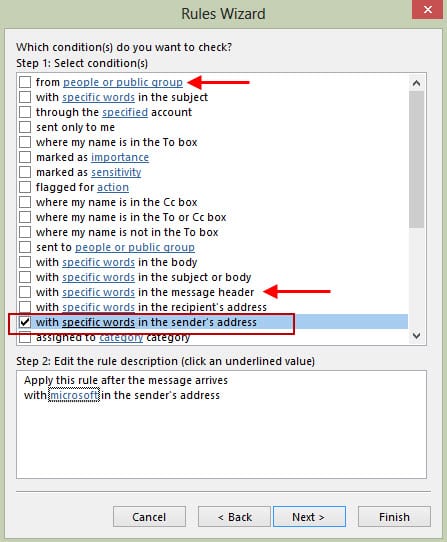
Select the condition, click on the underlined words in the lower part of the dialog box then type the domain name you want the rule to apply to.
Note: The two items marked with arrows provide alternate ways to do this and are also available in older versions of Outlook.
If you want to apply a rule to all mail originating outside of Exchange Server (including Office 365 Exchange Online), use @ in place of the domain name in this rule.
Outlook 2003 and up "from people or group" method
Step 1: Begin creating the rule, using the condition "from people or public group".
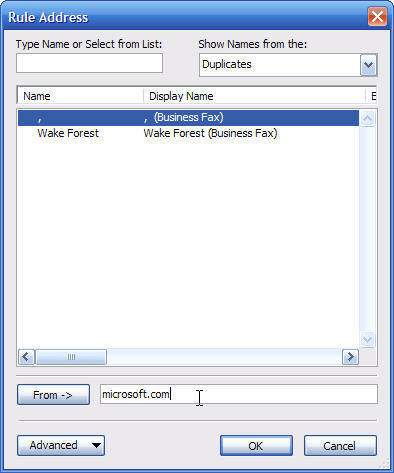
Click in the underlined people or public group at the bottom of the dialog box to open the Rule Address dialog.
Type the domain portion of the address in the Address field at the bottom of the dialog.
To apply this rule to all email from Internet addresses, enter just an @ sign in the From field. Mail originating on your Exchange server will be skipped.
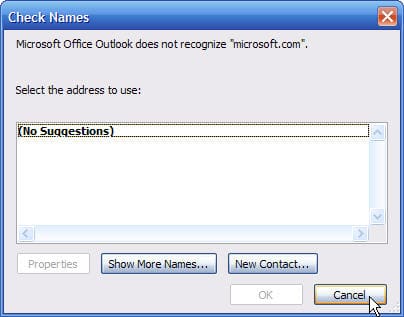
Step 2: Click Ok after entering the domain in the address field, then Cancel the Check Names dialog when it appears.

Stef Joosten says
I have the same problem on Outlook for Mac, vs. 16.75.1. I can find no way to do this. Can anybody help?
Diane Poremsky says
Are you using New Outlook or Legacy Outlook?
What is not working?
Camille says
@stef, check in the Keywords section of the dropdown, and select 'Sender address includes' - Worked for me!
Kevin says
Thank you!
Chris Notley says
Fantastic, just what I needed Diane!
Maggie Hedrick says
I created a rule for student emails (specific domain) and it is an auto-reply but it is only sending the first time a student emails, rather than each time if they email more than once. Why is the rule not applying each time if the address should still be included in the rule?
Diane Poremsky says
That is how autoreplies work in outlook. You will need to use a 'run a script' rule to replay to every message. https://www.slipstick.com/developer/run-a-script-rule-autoreply-using-a-template/
Jerry Peres says
Thank you for sharing good knowledge and information. It's very helpful and understanding as we are looking for this information for a long time.
SAL says
Please add instructions for OWA too.
Nate Olsen says
NOTE: the "words in address" rule block seems to create a client-only rule.
If *@domain.com or @domain.com work perfectly fine in the "from sender" rule block, I'd say that's a preferred method since it's a server-side rule.
JASIM PERINGATTUTHODI says
*@domain.com or @domain.com rules not working
Diane Poremsky says
Are you using words in the header or words in the message header rules? Are the message being picked up by the junk mail filter first?
Richard says
Thanks for pointing out the usefulness of the "with specific words in the sender's address" or "recipient's address". Voila! Problem solved.
Vasco says
Just wondering if you know of a way to create a rule to move/copy email which are NOT from a specific domain?
e.g. I work at New Co. which domain is newco.com. I would like a rule to copy/move all emails which are not internal (i.e. from @newco.com) in order to identify all external emails, which could be direct engagements from clients.
Thank you in advance.
Diane Poremsky says
If using exchange, move all mail with @ in the address - only mail from internet addresses will have @ in the address.
If you want to apply a rule to all mail originating outside of Exchange, use @ in place of the domain name.
To apply a rule only to internal email, create a rule that applies to all mail and add an exception for messages with @ in the sender's address. Internal Exchange email does not use a SMTP address and therefore, does not contain an @ sign. For internal Exchange server mail, you can use /ou.
MPJ says
Thanks for the tip! I've been getting a bunch of spam from a certain domain and this helped me safely get it out of my Inbox.
Ramon Henry says
When I ad an email for a rule it same the email as =SMTP:you@yourdomain.com and then the rule never runs
DOSMASTR says
THANK YOU FOR THIS, I JUST MADE BETTER SPAM RULES THAN JUNO.COM HAS!!
Pharme51 says
Very nice site!
edithtots says
Thank you, it worked
The Tim says
I spent an hour getting no where with a search for these directions. Thank you so much. Now all of my customer's emails stand out against the hundreds of unimportant internal messages
Smith says
I really appreciate this post. I have been looking everywhere for this! Thank goodness I found it on Bing. You have made my day! Thx again!
Arthur says
Hi. The top section on this page, where you mention using just the domain name in the 'from people or public group' component and cancel the Check Names window is a great trick.
However, I think I just verified that it doesn't work in Outlook 2016, by trying with both with and without the @ sign (this is Exchange Activesync, so there's no in/outside the Exchange Server). If you think that it really should work (e.g. maybe it is caused by the EA type of connection etc.), you might be able to try it out yourself too.
It does support the 'with specific words in the sender's address' as you indicate, but it won't be as specific (e.g. if microsoft.com in the example ever starts sending from microsoft.commie.com, I wouldn't want to miss any of those emails :-), but the pattern would match it as well).
In an ideal world I would explicitly want to use something like '\bmicrosoft.com$', but as you indicate on another page that is also extremely useful, not even wildcards are allowed in these values, so there's probably no chance for regular expressions.
Thanks.
Diane Poremsky says
i don't think it worked right in 2013 either but will double check both (if i recall correctly, it works on display named, not addresses now) - the 'new' way is to use words in the address.
Arthur says
Oh, okay, that would make sense – they have the 'with "specific words" in the sender's address' for the email address part, and might have switched 'from "people or public group"' to operate on the display name.
Thank you for the response and the informative article.
Chip Jones says
Is it possible to block certain TLDS by using a dot before the TLD. For example, I get a lot of junk mail from the TLD ".eu". How does Rules Manager handle the "." Is the period treated like a escape character (like in a regular expression) or is it used as a string character?
Diane Poremsky says
its treated as a string character. also se https://www.slipstick.com/outlook/email/add-eu-international-tld-blocked-list/ - note that eu is available in 2016's international list.
Chip Jones says
Thank you Diane! I did not even know that Outlook 2016 was available. I've updated and am now happily blocking .eu!
Mark Lewandoske says
I have outlook 2013 and I do not have the option for words in the sender address. I deal with a lot of military and federal contacts. Not being able to place .mil and .gov emails into a folder is a real pain.
Diane Poremsky says
It should be there - it looks just like the first screenshot on the page.
mike Griff says
I need a way to do this in my Outlook 365 Cloud account so that i do not have to make the same rules for everything i get email on. Some items like smartphones do not have this capability and it would be extremely helpful to have the mail sorted in the exchange server before it ever goes out to all my devices. Is there a way to do this on the CLOUD copy of Outlook 365?
Diane Poremsky says
rules you create in outlook on your desktop will be stored on the Exchange server but only server-side rules will run and unfortunately, the rules that check addresses are client-side.
Tim Haslett says
With 2013, how can I specify words for just the domain side of the sender's address? I keep getting spam emails from various domains in the .asia top level domain, but I do not want to exclude anyone that may use the word "asia" in their username portion (I know one person that does). Will including the "." in the specific words work in this case, as long as the username does not include the "." before "asia"?
Diane Poremsky says
Have you looked at junk mail options > international? You can block countries and character encoding (don't block ascii and Western European.)
Derek says
Diane,
Could you please provide an example of using /ou with an internal child domain?
Diane Poremsky says
That should be all you need with Exchange server mailboxes. Use it in the address field. If you only want to filter one child domain, look at the x500 address and use the unique bits from it instead of the /ou - hopefully something is unique. /O=EXCHANGELABS/OU=EXCHANGE ADMINISTRATIVE GROUP (FYDIBOHF23SPDLT)/CN=RECIPIENTS/CN=diane
Select a message from someone in that domain, then select the message and run this macro.
Public Sub SendFromAddressOfCurrentEmail()
Dim objItem As MailItem
Set objItem = Application.ActiveExplorer.Selection.Item(1)
Debug.Print objItem.SenderEmailAddress
End Sub
Rick Sheeley says
Diane, please not this rule does not work for internal addresses AKA people in your own domain on same exchange server. This is a known issue, unaddressed by Microsoft.
Diane Poremsky says
Correct, it won't work for internal Exchange email, because internal email doesn't have a smtp address (mail sent by smartphones may have a smtp).
Try /ou in the address field instead. (That works here.) Or use a rule that applies to all mail, except if contains an @.
Danyelle says
Could anyone help me please with Office 365 and/or Outlook 2011 for Mac? I need dummy examples here. I have tried many methods and none seem to work. I am applying the rules to filter email from colleagues of other campuses. I do not know if they are in the same exchange stmp or even how to know the difference. Our IT guy is stumped that using the contains words in the sender/receiver aren't working either. We have Sender / Receiver is or contains options. If we use "is" we have to select a person or a group. If we use "contains" we can add a string but whether including, excluding the @ or the .com or not does not make a difference. It does not work no matter what options we try. Can anyone please provide links with screen shots as needed or detailed instructions here. I have to find a way to set rules for an inbox that contains easily 1000 emails a day and many are important.
Diane Poremsky says
did you try a rule for if address contains /ou? Try adding a rule in outlook on the web (OWA).
I tested 2 rules in Outlook 2016 for Mac (I don't have a working 2011 install anymore) - the one for 'received from \ou' (marked with arrow) worked on mail from another account on my Exchange server. Words in the header did not.
Krishna says
For internal mails, if you select the rule condition "Sender in Address book" and select the "Global address book", all mails from the current(own) domain will be filtered.
Diane Poremsky says
This works with Exchange-only.
Michael says
Very helpful Diane! I thought I knew "rules" pretty good, but you've saved me so much!!! Now I have ONE rule for all of my "weekly circular" e-mails to move them all into one folder, instead of a ton of individual rules.!
Alex says
Great, THANK YOU!!!