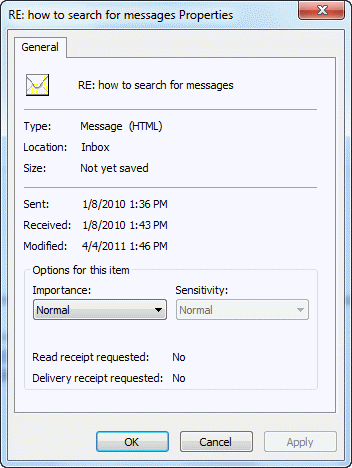
 In older versions of Outlook, you can access a Properties dialog from the File menu of an open message. This dialog lists dates, Importance, and Do Not Autoarchive.
In Outlook 2010, File, Properties opens the "Options" dialog that includes the Internet header and the Do not Autoarchive checkbox.
To view the dialog that has the sent, received, and modified dates fields (shown at the right), you need to customize the ribbon or quick access toolbar (QAT).
- Open the Message
- Go to File, Options
- Select either Customize Ribbon or Quick Access Bar
- Select All Commands in the Choose commands from menu
- Click im the list of commands (or tab into it) then Press P to jump to the commands that begin with P
- Scroll down to find Properties, select the second Properties command and add it to the QAT or a group in the ribbon.
- Close the Options dialog.
When you want to check the dates, open the message and click the Properties button you just added.
Appointments only display the modified date. For a macro to display the created date of any Outlook item, see Display the Created Date field of any Outlook item.
Remember: The Do not AutoArchive option is on the Options dialog, accessible either through File, Properties or by clicking the Expand button on the Tags section of the ribbon.


Donna says
In Outlook 2013, the default email format is set to HTML, yet receivers still receive dredded winmail.dat. Not all email properties are the same in address book, letting you overide outlook choosing best format to plain text. Is it really time to go back to the Fax machines?
Diane Poremsky says
is this with an outlook.com account? If so, its a known issue - winmail.dat files won't be sent if you select a contact then click Email (email button on the Contact ribbon)
Michael says
Diane,
I have read many of your posts and they are extremely helpful: they have helped me find solutions in almost everything I needed in vba outlook. I have however encountered something that all my searches have not returned a result. I need to be able to programmatically, from vba, show the folder properties dialog, and I would preferably like only to show the autoarchive tab.
I need this in a macro that allows a user to crate a folder and I want them to immediately set the autoarchive properties of that folder. I could replicate the dialog in a form, but wouldn't it be nicer if it could be done with the existing dialog ?
Diane Poremsky says
i dont think you can sow the dialog. you can set the properties usng code only.
nobody says
WARNING: Enabling the "Preview Window" allows some infected emails to infect your system without having to open them. I would advise against ever using the preview window.
Note: The Properties dialog accessed by right clicking on an email, used to allow you to view the entire raw contents of the email, not just headers and path info. Allow it was a bit like looking at raw html code, it was possible to read the contents of an infected email without danger. Why did microsoft so weaken their software?
Diane Poremsky says
No, the reading pane is completely safe. It does not run active content and hasn't since the Outlook 2000 post-SP1 "HELL" patch put an end to active content. I wouldn't disable the reading pane - but if you are worried, you can read all mail in plain text format. This is a heck of a lot easier than reading the raw message and changing to formatted text is a click on the InfoBar.
How safe is the reading pane?
James Kelsey says
OH! I normally read my messages in the 'preview window'. . . if I double click on a message and it pops up in a NEW window the 'properties' is there!
You truly are a problem taker-awayer, Diane. .. .. THANKS! :-)
Diane Poremsky says
Ah, thanks for the update. I'll bet you aren't the only one that couldn't find it. If you add the Message Options command to the ribbon or QAT, you can bring up the same dialog while in the reading pane.
James Kelsey says
I have Outlook Professional 2010 and have NO 'properties' button under the 'file' tab. . . any idea how to find it? Thanks!!
Diane Poremsky says
Is the message open?
Nancy Ford says
I also didn't find "Properties" listed as a command in Outlook 2013 (at File | Options | Customize Ribbon), but I was able to view the properties of an unopened message after creating a new Command Group and adding a View Message Options command.
steve says
On the 07 Outlook I could view email properties BEFORE opening the message. This version appears to require opening a suspect message first. Why? If this is the only way to view properties it is a retrogressive "update".
Diane Poremsky says
I assume you mean the properties with the message header... if so, you can add the properties button to the QAT and view it without opening the message. If you only need to see the header (and not other fields on that dialog), see Get headers using VBA. The macro puts the header into a new message form for easy reading.
Dennis Smith says
I only have one "Properties" listed and it is folder properties
Diane Poremsky says
Did you open a message and then go to it's File, Options, Customize? If you try to do it from the main Outlook window, you'll have folder properties.