• Outlook User
  • New Outlook app
  • Outlook.com
  • Outlook Mac
  • Outlook & iCloud
  • Developer
  • Microsoft 365 Admin
    • Common Problems
    • Microsoft 365
    • Outlook BCM
    • Utilities & Addins

Find the Properties Dialog in Outlook messages

Slipstick Systems

› Outlook › Email › Find the Properties Dialog in Outlook messages

Last reviewed on June 27, 2018     15 Comments

Applies to: Outlook (classic), Outlook 2010

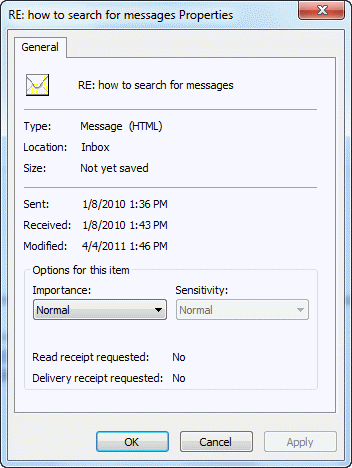
Properties dialogIn older versions of Outlook, you can access a Properties dialog from the File menu of an open message. This dialog lists dates, Importance, and Do Not Autoarchive.

In Outlook 2010, File, Properties opens the "Options" dialog that includes the Internet header and the Do not Autoarchive checkbox.

To view the dialog that has the sent, received, and modified dates fields (shown at the right), you need to customize the ribbon or quick access toolbar (QAT).

  1. Open the Message
  2. Go to File, Options
  3. Select either Customize Ribbon or Quick Access Bar
  4. Select All Commands in the Choose commands from menu
  5. Click im the list of commands (or tab into it) then Press P to jump to the commands that begin with P
  6. Scroll down to find Properties, select the second Properties command and add it to the QAT or a group in the ribbon.
  7. Close the Options dialog.

When you want to check the dates, open the message and click the Properties button you just added.

Appointments only display the modified date. For a macro to display the created date of any Outlook item, see Display the Created Date field of any Outlook item.

Remember: The Do not AutoArchive option is on the Options dialog, accessible either through File, Properties or by clicking the Expand button on the Tags section of the ribbon.

Add Properties to the ribbon

Find the Properties Dialog in Outlook messages was last modified: June 27th, 2018 by Diane Poremsky
Post Views: 36

Related Posts:

  • How to locate, read, or recover items archived using AutoArchive
  • Where is the Out of Office command?
  • Created date in table view
    Display the Created Date field of any Outlook item
  • How to View Internet Headers

About Diane Poremsky

A Microsoft Outlook Most Valuable Professional (MVP) since 1999, Diane is the author of several books, including Outlook 2013 Absolute Beginners Book. She also created video training CDs and online training classes for Microsoft Outlook. You can find her helping people online in Outlook Forums as well as in the Microsoft Answers and TechNet forums.

Comments

  1. Donna says

    April 19, 2017 at 4:09 pm

    In Outlook 2013, the default email format is set to HTML, yet receivers still receive dredded winmail.dat. Not all email properties are the same in address book, letting you overide outlook choosing best format to plain text. Is it really time to go back to the Fax machines?

    Reply
    • Diane Poremsky says

      April 19, 2017 at 11:52 pm

      is this with an outlook.com account? If so, its a known issue - winmail.dat files won't be sent if you select a contact then click Email (email button on the Contact ribbon)

      Reply
  2. Michael says

    October 31, 2015 at 1:34 pm

    Diane,
    I have read many of your posts and they are extremely helpful: they have helped me find solutions in almost everything I needed in vba outlook. I have however encountered something that all my searches have not returned a result. I need to be able to programmatically, from vba, show the folder properties dialog, and I would preferably like only to show the autoarchive tab.
    I need this in a macro that allows a user to crate a folder and I want them to immediately set the autoarchive properties of that folder. I could replicate the dialog in a form, but wouldn't it be nicer if it could be done with the existing dialog ?

    Reply
    • Diane Poremsky says

      October 31, 2015 at 9:09 pm

      i dont think you can sow the dialog. you can set the properties usng code only.

      Reply
  3. nobody says

    June 30, 2015 at 4:37 pm

    WARNING: Enabling the "Preview Window" allows some infected emails to infect your system without having to open them. I would advise against ever using the preview window.
    Note: The Properties dialog accessed by right clicking on an email, used to allow you to view the entire raw contents of the email, not just headers and path info. Allow it was a bit like looking at raw html code, it was possible to read the contents of an infected email without danger. Why did microsoft so weaken their software?

    Reply
    • Diane Poremsky says

      June 30, 2015 at 6:07 pm

      No, the reading pane is completely safe. It does not run active content and hasn't since the Outlook 2000 post-SP1 "HELL" patch put an end to active content. I wouldn't disable the reading pane - but if you are worried, you can read all mail in plain text format. This is a heck of a lot easier than reading the raw message and changing to formatted text is a click on the InfoBar.

      How safe is the reading pane?

      Reply
  4. James Kelsey says

    March 27, 2014 at 12:42 am

    OH! I normally read my messages in the 'preview window'. . . if I double click on a message and it pops up in a NEW window the 'properties' is there!

    You truly are a problem taker-awayer, Diane. .. .. THANKS! :-)

    Reply
    • Diane Poremsky says

      March 27, 2014 at 1:03 am

      Ah, thanks for the update. I'll bet you aren't the only one that couldn't find it. If you add the Message Options command to the ribbon or QAT, you can bring up the same dialog while in the reading pane.

      Reply
  5. James Kelsey says

    March 26, 2014 at 6:13 pm

    I have Outlook Professional 2010 and have NO 'properties' button under the 'file' tab. . . any idea how to find it? Thanks!!

    Reply
    • Diane Poremsky says

      March 27, 2014 at 12:37 am

      Is the message open?

      Properties button in Outlook 2010

      Reply
  6. Nancy Ford says

    February 27, 2013 at 10:01 am

    I also didn't find "Properties" listed as a command in Outlook 2013 (at File | Options | Customize Ribbon), but I was able to view the properties of an unopened message after creating a new Command Group and adding a View Message Options command.

    Reply
  7. steve says

    February 14, 2013 at 2:06 pm

    On the 07 Outlook I could view email properties BEFORE opening the message. This version appears to require opening a suspect message first. Why? If this is the only way to view properties it is a retrogressive "update".

    Reply
    • Diane Poremsky says

      February 14, 2013 at 3:25 pm

      I assume you mean the properties with the message header... if so, you can add the properties button to the QAT and view it without opening the message. If you only need to see the header (and not other fields on that dialog), see Get headers using VBA. The macro puts the header into a new message form for easy reading.

      Reply
  8. Dennis Smith says

    February 12, 2013 at 9:39 am

    I only have one "Properties" listed and it is folder properties

    Reply
    • Diane Poremsky says

      February 12, 2013 at 10:49 am

      Did you open a message and then go to it's File, Options, Customize? If you try to do it from the main Outlook window, you'll have folder properties.

      Reply

Leave a Reply Cancel reply

Your email address will not be published. Required fields are marked *

Visit Slipstick Forums.
What's New at Slipstick.com

Latest EMO: Vol. 31 Issue 3

Subscribe to Exchange Messaging Outlook


Support Services

Do you need help setting up Outlook, moving your email to a new computer, migrating or configuring Office 365, or just need some one-on-one assistance?

Our Sponsors

CompanionLink
ReliefJet
  • Popular
  • Latest
  • Week Month All
  • Jetpack plugin with Stats module needs to be enabled.
  • Error Opening iCloud Appointments in Classic Outlook
  • Opt out of Microsoft 365 Companion Apps
  • Mail Templates in Outlook for Windows (and Web)
  • Urban legend: Microsoft Deletes Old Outlook.com Messages
  • Buttons in the New Message Notifications
  • Move Deleted Items to Another Folder Automatically
  • Open Outlook Templates using PowerShell
  • Count and List Folders in Classic Outlook
  • Google Workspace and Outlook with POP Mail
  • Import EML Files into New Outlook
Ajax spinner

Recent Bugs List

Microsoft keeps a running list of issues affecting recently released updates at Fixes or workarounds for recent issues in classic Outlook (Windows).

For new Outlook for Windows: Fixes or workarounds for recent issues in new Outlook for Windows .

Outlook for Mac Recent issues: Fixes or workarounds for recent issues in Outlook for Mac

Outlook.com Recent issues: Fixes or workarounds for recent issues on Outlook.com

Office Update History

Update history for supported Office versions is at Update history for Office

Outlook Suggestions and Feedback

Outlook Feedback covers Outlook as an email client, including Outlook Android, iOS, Mac, and Windows clients, as well as the browser extension (PWA) and Outlook on the web.

Outlook (new) Feedback. Use this for feedback and suggestions for Outlook (new).

Use Outlook.com Feedback for suggestions or feedback about Outlook.com accounts.

Other Microsoft 365 applications and services


New Outlook Articles

Error Opening iCloud Appointments in Classic Outlook

Opt out of Microsoft 365 Companion Apps

Mail Templates in Outlook for Windows (and Web)

Urban legend: Microsoft Deletes Old Outlook.com Messages

Buttons in the New Message Notifications

Move Deleted Items to Another Folder Automatically

Open Outlook Templates using PowerShell

Count and List Folders in Classic Outlook

Google Workspace and Outlook with POP Mail

Import EML Files into New Outlook

Newest Code Samples

Open Outlook Templates using PowerShell

Count and List Folders in Classic Outlook

Insert Word Document into Email using VBA

Warn Before Deleting a Contact

Use PowerShell to Delete Attachments

Remove RE:, FWD:, and Other Prefixes from Subject Line

Change the Mailing Address Using PowerShell

Categorize @Mentioned Messages

Send an Email When You Open Outlook

Delete Old Calendar Events using VBA

Repair PST

Convert an OST to PST

Repair damaged PST file

Repair large PST File

Remove password from PST

Merge Two Data Files

Sync & Share Outlook Data

  • Share Calendar & Contacts
  • Synchronize two computers
  • Sync Calendar and Contacts Using Outlook.com
  • Sync Outlook & Android Devices
  • Sync Google Calendar with Outlook
  • Access Folders in Other Users Mailboxes

Diane Poremsky [Outlook MVP]

Make a donation

Mail Tools

Sending and Retrieval Tools

Mass Mail Tools

Compose Tools

Duplicate Remover Tools

Mail Tools for Outlook

Online Services

Calendar Tools

Schedule Management

Calendar Printing Tools

Calendar Reminder Tools

Calendar Dates & Data

Time and Billing Tools

Meeting Productivity Tools

Duplicate Remover Tools

Productivity

Productivity Tools

Automatic Message Processing Tools

Special Function Automatic Processing Tools

Housekeeping and Message Management

Task Tools

Project and Business Management Tools

Choosing the Folder to Save a Sent Message In

Run Rules on messages after reading

Help & Suggestions

Submit Outlook Feature Requests

Slipstick Support Services

Buy Microsoft 365 Office Software and Services

Visit Slipstick Forums.

What's New at Slipstick.com

Home | Outlook User | Exchange Administrator | Office 365 | Outlook.com | Outlook Developer
Outlook for Mac | Common Problems | Utilities & Addins | Tutorials
Outlook & iCloud Issues | Outlook Apps
EMO Archives | About Slipstick | Slipstick Forums
Submit New or Updated Outlook and Exchange Server Utilities

Send comments using our Feedback page
Copyright © 2026 Slipstick Systems. All rights reserved.
Slipstick Systems is not affiliated with Microsoft Corporation.