Outlook has a No Automatic Filtering setting in Junk Email Options, which turns off all junk filters but leaves the Blocked Senders List applied to incoming email.
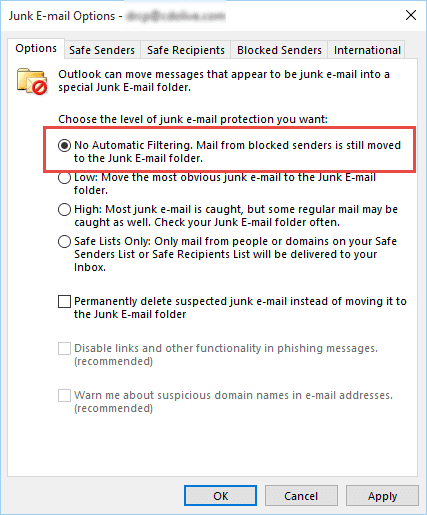
Some users complain that the filter continues to work after setting it to No Automatic Filtering and with the Blocked list empty. Other users prefer to use a different spam filter.
Before disabling the Junk Email Filter, see Dave's comment below.
For those users who want to disable Outlook's Junk email filter, there is a registry key that will disable the Junk email filter in Outlook 2007, 2010, and 2013. This key will completely disable the junk filter, including the Blocked list, and disable the Junk email options button. It will not affect third party spam filters.
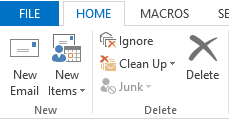 When the registry key is set, the Junk button will be grayed out, as seen in this screenshot.
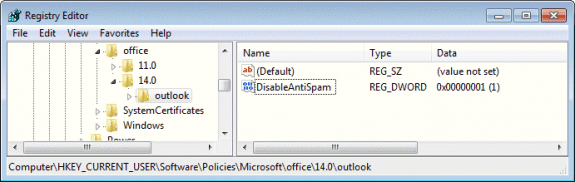
To disable the filter, browse to the following registry key and add the DisableAntiSpam DWORD, setting it to a value of 1. If the key does not exist, you'll need to create it.
In Outlook 2016, open the registry editor and browse to
HKEY_CURRENT_USER\Software\Policies\Microsoft\office\16.0\outlook
DWORD: DisableAntiSpam
Value of 1 disables the junk filter, 0 enables it
In Outlook 2013, open the registry editor and browse to
HKEY_CURRENT_USER\Software\Policies\Microsoft\office\15.0\outlook
DWORD: DisableAntiSpam
Value of 1 disables the junk filter, 0 enables it
In Outlook 2010, browse to
HKEY_CURRENT_USER\Software\Policies\Microsoft\office\14.0\outlook
Outlook 2007:
HKEY_CURRENT_USER\Software\Policies\Microsoft\office\12.0\outlook
Do It For Me
If you don't want to edit the registry yourself, we have ready-to-use registry files. Download (right-click on the link and choose Save as) then double click to run, answering Ok or Yes as needed.
Outlook 2016 Outlook 2013 Outlook 2010
Outlook 2007
Restart Outlook for the registry edit to take effect. The Junk email folder will remain (but should not be created if you make a new default pst file) – you can delete the junk folder using OutlookSpy or MFCMAPI.
To re-enable the Junk filter, edit the reg file in Notepad, replacing the 1 with 0.
To remove the key, Open the registry editor, browse to the value then delete it.
More Information
How to Remove RSS Support from Outlook
- Add EU to the International Blocked TLD List
- Automatically Cleanup Outlook's Deleted Item and Junk Email Folders
- Blocking Mail From New Top-Level Domains
- Bulk Add Addresses to Safe and Blocked Senders Lists
- Don't Get Caught In a Phishing Hack
- Empty Multiple Deleted Items Folders using a Macro
- How to Block Foreign Spam
- Icon is not correct on the Junk Mail Folder
- Junk Email Filtering isn't Working in Outlook
- Junk Mail Filtering in Outlook
- Office 365 Fraud Detection Checks
- Outlook's "Not Junk" option isn't available
- Rules and Tools to Filter Junk Mail
- Samsung smartphones move email to the Junk folder
- Sending Autoreplies to Spammers
- Should You Respond to Junk Mail?
- Understanding the Safe and Blocked Senders lists
- Using Outlook's Junk Filter with Multiple Accounts
- Using Outlook's Junk Mail filter
- What Moved a Message to the Junk E-mail Folder?






























There exists a freeware named FromJunkToInbox that moves any email delivered to the Junk Email folder to Inbox folder.
Thanks a Lot!
For insiders this is the fix for 16188 :-)
Hello Diane,
I have Office 2016, I followed your instructions and I believe the filter was disabled. The folder now has a No Parking sign on it, but I am not sure that it is completely disabled because it is still there. How can I make it disappear, please?
that is the normal junk mail folder icon - the only way to know it was disabled is because the junk menu button is grayed out and no longer works.
In Outlook 2013, I found no "Policies" in HKEY_CURRENT_USER\Software\Policies, so I went to HKEY_CURRENT_USER\Software\Microsoft\office\15.0\outlook and then created the key = 1. However, after rebooting, the junk button was Not greyed out, and the incorrect filtering continued (despite my safe sender list, rules, etc. to the contrary).
if the policy key path doesn't exist, you need to create it. Most, but not all, keys will work in either the user section or under policies. This is one of the few that only works in the policies section.
The registry file for outlook 2013 will set the correct key.
I don't know how to create the policy key path. Would you please describe the steps to do it? Thank you.
If you are not familiar with editing the registry, the easiest way is to download and run the reg file for your version of outlook that is linked under 'Do it for me' - if your browser saves it as a text file, change the extension to .reg and download to run.
Otherwise, open the registry editor and find the path - if a key doesn't exist, right click and choose New Key and type in the name. See How to edit the registry if you've never one it before.
The path for Windows 10 appears to be different....can you give that path because there is no policies folder anymore...I need to do this because even if I click on the "no automatic filtering", the next day something changes it back to low filtering.
This is with the hotmail account? Was the account migrated to the new server? If you are still on the old server, i believe that behavior is expected. If the policies key doesn't exist, add it. You can run the reg file I provided for your version of outlook then edit the registry to ch ange the value. (The path is the same in all OSs.)
How does this work with a shared mailbox? We have had a case where junk e-mail still filters through with group polices applied to disable Junk e-mail as well.
It would definitely apply to all accounts open in the profile but I'm not sure if it applies to mailboxes open as shared boxes in a profile as they don't have client side options - server side options (such as rules) would apply to these mailboxes.
Thanks Diane, using your script solved an irritating issue with the Junk filter. It was always and only putting good emails in there.
BTW, HKEY_CURRENT_USER\Software\Policies\Microsoft\office\16.0 was not in my registry. I had entries for 12.0, 14.0, and 15.0, but the script still worked.
The keys in the path are only present when added by the user or administrator.