Outlook lets you set the default full name order in Options. You can choose between 'First (Middle) Last' or 'Last First' (no comma separator), as well as 'First Last1 Last2'.
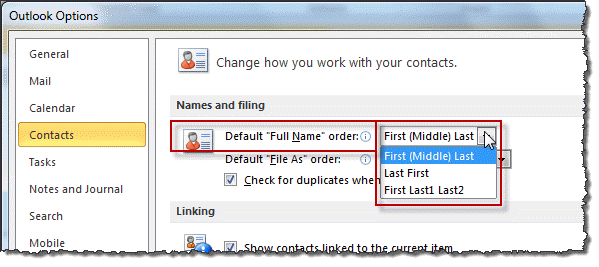
The traditional format of 'Last, First', with a comma separator, is also supported by default. Outlook is smart enough to properly assign the names to the correct fields when you enter a name using 'Last, First' format.
However, it's really easy to get the fields switched when you don't realize the default order is not the same order you are entering names in the full name field and aren't using a comma.
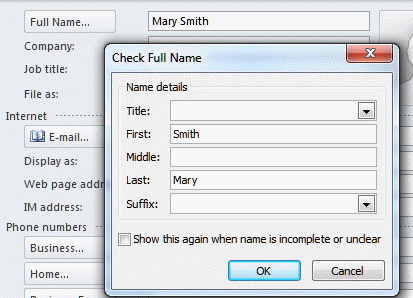
It's just as easy to swap the names into the correct fields using VBA.
Macro to Swap First and Last Names
This code places the first name field in the User3 field and the last name in the User 4 field, then puts the value in the User4 field into the first name field and the User 3 field in the first name field. The same process can be used to move a last name out of the .MiddleName field.
If you are using the User3 and User4 fields for data, you'll need to use a different field to hold the values. Note: You really only need one field to hold the first name field, then you can move the last name into the first name field. I use both fields and keep the names in the fields so I have a record of what the original values were but you can erase the values using the macro, if desired.
Tip: to check to see if the user fields are being used, you can add the fields to a list view and look over the list.
This code is designed to run on selected contacts in any contacts folder. You need to select the contacts that need changed before running the code.
Public Sub SwapFirstLastNames()
    Dim currentExplorer As Explorer
    Dim Selection As Selection
    Dim obj As Object

    Set currentExplorer = Application.ActiveExplorer
    Set Selection = currentExplorer.Selection

    On Error Resume Next

    For Each obj In Selection
        'Test for contact and not distribution list
        If obj.Class = olContact Then
            Set objContact = obj

     With objContact

          If .FirstName <> "" Then
          Let .User3 = .FirstName

          If .LastName <> "" Then
          Let .User4 = .LastName


        .FirstName = .User4
        .LastName = .User3
        .Save

      'If you don't want to keep the values in the user fields for tracking purposes,
      ' uncomment these two lines. I recommend keeping the names in the user fields

       ' .User3 = ""
       ' .User4 = ""
       ' .Save
        End If
        End If
     End With
        End If

     Err.Clear
    Next


    Set obj = Nothing
    Set objContact = Nothing
End Sub
Merging Middle and Last Name Fields
While you can use a macro to move a name from the middle name field into the last name field as two last names, note that its more complicated to split two names into the Middle and Last name fields so do this with caution.
While you don't need to use a User field to hold the MiddleName, it will make it easier to split the names back into two fields using VBA if you make a mistake (and kept the names in the User fields).
          If .MiddleName <> "" Then
          Let .User3 = .MiddleName
          If .LastName <> "" Then
          Let .User4 = .LastName

        .LastName = .User3 & "" & .User4
        .MiddleName = ""
        .Save
More Information
More Bulk Change Contact articles at Slipstick.com:

Brian Mazakas says
How do I Add two things to the outlook file fields. I need a Prefix for the name and Group, like in Android.
Diane Poremsky says
prefix should be .title.
Isn't group just the folder or account the contact is in?
Lnd87 says
Doesn't work for me at all...
Erhan says
Thank you for the VBA script. It worked for me for the first run. But;
In my case, I have more than 200 contacts recorded just as Last Name and Fist Name fields are empty. So, the script did not work because first "IF" condition is closed at the end. I changed the first condition as
Or, disabled the first condition.
Best regards,
Erhan
APTEM says
It runs at the first time fine. I see delay on multiple items & etc. How to check what's been changed at first run?
Diane Poremsky says
No, there is really no good way to see what changed on the first run. You can check the User1 and User2 fields to see if the first/last names are there but there is no log or anything in this code that shows you what it did.
APTEM says
Hello! Thanks for macros. But why it requires 2 runs to work properly? One run doesn't do anything noticeable.
Diane Poremsky says
I have no idea, unless something prevented it from running the first time. It has always worked the first time here.