A Powershell version is also available: Use PowerShell to Bulk Change Contacts
To change the default File As format used for new contacts, go to Tools, Options, Contacts options in older versions or File, Options, Contact (or People) options in Outlook 2010 and newer.
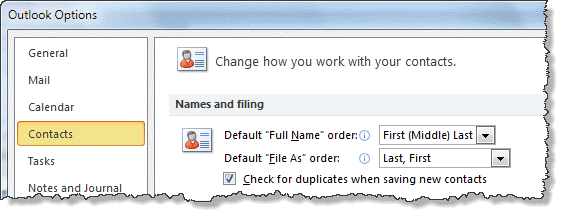
Outlook's Contact's offer a number of File As formats and this format can be used for the contact's name display in the Address Book. However changing the File As format on a large number of contact's is time-consuming when you need to change the contacts one by one. You can do it using VBA or a utility (listed below).
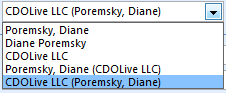
The file as format options are shown in the screenshot. The VBA code sample supports all 5 formats.
Along with changing the File As order, you can change the order Outlook assumes you use when you enter the name. This setting determines how the names populate the dialog when you press the Full name button. If the name order is wrong in FileAs ("Mary, Smith" when using last, first format), check this setting. If you choose Last First format you don't need to use a comma to separate the names when you enter them and First Last1 Last2 correctly puts the name in the middle position into the last name field, not the middle name field. Outlook will detect names separated by commas as Last, First format, regardless of the Fullname format setting.
VBA Sample
The following code sample supports all 5 File As formats available in Outlook. Press Alt+F11 to open the VBA editor then copy and paste into ThisOutlookSession. Uncomment the strFileAs line that uses the format you desire before running it. (Uncomment the line by removing the apostrophe from in front of the strFileAs = [name_format] command you wish to use.)
See page 2 (or the text file below) for code sample 2 to change the FileAs format on selected contacts.
To test for a value (such as Company name) and use a different File As format if the value is empty, you need to use an If... Then statement.
            With objContact
                If .CompanyName = "" Then
            ' Firstname Lastname format
                   strFileAs = .FullName
               Else
            ' Company name only
                   strFileAs = .CompanyName
               End If
               .FileAs = strFileAs
               .Save
            End With
See Bulk change FileAs format to match Outlook's default setting for a version of this macro that reads the default setting in the registry and applies it to existing contacts.
 To use, select the Contacts folder in Outlook then return to the VBA Editor and press the Run button or F5 to run the macro. You can run the macro later by pressing Alt+F8 (after selecting the Contacts folder) then choosing the macro and pressing Run.
To help eliminate errors, we have text files containing the VBA code samples available. To use, open the text file and Select all (Ctrl+A), copy then paste into the VBA editor. To save to your computer, right-click and choose 'Save Target as'.
Original code - change contacts in default folder | Change selected contacts in any folder
Public Sub ChangeFileAs()
'Fromhttp://slipstick.me/5z
    Dim objOL As Outlook.Application
    Dim objNS As Outlook.NameSpace
    Dim objContact As Outlook.ContactItem
    Dim objItems As Outlook.Items
    Dim objContactsFolder As Outlook.MAPIFolder
    Dim obj As Object
    Dim strFirstName As String
    Dim strLastName As String
    Dim strFileAs As String

    On Error Resume Next

    Set objOL = CreateObject("Outlook.Application")
    Set objNS = objOL.GetNamespace("MAPI")
    Set objContactsFolder = objNS.GetDefaultFolder(olFolderContacts)
    Set objItems = objContactsFolder.Items

    For Each obj In objItems
        'Test for contact and not distribution list
        If obj.Class = olContact Then
            Set objContact = obj

            With objContact
            ' Uncomment the  strFileAs line for the desired format
            ' Comment out strFileAs = .FullName (unless that is the desired format)

                'Lastname, Firstname (Company) format
                ' strFileAs = .FullNameAndCompany

                'Firstname Lastname format
                 strFileAs = .FullName

                'Lastname, Firstname format
                ' strFileAs = .LastNameAndFirstName

                'Company name only
                ' strFileAs = .CompanyName

                'Companyname (Lastname, Firstname)
                ' strFileAs = .CompanyAndFullName

               .FileAs = strFileAs

                .Save
            End With
        End If

        Err.Clear
    Next

    Set objOL = Nothing
    Set objNS = Nothing
    Set obj = Nothing
    Set objContact = Nothing
    Set objItems = Nothing
    Set objContactsFolder = Nothing
End Sub
Test for Names and Company
If you have a mix of contacts for people, with a value in the Fullname field, and companies, where the Fullname field is blank, you can replace the With objContact... End with code block with the snippet below.
This code checks for a value in the fullname field and if it's blank, it looks for a company name. If a value is in the company name field, it's used in the FileAs field.
            With objContact
             ' Test for blank name field
             If objContact.FullName = "" Then
                If objContact.CompanyName <> "" Then
                   .FileAs = .CompanyName
                End If
             Else
                .FileAs = .FullName
             End If
             .Save
            End With
Change Mailing address
If you need to switch the mailing address to the business address field (or from business to home address) you can check for a value in the business address field, and if not blank, copy it to the .MailingAddress field.
Use .HomeAddress if you want to make the home address the mailing address.
As with the code above, replace the With objContact... End with code block in the macro with the snippet below.
            With objContact
               If .BusinessAddress <> "" Then
                 .MailingAddress = .BusinessAddress
                 .Save
               End If
            End With
Customize the code
I call this code sample my "super-duper bulk contact changer macro" because it's so easy to change it to work on other Contact fields. Simply replace section in the original macro that changes the FileAs field with other fields.
For example, changing it to .Body = "" will erase text from the body, solving a problem Nox had syncing contacts to a smart phone. If the phone can handle some text, you could keep some of the text, replacing 1024 with the number of characters you want to keep.
      ' keep some text
               .Body = Left(.Body, 1024)
 If obj.Class = olContact Then
        Set objContact = obj

            With objContact

      ' erase the entire body
               .Body = ""

               .Save
            End With
End If
Common Errors

After pasting the code into the VB editor, the colors should be similar to the colors in this screenshot (and as seen in the code sample above).
Any text shown in Red has an error in it.
Blue, Black, and Green are "good", with the Blue color indicating VBA commands (If, Then, End etc), Black is your variables, and Green is used for comments. The second line in one of the 5 sets of Green lines needs to have Black text. You do this by removing the apostrophe (') from in front of the line. If more than one of those 5 lines is black, add an apostrophe to front of the format line you don't want to use. (In my screenshot, the second set is the format I want to use.)
Change only the 'subject' field used by the Address book
Note: this was written for an older versions of Outlook and is not needed with new versions.
Use the Outlook File As Order custom form to change just the display in the Address book, from Last name first, to First name first or use the File As entry.
Notes:
- This method will not change the actual sort order in the Contacts folder or format used on the File As field.
- Will return an error if there are distribution lists in the Contacts folder.
- This has the same options as you'll find in Tools, E-mail Accounts, View or change existing Address books, Outlook Address book properties, but also adds Last name first option and full File As format, including the Company name.
- Works on any contact folder - select the folder before clicking Run in the VB Editor or pressing F5. Leave the editor open and select another folder to use it on additional folders.
Tools
The original code works on the default Contacts folder and many users asked for a version that worked on the selected folder. We edited the code to change the selected contacts in any folder. Note that you do need to select the contacts, not just the folder.
Code Sample 2: Change FileAs on Selected Contacts
This code sample is an edited version of the previous code and works on the selected folder. I tested it in Outlook 2010 but it should work in all versions that the original code works with. This is the same code that is in the text file on page 1.
To use, you need to select the contacts. Use Select All (Ctrl+A) to apply it to all contacts in a folder or use Ctrl+click to select some contacts.
Public Sub ChangeFileAsSelectedContacts()
    Dim Session As Outlook.NameSpace
    Dim currentExplorer As Explorer
    Dim Selection As Selection
    Dim currentItem As Object
    Dim folder As Outlook.folder

    Dim obj As Object
    Dim strFirstName As String
    Dim strLastName As String
    Dim strFileAs As String

    Set currentExplorer = Application.ActiveExplorer
    Set Selection = currentExplorer.Selection

    On Error Resume Next

    For Each obj In Selection
    Set folder = currentItem.Parent
        'Test for contact and not distribution list
        If obj.Class = olContact Then
            Set objContact = obj

            With objContact
            ' Uncomment the  strFileAs line for the desired format

                'Lastname, Firstname (Company) format
                ' strFileAs = .FullNameAndCompany

                'Firstname Lastname format
                 strFileAs = .FullName

                'Lastname, Firstname format
               '  strFileAs = .LastNameAndFirstName

                'Company name only
                ' strFileAs = .CompanyName

                'Companyname (Lastname, Firstname)
                ' strFileAs = .CompanyAndFullName

               .FileAs = strFileAs

                .Save
            End With
        End If

        Err.Clear
    Next

    Set Session = Nothing
    Set currentExplorer = Nothing
    Set obj = Nothing
    Set Selection = Nothing
    Set currentItem = Nothing
    Set folder = Nothing
End Sub
More Information
More Bulk Change Contact articles at Slipstick.com:
- Bulk Change Contact's FileAs Format to Match Outlook's Default Setting
- Bulk Change File As Format for Contacts
- Bulk Move Phone Numbers to a Different Phone Field
- Macro to Swap First and Last Name Fields
- Show the Home Address on a Contact Form by Default
- Update Contact Area Codes
- Update Contacts with a New Company Name and Email Address

Edward Foy says
Using Outlook 365.
The code seems to be updating the contacts, but with the same exact information.
Currently displaying last name, first name. I want them updated to Frist Name Last Name.
Any assistance is much appreciated.
Mraaaa says
This worked, thank you!! Is there a way to customize the format of the FileAs field? I want it to be "FirstName Lastname, (Company)"
Diane Poremsky says
If the default formats don't meet your needs, you can use a custom format in the script.
strFileAs = .LastNameAndFirstName &", (" & .CompanyName & ")"
Diane Poremsky says
oops... you want first last (company) - same deal, just different field names.
strFileAs = .FullName & ", (" & .CompanyName & ")"
could also do it like this -
strFileAs = .Firstname & " " & .lastname &", (" & .CompanyName & ")"
Robert A Lucido says
Hi... I need to do the opposite, I need to move the File As field into the First Name field can I just change str in the code?
Diane Poremsky says
Yes, you would use .firstname = .fileas
Amit says
Is there a way to delete content in the Title field? Some of my contacts are saved as 'Mr', 'Ms', 'Dr', etc., and I wanted to bulk delete all entries in that field to provide consistency.
Diane Poremsky says
Yes, you can use the macro or PowerShell to delete it. The field name is .title
VBA change
With objContact' remove all the lines between the first and last two lines
' add this
.title = ""
.Save
End With
PowerShell is here - it's a little easier because you don't need to change macro security settings.
https://www.slipstick.com/developer/powershell-bulk-change-contacts/
foreach ($Contact in $Contacts.Items){
' remove all the lines between the first and last lines
' add this
$contact.title = ""
$Contact.Save()
Robert A Lucido says
Thank you... I got so frustrated trying to get it to work, I exported into CSV moved my fields and now hope to bring it back in... if that doesn't work I'll run this powershell
Amit says
So it should look like this?
$olApp = new-object -comobject outlook.application
$namespace = $olApp.GetNamespace("MAPI")
# Default Contacts folder
$Contacts = $namespace.GetDefaultFolder(10)
# Uses current folder
#$Contacts = ($olApp.ActiveExplorer()).CurrentFolder
foreach ($Contact in $Contacts.Items)

{
$contact.title - ""
$Contact.Save()
}
}
$olApp.Quit | Out-Null
[GC]::Collect()
Diane Poremsky says
I see two typos - sorry.
foreach ($Contact in $Contacts.Items)
{
$contact.title = "" this needs to be an equal sign.
$Contact.Save()
}
} There should only be one closing bracket.
This code will skip contact groups - otherwise, there will a PowerShell error when it looks for the title filed in the groups.
$olApp = new-object -comobject outlook.application$namespace = $olApp.GetNamespace("MAPI")
# Default Contacts folder
#$Contacts = $namespace.GetDefaultFolder(10)
# Uses current folder
$Contacts = ($olApp.ActiveExplorer()).CurrentFolder
foreach ($Contact in $Contacts.Items)
{
# Don't change distribution lists
if ($Contact.messageclass -notlike "*distlist*")
{
$Contact.title = ""
$Contact.Save()
}
}
$olApp.Quit | Out-Null
[GC]::Collect()
Phil says
Is there a way to use this to change which phone numbers appear? The defaults are Business, Home, Business Fax and Mobile, and if you change which one displays in the drop-down, Outlook remembers your choice for that contact, but not for all contacts.
Diane Poremsky says
You can use a custom form to change it for all - https://www.slipstick.com/outlook/people/show-the-home-address-on-contact-form/ - and then can change the existing contacts to use the custom form but cannot change the order on the numbers using vba (other than changing which field the number is in).
Mike Shick says
Is there an option to file as first last (company)?
Diane Poremsky says
First last, no, only last, first
'Lastname, Firstname (Company) format
' strFileAs = .FullNameAndCompany
NT4Boy says
I use Office 2016 therefore Outlook 2016 with outlook.com as my exchange server.
Most of the mail attachments I send get converted to winmail.dat, whereas in Office 2007 they didn't. Obvious workarounds using cloud storage, but its the MOST frustating thing.
Tried to fix this for months. Looked at hundreds of Googled suggestions for setting format to HTML, and also doing the Disable TNEF registry hack to no avail.
What does work in some instances is to delete the email contact from pst/ contacts, and recreate new from scratch.
With a huge contacts list of several hundred entries, I did wonder if this script could be used to perhaps rewrite the mail send format HTML entry for each contact.
Appreciate your advice.
Lorraine says
Ok, thank you for posting this. But, I am not making head or tails of it - I do not know what to do.. Maybe step by step for each option should be listed. "If you want to safe as Name Surname, then use this code: " Right now I am looking at the codes and do not understand what I am to do. The only thing I get is that this is the answer to my problem.
Mark says
The page says ...
"To change the default File As format used for new contacts, go to Tools, Options, Contacts options in older versions or File, Options, Contact options in Outlook 2010 and newer."
Minor point:
For Outlook 2016, the menu path is File, Options, People.
Josh says
Running Outlook 2010 - couldn't get the first VBA code to work but the Sample 2 Code on selected contacts worked. Although, I did move the ".FileAs = strFileAs" (Ln 42, Col 16) over a space to line up the indent with the line above before I ran the code, possible code error? Don't know much VBA but hope this helps someone
G says
Help!
Doesn't work on "Suggested Contacts", but works great on "Contacts". Any tips on modifying the code?
running Outlook 2010
Diane Poremsky says
This tells the macro which folder to use -
Set objContactsFolder = objNS.GetDefaultFolder(olFolderContacts)
for suggested contacts (or other folders at the same level as contacts), use
Set objContactsFolder = objNS.GetDefaultFolder(olFolderContacts).parent.folders("Suggested contacts")
Richard Smith says
When I imported the outlook data file, some of my contacts' home addresses ended up showing as business addresses. Any way to convert those addresses from the business address column to the home address column?
Diane Poremsky says
You can use the macro - just change which fields you are swapping.
Samples here https://www.slipstick.com/outlook/contacts/bulk-move-phone-numbers-to-a-different-phone-field/ and here
https://www.slipstick.com/developer/code-samples/working-items-folder-selected-items/
rick campbell says
Thank you SO much for this code. worked like a charm!
john says
Yes it is. Actually the First Name field holds the company name, and the Last Name field holds the fullname. So based on the First, Last "File As" configuration I should get a "Company (First Name), Fullname (Last Name)" presentation which I don't. Actually I don't understand how the company is added again at the end of the 'sentence'. Also inside the contact I get the option to correct the "File As' and have it displayed as it should. Thanks again for helping.
john says
Hello Diane and thanks for taking the time to reply. I 'd like to add some more details on the matter. The contacts are inside a public folder so they are distributed to all people of the company I am working at this moment. When I make the initial import to a local Outlook Contacts folder the information is displayed normally as should (in the address book) but... when this folder is copied to the public folder's mailbox on Exchange and is being retrieved through there, then the address book 'File As' is being changed to that strange format I described above. I have done the import many times with all possible combinations and all times I experienced the same behavior...correct 'File As' locally, altered when retrieved from the Public folder. Regards.
john says
Hi Diane I have a strange behaviour when importing a bulk contacts csv file, while having selected the First, Last (both in address book and Options/People) I get a contacts' appearance in the first column (File As) which is First, Last, Company (!). I tried running your script on the selected contacts folder with the .Firstname parameter selected but all I got is the same result. Any ideas are welcome because this is already driving me crazy. =)
Diane Poremsky says
what type of email account? I've seen behavior like this with outlook.com accounts.
john says
It's an Exchange 2013 account. What puzzles me is that the above presentation (First, Last, Company) isn't defined anywhere in the Outlook options. Shouldn't the 'File as' behavior for bulk importing contacts be the one set in the Outlook options, so 'First, Last Name' as I have already chosen? Also when I edit the Outlook properties I get the option of setting it (manually) AS it should be. Thanks.
Diane Poremsky says
Just noticed this in your other comment:
I tried running your script on the selected contacts folder with the .Firstname parameter selected but all I got is the same result.
That means the name and company are all in the first name line. Click the Full name button to check.
Dale says
To change the mailing address to .BusinessAddress I used:
SelectedMailingAddress = 2
...because
.MailingAddress = .BusinessAddress simply copied the address information from .BusinessAddress to .HomeAddress (which was the defaulted .MailingAddress).
simonjhudson says
Brilliant - this issue was beginning to really hurt me as CRM keeps updating stuff without regard to my preferred order.
Thanks !!
TLMS says
What is a comment character?
Diane Poremsky says
It's an apostrophe added at the beginning of the line
EIKAinc says
Thanks! It works, just required double run. First run have no effect in my Outlook 2013.
EIKAinc says
Hi Diane!
I am not VB expert, but I need a little bit different script. I need to re-arrange Full Name column, not File As column. Now when I import data to Outlook 2013 from iCloud, names appear as FirstName LastName, but I need LastName FirstName (and no comma between). And I do not use FileAs column at all (it contains data, but it's hidden).
Could you please change script to satisfy my requirement?
Thanks!
Diane Poremsky says
You need to set the layout to last first in file, options, contacts then run the macro here - https://www.slipstick.com/outlook/contacts/swap-first-and-last-name-fields/ to reset the fields, changing these lines so you put the values back in the correct fields.
.FirstName = .User3
.LastName = .User4
Dave O says
This worked perfectly in Outlook 2013. Thank you so much for taking the time to post these detailed instructions.
STGdb says
Nice script Diane, thank you very much. I know that the thread is old but it still works.
Also, for anyone who is interested, your not stuck with using just the standard five selections that Microsoft provides in Outlook. Just place a comment character in front of the line:
strFileAs = .FullName
...and below the line you just added a comment character to, add:
'Configure FileAs to be Company Name (Full contact name)
strFileAs = .CompanyName & " (" & .FullName & ")"
Or you can the same results as the above line with something like:
'Configure FileAs to be Company Name (Full contact name)
strFileAs = .CompanyName & " (" & .Title & " " & .FirstName & " " & _
.MiddleName & " " & .LastName & " " & .Suffix & ")"
The benefit about the latter of the two examples above is that you can remove just the contact's Title or their Suffix or you can change the character that encloses the contact's name.
Diane Poremsky says
If you use custom fields, i recommend using an if statement, so you don't have weird things like "Acme ()" or " (John Smith)"
if .CompanyName = "" then
strFileAs = .fullname
else
strFileAs = .CompanyName & " (" & .FullName & ")"
end if
However, you could just use strFileAs = .CompanyAndFullName. If you use want to change the name order without changing it in the contact (eg from last, first to first last) you need to use a custom format.
Breanne Miller says
The Macro worked; however, the company is not listed between parenthesis. How can i fix this? I'd like it to appear as: Last, First (Company)
Diane Poremsky says
Did you use the fullnameandcompany format? That should be the format with parents around the company name
wallrats says
Great Script works flawlessly on the "default" contact list.. Is it possible to modify the script to run against a non-default Contact List. I have a few contact list for different groups of people. I have the following list titled: Contacts, Manufacturing USA, Manufacturing EUR, Sales USA, Sales EUR. Any help would be greatly appreciated..
Diane Poremsky says
Yes, someone tweaked the macro to work on the selected contacts folder. The code is here: https://www.slipstick.com/code-samples/change-fileas-format-selected-folder.txt
MTran says
Thanks very much. Worked perfectly and has saved me the mundane approach of having to change individual contacts.
kennyb7 says
Does this work with Outlook 2013?
Diane Poremsky says
yes, it does.
Wrong Passport says
Thank you! I had been annoyed with this problem for years; I finally decided to do something about it and there was your solution
Kuba says
Thanks so much! I have just run it on Outlook 2003. I was so annoyed with changing the order manually.
Kendra Von Achen says
genius! It worked! I recently synced my contacts between 3 different programs, including Outlook and it messed up most of my File As formats. I ran your code across all of my contacts and it fixed it! Thank you so much for sharing this!!!
Aaron Crews says
Will this work in Outlook 2013 (365)? Thanks, Aaron
Diane Poremsky says
Yes, it will.
Val says
Diane,
It worked but i forgot to Uncomment the strFileAs line that uses the format i wanted , and your code was set to
:
'Lastname, Firstname format
' strFileAs = .LastNameAndFirstName
I needed:
'Firstname Lastname (email address) format
strFileAs = .FullName & " (" & .Email1Address & ")"
Now all the names display as last name, first name format .
When i past the code again and run , it gives me an error message ::
The macros in this project are disabled. Please refer to the online help or doscumentation of the host application to determine how to enable macros.
Any ideas ?
Thanks in advance,
Val
Diane Poremsky says
You need to set macro security to low in Trust Center, Macros.
Jawad says
All my file as area is now blank after using this macro. Partially worked (removed all file as data) but didnt add the new file as data.
Diane Poremsky says
Which file as format did you choose? It shouldn't remove any data - only set one of the file as types. If you choose Company and people don't have a company, it may be blank. You'd need to use an If.. then statement to check for a company name and fall back to full name if one did not exist.
Diane Poremsky says
Use this if you want the companyname field and not everyone has a companyname - the companyname/fullname combinations won't need this, only the company name only option.
With objContact
If .CompanyName <> "" Then
strFileAs = .CompanyName
Else
strFileAs = .FullName
End If
.FileAs = strFileAs
.Save
End With
End If
Howard Bachtel says
I would like to have the Address Book display the name and e-mail only (omit the column "Display Name" as it is redundant. This area looks like an option but I don't see this specifically. I am not proficient at VBA but have used it some. Can you give me any advice?
Thank you in advance.
Diane Poremsky says
Sorry, the address book is not customizable.
Eric Harper says
Awesome fix!! Saved me hours fixing what shouldn't have been broken in the first place.
Julia says
I'm still not getting Display Name as Smith, J. It shows the email address on most of them (presumably the ones not imported from Outlook Express). The Name column shows correctly. Any ideas, please and thanks? (I don't know how to use all this Visual Basic stuff and what I did try from above obviously didn't work.) I hope I don't have to go and change each one individually--there must be about 500 names.
Diane Poremsky says
The email display name field uses the email address & the file as or full name fields. I have a different macro to update the display name field - Bulk Change Email Display Name Format
jaydr says
Not a vba expert and I'm having the same problem as the first commentor, with the Titles (Mr, Mrs etc) winding up in the file as field. Is there a way to alter the code so that it is set to FirstName LastName instead of FullName (which I guess includes the titles)?
Thanks for your help. This otherwise is terrific for me.
Diane Poremsky says
I'm not seeing titles included, but suffixes (Jr, Sr) are part of the full name field.
Assuming last name, first name ( strFileAs = .LastNameAndFirstName) is not desired format, try
strFileAs = .Firstname & " " & .lastname
Note that when you only have a first name, the space separating the name fields is added anyway. And editing a contact that has a suffix may change it to full name field since its not a valid format.
steve s. says
thanks for quick reply. i wonder if in clicking on different things to try and figure this out, i now messed up something. now saying macros are disabled?? thanks.
Diane Poremsky says
Did you enabled macros earlier? In Outlook 2010, go to File, Options, Trust center and set macro security to low to run the macro.
steve s. says
i use Outlook 2010 and am having trouble finding the "this outlook session" you reference. when i hit ALt + f11 i see the VBA but what do i click on to open a window into which i can paste your code? i see reference to left pane, but can't find the 'This Outlook Session' within. thanks.
Diane Poremsky says
Expand Project1, then expand Microsoft Outlook Objects.
Julia says
As I have never done/heard of VBA before, it took me a while to figure out that I have Microsoft Outlook open at the same time as the VBA. I had to guess to click on all the directory levels to get to ThisOutlookSession, then copied and pasted the code into VBA. I selected each of my address lists, then went back into VBA/This session, and pressed F5. Another box came up with Run, so I chose Run. I then closed out Outlook, but my Display As still shows as email addresses, not the person's name. Have I missed something? I am almost completely at a loss. Thanks for any further help you can give me.
Rob says
I ran this for a client. it worked great on 3118 contacts, Thank you!
I was wondering if it is at all possible that this could have created duplicate contacts? client is complaining of multiple contacts. not all but quite a few.
Please let me know
Diane Poremsky says
What type of email account? No, it won't create duplicates - it just changes the field, it doesn't copy the contact. However, it's possible that as the result of the change, a poor syncing experience with a smartphone resulted in duplicates. It's also possible that by putting all contacts in one format, they sort better so you can see you have duplicates. This is more likely if there are a few dupes.
Sean Woodley says
WOW, AMAZING ... you have saved me hours of re-doing my contacts after my phone sync deleted everything!
David Tabor says
The code ran fine and changed all to the format I wanted (Lastname, Firstname)but seconds after changing it reverted back to Fullname. Not sure what I'm doing wrong.
Diane Poremsky says
Are you doing this on a Hotmail connector account? I know it does this - the server expects a specific format.
Diane Poremsky says
@mayur, If I understand your question, try https://www.slipstick.com/outlook-developer/bulk-change-fileas-format-contacts-default/ - it gets the FileAs global setting from the registry, offers to update it then applies that format to the default contacts folder.
mayur says
Hi, Diane
I also looking for same thing, but my concern is that, i want to detect which default format user has set for File As field.
Once it conforms then only again ask him to change it or not..!!
can please help me on this..!
Diane Poremsky says
I'll test some code - basically, you need to get the format used for .FileAs and display it. It might be harder to do than it sounds, but I'll take a look at it.
Harry says
Don't come round here...I'll have to give youd a big tongue kiss. Thankfully I was smart enough to do a search before changng 750 contacts one at a time. Kudos to you!
Diane Poremsky says
LOL I thought you were a spammer when i first saw this. Glad to have helped!
Gary says
Thank you sooo much!!! Been battling with this as I used excel to clean up all the contacts and then imported them back only to find the "file as" a mess. It messed with the way contacts were displaying in my phone too
Thanks again!
Tim Ponting says
Such a useful piece of code, many thanks. We use Title, Middle Name and Suffix fields for our own data purposes, not as Outlook intended, and by modifying this code a little it has allowed us to generate clean File As and Email Display Name fields automatically.
Tom Petrie says
Hi Diane,
I'm fairly elliterate. I've just lost the IT guy who'd hold my hand and now I'm trying to fly solo. What I'd like to do is to re-organize all 3682 contacts in my 2010 Outlook so that they are filed by company name. I'm trying to follow your instructions step by step, but I'm stymied on Step One: Alt+F11 opens Send/Receive Groups, not the VBA Editor you reference. What to do?
Diane Poremsky says
something is not right - Send / Receive groups is Ctrl+Alt+S. Go to File, Options, Customize Ribbon and enable the Developer ribbon. Return to outlook and open the VBA editor from the Developer ribbon - button is on the left.
Andy says
Thanks - saved me loads of time!
nicolo says
Hello Diane,
just a quick question for you.
I am trying to adapt your vba code to fix the file as of my outlook contacts.
When i receive them from the icloud i get them with the file as field inverted (last, first)
I followed your guide step by step and was able to fix that using the script on page 2 but i cannot seem to make the one on page 1 work.
I'm guessing that the script on page 1 is for the default outlook folder and not for the icloud folder.
Is there a way that i can change the name of the folder so that the icloud contact folder will be tageted?
Diane Poremsky says
Correct, page 1 is for the default folder. Page 2 is for the select contacts so it doesn't matter what folder they are in.
I have instructions for using different folders at Get Outlook folder paths - because its in the icloud, you need to use GetFolderPath function then replace Set objContactsFolder = objNS.GetDefaultFolder(olFolderContacts) with Set objContactsFolder = GetFolderPath("icloud path") - I'm not sure offhand what you'd use for the icloud path - i don't have it installed on this computer. Probably iCloudfolder-name, but I haven't tested it. The macro might not work since icloud doesn't use a pst file. I'll look into it tomorrow afternoon.
Diane Poremsky says
BTW, you can use the code on page two and select all contacts in the icloud folder.
nicolo says
hello everyone! i tried copy and pasting both vba codes. but i always get an error stating "macros in this project are disabled outlook 2010" i have no idea what to do next.
i enabled the macro lowered security to medium then to low.
i am using outlook 2010.
can someone please help me?
Diane Poremsky says
You need macro security on low. If the macro won't run and macro security set to low, try restarting Outlook.
Andrew says
This code worked great in Outlook 2010, just what I needed. Thanks very much
Carl Bell says
I want to change the "Display as" from an Email address to a First name space Last Name.
Can it be done?
Carl
Diane Poremsky says
Sure, see Bulk Change Email Display Name Format
Paul D says
I can't get this to work. I am on an Exchange server and the script prompts me for my Outlook credentials. I type in my logon password but it won't accept this and re-prompts. Is there a separate Outlook "credential"? I use the logon to access Outlook via a browser, although I almost never do this. Any help would be greatly appreciated. Thanks!
Bob May says
Thank You. Just what I was looking for. Worked perfectly. Thanks for sharing!
Paul Nocero says
I added the following three lines after the .FileAs= line to update the way e-mail addresses are displayed, to make them consistent with the contact name:
' Set "Display As" name in Contact folder
If .Email1Address "" Then .Email1DisplayName = .FileAs & " (" & .Email1Address & ")" Else .Email1DisplayName = ""
If .Email2Address "" Then .Email2DisplayName = .FileAs & " (" & .Email2Address & ")" Else .Email2DisplayName = ""
If .Email3Address "" Then .Email3DisplayName = .FileAs & " (" & .Email3Address & ")" Else .Email3DisplayName = ""
Nathan says
Thanks!
Paddy says
Thankyou Diane this is brilliant. I have used both VBA for Display as ans File as. Very nice and convenient. Pitty it choices aren't available in contacts as a default.
Thanks
Edwin says
Needed to add "Sub" to end last line but worked great.
Thanks a million Diane. Saved me so much time. :)
Simon says
Forever in your debt, Diane, works flawlessly.
Mike says
I could not get this to work. Let me give you how things are setup in my system.
I am running Win 7 and Outlook 2010.
I am connected to an exchange server so I do not have a pst file, instead on pc is an ost file.
I have 24 contact folders all with unique names under My Contacts
When I run the script I get the following error
Compile error:
Syntax error
The script stops at Firstname Lastname format
I have removed the ' from both the Firstname Lastname format line and the strFileAs - .FullName
Can you advise me on what to do next?
Thanks
Armin says
Hello,
thank you! the change File As for default folder worked perfect.
I do have other contact folders that i was hoping to change the file as, so i selected the contact folder, went to VBA by pressing Alt+F11, paste the selected folder script but when trying to run i get an error:
it highlights "folder As Outlook.folder" and pop ups the following error:
Compile Error:
User-Defined type not found
i am using outlook 2003.
can you help please?
thanks
Diane Poremsky says
I can't repro the error but I see I had a typo on the page (now fixed) - the revised code is for *selected contacts*, not the selected folder. Do you get the error if you select contacts first?
Are any lines in red font?
Markos says
Hi all,
really useful vba macro indeed.
I have an additional problem and was wondering if anyone has solved it before:
At the office we have been inputting the First and Last Name in the wrong order - meaning that Outlook was set up to expect First Last in the Fullname field while we were putting Last First. Now more thatn 1000 contacts have the wrong order in the Fullname field. Is there a VBA for a bulk change (order reverse)?
Thanks,
Markos
Diane Poremsky says
It is possible. I used this code at https://www.slipstick.com/outlook/contacts/bulk-move-phone-numbers-to-a-different-phone-field/ as the base - moved the first and last names to the user3 and user4 fields then made the swap. I uploaded a file to https://www.slipstick.com/macros/ChangeFirstLast.txt with the code. I'll write up an article on it next - I'm sure you aren't the only one who needs to make the swap.
Note that my code assumes you are not using the user3 and user4 fields for anything. To confirm those are empty, add them to a list view so you can quickly check.
ETA: I have this macro written up at Swap First and Last Name Fields
PeterB says
I feel that I'm so near to what I need, but can't quite finish off - can you assist?
I'm following the "Change only the 'subject' field used by the Address book" instructions above, but fail at the "Usage" paragraph in the ReadMe file - I don't see the 3 buttons! I simple want the sort order in the address book to be the same as the values in the FileAs Field, ie Subject Field = FileAs.
I'm using Outlook 2010 on a standalone Windows 7 PC (ie no exchange server).
The form reads as if this is a one off, bulk conversation - is there script to set this as the permanent option for all new/amended contacts?
Thanx, Pete
Ciaran says
Magnificent - found this VBA "how to" and reorganised 1076 contacts within less than 5 minutes!
thanks
Taqi says
Thanks for this Diane! So I installed the VBA but when running, the "play" icon is not highlighted it seemingly does nothing. When it is running (I think) and when I click on the shortcut in the outlook after highlighting the contact, it erases the whole "File As" field.
My question is: How do I use this macro?
Diane Poremsky says
Did you remove the comment from the line you wanted to use? If not, it sets the fileas to nothing.
Nicu says
Thank you, easy to set up. Just after I copied the script there were two errors, but copying it from the link you provided in comments it worked.
Ramon says
I don't use the default Outlook Contacts Folders, but iCloud. I guess the following line needs to be changed:
Set objContactsFolder = objNS.GetDefaultFolder(olFolderContacts)
question is, how do I identify the name of the icloud contacts Folder?
Ray says
Worked brilliantly! Thanks!
Is there any way to change the File As to First Name Last Name (Company)? Other than manually, that is.
Justin says
I am getting a "Compile error: Expected End Sub" error as well. I downloaded the text file and pasted from that, and it isn't working. When I get that error the first line is highlighted in yellow and "objContact =" from
If obj.Class = olContact Then
Set objContact = obj
is highlighted in blue.
Thanks!
Diane Poremsky says
Any lines shown in red?
Is End Sub the last line in the mcro?
Rae Ann says
Can you tell me how to display the Notes section on the address book? One of my staff really wants to see her notes when viewing the address book. Is this possible in Office 2010?
Diane Poremsky says
That is not possible in any version of Outlook. She can use the Contacts folder to view the notes then right click on the contact and choose Create > New message to.
J Lewis says
I deleted the '. Sorry I didn't know what that meant. Newbie to this stuff.
FYI, it only worked when a record was selected. Therefore, I had to select the records within my contacts folder to make it work.
OL 2007 (12.0.6562.5003) on Win 7x32
Thanks for the help!
Diane Poremsky says
Glad we got that straightened out - and thanks for pointing out areas where i needed to improve the instructions.
J Lewis says
I did not remove any apostrophes. Pasted it as it was in the text file.
Diane Poremsky says
I updated the instructions and added a screenshot - remove an ' from the format you want to use then run it.
J Lewis says
Oddly enough, (no error after pasting the text), but instead of changing "file as" to [company (last, first)] it erases the "file as" field. Not on all the contacts, but the contact I have selected in outlook, in the background. If nothing is selected, nothing is changed.
Thanks for the help by the way, even though I haven't been able to knock this out yet.
I'd do this by hand, but there are 920 vendors in my outlook. Thanks again for any help.
Diane Poremsky says
Did you remove the apostrophe from one of the formats? I'll post a screenshot above in a few minutes so you can see what you should be seeing.
J Lewis says
it may be something I did, but i got a syntax error. I copied into the editor after alt-f11.
i copied from "public...
to
...end sub"
Diane Poremsky says
It's the ' that mark comments- they are probably red in the VB Editor - they should be green. For whatever reason the ' was changed. (One can learn to hate this software... and I mean wordpress, not outlook. Sometimesi think wordpress has as many quirks and annoyances as outlook. <g>)
Try the code here: https://www.slipstick.com/code-samples/change-file... - it should be perfect.
J Lewis says
I have more than one contacts folder (suppliers, as well as contacts, which is customers and personal contacts). If I select the one (suppliers) I want to update, it does not update it. Any ideas? Can I change the "set" references in the script to "suppliers" where "contacts" currently appears?
Diane Poremsky says
This is quick and dirty but it should work (does here in Outlook 2010) - changed part is the first few lines (down to ojbclass- olcontact then) and the objects that are released at the end.
To avoid errors, copy the VBA from this file or view it on Page 2.
https://www.slipstick.com/code-samples/change-file...
Jeff says
Need some help. I am getting an "Compile error: Expected End Sub" error. I do not have any distribution lists in my contact folder.
I pasted the code into VBA under ThisOutlookSession.
Went back to Outlook and have selected the contact folder and also tried to select all contacts in the folder.
I keep getting this error any suggestions? I feel that maybe I am not selecting the contact list correctly.
After I clear the error, the ver first line "Public Sub ChangeFileAs () is highlighted in yellow with a yellow arrow to the left of it.
Diane Poremsky says
Is the last line in the VB Editor "End Sub" ? Make sure you have it (and all the code in between). You should be able to click in the code box above and press Ctrl+A, C to select all and copy it.
The font size is larger in Firefox so the code extends beyond the codebox but Ctrl+A will select all, whether it is visible or not. (Font size is now fixed - the entire code sample should display in the box, ending in End Sub.)
Yakira says
I'm not used to doing any of this stuff but input the script as explained. How do I actually run it? What do I do after pasting it into VBA?
Diane Poremsky says
Select the contacts folder that needs changed and press the Run button (or F5) in the VB Editor.
Robert says
Works with Outlook 2010 SP1. Haven't tested with anything other than .FullName, but it served it's purpose. Thanks for the script!
Jan Kuyl says
This is the script I havge been looking for.
I ran the VBA script in Outlook 2007 to change the FileAs property of all my contacts to "Firstname Lastname", with partial success. All contacts with a title (Mr. or Mrs.) kept their old display property, meaning "Smith, John" became "John Smith", but "Mr. Ferguson Alex" did not change.
Is there an updated version/fix for this script available?
Diane Poremsky says
I'll have to test it - I've never seen that happen, but I don't use a lot of titles either. It should not affect it as the title isn't used in the file as field.