Content at Slipstick.com
Articles with VBA code samples
Listed below are the most recently published (or updated) articles in our Developer section. A list articles in the Outlook Developer section is in the Outlook Developer Index. A list of all Slipstick.com articles containing VBA code samples can be found in the VBA Samples Index.
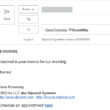
Open Outlook Templates using PowerShell
I have VBA code samples to load templates and change the Sender address without going into Outlook's convoluted Template dialog but wanted a PowerShell version.

Count and List Folders in Classic Outlook
A user had problems syncing Outlook with his IMAP account and I suspect it is because he has a large numbers of folders. While we could count the folders one by one, it's easier to use PowerShell and it does not require changing macro security.
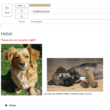
Insert Word Document into Email using VBA
How to use a macro to reply to senders by inserting the text from a Word document as the message text. There is also a macro to send a new message with the contents of a Word document inserted.

Warn Before Deleting a Contact
Use a VBA macro to warn before deleting (or moving) a contact in classic Outlook.
How to prevent changes to Outlook views
It's not hard to image this scenario: you create a custom view, everything is just the way you like it. Then you accidentally sort by a different column. Outlook saves the changes and your perfect view is ruined. In the early versions of Outlook, users were presented with a "Do you want to save changes?"
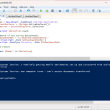
Use PowerShell to Delete Attachments
How to use PowerShell to delete large attachments from all messages in a classic Outlook folder or all attachments from selected messages in any classic Outlook folder.

Remove RE:, FWD:, and Other Prefixes from Subject Line
A VBA macro for classic Outlook to change the prefix on messages when the Reply and Forward prefixes are different, such as AW: instead of RE:. It can also be used to remove or change other prefixes, such as External:.
Change the Mailing Address Using PowerShell
How to use PowerShell to bulk change the Mailing Address selector (or move the address to a different address field) in classic Outlook's contacts.