Use this VBA macro to get a list of the folder names in your data file, printing it to the Immediate window and inserting it into a new message form.
If you want the full path within the data file, use this line:
strFolders = strFolders & vbCrLf & olTempFolderPath
If you want just the folder names, use
strFolders = strFolders & vbCrLf & olTempFolder
The folder list will be in the following format.
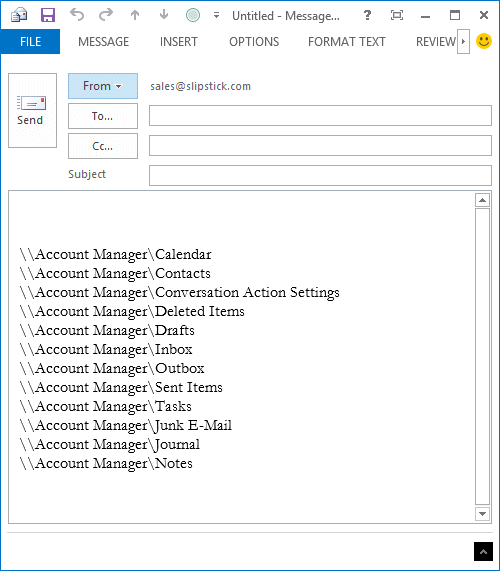
While I don't have subfolders in the data file I printed out, the printout will include any subfolders and list the full path.
Updated March 14 2015 to include the item count after the folder name, like this:
\\Account Manager\Inbox\Completed 95.
Macro to print a list of folders in an Outlook data file
To use, open the VB Editor by pressing Alt+F11. Right-click on Project1 and Insert > Module. Paste the following code into the module then run the macro.
When you run the macro, the folder picker dialog will come up for you to pick the data file (or subfolder) to use as the top level folder for the printout. If you want to list all folders in your data file, choose the top of the data file, which is usually your email address.
Public strFolders As String

Public Sub GetFolderNames()
    Dim olApp As Outlook.Application
    Dim olSession As Outlook.NameSpace
    Dim olStartFolder As Outlook.MAPIFolder
    Dim lCountOfFound As Long

    lCountOfFound = 0

    Set olApp = New Outlook.Application
    Set olSession = olApp.GetNamespace("MAPI")

     ' Allow the user to pick the folder in which to start the search.
    Set olStartFolder = olSession.PickFolder

     ' Check to make sure user didn't cancel PickFolder dialog.
    If Not (olStartFolder Is Nothing) Then
         ' Start the search process.
        ProcessFolder olStartFolder
    End If

' Create a new mail message with the folder list inserted
Set ListFolders = Application.CreateItem(olMailItem)
  ListFolders.Body = strFolders
  ListFolders.Display

' To create a text file you can open in Excel, use this
strPath = Environ("USERPROFILE") & "\Documents\OutlookFolders.csv"
  Debug.Print strPath
    Set fso = CreateObject("Scripting.FileSystemObject")
    Set Fileout = fso.CreateTextFile(strPath, True, False)
    Fileout.WriteLine strFolders

' clear the string so you can run it on another folder
  strFolders = ""
End Sub

Sub ProcessFolder(CurrentFolder As Outlook.MAPIFolder)

    Dim i As Long
    Dim olNewFolder As Outlook.MAPIFolder
    Dim olTempFolder As Outlook.MAPIFolder
    Dim olTempFolderPath As String
     ' Loop through the items in the current folder.
    For i = CurrentFolder.Folders.Count To 1 Step -1

        Set olTempFolder = CurrentFolder.Folders(i)

        olTempFolderPath = olTempFolder.FolderPath

     ' Get the count of items in the folder
         olCount = olTempFolder.Items.Count

     'prints the folder path and name in the VB Editor's Immediate window
         Debug.Print olTempFolderPath & " " & olCount

        ' prints the folder name only
         ' Debug.Print olTempFolder

         ' create a string with the folder names.
         ' use olTempFolder if you want foldernames only
         strFolders = strFolders & vbCrLf & olTempFolderPath & vbTab & olCount

        lCountOfFound = lCountOfFound + 1

    Next
     ' Loop through and search each subfolder of the current folder.
    For Each olNewFolder In CurrentFolder.Folders

         'Don't need to process the Deleted Items folder
        If olNewFolder.Name <> "Deleted Items" Then
            ProcessFolder olNewFolder
        End If

    Next

End Sub
Include the Folder Size
If you want to include the folder size, you need to get the size of each item in the folder and add them together.
To use this macro, replace the ProcessFolder macro above with this one.
The printout will look like this:
\\my@address.com\Inbox\1Test 151 34534 KB
\\my@address.com\Inbox\SO Mailer 361 44115 KB
\\my@address.com\Inbox\.Completed 1 3115 KB
It will take longer to run the macro using this version of the ProcessFolder macro.
Sub ProcessFolder(CurrentFolder As Outlook.MAPIFolder)

    Dim i As Long
    Dim olNewFolder As Outlook.MAPIFolder
    Dim olTempFolder As Outlook.MAPIFolder
    Dim olTempFolderPath As String

    Dim objItems As Items
    Dim objItem As Object
    Dim intSize As Long

     ' Loop through the items in the current folder.
    For i = CurrentFolder.Folders.Count To 1 Step -1

        Set olTempFolder = CurrentFolder.Folders(i)

        olTempFolderPath = olTempFolder.FolderPath


      Set objItems = olTempFolder.Items
     ' Get the count of items in the folder
         olcount = objItems.Count
' reset folder size so you don't have a running total
      intSize = 0
    ' Get the size
      For Each objItem In objItems
        Debug.Print olcount, objItem.Subject, objItem.Size
            intSize = intSize + objItem.Size
        Next

       ' convert to KB
       kbSize = Int(intSize / 1024) & " KB"

     'prints the folder path, name, and size in the VB Editor's Immediate window
         Debug.Print olTempFolderPath, olcount, kbSize

     ' create a string with the folder names.
         strFolders = strFolders & vbCrLf & olTempFolderPath & vbTab & olcount & vbTab & kbSize

        lCountOfFound = lCountOfFound + 1

    Next
     ' Loop through and search each subfolder of the current folder.
    For Each olNewFolder In CurrentFolder.Folders

         'Don't need to process the Deleted Items folder
        If olNewFolder.Name <> "Deleted Items" Then
            ProcessFolder olNewFolder
        End If

    Next

End Sub
Only List MailItem folders
If you only want a list of email folders, you can either edit the file after it's created and remove the lines for the non-mail folders or preplace the ProcessFolder sub with the following. It checks to see if the folder supports Mail Items, and if so, lists them. If you an Exchange mailbox, the list will include hidden folders.
Sub ProcessFolder(CurrentFolder As Outlook.MAPIFolder)

    Dim i As Long
    Dim olNewFolder As Outlook.MAPIFolder
    Dim olTempFolder As Outlook.MAPIFolder
    Dim olTempFolderPath As String
     ' Loop through the items in the current folder.
     For i = CurrentFolder.Folders.Count To 1 Step -1
       Set olTempFolder = CurrentFolder.Folders(i)

    On Error Resume Next
  If TypeOf olTempFolder.Items(1) Is MailItem Then
        olTempFolderPath = olTempFolder.FolderPath

     ' Get the count of items in the folder
         olCount = olTempFolder.Items.Count

     'prints the folder path and name in the VB Editor's Immediate window
         Debug.Print olTempFolderPath & " " & olCount

        ' prints the folder name only
         ' Debug.Print olTempFolder

         ' create a string with the folder names.
         ' use olTempFolder if you want foldernames only
         strFolders = strFolders & vbCrLf & olTempFolderPath & vbTab & olCount

        lCountOfFound = lCountOfFound + 1
End If

    Next

' Loop through and search each subfolder of the current folder.
For Each olNewFolder In CurrentFolder.Folders
    On Error Resume Next
  If TypeOf olNewFolder.Items(1) Is MailItem Then

        If olNewFolder.Name <> "Deleted Items" Then
            ProcessFolder olNewFolder
        End If
End If
Next
End Sub
Include Total Folder Count
This version of the macro includes the total folder count at the top of the list in the Outlook message form.
It does not include hidden system folders (there are a lot of hidden folders, especially in Exchange mailboxes, including shared contacts and calendar folders) or RSS subscription or Sync issues folders in the list or folder count.
Note: folders in pst files do not have a created date property. That is limited to IMAP and Exchange ost files.
Public strFolders As String
Public TotalFolders As Long
Public Sub GetFolderNames()
    Dim olApp As Outlook.Application
    Dim olSession As Outlook.NameSpace
    Dim olStartFolder As Outlook.MAPIFolder
    Dim lCountOfFound As Long

    lCountOfFound = 0
    TotalFolders = 0
    Set olApp = New Outlook.Application
    Set olSession = olApp.GetNamespace("MAPI")

     ' Allow the user to pick the folder in which to start the search.
    Set olStartFolder = olSession.PickFolder

     ' Check to make sure user didn't cancel PickFolder dialog.
    If Not (olStartFolder Is Nothing) Then
         ' Start the search process.
        ProcessFolder olStartFolder
    End If

' Create a new mail message with the folder list inserted
Set ListFolders = Application.CreateItem(olMailItem)
  ListFolders.Body = TotalFolders & " Folders in the mailbox" & vbCrLf & strFolders
  ListFolders.Display

'' To create a text file you can open in Excel, use this
'strPath = Environ("USERPROFILE") & "\Documents\OutlookFolders.csv"
'  Debug.Print strPath
'    Set fso = CreateObject("Scripting.FileSystemObject")
'    Set Fileout = fso.CreateTextFile(strPath, True, False)
'    Fileout.WriteLine strFolders

' clear the string so you can run it on another folder
  strFolders = ""
End Sub

Sub ProcessFolder(CurrentFolder As Outlook.MAPIFolder)

    Dim i As Long
    Dim olNewFolder As Outlook.MAPIFolder
    Dim olTempFolder As Outlook.MAPIFolder
    Dim olTempFolderPath As String
    Dim oPA As Outlook.propertyAccessor
    Dim PropName, Value, FolderType As String
    PropName = "http://schemas.microsoft.com/mapi/proptag/0x10F4000B"

     ' Loop through the items in the current folder.

    For i = CurrentFolder.Folders.Count To 1 Step -1
    Set olTempFolder = CurrentFolder.Folders(i)

' Skip RSS and Sync issues folders
    If InStr(olTempFolder.FolderPath, "RSS Subscriptions") > 0 Then GoTo Nextfolder
    If InStr(olTempFolder.FolderPath, "SyncIssues") > 0 Then GoTo Nextfolder

' Skip Hidden folders
' #####
  Set oPA = olTempFolder.propertyAccessor
  Value = oPA.GetProperty(PropName)
   If Value = "" Then Value = "None"
  Debug.Print Value
  On Error Resume Next

  If Value = "True" Then GoTo Nextfolder
' #####
' end skip hidden folders


TotalFolders = TotalFolders + 1
   Debug.Print "folder count", TotalFolders
   olTempFolderPath = olTempFolder.FolderPath


' Get the count of items in the folder
    olCount = olTempFolder.Items.Count

'prints the folder path and name in the VB Editor's Immediate window
    Debug.Print olTempFolderPath & " " & olCount

    ' create a string with the folder names.
    ' use olTempFolder if you want foldernames only
    strFolders = strFolders & vbCrLf & olTempFolderPath & vbTab & olCount

   lCountOfFound = lCountOfFound + 1
Nextfolder:

Next
 ' Loop through and search each subfolder of the current folder.
For Each olNewFolder In CurrentFolder.Folders

     'Don't need to process the Deleted Items folder
    If olNewFolder.Name <> "Deleted Items" Then
        ProcessFolder olNewFolder
    End If

Next

End Sub
How to use the macros on this page
First: You need to have macro security set to the lowest setting, Enable all macros during testing. The macros will not work with the top two options that disable all macros or unsigned macros. You could choose the option Notification for all macros, then accept it each time you restart Outlook, however, because it's somewhat hard to sneak macros into Outlook (unlike in Word and Excel), allowing all macros is safe, especially during the testing phase. You can sign the macro when it is finished and change the macro security to notify.
To check your macro security in Outlook 2010 and newer, go to File, Options, Trust Center and open Trust Center Settings, and change the Macro Settings. In Outlook 2007 and older, look at Tools, Macro Security.
After you test the macro and see that it works, you can either leave macro security set to low or sign the macro.
The macros on this page should be placed in a module.
Open the VBA Editor by pressing Alt+F11 on your keyboard.
To put the code in a module:
- Right click on Project1 and choose Insert > Module
- Copy and paste the macro into the new module.
More information as well as screenshots are at How to use the VBA Editor

oskar says
Is there a way to skip Calendars and any/all non-Mail folders? I just want actual folders for a user's mailbox i.e. top-level folders and subfolders
Diane Poremsky says
You'd use an IF statement and check the folder type.
Isis says
This worked perfectly! Thank you so much!
Jim Franklin says
Hi Diane,
Just stumbled across your tool and thought it was perfect for what I need. A brilliant tool.
Unfortunately I am getting a Not Defined error for Outlook.MAPIFolder when I try and run it. Upon investigation it appears MAPIFolder has now been deprecated? (I am using Office 365.)
Any idea what it should be replaced with?
Thanks,
Jim
Diane Poremsky says
Try Folder - but mapifolder should work. (It works here)
Which line is it dying on?
Sen says
Larger data sets may require;
Dim intSize As LongLong
Falcios says
Great post.
Is there a way to include code to cycle through all PSTs instead of clicking
each one individually?
Also, is there VBA code or utility for scanpst.exe to cycle through all psts
instead of selecting individual PSTs?
Thanks in advance.
Diane Poremsky says
it would be possible to go through all pst to 'do sometihng' - i have a macro that does it for color categories at https://www.slipstick.com/developer/get-color-categories-and-restore-them-using-vba/#stores - you'd change what you do within the for each store loop.
Scanpst: I'm not aware of a way to run it on all psts is one step - some commercial products support it (Datanumen does, i didn't check the others) https://www.slipstick.com/problems/pst-repair/repair-a-damaged-personal-folders-pst-file/
Chandana says
Excellent script. Works like a charm with OL 2010 and very helpful. Thanks a lot.
Lori says
Awesome Tool - thank you!
Jamie Klein says
Just opens a blank email.
Diane Poremsky says
Do you know what version of Outlook you're using?
Glen says
What a wonderful WONDERFUL tool, made me look REALLY GOOD~~~~~~
Freda Hudson says
We used the macro today. Very grateful for your wonderful site.
paul says
That's awesome Diane; today was the day I could really need/use this; thanks for help.
Nick Alzen says
Hello Diane,
I want to use the above code to also use the myitem.senton in this case, shouldn't it be oltempfolder.senton? But it says that it doesn't support this method?
Why?
Diane Poremsky says
it only prints a list of the folders, not the items in the folders, so there is no senton field or value.
Alex says
Hello Diane,
Thank you for the code, it was veeeery helpful, You saved my life ;)
Have a wonderful day!
Best regards,
Alex