You can edit the Flag to Follow up field text each time you flag a message, but you can't save the changes permanently, or even temporarily in an MRU list. However, you can use VBA to set flags, which will allow you to save custom Flag to text, as well as custom reminder times and start or due dates.
This code sample sets a flag to "Call display-name", with a due date in 3 days and a reminder set for 2 days.
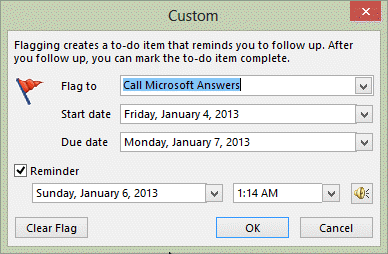
To create the macro, open the VBA editor using Alt+F11. Right click on Project1 and choose Insert > Module. Paste the macro into the module and edit as needed.
You'll also need the GetCurrentItem function from Work with an open or selected Outlook item. Paste it in the module following this macro.
For more information on using VBA, see How to use the VBA Editor.
To use the macro, open or select a message and run the macro.
Public Sub SetCustomFlag()

Dim objMsg As Object

' GetCurrent Item function is athttp://slipstick.me/e8mio
Set objMsg = GetCurrentItem()

With objMsg

' due this week flag
    .MarkAsTask olMarkThisWeek
' sets a specific due date
    .TaskDueDate = Now + 3

    .FlagRequest = "Call " & objMsg.SenderName
    .ReminderSet = True
    .ReminderTime = Now + 2
    .Save
End With

Set objMsg = Nothing
End Sub
Note: if you don't include the .MarkAsTask line, the flag will be the 'people flag'. If you use olMarkToday and set the due date for next week, it's converted to a 'next week' flag.
Flag messages after sending
This macro will ask if you want to flag a message after sending it. It waits for a message to hit the Sent folder then asks if you want to flag it.
Because this is an Application_Startup macro, you need to click in Application_Startup code and click Run to test it.
Option Explicit

Private WithEvents olSentItems As Items

Private Sub Application_Startup()
  Dim objNS As NameSpace
  Set objNS = Application.Session
  ' instantiate objects declared WithEvents
  Set olSentItems = objNS.GetDefaultFolder(olFolderSentMail).Items
  Set objNS = Nothing
End Sub

Private Sub olSentItems_ItemAdd(ByVal Item As Object)
  On Error Resume Next
  Dim prompt As String

    prompt$ = "Do you want to flag this message for followup?"
       If MsgBox(prompt$, vbYesNo + vbQuestion + vbMsgBoxSetForeground, "Add flag?") = vbYes Then

   With Item
    .MarkAsTask olMarkThisWeek
      ' sets a due date in 3 days
    .TaskDueDate = Now + 3
    .ReminderSet = True
    .ReminderTime = Now + 2
    .Save
End With
       End If
End Sub
No Message Box: Say Yes Before Sending
This variation of the above macro uses a button on the ribbon to click Yes rather than the message box as the message is sent.
Add the SayYes macro to the message form ribbon and click it before sending any message that you want to flag for follow-up.
Option Explicit
Dim SetFlag
Private WithEvents olSentItems As Items

Private Sub Application_Startup()
  Dim objNS As NameSpace
  Set objNS = Application.Session
  ' instantiate objects declared WithEvents
  Set olSentItems = objNS.GetDefaultFolder(olFolderSentMail).Items
  Set objNS = Nothing
End Sub

Private Sub olSentItems_ItemAdd(ByVal Item As Object)
  On Error Resume Next
  Dim prompt As String
       If SetFlag = vbYes Then

   With Item
    .MarkAsTask olMarkThisWeek
      ' sets a due date in 3 days
    .TaskDueDate = Now + 3
    .ReminderSet = True
    .ReminderTime = Now + 2
    .Save
   End With
       End If
 SetFlag = vbNo
End Sub

Sub SayYes()
 SetFlag = vbYes
End Sub
Select a Due Date
The macro samples above use a predefined date for the flag (and/or reminder). If you want to choose your own date, you'll need to use an InputBox and enter either 'a days from now' value or a date (in any valid short date format).
To enter a number for days from now, use this code, with the DIM statement at the top, the InputBox before the With Item line, and replace the TaskDueDate line with the one below.
Dim countDays As Long
countDays = InputBox("How many days from now?")
.TaskDueDate = countDays
To enter a specific date, use this code, with the DIM statement at the top, the InputBox before the With Item line, and replace the TaskDueDate line with the one below. In this code, any valid short date format should work: 4/1, 4/1/17, or 4/1/2017.
Dim RemindMeOn As Date
RemindMeOn = InputBox("Enter the reminder date in any valid short date (m/d/y) format")
.TaskDueDate = RemindMeOn
Flag all messages as they arrive
If you want to flag all messages as they arrive, you can use an ItemAdd macro, or use a rule with a run a script macro. In this example, I have an ItemAdd macro. You could use an If statement to restrict which messages are flagged, or convert it to a run a script macro and use a rule to filter the messages.
To use this code, paste it into ThisOutlookSession, click in the Application_Startup macro and click the Run button. Don't forget to set your macro security to low during testing then use SelfCert to sign it when you are satisfied it works as expected.
Option Explicit

Private WithEvents olItem As Items

Private Sub Application_Startup()
  Dim objNS As NameSpace
  Set objNS = Application.Session
  ' instantiate objects declared WithEvents
  Set olItem = objNS.GetDefaultFolder(olFolderInbox).Items
  Set objNS = Nothing
End Sub

Private Sub olItem_ItemAdd(ByVal Item As Object)
  On Error Resume Next

   With Item
    .MarkAsTask olMarkThisWeek
      ' sets a due date in 24 hours
    .TaskDueDate = Now + 1
    .ReminderSet = True
    .ReminderTime = Now + 1
    .Save
End With

End Sub
Run a Script rule to Flag Messages
To use the macro in run a script rule, use the following code sample.
Public Sub FlagMessage(Item As Outlook.MailItem)
  On Error Resume Next

   With Item
    .MarkAsTask olMarkThisWeek
      ' sets a due date in 24 hours
    .TaskDueDate = Now + 1
    .ReminderSet = True
    .ReminderTime = Now + 1
    .Save
End With

End Sub
See Run a Script rules for more information on using Run a Script rules.
Mark Flags Completed and Remove Categories
Use this macro to mark flagged message complete and remove any categories assigned to the message.
Option Explicit

Public Sub DoSomethingSelection()
    Dim Session As Outlook.NameSpace
    Dim currentExplorer As Explorer
    Dim Selection As Selection

    Dim obj As MailItem

    Set currentExplorer = Application.ActiveExplorer
    Set Selection = currentExplorer.Selection


    For Each obj In Selection

     With obj
      .Categories = ""
      .FlagStatus = olFlagComplete
      .Save
     End With

    Next

    Set Session = Nothing
    Set currentExplorer = Nothing
    Set obj = Nothing
    Set Selection = Nothing

End Sub
Outlook 2003
If you are using Outlook 2003, you need to edit the code a little, as Outlook 2003 uses colored flags.
| Allowable Flag colors | |
|---|---|
| olNoFlagIcon | olPurpleFlagIcon |
| olOrangeFlagIcon | olGreenFlagIcon |
| olYellowFlagIcon | olBlueFlagIcon |
| olRedFlagIcon | |
Public Sub SetCustomFlag()

Dim objMsg As Object

' GetCurrent Item function is athttp://slipstick.me/e8mio
Set objMsg = GetCurrentItem()

With objMsg
    .FlagIcon olPurpleFlagIcon
    .FlagDueBy = Now + 3
    .FlagRequest = "Call " & objMsg.SenderName
    .ReminderSet = True
    .ReminderTime = Now + 2
    .Save
End With

Set objMsg = Nothing
End Sub
How to use macros
First: You need to have macro security set to low during testing. The macros will not work otherwise.
To check your macro security in Outlook 2010 or 2013, go to File, Options, Trust Center and open Trust Center Settings, and change the Macro Settings. In Outlook 2007 and older, it’s at Tools, Macro Security.
After you test the macro and see that it works, you can either leave macro security set to low or sign the macro.
Some macros need to be in ThisOutlookSession, others go into a module or can be placed in either ThisOutlookSession or a module. The instructions are below.
Open the VBA Editor by pressing Alt+F11 on your keyboard.
If you are told to put the code in a module:
- Right click on Project1 and choose Insert > Module
- Copy and paste the macro into the new module.
If you are told to put the macro code in ThisOutlookSession:
- Expand Project1 and double click on ThisOutlookSession.
- Copy then paste the macro into ThisOutlookSession. (Click within the code, Select All using Ctrl+A, Ctrl+C to copy, Ctrl+V to paste.)
More information as well as screenshots are at How to use the VBA Editor

Eduardo says
When I paste the code into the module, it gives a compilation error as per the image attached. Any idea hoe to solve this? Thanks!
MynameisNed says
Hi Diane - is it possible to capture more than one outgoing email? I have a 2 min delay rule in place. If I send two emails within that 2 min period (both to be flagged) the variable is wiped/cleared upon the first hitting sent box so the second doesnt get flagged...
Any thoughts?
Josiah Johnson says
Hi Diane. Thank you kindly for the code. There is a bit of a bug where it will error if you try to set the TaskDueDate = 1. The TaskStartDate defaults to 2 days out, so you need to first set TaskStartDate to the same thing as your TaskDueDate. Otherwise the due date is before the start date and it errors. That took me a while to figure out, so I wanted to share the fix.
Christopher C says
Diane,
I've used these macro's for years and appreciate everything you've posted here. I'm trying to get the macro that flags sent emails for follow-up to work with multiple email accounts in outlook, but as you've mentioned before it only works with the defaults.
I've been trying to incorporate the code from the "working with VBA and non-default folders" post and can make it work with the secondary email account, but then it stops functioning with the default account.
Any assistance you can provide is appreciated.
Alvin says
Is there a way to set a flag Orange Category and Flag for follow up just before you send the email. The example above is for after you sent an email.
There is flag ? button and change category just before we press send.
Diane Poremsky says
It is possible to set a category before sending - this will send it to the recipient too (they may or may not see it, depending on the mail client and if rules or their server removes it).
It's better to set it using a macro you run manually, so you can choose whether to add it.
I have a macro here somewhere that does it - I will update this article with it.
Naveen says
Hi Diane,
Hope you are doing good:)
I have an situation in outlook any emails which comes in to the share mail inbox i want it to automatically set up a flag for 2 days, i tried using the code which you have written looks like it is not working in shared mail box, can you please help me on this.
Public Sub SetCustomFlag() Dim objMsg As Object ' GetCurrent Item function is athttp://slipstick.me/e8mio Set objMsg = GetCurrentItem() With objMsg ' due this week flag .MarkAsTask olMarkThisWeek ' sets a specific due date .TaskDueDate = Now + 2 .FlagRequest = "Call " & objMsg.SenderName '.ReminderSet = True '.ReminderTime = Now + 2 .Save End With Set objMsg = Nothing End SubDiane Poremsky says
The macro in your question should work on any message in any folder in your profile - you need the GetCurrent Item function from http://slipstick.me/e8mio
if its a shared exchange mailbox and you want to do it automatically using an itemadd macro, you need to use the shared mailbox code at
Working with VBA and non-default Outlook Folders (slipstick.com)
(I will add an itemadd version to this page)
ASHISH BHALARA says
I send mail from excel and this code not working in excel VBA.
What code I need for flag in excel vba?
Diane Poremsky says
this the itemsend macros should do it,
https://www.slipstick.com/developer/code-samples/set-flag-follow-up-using-vba/#flag
Dicinox says
Hi, thanks for this. It is very helpful.
I just have a question, is it possible to automatically set the reminder if the Subject contains a keyword?
For example i send an email and instead of the dialog box, it would set me a reminder if the subject contains "FOLLOW UP"
Diane Poremsky says
You can do that using a rule - if you have reminders set for tasks with due dates. Or you can use a rule and run a script macro to set the reminder.
Emily says
I've been looking for this code for weeks. Thank you so much for making it so understandable! Outlook VBA seems to have changed drastically over the years, and most answers I have come across is for Outlook 2003!
Ron Allen says
Hi Diane,
Trying to Flag For Recipient for some email reminders to meetings. This part of the script grabs the selected appointments and creates an outlook email for each to send to recipients who have not declined training sessions.
I cannot figure out how to set the flag for recipient and set a reminder 15 minutes before the meeting in Outlook/365 (16 I think):
(Image below)
With objMail.BodyFormat = olFormatHTML
strHead = "Reminder:"
objMail.HTMLBody = preHTML & strHead & postHTML
Set objOutlookRecip = mRecipients ''Add with items add for multiple listings split on ; or ,
'objOutlookRecip.Type = olTo
'.Subject = Format(Date + Time(), "YYYY-MM-DD-hh.mmap") & " Report summary as attached file" ''<<<<<<<<<<<<<<<<<<<<<<<<<<<<<<<<<<<<<<<
'.Body = "Please See Attached"
'.Attachments.Add fn
For Each objOutlookRecip In .Recipients
objOutlookRecip.Resolve
Next
''.DeferredDeliveryTime = (Weekday(Date, 6) - 1) + Date + 22 / 24 ''set delivery at 10pm friday end of week in case changes come up
Do While Left(.Subject, 4) Like "RE: "
.Subject = Right(.Subject, Len(.Subject) - 4)
Loop
'.Subject = "ROC:" & .Subject & "-" & Format(mDateZONE, "YYYY-MM-DD")
.Subject = .Subject
.Save
.Display
.DeferredDeliveryTime = oAppt.Start - 1 / 24 ''defer delivery to 1 hour befor start time
.FlagRequest = "For Your Information"
.ReminderSet = True
.ReminderTime = oAppt.Start - 0.25 / 24 ''15 minutes before start of meeting.
''send delay 1 hour before meeting
''Exit Sub ''''''''''''''''''<<<<<<<<<<<<<<<<<<<<<<<<<<<<EXIT BREAK<<<<<<<<<<<<<
End With
James says
Flag messages after sending: Is there a way to use it but not as Application_Startup? If yes, how? Thank you
Diane Poremsky says
You can use itemsends without the startup macro, but you are limited in what you can do. For example, the flag won't work but you can set a reminder. The message won't be listed on the to-do list if the flag is not set.
James says
that is nice. I would like to set up a reminder, but not to all sent emails. For this reason I want to have as an "separated button" for send. Is that possible? If yes, how? Thanks!
Diane Poremsky says
it is possible to create a separate button to send the message and/or to set the flag - the sample under the No Message Box: Say Yes Before Sending header does that.
Diane Poremsky says
BTW if you wanted one button to say yes and send, you need to change the SayYes macro to send the current item.
This should work (I did not test it.)
Sub SayYes()

SetFlag = vbYes

Dim objMsg As Object

' GetCurrent Item function is athttp://slipstick.me/e8mio

Set objMsg = GetCurrentItem()

With objMsg

.send

End With

Set objMsg = Nothing

End Sub
Leo says
I am trying to set a flag before the message is sent, but it seems that the .MarkAsTask property can only be set after the message is sent. Any ideas?
Diane Poremsky says
It should set it but the flag may be deleted (in outlook, it won't show up as a normal flag). I'll double check.
Reuben Dayal says
Dear Diane,
Thank you for providing this very useful code.
I am trying to set the reminder at a specific time. For example - tomorrow at 09:00 or in 2 days at 10:30.
Could you suggest if there is an alternate solution to add the specific time to the reminder?
Thank you.
Diane Poremsky says
Try changing this:
.ReminderTime = Now + 2
to
.ReminderTime = Date + 2 + #10:30:00 AM#
Using decimal format should work too - this is 2 days from now at 6 AM:
.ReminderTime = Date + 2.25
Reuben Dayal says
Thank you so much for your prompt reply.
Alex R. says
Hello Diane, been using the "say yes" version. Its been one of the best additions to my automation! Thanks for that.
One Problem: Tried to amend to the version with "Select a Due date". The macro asks for either the "how many days" or "absolkute date", but then this is not transferred into real life. Basically the command .TaskDueDate = Now + 1 is executed as .TaskDueDate = Now + nothing thus giving it a .TaskDueDate = Now result.
No errors.
This is the code:
Private Sub olSentItems_ItemAdd(ByVal Item As Object)On Error Resume Next
Dim prompt As String
Dim countDays As Long
If SetFlag = vbYes Then
countDays = InputBox("How many days from now?")
With Item
.MarkAsTask olMarkThisWeek
' sets a due date in 3 days
.TaskDueDate = countDays
.ReminderSet = True
.ReminderTime = Now + 2
.Save
End With
End If
SetFlag = vbNo
End Sub
Sub SayYes()
SetFlag = vbYes
End Sub
Any ideas how to get this to work?
Thank you in advance
Diane Poremsky says
This:
.TaskDueDate = countDays
Should be
.TaskDueDate = date + countDays
Alex R. says
Hello Diane, that did the trick. Is there any reason that the script reacts only to numbers >3? If i input 1 or 2 it alsways sets the minimum reminder on wednesday. Example: using the macro today, inputing "1 days" always reacts in Wednesday. What am i missing? Where am i missing the minimum time? Thanks in advance. Alex
Diane Poremsky says
no, i dont know why its doing it. I'll see if i can repro using the code posted above.
Alex says
No Message Box: Say Yes Before Sending - FOLLOWING LINE SHOWS UP RED IN VBA
Private WithEvents olSentItems As Items
Diane Poremsky says
Did you put the macro in ThisOutlookSession? Automatic macros need to be in that module.
Alex says
I have corrected it; however now it gives Compile error: Invalid attribute in Sub or Function - while highlighting "WithEvents olSentItems As Items"
Diane Poremsky says
Did you make any changes to the code? It's working here. Is the item that triggers the error an email message?
Alex says
item that triggers the error is "WithEvents olSentItems As Items" in Office 2010 Win 7 and I only commented out following lines, as I don't need flags, just the reminder for recipient:
` .MarkAsTask olMarkThisWeek
' sets a due date in 3 days
.TaskDueDate = Now + 3
Diane Poremsky says
Technically, when you set a reminder you are setting a flag, it should set a no due date flag if you don't say what kind of a flag... but thAat doesn't cause the error.
did you move the withevents line? it needs to be at the top of the page.
Alex says
I've now uncommented the lines I mentioned above, and so now all the code is exactly as you have it above and it is all in ThisOutlookSession. I restarted Outlook and am getting the same error. I have attached a screeshot...
Diane Poremsky says
Yeah, when i commented them out hoping to repro your error, the macro worked, so its not that.
I posted a text file at https://www.slipstick.com/files/say-yes-macro.txt - it has the macro that works here. You need to restart outlook or click in the application_startup folder then click Run to kick start it.
Alex says
I followed your instructions and shut down Outlook then started it back up, yet same error. (Not sure what this means exactly "click in the application_startup folder then click Run to kick start it.").
Can you confirm that ALL the code needs to be in ThisOutlookSession? Also, attaching screenshot of References, maybe that's what makes a difference why it runs on your PC and not on mine...
Diane Poremsky says
The macro doesn't use any special references - just the defaults.
This is an automatic macro: Private Sub Application_Startup() - it runs when outlook starts up and sets the sent folder you're watching for new items. It needs to be in thisoutlooksession, as does the macro that does the watching (the itemadd macro).
If you don't want to keep restarting outlook when you are testing & editing a startup macro, you can click somewhere in the lines of the startup macro and click Run.
copy and paste the code you're using into notepad and upload it - i'll see if it works here. It might be something like a space that isn't a space.
Alex says
I am using exact same macro which you have posted above for me, I just copied and pasted it all into ThisOutlookSession. This is the link you have provided earlier: https://www.slipstick.com/files/say-yes-macro.txt -
Diane Poremsky says
then it's not because the spaces are messed up (that actually happened with all of the code on the site following a wordpress update last year. :( )
This is a screenshot of my test machine - https://www.screencast.com/t/TFwZyvqFz7Y - i copied the macro into ThisOutlookSession, clicked in App startup then Run so i didn't have to restart outlook. I added the say yes macro to a button. Addressed a message, clicked the button, sent message, it goes into the sent items folder.
'invalid attribute in sub or function' makes little sense - its not in a sub or function, its not in a module (the error would be different) - try typing that line in, instead of copy and paste. (Yes, i'm grasping at straws now.)
Alex says
I've typed that line in, instead of copy and paste - still same error. Could you attach that screenshot of your test machine right into your reply instead of linking to it? My IT Dept blocked access to that link. Maybe seeing your screenshot will help me see the issue.
Diane Poremsky says
Sorry I missed this earlier. The image is attached.
Alex says
I was able to see your screenshot from home. What version of Outlook are you running this on? It does NOT work on 2010
Diane Poremsky says
when i wrote it, it was tested on 2013 and 2010. I tested it just now on 2010 - it worked fine.
SAJID says
Flag messages after sending required help to set macro for after sending email flag with custom data and time display.
Diane Poremsky says
Are you receiving any error messages?
Yann says
Hi Diane,
I used the macro you did called SayYes, when you have to click a button. It works thanks a lot!
But maybe too much :/ Indeed, I sent the macro to my collegues and one of them was in trouble.
The macro is runing even if he didn't clicked the button...
Any idea ?
Diane Poremsky says
Never mind... i found the macro you are talking about - totally forgot about it.
That macro works in conjunction with the Private Sub olSentItems_ItemAdd(ByVal Item As Object) macro which checks each outgoing message. At the end of the macro, the flag is set to No (SetFlag = vbNo), so it should only flag messages when you click the SayYes macro to change the flag to Yes.
Private Sub olSentItems_ItemAdd(ByVal Item As Object)
If SetFlag = vbYes Then
' set flag
End If
' reset the flag to No
SetFlag = vbNo
End Sub
Oliv says
Hi Diane,
This is another way when sending Email :
Sub ExempleNewMailTaskI()Dim appOutlook As Outlook.Application
Set appOutlook = Outlook.Application
Dim MESSAGE As Outlook.MailItem
Dim objRecipient As Outlook.Recipient
Set MESSAGE = appOutlook.CreateItem(olMailItem)
With MESSAGE
.Subject = "New Task"
'Ajout d'un destinataire principal
Set objRecipient = .Recipients.add("octu")
objRecipient.Type = olTo 'olBCC, olCC, olOriginator ou olTo.
objRecipient.Resolve
.Display
.GetInspector.CommandBars.ExecuteMso ("FlagCustom")
'or .GetInspector.CommandBars.ExecuteMso ("FlagToday")
'or .GetInspector.CommandBars.ExecuteMso ("FlagThisWeek")
'or .GetInspector.CommandBars.ExecuteMso ("FlagNextWeek")
'or .GetInspector.CommandBars.ExecuteMso ("FlagNoDate")
'or .GetInspector.CommandBars.ExecuteMso ("FlagNoDate")
'Soit je l'envoi
.Send
End With
End Sub
Diane Poremsky says
Note that when you flag the message before sending, the recipient receives a flagged message too. That tends to annoy recipients. :)
Yann says
Hello Diane,
Thanks a lot for all these macros!
I have a problem with the one called "No Message Box: Say Yes Before Sending"
Indeed, it doesn't work for me, the sentence "Private WithEvents olSentItems As Items" is in red...
I think that I have to declared the WithEvents, no ?
I am lost and I really need to use it... I precise that I added a button on the ribbon as you said.
Thanks again,
Yann, a beginner
Diane Poremsky says
Did you put the macros in ThisOutlookSession? The line that is red should be at the top of thisoutlooksession (with option explicit and the Dim).
It's an auto start macro, so it runs when outlook starts and watches the sent folder.
SAJID says
please see the attached the issue is after restarting outlook i would not be able to receive popup for galg
Diane Poremsky says
The macro looks good. Try adding msgbox "Running" as the first line in the itemadd macro.
The flag macro is working here. Do you have more than one email account in the profile? It only watches the default sent items folder.
it's a startup macro, so you need to restart outlook (or click in the startup macro and click Run).
AussieAnn says
Hi Diane,
I have used your code and instructions above to create two custom buttons in the outlook ribbon that apply a 14- and 28-day follow-up to a mail message. All working fine - thanks!
Unfortunately, the same is not true for the 'sayyes' code. I cannot get this to work at all. I have the code in the 'thisoutlooksession' section of the project and have changed nothing except for the three things you suggest to implement the 'countDays' bit. I have no clues why this wouldn't work and the other two mentioned above would. Any clues? I'm running Office 365 on Windows 10 Pro.
I also have a further question - is it possible to create custom follow-ups for contact items, just like the 14- and 28-day follow-ups, mentioned above? I want to be able to flag follow-up for a contact, where for example, I've liaised with them via SMS, so no email or calendar item to flag. I see that flags are possible, but I wonder if customisation is possible as I now have for emails?
Thanks for you help, as always!
Kind regards,
Ann
Diane Poremsky says
Did you set macro security to low? Restart Outlook? both are required.
You can customize flags on Contacts - same basic way as with mail, but you'll use contactitem instead of mail item.
Chris says
Hi Diane. Thanks for the helpful guidance. I was having difficulty with the "Select a Due Date" routine when I was setting the date to the next day. Outlook would not set the due date to the next day. I think it was because the .MarkAsTask olMarkThisWeek was setting the start date after the due date I had selected, thus Outlook was not accepting the due date I put in the Input Box. I added .TaskStartDate = countDays above .TaskDueDate = countDays and that seemed to fix it.
Nikki says
Hi,
I have been using this macro for a few years and its very helpful. I have scrolled through all the requests below but i dont see the one i am after (sorry if i missed it).
When i send an email i currently set it for followup with a yes or no pop up box and then choose a category from another pop up box.
Is there a way i can have a third option to choose the specific date i want to follow up. The current code puts tomorrow, but not all emails need to be followed up tomorrow, some i want to choose a specific day next week. At the moment i have to go through all of my follow up emails and reset each flag's due date.
This is using the following code:
Option Explicit
Private WithEvents olSentItems As Items
Private Sub Application_Startup()
Dim objNS As NameSpace
Set objNS = Application.Session
' instantiate objects declared WithEvents
Set olSentItems = objNS.GetDefaultFolder(olFolderSentMail).Items
Set objNS = Nothing
End Sub
Private Sub olSentItems_ItemAdd(ByVal Item As Object)
On Error Resume Next
Dim prompt As String
prompt$ = "Do you want to flag this message for followup?"
If MsgBox(prompt$, vbYesNo + vbQuestion + vbMsgBoxSetForeground, "Add flag?") = vbYes Then
With Item
.MarkAsTask olMarkToday
' sets a due date in 1 days
.TaskDueDate = Now + 1
.Save
End With
End If
Item.ShowCategoriesDialog
End Sub
Private Sub olSentItems_ItemChange(ByVal Item As Object)
End Sub
Thanks
Diane Poremsky says
you'll add another prompt - this one for a specific date (you'll need to type it in - any valid date format should work) or you could use "days from now".
this line: .TaskDueDate = Now + 1 would either be
.TaskDueDate = Now + strDays
or
.TaskDueDate = strReminderDate
it would go after the 'yes, i want to follow up'
strDays = Inputbox("When do you want the reminder?")
before the with item...
Diane Poremsky says
Either of these will work -
Dim countDays As Long
countDays = InputBox("How many days from now?")
.TaskDueDate = countDays
Dim RemindMeOn As Date
RemindMeOn = InputBox("Enter the reminder date in any valid short date (m/d/y) format")
.TaskDueDate = RemindMeOn
If you use the date, any valid short date format should work - 4/1, 4/1/17, or 4/1/2017
Will says
I’m looking for a script that I can apply to a rule similar to this. I am trying to set a custom reminder on all emails from a specific person with a specific subject line for a follow up 3 days from that day. I know I will need to create a rule for emails received from that person with said subject line and tell it to run the script to create follow up reminder 3 days from that date. However I don't know the script. Can you help? I’ve tried working with the above to no avail.
Diane Poremsky says
Use the macro near the bottom under the heading Run a Script rule to Flag Messages. Change the 1 in .TaskDueDate = Now + 1 to 3. Then create a rule and select run a script as the action and select this macro.
More on run a scripts:
https://www.slipstick.com/outlook/rules/outlooks-rules-and-alerts-run-a-script/
Rob says
Hi Diane,
First off - thanks for the article. Super thorough and simultaneously concise.
I'm trying to accomplish something similar to the above - email comes in with a certain date in the subject and certain text in the body and flag the email for follow up today.
I created a rule that moves these messages to a particular folder and runs my subroutine. I have everything written up to the flagging part - for some reason the flag won't take. Do you know if there are any settings I need in place here?
Thanks!
Rob
André says
been using FollowUpFlag for a while and I'm real happy, but I (of course) have a question. Is there a way to add a BusinessDy function so that if Now+2 is Saturday or Sunday, push it to Monday?
Diane Poremsky says
You can. See https://www.slipstick.com/developer/create-outlook-appointments-for-every-xx-weekday-using-vba/ for an example
the relevant code is:
Select Case Weekday(nextDate, vbUseSystemDayOfWeek)
Case vbSunday
nextDate = DateAdd("d", 1, nextDate)
Case vbSaturday
nextDate = DateAdd("d", 2, nextDate)
End Select
Brian says
Hi Diane,
I am constantly forgetting to mark flagged items complete so I was hoping to create a macro that runs after a flagged message is replied to and say "Flagged Message Response: Should this task be completed?". If yes, it should run the code above to mark the original email complete. If not, it would just leave it flagged.
Any ideas how that can be accomplished?
Thanks!
Diane Poremsky says
This shows how to do something when reply is clicked - https://www.slipstick.com/developer/vba-when-reply-is-clicked/ - you'll want to check if the original message is flagged then ask if it should be marked complete.
Brian says
I tried using the following code, but it doesn't work...
Private Sub afterReply()
oResponse.Display
If oItem.IsMarkedAsTask Then
ClearFlag = MsgBox("Is the task complete?", vbYesNo, "Flag complete?")
If ClearFlag = vbYes Then oItem.MarkAsTask olMarkComplete
'oItem.ClearTaskFlag
oItem.Save
End If
End Sub
Diane Poremsky says
You're using it in conjunction with the macros just above it? (They call this macro when you hit reply/forward)
It works here (i had to add dim clearFlag to it).
tonecas says
Great solution.
I would just make the following change:
Instead of using a global variable "SetFlag", which leads to race conditions, let's mark the mail item with a custom category on and then check for this category when items are placed on the sending folder. We would them remove the category from the email item on olSentItems_ItemAdd().
The custom category can be created on Application_Startup(). The category is set on the function associated with the macro button.
Bsy says
I setup "Flag messages after sending" this morning and all was fine. I've not made any changes but then all of a sudden it stopped working and now I get the following error at the bottom left of Outlook:
"You can't make this change because the selection is locked."
Macro security settings are fine. Nothing has changed in the VBA script. I'm at a loss!
Diane Poremsky says
Is this an IMAP account? I've never seen that message in Outlook - it's not uncommon in Word. I'll see if i can repro.
Juan says
I found the vba code which opens up the custom flag dialog up box, the problem is i can only select one email at a time. What do a need to change to select multiply and have them all change to the selected due date at once?
`Private Sub AddReminderDialog_ExecuteMso()
Dim objItem As Object
On Error Resume Next
Set objItem = ActiveInspector.CurrentItem
On Error GoTo 0
If Err 0 Then
ActiveInspector.CommandBars.ExecuteMso ("AddReminder")
Else
ActiveExplorer.CommandBars.ExecuteMso ("AddReminder")
End If
End Sub
Diane Poremsky says
This uses the current item: Set objItem = ActiveInspector.CurrentItem
this page has code samples to work with all items in a folder or selected items.
https://www.slipstick.com/developer/code-samples/working-items-folder-selected-items/
BTW, if you know when you want the reminder, you could set the reminder using remindertime instead of using the dialog.
Barry Graham says
For some reason, "now + 1" doesn't set the flag at tomorrow. Any ideas why?
Diane Poremsky says
Use .MarkAsTask olMarkTomorrow to set a task for tomorrow. I'm not sure why it's erroring on now + 1, but for tomorrow, you just need to set .MarkAsTask olMarkTomorrow
Barry Graham says
OK I figured out how to get the one to check the sent items folder to check a different folder instead, except that it's setting the due date as Friday even though I have .TaskDueDate = Now + 1 which is odd because the exact same line works in the macro where I have a button to set the due date.
Diane Poremsky says
Yeah it should work in any folder - it's just a simple calculation. Is it setting it for this week instead of a specific date?
.MarkAsTask olMarkThisWeek this sets it for Friday but would have the same effect in any folder. Try olmarktomorrow
https://msdn.microsoft.com/en-us/library/office/ff868356.aspx
Barry Graham says
Diane, I love the macro to flag sent messages for follow-up. How do I get it to check a different folder rather than "Sent Items" for example if I am saving to a different folder when I sent messages?
Diane Poremsky says
You'd change this line: Set olSentItems = objNS.GetDefaultFolder(olFolderSentMail).Items to point to the new folder, but it needs to be the same folder all the time.
https://www.slipstick.com/developer/working-vba-nondefault-outlook-folders/ shows how to watch folders, depending on where the folder is.
Mikolaj says
Is there a way to set simply a custom flag with no start/due date - so the message wasn't turned into a task?
I just need to set a flag with a custom description but with no reminders or anything else - I just want outlook to highlight this message (via View settings) and have a "label" what should be done with it.
Diane Poremsky says
How about using Categories instead? While you can flag and not set a due date or a reminder, it will include the flagged message in the To-do List (but you can set a filter on the view to hide the flagged messages).
Mikolaj says
Thanks! I do use Categories as well, but use them strictly to categorize items and I want additionally to add action flags, so I had two marks for an item - category (project) it belongs to and action associated with it (if any).
David Nestlebush says
Hello,
I have a macro to move an email from my inbox to a certain folder. I would like to also flag it for a follow up reminder in one hour.
Here is the code I'm using to move the email. What is stumping me is where I should add the ".ReminderSet = True", etc.
'Outlook VB Macro to move selected mail item(s) to a target folder
Sub MoveEmailtoFolder()
On Error Resume Next
Dim ns As Outlook.NameSpace
Dim moveToFolder As Outlook.MAPIFolder
Dim objItem As Outlook.MailItem
Set ns = Application.GetNamespace("MAPI")
'Define path to the target folder
Set moveToFolder = ns.Folders("Email Address").Folders("Inbox").Folders("Folder").Folders("SubFolder")
If Application.ActiveExplorer.Selection.Count = 0 Then
MsgBox ("No item selected")
Exit Sub
End If
If moveToFolder Is Nothing Then
MsgBox "Target folder not found!", vbOKOnly + vbExclamation, "Move Macro Error"
End If
For Each objItem In Application.ActiveExplorer.Selection
If moveToFolder.DefaultItemType = olMailItem Then
If objItem.Class = olMail Then
objItem.Move moveToFolder
End If
End If
Next
Set objItem = Nothing
Set moveToFolder = Nothing
Set ns = Nothing
End Sub
Diane Poremsky says
I would put it after this:
If objItem.Class = olMail Then
don't forget to .save it - then move it.
David Nestlebush says
Perfect! thank you!!
Andrew Jones says
Hello Diane,
Referring to your very first example above, I use Outlook’s follow-up flag field as an editable text field to group e-mail messages according to categories, i.e. “Shipment ABC123” or “Quote M-51233” etc. I don’t need dates or reminders, just the followup-to text.
What I am trying to do is create rules to capture inbound messages based on keywords in the subject line or body text and insert followup-to text by triggering a script as defined by numbered macros in VBA. I can manually make these macros work on individual messages using the code below (if I remove “Item As Outlook.MailItem” of course) but once that is in place the code fails to trigger when the new message hits my inbox.
Is there anything I am missing? Thanks.
Running Outlook 2013 under Win7 SP1, using an Exchange account. My VBA code is in a separate module from ThisOutlookSession.
.....................................
Public Sub SetCustomFlag1(Item As Outlook.MailItem)
Dim objMsg As Object
' GetCurrent Item function is at http://slipstick.me/e8mio
Set objMsg = GetCurrentItem()
With objMsg
.FlagRequest = "Category 1"
.Save
End With
Set objMsg = Nothing
End Sub
Public Sub SetCustomFlag2(Item As Outlook.MailItem)
Dim objMsg As Object
' GetCurrent Item function is at http://slipstick.me/e8mio
Set objMsg = GetCurrentItem()
With objMsg
.FlagRequest = " Category 2"
.Save
End With
Set objMsg = Nothing
End Sub
Function GetCurrentItem() As Object
Dim objApp As Outlook.Application
Set objApp = Application
On Error Resume Next
Select Case TypeName(objApp.ActiveWindow)
Case "Explorer"
Set GetCurrentItem = objApp.ActiveExplorer.Selection.Item(1)
Case "Inspector"
Set GetCurrentItem = objApp.ActiveInspector.CurrentItem
End Select
Set objApp = Nothing
End Function
Curious Bob says
Hi Diane,
This script is great. I have a question with regard to the "No Message Box: Say Yes Before Sending" variation that allows you to click a button to "set" the process to run when composing.
From the code, it seems like it will run for the _next_ email added to Sent Items.
What happens if you're composing TWO emails at once, and set the button for Email A - but actually send Email B first? Then the script will work on Email B, right, as it was the _next_ email added to Sent Items?
Is there a way to set the button to somehow 'uniquely' identify the email it was set for? So it will for example only trigger for Email A, despite Email B being sent first?
Perhaps an unlikely situation, but I'm curious about being able to uniquely identify the email. I was thinking of the email subject, but perhaps Email A and Email B have the same subject (e.g. replying all, and replying privately just to one person).
How else can the email be uniquely identified when composing that allows the script to distinguish that specific email when it hits Sent Items?
Any help would be much appreciated!
Diane Poremsky says
Yes, it will apply to the next message you actually send. You could probably set a custom field or category then use an if statement in the itemsend macro to check for that field and set the SetFlag property to yes. (Probably means I haven't tested it.)
Christopher Cheniae says
Hi Diane,
I've been trying to get the "Flag messages after sending" macro working without success. I'm using Office 2013 Pro Plus.
I've attempted placing the code in a regular module. When I go to test it i get the error "Compile Error: Only Valid in object module"
When I place the code into a class module and test. Nothing appears to happen.
Any assistance you could provide would be be greatly appreciated.
Diane Poremsky says
the after sending macro needs to go in ThisOutlookSession as it runs when outlook is started.
Mehmet Erkmen says
Dear Diane,
Could you please share a VBA code that will archive e-mails older than 30 days and keep (not archive) the flagged e-mails?
Thanks in advance.
Diane Poremsky says
Do you want to actually use archive or just move the mail out of the inbox?
This moved aged mail - https://www.slipstick.com/developer/macro-move-aged-mail/
Add the error handler and the statment to watch for flagged items -
DoEvents
On Error Resume Next
If objVariant.Class = olMail And objVariant.IsMarkedAsTask = False Then
Ken says
Diane, How can I set the follow-up or reminder time to 30 mins?
The following doesn't work:
ReminderTime = Now + 30 mins
Thanks.
Diane Poremsky says
I'm assuming you want it to be 30 minutes before, not 30 minutes from Now (which would be Now + .0208333).
.ReminderTime = Now + 3 - 0.02083333 ' 3 days from now, less 30 minutes due date is .TaskDueDate = Now + 3
.ReminderTime = .TaskDueDate - 0.02083333 ' 30 min before the due date, aka 11:30 pm.
.ReminderTime = .TaskDueDate + 0.25 ' 9 AM on the due date; tasks are not overdue until the end of the day
Robert in SF says
I would like to adapt this macro to set a task/reminder for the draft email as I write it, to set the reminder time and date for *me*.
But right now, this *does* set it for the recipient, but not for me...
Any help?
More detail: I would like to have a macro that I can activate when I am drafting a new email (reply, or new email) that will set the follow up flag, and set the reminder for 1 day out at 9:00 AM. This macro almost does that...but it only sets it for the recipient, not for me. Close, but no cigar. :)
Diane Poremsky says
The Flag messages after sending macro on this page does this. If you only want to flag certain messages, you'll need to use an If statement to filter the messages.
Diane Poremsky says
Silly me, the macro asks each time if you want to send it. It would be possible to use a button on the ribbon to say 'yes' as you are composing.
I added a macro to the end of the article that sets the "Yes" using a macro before you click send instead of the message box. https://www.slipstick.com/developer/code-samples/set-flag-follow-up-using-vba/#yes
Eric says
Hi Diane, I used the "Flag messages after sending" macro but it keeps on popping up the dialogue box and I cannot get out of it. What do i do wrong ?
Diane Poremsky says
What dialog box? You'll get the input box that asks yes or no, but it should go away once you hit either button.
Jon says
This looks like exactly what i have been trying to write myself but failed, however when i paste into "This OUtlookSession" and try to send a mail i get the error message "Compile error: Invalid attribute in Sub or Function" with relation to the Private WithEvents olSentItems as Items line of code.
Are you able to help me understand this?
Thanks
Diane Poremsky says
What type of email account & which version of Outlook? Are any of the lines red?
Did you edit the code? If so, try the original code.
Diane Poremsky says
BTW, that line needs to be at the top of the page, outside of the macros.
Jon says
The issue was i has pasted the code after another macro so the line wasn't at the top of the page. Many thanks for your help.
Robert in SF says
Is there a way to use VBA to flag an outgoing message for the *recipient*, including a reminder for the recipient, as that is an option for a custom flag in the dialogue box?
Diane Poremsky says
You can do it using an itemsend macro, but the flag could be removed by the recipients email system.
Juan says
Instead can we call the custom flag and maunel input all the imfromation.
Public Sub SetCustomFlag()
Dim objMsg As Object
' GetCurrent Item function is at http://slipstick.me/e8mio
Set objMsg = GetCurrentItem()
With objMsg
' due this week flag
.MarkAsTask olMarkThisWeek
' sets a specific due date
.TaskDueDate = Now + 3
.FlagRequest = "Call " & objMsg.SenderName
.ReminderSet = True
.ReminderTime = Now + 2
.Save
End With
Set objMsg = Nothing
End Sub
Diane Poremsky says
You can use inputboxes to collect the values but you can't call up a command specifically for the custom flag AFAIK.
KoolPal says
What is meant by this?
"if you don't include the .MarkAsTask line, the flag will be the 'people flag'."
Diane Poremsky says
If the flag is not set as a task (using markastask), outlook treats it as a task sent by someone else - it'll have the people icon on it.
AQ says
Question: I am trying to create a macro that will flag sent message with a 2 day follow up flag instead of 1 day. I am using rules to assign the flag but I want it to be 2 days instead of 1 day. Any thoughts?
Diane Poremsky says
You're using a basic rule to flag messages? Use the macro on this page under the heading of Run a Script rule to Flag messages - I added a macro ready to use in a run a script rule. Due date would be changed to add 2 days (or 3 or whatever).
.TaskDueDate = Now + 2
Mike says
Hi Diane,
Yes I would like to have the option to flag all messages after they are sent. Would like to trigger the flag code at the beginning of itemsend or after the send and the message has been moved to the folder I have picked to file it in. I'll google the entry id and see what I can find.
Thanks,
Mike
Mike says
Yes I would like to have the option to flag each message that is sent even when it is no longer in the sent folder.
I'll look at how to get the entry id.
Thanks
Mike says
Hi Diane,
I'm using the following code I tracked down to use a pop up to pick a folder that sent mail gets moved to. I've tried to incorporate the flag messages after sending example you have above but am not quite sure where to start.
I can get your code above to work by itself and the folder picker to work by itself but when I add them together I cannot get them to execute in the correct order. The folder picker happens immediately and moves the message so the flag code cant find it in the sent folder I'm guessing.
Any Help would be appreciated
Code for folder picking
Private Sub Application_ItemSend(ByVal Item As Object, _
Cancel As Boolean)
Dim objNS As NameSpace
Dim objFolder As MAPIFolder
Set objNS = Application.GetNamespace("MAPI")
Set objFolder = objNS.PickFolder
If TypeName(objFolder) "Nothing" And _
IsInDefaultStore(objFolder) Then
Set Item.SaveSentMessageFolder = objFolder
End If
Set objFolder = Nothing
Set objNS = Nothing
End Sub
Public Function IsInDefaultStore(objOL As Object) As Boolean
Dim objApp As Outlook.Application
Dim objNS As Outlook.NameSpace
Dim objInbox As Outlook.MAPIFolder
On Error Resume Next
Set objApp = CreateObject("Outlook.Application")
Set objNS = objApp.GetNamespace("MAPI")
Set objInbox = objNS.GetDefaultFolder(olFolderInbox)
Select Case objOL.Class
Case olFolder
If objOL.StoreID = objInbox.StoreID Then
IsInDefaultStore = True
End If
Case olAppointment, olContact, olDistributionList, _
olJournal, olMail, olNote, olPost, olTask
If objOL.Parent.StoreID = objInbox.StoreID Then
IsInDefaultStore = True
End If
Case Else
MsgBox "This function isn't designed to work " & _
"with " & TypeName(objOL) & _
" items and will return False.", _
, "IsInDefaultStore"
End Select
Set objApp = Nothing
Set objNS = Nothing
Set objInbox = Nothing
End Function
Function GetCurrentItem() As Object
Dim objApp As Outlook.Application
Set objApp = Application
On Error Resume Next
Select Case TypeName(objApp.ActiveWindow)
Case "Explorer"
Set GetCurrentItem = objApp.ActiveExplorer.Selection.Item(1)
Case "Inspector"
Set GetCurrentItem = objApp.ActiveInspector.CurrentItem
End Select
Set objApp = Nothing
End Function
Diane Poremsky says
So you want to flag all messages after sending, regardless of the folder you are moving the message to? If so, you'll need to get the entry id of the message and use it. I think you can get that before its moved.
Andy McCarthy says
Hi Diane!
I have a VBA code that performs actions on specific emails I've selected, including attaching them to a new email message which is automatically forwarded. As soon as that email is sent, I'd like it to be flagged for follow up without having a prompt. Is it possible to do so without having it be an Application_Startup macro? In other words, I don't want it to run every time I send a message, only when I send a message generated by the macro.
Diane Poremsky says
You may be able to add it to the macro you are using. You'll need to get the entry id and then flag it after its sent - this assumes the message is sent immediately. If you need to use the startup macro, you can add an if statement so it only flags messages meeting specific criteria. That assumes something in the message is unique to all messages sent with the macro, so you have something to look for.
Pam Morrison says
Did work for me got the error "Complie error: Sub or Function not defined" a the "Set objMsg == GetCurrentItem()". The instructions said just paste the macro which I did but is there text that has to be entered or something?
Diane Poremsky says
You also need the GetCurrentItem function from here.