When you use RTF and Reply to a message that had attachments, the attachment names are added to the message body. When you use HTML or plain text messages the attachment name is not added to the message body.
It works like this for RTF messages because the attachments are embedded objects and that is how Outlook handles embedded objects. Unfortunately, using RTF is not practical because it results in winmail.dat file attachments and a general mess for any recipients not using Outlook.
This code works with Outlook 2013 (with inline reply disabled or when you reply from an opened message), and should work with Outlook 2010 and 2007. It might work with older versions if Word is set as the editor.
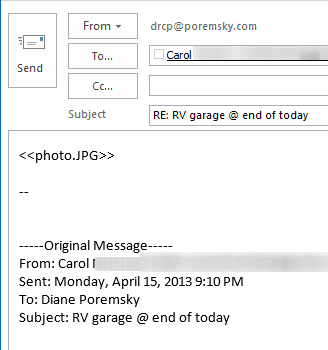
Reply and ReplyAll with the Attachment name
Option Explicit
Private WithEvents oExpl As Explorer
Private WithEvents oItem As MailItem
Private bDiscardEvents As Boolean


Private Sub Application_Startup()
   Set oExpl = Application.ActiveExplorer
   bDiscardEvents = False
End Sub

Private Sub oExpl_SelectionChange()
   On Error Resume Next
   Set oItem = oExpl.Selection.Item(1)
End Sub

' Reply
Private Sub oItem_Reply(ByVal Response As Object, Cancel As Boolean)

Dim oAtt As Attachment
Dim strAtt As String
    Dim olInspector As Outlook.Inspector
    Dim olDocument As Word.Document
    Dim olSelection As Word.Selection

If bDiscardEvents Or oItem.Attachments.Count = 0 Then
       Exit Sub
   End If

   Cancel = True
   bDiscardEvents = True
strAtt = ""

For Each oAtt In oItem.Attachments
    If oAtt.Size > 5200 Then
    strAtt = strAtt & "<<" & oAtt.FileName & ">> "
    End If
Next oAtt

   Dim oResponse As MailItem
   Set oResponse = oItem.Reply
   oResponse.Display

    Set olInspector = Application.ActiveInspector()
    Set olDocument = olInspector.WordEditor
    Set olSelection = olDocument.Application.Selection

  olSelection.InsertBefore strAtt

   bDiscardEvents = False
Set oItem = Nothing
End Sub

' Reply All
Private Sub oItem_ReplyAll(ByVal Response As Object, Cancel As Boolean)

Dim oAtt As Attachment
Dim strAtt As String
    Dim olInspector As Outlook.Inspector
    Dim olDocument As Word.Document
    Dim olSelection As Word.Selection

If bDiscardEvents Or oItem.Attachments.Count = 0 Then
       Exit Sub
   End If

   Cancel = True
   bDiscardEvents = True

strAtt = ""

For Each oAtt In oItem.Attachments
    If oAtt.Size > 5200 Then
    strAtt = strAtt & "<<" & oAtt.FileName & ">> "
    End If
Next oAtt

   Dim oResponse As MailItem
   Set oResponse = oItem.ReplyAll
   oResponse.Display

    Set olInspector = Application.ActiveInspector()
    Set olDocument = olInspector.WordEditor
    Set olSelection = olDocument.Application.Selection

  olSelection.InsertBefore strAtt
   bDiscardEvents = False
Set oItem = Nothing

End Sub
How to use this macro
This macro "watches" for you to click the Reply or Reply All button and adds the filename to the top of the reply.
First: You will need macro security set to low during testing.
To check your macro security in Outlook 2010 and aboce, go to File, Options, Trust Center and open Trust Center Settings, and change the Macro Settings. In Outlook 2007 and older, it’s at Tools, Macro Security.
After you test the macro and see that it works, you can either leave macro security set to low or sign the macro.
Open the VBA Editor by pressing Alt+F11 on your keyboard.
To use the macro code in ThisOutlookSession:
- Expand Project1 and double click on ThisOutlookSession.
- Copy then paste the macro into ThisOutlookSession. (Click within the code, Select All using Ctrl+A, Ctrl+C to copy, Ctrl+V to paste.)
- This line in the code prevents small attachments, such as icons in signatures from being listed. Raise this as needed. This size filters out items smaller than about 5 KB.
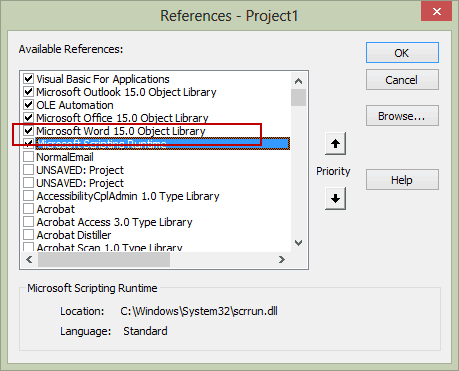
If oAtt.Size > 5200 Then - You'll need to set Word as a Reference in the VBA Editors Tools > References dialog.
 /a>
/a>
 /a>
/a>More information as well as screenshots are at How to use the VBA Editor
To test this macro, click in Application_Startup and press Run. Open a message that has one or more attachments and click Reply.
More Information
The following pages have addins that can do this and more:
Sending and Retrieval Tools
Attachment Management Tools for Outlook
Mail Tools for Outlook

Nizar says
Hi All ,
you can do it by
Best Regards
Diane Poremsky says
But it's not automatic. :)
latitudeit says
The FileBucket Outlook addin also does this for you detailing the attachments and sharing them via a link, keeping email transfer sizes down and ensuring attachments always reach their recipients no matter how big they are. Send attachments up to 50mb for free.
Ella says
Dear Diane,
I am so happy that I found your website and your amazing collection of VBA samples. Great help on my way to simplify my life. Thank you so much!
I had no clue how to work with VBA but with the help of your how-to guides I was able to already successfully implement two improvements! :-) And there are more interesting ideas that I plan to include in my Outlook (2010) soon.
I am looking for one solution though and this VBA might be similar to the one I am looking for but I have no idea how to change it to my needs... I was hoping you can help me: When I write an email (with attachments) and send it to someone it would be very helpful to have Outlook automatically include a list of the attachments (filenames) at the beginning of my email text body before finally sending it out.
Why is this helpful for me? Well, first of all the sender can not accidently miss/overlook the attachment when I do not specifically mention it in the email. When the sender replies with my original message included I can quickly check what attachments I included with my first email without looking it up in the "sent mail". And most importantly: It has happened to me before that when including a bunch of attachments (let's say 10 jpg pictures) the recipient overlooks the last attachments and is not aware of them since there is no complete list in the text body. He (or she) will only see the first 3-4 attachments but in order to access the other attached pictures he will have to scroll down to see the other attachments and it has happened before that he misses that little scroll down arrow. He thinks that I just included those 3-4 pics and not 10 altogether.
Can you help me with my problem?
Best wishes from Germany
Ella
Diane Poremsky says
Sorry it took forever to get to you - but i do now have some code that can do this - https://www.slipstick.com/developer/code-samples/add-attachments-names-to-message-before-sending/
Mark Grant says
How do I create an Outlook Macro that copies a calendar attachment name to my clipboard?
Diane Poremsky says
Just the attachment name? You need to use MSForms.DataObject. I have an example here that copies a field to the clipboard - you'll use oAtt.FileName instead.
novelpsychss says
Superb, thank you!