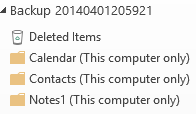
 Beginning with Outlook 2013, Outlook allows users to set the IMAP data files as the default data file. As a result, appointments, contacts, tasks, and notes are stored in the IMAP data file. While many users like this because it means there is only one data file in the profile, it can result in data loss if you delete the account or the IMAP *.ost file and didn't export the folders labeled 'this computer only' first.
You should export these folders daily or weekly to create a backup copy, depending on how often they change. Note: backing up the IMAP .ost files is pointless - only the account and profile that created it can open it.
To make it easier to make a backup, you can use a macro to copy the Calendar, Contacts, Tasks, and Notes folders to a new .pst file.
This macro creates a new pst file in the My Documents\ Outlook Files folder, using a file name containing the date and time the backup was created, in the format of yyyymmddhhmmss-Backup.pst. The pst's display name is changed to Backup-yyyymmddhhmmss.
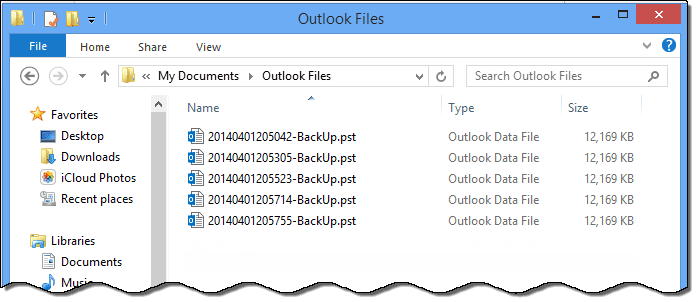
If you need to restore the contents of the folders, you can Import, using this pst file as the source or open the pst in the profile then Select All and Copy then use the Move to Folder command or Paste the items into the IMAP folders.
Macro to create backups
Note: this macro assumes only the default IMAP data file is in the profile.
Updated code: Macro now changes the backup folders to the correct item type.
Sub CreateBackupFiles()

Dim OlApp As Outlook.Application
Dim objNS As Outlook.NameSpace
Dim copyToDataFile As Outlook.folder
Dim copyFrom As Outlook.folder
Dim myBackup As Outlook.folder
Dim objFolder As Outlook.folder
Dim folderType
Dim enviro As String, strDate As String
Dim strFileName As String, pstName As String

Dim oPA As Outlook.PropertyAccessor
Dim PropName, Value As String

PropName = "http://schemas.microsoft.com/mapi/proptag/0x3613001E"

Set objNS = Application.GetNamespace("MAPI")

enviro = CStr(Environ("USERPROFILE"))
strDate = Format(Date, "yyyymmdd") & Format(Time, "hhmmss")
strFileName = enviro & "\Documents\Outlook Files\" & strDate & "-BackUp" & ".pst"
pstName = "Backup " & strDate

Debug.Print strFileName

' Create the backup pst file
objNS.AddStore strFileName
Set objFolder = objNS.Folders.GetLast
objFolder.Name = pstName

Set copyToDataFile = objFolder

For i = 1 To 4
Select Case i
    Case 1
     folderType = olFolderCalendar
     Value = "IPF.Appointment"

    Case 2
     folderType = olFolderContacts
     Value = "IPF.Contact"

    Case 3
     folderType = olFolderTasks
     Value = "IPF.Task"

    Case 4
     folderType = olFolderNotes
     Value = "IPF.StickyNote"

End Select

Set copyFrom = objNS.GetDefaultFolder(folderType)
Set myBackup = copyFrom.CopyTo(copyToDataFile)
Set oPA = myBackup.PropertyAccessor

oPA.SetProperty PropName, Value

 Next i

' remove the pst from the folder list
'objNS.RemoveStore objFolder

Set oPA = Nothing
Set objNS = Nothing
End Sub
How to use macros
First: You will need macro security set to low during testing.
To check your macro security in Outlook 2010 or 2013, go to File, Options, Trust Center and open Trust Center Settings, and change the Macro Settings. In Outlook 2007 and older, it’s at Tools, Macro Security.
After you test the macro and see that it works, you can either leave macro security set to low or sign the macro.
Open the VBA Editor by pressing Alt+F11 on your keyboard.
To put the code in a module:
- Right click on Project1 and choose Insert > Module
- Copy and paste the macro into the new module.
More information as well as screenshots are at How to use the VBA Editor

B. Fulwiler says
Thank you very much for this post. It is most helpful. However, as is, it keeps the backup file associated with the profile and displayed in the folders list.
the "objNS = Nothing" line is commented out. Remove the Comment (') and the macro removes the data file, and it is no longer displayed in the Folders list.
I think the last few lines should be:
=============================
' remove the pst from the folder list
objNS.RemoveStore objFolder
Set oPA = Nothing
Set objNS = Nothing
End Sub
=============================
JPR_ says
Hello Diane,
I've been running your macro for more than 2 years but now Outlook is throwing an error message: "Run-time error '13': Type mismatch".
Do you know why? I am not very sure if its because a Windows update (OS) or an Office update tho.
I have recreated the certificate, removed the security settings in order to run all types of macros and still nothing.
Not sure if I can share links in here but I also posted a question in Outlook's community forum: https-->answers.microsoft.com/en-us/outlook_com/forum/all/unable-to-run-a-macro/47fae841-f220-45ae-808f-97056a35e934
Hope to hear from you soon,
Cheers!
JPR_ says
Wow great post Diane!
I love this macro!
I tweaked a little bit (I do not need notes and other small stuff) but I have a question:
Is it possible to create the backup without seeing the outlook file (data-file)?
Diane Poremsky says
No, not using the macro. The data file needs to be in outlook and outlook needs to be open.
David Jonathan says
Yes, I looked in the Recover deleted folder.
AND Yes, OST files are not usable, and their contents still are in need of a local, restorable backup for when Microsoft can't explain why the Inbox disappeared and the contents did not go into a deleted files folder.
David Jonathan says
Thanks for the reply, and, that is the same story that three Microsoft support technicians shared with us. However, that is NOT what happened. Microsoft was wrong. Searching online, I find many other folks have had the same email disappearance occur. The MS Office 365 Support were quick to admit that there could be a possible problem with the Outlook 2013 software, but that would be the MS Office software division's problem (and they don't talk to those folks).
Friday January 2nd my wife and I were both at home, and mostly not working. Her home office computer is her primary workplace, she rarely uses any other device to check email, and had no need to use another device since she was at home. If the chance ever arises for her to need email set up on any device, that is my job, as I am her primary tech support, (I do IT support for small business for a living). I would avoid using pop3 (in favor of imap, or MS Exchange sync) on any device, especially on a little used, secondary device.
At 11a.m. she checked her email on her primary office computer using Outlook 2013 (the program), then left the room to go to lunch. Around 2p.m. she returned and checked her email again. I was in the next room and heard her shriek as she saw the empty inbox. I immediately came and looked, and found an empty inbox, and a mostly empty deleted items folder (her practice is to manually clear the deleted items folder, occasionally (not on this day)). None of the missing email was in Outlook the program, anywhere. Then I checked on the Office 365 - Exchange Online website, same missing email in both inbox and deleted items folders. Then I checked her iphone for the missing email, and had the sad experience of watching the inbox contents evaporate while I watched the now awake phone app sync with the MS server.
The bottom line is that Microsoft does not operate a traditional backup service, (unless you pay for the Legal hold premium feature). Microsoft offers a sync replication service, which means that if email disappears, the disappearance is replicated, everywhere.
This is why there is now a growing industry of third party, Office 365 backup services. Once again, solving a problem that Microsoft says does not exist. Also, note that Microsoft's shift to using OST files instead of PST files for imap accounts means that none of the backup solutions I have come to rely on over the years are still useful. Apparently Microsoft has hard wired that OST files are not backup-able.
How to do local backups of OST files is a now serious concern for anyone who relies on Outlook the program for business email, contacts and calendars.
Diane Poremsky says
OST files aren't usable in other profiles - they belong to the profile that created the ost. You can export the contents to a pst - it's certainly not as fast as just copying the pst, but in the case of imap, insures you have the full message body.
Did you look in the Recover deleted folder?
David Jonathan says
Jan 2nd, 2015. Inbox contents disappeared.
My wife has an Exchange Online (office 365) paid email account for her business use. On Jan. 2nd, she checked her email in the morning, at her home office. While she was at lunch, the contents of her Inbox disappeared. 3500 emails gone (not a great practice, but many folks like outlook because they can "see" all their email in one place). The email did not go into the deleted items folder. However the disappearance of the inbox contents was synced to her other computer at her office pc. When we look at her iphone, we could see here inbox contents for a few seconds before the MS Exchange sync kiked in and replicated nothingness to her iPhone email client also.
Turns out Microsoft does not have a backup system (unless you pay for Legal Hold), just a replication system.
So, it might be helpful to recommend a good back up tool for backing up Cloud based data sets (email, Contacts & Calendar ) that can be pulled from an Outlook 2013 client. I know I would dearly like to have one that worked.
Diane Poremsky says
The only reason the mail should disappear from the server is if she opened the mailbox on another computer and set it up as pop3 and deleted it from the server as it was downloaded.
All mail that is deleted goes into Deleted items recovery - so it should be recoverable even if it's not in the deleted items folder.
Rich364 says
Ok... thank you :-)
Rich says
Yeah, that's good for disaster recovery situations. My concern is the incorrect deletion or change I may make to a contact, task or whatever. By having periodic backups I have the ability to try and correct a mistake.
Diane Poremsky says
if you are only worried about the special folders, you can use this macro to copy them to a pst file. It'll work with any account type - but is definitely more important for Outlook 2013 imap users since they are more at risk.
Rich364 says
Thanks Diane. This can help with some of my set ups - I haven't thought of using a macro for this before.
Unfortunately I continue my never-ending search to find an auto-backup solution for the 5 Hosted Exchange and the 1 iCloud Account that I use in Outlook (no .pst accounts). I currently choose each account separately and do an export each week - time consuming and manual.
Amazing how there's still no easy and automatic solution.
Thanks again.
Diane Poremsky says
I don't worry about backups of my hosted exchange or iCloud. If the Exchange server goes down, the account is synced on several computers and can be exported at that time. iCloud can be exported quickly just by signing out of iCloud and choosing the keep a copy option.