• Outlook User
  • New Outlook app
  • Outlook.com
  • Outlook Mac
  • Outlook & iCloud
  • Developer
  • Microsoft 365 Admin
    • Common Problems
    • Microsoft 365
    • Outlook BCM
    • Utilities & Addins

Video Tutorials

Slipstick Systems

Outlook isn't all that complicated to use once you figure it, but trying to explain how to do something in Outlook often takes longer than just showing how to do it.

Many of these tutorials area also available on Slipstickcom's YouTube channel.
Video Tutorials was last modified: October 10th, 2023 by Slipstick Systems

Displaying a Picture on a Contact

Contact or Business Card images are displayed in the the Business Card view. Open the Contact, double click on the picture placeholder and select an image from your hard drive. For best results, crop and resize it before inserting it into Outlook. To add an image to the business card, double click on the business  

Disable Outlook's Conversation View

Outlook 2010 has a new Conversation view that groups messages together. Many users don't like it, fortunately its easy to disable, using one of two methods. Method 1: Right click on the row of field names and choose Conversations, Show Messages in Conversations. Method 2: Switch to the View ribbon and click on the Conversation  

Where is the Organizer?

Use the View Settings dialog to apply conditional formatting rules to messages in Outlook 2010 and above. In older versions, it's the Customize view dialog or Organize pane.
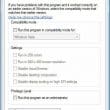
Check Compatibility Mode Settings

Say No! to Compatibility Mode

Enabling Compatibility mode in Windows 7 will cause problems in Outlook, including operation error messages and problems creating accounts or new data files. Tutorial shows how to check compatibility settings.
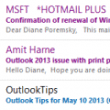
Use Conditional Formatting to Highlight Messages

Use Conditional formatting rules to highlight messages in different colors.
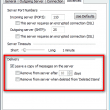
Leave mail on server

To Leave Internet Messages on the Server

How to configure a Microsoft Outlook POP3 email account to leave email on the server. Outlook 2010 and 2013 leave mail on the server for 14 days by default.

Reminders for archives and other pst files

Outlook supports reminders in any folder and across additional .pst files but the reminder option may need to be enabled.

Disable Protected View for Outlook Attachments

Protected view is a new security feature for all Office documents which arrive in email or are downloaded from Internet sources. This is a security sandbox used by Office 2010 to enhance attachment security. Administrators will be able to control whether all email attachments or only those from outside their Exchange network use Protected view.  

Outlook's To-do bar options

How to View a Yearly Calendar

Although Outlook does not include a yearly calendar, you can view a yearly calendar using the navigation calendars in Outlook or by using VBA to create an HTML calendar.

Use Upgrade to Color Categories to add Categories to the Master List

After migrating to Office 365, Outlook.com or a new data file, users need to add color categories to the master category list.

How to add or remove an email account

How to remove email accounts from an Outlook profile then recreate the correct account. Fix "The connection to Microsoft Exchange is unavailable" error.

send and receive dialog

Change Send and Receive Settings

How to change how often Microsoft Outlook does automatic send and receives, you need to edit the Send and Receive settings.

« Previous Page
Next Page »
Visit Slipstick Forums.

Latest EMO: Vol. 31 Issue 7

Support Services

Do you need help setting up Outlook, moving your email to a new computer, migrating or configuring Office 365, or just need some one-on-one assistance?

Subscribe to Exchange Messaging Outlook


Our Sponsors

CompanionLink
ReliefJet
  • Popular
  • Latest
  • Week Month All
  • Use Classic Outlook, not New Outlook
  • How to Remove the Primary Account from Outlook
  • Reset the New Outlook Profile
  • Disable "Always ask before opening" Dialog
  • How to Hide or Delete Outlook's Default Folders
  • This operation has been cancelled due to restrictions
  • Adjusting Outlook's Zoom Setting in Email
  • Change Outlook's Programmatic Access Options
  • Understanding Outlook's Calendar patchwork colors
  • Removing Suggested Accounts in New Outlook
  • Sync Issues and Errors with Gmail and Yahoo accounts
  • Error Opening iCloud Appointments in Classic Outlook
  • Opt out of Microsoft 365 Companion Apps
  • Mail Templates in Outlook for Windows (and Web)
  • Urban legend: Microsoft Deletes Old Outlook.com Messages
  • Buttons in the New Message Notifications
  • Move Deleted Items to Another Folder Automatically
  • Open Outlook Templates using PowerShell
  • Count and List Folders in Classic Outlook
  • Google Workspace and Outlook with POP Mail
Ajax spinner

Recent Bugs List

Microsoft keeps a running list of issues affecting recently released updates at Fixes or workarounds for recent issues in classic Outlook (Windows).

For new Outlook for Windows:Fixes or workarounds for recent issues in new Outlook for Windows .

Outlook for Mac Recent issues: Fixes or workarounds for recent issues in Outlook for Mac

Outlook.com Recent issues: Fixes or workarounds for recent issues on Outlook.com

Office Update History

Update history for supported Office versions is at Update history for Office

Outlook Suggestions and Feedback

Outlook Feedback covers Outlook as an email client, including Outlook Android, iOS, Mac, and Windows clients, as well as the browser extension (PWA) and Outlook on the web.

Outlook (new) Feedback. Use this for feedback and suggestions for Outlook (new).

Use Outlook.com Feedback for suggestions or feedback about Outlook.com accounts.

Other Microsoft 365 applications and services

New Outlook Articles

Sync Issues and Errors with Gmail and Yahoo accounts

Error Opening iCloud Appointments in Classic Outlook

Opt out of Microsoft 365 Companion Apps

Mail Templates in Outlook for Windows (and Web)

Urban legend: Microsoft Deletes Old Outlook.com Messages

Buttons in the New Message Notifications

Move Deleted Items to Another Folder Automatically

Open Outlook Templates using PowerShell

Count and List Folders in Classic Outlook

Google Workspace and Outlook with POP Mail

Newest Code Samples

Open Outlook Templates using PowerShell

Count and List Folders in Classic Outlook

Insert Word Document into Email using VBA

Warn Before Deleting a Contact

Use PowerShell to Delete Attachments

Remove RE:, FWD:, and Other Prefixes from Subject Line

Change the Mailing Address Using PowerShell

Categorize @Mentioned Messages

Send an Email When You Open Outlook

Delete Old Calendar Events using VBA

Sync & Share Outlook Data

  • Share Calendar & Contacts
  • Synchronize two computers
  • Sync Calendar and Contacts Using Outlook.com
  • Sync Outlook & Android Devices
  • Sync Google Calendar with Outlook
  • Access Folders in Other Users Mailboxes

Diane Poremsky [Outlook MVP]

Make a donation

Mail Tools

Sending and Retrieval Tools

Mass Mail Tools

Compose Tools

Duplicate Remover Tools

Mail Tools for Outlook

Online Services

Calendar Tools

Schedule Management

Calendar Printing Tools

Calendar Reminder Tools

Calendar Dates & Data

Time and Billing Tools

Meeting Productivity Tools

Duplicate Remover Tools

Productivity

Productivity Tools

Automatic Message Processing Tools

Special Function Automatic Processing Tools

Housekeeping and Message Management

Task Tools

Project and Business Management Tools

Choosing the Folder to Save a Sent Message In

Run Rules on messages after reading

Help & Suggestions

Submit Outlook Feature Requests

Slipstick Support Services

Buy Microsoft 365 Office Software and Services

Visit Slipstick Forums.

What's New at Slipstick.com

Home | Outlook User | Exchange Administrator | Office 365 | Outlook.com | Outlook Developer
Outlook for Mac | Common Problems | Utilities & Addins | Tutorials
Outlook & iCloud Issues | Outlook Apps
EMO Archives | About Slipstick | Slipstick Forums
Submit New or Updated Outlook and Exchange Server Utilities

Send comments using our Feedback page
Copyright © 2026 Slipstick Systems. All rights reserved.
Slipstick Systems is not affiliated with Microsoft Corporation.