Eric had a request to run rules based on a condition, in his case, when a message with a specific subject arrives.
If I send myself a message with a specific subject line I want outlook to execute a set of predefined rules already in my outlook client.
Sure, you can do this using a Run a Script rule.
- Create the rules you want to run but do not enable them to run automatically.
- Paste the RunRules macro below into a new module in Outlook's VB Editor.
- Type your rule names into the olRuleNames array
- Create a Rule that looks for a message with your specific subject line. Select Run a Script as the Action and select the RunRules macro.
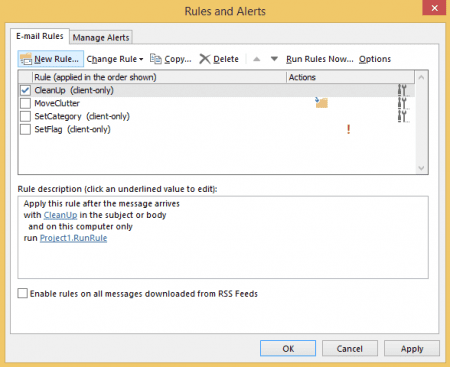
- Send yourself a test message.
Sub RunRules(Item As Outlook.MailItem)

Dim olRules As Outlook.Rules
Dim myRule As Outlook.Rule
Dim olRuleNames() As Variant
Dim name As Variant

' Enter the names of the rules you want to run
olRuleNames = Array("SetCategory", "SetFlag", "MoveClutter")

Set olRules = Application.Session.DefaultStore.GetRules()

For Each name In olRuleNames()
    For Each myRule In olRules
    ' Rules we want to run
        If myRule.name = name Then
        myRule.Execute ShowProgress:=True
        End If
    Next
Next
End Sub
myRule.Execute supports 4 optional parameters. These are only needed if you don't want to use the defaults.
myRule.Execute ShowProgress:=True, Folder:=Session.GetDefaultFolder(olFolderInbox).Folders("my subfolder"), IncludeSubfolders:=True, RuleExecuteOption:=1
| Parameter | Possible Values |
|---|---|
| ShowProgress | True or False Use to display the Progress dialog normally seen when using Run Rules Now command. Default is False. |
| Folder | Folder path Use if you want to run the rules on a folder other than the default Inbox. See "Working with VBA and non-default Outlook Folders". A macro below runs rules in a secondary account. |
| IncludeSubfolders | True or False Use if you want to run the rules on subfolders. Default is False. |
| RuleExecuteOption | olRuleExecuteAllMessages or 0 olRuleExecuteReadMessages or 1 olRuleExecuteUnreadMessages or 2 Use to limit the rules to either read messages, unread messages, or apply to all messages. Default is to run the rules on all messages. You can use either the property name or the number. |
Run Rules when a Task Reminder Fires
If you prefer to run the rules on a schedule, use a task reminder to trigger the RunRules macro. Set up a recurring task called Run Rules and set a reminder. When the task reminder comes up, it triggers the RunRules macro.
This version of the RunRules macro can be triggered using a button on the ribbon or QAT
Private Sub Application_Reminder(ByVal Item As Object)

If Item.MessageClass <> "IPM.Task" Then
  Exit Sub
End If

If Item.Subject = "Run Rules" Then
  RunRules
End If

End Sub

Sub RunRules()

Dim olRules As Outlook.Rules
Dim myRule As Outlook.Rule
Dim olRuleNames() As Variant
Dim name As Variant

olRuleNames = Array("SetCategory", "SetFlag", "MoveClutter")

Set olRules = Application.Session.DefaultStore.GetRules()

For Each name In olRuleNames()
    For Each myRule In olRules
    ' Rules we want to run
        If myRule.name = name Then
        myRule.Execute ShowProgress:=True
        End If
    Next
Next
End Sub
Run Rules on a Secondary Inbox
If you want to run rules in a secondary account, you need to find the account using Outlook.Stores and add the Folder parameter. Because the folder is not in the default data file, you need to use GetFolderPath function.
Tip: Use the Folder parameter to run it on any folder. See "Working with VBA and non-default Outlook Folders" for more information on how to identify folders.
As written, this macro only runs when you run it. You can add it a ribbon button for easier access.
Sub RunRulesSecondary()

Dim oStores As Outlook.Stores
Dim oStore As Outlook.Store

Dim olRules As Outlook.Rules
Dim myRule As Outlook.Rule
Dim olRuleNames() As Variant
Dim name As Variant

' Enter the names of the rules you want to run
olRuleNames = Array("Rule 1 Name", "Rule 2 Name", "Rule 3 Name")

Set oStores = Application.Session.Stores
For Each oStore In oStores
On Error Resume Next

' use the display name as it appears in the navigation pane
If oStore.DisplayName = "alias@domain.com" Then

Set olRules = oStore.GetRules()

For Each name In olRuleNames()

    For Each myRule In olRules
       Debug.Print "myrule " & myRule

     If myRule.name = name Then

' inbox belonging to oStore
' need GetfolderPath functionhttp://slipstick.me/4eb2l
        myRule.Execute ShowProgress:=True, Folder:=GetFolderPath(oStore.DisplayName & "\Inbox")

' current folder
'      myRule.Execute ShowProgress:=True, Folder:=Application.ActiveExplorer.CurrentFolder

       End If
    Next
Next

End If
Next
End Sub
How to use macros
First: You will need macro security set to low during testing.
To check your macro security in Outlook 2010 or 2013, go to File, Options, Trust Center and open Trust Center Settings, and change the Macro Settings. In Outlook 2007 and older, it’s at Tools, Macro Security.
After you test the macro and see that it works, you can either leave macro security set to low or sign the macro.
Open the VBA Editor by pressing Alt+F11 on your keyboard.
To put the code in a module:
- Right click on Project1 and choose Insert > Module
- Copy and paste the macro into the new module.
More information as well as screenshots are at How to use the VBA Editor






























Can the rules with vba script setup at microsoft exchange or server level. With the emails in seen in phone, client only doesn't help many times.
Great mam. thanks for this macro which helped me running my stuck rules.
I am having difficulty in making the macro work. Have copied the code you have given into a new module with different rule names. Also created a rule which specifying the subject text and put RunScript as action but on clicking the it a box appears to choose the script but it has no script listed. What am i doing wrong please?
I am new to Outlook VBA stuff. I made a little tweak to run 'all' my rules when the task reminder pops up.
but I noticed it's taking too long..
Is there a way to restrict the rule to run only on the items received in the last 24 hours, I googled around this and found something like items.restrict() but cannot get this implemented successfully. any ideas here please ?
The problem with restrict() is that it won't work with the rules. There is a date condition in rules, but that would need changed every time.
What are you doing with the rules and how many rules are there? It might be better to use a macro to do everything rather than a rule - that would support restrict.
I have near to 10 rules. They move emails (alerts about infrastructure health) from different systems/servers to different folders. I don't care about all the emails/alerts that arrive to my mailbox when I am off-shift and when I am on-shift - I want everything to be in my Inbox so that I don't miss any when looking from other devices like IPhone..etc. So, I usually hit the button 'Run All rules' in outlook when I reach office and then leave it for about 5 mins to clear all the junk (alerts that came in when I am off shift). Now - I am using this code you have helped us with, it works good but takes a little bit of time. Not a big problem, I just scheduled this task to run 30 mins before my login time.. So, I am very happy with the solution provided in the website.. Thank you so much. but just curious - if there is a way we can just run the rules over the items received in the last 24 hours (retrieving the current date from system and just run over the items received in the last 24 hours), just to make the… Read more »
Not using Rules. They will run on everything in the folder. A regular macro that moves or deletes by subject would work though.
I am just looking for the exact code to run a macro that will run all rules on a specific folder or the current folder... If you can help thanks.
This worked for me... removed couple of lines from the original code. But it appears to be very slow as it (all rules) runs against all items...
#####
Private Sub Application_Reminder(ByVal Item As Object)
If Item.MessageClass "IPM.Task" Then
Exit Sub
End If
If Item.Subject = "Run_Rules" Then
RunRules
End If
End Sub
Sub RunRules()
Dim olRules As Outlook.Rules
Dim myRule As Outlook.Rule
Set olRules = Application.Session.DefaultStore.GetRules()
For Each myRule In olRules
' Rules we want to run
myRule.Execute ShowProgress:=True
Next
End Sub
#####
I am working on one task where I want outlook to open an Application(Also passing the input to it) when users opens a mail message to read. Could you help me achieve it.
Well done!! works perfectly!
Hi Diane,
Would you help me?
I'm having a serious problem and I can not solve ...
Here at the company where I work, we use Outlook 2010.
I have created a rule that is executed as follows: Checks if the received email has "@ example.com.br" or "@ example2.com.br", if yes, it categorizes the email as "Consultant Losango", if not, it does nothing.
The rule runs manually when I select to run ...
However, the rule only executes in the user's inbox, in the shared mail box we use (name: "socialcommerce@example.com") does not execute.
This shared email is used by about 20 people, the rules do not run automatically on generic emails.
I figured I'd have a way to create a macro that would execute the rule only on the generic key "socialcommerce@example.com" whenever a new message arrived in that box.
There must be a way? I have tried several codes in different ways and I could not.
Rules doesn't run on mailboxes opened as shared mailboxes - they only work in accounts. Is the rule listed as 'client side' ? If so, you'll need to use a macro. If its a server side rule, you need to create a profile with only the shared mailbox in it and set up the rule. A server side rule doesn't rely on the account being open in Outlook, so it will work. Instructions are here: https://www.slipstick.com/exchange/create-rules-and-oof-shared-mailbox/
if you need to use a macro, you'll need to use an item add macro and configure it to watch the shared mailbox. An example of a macro is here:
https://www.slipstick.com/developer/code-samples/use-macro-assign-messages-shared-mailbox/