A visitor to our forums posted the following question in Batch adding text to email subject lines in Outlook at Outlook Forums:
We put file numbers in all communications with our clients. However, we frequently begin dialogues with potential clients before opening a file for them. Then, once they become a client and we open a file, we have to go back and manually change each un-numbered email subject line. It's normally pretty easy to come up with a search term that finds all the emails that need changing, but it's time-consuming to change each one manually. Is there a way to batch insert a string that looks like [12345] into the subject lines of all the emails in a search result and/or folder?
Sure, you can do using VBA and a search folder by modifying the code sample at Copy: is prefixed to the Subject of a Meeting.
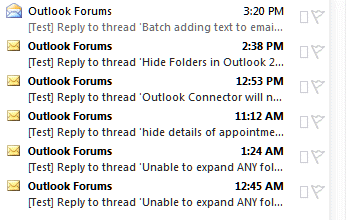
If there are just a few subject lines to edit, you can use in-cell editing to quickly paste the code into the subject.
Using VBA to change the subject line
Copy and paste the following code into the VB Editor. Create a search folder to find all messages where the subject needs tagged then run the macro while viewing the search folder results.
I tested this code in Outlook 2010 and it should work in all older versions. It works in Outlook 2013 and newer.
Sub AddFileNumber()
Dim myolApp As Outlook.Application
Dim aItem As Object

Set myolApp = CreateObject("Outlook.Application")
Set mail = myolApp.ActiveExplorer.CurrentFolder

Dim iItemsUpdated As Integer
Dim strTemp As String
Dim strFilenum As String

strFilenum = InputBox("Enter the file number")
iItemsUpdated = 0
For Each aItem In mail.Items
    strTemp = "[" & strFilenum & "] " & aItem.Subject
      aItem.Subject = strTemp
      iItemsUpdated = iItemsUpdated + 1
    aItem.Save
Next aItem

MsgBox iItemsUpdated & " of " & mail.Items.Count & " Messages Updated"
Set myolApp = Nothing
End Sub
When you run the macro, a dialog box will come up asking for the file number (it accepts any text string). Type your file number or keywords in then press OK or Enter. When the macro is finished, a message will come up showing you how many items were changed.
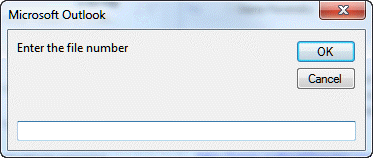
Note: If you use this in Outlook 2010 and use Conversation view, the subject used for the conversation view won't change. Disable conversation view to see the updated subject lines on individual messages.
Also, if the search results include sent messages, those subject lines will be updated too.
Watch a folder for new messages
This macro watches a folder and run the macro when a new message is added to it. It can be used on folders in your default mailbox or in other mailboxes in your profile. You need the GetfolderPath function from Working with VBA and non-default Outlook Folders yo use it on folders not in your default mailbox.
To test an ItemAdd macro, copy a message and paste in-place (Ctrl+C,V) or drag a message to the folder.
More information on Process items in a shared mailbox. For more information on ItemAdd macros, see How to use an ItemAdd Macro.
This macro goes in ThisOutlookSession.
Option Explicit
Private objNS As Outlook.NameSpace
Private WithEvents objItems As Outlook.Items

Private Sub Application_Startup()

Dim objFolder As Outlook.Folder
Set objNS = Application.GetNamespace("MAPI")

'Use default Inbox to watch:
'Set objFolder = objNS.GetDefaultFolder(olFolderInbox)
'Set objItems = objFolder.Items

' Get function from http://slipstick.me/qf
Set objItems = GetFolderPath("Direct ITR\Inbox").Items

Set objFolder = Nothing
End Sub

Sub objItems_ItemAdd(ByVal Item As Object)
 Dim sAppName As String
 Dim sSection As String
 Dim sKey As String
 Dim lRegValue As Long
 Dim lFormValue As Long
 Dim iDefault As Integer
 sAppName = "Outlook"
 sSection = "Messages"
 sKey = "Current Number"

' The default starting number.
     iDefault = 101 ' adjust as needed

 ' Get stored registry value, if any.
     lRegValue = GetSetting(sAppName, sSection, sKey, iDefault)

 ' If the result is 0, set to default value.
     If lRegValue = 0 Then lRegValue = iDefault

 ' Increment and update invoice number.
     SaveSetting sAppName, sSection, sKey, lRegValue + 1

 Item.Subject =  CStr(lRegValue) & " " & item.subject
 Item.Save

End Sub
Run a Script Rule to add Sequential Numbers to subject
This sample is a Run a Script rule and will add a number to each message as they arrive. It saves the last used number to the registry for use in the next session.
To use, create a rule, choosing the run a script action and select this macro as the script.
Sub SubjectNumbering(Item As Outlook.MailItem)
 Dim sAppName As String
 Dim sSection As String
 Dim sKey As String
 Dim lRegValue As Long
 Dim lFormValue As Long
 Dim iDefault As Integer
 sAppName = "Outlook"
 sSection = "Messages"
 sKey = "Current Number"

' The default starting number.
     iDefault = 101 ' adjust as needed

 ' Get stored registry value, if any.
     lRegValue = GetSetting(sAppName, sSection, sKey, iDefault)

 ' If the result is 0, set to default value.
     If lRegValue = 0 Then lRegValue = iDefault

 ' Increment and update invoice number.
     SaveSetting sAppName, sSection, sKey, lRegValue + 1

 Item.Subject =  CStr(lRegValue) & " " & item.subject
 Item.Save

End Sub
Add a project number and the folder path to the subject
Jason wanted to add a project number and the path where the message is stored. To do this, I needed to add 2 1/2 lines to the original macro: Dim and Set the folder variable, then add the folder name variable to the subject.
This code adds the code and folder path to the subject of every message in the folder.
Sub AddFileNumberandFolderpath()
Dim myolApp As Outlook.Application
Dim aItem As Object
Dim F As Outlook.MAPIFolder

Set myolApp = CreateObject("Outlook.Application")
Set mail = myolApp.ActiveExplorer.CurrentFolder

Dim iItemsUpdated As Integer
Dim strTemp As String
Dim strFilenum As String

strFilenum = InputBox("Enter the file number")
iItemsUpdated = 0
For Each aItem In mail.Items
  Set F = aItem.Parent
    strTemp = "[" & strFilenum & "] " & aItem.Subject & " | " & F.FolderPath
      aItem.Subject = strTemp
      iItemsUpdated = iItemsUpdated + 1
    aItem.Save
Next aItem

MsgBox iItemsUpdated & " of " & mail.Items.Count & " Messages Updated"

Set myolApp = Nothing

End Sub
Add the received date to the subject
This version of the macro shows how to add the received date to the subject, with the date in a specific format.
Sub AddDatetoSubject()
Dim myolApp As Outlook.Application
Dim aItem As MailItem ' Object

Set myolApp = CreateObject("Outlook.Application")
Set mail = myolApp.ActiveExplorer.CurrentFolder

Dim iItemsUpdated As Integer
Dim strTemp As String
Dim strDate As String

iItemsUpdated = 0
For Each aItem In mail.Items
Debug.Print aItem.ConversationTopic
strDate = Format(aItem.ReceivedTime, "mm-dd-yyyy")
    strTemp = aItem.Subject & " " & strDate
      aItem.Subject = strTemp
      iItemsUpdated = iItemsUpdated + 1
    aItem.Save
Next aItem

MsgBox iItemsUpdated & " of " & mail.Items.Count & " Messages Updated"
Set myolApp = Nothing
End Sub
Change the subject of the selected or open message
Rachid wanted to know how to use this macro with only the selected item.
To run the macro on the selected message in the message list, replace the Set mail. line with the following line.
Set aItem = myolApp.ActiveExplorer.Selection.Item(1)
You'll also need to remove the code that loops through all messages (and the MsgBox line). (See code below.)
If you want the macro to work on selected or open messages, use the GetCurrentItem Function from work with open or selected items and the code below.
This code sample adds the ability to cancel the entry. To do this I changed Dim strFilenum As String to Dim strFilenum As Variant then added these the following lines. The first lines picks up the Cancel button, the second checks the value and if empty, exits.
If strFilenum = False Then Exit Sub
If strFilenum = "" Then Exit Sub
Sub AddFileNumber()
Dim aItem As Object

' Don't forget the function
Set aItem = GetCurrentItem()

Dim iItemsUpdated As Integer
Dim strTemp As String
Dim strFilenum As Variant

' removed the loop so it only works with the selected item
strFilenum = InputBox("Enter the file number")

' Empty value or cancel button
If strFilenum = False Then Exit Sub
If strFilenum = "" Then Exit Sub

strTemp = "[" & strFilenum & "] " & aItem.Subject
    aItem.Subject = strTemp
    aItem.Save

End Sub
Change selected messages
This version of the macro applies to selected messages. As written it increments the file number. Remove this line to use the same number.
strFilenum = strFilenum + 1
Public Sub AddFileNumberSelection()
    Dim Session As Outlook.NameSpace
    Dim currentExplorer As Explorer
    Dim Selection As Selection
    Dim strTemp As String
    Dim obj As Object

    Set currentExplorer = Application.ActiveExplorer
    Set Selection = currentExplorer.Selection

  Dim strFilenum As Variant

' removed the loop so it only works with the selected item
strFilenum = InputBox("Enter the file number")

' Empty value or cancel button
If strFilenum = False Then Exit Sub
If strFilenum = "" Then Exit Sub
    For Each obj In Selection

     With obj

    ' do whatever
  Debug.Print .Subject
' clear strTemp before setting a new value
  strTemp = ""
strTemp = "[" & strFilenum & "] " & .Subject
    .Subject = strTemp
    .Save
' increment the file # for each message
' remove if you want to use the same #
     strFilenum = strFilenum + 1
     End With

    Next

    Set Session = Nothing
    Set currentExplorer = Nothing
    Set obj = Nothing
    Set Selection = Nothing

End Sub
Using In-cell Editing
If you don't need to change a large number of items, it may be faster to use in-cell editing.
Create a custom view or edit your existing view to enable in-cell editing then click in the subject field and paste the code.
The steps are at Change the Subject of an Incoming Message and for Outlook 2010, see Editing the Subject line in Outlook 2010
How to use File Number Macros
This macro shows how to use the first macro and the run a script macro. After testing the macro, create a button on the ribbon or Quick Access Toolbar (QAT) to make it easy to use.
Undo the Changed Subject
If you screwed up the macro, you can't hit Undo to fix it, but you can use another macro to restore the original subject.
If the changes are at the beginning or end of the macro and are equal length you can use the Right or Left function to trim the subject. For identical keywords, you can use Replace (provided the keyword is not repeated in the subject). If the added keywords have a unique character (such as ]) or have the first space between the keyword and the original subject, use Instr function to calculate the length of the addition and Right (or Left) function to remove it.
If you made changes at the beginning and end of the subject or edited the original subject string, you can use a macro to read the message header and grab the original subject from it. (The Subject line in the message header can't be edited using standard VBA.)
Joerg used this macro to remove a prefix where all added prefixes are the same length. Replace Right with Left to remove text from the end of a subject.
Sub DelLeftString()
Dim myolApp As Outlook.Application
Dim aItem As Object

Set myolApp = CreateObject("Outlook.Application")
Set mail = myolApp.ActiveExplorer.CurrentFolder

' Remove from left or right
Dim iItemsUpdated As Integer
Dim lString As Integer

lString = InputBox("Characters to be deleted from the LEFT. Include brackets and spaces!")
iItemsUpdated = 0
For Each aItem In mail.Items
aItem.Subject = Right(aItem.Subject, Len(aItem.Subject) - lString)
iItemsUpdated = iItemsUpdated + 1
aItem.Save
Next aItem

MsgBox iItemsUpdated & " of " & mail.Items.count & " Messages Updated"
Set myolApp = Nothing
End Sub
This code snippet would be used in a macro to remove an identical string from each subject
Dim strTemp As String
strTemp = InputBox("Full String to replace. Include brackets and spaces!")
aItem.Subject = Replace(aItem.Subject, strTemp, "")
This code snippet removes the text before the first space in the subject.
Dim lString As Integer
' remove text prior to first space in subject
lString = InStr(1, aItem.Subject, " ")
aItem.Subject = Right(aItem.Subject, Len(aItem.Subject) - lString)
If the added keywords vary in length or you made other changes to the subject, this macro reads the message header then uses regex to find the subject field and use it as the visible subject.
Sub UndoEditSubjectwPrefix()
Dim myolApp As Outlook.Application
Dim aItem As Object
Dim propertyAccessor As Outlook.propertyAccessor
Dim iItemsUpdated As Integer
Dim strTemp As String
Dim strHeader As String
Dim strPrefix As String

Dim Reg1 As Object
Dim M1 As Object
Dim M As Object

Set myolApp = CreateObject("Outlook.Application")
Set mail = myolApp.ActiveExplorer.CurrentFolder

iItemsUpdated = 0
For Each aItem In mail.Items
Set propertyAccessor = aItem.propertyAccessor

' get the subject from the header
strHeader = propertyAccessor.GetProperty("http://schemas.microsoft.com/mapi/proptag/0x007D001E")

    Set Reg1 = CreateObject("VBScript.RegExp")
    With Reg1
        .Pattern = "(Subject:\s(.*))"
        .Global = True
    End With

    If Reg1.Test(strHeader) Then

        Set M1 = Reg1.Execute(strHeader)
        For Each M In M1
        strTemp = M.SubMatches(1)
        Next
    End If

      aItem.Subject = strTemp
     iItemsUpdated = iItemsUpdated + 1
    aItem.Save
Next aItem

MsgBox iItemsUpdated & " of " & mail.Items.count & " Messages Updated"
Set myolApp = Nothing
End Sub
How to use the Macro
First: You will need macro security set to low during testing.
To check your macro security in Outlook 2010 and newer, go to File, Options, Trust Center and open Trust Center Settings, and change the Macro Settings. In Outlook 2007 and older, it’s at Tools, Macro Security. If Outlook tells you it needs to be restarted, close and reopen Outlook. Note: after you test the macro and see that it works, you can either leave macro security set to low or sign the macro.
Now open the VBA Editor by pressing Alt+F11 on your keyboard.
To put the code in a module:
- Right click on Project1 and choose Insert > Module
- Copy and paste the macro into the new module.
More information as well as screenshots are at How to use the VBA Editor.






























Excellent writeup and coding. Thank you very much
Used this to create a macro to remove the [***SPAM***] flag
I am trying to get the macro to remove "[External]" from the subject line, but something isn't working. It doesn't find any messages and says "0 of 322 Messages Updated". Is the entire VB text posted somewhere?
I swear I had a macro on the site specifically to remove external - but can't find it. This should work.
It runs on the selected messages - I did not test it though - select one and run to test before running it on a lot. :)
I have this one that removes a prefix - it's for appointments but the idea is the same - it uses the instr method to remove the prefix.
https://www.slipstick.com/developer/code-samples/remove-prefix-gmail-meeting-invitations/
Hello Diane, thenk you very much for the above code.
It works!
Now I've a new question.
How can I submit it to you?
Thanks,
Dear Diane, thank you very much for sharing the vba codes online. It's been very helpfull to automate saving outlook e-mails to the computer. I was wondering if you would be willing to help me with the following. I think it must be easy to do, but my knowledge of coding is limited and with trying some of your "add a file number" code I'm not getting what I want. So I've used your code for saving outlook emails als.msg and also added the "browse for folder" code, which is absolutely wonderful! I would like to save the messages only by jjjjmmdd and not with the hour and minutes added in the title. This however causes the "problem" that certain messages received and replied at the same day have the same title and thus will only save the first mail with that title. I would like tot add a number to the title, as would happen when you selected these multiple messages with the same title and would drag to the Windows folder when saved in bulk manually. So, I mean to number the messages only when the message is saved in a windows folder, not number the messages in… Read more »
Filtering is no problem - use an if statement to check the sender address. Adding the number if the file already exists is not a problem but you need to use the FileSystemObject to check and keep looping to increment it.
I don't think i have an exact sample that does that - https://www.slipstick.com/developer/saving-messages-to-the-hard-drive-using-vba/ and https://www.slipstick.com/developer/code-samples/save-selected-message-file/ has save to hard drive samples.
How do I have the Macro check the words or reference number I am inserting is not already in the subject line?
How do I change it so the code is added as a suffix (not prefix)?
This was great help thank you. Can you possibly help with my query below?
We email many clients each day. We are asked to quote the client's unique customer number in each email but often staff forget. When sending emails, is it possible to have outlook prompt users/senders to select which client code the email is rleevant to and then have outlook insert that code into the subject line of the email?
For example, lets say I want to send an email to Mr Smith. Mr Smith's customer number is '1234'. I draft an email in outllok to Mr Smith and when I click 'send' a window appears askimg me to select which customer number the email relates to. I then select 'Mr Smith [1234]' from a dropdown or list and then the email is sent but with '[1234]' inserted into the subject line of the email as a prefix or suffix.
Is this possible?
Thank you!
M.